Container Registry
Container Registry


Document

- Documentation
 Container RegistryArtifact repository ARUser guideMaven package managementUploading packagesUpload packages (command line)
 Copy page
 Download PDF
Uploading packages
Upload packages (command line)
Copy pageDownload PDFUpload packages (command line)
Uploading packages is one of the basic features of the artifact repository. You can upload completed packages to the artifact repository for others to download easily. This section explains how to use the command line to upload local packages to the artifact repository.
Prerequisites
- Have registered a Volcano Engine root user and activated the artifact repository Service.
- A repository instance has been created. For details, refer to Creating basic edition instances.
- An artifact repository has been created. For details, please refer to Creating Maven repositories.
- The credentials for the artifact repository have been configured. For details, please refer to Configuring permanent access credentials or Configuring temporary access credentials.
- The credentials for the artifact repository have been configured. For details, please refer to Configuring local credentials.
Procedure
Method one: Directly upload a JAR file
Simply execute the following command to upload the package.
mvn deploy:deploy-file -Dfile=<path-to-jar-file> -DgroupId=<group-id> -DartifactId=<artifact-id> -Dversion=<version> -Dpackaging=jar -DrepositoryId=<repository-id> -Durl=<repository-url>
Parameter | Description |
path-to-jar-file | The file path of the JAR package to be uploaded in the local environment. |
group-id | The project ID to which the custom package belongs, facilitating subsequent filtering. |
artifact-id | The name of the custom package. |
version | The version number of the custom package. |
repository-id | It is essential to fill in the REPOSITORY_ID parameter that has been configured in settings.xml. The local environment obtains the access credential information from the settings.xml file using REPOSITORY_ID to access the target artifact repository. For instructions on querying REPOSITORY_ID, please refer to the FAQ at the end of this document. |
repository-url | Configure the access URL address of the artifact repository. This can be obtained from the artifact repository details. For details, please refer to Managing Repository. |
Method 2: Upload the JAR package via Maven configuration
- Copy and add the following configuration to the pom.xml file.
warning
Ensure that the repository id configuration in the pom.xml file matches that in the settings.xml file. Otherwise, it will not take effect.
-
- ParameterDescriptionREPOSITORY_IDIt is essential to fill in the REPOSITORY_ID parameter that has been configured in settings.xml. The local environment obtains the access credential information from the settings.xml file using REPOSITORY_ID to access the target artifact repository. For instructions on querying REPOSITORY_ID, please refer to the FAQ at the end of this document.REPOSITORY_URLConfigure the access URL address of the artifact repository. This can be obtained from the artifact repository details. For details, please refer to Managing Repository.
- Execute the following command to push the package to the artifact repository.
-
FAQ
How do I view the REPOSITORY_ID in the settings.xml file??
- Log in to the command-line interface of your local environment.
- Execute the following command to navigate to the Maven folder.
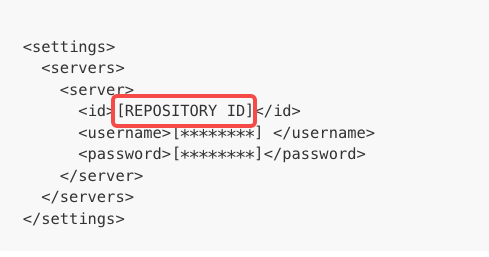
- View the repository ID in the settings.xml file, as shown in the example below.
-
Last updated: 2025.10.24 11:20:39
All rights reserved © Beijing Volcano Engine Technology Co., Ltd2024
