Intelligent Data Insight
Intelligent Data Insight


- Documentation
 Intelligent Data InsightDataWind User GuideData PreparationData ConnectionData WarehouseHive
 Copy page
 Download PDFCopy pageDownload PDF
Supports connecting to Hive to create datasets.
Before connecting to the database, collect the following information:
- The IP address and port number of the server where the database is located.
- The username and password for the database.
2.1 Create from data connection
(1) Log in to BytePlus, go to a specific project, click Data Preparation, find Data Connection in the dropdown list, and click Data Connection.
(2) On the page, select Hive.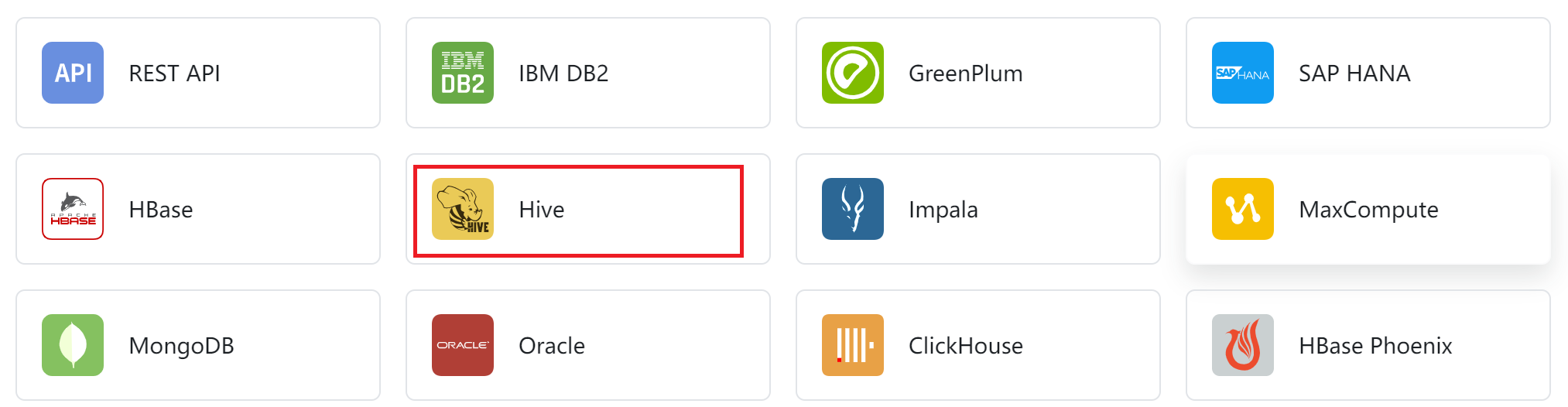
(3) Fill in the required basic information, test the connection, and after the connection is successful, click Save.
(4) After confirming that the basic information of the data connection is correct, you will have completed the data connection.
(5) You can use this connection as a data source to create a dataset: Click Data Preparation --> Dataset, then click the "New" button in the upper left corner to create a new dataset.
(6) Search or select from existing connections, and choose the previously created data source.
2.2 Create from dataset
(1) Log in to BytePlus, click Data Preparation --> Dataset, and click the "New" button in the upper left corner to create a new dataset.
(2) When selecting a data connection, click "New Configuration."
The subsequent steps are the same as steps (2) and (3) in 2.1. After the upload is complete, you will remain in the pop-up window to select a data connection for the dataset, and you can proceed directly to the next step of dataset creation.
3.1 Authentication methods
There are two authentication methods: username and password, and Kerberos.
If Kerberos is selected as the authentication method
- The server, port, Keytab, and Krb5 are provided by the data provider.
- Principal
Here, Principal refers to the user-level principal, which can generally be viewed through the Keytab file. The command is (using dlcdp.Keytab as an example):
- mac:
ktutil --Keytab=dlcdp.Keytab list - linux:
klist -kt dlcdp.Keytab
Execution result on the Mac platform: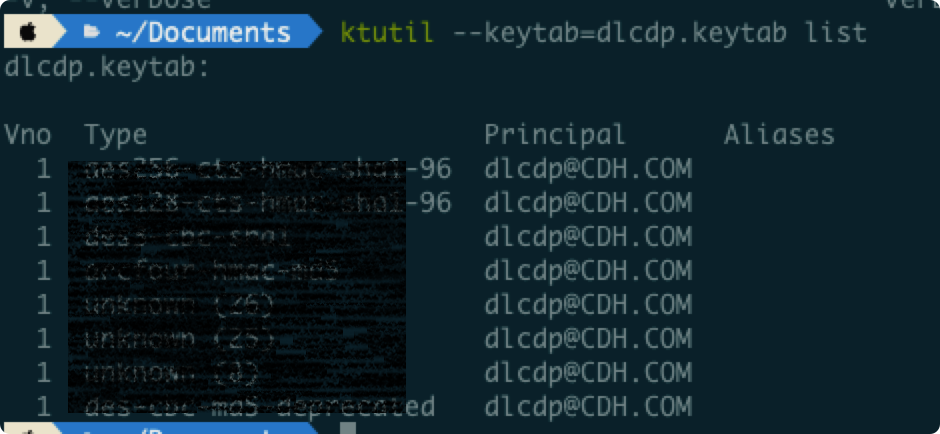
As shown above, the Principal corresponding to the dlcdp.Keytab file is dlcdp@CDH.COM.
3.2 Connection method
- JDBC connection string
When connecting to hive server2 (JDBC) using Kerberos, you must specify the hive Principal in the JDBC connection string. Here, Principal refers to the service-level principal for hive. The format of the connection string is as follows:
jdbc:hive2://<host>:<port>/<db>;Principal=HivePrincipal
You can determine the hive Principal by checking hive-site.xml. In general, the Kerberos-related configuration will look like this:
<property>
  <name>hive.server2.authentication</name>
  <value>Kerberos</value>
</property>
<property>
  <name>hive.server2.authentication.Kerberos.Principal</name>
  <value>hive/_HOST@YOUR-REALM.COM</value>
</property>
<property>
  <name>hive.server2.authentication.Kerberos.Keytab</name>
  <value>/etc/hive/conf/hive.Keytab</value>
</property>
The part highlighted in red can be summarized as: hive/ + hostname + @realm.
Caution: The _HOST position must use the hostname, not the IP address.
The realm is specified in the Krb5 file. For details, refer to the following sample Krb5 file:


Therefore, our Hive Principal is: hive/``cdh.com@CDH.COM.
- The JDBC connection method supports read acceleration configuration, which improves data extraction performance in single-table and custom SQL scenarios, making it comparable to the built-in Hive.
Note: SaaS products currently do not support JDBC connection string capability. Please use the IP/PORT method.
3.3 Read acceleration configuration
When a large amount of data needs to be extracted from Hive tables, it is recommended to enable the read acceleration configuration. In single-table, multi-table JOIN, and custom SQL scenarios, this can effectively improve data extraction performance, making it comparable to the built-in Hive.
Before enabling the read acceleration configuration switch, confirm and collect the following information:
- Confirm that the underlying file system of the Hive table is HDFS.
- Collect the IP address and port number of the HDFS NameNode corresponding to the underlying Hive table.
- Confirm that the Hive table to be synchronized is stored in Parquet or ORC format.
- If Kerberos authentication is enabled for the HDFS cluster, you also need to collect the Principal of the HDFS NameNode and upload the Keytab file and Krb5 file.
The Keytab file path and Principal can be found in the hdfs-site.xml file of the Hadoop cluster.
<property>
    <name>dfs.namenode.keytab.file</name>
    <value>/var/security/HDFS/hdfs.keytab</value>
</property>
<property>
    <name>dfs.namenode.kerberos.principal</name>
    <value>nn/_HOST@BYTED.COM</value>
</property>
In the above example, the path to the Keytab file is /var/security/HDFS/hdfs.keytab, and the format of the HDFS NameNode Principal is nn/ + NameNode hostname + @BYTED.COM. You can search for the corresponding format of the Principal in the Keytab file.
