Volcengine Managed Service for Prometheus
Volcengine Managed Service for Prometheus


Document

- Documentation
 Volcengine Managed Service for PrometheusBest practicesSelf-managed GrafanaDeploying Grafana on an ECS instance and integrating Grafana with a workspace
 Copy page
 Download PDF
Self-managed Grafana
Deploying Grafana on an ECS instance and integrating Grafana with a workspace
Copy pageDownload PDFDeploying Grafana on an ECS instance and integrating Grafana with a workspace
Grafana is a cross-platform open source tool for metric analysis and visualization. It supports visually querying and displaying collected data. This topic describes how to install Grafana in a cluster and integrate Grafana with a workspace of Volcengine Managed Service for Prometheus (VMP).
Background
You can install Grafana in a Volcengine Kubernetes Engine (VKE) cluster by using an open source image or deployment script. The following table describes the main differences between the two deployment methods.
Prerequisites
- A VMP workspace has been created, and basic authentication has been enabled. For details, see Creating workspaces.
- A VKE cluster is created and bound to the VMP workspace. For more details, refer to VKE integration.
- kubectl has been used to connect to the target cluster. For details, see Connecting clusters.
- When you use the script to install Grafana, you need to use wget, echo, curl, and sed in your local environment (Linux/Mac). Ensure that these command-line tools are installed on your system.
Procedure
tip
This topic briefly describes how to deploy Grafana in a VKE cluster, which does not involve the high availability configuration. If you require high availability, use an external database (such as MySQL or Postgres) to replace Grafana's embedded SQLite3 database. For more details, refer to the official documentation.
Step 1: Install Grafana by using an open source image
- Log in to the VKE console.
- In the top navigation bar, select the region where your business is located.
- In the left navigation pane, click Cluster. In the cluster list, click the target cluster name to go to the cluster details page.
- Click Workload > Resource Explorer in the left navigation pane. Click Create with Yaml to create a StorageClass (SC).
- Select Custom from the Type drop-down menu.
- Enter the YAML configuration in the Yamlfield.
- Click Workload > Resource Explorer in the left navigation pane. Click Create with Yaml to create a PersistentVolumeClaim (PVC).
- Select Custom from the Type drop-down menu.
- Enter the Yml configuration in the Yaml field.
- Click Workload > Deployment in the left navigation pane. On the page that appears, click Create with Yaml to create a workload of Grafana.
- In the left navigation pane, click Services and Ingresses > Service. On the page that appears, click Create with Yaml to create a Grafana service.
Step 2: Integrate a workspace data source
- Run the following command to configure Grafana port forwarding:
- Open a browser in your local environment (Linux/Mac), paste localhost:3000 into the address bar, and then press Enter to go to the Grafana login page. Log in to Grafana by using the default username admin and password admin.
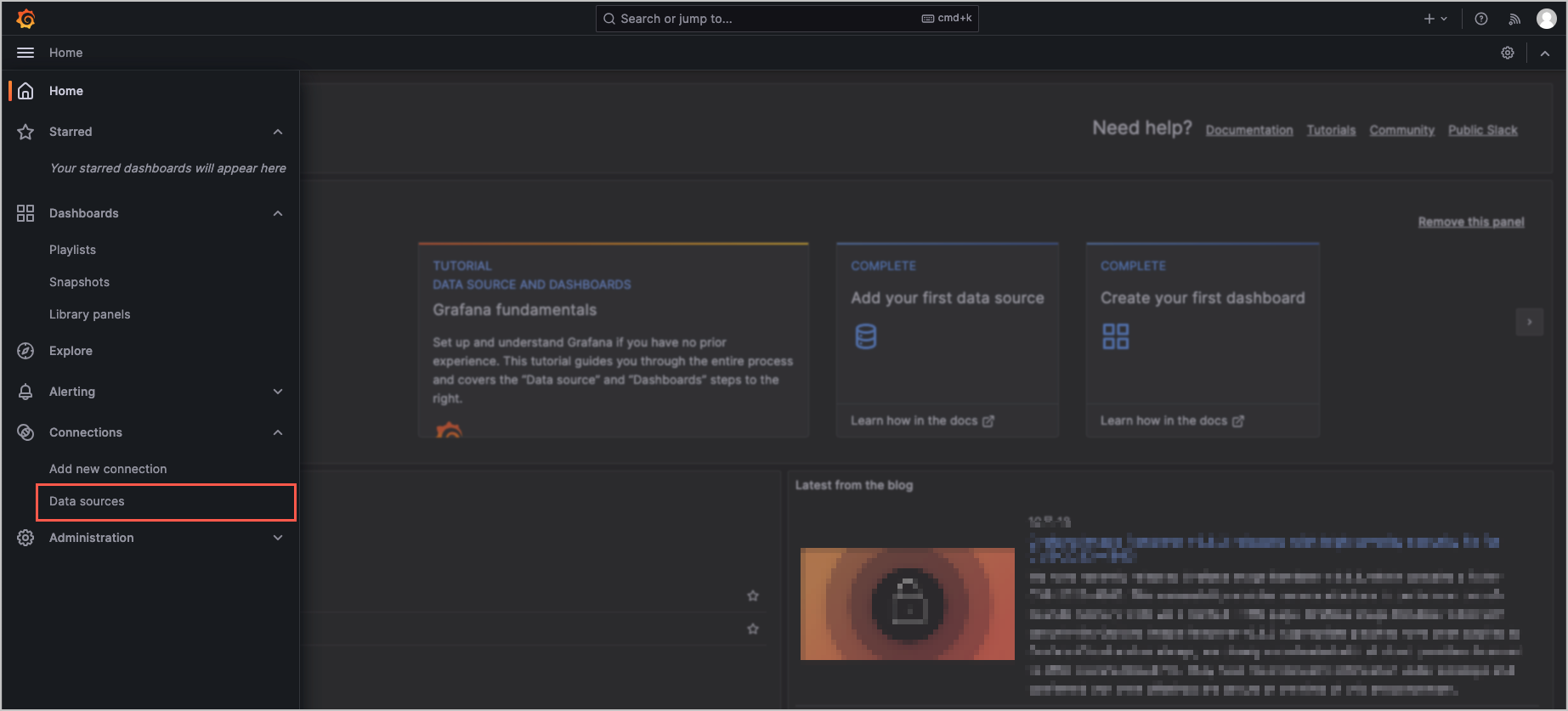
- Click Connections > Data sources in the left navigation pane.
-
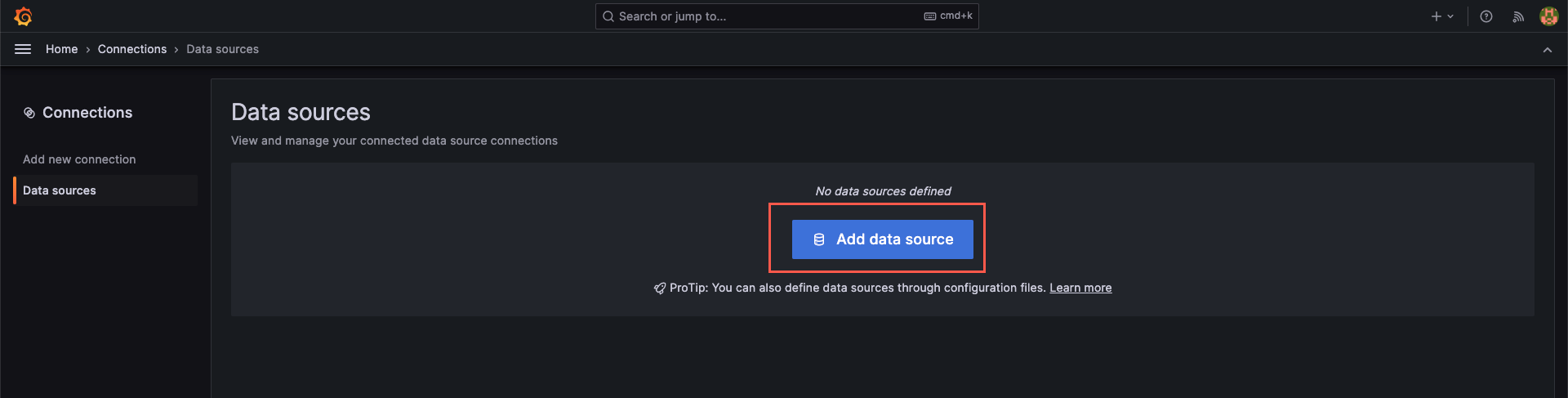
- Click Add data source to create a new data source.
-
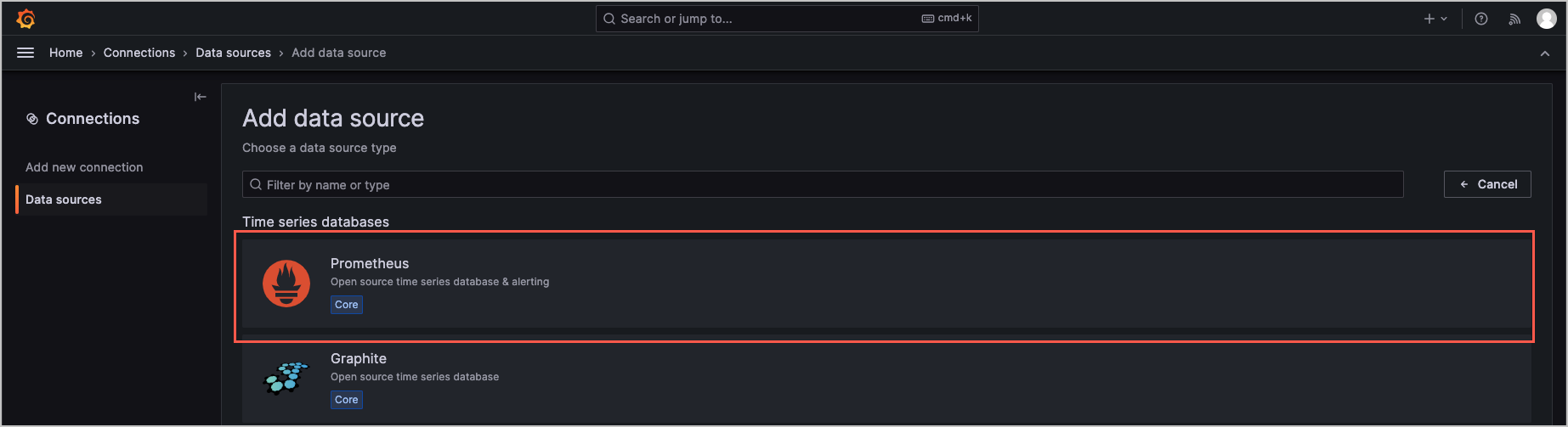
- On the Add data source page, click Prometheus.
-
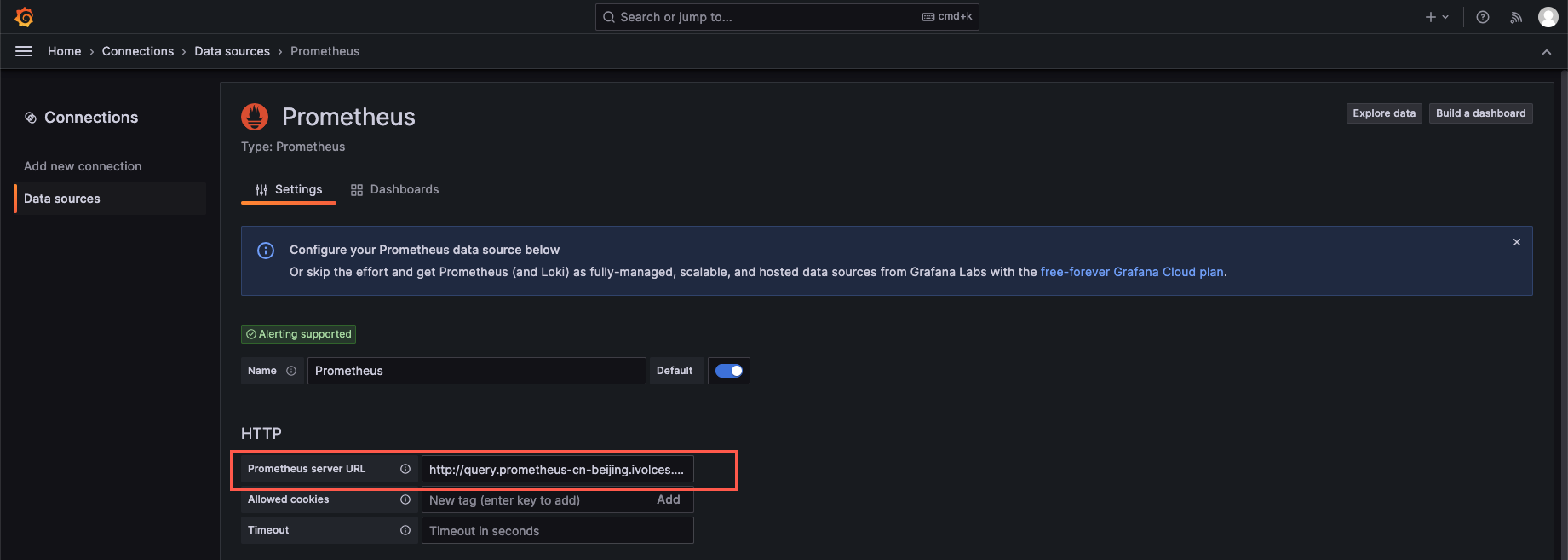
- In the HTTP section, paste the query URL of the workspace in the Prometheus server URL field.
-
- Switch on Basic auth in the Auth section and configure the username and password used for workspace authentication in the Basic Auth Details section.
-
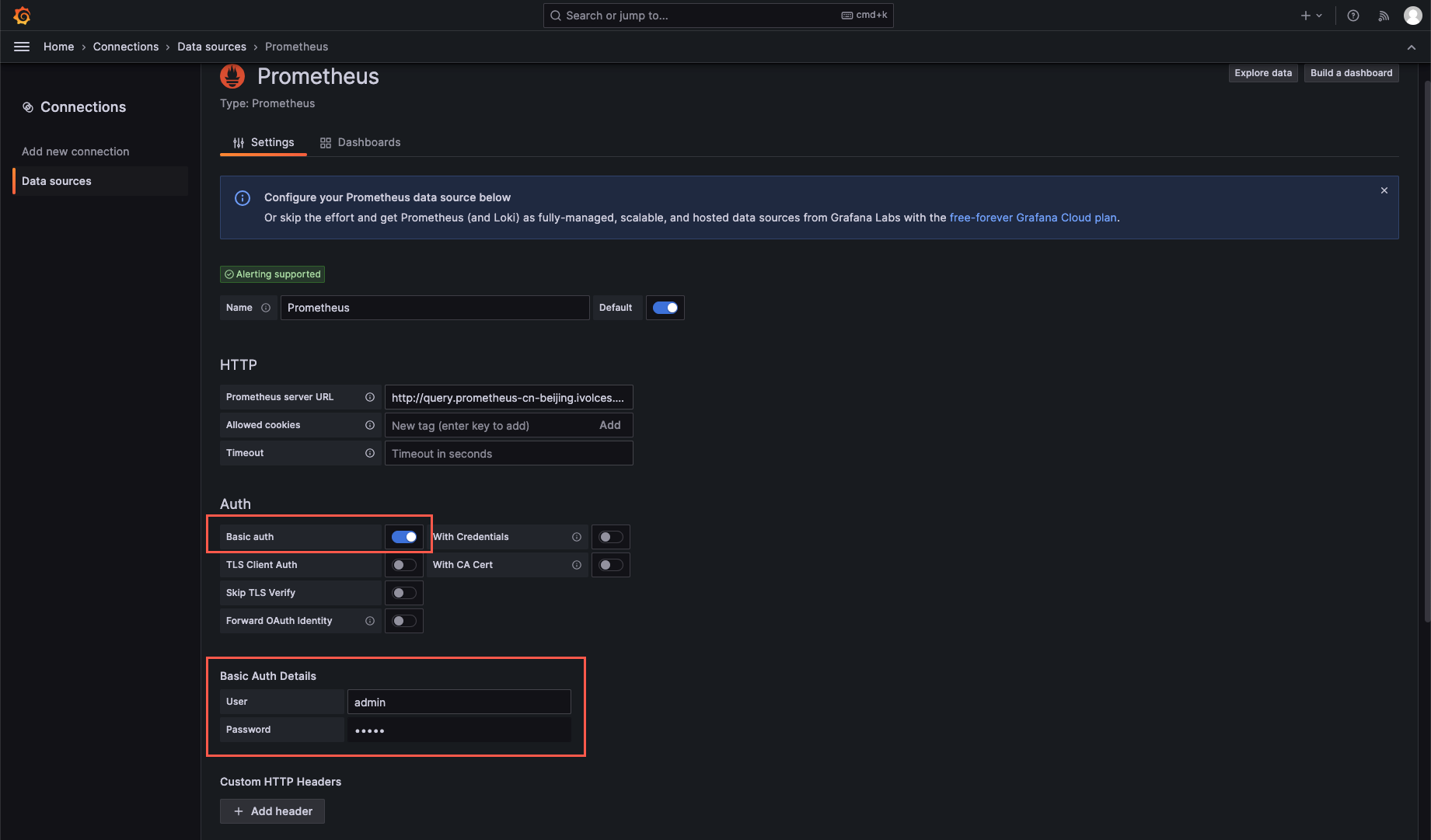
- Click Save & test at the bottom of the page. When the message Successfully queried the Prometheus API is displayed, it indicates the workspace is integrated with Grafana.
-

Step 3: Create a dashboard
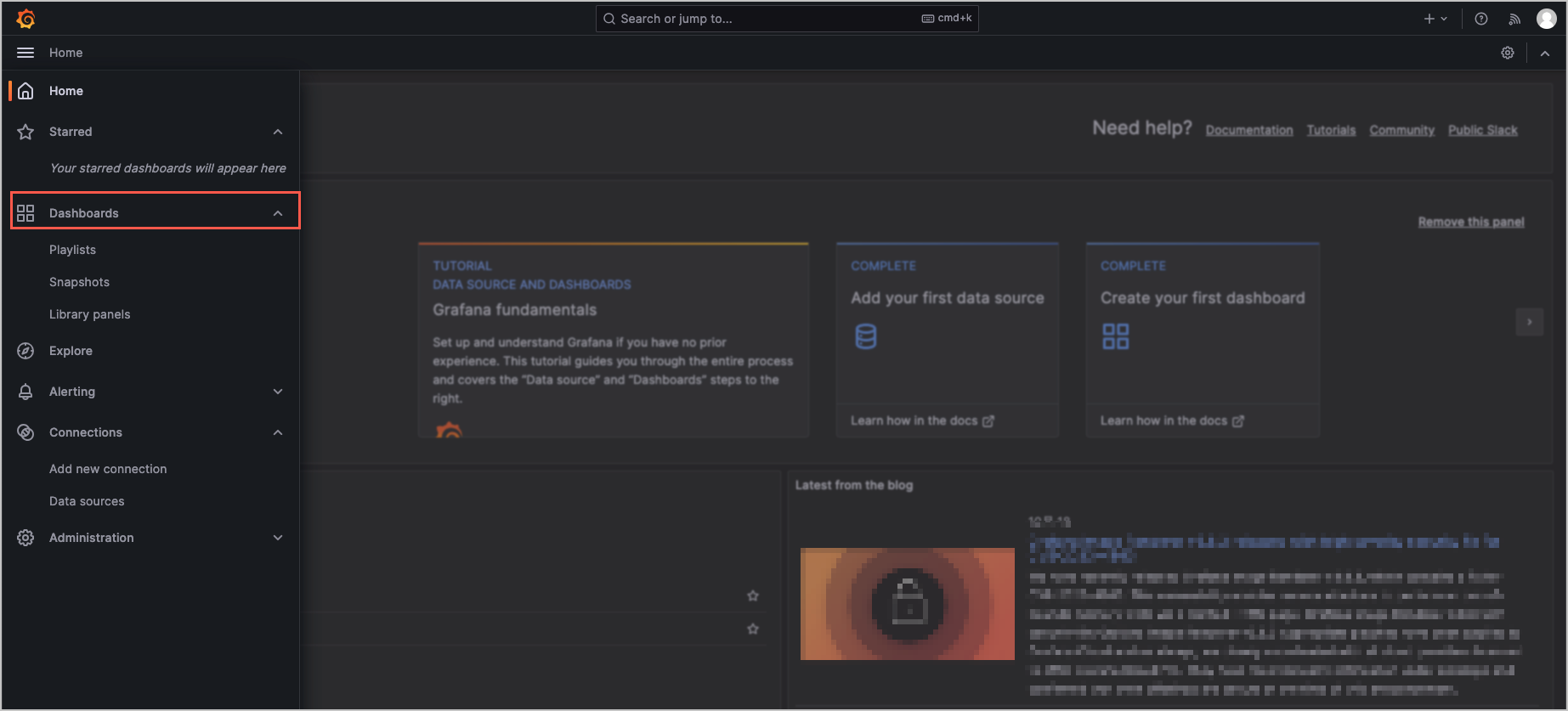
- Click Dashboards in the left navigation pane.
-
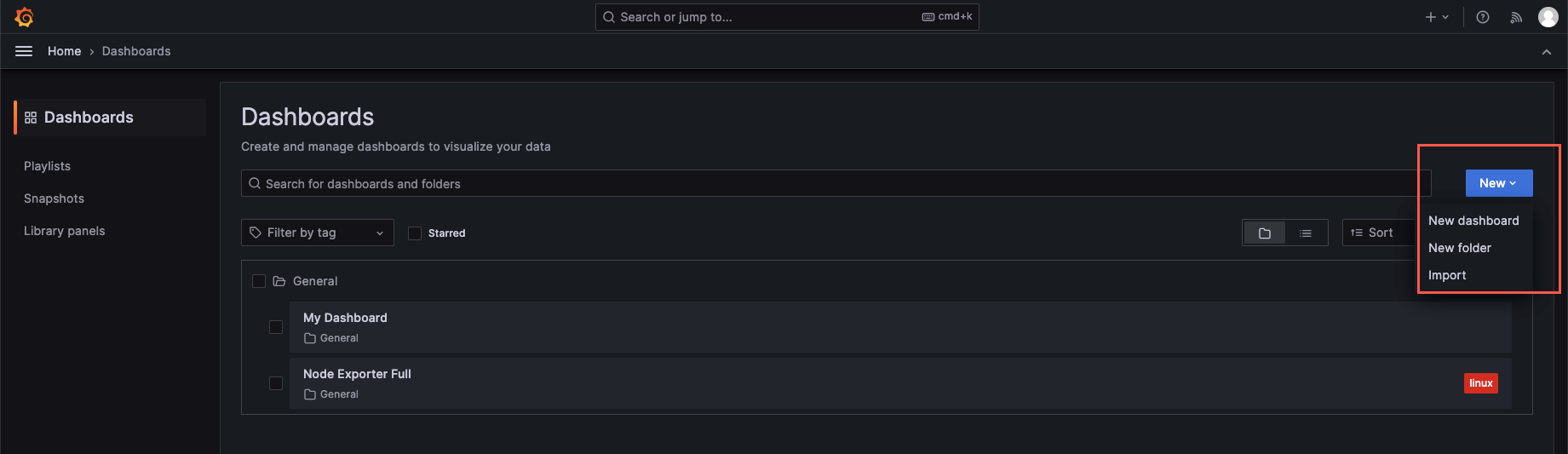
- Click New to create or import an observability dashboard.
-
Step 4: View a dashboard
- Click Dashboards in the left navigation pane.
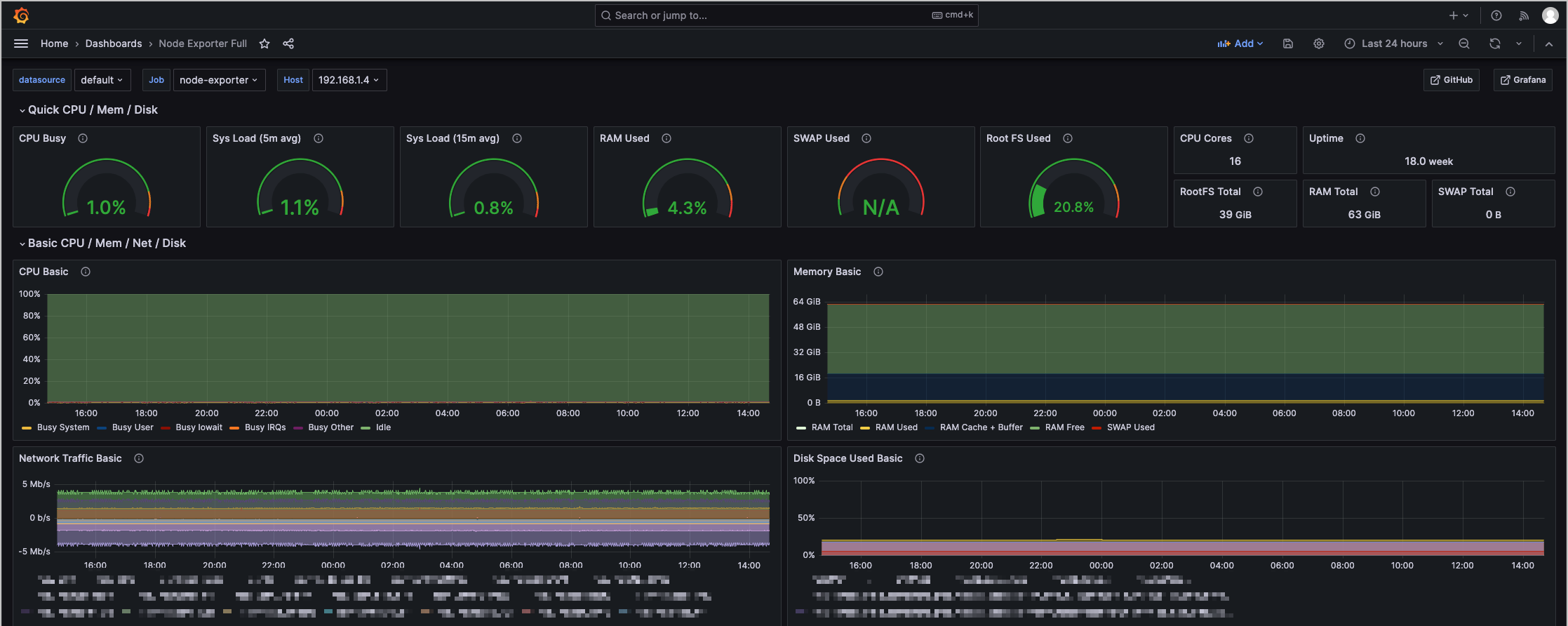
- Click the created dashboard to view monitoring information.
-
Other operations
Deploy Grafana by using the deployment script
Default specifications
The following table shows the default instance specifications when you use the script to deploy Grafana.
Instance Name | Default CPU Request | Default Memory Request | Default CPU Upper Limit | Default Memory Upper Limit |
grafana | 0.2 Core | 512 MiB | 1 core | 1 GiB |
Deploy Grafana (default configuration)
warning
You cannot modify or add authentication methods for Grafana that is deployed through the script. Confirm whether to use AK/SK authentication or basic authentication before deployment. If you need to modify the authentication method after deployment, you must first delete the deployed Grafana and redeploy it with the new authentication method. For more details, refer to Delete Grafana by using the deployment script.
You can use the deployment script to quickly deploy Grafana. You can perform the following steps to deploy the default configurations:
- Download the script in the local environment. For details, see Obtaining scripts.
- Use kubectl to connect to the cluster.
- Run the following command to deploy Grafana.
tip
This topic takes AK/SK authentication as an example. If you need to use basic authentication, you need to modify the values of the --access-key and --secret-key parameters to --basic-auth-username and --basic-auth-password. For more details, refer to the Use the --help parameter of the deployment script section of this topic.
Deploy Grafana (mount PVC)
You can mount a PVC in Grafana to achieve persistent storage. Procedure:
- Download the script in the local environment. For details, see Obtaining scripts.
- Use kubectl to connect to the cluster.
- Run the following command to deploy Grafana and mount a PVC:
tip
This topic takes AK/SK authentication as an example. If you need to use basic authentication, you need to modify the values of the--access-key and --secret-key parameters to --basic-auth-username and --basic-auth-password. For more details, refer to the Use the --help parameter of the deployment script section of this topic.
Use the deployment script to delete Grafana
When the configurations of Grafana are invalid or do not meet the requirements, you can use the script to delete the deployed Grafana.
- Use kubectl to connect to the cluster.
- Run the following command to delete the deployed Grafana:
Use the --help parameter of the deployment script
You can view all the predefined fields and their meanings in the installation script by using the --help parameter.
The following section describes the meanings and examples of different fields in the installation script.
Parameters | Description |
--query-url | |
--basic-auth-username | The username for basic authentication of the workspace. |
--basic-auth-password | The password for basic authentication of the VMP workspace. |
--access-key | The access key ID that is used in AK/SK authentication mode of the workspace. |
--secret-key | The secret access key used in AK/SK authentication mode of the workspace. |
--region | The region of the workspace, such as cn-beijing. |
--exec-script-env | The script execution environment, including:
|
--rendering-only | You can only view the installation list of Grafana and cannot install Grafana. |
--namespace | The namespace of Grafana. If you do not specify this parameter, the collector will be deployed in the volcano-metrics namespace by default. |
--storage-class | The type of PVC mounted in Grafana. |
--grafana-pvc-capacity | The capacity size of PVC mounted in Grafana. The value is an integer. Unit: Gi. For example, 20Gi indicates that the mounted storage size is 20 GB. |
Last updated: 2026.10.10 11:04:51
All rights reserved © Beijing Volcano Engine Technology Co., Ltd2024
