Volcengine Managed Service for Prometheus
Volcengine Managed Service for Prometheus


Document

- Documentation
 Volcengine Managed Service for PrometheusBest practicesResource and application monitoringMonitoring the veImageX Cloud Service
 Copy page
 Download PDF
Resource and application monitoring
Monitoring the veImageX Cloud Service
Copy pageDownload PDFMonitoring the veImageX Cloud Service
veImageX (also known as ImageX or Image Service) provides enterprise users with a flexible, efficient one-stop image processing solution. This article introduces how to use Volcengine Managed Service for Prometheus to monitor the veImageX service.
tip
Prerequisites
- Volcengine Managed Service for Prometheus, Elastic Compute Service, and veImageX service must be in the same region.
- A VMP workspace has been created. For details, see Creating workspaces.
- An Elastic Compute Service instance is created and bound to an Elastic IP Address. For more details, please refer to Purchasing An Instance.
- Installing the exporter requires your account's AK and SK; please obtain them in advance. For details, please refer to Access Key Usage Guide.
tip
ECS supports multiple types of operating systems. This article takes CentOS 7.9 as an example.
Configuration procedure
Step One: Configure a security group
- Log in to the VPC console.
- Click Security Group in the left navigation pane.
- Click Create Security Group in the security group list and configure the security group for the hosted collector. The security group will be bound to the Elastic Network Interface (ENI) of the pod for the hosted collector during the configuration of an integration task, which allows the hosted collector to access the specified target IP address ranges and ports.
- Click the VPC drop-down menu and select the VPC of the user.
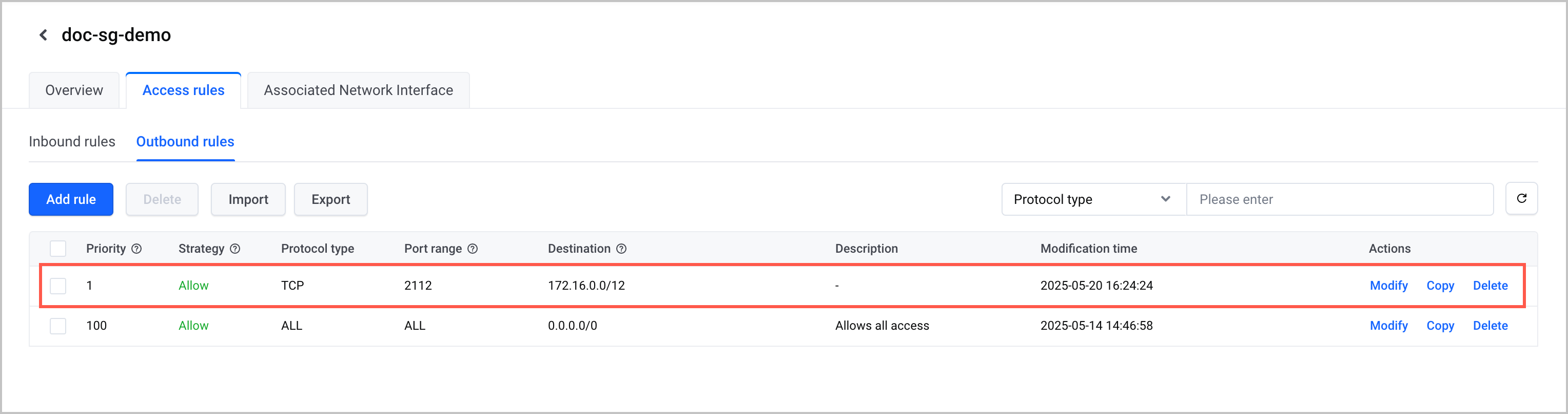
- In the Access Rules section, click the Outbound tab and click Add Rule. Then, configure the security rules for the hosted collector. The destination IP address is the subnet where the collection target is located, for example, 172.16.0.0/12. The port number is TCP port 2112.
-
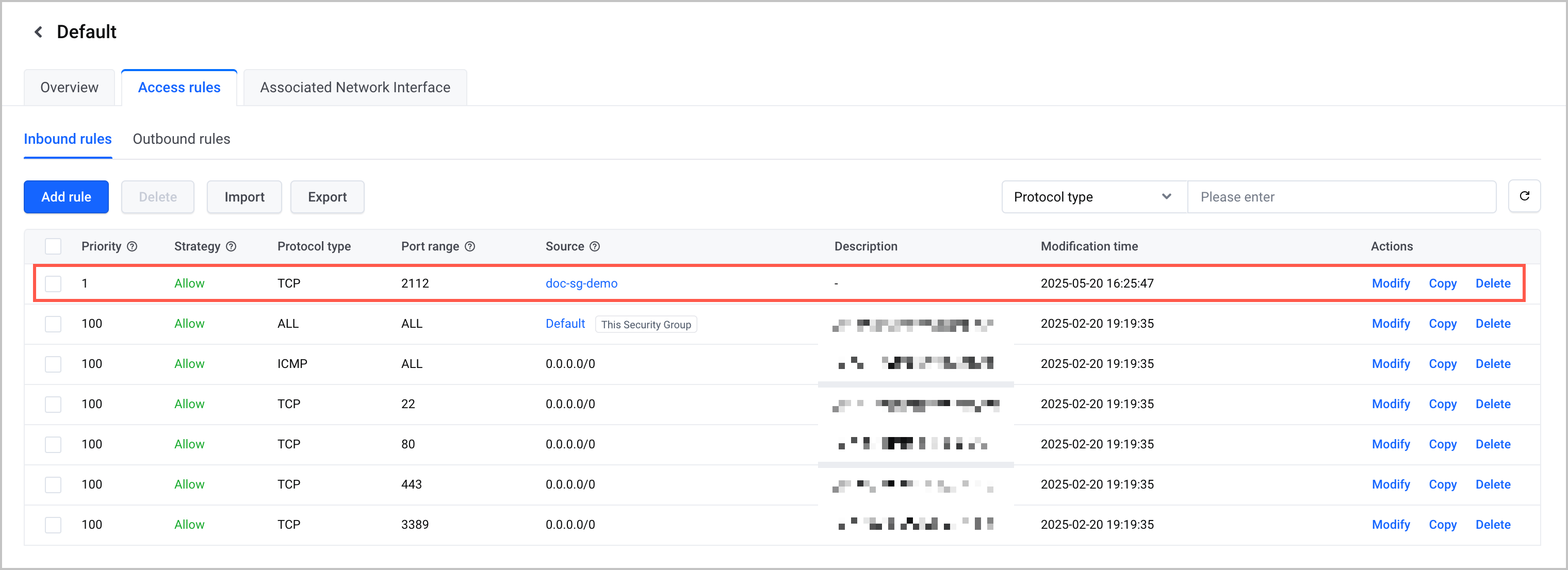
- Configure the security group used by the ECS instance. This topic uses the Default security group as an example. On the Inbound Rules tab, click Add Rule to add a rule to allow traffic on the metric collection port. Here, the source address refers to the security group of the collector configured in the above article, and the port is TCP 2112.
-
tip
You can also create a new security group and add both the hosted collector and the ECS instance to the new security group. In this case, you do not need to configure new access rules. The default outbound and inbound rules in the new security group allow mutual access between the hosted collector and the ECS instance.
Step Two: Deploy volc-exporter on the ECS instance
- Set up the Docker environment on the ECS instance to deploy the exporter used for metric collection.
- Download the volc-exporter.yml configuration file and complete the configuration of AK/SK, collection project, and other parameters in the configuration file. For details, please refer to Downloading and Configuring the exporter.
- Upload the volc-exporter.yml configuration file from local to the ECS instance. For uploading methods, please refer to Uploading Local Data.
- Execute the following command on the ECS instance to pull and deploy the exporter image from Docker Hub.
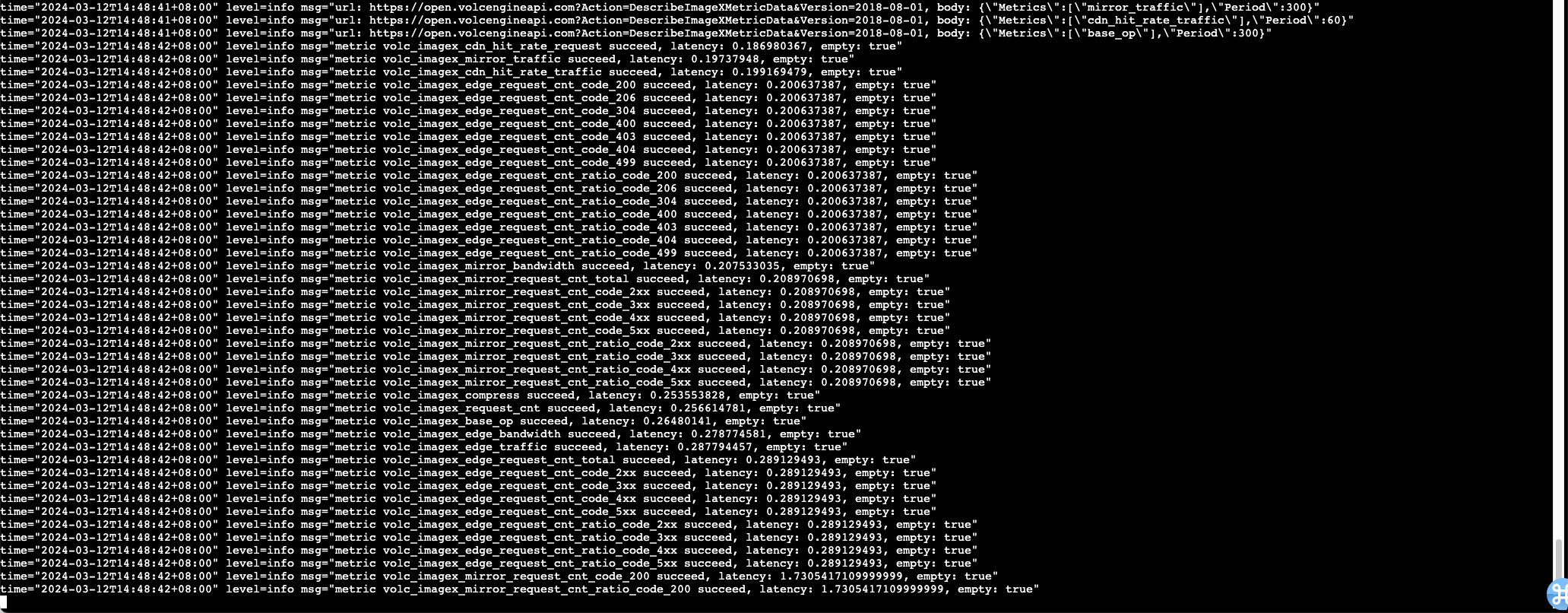
The expected feedback is as follows, indicating that the exporter can collect metrics correctly.
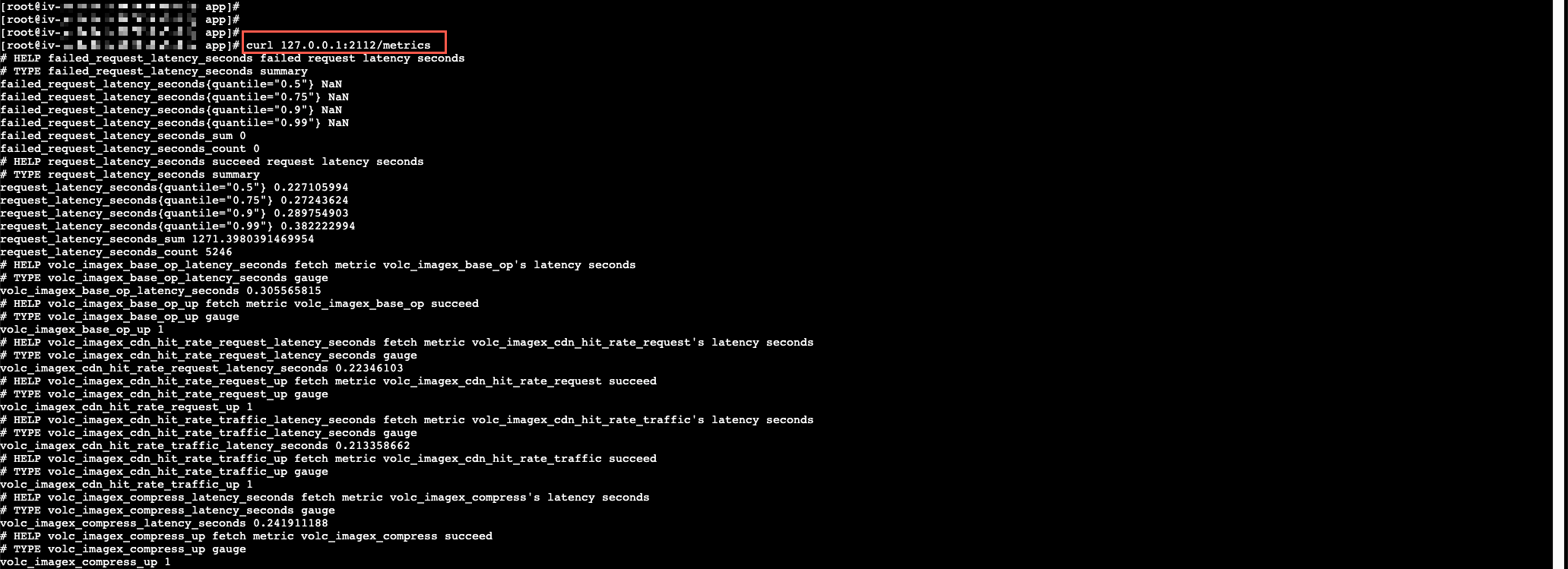
5. Execute the following command on the ECS instance to confirm the exporter is working properly and view the monitoring data.
The expected feedback is as follows, showing that monitoring data can be viewed normally, indicating the exporter is working properly.
Step Three: Configure an integration task
- Log in to the VMP console.
- In the top navigation bar, select the target region.
- Click Integration Center in the left navigation pane and click the Product Service tab.
- In the ECS section, click Create An Integration Task.
-
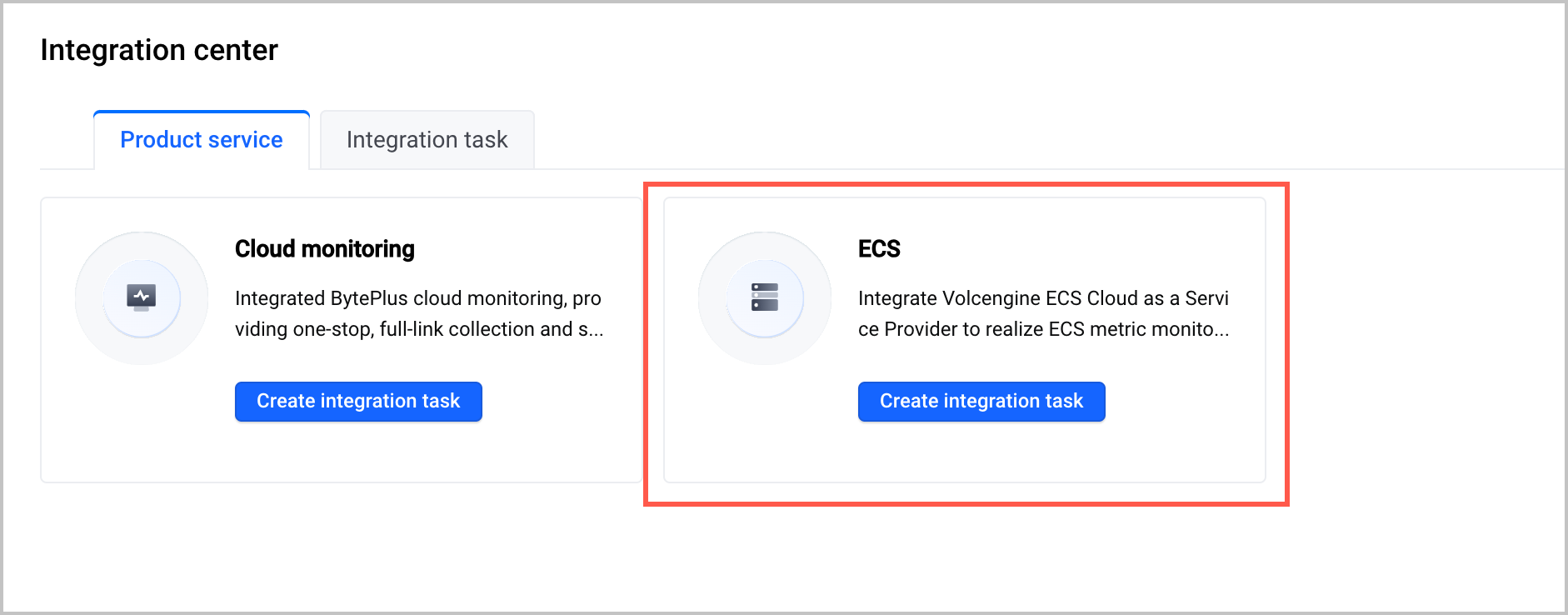
- (Optional) Service authorization.
- When you configure an ECS integration task for the first time, you need to grant permissions to allow VMP to access ECS and VPC. Click Authorize to configure service authorization.
- Click Authorize Now to authorize VMP to access other services.
- Configure the details of the integration task.
-
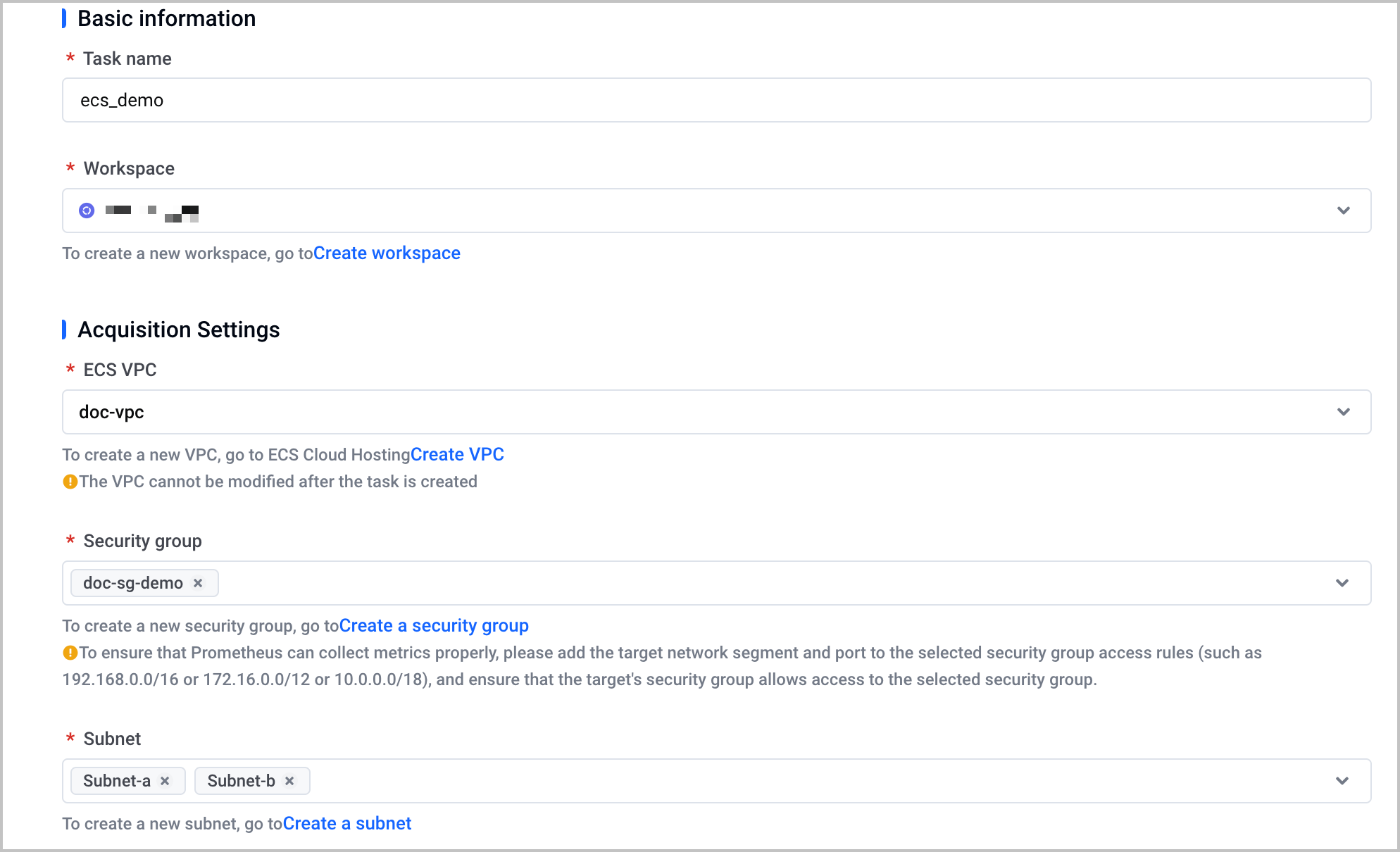
- ParameterDescriptionTask nameConfigure the name of the integration task. It can contain Chinese characters, letters (uppercase and lowercase), digits, and underscores (_), and must be 1 to 40 characters in length.workspaceSelect a created VMP workspace.ECS VPCSelect the VPC where the ECS instance is located.Security groupSelect the security group for the hosted collector to use, which allows the hosted collector to access resources in the VPC of the user. Multiple options can be selected.warningTo ensure that the hosted collector can properly collect the metrics of the ECS instance, add the target CIDR block and port to the outbound access rules of the selected security groups.SubnetSelect a VPC subnet for service discovery. The system performs ECS service discovery in the selected subnet and monitors all ECS instances that meet requirements. Multiple options can be selected.
- Configure the job and specify the collection interval and the port number for service discovery.
tip
- For more parameter descriptions, refer to ECS integration.
- The Job configurations will take effect about one minute after modification and deployment. Please wait patiently.
- Click Confirm to complete the configuration.
View results
After the configuration is complete, you can view the status and details of the task. Check whether the target ECS instance is integrated with VMP properly.
- Click Integration Center in the left navigation pane and click the Integration Task tab.
- In the task list, find the target task and click Target List in the Actions column to view the ECS instances that are automatically identified by the system and integrated into VMP.
View Information
Metric
You can quickly query and display metric data by using the Explore feature of VMP. For more details, refer to Querying metrics.
tip
Dashboard
You can self-build Grafana and view the metrics of the veImageX product and create dashboards through Grafana. It includes:
Alert
You can configure relevant alerts for veImageX in the Alert Center of Volcengine Managed Service for Prometheus. For details, see Creating alert rules.
Last updated: 2026.10.10 11:04:51
All rights reserved © Beijing Volcano Engine Technology Co., Ltd2024
