Volcengine Managed Service for Prometheus
Volcengine Managed Service for Prometheus


Document

- Documentation
 Volcengine Managed Service for PrometheusBest practicesResource and application monitoringMonitoring applications on ECS instances
 Copy page
 Download PDF
Resource and application monitoring
Monitoring applications on ECS instances
Copy pageDownload PDFMonitoring applications on ECS instances
When you deploy applications on ECS instances, you can integrate them with VMP to monitor the basic resources of ECS instances and your applications. This topic describes how to monitor applications deployed on ECS instances.
Background
When your applications (such as databases or middleware) are deployed on ECS instances, they may be distributed across one or more VPCs, and each VPC may contain multiple ECS instances. To ensure that applications run as expected, you need to achieve unified observability of these ECS instances, basic add-ons, and the applications.
Based on the characteristics of the applications themselves, VMP supports the following methods to achieve observability of ECS instances and applications:
- For cloud-native add-ons or applications that directly provide metrics ports that meet Prometheus requirements, they can be directly integrated with VMP to achieve metric observability.
- For some traditional applications and middleware that do not provide interfaces for Prometheus monitoring and do not support Prometheus data format. You can deploy corresponding exporters on ECS instances within the VPC, then integrate with VMP to complete service discovery and metric observability.
tip
- For the observability method of ECS instance resources themselves, please refer to Elastic Compute Service Access or Monitoring ECS Instances.
- This article takes RabbitMQ deployed on an ECS instance as an example to introduce how to observe applications deployed on ECS instances. For the method of setting up RabbitMQ on an ECS instance, please refer to Setting Up RabbitMQ.
Prerequisites
- VMP and ECS must be deployed in the same region.
- An ECS instance is created and bound to a public IP address. For more details, refer to Using the wizard to buy ECS instances.
- A VMP workspace has been created. For details, see Creating workspaces.
Procedure
Step One: Configure a security group
To ensure that the hosted collector can correctly collect the monitoring data of the ECS instance, you need to first configure a security group for metric collection. Procedure:
- Log in to the VPC console.
- Click Security Group in the left navigation pane.
- Click Create Security Group in the security group list and configure the security group for the hosted collector. The security group will be bound to the Elastic Network Interface (ENI) of the pod for the hosted collector during the configuration of an integration task, which allows the hosted collector to access the specified target IP address ranges and ports.
- Click the VPC drop-down menu and select the VPC of the user.
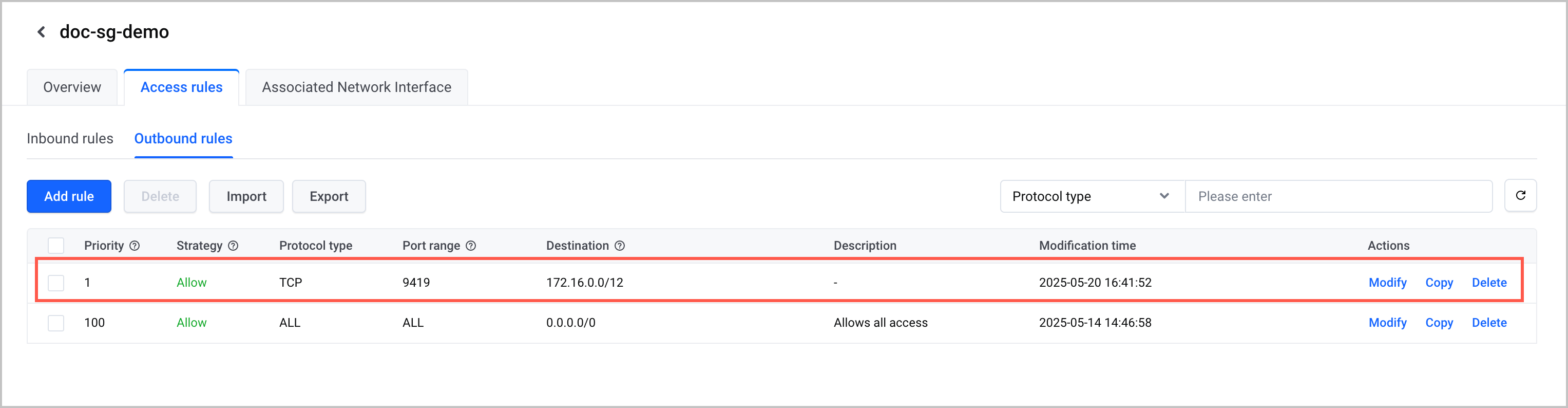
- In the Access Rules section, click the Outbound tab and click Add Rule. Then, configure the security rules for the hosted collector. Among which, the destination IP address is the subnet where the collection target is located, e.g., 172.16.0.0/12, and the port number is TCP protocol 9419 port.
-
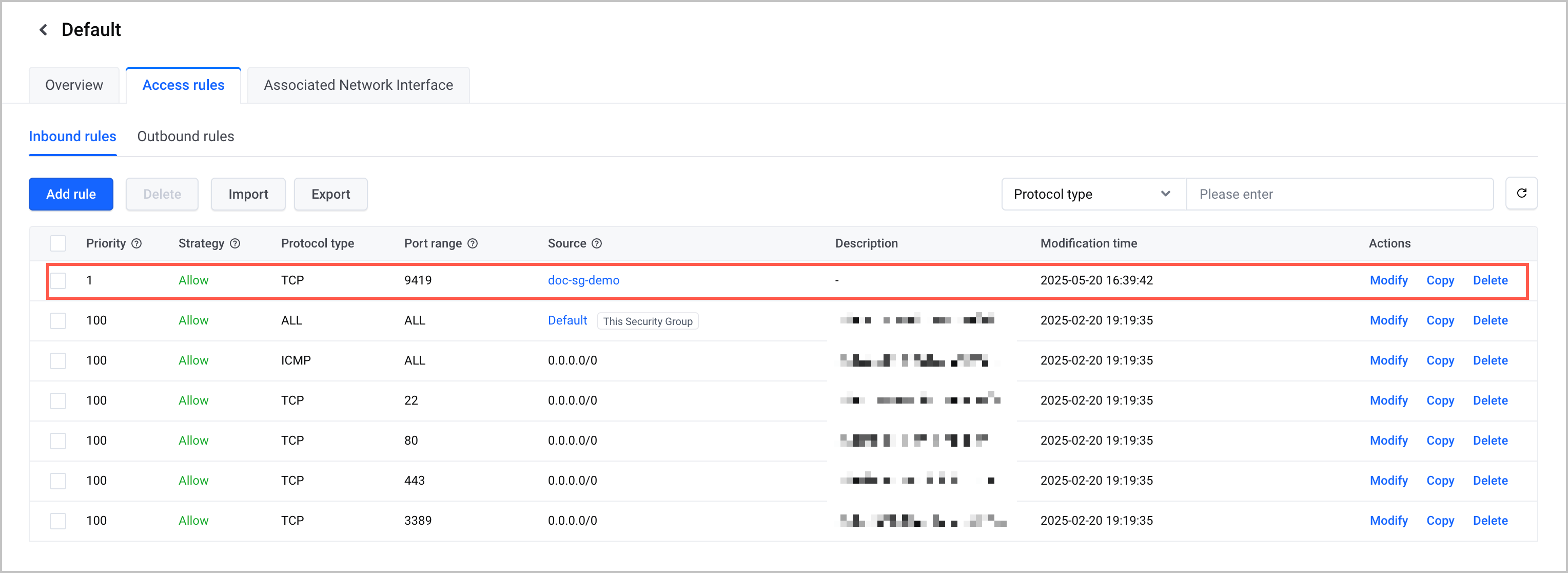
- Configure the security group used by the ECS instance. This topic uses the Default security group as an example. In Inbound rules, add a rule to allow traffic on the metric collection port. Among which, the source address will use the security group configured for the collector in the article, and the port type will be TCP 9419 port.
-
tip
You can also create a new security group and add both the hosted collector and the ECS instance to the new security group. In this case, you do not need to configure new access rules. The default outbound and inbound rules in the new security group allow mutual access between the hosted collector and the ECS instance.
Step Two: Deploy rabbitmq_exporter on the ECS instance
To ensure that the hosted collector can correctly collect the RabbitMQ metrics in the ECS instance, you need to install rabbitmq_exporter on the ECS instance.
- Log in to the ECS instance. For details, please refer to Log in to the Instance.
- run the following command to download rabbitmq_exporter.
- run the following command to unzip the rabbitmq_exporter installation package.
- Create the configuration file config.example.json for rabbitmq_exporter on the ECS instance and complete the configuration.
The content in the configuration file is as follows:
The parameters that need to be focused on and modified are shown in the table below.
Parameters | Description |
rabbit_url | IP address and port number of the ECS instance where RabbitMQ is located. As RabbitMQ and rabbitmq_exporter are deployed on the same ECS instance in this example, it is configured as http://127.0.0.1:15672. |
rabbit_user | The username for RabbitMQ log in. This user needs to have administrator or monitoring permission. For configuration methods, please refer to Setting up RabbitMQ. |
rabbit_pass | RabbitMQ login password. |
publish_port | RabbitMQ metric exposure port number is default 9419. |
tip
- Execute the following command to start rabbitmq_exporter.
The expected feedback result is as follows, indicating that rabbitmq_exporter can correctly collect metrics.

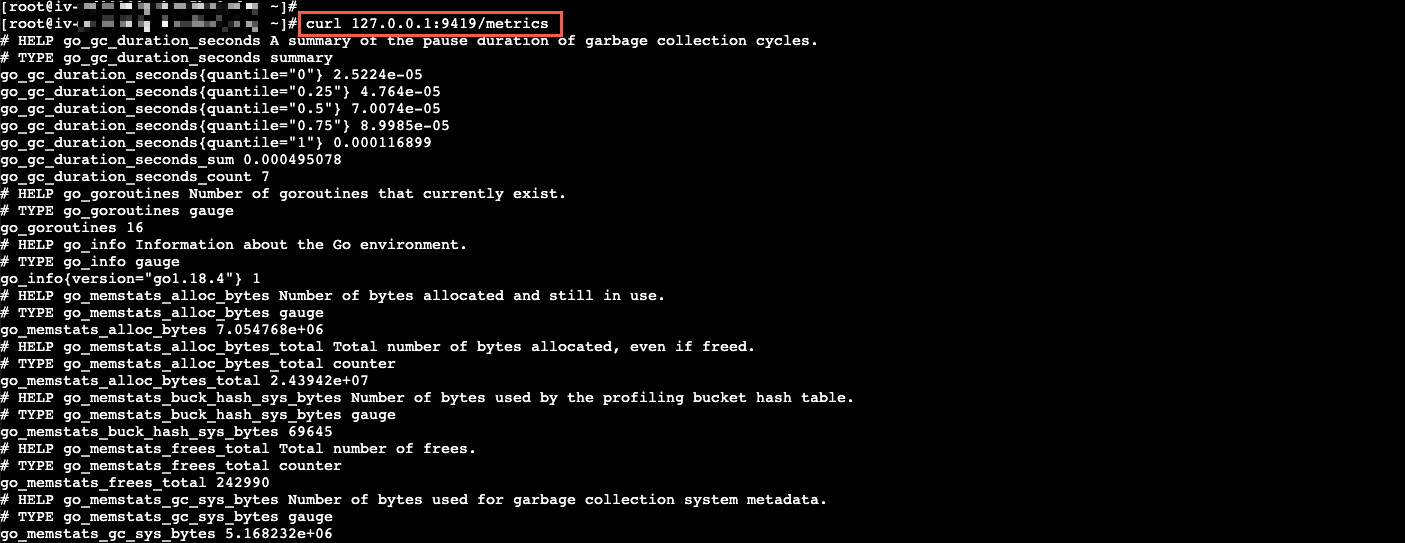
6. Execute the following command on the ECS instance to confirm that rabbitmq_exporter is working properly and to view the monitoring data.
The expected feedback result is as follows, and monitoring information can be viewed normally, indicating that rabbitmq_exporter is working properly.
Step Three: Configure an integration task
- Log in to the VMP console.
- In the top navigation bar, select the target region.
- In the left navigation pane, click Integration Center > Component. On the page that appears, click ECS custom collection.
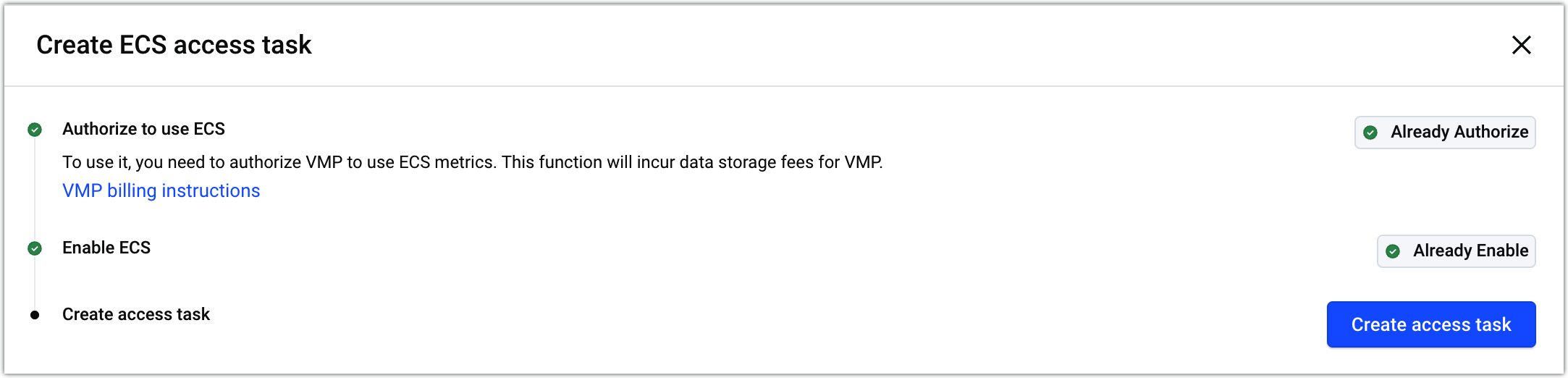
- In the Create ECS access task panel, click Create access task.
-
- (Optional) Service authorization.
- When you configure an ECS integration task for the first time, you need to grant permissions to allow VMP to access ECS and VPC. Click Authorize to configure service authorization.
- Click Authorize Now to authorize VMP to access other services.
- Specify the details of the integration task.
-
tip
After the integration task is configured, the system automatically creates an elastic network interface (ENI) in the target VPC to connect the collector with the VPC. The system binds this ENI to the subnet and security group specified in the preceding configuration. You can go to the Network Interface page in the VPC console to view the ENI whose name starts with catena_vmagent. For more information about ENIs, see Network interface overview.
- Configure the job and specify the collection interval and the port number for service discovery.
tip
- For more parameter descriptions, refer to ECS integration.
- The Job configurations will take effect about one minute after modification and deployment. Please wait patiently.
- Click Confirm to complete the configuration.
View results
After the configuration is complete, you can view the status and details of the task. Check whether the target ECS instance is integrated with VMP properly.
- Click Integration Task in the left navigation pane. Then, click the Managed environment tab.
- Click the name of the target task to view task details.
View Information
Metric
You can quickly query and display metric data by using the Explore feature of VMP. For more details, please refer to Query Metrics.
tip
Dashboard
You can build your own Grafana and view RabbitMQ metrics and create dashboards through Grafana. It includes:
Alert
You can configure relevant alerts for RabbitMQ in the Alert Center of VMP. For details, see Creating alert rules.
Last updated: 2026.10.10 11:04:51
All rights reserved © Beijing Volcano Engine Technology Co., Ltd2024
