Volcengine Managed Service for Prometheus
Volcengine Managed Service for Prometheus


Document

- Documentation
 Volcengine Managed Service for PrometheusUser guideAlert centerNotification templateCreating a notification template
 Copy page
 Download PDF
Notification template
Creating a notification template
Copy pageDownload PDFCreating a notification template
Volcengine Managed Service for Prometheus (VMP) allows you to configure custom notification templates. You can specify the structure and fields of alert notifications in notification templates. This topic describes how to create a notification template.
tip
The new Alert Center is available. It provides comprehensive upgrades and optimizations for features such as notification policies, notification templates, aggregation policies, and suppression policies. We recommend configuring notification templates in the new Alert Center.
Background
When an alert that matches an alert rule is triggered, VMP sends alert notifications by email, Feishu, DingTalk, phone, and webhook. The system has preset notification templates for various notification methods, but if the preset notification templates cannot meet your business requirements, you can configure custom notification templates.
Notification templates allow you to use and Go template syntax to write and render notifications. Before you configure a custom notification template, you need to understand the common Go template syntax.
tip
For variable parameters and sample responses of VMP alerts mentioned in this topic, refer to Variable structure and parameters.
Limits
Up to 100 notification templates can be created within a root user and its Identity and Access Management (IAM) users.
Common Go template syntax
Character .
The . character is used to render the specified object within the current scope.
Example 1: Obtain all contents within the top-level scope, which are all contents in an alert notification.
The following sample code shows the expected response result: All contents in the alert notification are the output.
Example 2: Obtain the Region field in an alert notification.
The following sample code shows the expected response result:
Variable
Variables are used to store input data, and after data is passed into variables, the entire template can access the data by using the variables. For example, if you use $alert as a variable in {$alert := .Alerts} to save all contents in an alert notification, you can use {{$alert}} to access the variable.
Example: Save the name of an alert rule in $alertrulename, and then output $alertrulename.
The following sample code shows the expected response result:
Conditional statement
The conditional statement if/else uses if to check the data. If the condition is not met, the content of else is executed. The if statement returns false when the evaluation condition is a null value, 0, nil, an empty string, or a zero-length string.
Example: If the .Level value in an alert notification is P0, P0 Alert is the output.
The following sample code shows the expected response result:
Comparison function
The comparison function is used to compare the data size. It is often used together with if/else statements to determine the execution of statements. The following table shows commonly used comparison functions.
Function Name | Descriptions |
eq | Equal to |
ne | Not equal to |
lt | Less than |
le | Less than or equal to |
gt | Greater than |
ge | Greater than or equal to |
Example: If the value of .Level is equal to P0, P0 Alert is the output.
The following sample code shows the expected response result:
Logical function
Logical functions primarily include and, or, and not, which are used to perform logical negation, conjunction, and disjunction across multiple conditions.
Example: If the value of Region is cn-beijing and the value of Level is P0, Beijing P0 alert is the output.
The following sample code shows the response result:
Common built-in functions
The following table describes the common Go template built-in functions.
Function Name | Descriptions | Example |
len | Obtains the length of an array. | Obtain the length of the Alerts array. The following section shows the expected response result: |
Limits
- You cannot configure the background colors of titles in notifications, which are automatically specified by the system. Red indicates that an alert is triggered, and green indicates that an alert is cleared.
- You cannot configure the buttons in notifications. The View details button is fixed for redirecting to the alert list.
- The title and content of a notification can be up to 16,000 bytes in length in UTF-8 encoding. If the upper limit is exceeded, the alert notification will be truncated.
Procedure
- Log in to VMP console.
- In the top navigation bar, select the target region.
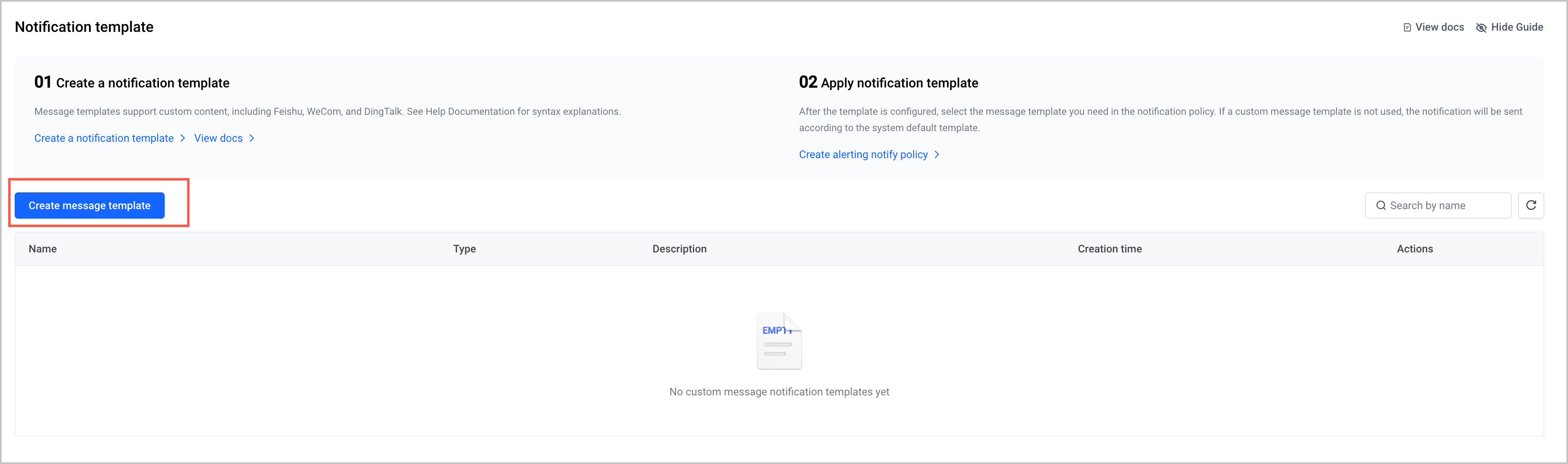
- In the left navigation pane, click Alert Center > Notification message template. On the page that appears, click Create message template.
-
- Click the Alerting notification or Alerting restoration notification tab, and specify the parameters of the template.
-
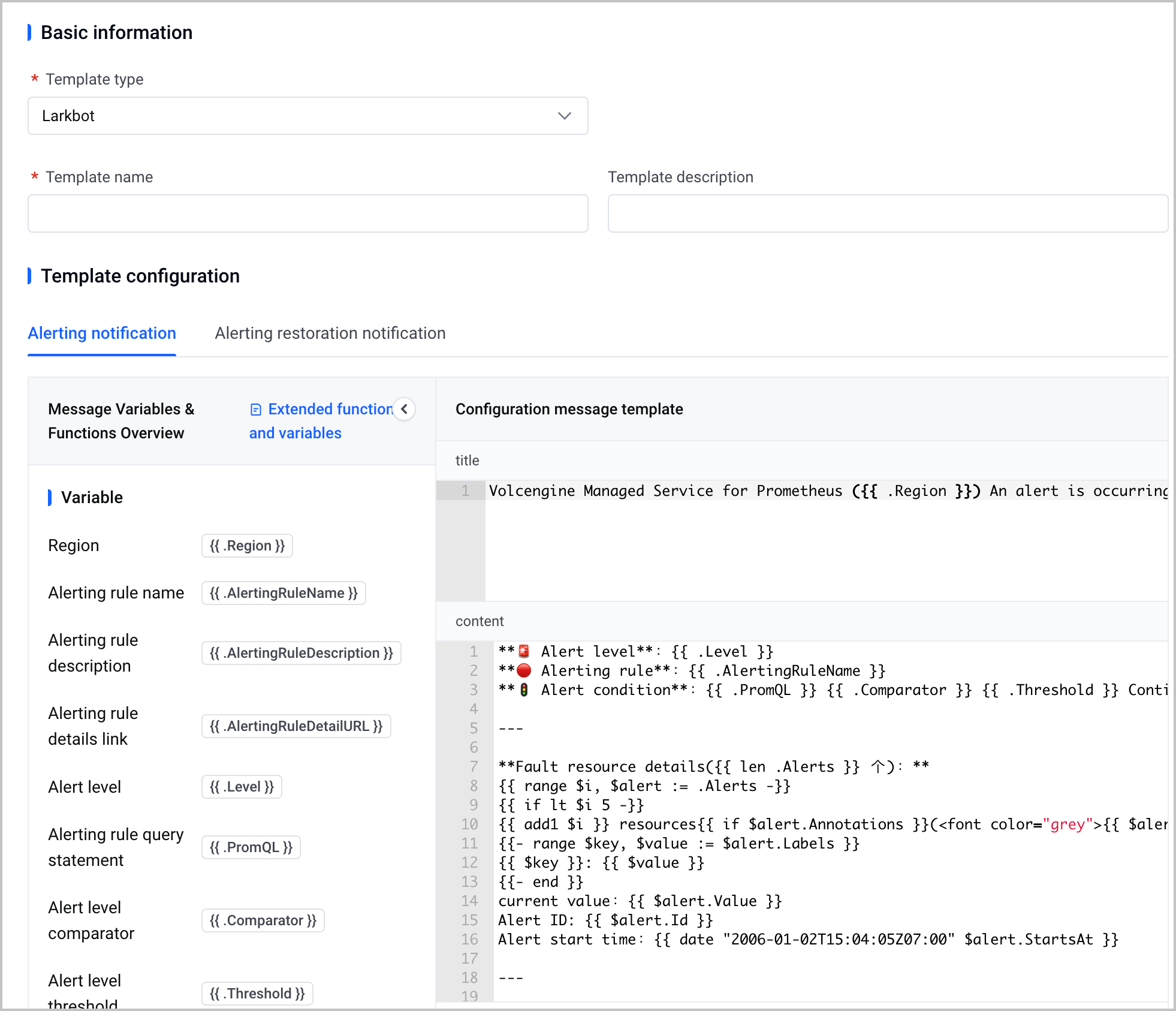
- ParameterDescriptionsTemplate typeSelect the type of notification template. Supported types include Email, Feishu bot, Feishu application bot, DingTalk bot, WeCom bot, and SMS.Template nameSpecify the name of the notification template. The name must be unique in a region.Template descriptionSpecify the description of the notification template. The description can be up to 128 characters in length.Template configurationYou can configure alerting notification and alert restoration notification templates by using Markdown syntax and Go template syntax, including the title and content of the notification.
- Title: Configure the title of the alert notification. It can contain any UTF-8 characters.
- Content: Configure the alert notification content. It can contain any UTF-8 characters.
tip- For the detailed explanation of the preset template, refer to the Template example description section of this topic.
- If you want to specify custom structure and fields of the template, refer to Extension functions and variables.
- (Optional) Click Reset to restore the template content to the default settings.
- Click Submit to complete the configuration.
What to do next
After you create a custom Feishu notification template, you can reference this template in an alert notification policy. For details, see Creating alert notification policies.
Template example description
In the notification template console, a sample Feishu notification template is preset for you, which consists of a title and content. This section uses the preset alerting notification template as an example to introduce the parameters and meanings of the sample template.
Title description
The following sample code shows the title of the sample template:
In the title of the sample template, the Region field is used to obtain information about the region where an alert is triggered, and fill the region information in the alert title.
Content description
The content of the sample template consists of alert overview and failed resource details.
- Alert overview: displays the alert rule (including link), alert level, alert conditions, and duration. It is implemented by the following code:
-
tip
In Markdown syntax:
- Add ** before and after a sentence to indicate that the sentence is in bold format.
- []() indicates a link, where [] contains the link text and () contains the URL.
- Failed resource details: displays the alert details of each failed resource. It is implemented by the following code:
-
- Template contentDescriptionsSpecify the $alertCount and $maxAlerts variables.
- $alertCount: The number of failed resources in the alert notification obtained through the len function.
- $maxAlerts: The maximum number of resources to display. The default value is 10, which indicates that the details of up to 10 failed resources can be displayed.
When the number of failed resources is less than the value of the $maxAlerts parameter (default value: 10), the details of all failed resources are recursively displayed.tipThe details of failed resources are obtained by the .Alerts.Labels field. For parameter meanings and data structure, refer to Variable structure and parameters. The labels may vary based on different resources.When the number of failed resources exceeds the value of $maxAlerts (10 by default), resource details are not displayed. You are prompted to go to the console for full details.
Message example
The following figure shows the actual result when you use a custom template.
Last updated: 2026.07.10 11:37:26
All rights reserved © Beijing Volcano Engine Technology Co., Ltd2024
