Volcengine Managed Service for Prometheus
Volcengine Managed Service for Prometheus


Document

- Documentation
 Volcengine Managed Service for PrometheusUser guideWorkspaceThrottlingConfiguring rate limiting for IAM users or roles
 Copy page
 Download PDF
Throttling
Configuring rate limiting for IAM users or roles
Copy pageDownload PDFConfiguring rate limiting for IAM users or roles
Traffic control allows the root account to allocate and manage workspace traffic for IAM users or roles. This topic describes how to configure traffic control for a workspace.
Background
VMP workspaces support fine-grained rate-limiting configuration based on IAM users or roles. When a workspace is shared by multiple organizations (departments) within an enterprise, if the read QPS of a particular IAM user or role is too high, other access parties may be unable to query data properly. By configuring rate-limiting policies for different IAM users or roles, you can effectively control the traffic of each access party and ensure stable read access to the workspace.
Prerequisites
A Volcengine Managed Service for Prometheus (VMP) workspace has been created. For more details, refer to Creating workspaces.
Limits
Workspace instance type | Supported rate limiting targets | Configurable items |
General-purpose workspace | IAM user, role | QPS, series scan count per second, sample scan quota per second |
Aggregation workspace | IAM user, role | QPS |
Local workspace | IAM user, role | QPS |
Procedure
Step 1: Configure IAM users or roles
Configure IAM users
Before configuring traffic control, you need to create an IAM user and use the permission control system to grant the IAM user read access to the workspace. Procedure:
- Log in to the IAM console.
- Click Permission policy in the left navigation pane and click Create Policy.
- Click the JSON editor tab, and use the following code to configure the read and write permissions on the specified workspace. Here, Workspace/agg-37860d39*** and Workspace/939525b7-617*** are workspace IDs. You can view the corresponding IDs on the workspace details page.
-
- In the left navigation pane, click User management > User. On the page that appears, click Create New User to create a user.
- Bind the policy created in the previous step to the IAM user.
tip
- After the IAM user is configured, you can use this user to query data in the workspace. Here:
- The query endpoint is the same as that used by the root account. For details, see Obtaining workspace addresses.
- To query data using the IAM user's AK/SK, see Using the Go language to query and write data in workspaces..
- To query data using BasicAuth, configure username as the AccessKeyID and password as the SecretAccessKey.
Configure roles
Before configuring traffic control, you need to create a role and use the permission control system to grant the role read access to the workspace. Procedure:
- Log in to the IAM console.
- In the left navigation pane, select Role management, then click Create role.
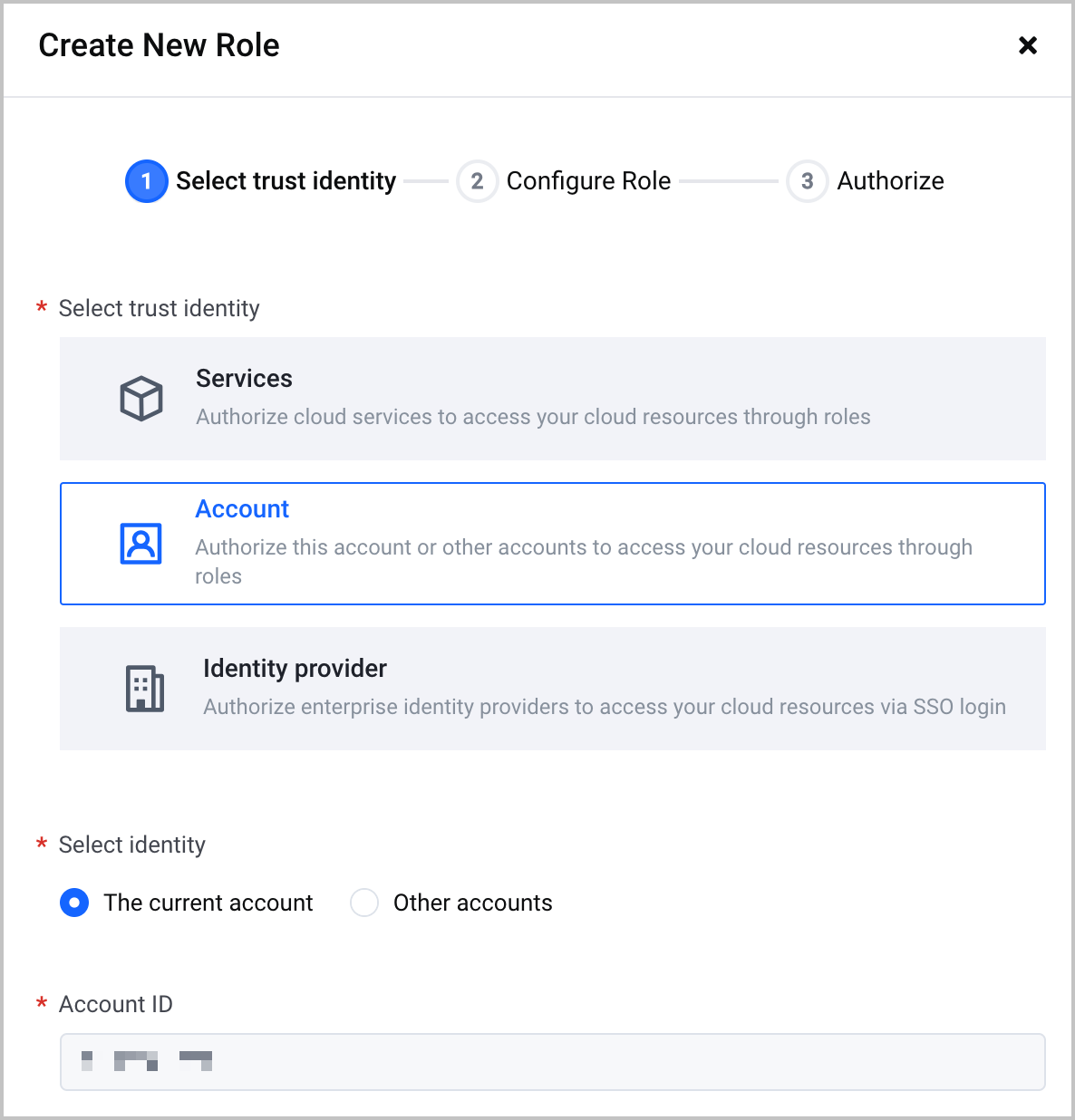
- Set the Select trust identity parameter to Account, set the Select identity parameter to The current account, and then click Next.
-
- Specify the Role name parameter and click Next.
- Select a permission policy that includes query permissions for the target workspace (such as VMReadOnlyAccess), and then click Submit.
Step 2: Configure throttling
When different organizations (departments) within an enterprise use different IAM users or roles to query data in the same workspace, you can configure traffic control for the workspace to assign different permissions to different organizations. The procedure is as follows:
- Log in to the VMP console.
- Click Workspaces in the left navigation pane. Select the target workspace from the workspace list, and click the workspace name to enter the workspace details page.
- Click Traffic control in the left navigation pane, and view the traffic configuration of the workspace on the right side.
- Click Add traffic configuration to configure the traffic quota for IAM users or roles in the workspace, and then click Confirm. The configuration items and descriptions are as follows:
- ParameterDescriptionRate limiting targetSelect the access identity for which you want to configure the rate limiting rule. Supports rate-limiting configuration by IAM user or role.Query QPSConfigure the number of query requests that the IAM user or role is allowed to initiate per second. Requests will be rate-limited once the quota is exceeded.Series scan quota per secondConfigure the number of time series that the IAM user or role is allowed to scan per second. This is supported only for general-purpose workspaces.Sample scan quota per secondConfigure the number of samples that the IAM user or role is allowed to scan per second. This is supported only for general-purpose workspaces.
-
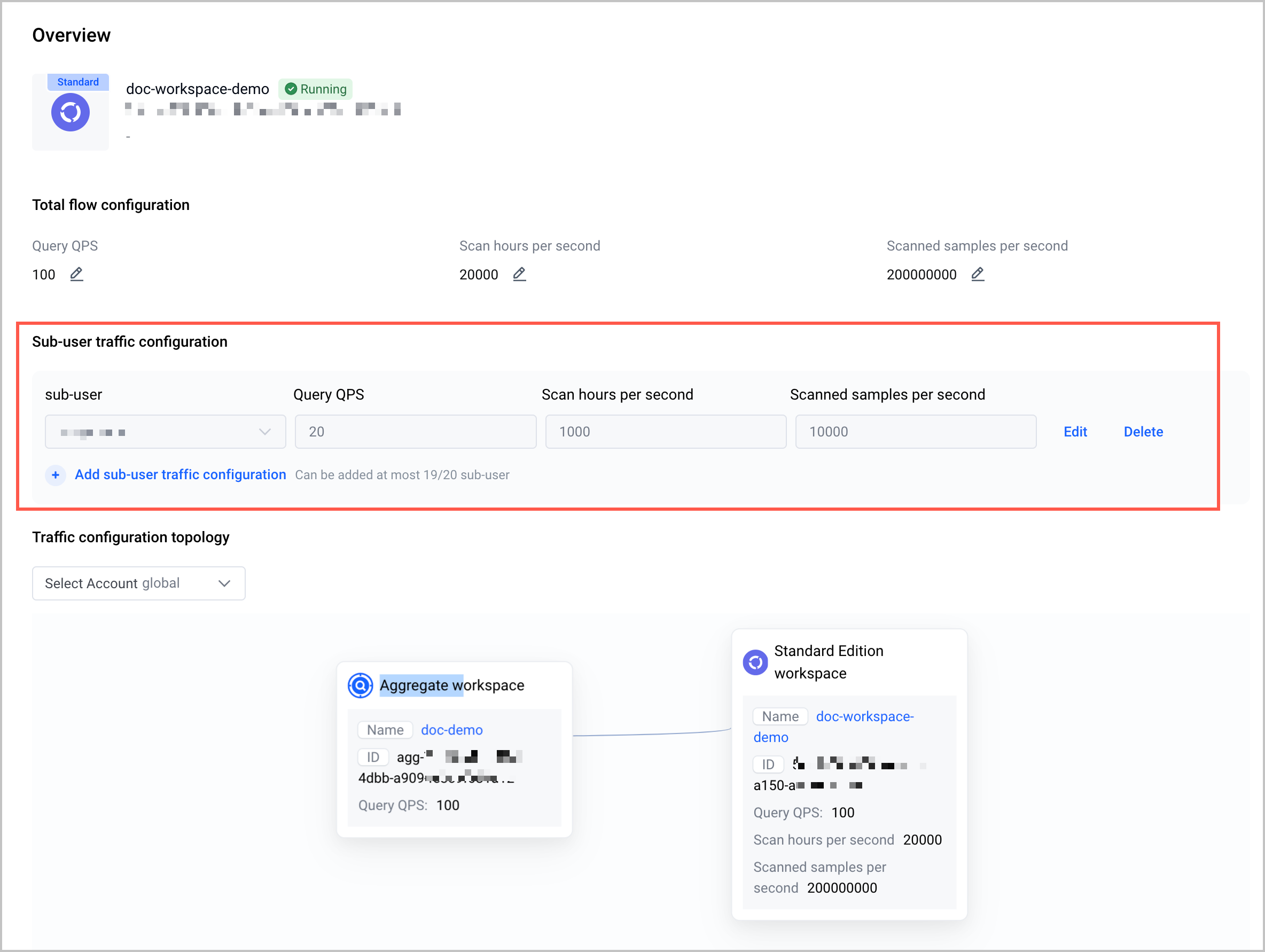
- In the traffic configuration topology map, select the corresponding IAM user or role to view its topology map.
Last updated: 2026.07.20 10:17:46
All rights reserved © Beijing Volcano Engine Technology Co., Ltd2024
