Volcengine Managed Service for Prometheus
Volcengine Managed Service for Prometheus


Document

- Documentation
 Volcengine Managed Service for PrometheusIntegration GuidePrometheus ecosystem integrationExporter integrationNGINX exporter integration
 Copy page
 Download PDF
Exporter integration
NGINX exporter integration
Copy pageDownload PDFNGINX exporter integration
Volcengine Managed Service for Prometheus (VMP) monitors the operational status of NGINX by using the exporter. This topic describes how to deploy nginx-exporter in a cluster and monitor NGINX.
Background
The NGINX application exposes some metrics on the stub_status page. Nginx-exporter collects the metrics of a single NGINX instance and converts the metrics into monitoring data that can be used by Prometheus.
Prerequisites
- VMP
- A VMP workspace has been created. For details, see Creating workspaces.
- VKE
- A Volcano Engine root user has been created, and VKE has been activated.
- The VKE cluster has been integrated with VMP. For details, see VKE integration.
- Grafana has been deployed and integrated with the workspace.
Procedure
Step 1: Enable the stub_status feature
NGINX exposes its status data on the stub_status page. After you deploy NGINX, you need to first check whether the stub_status feature is enabled.
- In the environment where NGINX is located, execute the following command to check whether the stub_status feature is enabled in NGINX:
If the command output is with-http_stub_status_module, it indicates that the stub_status feature is enabled for NGINX.
2. Modify the nginx.conf configuration file to specify the port number and URL to access the stub_status page.
- Reload NGINX to make the configuration take effect.
- After the configuration is complete, you can view NGINX metrics by using the URL in your local environment.
The following section shows the expected response result.
Step 2: Deploy nginx-exporter
- Log in to the VKE console.
- In the left navigation pane, click Cluster. In the cluster list on the right side, find the target cluster.
- Click the name of the cluster to go to the cluster details page.
- Click Workload > Deployment in the left navigation pane. Click Create with Yaml to deploy nginx-exporter.
Step 3: Configure service discovery
- Click Workload > Resource Explorer in the left navigation pane.
- Click Create with Yaml to configure service discovery by using PodMonitor.
- Select Custom from the Type drop-down menu.
- Enter the YAML configuration in the Yaml field.
Validate results
- Execute the following command to configure Grafana port forwarding:
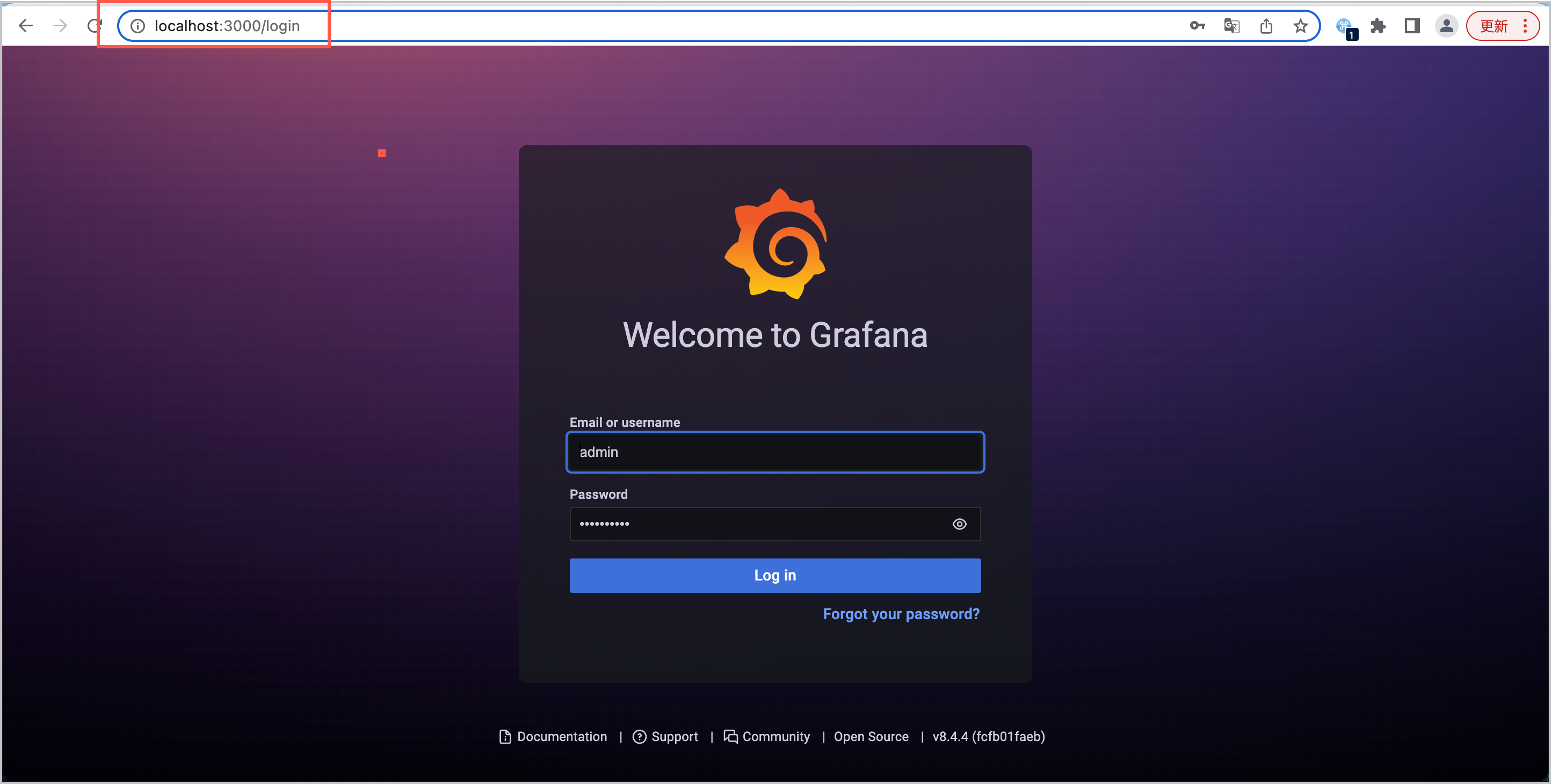
- Open a browser in your local environment (Linux/Mac), paste localhost:3000 into the address bar, and then press Enter to go to the Grafana login page. Log in to Grafana by using the default username admin and password admin.
-
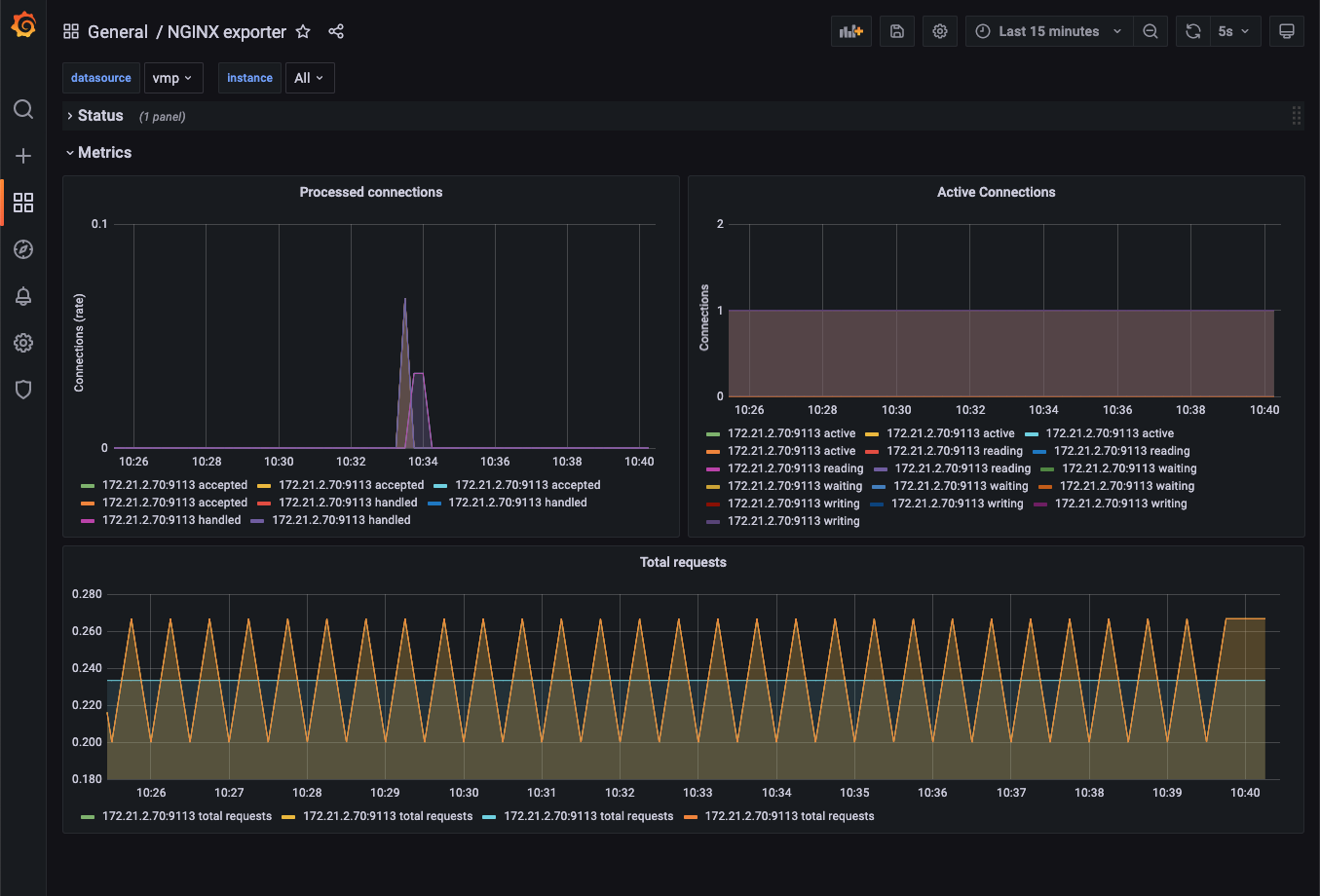
- After you log in to Grafana, you can create an NGINX dashboard to view information about NGINX.
-
tip
Last updated: 2026.10.10 10:16:50
All rights reserved © Beijing Volcano Engine Technology Co., Ltd2024
