You need to enable JavaScript to run this app.
Volcengine Managed Service for Prometheus

Volcengine Managed Service for Prometheus

Copy page
Download PDF
Exporter integration
PostgreSQL exporter integration
Copy page
Download PDF
PostgreSQL exporter integration
Volcengine Managed Service for Prometheus (VMP) monitors the operational status of PostgreSQL by using the exporter. This topic describes how to deploy postgres-exporter in a cluster and monitor PostgreSQL.​
Prerequisites​
  • VMP​
  • VKE​
  • A Volcano Engine root user has been created, and VKE has been activated.​
  • The VKE cluster has been integrated with VMP. For details, see VKE integration.​
  • Grafana has been deployed and integrated with the workspace.​
Procedure​
Step 1: Use a secret to configure the PostgreSQL password​
  1. Log in to the VKE console.​
  1. Click Cluster in the left navigation pane.​
  1. On the cluster list page, click the name of the cluster that you want to configure.​
  1. In the left navigation pane of the cluster details page, click Configurations > Secret. On the page that appears, click Create with Yaml to configure a secret.​
​
apiVersion: v1​
kind: Secret​
metadata:​
name: postgres-demo​
namespace: volcano-metrics​
type: Opaque​
stringData:​
username: pg-username # Specify the login username for PostgreSQL.​
password: pg-password # Specify the login password for PostgreSQL.​
​
Step 2: Deploy postgres-exporter​
  1. In the left navigation pane of the cluster details page, click Workload > Deployment.​
  1. Click Create with Yaml to deploy postgres-exporter.​
​
apiVersion: apps/v1​
kind: Deployment​
metadata:​
name: postgres-exporter # Specify the name of the exporter.​
namespace: volcano-metrics # Specify the namespace of the exporter.​
labels:​
app-name: postgres-exporter # Configure the labels of the exporter.​
spec:​
replicas: 1 # Specify the number of replicas for the exporter.​
selector:​
matchLabels:​
app-name: postgres-exporter # Change the name based on your business requirements. It is recommended to add information about the Redis instance.​
template:​
metadata:​
labels:​
app-name: postgres-exporter # Change the name based on your business requirements. It is recommended to add information about the Kafka instance.​
spec:​
containers:​
- name: postgres-exporter # Specify the container name.​
image: prometheuscommunity/postgres-exporter:latest # Pull the exporter image from Docker Hub.​
args:​
- "--web.listen-address=:9187"​
- "--log.level=debug"​
env:​
- name: DATA_SOURCE_USER​
valueFrom:​
secretKeyRef:​
name: postgres-demo​
key: username​
- name: DATA_SOURCE_PASS​
valueFrom:​
secretKeyRef:​
name: postgres-demo​
key: password​
- name: DATA_SOURCE_URI​
value: "x.x.x.x:5432/postgres?sslmode=disable" # Specify the address and port of PostgreSQL by using global variables.​
ports:​
- name: metric-port # Specify the container port name.​
containerPort: 9187 # Specify the container port number.​
​
Step 3: Configure a collection rule​
  1. In the left navigation pane of the cluster details page, click Workload > Resource Explorer.​
  1. Click Create with Yaml to configure a collection rule by using PodMonitor.​
  • Select Custom from the Type list.​
  • Enter the YAML configuration in the Yaml field.​
​
apiVersion: monitoring.coreos.com/v1​
kind: PodMonitor​
metadata:​
name: postgres-exporter # Specify the name of PodMonitor.​
namespace: volcano-metrics # Specify the namespace of PodMonitor.​
labels: ​
volcengine.vmp: "true" # Configure the labels for PodMonitor to allow the labels to be identified by prometheus-agent.​
spec:​
podMetricsEndpoints:​
- interval: 30s​
port: metric-port # Specify the container port name of the exporter.​
path: /metrics # Specify the URI path for metric exposure. The value is /metrics by default if it is not specified.​
relabelings: # Configure metric relabeling. This parameter can be omitted if it is not required.​
- action: replace​
sourceLabels:​
- instance​
regex: (.*)​
targetLabel: instance​
replacement: 'postgres-xxxx' # Replace the value with the ID of the PostgreSQL instance.​
namespaceSelector:​
matchNames: ​
- volcano-metrics # Specify the namespace where the exporter is located.​
selector: ​
matchLabels:​
app-name: postgres-exporter # Specify the label value of the exporter to locate and select the target pod.​
​
Validate results​
  1. Execute the following command to configure Grafana port forwarding:​
​
kubectl port-forward service/grafana 3000:3000 -n volcano-metrics​
​
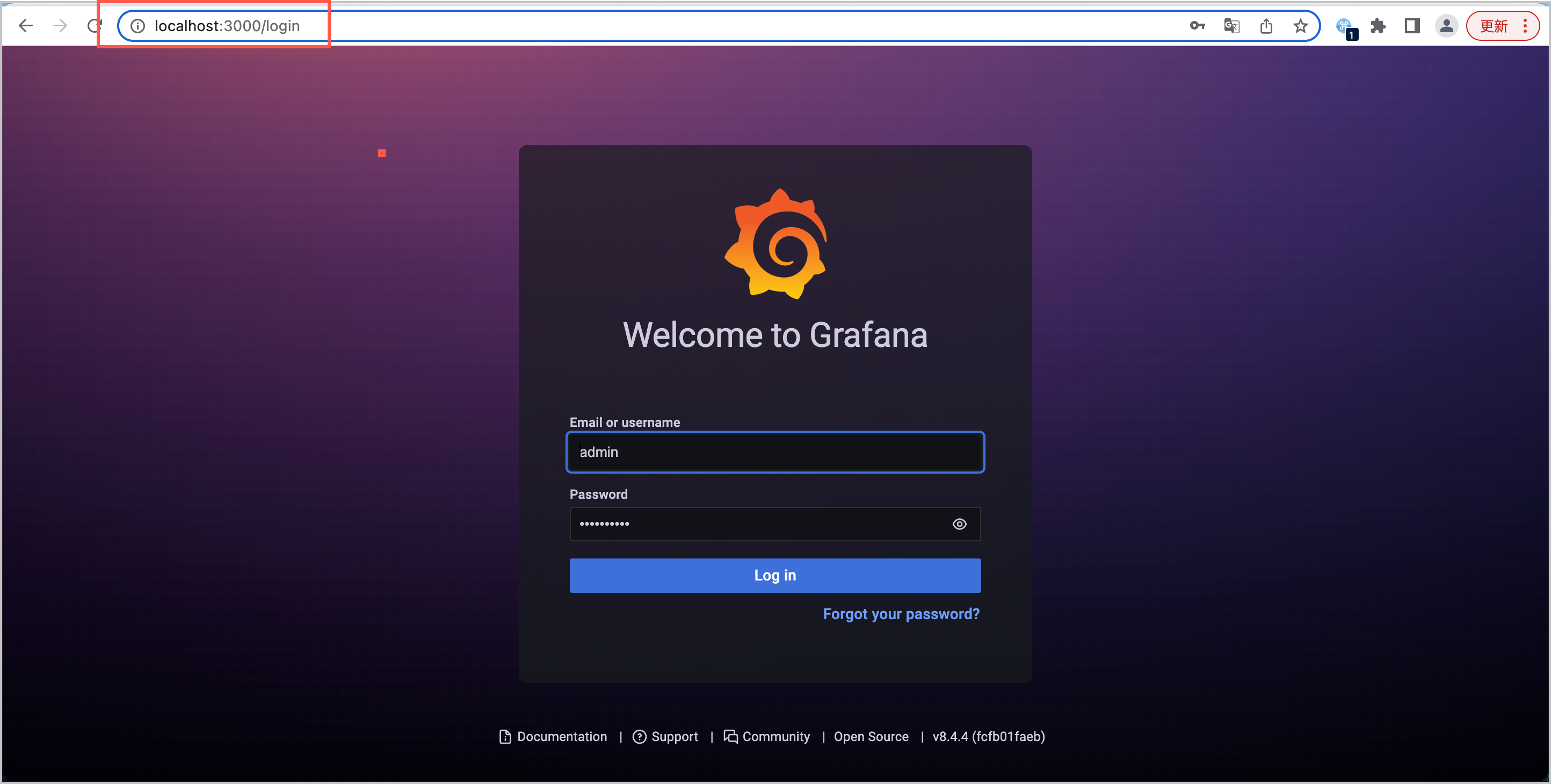
  1. Open a browser in your local environment (Linux/Mac), paste localhost:3000 into the address bar, and then press Enter to go to the Grafana login page. Log in to Grafana by using the default username admin and password admin.​
  • ​alt​​
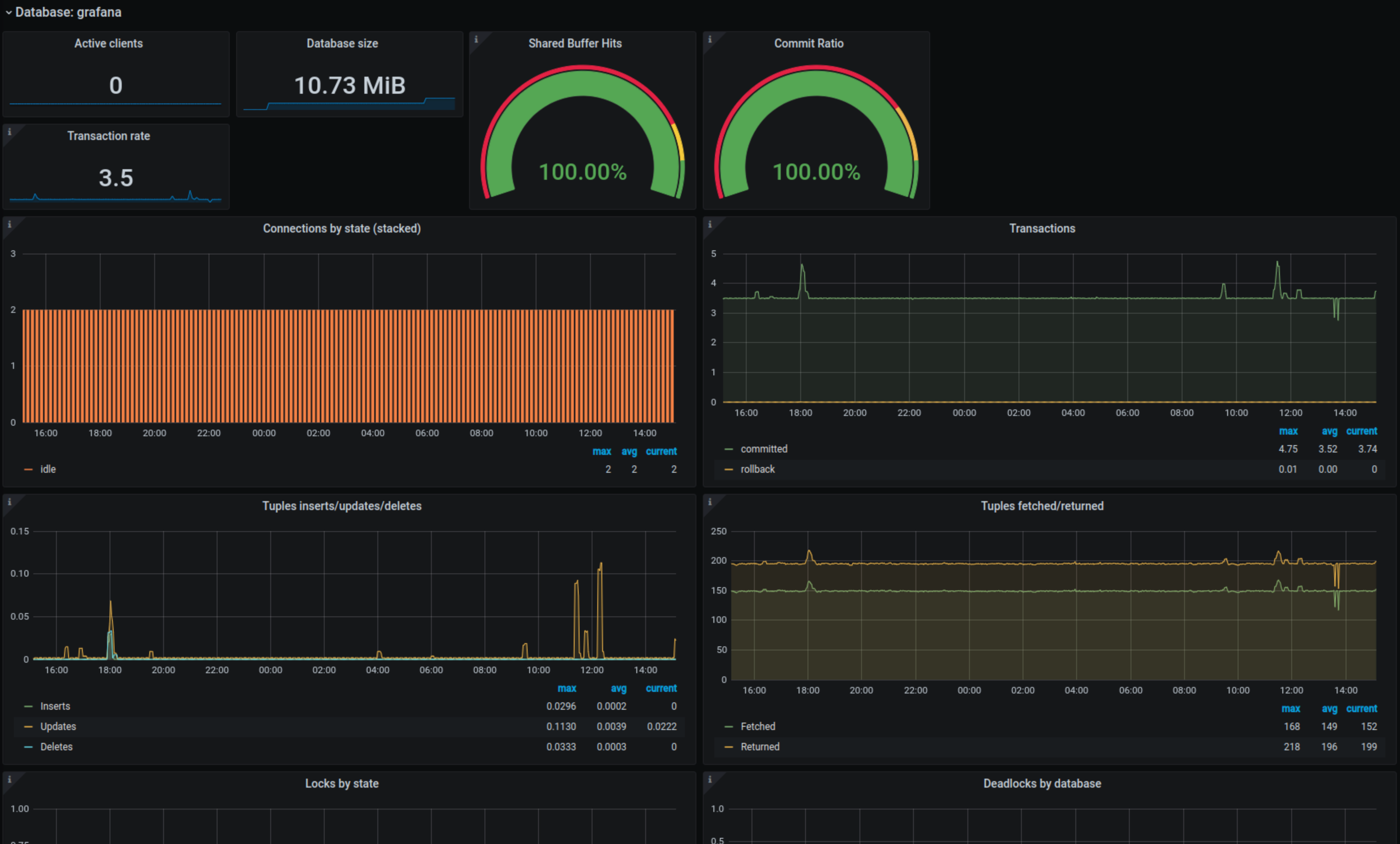
  1. Create a dashboard to view the information about PostgreSQL metrics.​
  • ​​​
tip​
For detailed parameters of postgres-exporter, refer to postgres-exporter.​
​
Last updated: 2026.10.10 10:16:50