Volcengine Managed Service for Prometheus
Volcengine Managed Service for Prometheus


Document

- Documentation
 Volcengine Managed Service for PrometheusFAQsWhy Am I Unable to Correctly View the Expected Metrics?
 Copy page
 Download PDF
FAQs
Why Am I Unable to Correctly View the Expected Metrics?
Copy pageDownload PDFWhy Am I Unable to Correctly View the Expected Metrics?
Volcengine Managed Service for Prometheus supports monitoring cloud services such as Volcengine Kubernetes Engine (VKE) and also supports service discovery through ServiceMonitor, PodMonitor, and Service/Pod annotations. However, sometimes after you complete the configuration, you cannot correctly retrieve the expected metrics. This article introduces how to troubleshoot such issues.
Issue symptoms
When using Volcengine Managed Service for Prometheus (VMP) for monitoring VKE clusters, after turning on resource monitoring or configuring ServiceMonitor or PodMonitor, the expected metric data is not collected.
Cause Analysis
Possible reasons why you cannot view the expected metrics include:
- Query statement errors leading to failure to query the correct results.
- Confirm that the Target is discovered and collected normally.
- Service discovery configuration error caused the Target to be incorrectly detected.
- Abnormality in business Pod itself and collection endpoint.
- The queried metric is incorrect.
Troubleshooting Steps
Step One: Confirm Metric Query and Writing
Confirm whether the metric exists
- Log in to the VMP console.
- On the top navigation bar, select the target region.
- Click Explore on the left navigation bar to go to the Explore page.
- Configure the Workspace parameter for which you want to query metrics in the upper right corner, and enter the corresponding metric name in the Metric Query text box to confirm whether the metric has been collected and stored.
-
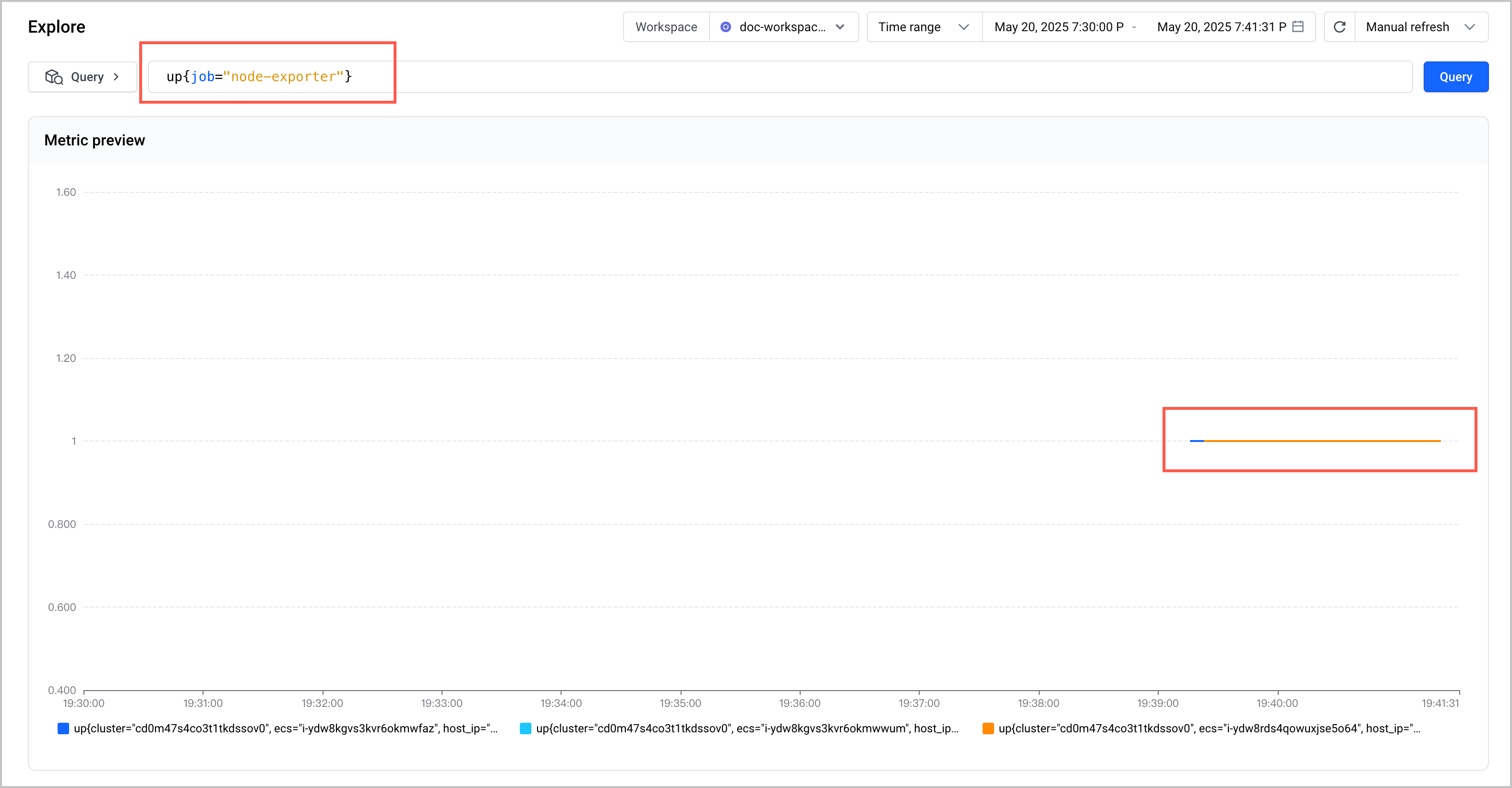
Confirm the metric query statement
When querying metrics, please first confirm that the query statement you use is correct. An incorrect query statement will result in wrong queried metrics or simply no results being returned.
If there is a problem with the query statement, please modify it in time. For how to use query statements, please refer to PromQL Basic Usage.
Check written metrics
- Log in to the VMP console.
- Click Workspace on the left navigation bar, select the workspace you want to view monitoring data from the workspace list, and click the Workspace Name to enter the workspace configuration page.
- Click Monitor in the left navigation bar.
- On the monitoring page, check the workspace's self-monitoring to see if there is any traffic being rate-limited or lost.
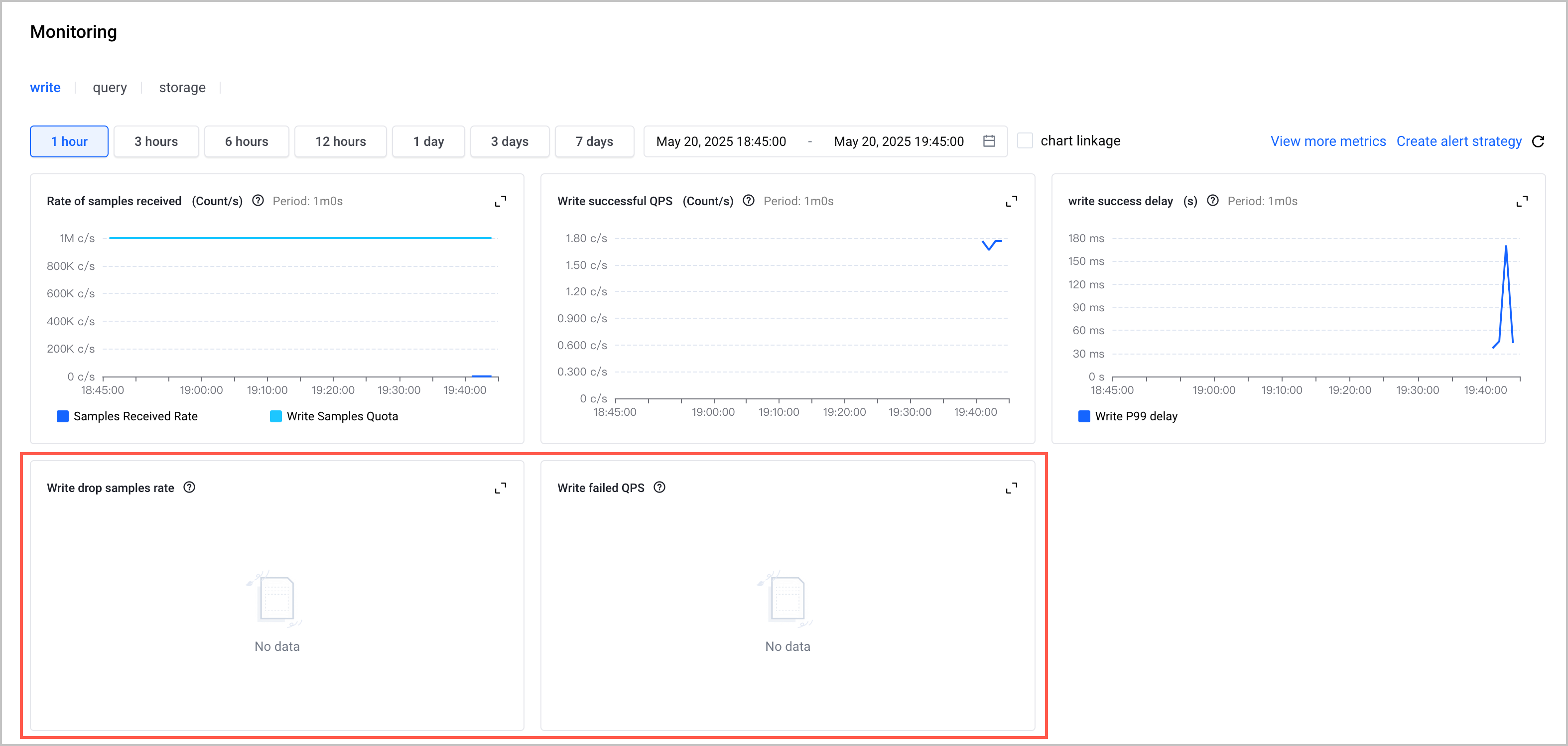
Step 2: Confirm that the target is discovered and collected as expected
You can follow the steps below to determine whether the collector correctly discovers the Target and collects data normally:
(Recommended) Method One: Confirm the Target status via prometheus-agent dashboard
prometheus-agent provides a user-friendly troubleshooting page that can be relied on to troubleshoot issues in most scenarios.
- Access the prometheus-agent dashboard.
- Access through a local browser
- Use port-forward to access the prometheus-agent port locally.
-
tip
- Make sure your local machine can access the dashboard over the public network through kubeconfig. Alternatively, you can use a tunnel to connect your local machine to the Kubernetes prometheus-agent network.
- By default, it listens on the local localhost port. If you need to listen on all network interfaces, please add --address 0.0.0.0 in the command line.
- kubectl -nkube-system port-forward svc/vmagent-prometheus-agent 8429:8429 --address 0.0.0.0
- Access locally at localhost:8429.
- You need to pay attention to the targets and service-discovery modules. The homepage is shown as follows.
-
- Alternative methods when local access is not available
- In some scenarios, you may not be able to access the dashboard from your local browser (for example, you only have temporary kubectl read permissions for troubleshooting). In this case, you can only execute kubectl port-forward and call the prometheus-agent API with curl to view the JSON response.
- curl commandDescriptioncurl localhost:8429/targetsQuery the target fetch status, which will return print information similar to the following. You can filter specific jobs by using grep. The target list corresponding to the dashboard.By adding the accept header to the command curl -H 'accept:text/html' 'http://localhost:8429/targets', you can return to the html format.curl localhost:8429/api/v1/targetsQuery more detailed target information in JSON format, divided into activeTargets and droppedTargets, with each target including meta labels.The specific response example is as follows:curl localhost:8429/configView the original configuration read by prometheus-agent. The collection is generally done through CR configurations like servicemonitor. The operator will automatically add some relabels. You can use this command to view the complete scrape collection configuration actually read by prometheus-agent.
- Click on the targets of the prometheus-agent to check whether Targets are normally collected.
-
- The Target name comes from the configured job name, but if you use the CR method to configure, the naming format of job is:
- collection methodCorresponding formatservicemonitor collectionserviceScrape/<namespace>/<servicemonitor-name>/npodmonitor collectionpodScrape/<namespace>/<servicemonitor-name>/nvmnodescrape collectionnodeScrape/<namespace>/<servicemonitor-name>/nCollection through pod annotationspod
Method Two: Confirm Target status through the console
warning
You can view whether the corresponding service is correctly discovered through the prometheus-agent dashboard; it cannot be viewed in the console.
- Log in to the VMP console.
- On the top navigation bar, select the target region.
- Click Explore on the left navigation bar to go to the Explore page.
- Configure the Workspace parameter for which you want to query metrics in the upper right corner, and enter up{job="xxxx"} in the text box of Metric Query to check whether the corresponding service is correctly discovered.
-
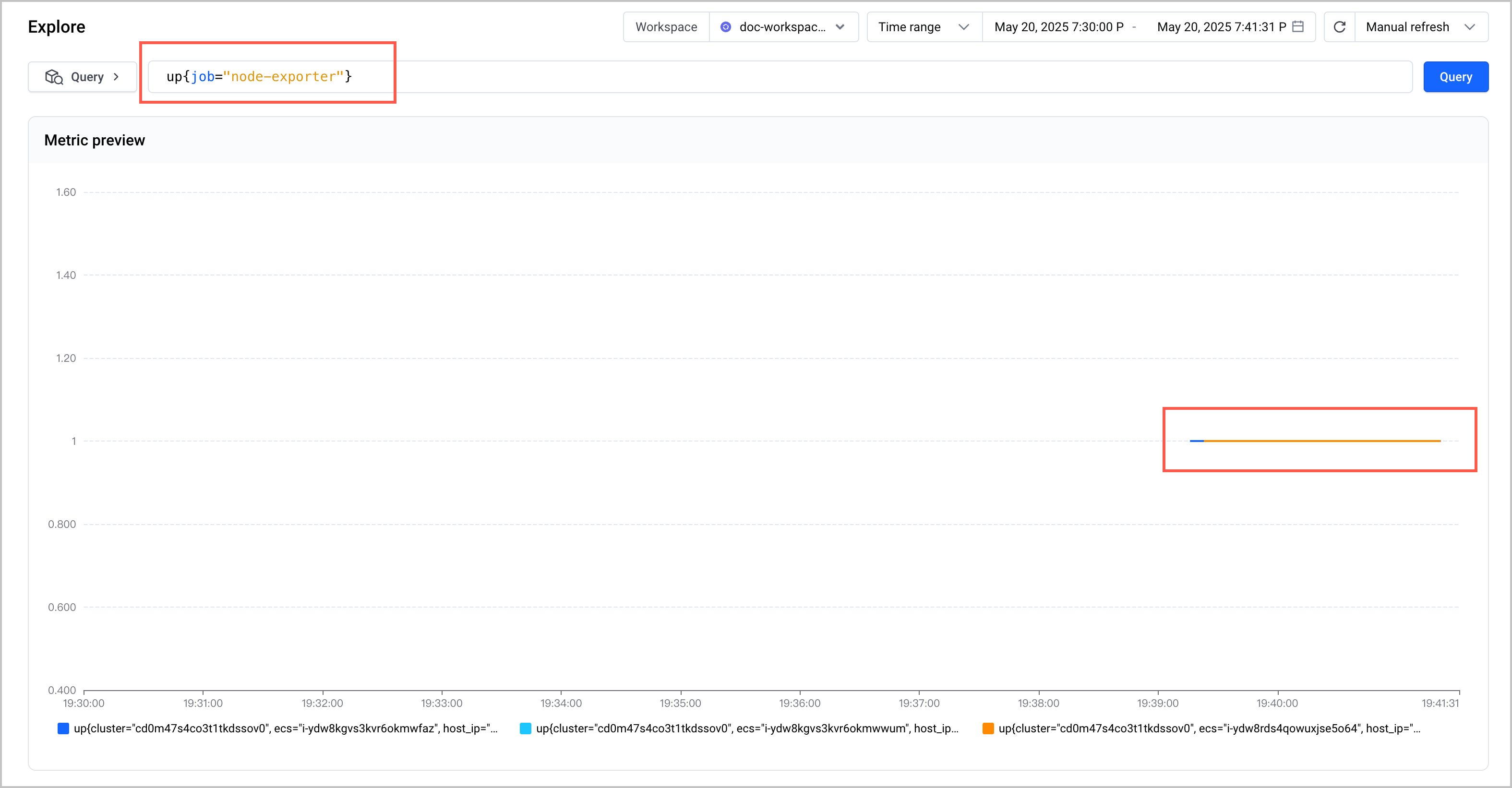
Verification results and solutions
Result verification | Solutions |
Target not recognized | If the corresponding Target configuration is not found on the dashboard, it is usually because of problems exist in custom configuration.
warning
|
Target DROPPED | In the prometheus-agent dashboard's discovered targets, if a Target is found to be DROPPED, it is usually because the metric was filtered out due to incorrect use of relabel configuration.
|
Target UP | If the target status is UP, it is usually caused by other reasons. Troubleshoot by following these steps.
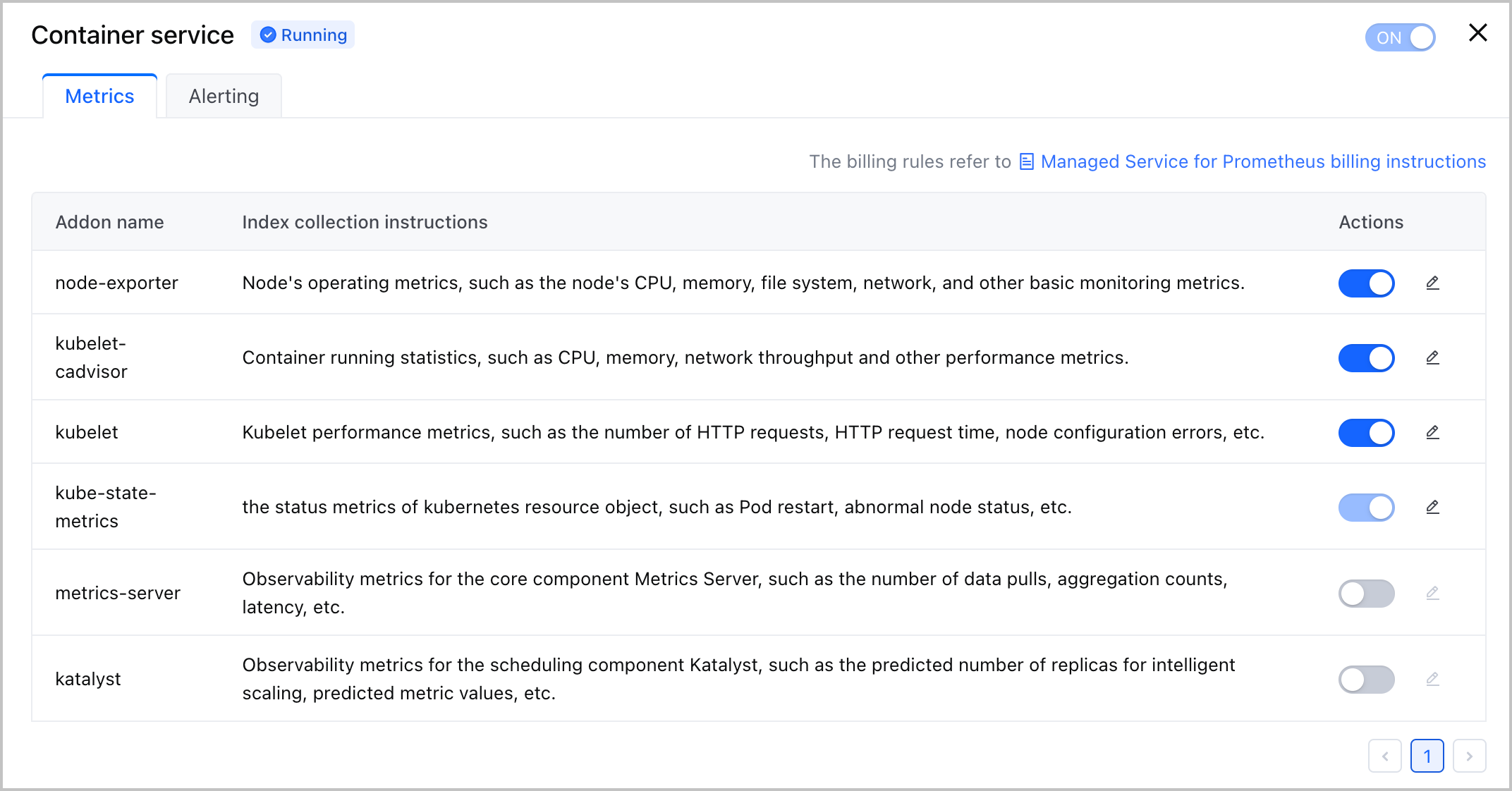
|
Target DOWN | If Target is DOWN, please view the last error field. Possible causes usually include:
|
Step Three: Check the collector status
Method One: Use kubectl to check the sampler status
Method Two: Use the console to check the sample status
- Log in to the VKE console.
- Select Cluster in the left menu bar, and select the cluster where the collector is located from the cluster list on the right side.
- Click the name of the cluster to go to the cluster configuration page.
- Select Workload > StatefulSet in the left navigation bar, and under the kube-system namespace, view the Pod status and log of the collector vmagent-prometheus-agent.
-
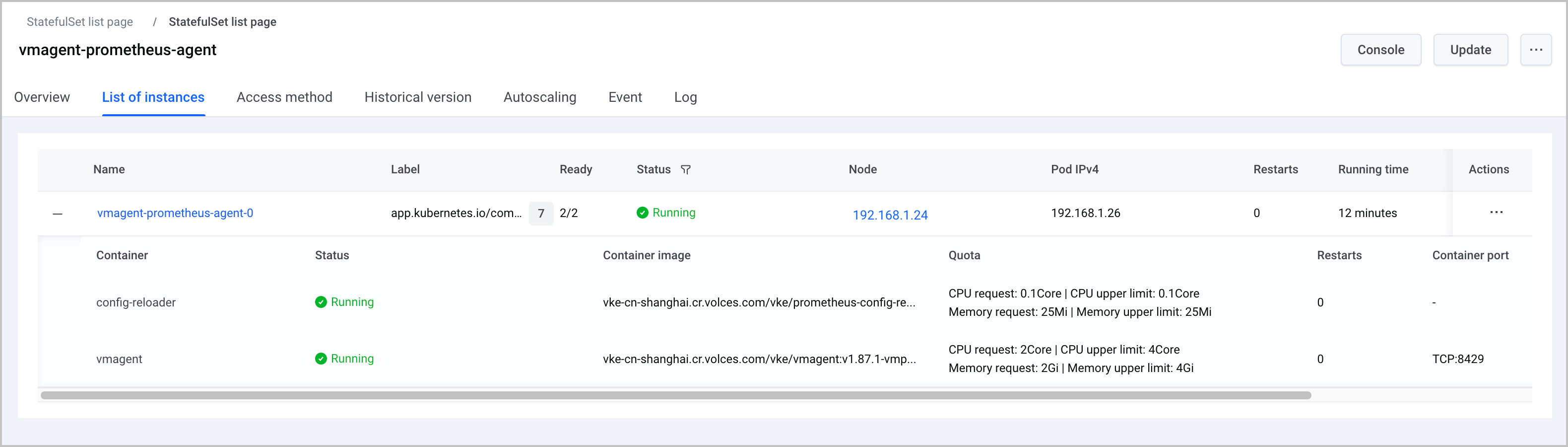
Verification results and solutions
Check prometheus-agent status
Possible Causes | Solutions |
Abnormal status with only initialized Job | If the prometheus-agent status is abnormal, and there is only one pre-install Job. There may be a pre-delete Job because the VKE add-on will automatically uninstall after detecting a deployment timeout. Please view the log of the pod corresponding to the Job to check the pod's status and events.
|
no prometheus-agent |
|
prometheus-agent OOM | It is recommended to perform the following operations in the parameter configuration of prometheus-agent:
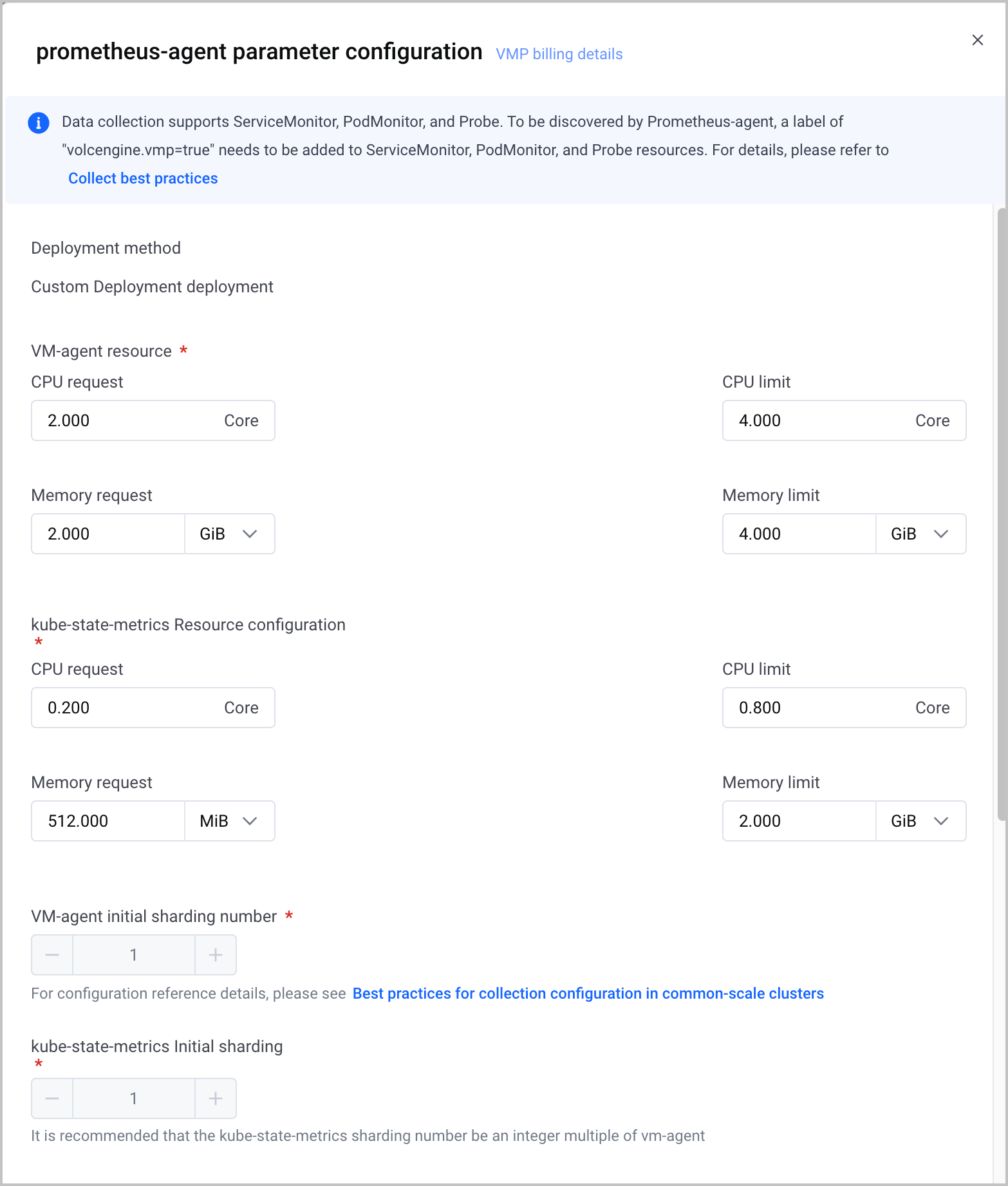 |
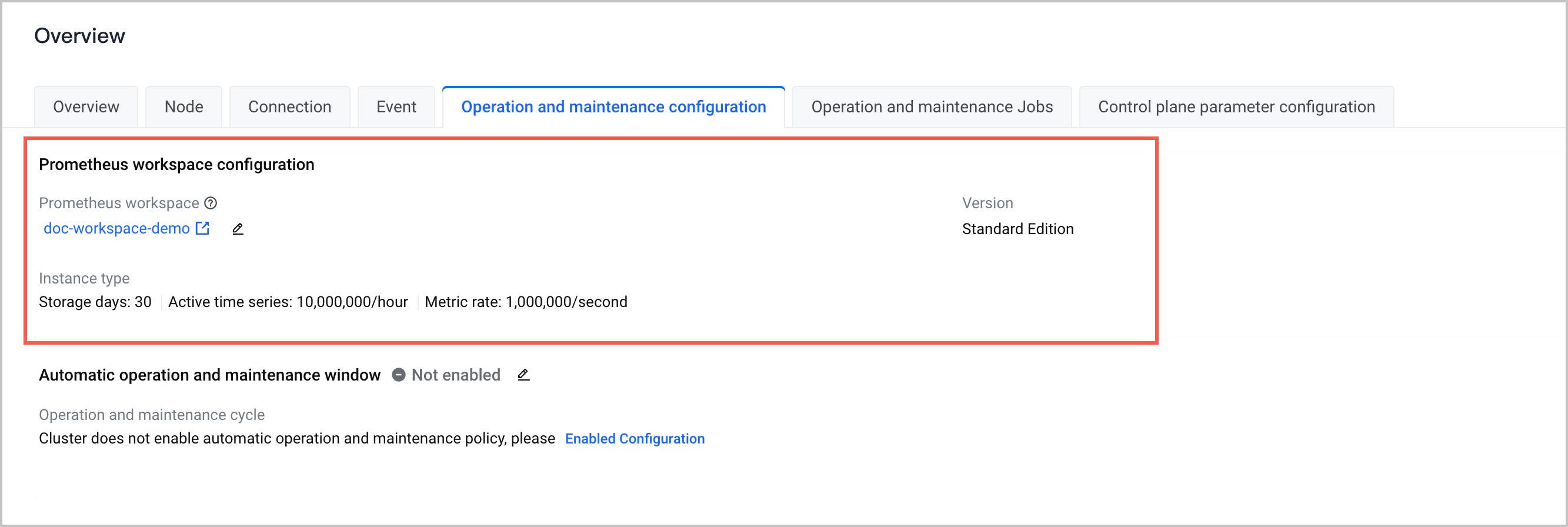
Collection and sending link abnormality
Possible causes include:
- Network issues of exporter and prometheus-agent
tip
Please ensure that the exporter status is normal and the security groups are configured correctly first.
- Problem exists in prometheus-agent itself
- Issues from prometheus-agent to vmp workspace.
Please troubleshoot by combining Checking prometheus-agent Logs and the prometheus-agent Basic Metric monitoring panel. For the specific procedure, please refer to Checking prometheus-agent Status.
Step Four: Check metrics in collection targets
You can follow the steps below to confirm the required metrics exist in the Target:
- In the local environment, use kubectl to connect to the cluster where the collector is located, and check for status abnormality in Exporter.
- Confirm whether the Metrics interface is abnormal or metrics are not exposed.
- On the prometheus-agent dashboard, click the Active targets tab to view the corresponding target response.
-
- If the port is inaccessible, the status will not be UP; please check the Error status displayed accordingly.
- If you want to confirm whether some metrics are missing, directly search for the corresponding metric name on the returned metrics page.
- Manually check with curl
- Execute the following command to map the port of the collection target (e.g., Exporter) to the local environment.
-
tip
- The collection target may be deployed inside the cluster or outside the cluster (e.g., deployed on an ECS host); this example uses the case where the collection target is deployed inside the cluster. If the collection target is deployed outside the cluster, you can directly access the collection target using curl http://target-ip:port/metrics.
- rabbitmq-exporter-5fxxxx is the instance name of the collection target. This example uses RabbitMQ-Exporter as an example. You need to replace it with the instance name of your collection target in the actual operation.
- 9419 is the port number for exposing metrics of this collection target. The port numbers differ for different collection targets. You need to replace them with the correct port numbers in the actual operation.
- -n volcano-metrics is the namespace where the collection target is located. You need to replace it with the namespace of the collection target in the actual operation.
- Open a browser in the local environment (Linux/Mac), enter localhost:9419 in the address bar to enter the collection target page, and check whether the metrics you queried are being correctly collected.
-
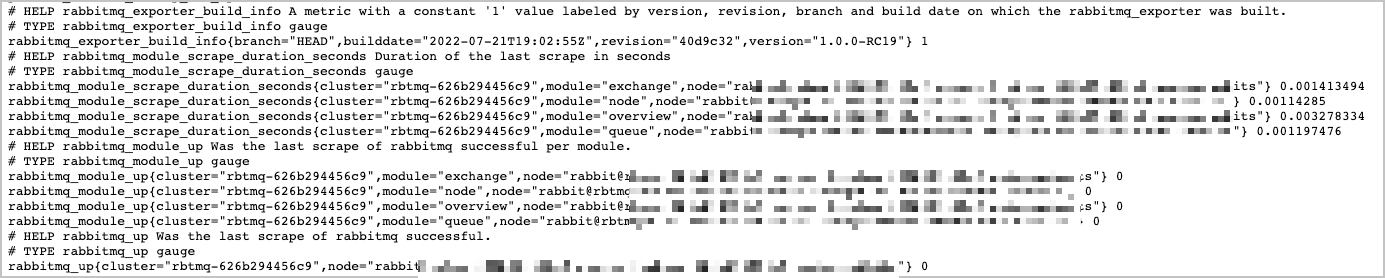
- If your queried metrics are still not being collected correctly, the following possibilities exist:
- The metric you queried has been deprecated. Please refer to the official document for this collection target to confirm.
- You have not yet completed the configuration corresponding to the metric. e.g.: In Kafka, if you have not configured Topic, you cannot query metrics related to Topic such as kafka_topic_partitions.
Related Document
Last updated: 2026.07.10 11:37:27
All rights reserved © Beijing Volcano Engine Technology Co., Ltd2024
