Volcengine Managed Service for Prometheus
Volcengine Managed Service for Prometheus


Document

- Documentation
 Volcengine Managed Service for PrometheusUser guideWorkspaceRecording ruleManaging recording rules
 Copy page
 Download PDF
Recording rule
Managing recording rules
Copy pageDownload PDFManaging recording rules
After you create a recording rule, you can view, export, edit, or delete the created recording rule on the recording rule management page based on your business requirements. This topic describes how to manage recording rules.
View a recording rule
- Log in to the VMP console.
- Click Workspace on the left navigation bar and click the name of the target workspace in the list to go to the Overview page of the workspace.
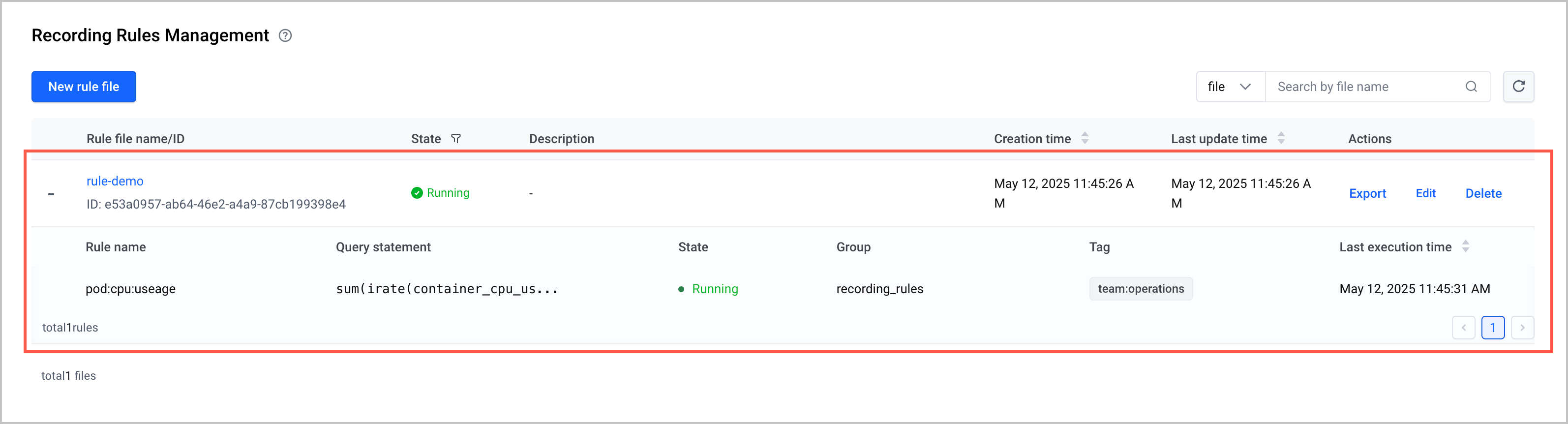
- Click Recording Rule Management on the left navigation bar. In the rule file list, click the + icon before the rule whose details you want to view.
-
Export a recording rule
- Log in to the VMP console.
- Click Workspace on the left navigation bar and click the name of the target workspace in the list to go to the Overview page of the workspace.
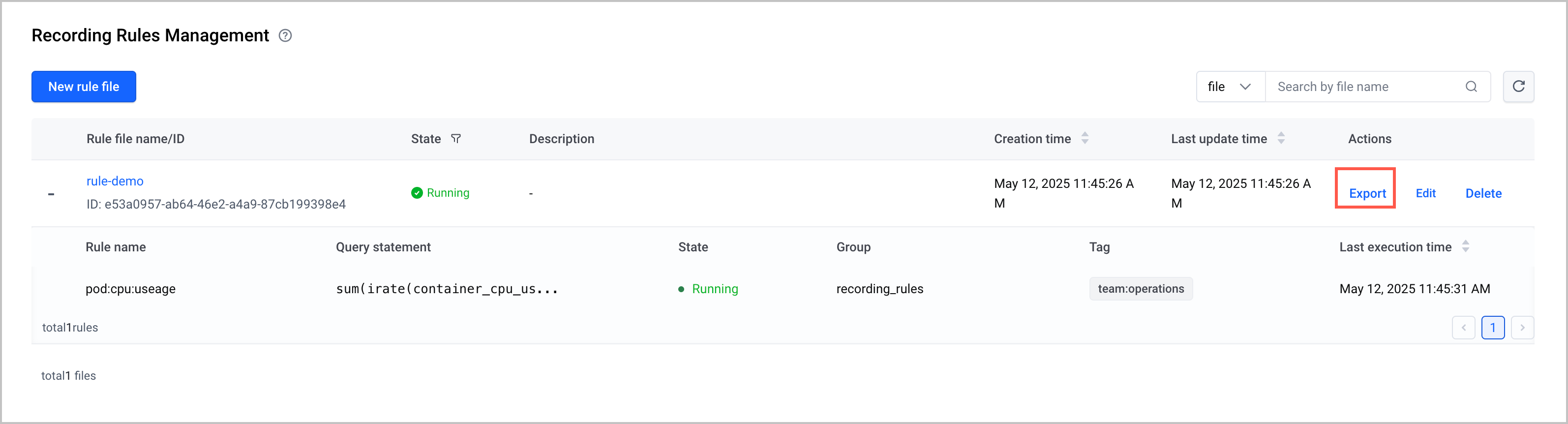
- Click Recording Rule Management on the left navigation bar. In the rule file list, find the rule file that you want to export and click Export in the Actions column to export the YAML file of the rule.
-
Edit a recording rule
- Log in to the VMP console.
- Click Workspace on the left navigation bar and click the name of the target workspace in the list to go to the Overview page of the workspace.
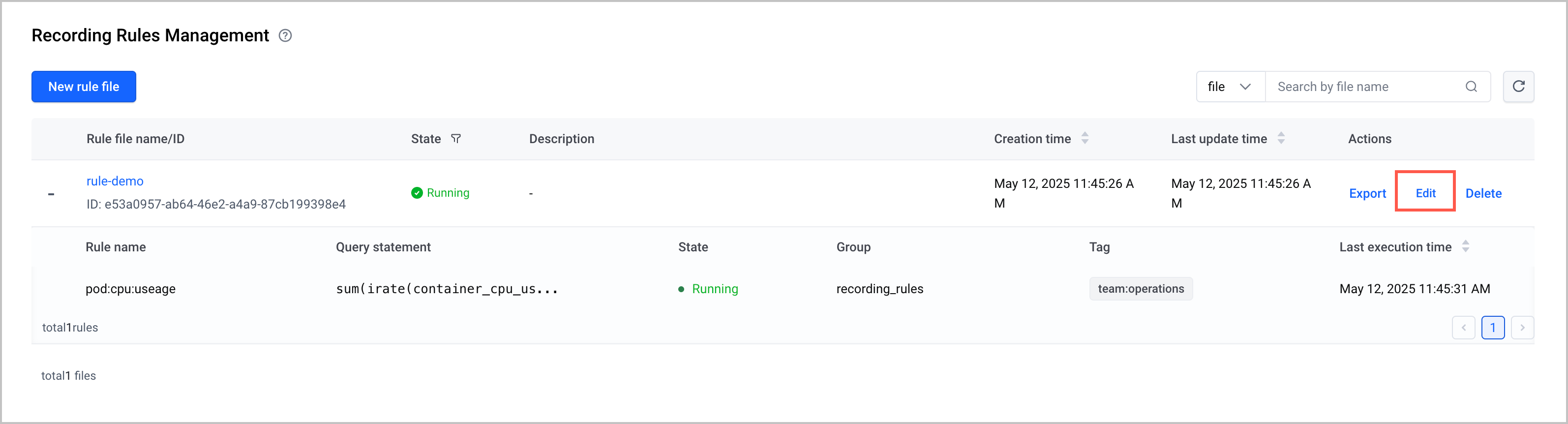
- Click Recording Rule Management on the left navigation bar. In the rule file list, find the rule file that you want to edit and click Edit in the Actions column to modify the rules of the rule file.
-
Delete a recording rule
warning
A recording rule cannot be restored after deletion. Proceed with caution.
- Log in to the VMP console.
- Click Workspace on the left navigation bar and click the name of the target workspace in the list to go to the Overview page of the workspace.
- Click Recording Rule Management on the left navigation bar. In the rule file list, find the rule file that you want to delete and click Delete in the Actions column.
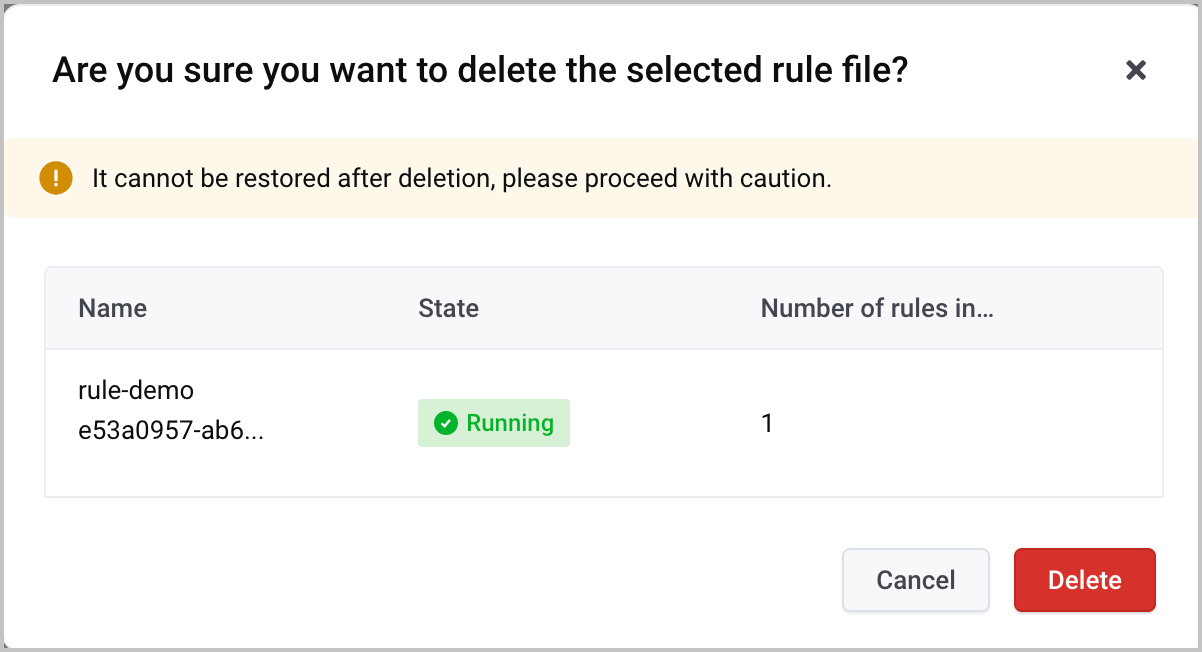
- In the confirmation dialog box that appears, click Delete to delete the rule.
-
Last updated: 2026.07.10 11:37:25
All rights reserved © Beijing Volcano Engine Technology Co., Ltd2024
