Volcengine Managed Service for Prometheus
Volcengine Managed Service for Prometheus


Document

- Documentation
 Volcengine Managed Service for PrometheusUser guidePermission managementConfiguring IAM permissions
 Copy page
 Download PDF
Permission management
Configuring IAM permissions
Copy pageDownload PDFConfiguring IAM permissions
Before you manage the resources of Volcengine Managed Service for Prometheus (VMP) by using an Identity and Access Management (IAM) user, you need to attach a policy to the IAM user.
Prerequisites
Procedure
- Log in to the IAM console.
- In the left navigation bar, click User management > User.
- In the user list, find the target IAM user and click Authorize in the Actions column.
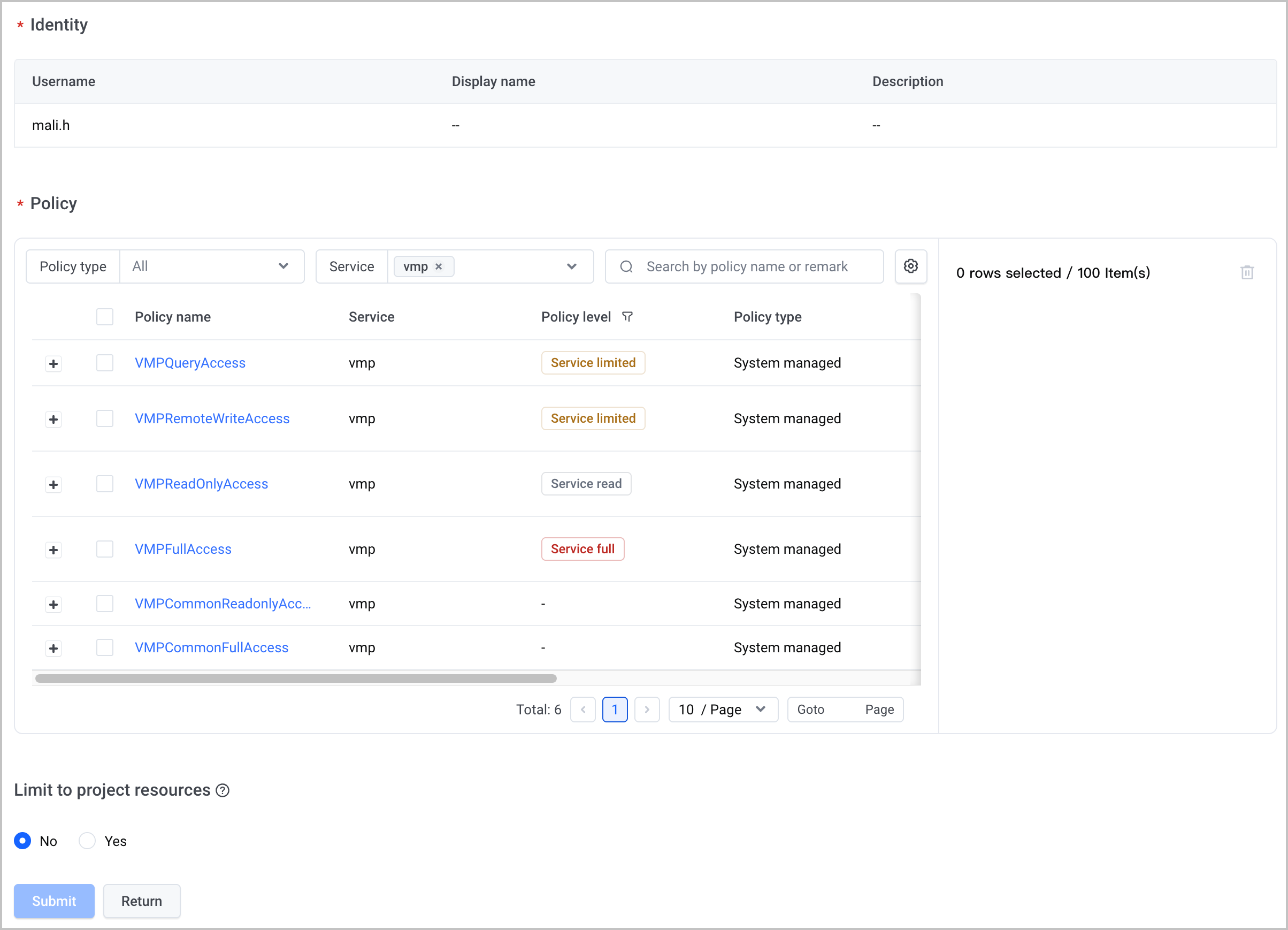
Parameter | Description |
Identity | Check information of the user that you want to authorize. |
Policy | You can filter policies by policy type, service, policy name, or policy description. We recommend that you filter system-managed VMP policies by selecting vmp from the Service drop-down list. |
Limit to project resources | Specify whether to limit the authorization only to resources within the specified projects. For details, see Granting permissions by project.
warning Currently, only certain resources in VMP support project-level access control. If you want to assign read-only or full access to a specific project, you need to choose the corresponding policy and the project. For details, see Configuring project-level permissions. |
- Click Submit to attach the permission policies related to the VMP resources to the IAM user.
Last updated: 2026.07.10 11:37:25
All rights reserved © Beijing Volcano Engine Technology Co., Ltd2024
