Volcengine Managed Service for Prometheus
Volcengine Managed Service for Prometheus


Document

- Documentation
 Volcengine Managed Service for PrometheusIntegration GuideMiddleware integrationetcd integration
 Copy page
 Download PDF
Middleware integration
etcd integration
Copy pageDownload PDFetcd integration
Volcengine Managed Service for Prometheus (VMP) allows you to monitor ETCD instances that are deployed in Volcengine Kubernetes Engine (VKE) clusters.
Background
ETCD is an open source, distributed, consistent key-value store used for shared configuration, service discovery, and scheduler coordination of distributed systems or machine clusters. ETCD helps facilitate more secure automatic updates, coordinates work being scheduled to hosts, and assists in setting up the container overlay networking.
You can use VMP to monitor core metrics such as the status of ETCD nodes deployed in VKE clusters, data consistency, request latency, and storage performance in real time. This ensures the stability of distributed system configuration management and service discovery.
Prerequisites
- VMP
- A VMP workspace has been created. For details, see Creating workspaces.
- VKE
- VKE has been activated.
- A cluster has been created. For details, see Creating clusters.
- An ETCD instance is deployed in the cluster.
- Cloud native observability has been enabled for the cluster, and prometheus-agent has been installed in the cluster. For details, see Enabling observability.
tip
The VMP workspace and the VKE cluster must be deployed in the same region.
Procedure
Configure an integration task
- Log in to the VMP console.
- In the top navigation bar, select the target region.
- In the left navigation bar, click Integration Center > Component. On the page that appears, find and click ETCD to configure the integration task.
- Configure the deployment environment of the collector. Click VKE environment and select an associated cluster.
- Click Create Integration Task to specify the details of the integration task.
-
- Click Confirm to complete the configuration.
Obtain monitoring dashboards
Click the Effect preview tab to view sample monitoring dashboards. Click Get the Grafana template to download the Grafana monitoring dashboard template in JSON format.
Query metrics
Click the Acquisition metric tab to view the list of metrics for the collection targets.
View preset alerts
Click the Alert template tab to view the preset alert templates for ETCD. Click Turn on alert. You are redirected to the alert group creation page, where you can swiftly create and enable alerts based on the current alert template.
Validate results
After the configuration is complete, you can view the status and details of the integration task to check whether the task is running as expected.
- In the left navigation bar, click Integration Center > Integration task.
- Click VKE environment. You can view the status of the integration task in the task list.
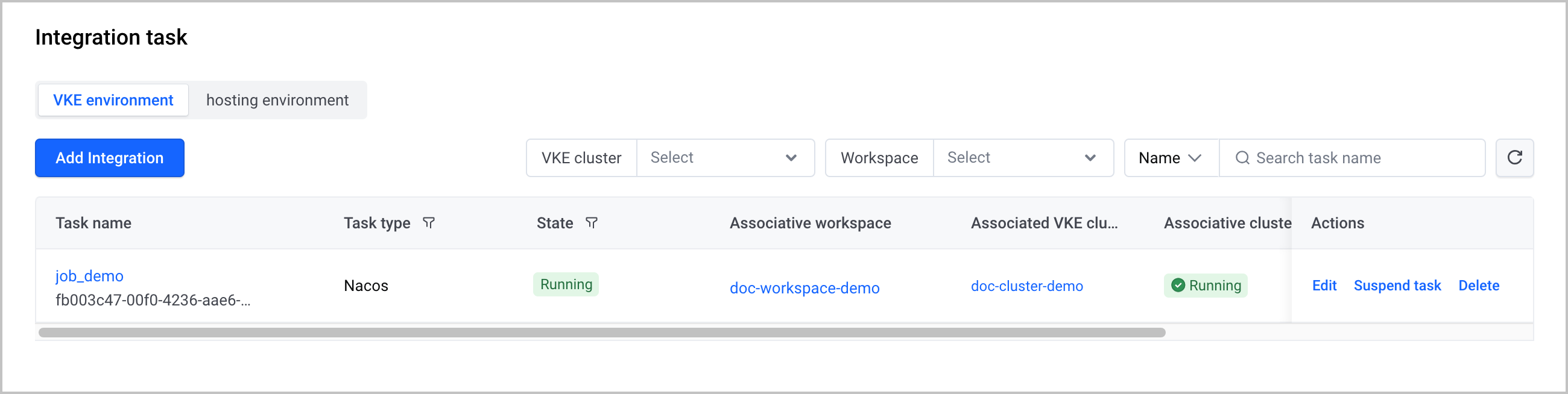
After the integration task is created, you can perform the following O&M operations:
- Click the name of the task to go to the task details page.
- Click Edit in the Actions column to edit the task.
- Click Suspend task in the Actions column to suspend the task.
- Click Delete in the Actions column to delete the integration task.
Monitoring information
Query metrics
You can quickly query and display metric data by using the Explore feature of VMP. For more details, refer to Querying metrics.
Create dashboards
You can install Grafana in a VKE cluster or an ECS instance and then use Grafana to view metrics and create dashboards.
Configure alerts
You can configure alerts for Nacos instances in the Alert Center of VMP. For details, see Creating alert rules.
Last updated: 2026.10.10 10:16:50
All rights reserved © Beijing Volcano Engine Technology Co., Ltd2024
