Volcengine Managed Service for Prometheus
Volcengine Managed Service for Prometheus


Document

- Documentation
 Volcengine Managed Service for PrometheusBest practicesAlert centerReceiving alert notifications through text messages
 Copy page
 Download PDF
Alert center
Receiving alert notifications through text messages
Copy pageDownload PDFReceiving alert notifications through text messages
VMP supports multiple alert notification methods. You can use your phone number to receive alerts generated in VMP. This topic describes the procedure and considerations for receiving alerts by phone.
warning
Only phone numbers in China's mainland are supported.
Prerequisites
- A VMP workspace has been created. For more details, see Creating workspaces.
- Cloud services or custom businesses are integrated with VMP. For details, see Integration guide.
- You have a phone number in China's mainland and the Short Message Service (SMS) is activated for the phone number.
Procedure
Step 1: Configure an alert contact
- Log in to the VMP console.
- In the left navigation pane, click Alert Center > Alert Notification Policy. Click the Notification contact tab.
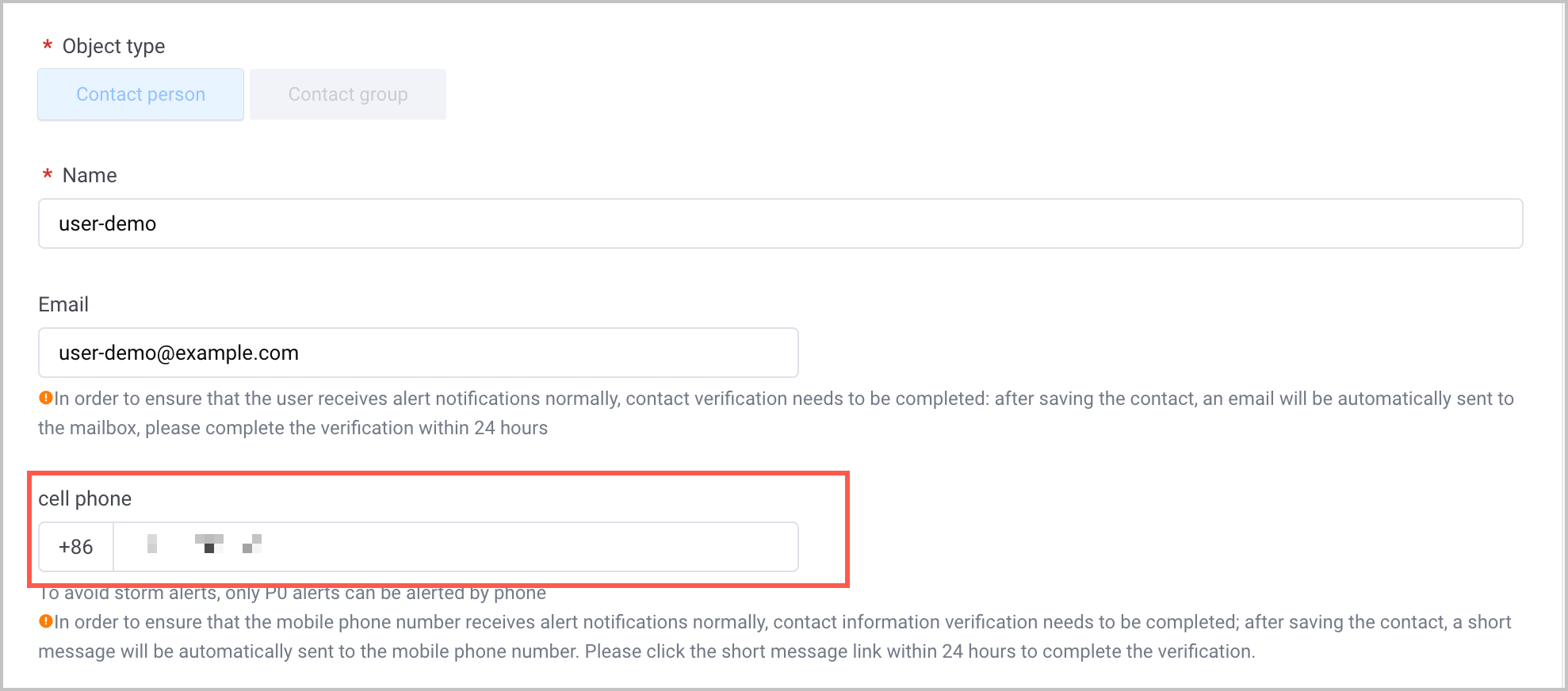
- Click Create notification contact to configure the alerting notification contact. In the cell phone section, enter the phone number of the alert contact.
-
- Click Add to complete the configuration.
Step 2: Complete phone number verification
After you save the alert contact, the system will automatically send a verification text message to the phone number you configured. Procedure:
- Use your phone number to receive the verification text message.
- Click the link in the text message to verify the phone number. After verification is complete, you can view the verification result of the phone number in the contact list. If the mobile phone number column displays
 , it indicates that the phone number passed the verification.
Step 3: Configure an alert contact group
- In the left navigation pane, click Alert Center > Alert Notification Policy. Click the Notification contact tab.
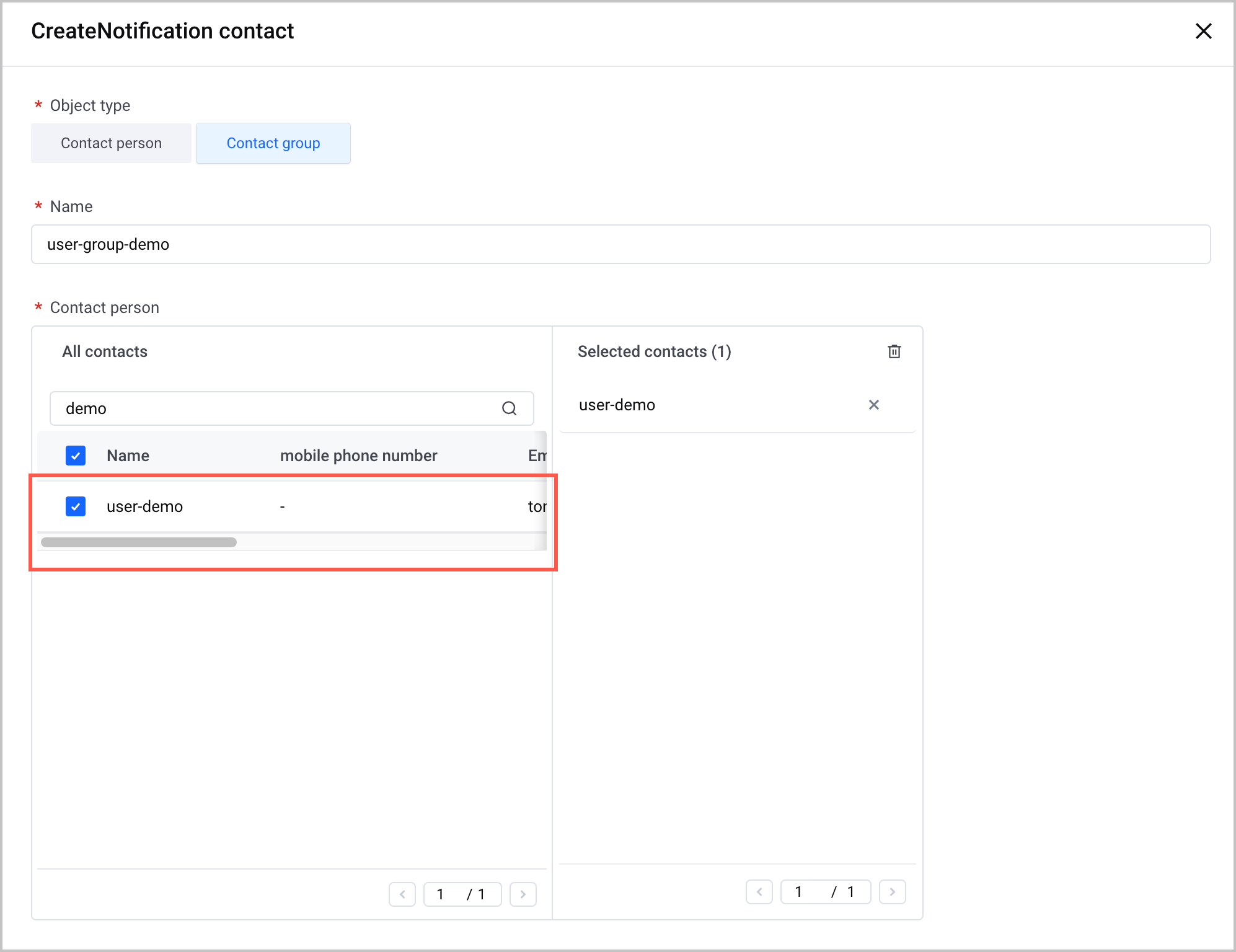
- Click Create notification contact. Select Contact group for the Object type parameter, configure the alert notification contact group, and add users to this group.
-
- Click Add to complete the configuration.
Step 4: Configure an alert notification policy
- In the left navigation pane, click Alert Center > Alert Notification Policy. Click the Policy list tab.
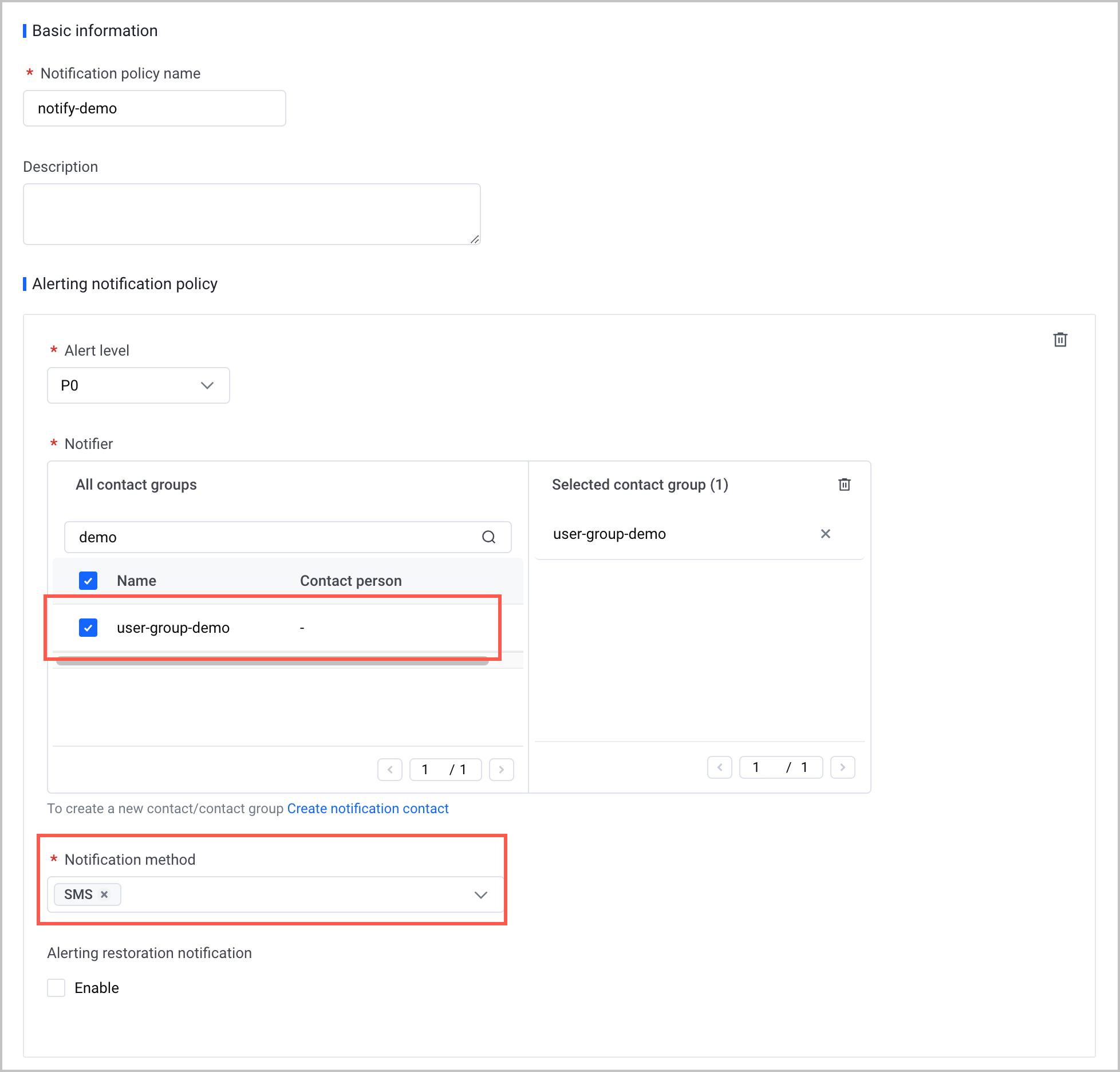
- Click Create notification policy to configure an alert notification policy. Here:
- Alert level: Select P0.
- Notifier: In the All contact groups section, select the check boxes before the names of the contact groups that need to receive alerts to add them to the Selected contact group section on the right side.
- Notification method: Select SMS.
-
- Click Add to complete the configuration.
Step 5: Configure an alert rule
- In the left navigation pane, click Alert Center > Alert Rule.
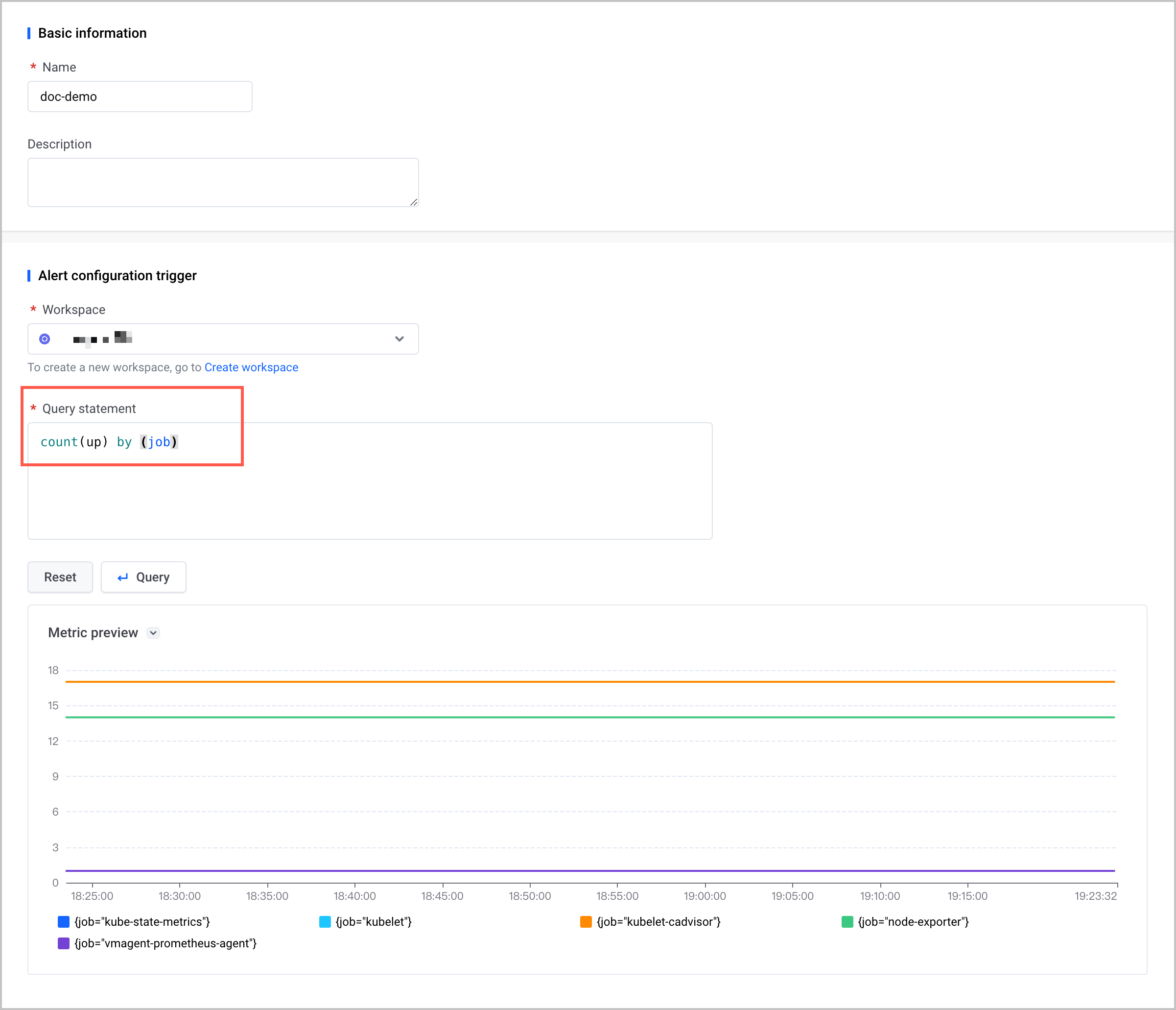
- Click Create to configure an alert rule. Here:
- Workspace: Select the workspace to which the alert rule applies.
- Query statement: Use PromQL to configure the query statement. count(up) by (job) is used in this example.
- Trigger policy: Specify the trigger thresholds for different levels of alerts. You can specify different thresholds for different levels of alerts.
-
- Configure an alert notification. Specify the Notify policy and Aggregation policy parameters.
-

tip
If you have not configured an aggregation policy, you can directly use the system default policy, named "default". For the configuration method of an aggregation policy, see Creating alert aggregation policies.
- Click Add to complete the configuration.
View results
After alert-related configurations are complete, the system will send an alert text message to your verified phone number when an alert that meets the alert rule is generated.
Last updated: 2026.10.10 11:04:51
All rights reserved © Beijing Volcano Engine Technology Co., Ltd2024
