Volcengine Managed Service for Prometheus
Volcengine Managed Service for Prometheus


Document

- Documentation
 Volcengine Managed Service for PrometheusUser guideMetric exportingExporting metrics to Kafka message queue
 Copy page
 Download PDF
Metric exporting
Exporting metrics to Kafka message queue
Copy pageDownload PDFExporting metrics to Kafka message queue
You can export data from a Volcengine Managed Service for Prometheus (VMP) workspace to a Kafka instance to use message queues for consumption. This topic describes how to export data from a workspace.
tip
[Public beta]: This feature is currently in public beta.
Prerequisites
- A VMP workspace has been created. For more details, see Creating workspaces.
- Message Queue for Kafka has been activated, and a Kafka instance and topic have been created in the region where the current workspace is located. For more details, see Creating instances and Creating topics.
Limits
Only paid metrics can be exported. Free metrics (basic metrics stored for 15 days) are not supported for export. For more information, see Billing Items.
Procedure
- Log in to the VMP console.
- In the top navigation bar, select the target region.
- In the left navigation bar, click Export task. On the page that appears, click Create export tasks.
- Configure the task details and then click Confirm.
- ParameterDescriptionTask nameSpecify the name of the export task. It can contain Chinese characters, letters (uppercase and lowercase), digits, and underscores (_), and must be 1 to 40 characters in length.workspaceSelect the workspace for which you want to export data. Only a common workspace can be selected.tipWorkspaces with a storage duration of 15 days or less support exporting only custom and other metrics, but not basic metrics. For details, see Metric references.ProjectThe project to which the export task belongs. Project management is a resource management method that allows you to manage cloud resources in groups based on different businesses or projects. Project-based authorization with Identity and Access Management (IAM) facilitates resource isolation and data security, as well as cost calculation across cloud resources. For details, see Project management.TagsLabels are key-value pairs attached to export tasks to identify them. They can be used with selectors to quickly filter target export tasks. A tag is a key-value pair that allows you to classify and aggregate cloud resources from different dimensions. You can use tags for resource authorization and bill splitting. For details, see Managing labels.tipYou can add up to 50 labels.data filteringFilter metrics in the workspace by using metric labels, such as job="prometheus" or __name__=~"job:.*". Regular expressions are supported. You can configure both AND rules and OR rules.
- AND rule: Metrics will be delivered only if they contain all specified labels.
- OR rule: Metrics will be delivered if they contain one of the specified labels.
tip- You must configure at least one data filtering rule.
- After configuring the filter rules, click Query Test in the upper-right corner to check the configuration results. If a configuration error occurs or no data can be queried, an error message will be provided.
Data query offsetSet the backward offset from the export timestamp to define the time range for raw metric queries. The offset can be accurate down to minutes and seconds. When exporting metrics from the workspace, the system queries the latest sample every minute based on the configured offset. If you encounter high data latency, we recommend increasing this query offset.Export targetConfigure the destination for workspace data delivery. In this topic, Kafka message queue is selected as the destination.Kafka instanceSelect the created Message Queue for Kafka instance.Kafka TopicSelect the created Topic of the Kafka instance.Metric Relabel configurationConfigure metric relabeling. You can add labels to delivered metrics. For more details, refer to Metric relabeling.
Validate results
View the export task
After the configuration is complete, you can view the status and details of the task. Check whether the export task runs as expected.
- In the left navigation bar, click Export task. You can view the status of the task in the task list.
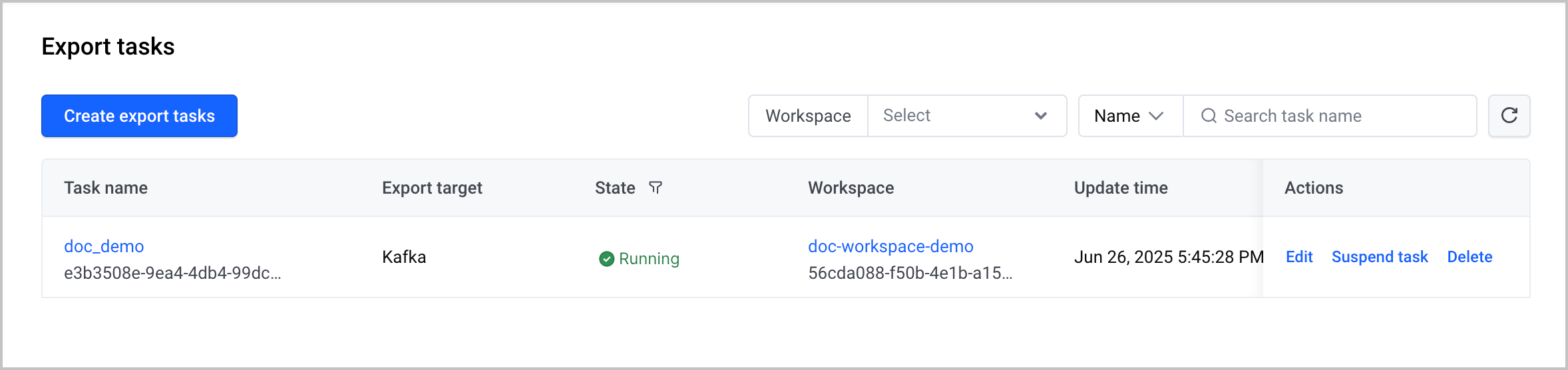
After the export task is created, you can perform the following O&M operations:
- Click the name of the task to go to the task details page, where you can view the details of the task.
- Click Edit in the Actions column to edit the task.
- Click Suspend task in the Actions column to suspend the task.
- Click Delete in the Actions column to delete the task.
Check exported data
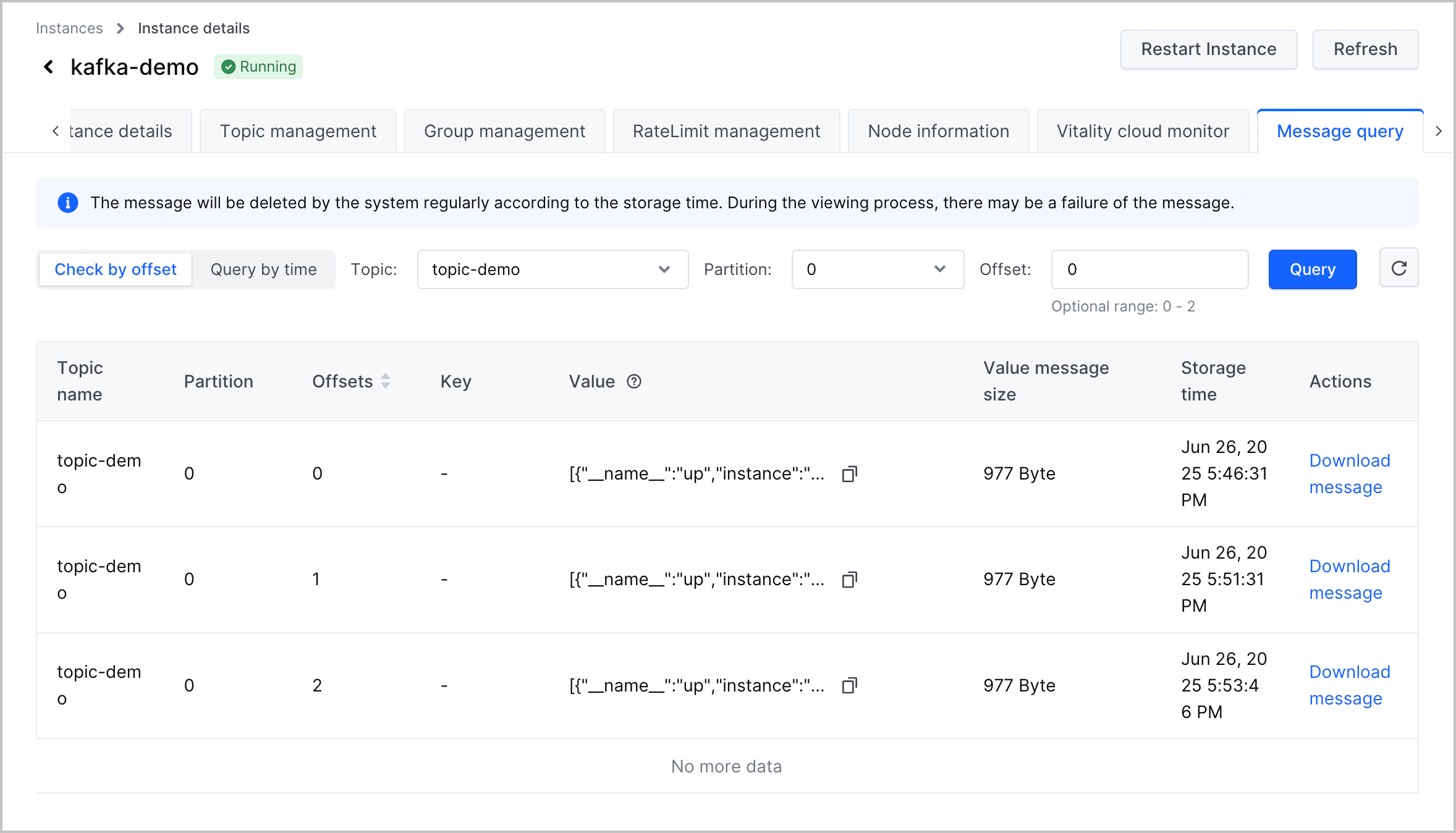
After the data of the VMP workspace is delivered to the Kafka instance, you can view the corresponding data in the Message Queue for Kafka console.
- Log in to the Message Queue for Kafka console.
- Click Instances in the left navigation bar. On the new page, find the target instance in the instance list.
-
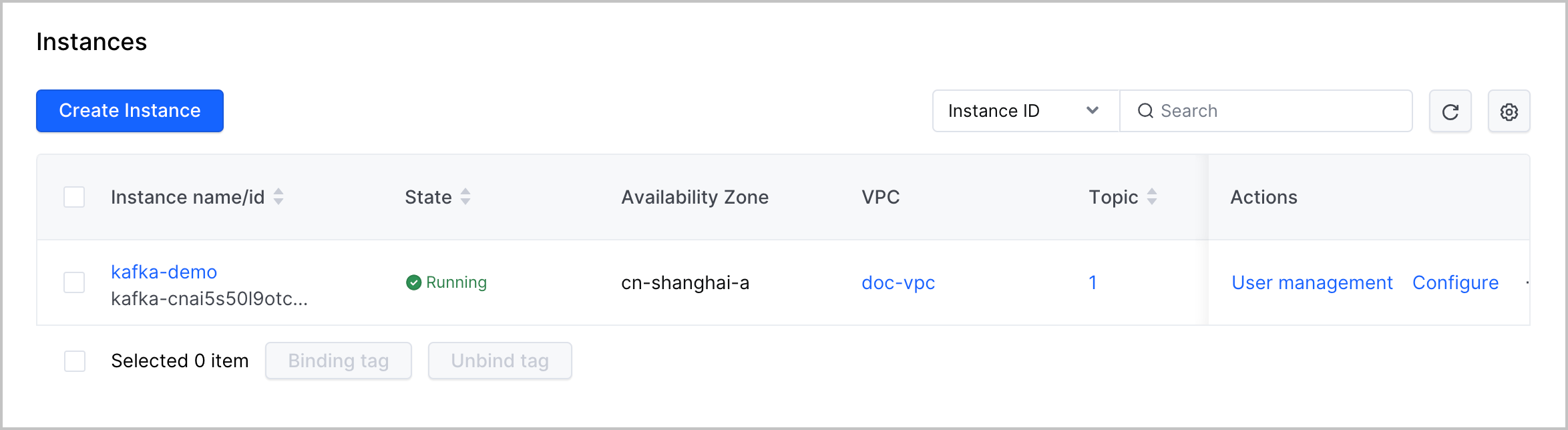
- Click the instance name to go to the instance details page. Click the Message query tab and specify the Topic, Partition, and Offset parameters to query the data delivered from the VMP workspace.
-
What to do next
On the export task details page, switch to the Monitoring dashboard tab and view the dashboards for both the raw metrics and exports to Message Queue for Kafka. Here:
- The dashboard for raw metrics displays three metrics: the scrape QPS, the average number of raw metric samples pulled per second, and the average time consumed to pull raw metrics.
- The dashboard for exports to Message Queue for Kafka displays two metrics: the number of successful export tasks and the number of failed export tasks.
Last updated: 2026.09.09 14:42:07
All rights reserved © Beijing Volcano Engine Technology Co., Ltd2024
