Volcengine Managed Service for Prometheus
Volcengine Managed Service for Prometheus


Document

- Documentation
 Volcengine Managed Service for PrometheusIntegration GuideContainer and self-managed cluster integrationHealth inspection (blackbox) integration
 Copy page
 Download PDF
Container and self-managed cluster integration
Health inspection (blackbox) integration
Copy pageDownload PDFHealth inspection (blackbox) integration
After you integrate Volcengine Managed Service for Prometheus (VMP) with a Volcengine Kubernetes Engine (VKE) cluster, you can use Probe to perform blackbox monitoring on the cluster and applications. This topic describes how to configure blackbox monitoring through Probe.
Background
In a standard Kubernetes cluster, you can perform service discovery by configuring ServiceMonitor or PodMonitor to monitor resources or services within the cluster. For example, you can monitor host resource usage, container running status, and the operational data of the database middleware in the cluster. By monitoring the exposed metrics of the infrastructure that supports businesses and services, you can understand its internal running status and potential issues to reduce risks. This monitoring method that directly observes application internal metrics is called whitebox monitoring.

In addition to whitebox monitoring, blackbox monitoring is often used to monitor services. Blackbox monitoring is used to test and monitor the external visibility of services from the perspectives of users. Common blackbox monitoring provides HTTP probes, TCP probes, DNS probes, ICMP probes, gRPC probes, and other solutions, which can be used to check site or service accessibility and access efficiency. For example:
- HTTP probe: monitors HTTP service availability and SSL certificate validity period.
- ICMP probe: checks network connectivity and host liveness.
- TCP probe: detects host TCP port liveness.
-
tip
The blackbox-exporter add-on is an official blackbox monitoring solution provided by the Prometheus community, which allows you to probe and monitor networks and applications via HTTP, HTTPS, DNS, TCP, ICMP, and gRPC. For more details, refer to the official documentation of Github.
The main differences and application scenarios between blackbox monitoring and whitebox monitoring are as follows:
- Blackbox monitoring: a fault-oriented monitoring method, which is mainly used to monitor whether the external services of applications are running as expected from the perspectives of users. Blackbox monitoring can quickly detect faults when faults occur.
- Whitebox monitoring: a monitoring method, which is mainly used to monitor the internal running status of applications and predict potential issues accordingly from the perspectives of applications
tip
A typical and complete monitoring chain requires both whitebox monitoring and blackbox monitoring to work together, in which potential issues are identified through whitebox monitoring, and occurred issues are quickly identified through blackbox monitoring.
Prerequisites
- VMP
- A VMP workspace has been created. For details, see Creating workspaces.
- VKE
- VKE has been activated.
- A cluster has been created. For details, see Creating clusters.
- The cluster is integrated with VMP. For more details, refer to VKE integration.
- If you need to monitor the external services of the cluster, enable the public network access for the cluster where the blackbox-exporter add-on is located. For more details, see How to manually enable public network for a cluster?
Configuration methods
Method 1: integration center (recommended)
Configure an integration task
- Log in to the VMP console.
- In the top navigation bar, select the target region.
- In the left navigation bar, click Integration Center > Component. On the page that appears, click Health Inspection (Blackbox) to configure the integration task.
- Configure the deployment environment of the collector. Click VKE environment and select an associated cluster.
- Click Create Integration Task to specify the details of the integration task.
-
- Click Confirm to complete the configuration.
Obtain monitoring dashboards
Click the Effect preview tab to view sample monitoring dashboards. Click Get the Grafana template to download the Grafana monitoring dashboard template in JSON format.
Query metrics
Click the Acquisition metric tab to view the list of metrics for the collection targets.
Method 2: custom deployment
Step 1: Create a Probe CRD resource
If no Probe CRD resources exist in your cluster, you need to connect to the cluster in the local environment and execute the following command to create a Probe CRD resource in the cluster:
tip
- If your cluster is not deployed in the China (Beijing) region, you need to modify the cn-beijing field in the preceding command to the region ID of the corresponding region. For example, if your cluster is deployed in the China (Shanghai) region, the deployment command is kubectl apply -f https://vmp-release-cn-shanghai.tos-cn-shanghai.volces.com/manifests/crds/promopeartor-crd-probes.yaml. For region IDs of different regions, refer to Regions and Availability Zones.
- For deployment methods of CRD resources corresponding to ServiceMonitor and PodMonitor, refer to How do I create CRD resources such as ServiceMonitor in a cluster?
Step 2: Manage blackbox-exporter configuration by using ConfigMap
- Log in to the VKE console.
- Click Cluster in the left navigation pane.
- On the cluster list page, click the target cluster that you want to configure.
- In the left navigation pane of the cluster management page, select Configuration > Parameter, and click Create with Yaml to create a parameter.
tip
The preceding parameters are for illustration only, in which several probe modules including http_2xx, http_post_2xx, tcp_connect, icmp, and dns are defined. If you have probe requirements via other protocols, you need to add the configurations of the corresponding probe modules. For more details, refer to the official documentation of Github.
Step 3: Deploy blackbox-exporter
- In the left navigation pane of the cluster details page, click Workload > Deployment. Click Create with Yaml to deploy blackbox-exporter.
tip
- In the left navigation pane, click Service and Routing > Service. Click Create with Yaml to create the service.
Step 4: Configure service discovery
- Click Workload > Resource Explorer in the left navigation pane. Click Create with Yaml to configure service discovery.
- Select Custom from the Type drop-down menu.
- Enter the YAML configuration in the Yaml field.
Validate results
View the integration task
After the configuration is complete, you can view the status and details of the task. Check whether the integration task is running as expected.
- In the left navigation bar, click Access center > Access task.
- Click VKE environment. You can view the status of the integration task in the task list.
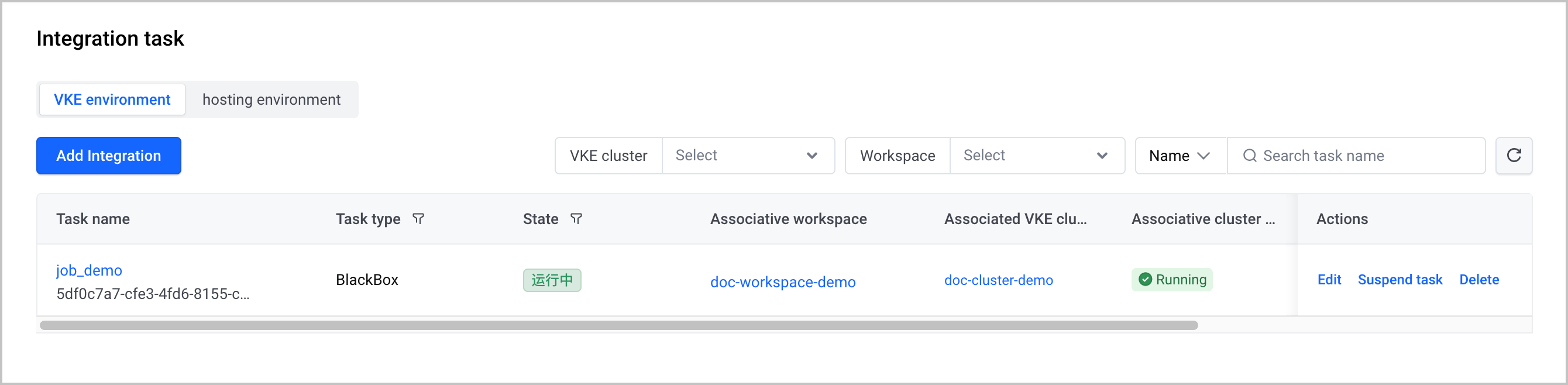
After the integration task is created, you can perform the following O&M operations:
- Click the name of the task to go to the task details page.
- Click Edit in the Actions column to edit the task.
- Click Suspend task in the Actions column to suspend the task.
- Click Delete in the Actions column to delete the corresponding integration task.
Query task metrics
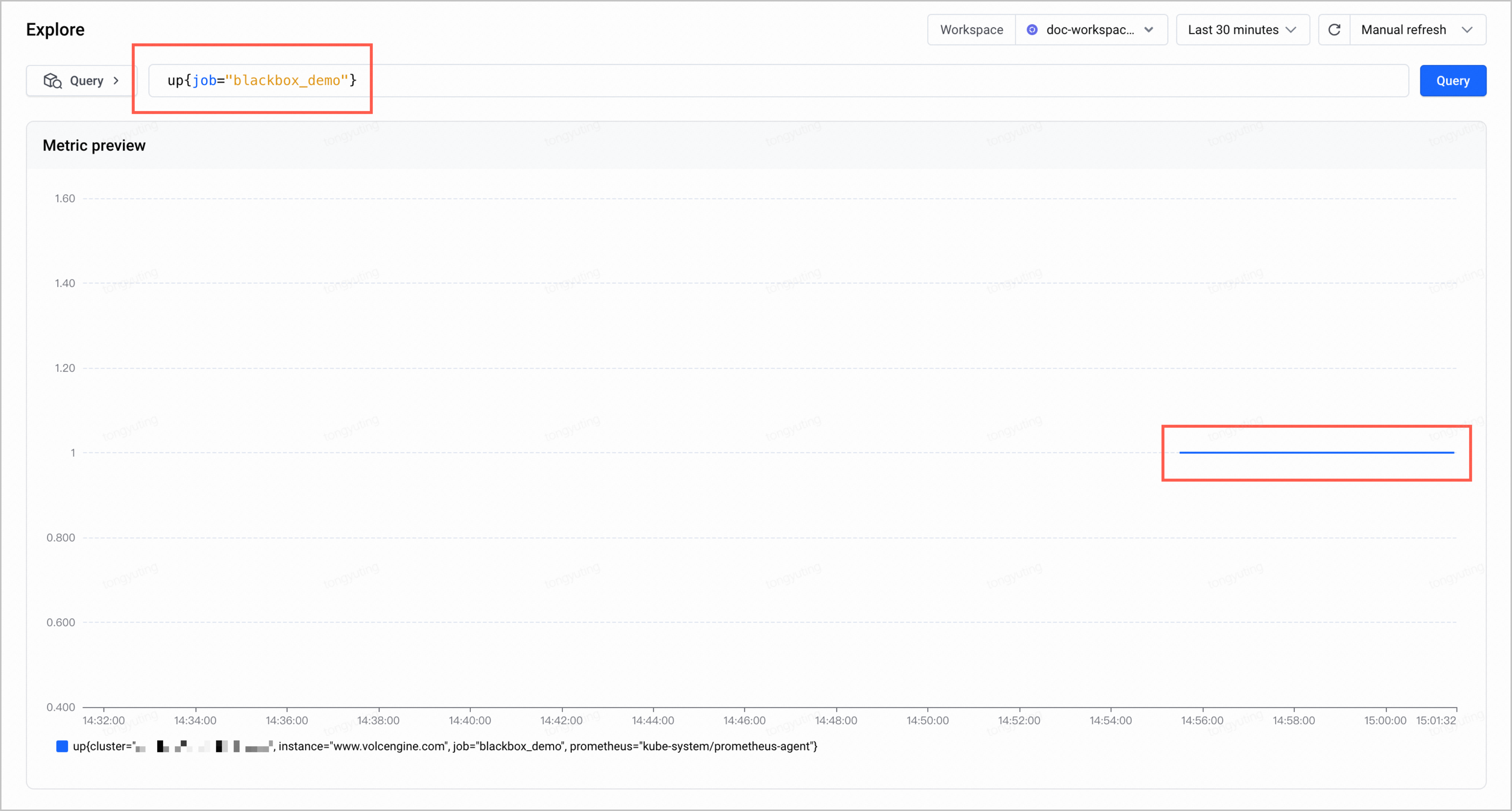
Click Explore in the left navigation pane. On the page that appears, use the up statement to view the status of collection jobs for the integration task. In this example, the statement is up{job="blackbox_demo"}. When the metric value is 1, it indicates that the collector is created and working as expected.
Monitoring information
Query metrics
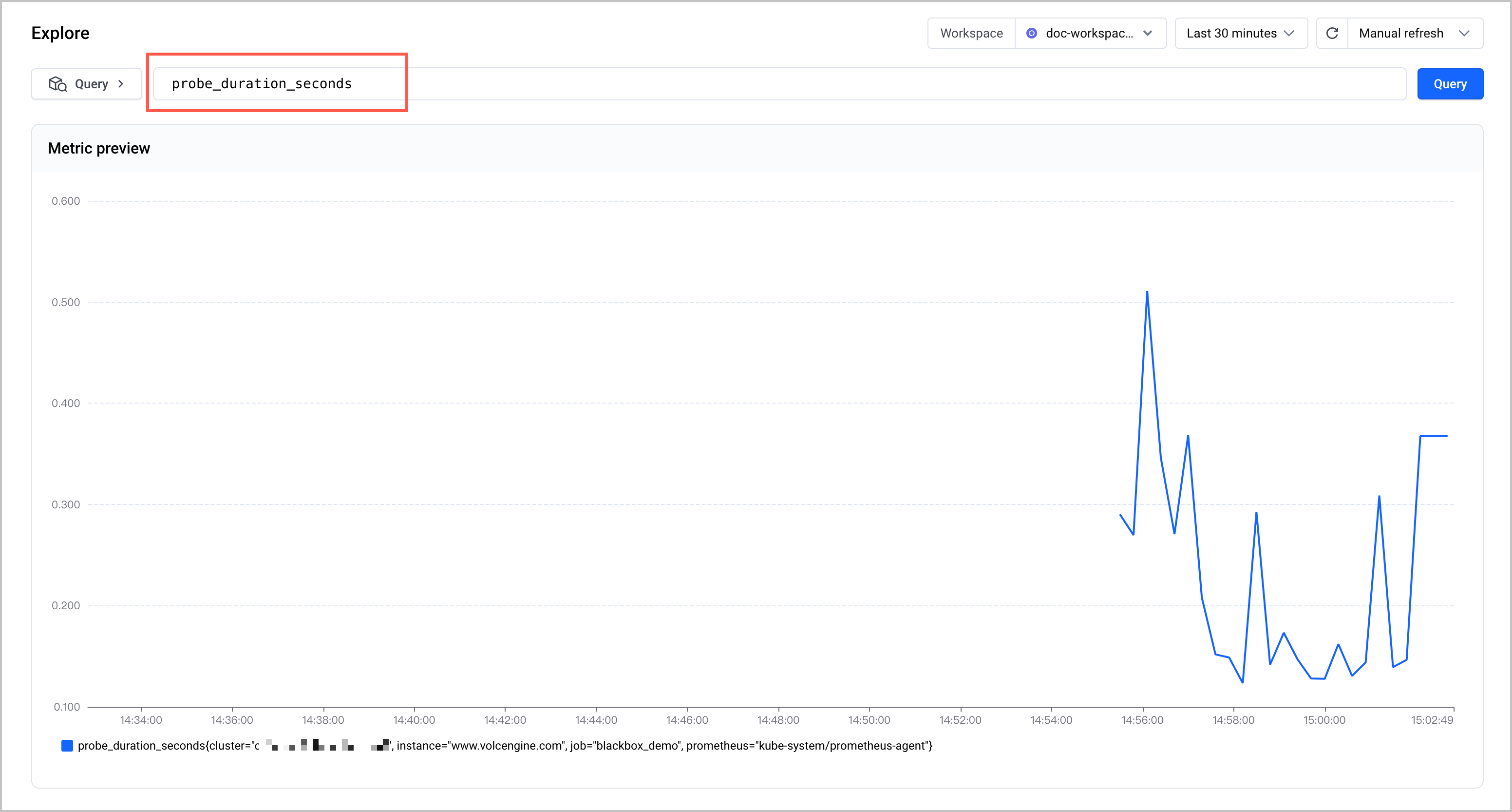
You can quickly query and display metric data by using the Explore feature of VMP. For more details, refer to Querying metrics.
Create dashboards
You can install Grafana in a VKE cluster or an ECS instance and then use Grafana to view metrics and create dashboards.
Configure alerts
You can configure alerts for the instance in the alerting center of VMP. For details, see Creating alert rules.
FAQ
How to debug and troubleshoot blackbox-exporter?
If you identify that an issue exists with the data collected by blackbox-exporter or the add-on is in an abnormal state, you can perform the following steps to directly view the data collected by blackbox-exporter or perform debugging. The specific procedure is as follows:
- Connect to the cluster locally via kubectl, and execute the following command to configure port mapping for the blackbox-exporter component instance. blackbox-84d7xxxx is the name of add-on instance.
- Execute the following command to view the data and debugging information of the blackbox-exporter add-on: Here:
- The target field indicates the probe target.
- The module field indicates the used probe module.
- debug=true indicates whether debugging is enabled. You can view the configuration information, collected metrics, add-on logs, and other information about the blackbox-exporter add-on.
Last updated: 2026.10.12 10:28:46
All rights reserved © Beijing Volcano Engine Technology Co., Ltd2024
