Volcengine Managed Service for Prometheus
Volcengine Managed Service for Prometheus


Document

- Documentation
 Volcengine Managed Service for PrometheusBest practicesAccessing workspaces across clouds and across regionsAccessing a workspace over the Internet through a proxy
 Copy page
 Download PDF
Accessing workspaces across clouds and across regions
Accessing a workspace over the Internet through a proxy
Copy pageDownload PDFAccessing a workspace over the Internet through a proxy
The workspace of Volcengine Managed Service for Prometheus (VMP) can be accessed over the Internet through a proxy. This topic describes how to create a proxy in a Volcengine Kubernetes Engine (VKE) cluster to access a workspace over the Internet.
Background
A VMP workspace offers a standard remote write URL and a standard query URL that can be accessed over internal networks. This allows you to collect service metrics and business metrics in the internal networks of the public cloud and deploy Grafana in a VKE cluster to create and view metric dashboards. For more details, see Deploying Grafana and connecting to a workspace in the VKE cluster.
In some scenarios, you may need to access the data of a VMP workspace over the Internet. For example, in multi-cloud scenarios, you need to aggregate data from multiple public clouds to Grafana for centralized viewing. In this case, you can configure a proxy in a VKE cluster to access the VMP workspace over the Internet.
Prerequisites
- A VMP workspace has been created, and basic authentication has been enabled. For details, see Creating workspaces.
- A VKE cluster is created. For more details, see Creating clusters.
- The ingress-nginx agent or a self-built NGINX Ingress is installed in the cluster, and the corresponding Classic Load Balancer (CLB) instance is configured.
- If you use the ingress-nginx agent, you need to configure the corresponding CLB instance based on your business requirements when you install the agent. For example, set the Load Balancing type parameter to Public network, and set the Billing method parameter to Pay-as-you-go - by bandwidth limit or Pay-as-you-go - by actual traffic based on your business requirements. For more details, refer to the ingress-nginx section of the Installing an add-on topic.
- For the configuration method of a self-built NGINX Ingress in the cluster, refer to Deploying multiple Nginx Ingress controllers.
- An SSL certificate and key are purchased from the SSL certificate service or created through OpenSSL.
Procedure
Step 1: Configure the Secret
To ensure communication security over the Internet, use HTTPS for communication between Grafana and VMP. Therefore, it is necessary to use a Secret to configure the SSL certificate and key used by HTTPS.
- Obtain the SSL certificate and key. This topic takes tls.key and tls.crt as an example.
- Use kubectl to connect to the target cluster and run the following command to create a Secret named grafana-key of type kubernetes.io/tls:
Step 2: Configure a service and an Ingress
- In the left navigation bar, click Services and Ingresses > Service. Click Create with Yaml to create a service. You can access the VMP workspace by using a service of type ExternalName.
- Click Workload > Resource Explorer in the left navigation pane. Click Create with Yaml to create an Ingress. Specify the mapping relationship between the external domain name and the service.
- Select Custom from the Type drop-down menu.
- Enter the YAML configuration in the Yamlfield.
tip
You need to ensure the DNS resolution relationship between the custom domain name and the public IP address of the CLB instance for the Ingress in the public network environment.
Step 3: Integrate a workspace data source
- Log in to Grafana in the public network.
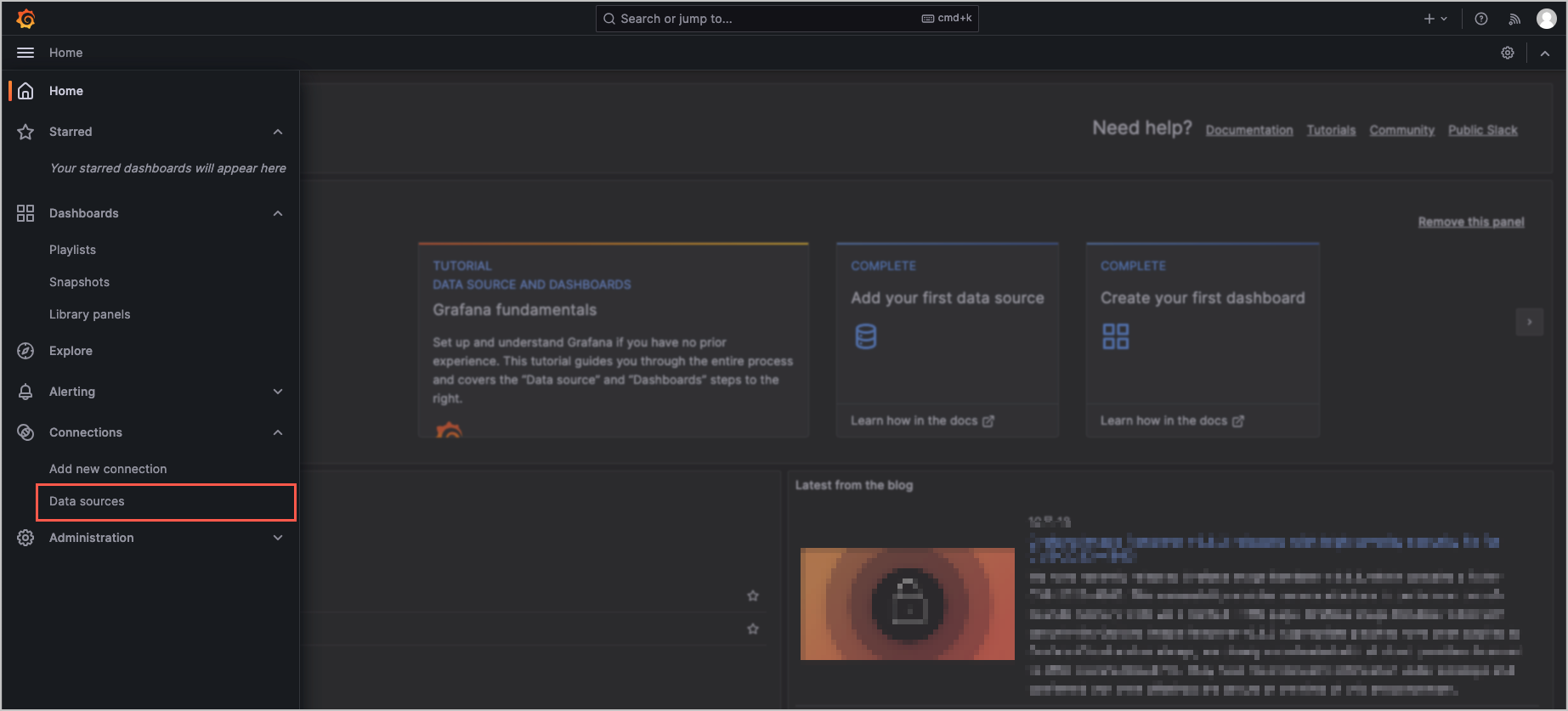
- Click Connections > Data sources in the left navigation pane.
-
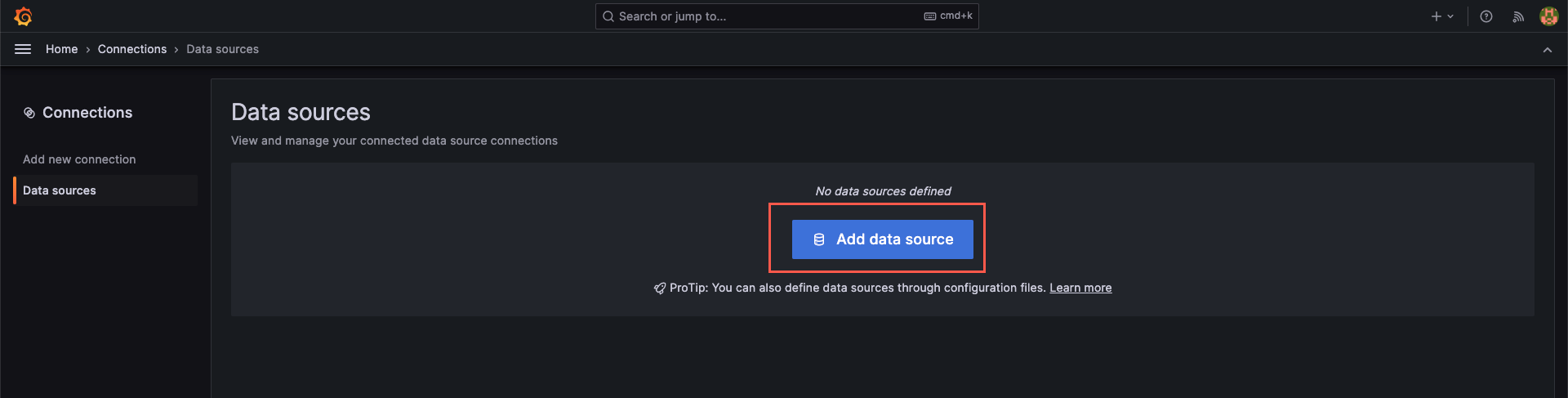
- Click Add data source to create a new data source.
-
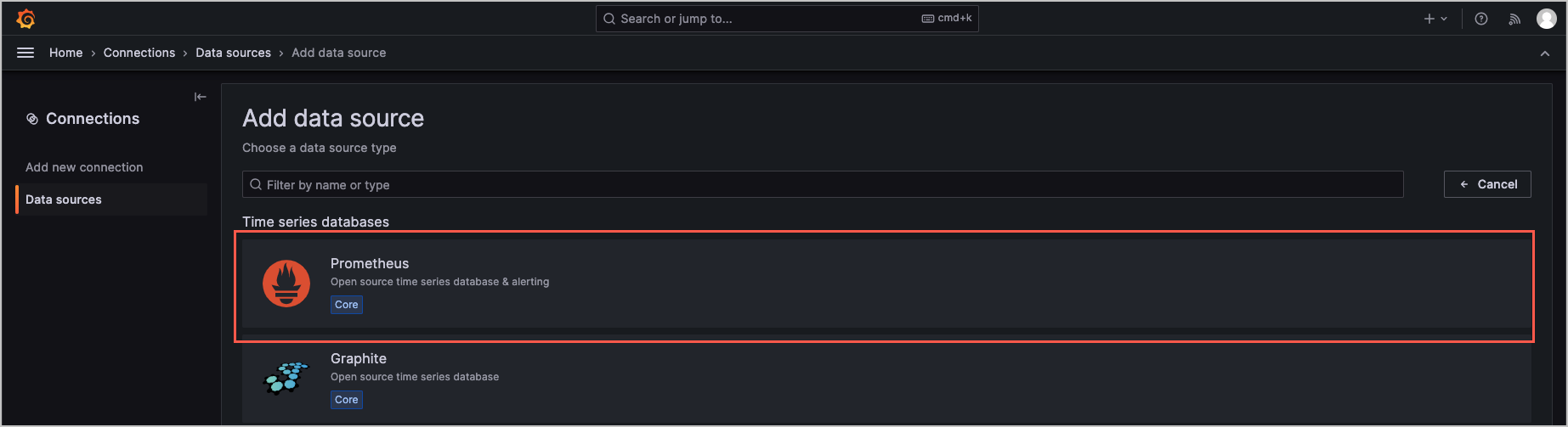
- On the Add data source page, click Prometheus.
-
- In the HTTP section, paste the modified query URL of the workspace in the Prometheus server URL field.
tip
You need to modify the original query URL of the workspace as follows:
- Change the protocol to https.
- Replace the domain name with the public domain name configured in the Ingress.
- The values of other parameters remain unchanged.
For example, change the query URL to https://vmp-test.com/workspaces/1c3***.
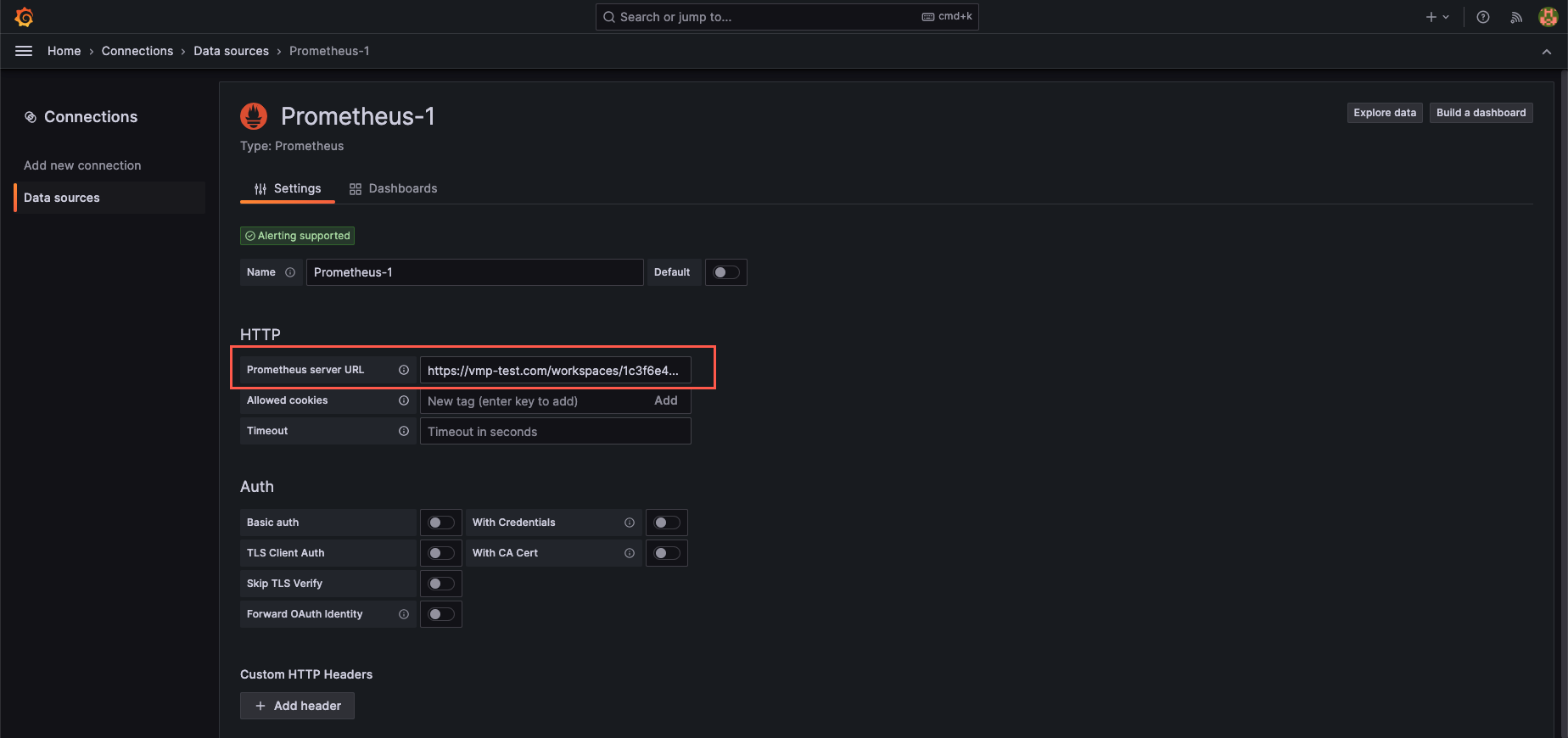
6. Switch on Basic auth in the Auth section and configure the username and password used for workspace authentication in the Basic Auth Details section.
warning
If your certificate is a self-signed or other untrusted certificate, you also need to switch on Skip TLS Verify. Otherwise, Grafana will report a certificate verification error.
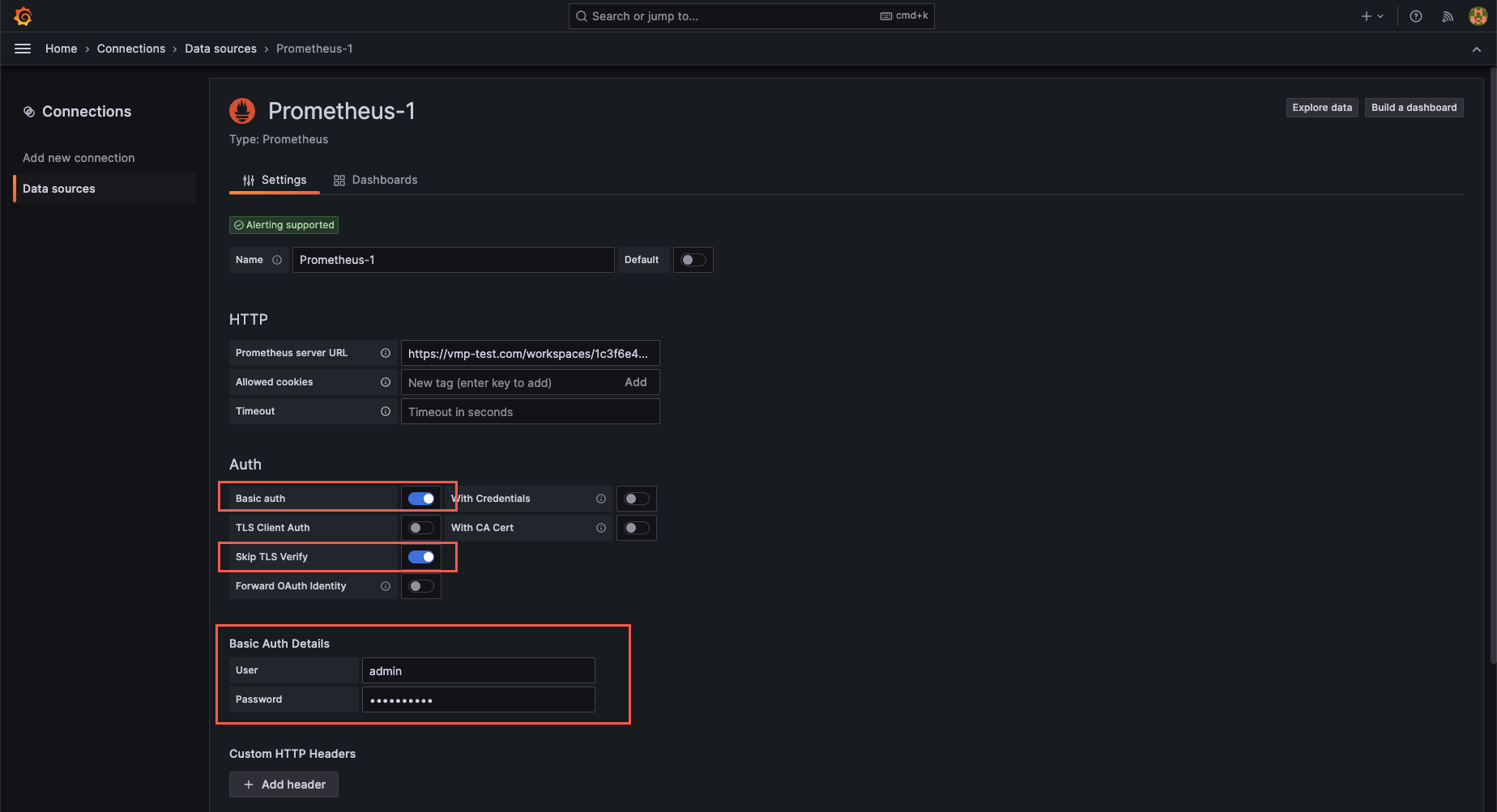
7. Click Save & test at the bottom of the page. When the message Successfully queried the Prometheus API is displayed, it indicates the data source is configured and the workspace is integrated with Grafana.

Step 4: Create and view a dashboard
- Click Dashboards in the left navigation pane.
-
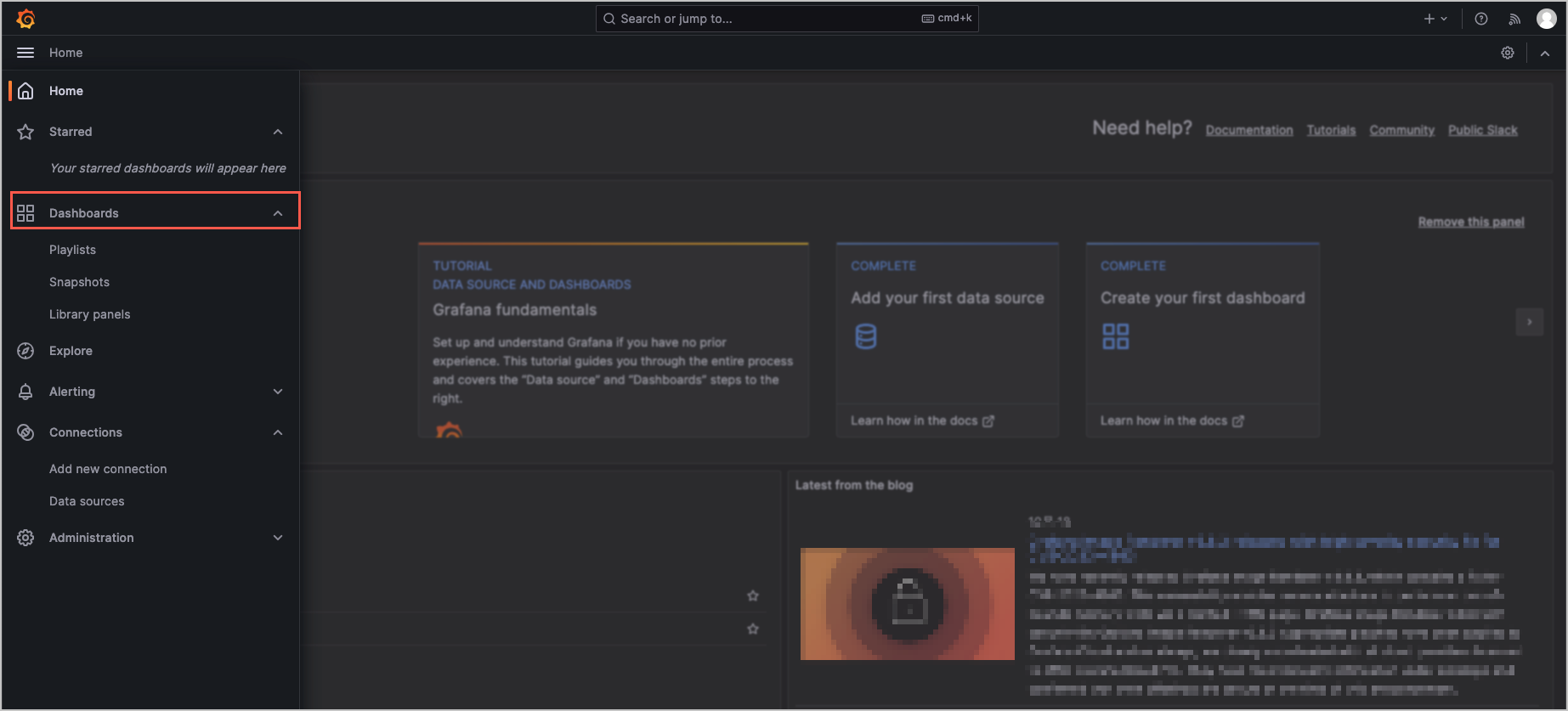
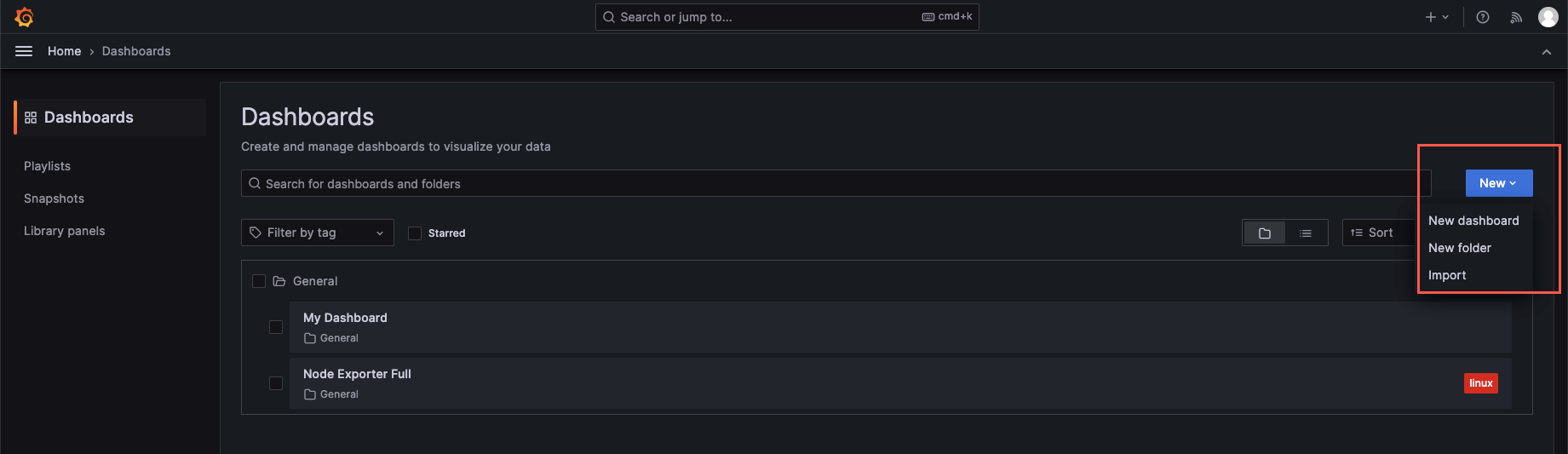
- Click New to create or import an observability dashboard.
-
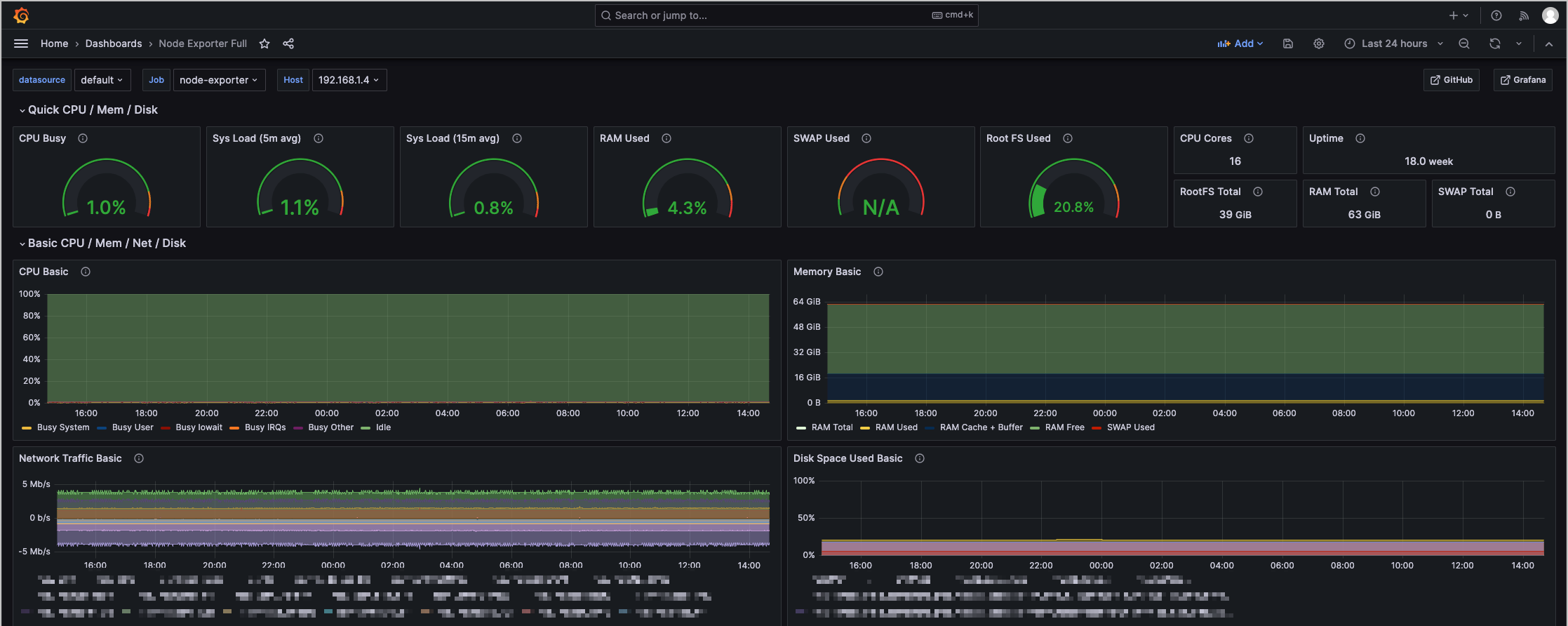
- You can view valid monitoring information by using the dashboard.
-
Monitoring and O&M
The proxy is used to read and write data in the VMP workspace over the Internet. The read or write performance is closely related to the performance of the Ingress instance in the VKE cluster. It is recommended that you use the observability feature of the VKE cluster to monitor and perform O&M on the Ingress instance. You can refer to the following topics:
References
Create a self-signed certificate by using OpenSSL
- In the local environment, visit the OpenSSL official website and download and install OpenSSL.
- Run the following command to generate a 2048-bit RSA private key:
The following section shows the expected response result.
- Run the following command to use the RSA private key to generate a certificate:
The following section displays the expected response. You need to enter information about the certificate, such as the country, region, organization name, domain name, and email address.
- Run the following command to sign the certificate with the private key and set the validity period of the signature to 365 days:
- The private key (tls.key) and certificate (tls.crt) required for HTTPS encryption are created.
Last updated: 2026.10.10 11:04:51
All rights reserved © Beijing Volcano Engine Technology Co., Ltd2024
