Volcengine Managed Service for Prometheus
Volcengine Managed Service for Prometheus


Document

- Documentation
 Volcengine Managed Service for PrometheusUser guideExploreQuerying metrics
 Copy page
 Download PDF
Explore
Querying metrics
Copy pageDownload PDFQuerying metrics
You can quickly query and display metrics by using the Explore feature. This topic describes how to use Explore to query data in a workspace.
Prerequisites
Procedure
- Log in to the VMP console.
- In the top navigation bar, select the target region.
- Click Explore in the left navigation bar to go to the Explore page.
- In the upper-right corner of the page, configure the workspace, query time range, and data refresh method for metric queries.
-

- ParameterDescriptionWorkspaceFrom the Workspace drop-down list, select a workspace for which you want to query metrics.Min stepMinimum step size, that is, the minimum time interval between data points returned in a range query. The default setting is auto. You can specify a step size based on the sampling interval. For example, 10s means that the minimum time interval between returned data points is 10 seconds.The following units are supported for the minimum step:
- s (second)
- m (minute)
- h (hour)
- d (day)
- w (week)
Query time rangeThe default is the last 30 minutes.After you click the drop-down list, you can select the metric query time range.Data refresh methodManual refresh and automatic refresh are supported. - Manual refresh: Click the
 icon to refresh the data and page.
- Automatic refresh: The system will automatically refresh metrics and previews according to the refresh interval.
- Specify the metric that you want to query. You can manually enter a metric or select a metric from the metric list. Metric queries are based on Prometheus Query Language (PromQL) statements. For more information about PromQL, see PromQL basics.
- Manual metric input: If you are familiar with PromQL statements for queries, you can enter a query statement in the field. When you enter the statement, the system will automatically suggest related statements for you to choose from.
-
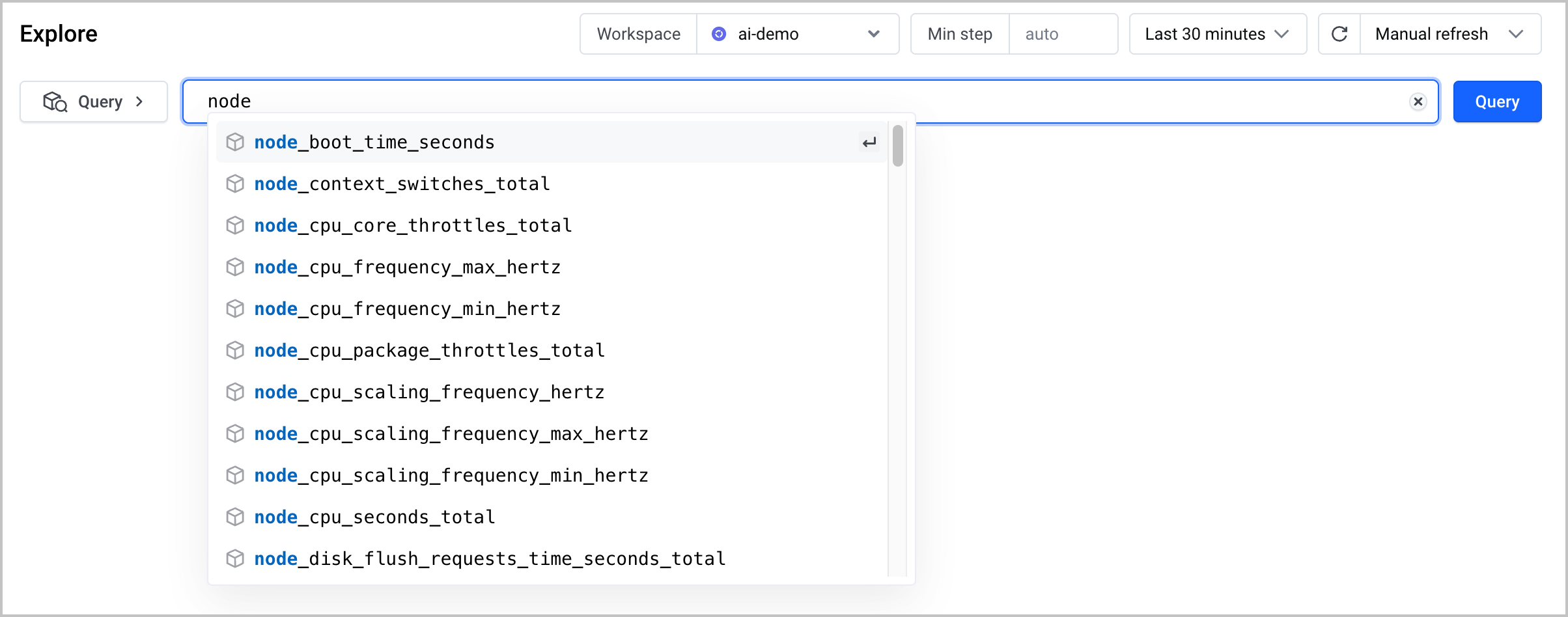
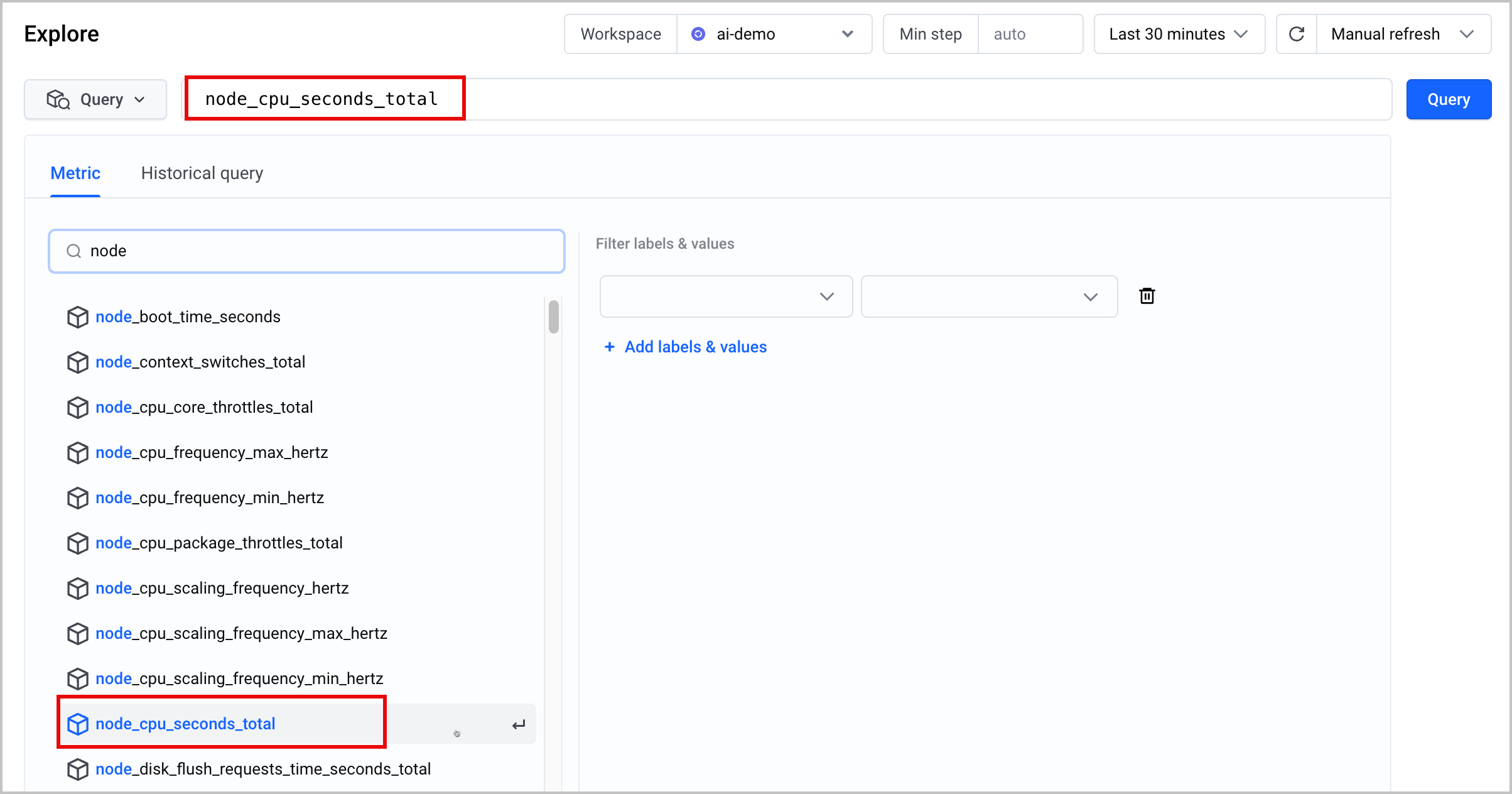
- Metric search list: Click Metric search to display the metric search list. You can select the metric that you want to search from the metric list or use the search feature to filter the metric.
- Click a metric name in the metric list to select the metric.
-
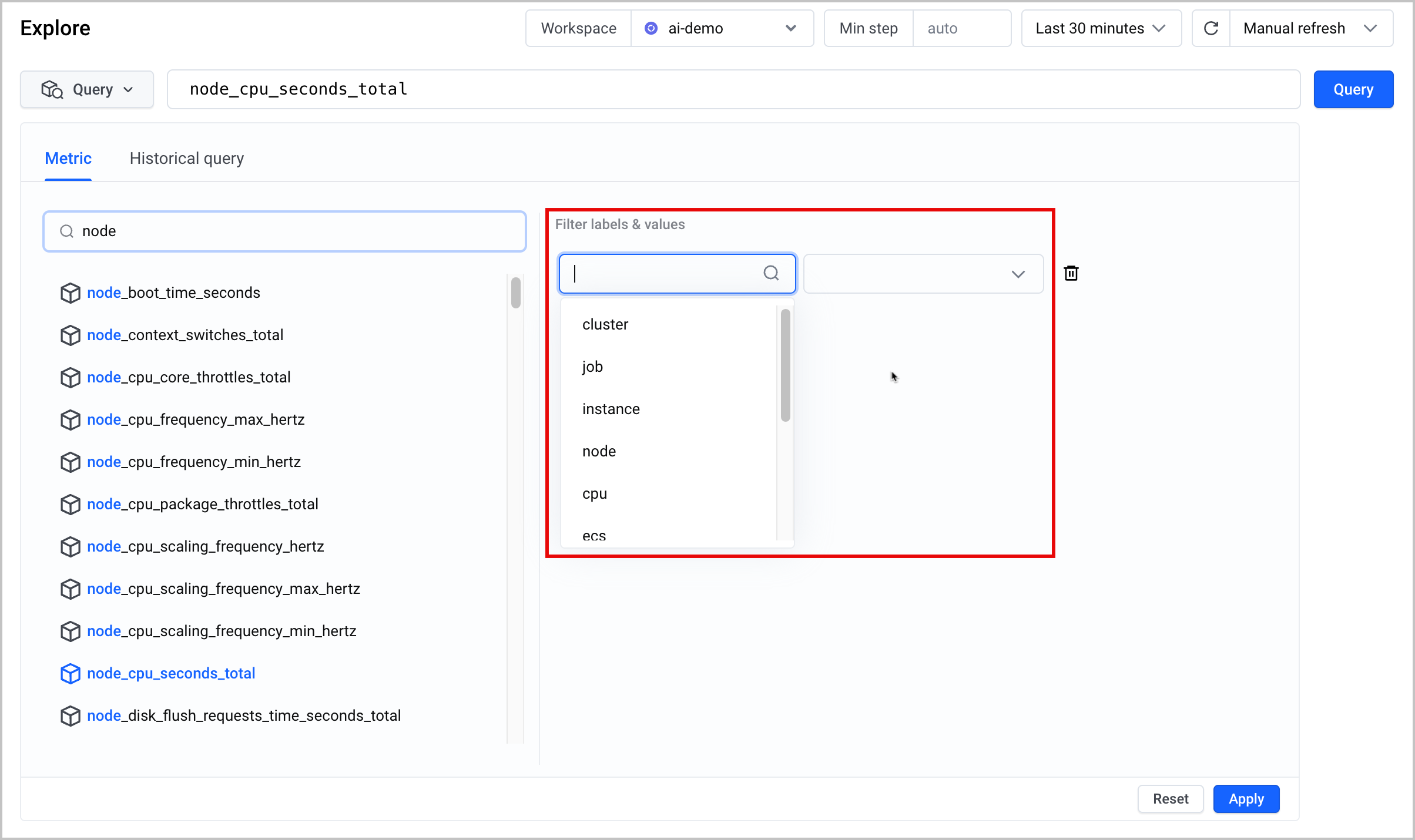
- In the Filter labels & values section, filter the metric based on its label and values for more granular filtering.
-
tip
- Click Add label & values to add multiple metric labels and corresponding values.
- Click Reset to reset the filter conditions.
- You can filter metric labels by metric name. You can also filter metric names by metric label.
- Click Apply to combine the selected metric name and label-value pair into a PromQL metric query statement.
-

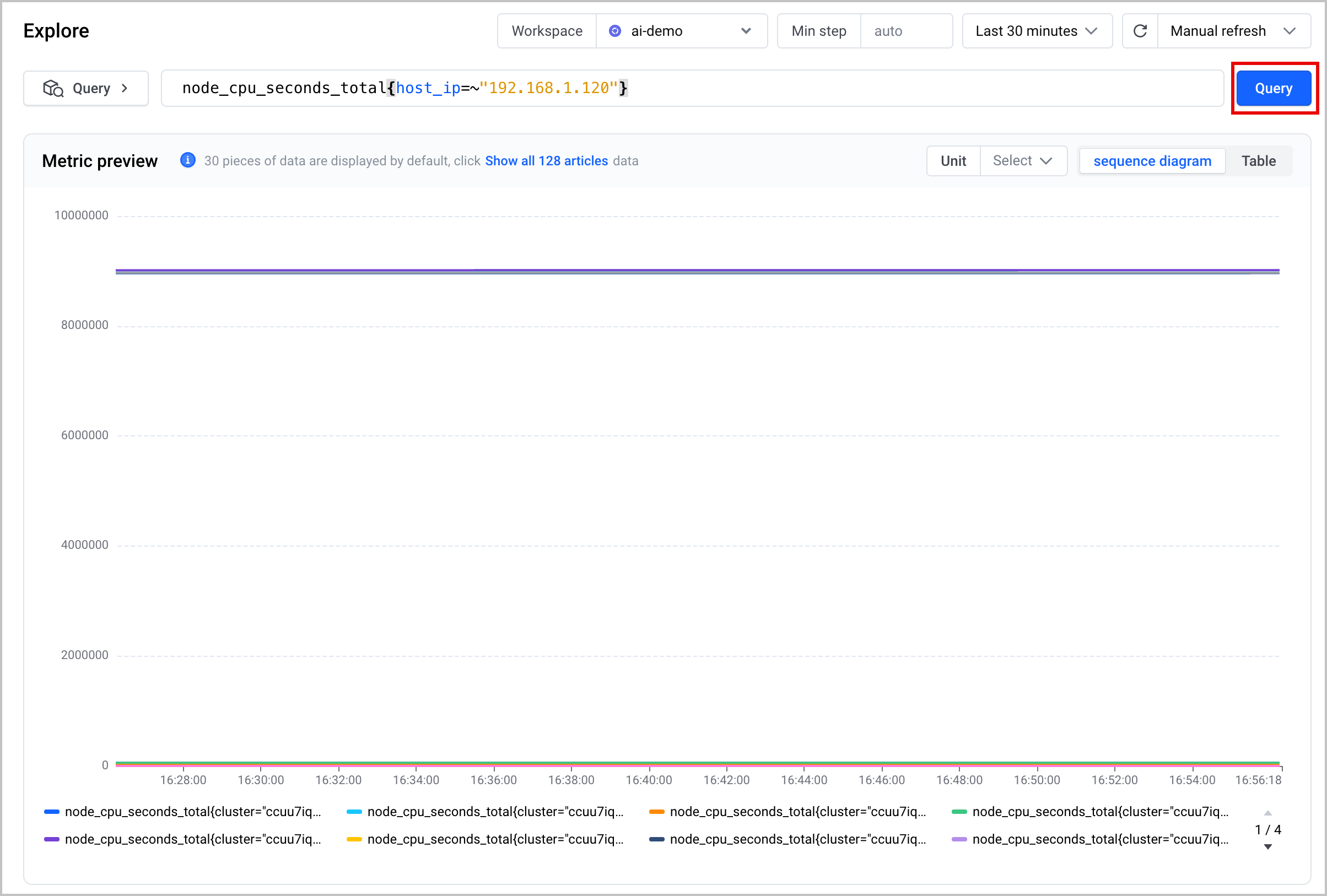
- After the configuration is complete, click Query to query data and get a metric preview. Data can be presented in time series diagrams and tables. You can select a unit as needed.
-
Last updated: 2026.09.01 10:17:38
All rights reserved © Beijing Volcano Engine Technology Co., Ltd2024
