Volcengine Managed Service for Prometheus
Volcengine Managed Service for Prometheus


Document

- Documentation
 Volcengine Managed Service for PrometheusBest practicesResource and application monitoringMonitoring GPUs in a custom Kubernetes cluster
 Copy page
 Download PDF
Resource and application monitoring
Monitoring GPUs in a custom Kubernetes cluster
Copy pageDownload PDFMonitoring GPUs in a custom Kubernetes cluster
You can use Volcengine Managed Service for Prometheus (VMP) to monitor GPUs in the nodes of your self-built cluster. This topic describes the procedure and considerations for configuration.
Background
In Kubernetes clusters, you can use the dcgm-exporter agent to expose GPU metrics Therefore, you can use VMP to monitor the status information of GPUs in the nodes of your self-built cluster.
Prerequisites
- A Volcano Engine root user has been created, and VMP has been activated.
- A VMP workspace has been created. For details, see Creating workspaces.
- A self-built Kubernetes cluster is created, and GPU nodes exist in the cluster.
- The Kubernetes version of the self-built cluster is v1.20 to v1.24. Otherwise, compatibility issues may occur.
- Ensure that the self-built cluster can access the public network. If not, refer to How do I download and deploy a collector in an environment without a public network?
- The self-built cluster can access the VMP workspace. For more details, see Accessing a workspace via a proxy or Accessing a workspace through CEN.
- You have created CRD resources for ServiceMonitor or PodMonitor in the cluster. For details, see How do I create CRD resources such as ServiceMonitor in a cluster.
- The local environment (Linux/Mac) is configured.
- Download and install the latest version of the kubectl tool in the local environment. For more details, refer to Install Tools.
- In the local environment, use kubectl to connect to the self-built cluster.
- Correctly install command-line tools (such as wget, echo, curl, and sed) in the local environment.
Procedure
Step 1: Install dcgm-exporter in the cluster
Install the dcgm-exporter agent in the self-built cluster. For more details, refer to the official documentation of GitHub.
Step 2: Deploy the collector
- Download the script in the local environment. For details, see Obtaining scripts.
- Use kubectl to connect to the self-built cluster.
- Run the following command to deploy the VM Agent collector in the self-built cluster:
Step 3: Configure a collection rule
Use ServiceMonitor or PodMonitor to configure a collection rule in the self-built cluster. This topic provides an example of how to configure a collection rule by using ServiceMonitor.
tip
Validate results
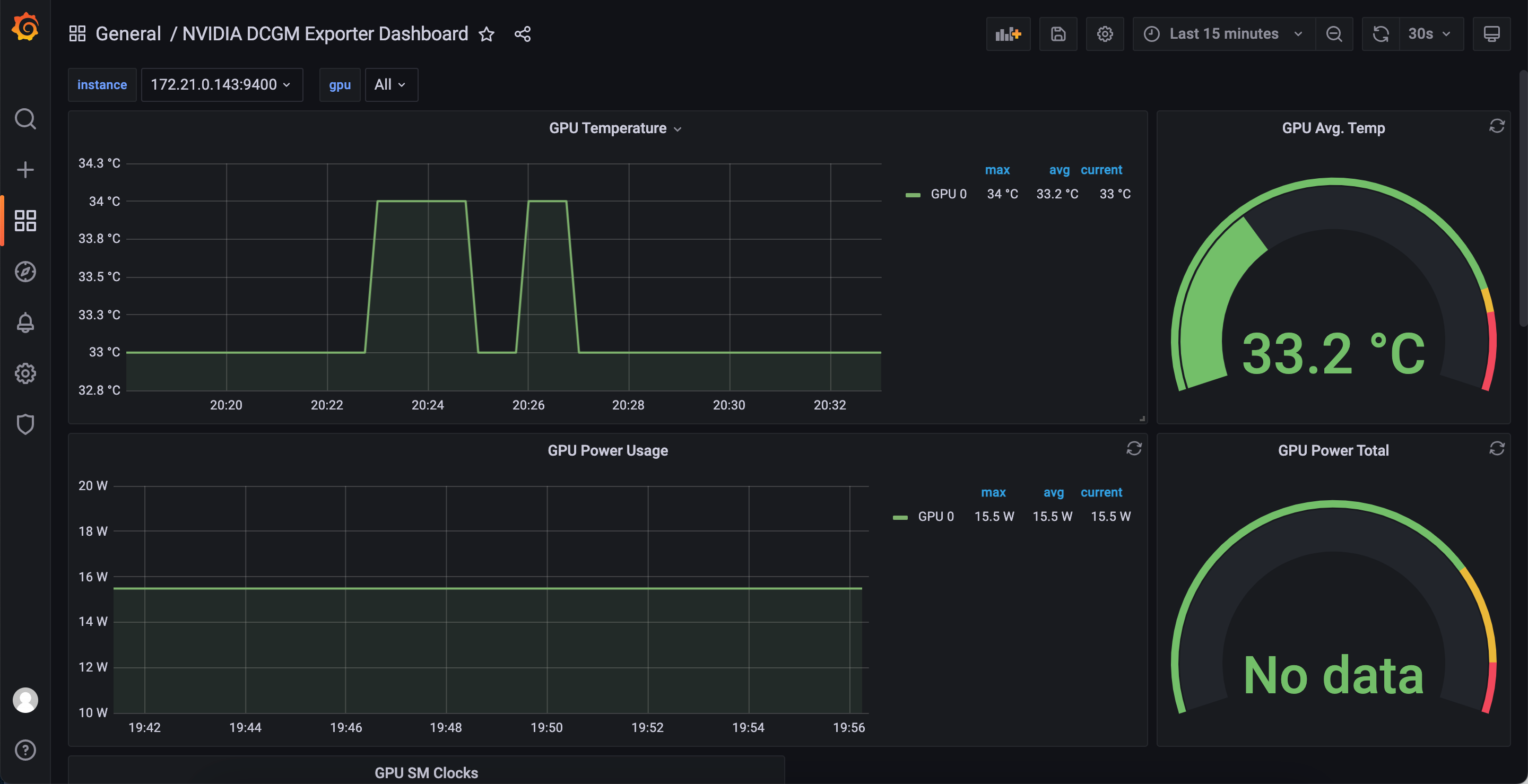
Log in to Grafana and create a GPU-related dashboard by using a GPU-related PromQL statement. Then, you can view the GPU monitoring information.
tip
Last updated: 2026.10.10 11:04:51
All rights reserved © Beijing Volcano Engine Technology Co., Ltd2024
