Volcengine Managed Service for Prometheus
Volcengine Managed Service for Prometheus


Document

- Documentation
 Volcengine Managed Service for PrometheusBest practicesResource and application monitoringMonitoring an AI training task in a VKE cluster
 Copy page
 Download PDF
Resource and application monitoring
Monitoring an AI training task in a VKE cluster
Copy pageDownload PDFMonitoring an AI training task in a VKE cluster
It is crucial to monitor training task status and underlying resource loads when you use AI training models to process business use cases. This topic describes how to monitor an AI training task in a Volcengine Kubernetes Engine (VKE) cluster.
Prerequisites
- Volcengine Kubernetes Engine (VKE)
- The cloud native observability feature is enabled, and the node-exporter agent is installed. For more details, refer to Enabling observability.
tip
The prometheus-agent add-on needs to be upgraded to v2.0.5 or later. For more details, refer to Upgrading an add-on.
- The rdma-device-plugin agent is installed. For more details, refer to Installing an add-on.
- The nvidia-device-plugin agent is installed, and dcgm-exporter is also installed. For more details, refer to Installing an add-on.
- Volcengine Managed Service for Prometheus
- A workspace has been created. For details, see Creating workspaces.
- An alert notification policy has been created. For more details, see Creating alert notification policies.
- An alert aggregation policy has been created. For details, see Creating alert aggregation policies.
Procedure
Step 1: Configure an AI training task
You can deploy an AI training task in the cluster and use GPU and RDMA resources by using workloads. For configuration methods, refer to NVIDIA GPU scheduling and Using RDMA resources in VKE clusters.
To view information related to the training task on the dashboard, you need to add the ai.vke.volcengine.com/task, ai.vke.volcengine.com/job, ai.vke.volcengine.com/team, and ai.vke.volcengine.com/user labels to the training task. The following section shows an example.
Step 2: Install Grafana and import a monitoring dashboard
When you need to monitor running AI training tasks and underlying resources in the cluster, you can download a monitoring dashboard provided in this topic and import it into the Grafana system for use.
Procedure:
- Deploy Grafana in a VKE cluster and integrate Grafana with a workspace. For more details, see Deploying Grafana and connecting to a workspace in the VKE cluster.
- In the local environment, use kubectl to connect to the cluster and run the following command to configure port mapping for the Grafana service:
- Open a browser in your local environment, paste localhost:3000 into the address bar, and then press Enter to go to the Grafana login page. Log in to Grafana by using the default username admin and password admin.
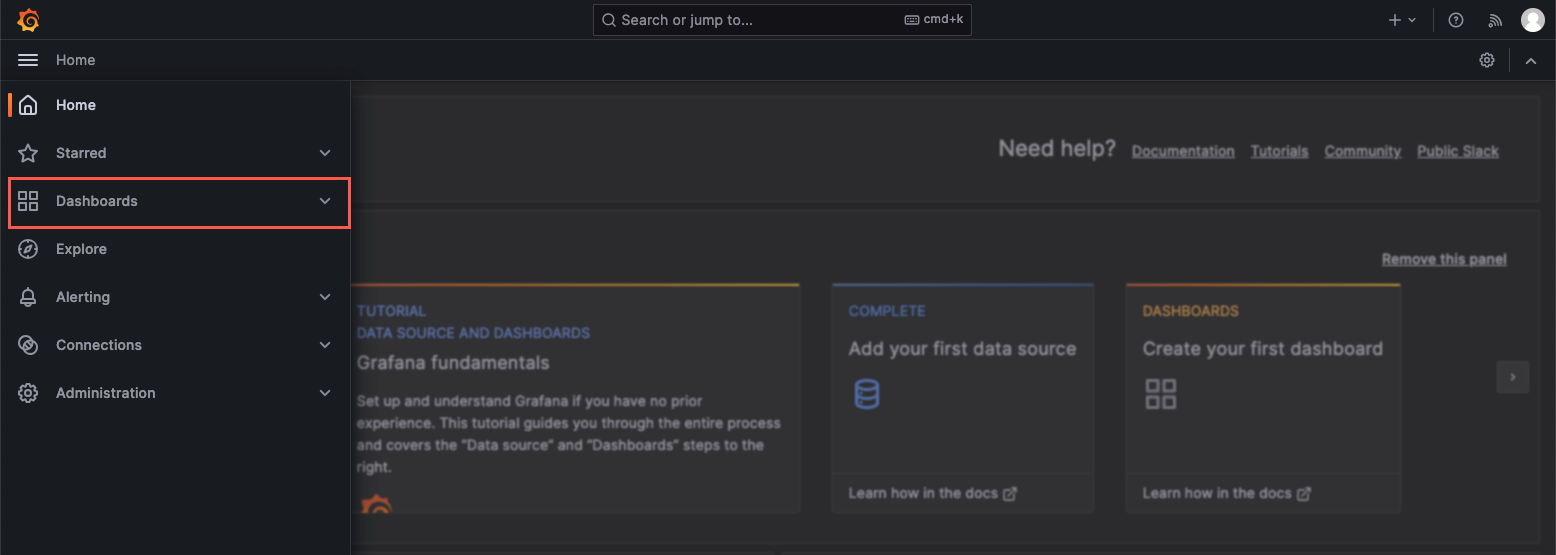
- Click Dashboards in the left navigation pane to go to the monitoring dashboard configuration page.
-
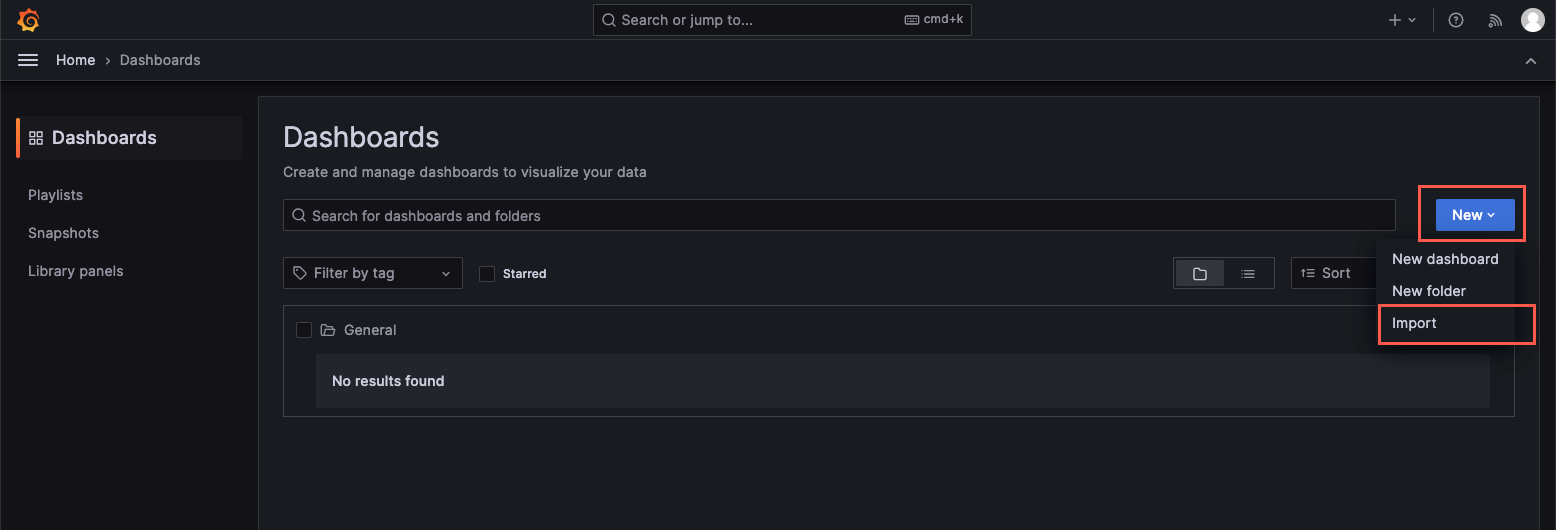
- Click New > Import to go to the dashboard importing page.
-
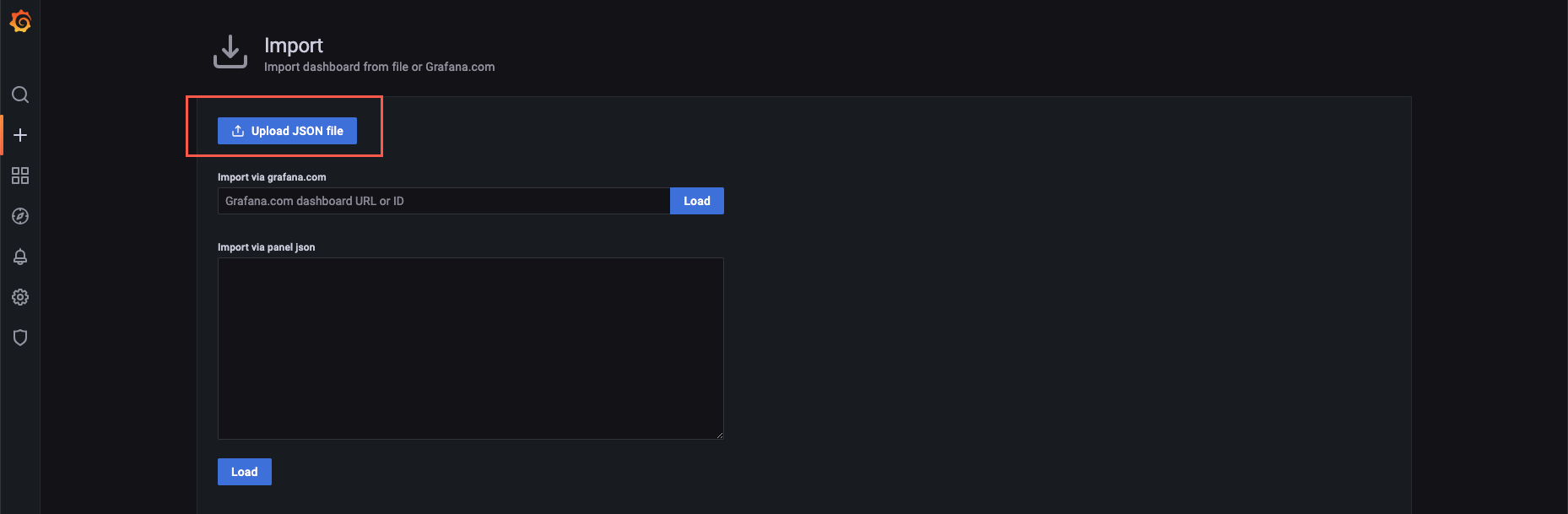
- Click Upload JSON file and select the on-premises JSON file of the monitoring dashboard.
-
- Specify the basic information about the monitoring dashboard.
-
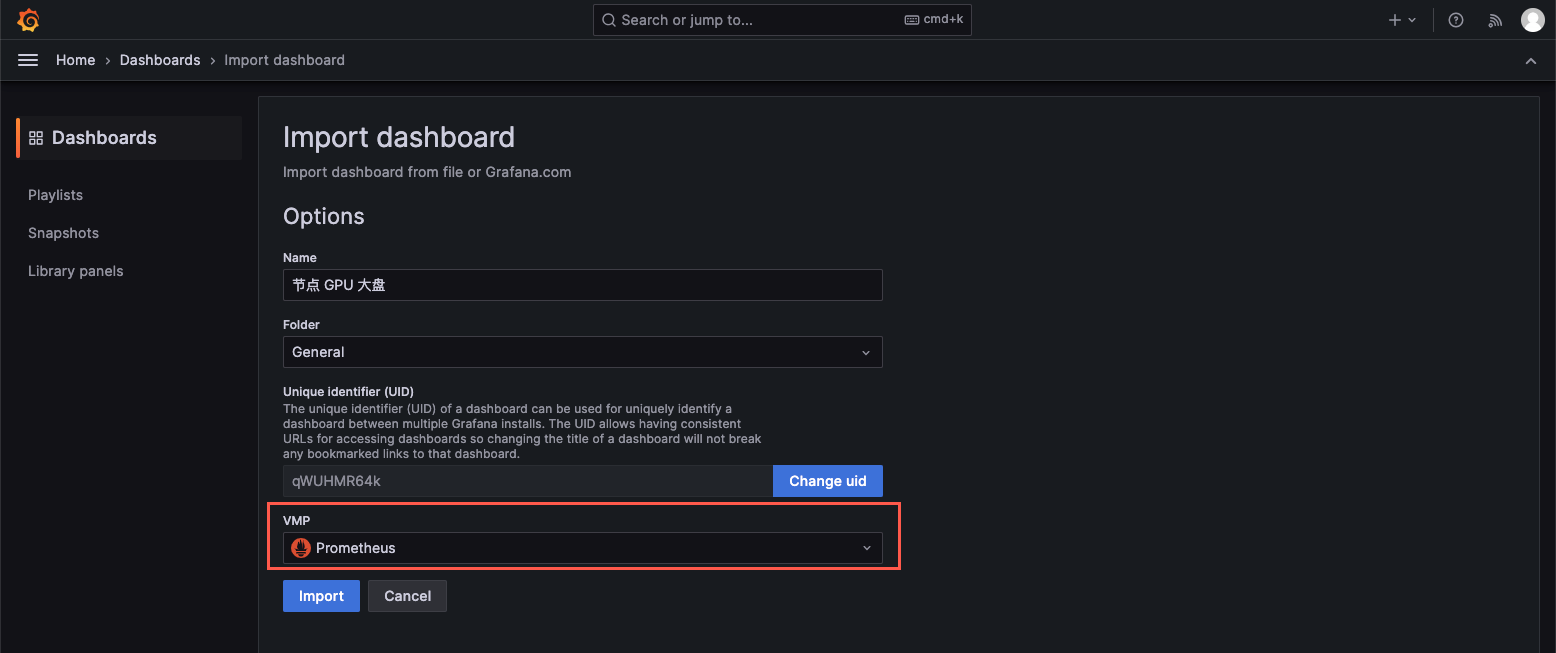
- ParameterDescriptionName(Optional) Modify the name of the monitoring dashboard based on your business requirements.Folder(Optional) Select the folder where the dashboard is saved. If you do not modify the value, the dashboard is saved in the General folder by default.VMPSelect a data source. You need to select a VMP workspace that is bound to the target cluster from the drop-down list.
- Click import to import the monitoring dashboard. Then, you can view the monitoring dashboard.
-
Step 3: Enable the AI resource observability feature
- Log in to the VKE console.
- Click Cluster in the left navigation pane.
- On the cluster list page, click the cluster for which you want to view events.
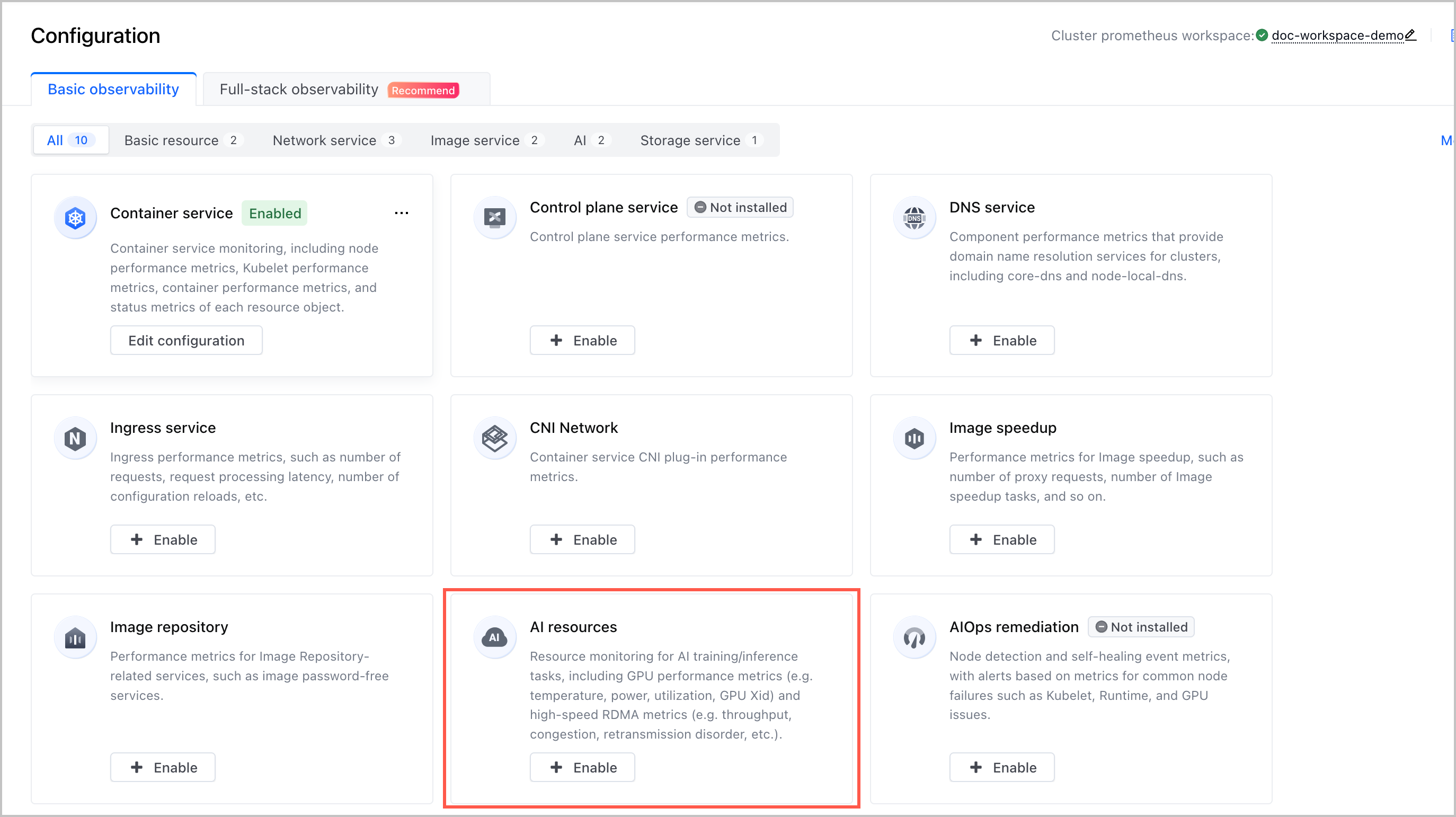
- On the details page of the cluster, click Configuration in the left navigation pane.
- Find the AI resources section and click Enable to enable AI resource observability.
-
- The system automatically checks the prerequisites for enabling cluster observability, including the workspace configuration and add-on status.
-
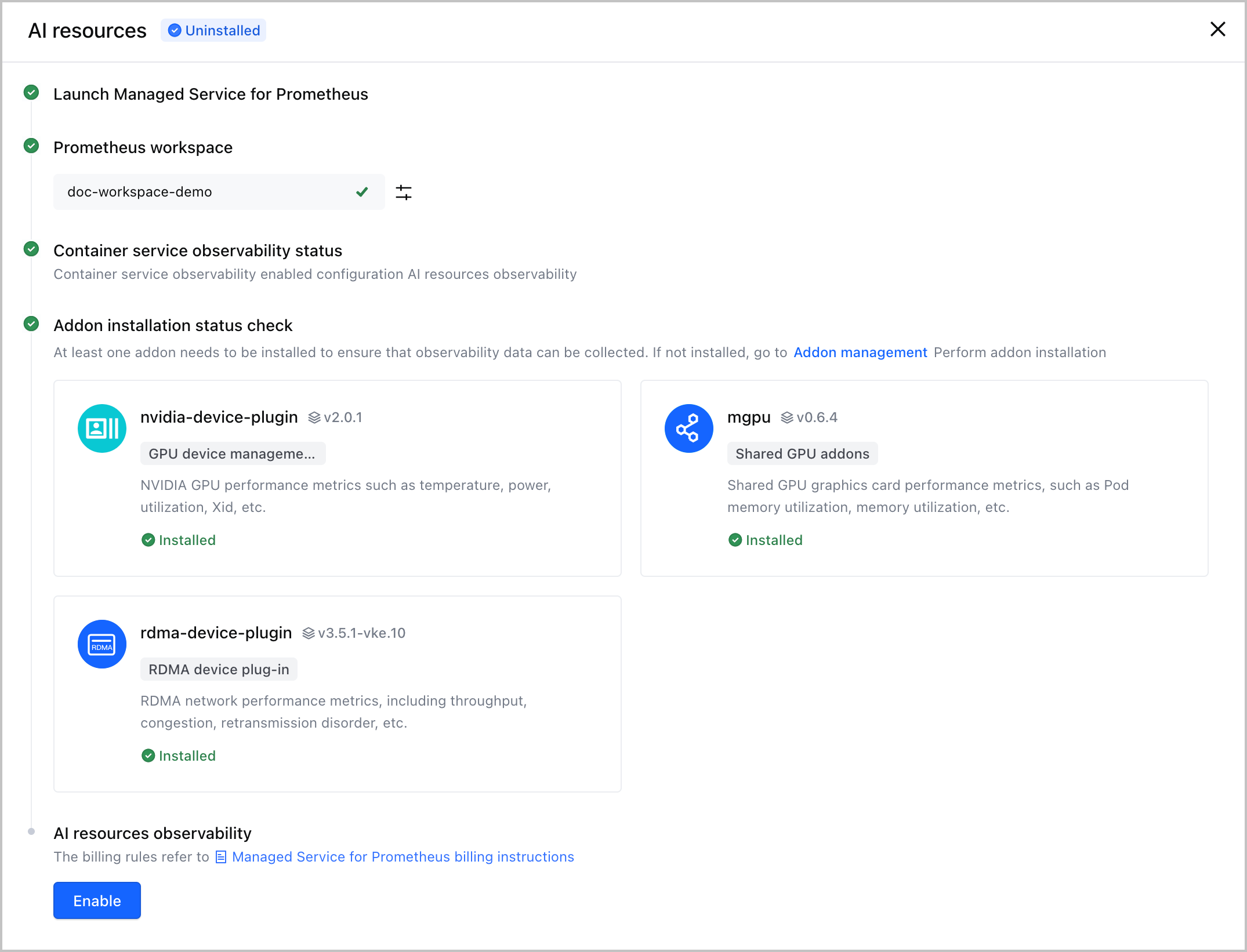
- Click Enable to enable AI resource observability.
Step 4: Configure alerts
- On the details page of the cluster, click Configuration in the left navigation pane.
- On the Basic observability tab, click the AI tab, find the AI resources section, and then click Edit configuration. Then, click the Alert tab and specify the alert-related parameters.
-
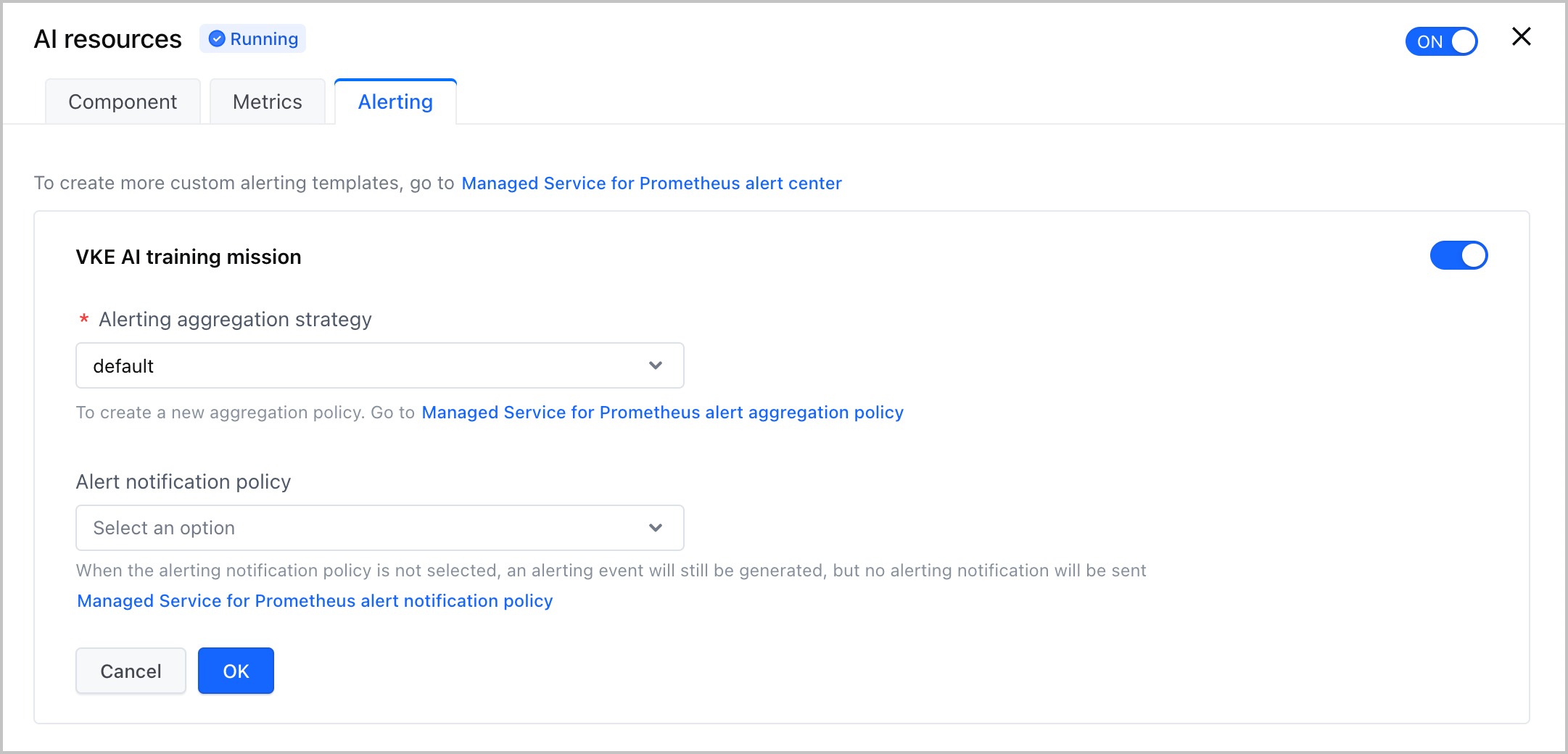
- ParameterDescriptionAlert templateSelect the required alert templates. You can select multiple templates.Alert aggregation strategySelect an alerting aggregation policy from the Aggregation policy list. For more details, see Creating alert aggregation policies.Alert notification policySelect an alerting notification policy from the Notify policy list. The system will send alerts to the specified contacts based on the alert levels and contact groups configured in the notification policy. For more details, see Creating alert notification policies.
- Click Add to complete the configuration.
Validate results
View the monitoring dashboard
- In the local environment, use kubectl to connect to the cluster and run the following command to configure port mapping for the Grafana service:
- Open a browser in your local environment, paste localhost:3000 into the address bar, and then press Enter to go to the Grafana login page. Log in to Grafana by using the default username admin and password admin.
- Click Dashboards in the left navigation bar to view the monitoring dashboard of the AI training task.
-
View alert configuration
- Log in to the VMP console. the
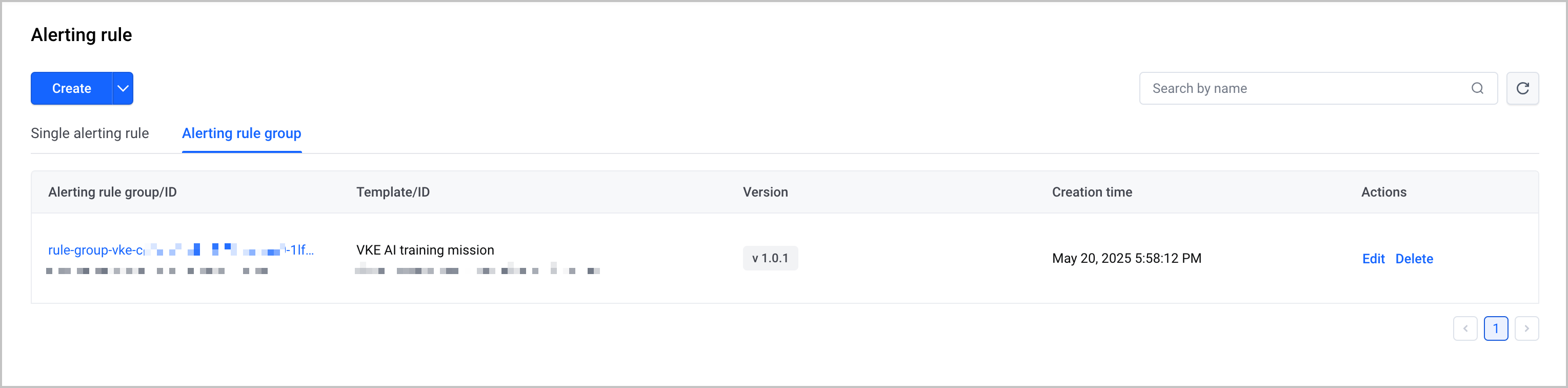
- In the left navigation bar, click Alert center > Alert rule. Click the Alert rule group tab. In the alert rule group list, view the generated alert rule group.
-
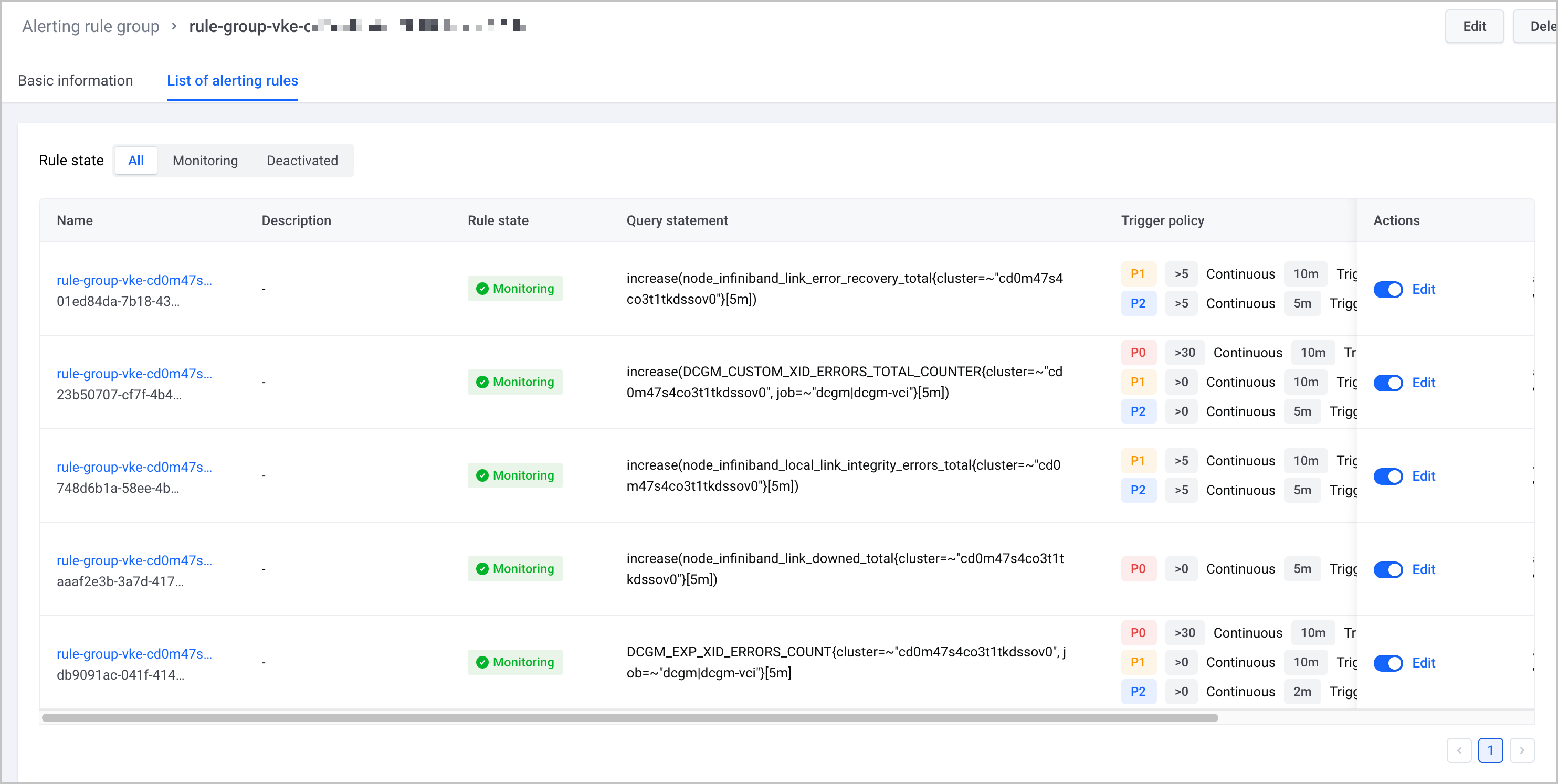
- Click the name of the alert rule group to go to the details page of the alert rule group. Click the List of alert rules tab to view all alert rules in the alert rules group. You can enable, disable, or edit the corresponding alert rule based on your business requirements. For specific operations, see Managing alert rules and Managing alert rule groups.
-
Common AI monitoring dashboards
Cluster AI monitoring dashboard
This dashboard mainly displays cluster-level information about AI training tasks and resource usage.
Information category | Description |
Cluster training task overview | Displays information about cluster AI training tasks, including the number of AI training tasks, the number of GPU workers, and the GPU utilization of training tasks. |
Cluster GPU resource overview | Displays the information about cluster GPU resources, such as total number of GPUs, allocated GPUs, used GPUs, faulty GPUs, and the number of GPU nodes. |
Resource usage details | Displays information about cluster resource usage, such as the number of training tasks, the number of GPU workers, the GPU utilization of training tasks, cluster GPU utilization, and cluster GPU failure rate. |
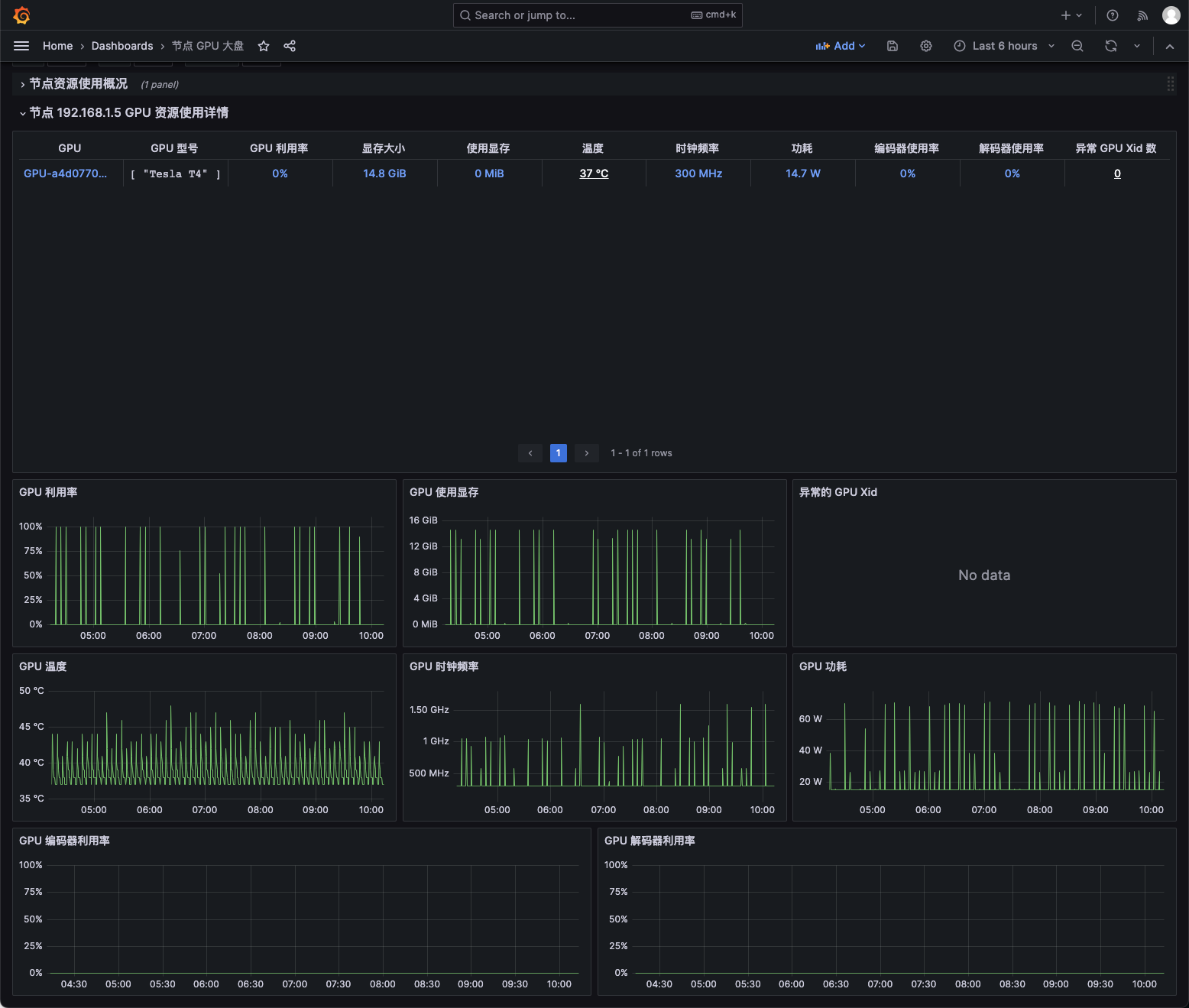
Node GPU dashboard
This dashboard mainly displays node-level monitoring information, including monitoring information about GPU nodes and GPU devices.
Information Category | Description |
Node resource usage | Displays the monitoring information about GPU nodes, such as node IP address, GPU model, node status, CPU cores, memory, and number of GPUs. |
Node resource usage details | Displays the monitoring information of GPUs, such as GPU utilization, GPU video memory usage, GPU XID errors, GPU encoder utilization, GPU clock frequency, and GPU power consumption. |
Training task dashboard (rdma-device-plugin)
This dashboard displays task-level monitoring information about AI training tasks and basic resources, including GPU and RDMA.
tip
The data on the dashboard comes from the rdma-device-plugin agent. For more details, refer to AI resource observability.
Information Category | Description |
Training task overview | Displays the overview of training tasks, including training tasks, training task workers, training tasks with low GPU utilization, and training task workers with low GPU utilization. |
Training task None Worker list | Displays the None Worker list of the training task. |
GPU | Displays the monitoring information of GPUs such as GPU utilization, GPU XID errors, GPU video memory usage, GPU temperature, and GPU power consumption. |
RDMA | Displays the monitoring information of RDMA, such as inbound traffic, outbound traffic, number of inbound packets, number of outbound packets, inbound pause duration, and outbound pause duration. |
Training task dashboard (node-exporter)
This dashboard displays task-level monitoring information about AI training tasks and basic resources, including GPU and RDMA.
tip
The data on the dashboard comes from the node-exporter agent. For more details, refer to the official documentation of node-exporter.
Information category | Description |
Training task overview | Displays the overview of training tasks, including training tasks, training task workers, training tasks with low GPU utilization, and training task workers with low GPU utilization. |
Training task None Worker list | Displays the None Worker list of the training task. |
GPU | Displays the monitoring information of GPUs such as GPU utilization, GPU XID errors, GPU video memory usage, GPU temperature, and GPU power consumption. |
RDMA | Displays the monitoring information of RDMA, such as inbound traffic, outbound traffic, inbound packets, outbound packets, link down, and error recovery. |
Last updated: 2026.10.10 11:04:51
All rights reserved © Beijing Volcano Engine Technology Co., Ltd2024
