Volcengine Managed Service for Prometheus
Volcengine Managed Service for Prometheus


Document

- Documentation
 Volcengine Managed Service for PrometheusBest practicesAccessing workspaces across clouds and across regionsAchieving cross-cloud access to workspaces by using DC and PrivateLink
 Copy page
 Download PDF
Accessing workspaces across clouds and across regions
Achieving cross-cloud access to workspaces by using DC and PrivateLink
Copy pageDownload PDFAchieving cross-cloud access to workspaces by using DC and PrivateLink
The workspace of Volcengine Managed Service for Prometheus (VMP) can be accessed over the Internet through PrivateLink. This topic describes how to configure PrivateLink to read and write data in a VMP workspace.
tip
We recommend that you use a Volcano Engine root user to configure and use this feature. If you use an Identity and Access Management (IAM) user to create an endpoint, you may not be able to select an available endpoint service. For more details, see Why can't I select an available endpoint service when creating an endpoint?
Background
A VMP workspace offers a standard remote write URL and a standard query URL that can be accessed over internal networks. This allows you to collect service metrics and business metrics in the internal networks of the public cloud and deploy Grafana in a Volcengine Kubernetes Engine (VKE) cluster to create and view metric dashboards. For more details, see Deploying Grafana and connecting to a workspace in the VKE cluster.
In some scenarios, you may need to query or write data in a VMP workspace in other public network environments such as other cloud providers and Internet data centers (IDCs). In this case, you can achieve cross-cloud access to the VMP workspace by using Direct Connect (DC) and PrivateLink.
tip
Prerequisites
- A VMP workspace has been created, and basic authentication has been enabled. For details, see Creating workspaces.
- The network between other environments and the Volcano Engine cloud is connected through DC. For more details, refer to What is Direct Connect.
Procedure
tip
This topic provides an example of how to configure the query URL of a VMP workspace by using PrivateLink. This configuration method applies to other addresses.
Step 1: Configure an endpoint
- Log in to the VPC console.
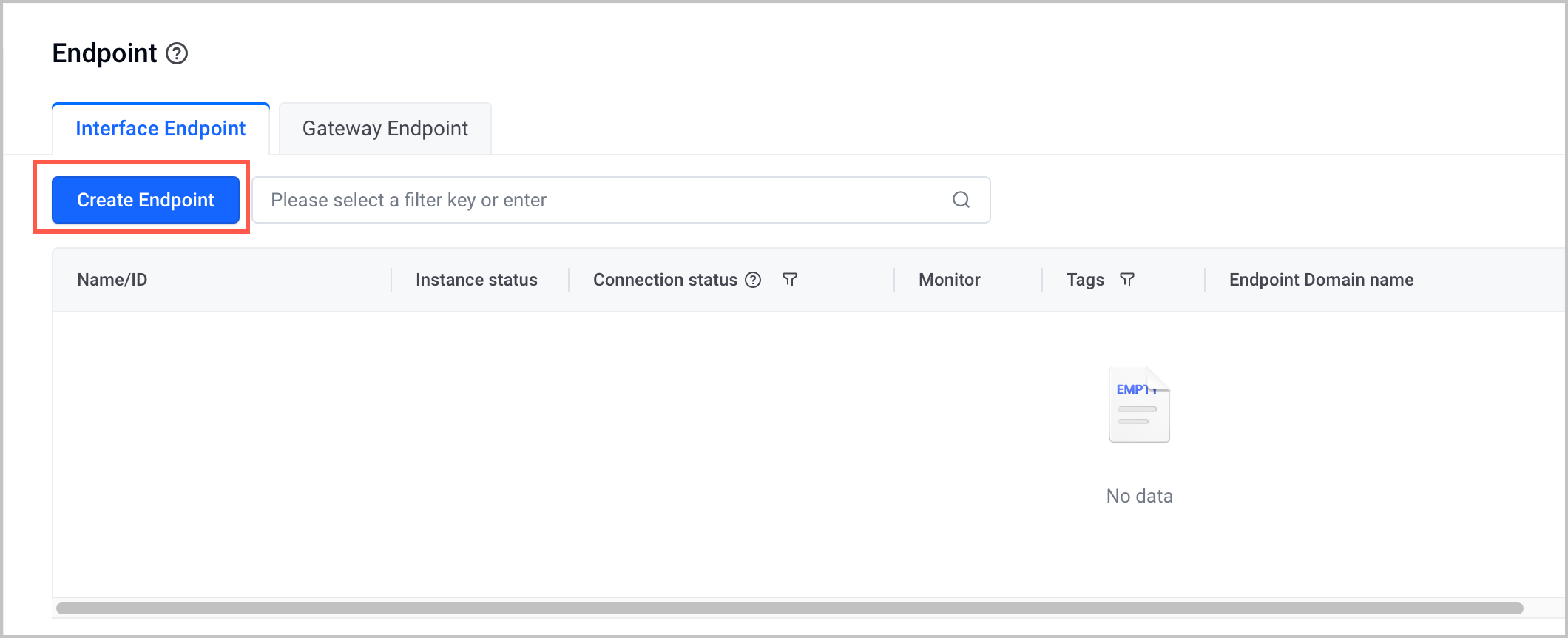
- In the left navigation bar, click PrivateLink > Endpoint, and click the Interface Endpoint tab. Click Create Endpoint.
-
- Specify the information about the endpoint.
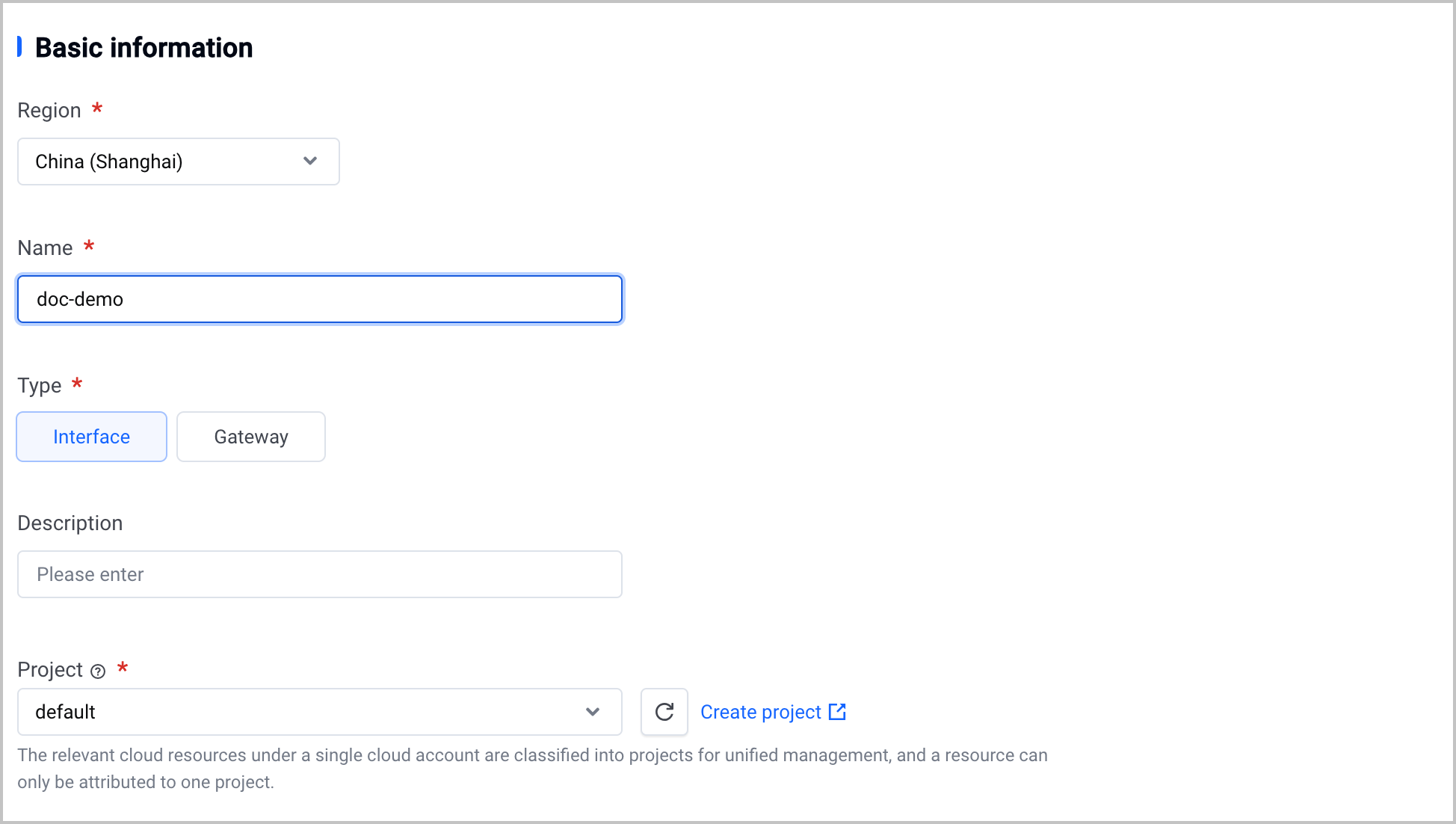
- Basic information: Select the region where the VMP workspace is deployed, specify the endpoint name, and select Interface for the Type parameter.
-
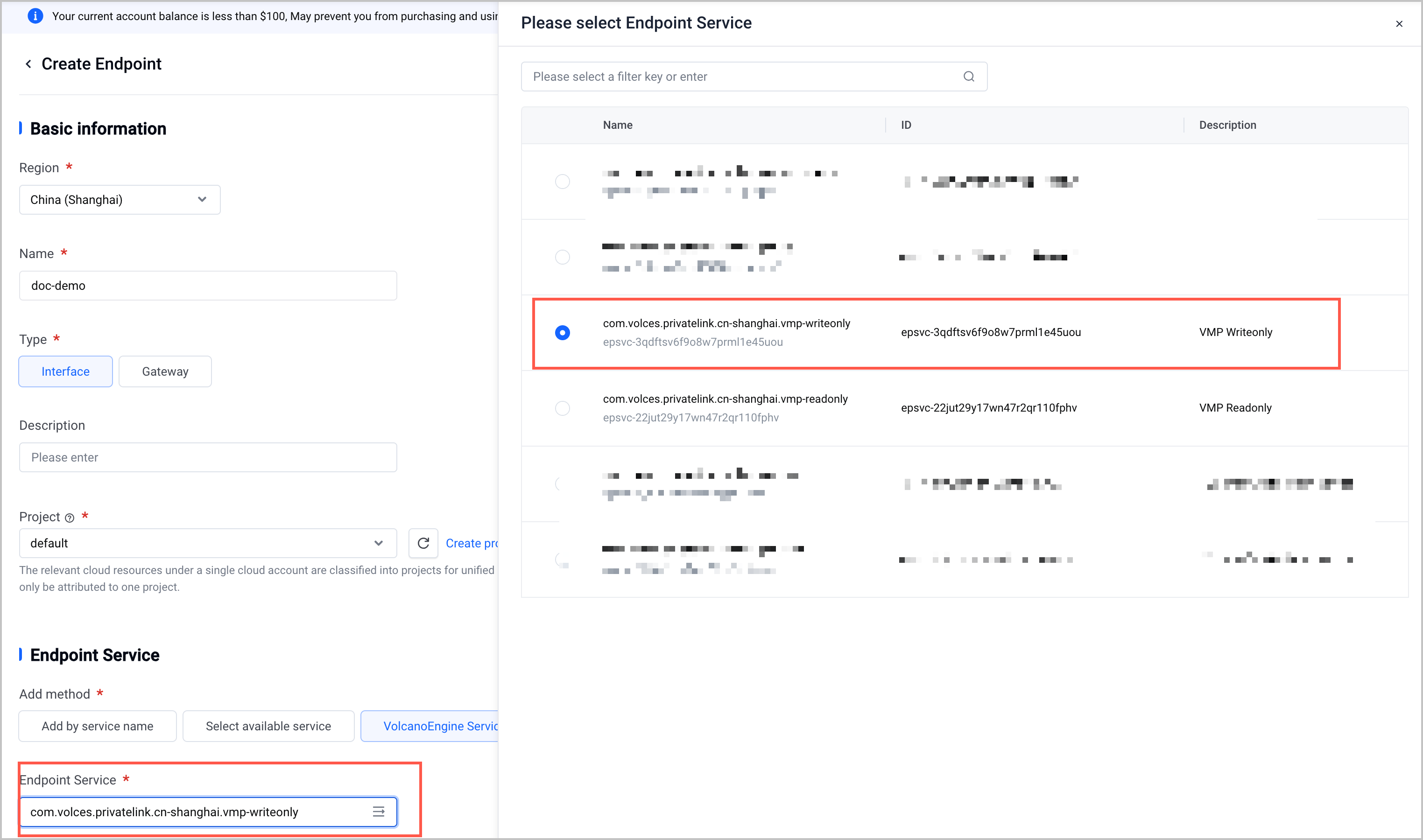
- Endpoint Service: Select VolcanoEngine Services for the Add method parameter, and select the service that corresponds to VMP for the Endpoint Service parameter. You can select one of the following services:
- VMP read-only service: used to query data of the VMP workspace.
- VMP write-only service: used to write data in the VMP workspace.
-
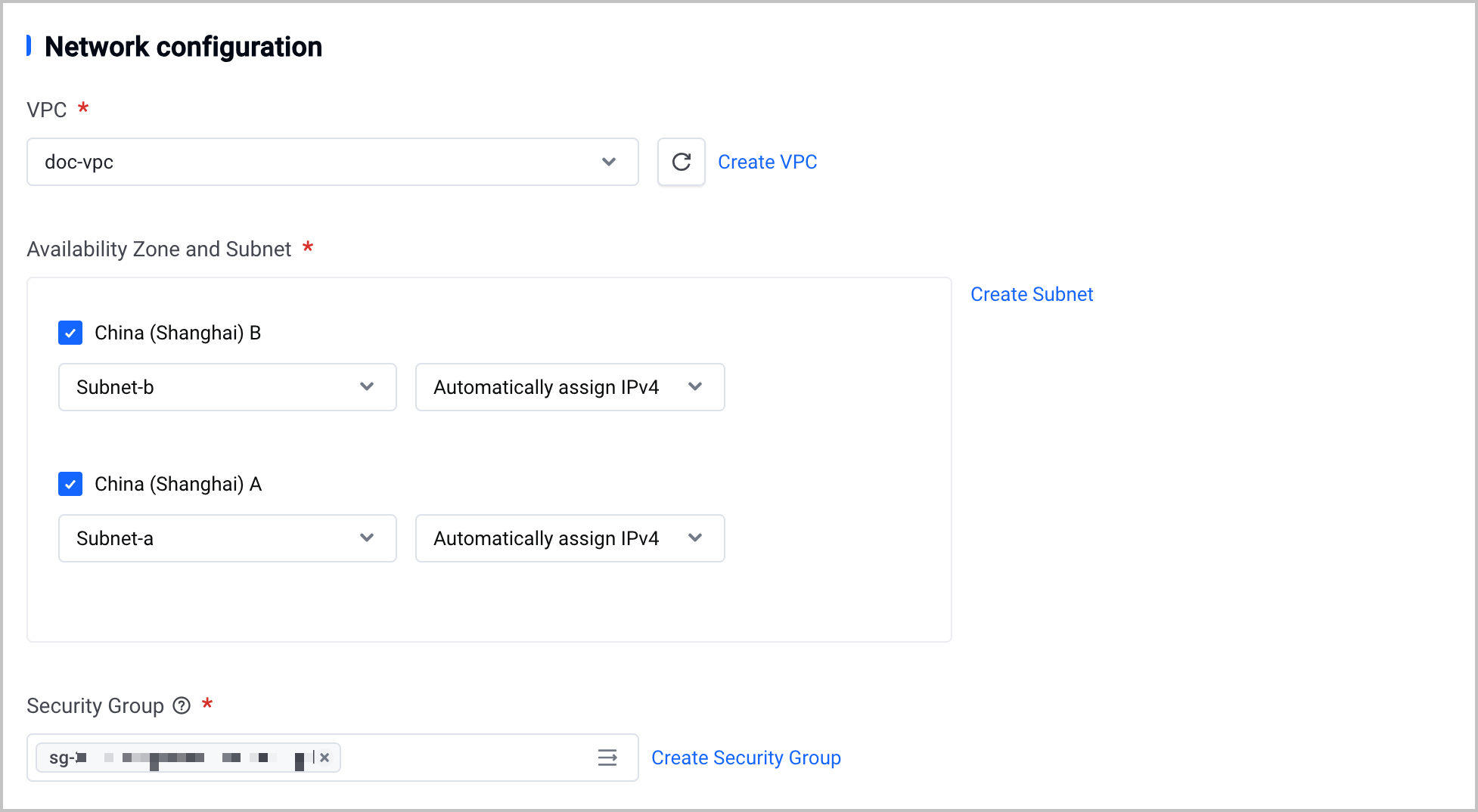
- Network configuration: Select the user VPC, availability zone, subnet, and security group.
-
tip
- For more details about the configuration of the endpoint, see Creating interface endpoints.
- Make sure that the security group allows traffic on port 8080. Otherwise, the port may be inaccessible.
- In the read/write splitting scenarios, you need to separately create endpoints for reading and writing and use different domain names for the endpoints.
- Click Buy now to complete the configuration.
Step 2: Check the endpoint connection status
- After VMP automatically accepts the endpoint connection request, the network connection status of the endpoint changes to Connected, which indicates that the connection is successful. In this case, you can access VMP by using the domain name of the endpoint.
-
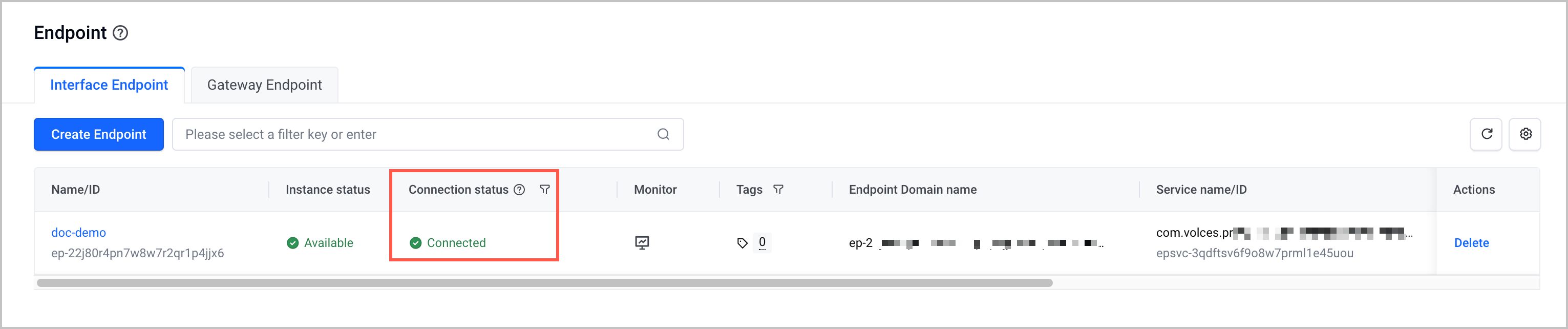
- (Optional) In an Elastic Compute Service (ECS) instance or a pod in the VPC bound to the endpoint, run the following command to access the endpoint domain name and check whether the endpoint, domain name, and network are working as expected.
-
- The following section shows the expected result: If a response is returned when you access the endpoint domain name, the connection is normal and the network is connected.
-
-

Validate results
Step 1: Configure the remote write URL of the collector
After the network is connected, modify the remote write URL of the collector in the same VPC as the endpoint. This allows you to store the metrics collected by the collector in the VPC in the VMP workspace.
This topic takes the VM Agent collector as an example. You need to change the value of the remoteWrite.url field in the configuration file of the collector to the modified remote write URL of the workspace.
tip
You need to modify the remote write URL of the workspace as follows:
- Change the domain name to the domain name of the endpoint.
- Add port 8080 next to the domain name.
- The values of other parameters remain unchanged.
For example, change the remote write URL of the workspace to http://ep-5gs***.epsvc-22j124***.cn-shanghai.privatelink.volces.com:8080/workspaces/b73***/api/v1/write.
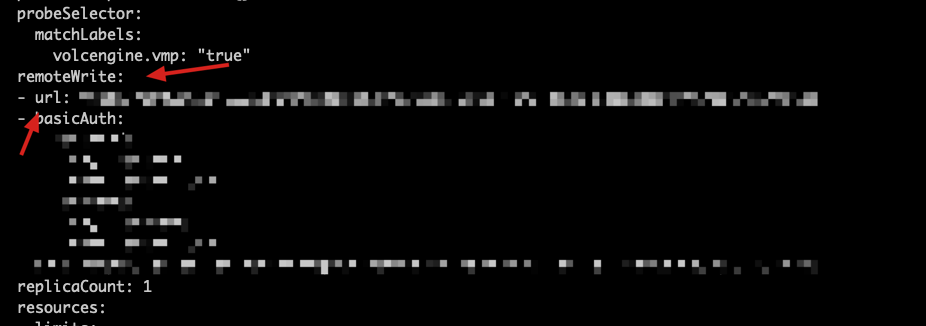
Step 2: Integrate Grafana with the workspace
- Log in to Grafana in another environment.
- Click Connections > Data sources in the left navigation pane.
-
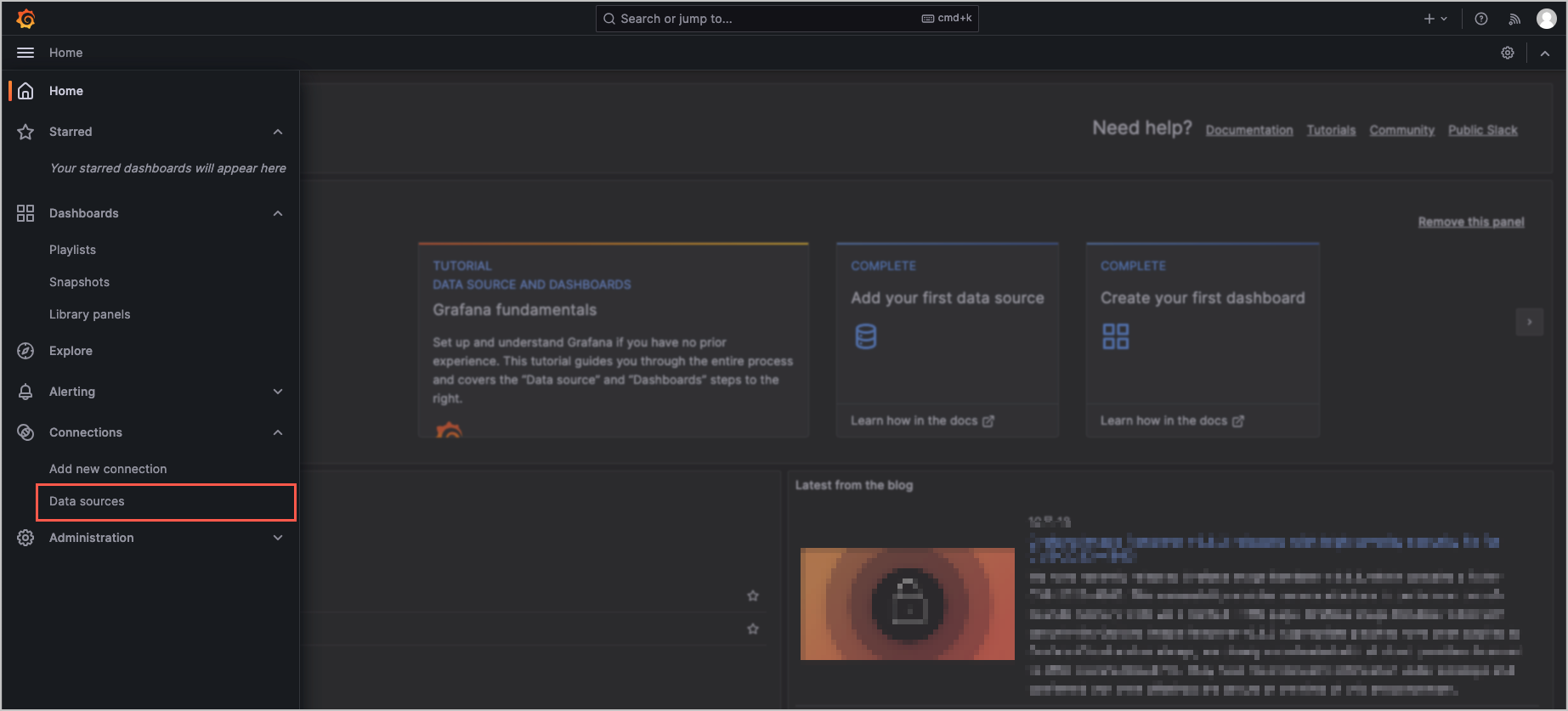
- Click Add data source to create a new data source.
-
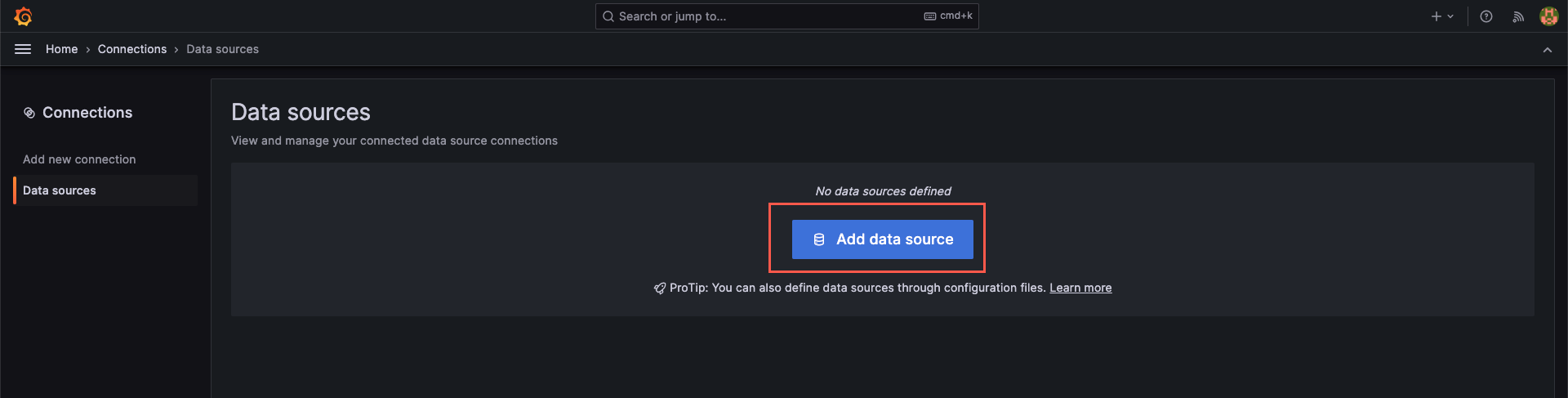
- On the Add data source page, click Prometheus.
-
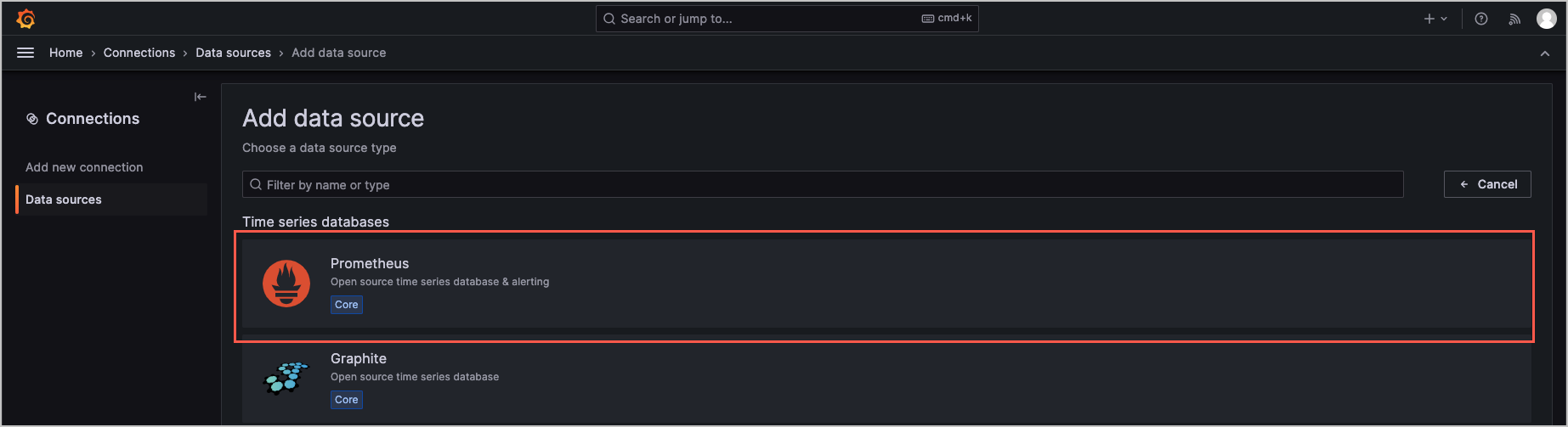
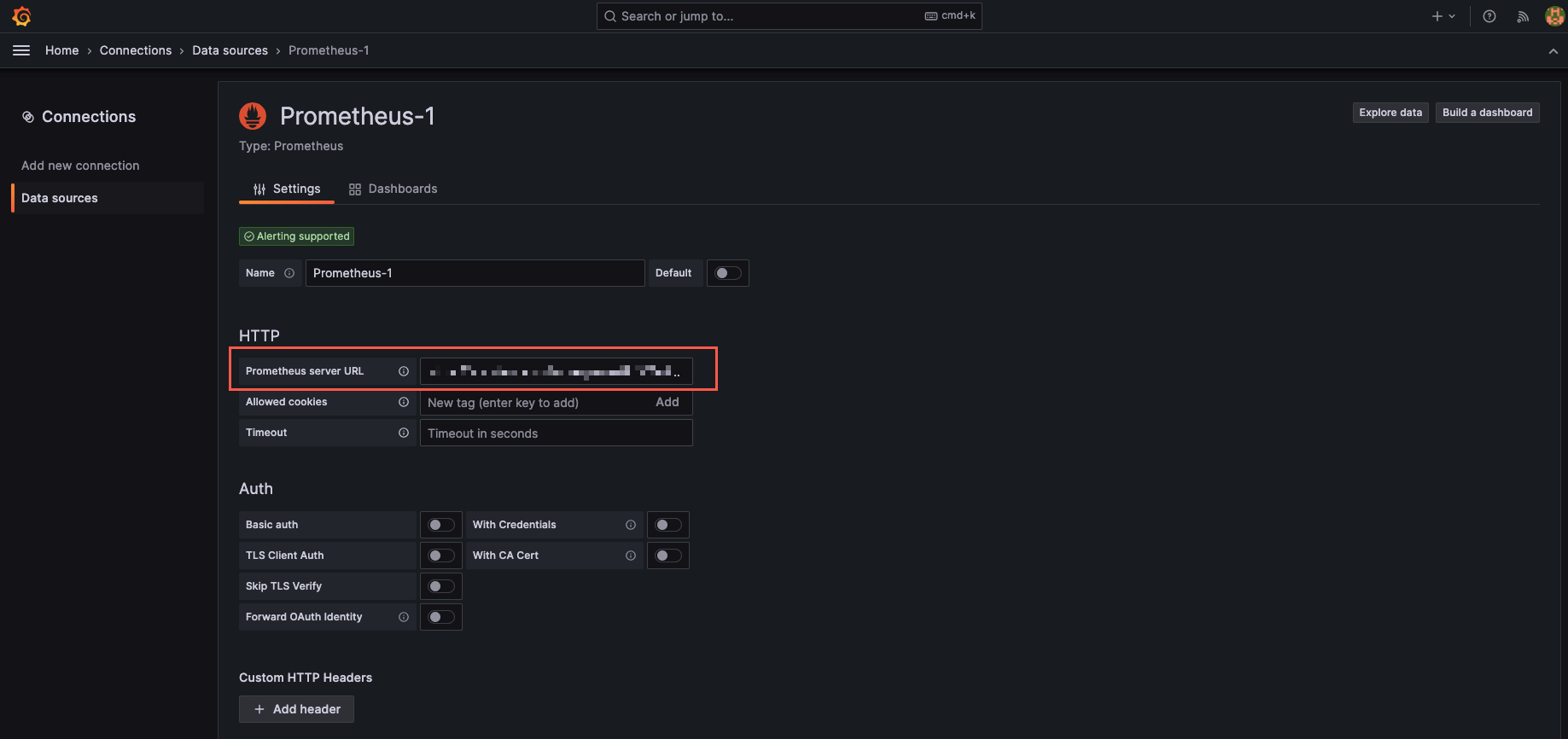
- In the HTTP section, paste the modified query URL of the workspace in the Prometheus server URL field.
tip
You need to modify the original query URL of the workspace as follows:
- Change the domain name to the domain name of the endpoint.
- Add port 8080 next to the domain name.
- The values of other parameters remain unchanged.
For example, change the query URL of the workspace to http://ep-5gs***.epsvc-22j124***.cn-shanghai.privatelink.volces.com:8080/workspaces/b73***.
-
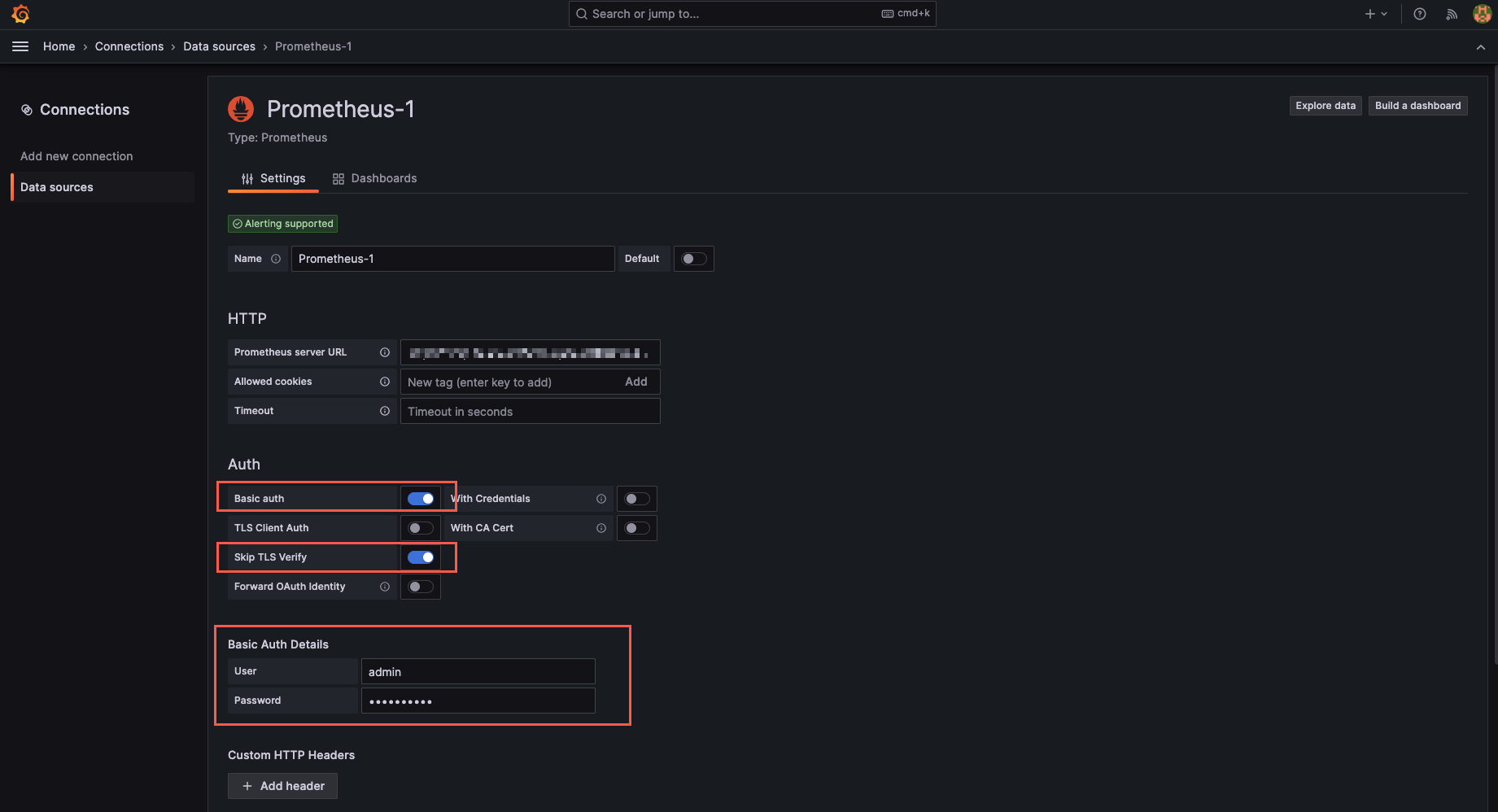
- Switch on Basic auth in the Auth section and configure the username and password used for workspace authentication in the Basic Auth Details section.
-
- Click Save & test at the bottom of the page. When the message Successfully queried the Prometheus API is displayed, it indicates the data source is configured and the workspace is integrated with Grafana.
-

Monitoring and O&M
After you achieve cross-cloud access through PrivateLink, you can view the details and monitoring information of the endpoint.
Last updated: 2026.10.10 11:04:51
All rights reserved © Beijing Volcano Engine Technology Co., Ltd2024
