Volcengine Managed Service for Prometheus
Volcengine Managed Service for Prometheus


Document

- Documentation
 Volcengine Managed Service for PrometheusUser guideWorkspaceWorkplace overviewSelecting a workspace
 Copy page
 Download PDF
Workplace overview
Selecting a workspace
Copy pageDownload PDFSelecting a workspace
Before you create a workspace, you need to estimate the quantity of metrics and select appropriate workspace specifications based on your business requirements. This topic describes how to estimate specifications and select a workspace.
Select the number of data storage days
You need to choose an appropriate time range for data storage based on your business requirements.
Estimate the maximum number of active time series
Active time series refer to time series that are being actively written into a workspace. Each metric generates an active time series on each monitoring object. Active time series serve as the primary criteria for evaluating data volume. For more details, refer to Prometheus time series data format.
It is recommended to evaluate and select workspace specifications based on the upper limit of active time series. You can estimate the maximum number of active time series by using one of the following methods:
Method 1: Estimate the upper limit based on the cluster and business scale.
- Cluster metrics
When you use Vital Kubernetes Engine (VKE) of Volcano Engine or build your own Kubernetes cluster environment, the data volume of metrics related to container resources, virtual machine resources, and native Kubernetes resources can be estimated based on the cluster size. If the metrics that you collect include node-exporter, kubelet, cadvisor, and kube-state-metrics, which are all the data plane metrics collected by Kubernetes by default, the estimation formula is as follows:
tip
The preceding estimation formula does not include control plane metrics and custom metrics.
- Business metrics
- Business metrics refer to the metrics exposed by businesses deployed in the cluster. The metrics are related to your business situation, including:
- The number of business pods.
- The maximum number of active time series exposed by each pod.
- The creation and deletion situation of business pods, such as whether business pods are frequently deleted and created.
You need to evaluate the maximum active time series of business metrics based on the preceding situations and add them to the maximum active time series of cluster metrics. The sum is the maximum active time series that are required when you select a workspace.
Method 2: Migrate from an existing Prometheus
In native Prometheus, the collection side automatically generates scrape_samples_scraped (the total number of samples that are collected each time) and scrape_series_added (the number of time series added compared to the last collection). You can use the following PromQL statement in the existing Prometheus system to query these metrics and estimate the maximum active time series.

tip
In other monitoring systems, the names of the corresponding metrics may not be exactly the same. You can replace the metrics based on their actual meaning.
Method 3: Try a Standard Edition workspace.
If you cannot accurately estimate the maximum active time series of the workspace, you can try using a workspace to obtain the metric scale in your environment. VMP offers a Standard Edition workspace with a storage duration of 15 days. The basic cloud service metrics of the workspace are free of charge, which makes the workspace suitable for trial use. For more details, refer to Billing method.
You can perform the following steps to try a Standard Edition workspace:
- Log in to the VMP console.
- On the top navigation bar, select the target region.
- On the left navigation bar, click Workspace to go to the workspace list page.
- Click Create, and choose to create and purchase a Standard Edition workspace.
- Click Create Now to create the workspace.
- Integrate your clusters and businesses into the new workspace. For more details, refer to VKE access.
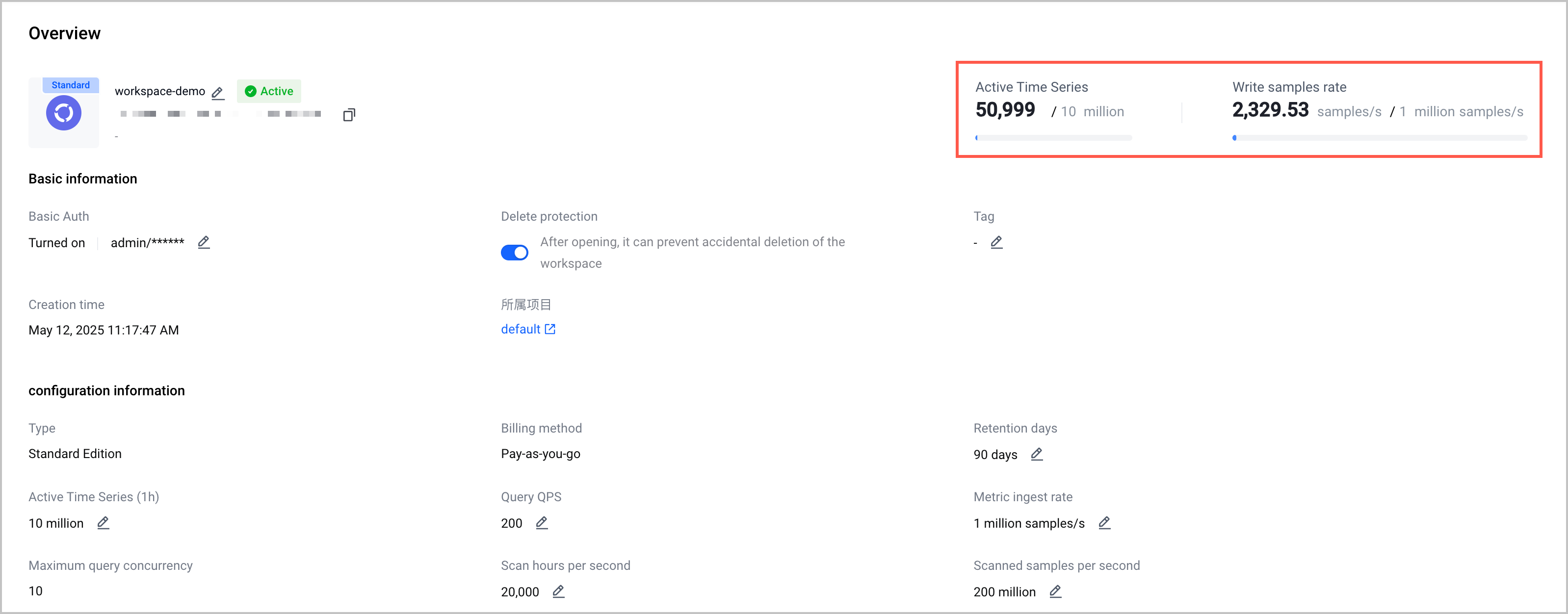
- After you integrate clusters into the workspace, you can view metrics such as maximum active time series and rate of writing samples on the details page of the workspace.
- On the left navigation bar, click Workspace to go to the workspace list page.
- Click the name of the target workspace to go to the details page of the workspace, and view the details of the workspace.
-
- You can determine whether to modify the configurations of the workspace based on your trial use experience.
Estimate other quota usage (optional)
tip
Selecting workspace specifications based on data storage days and the maximum number of active time series can meet the requirements of most use cases. If your use cases have special requirements, you can continue to evaluate other metrics.
Estimate the maximum metric ingest rate
You can use the following formula to estimate the maximum metric ingest rate:
In the formula:
- time_series: indicates the maximum active time series.
- scrape_interval: indicates the collection interval. In the prometheus-agent add-on, the default value is 15 seconds.
For example, if your maximum number of active time series is 10 million, and the collection interval is 15 seconds, your maximum metric ingest rate is calculated by using the following formula: 10,000,000/15 = 667,000 samples/s.
Estimate query QPS and query concurrency
You can use the following formula to estimate the QPS:
In the formula:
- panels: indicates the maximum number of monitoring panels displayed on a screen at the same time.
- persons: indicates the maximum number of people that use the panels at the same time.
tip
If you have estimated the query QPS, the query concurrency can meet the requirements in most cases.
Evaluate overall costs
After estimation and filtering, if multiple workspace specifications still meet your business requirements, you can make a choice based on the overall costs. For more details, refer to Billing method.
Subsequent usage
As your business grows, the original workspace specifications may no longer meet your business requirements. In this case, you can choose one of the following two methods to solve the capacity issue:
- Divide the usage into different workspaces in appropriate dimensions such as development or production environment.
- Modify the configurations of the workspace. For more details, refer to Modifying workspace configurations.
Last updated: 2026.07.10 11:37:25
All rights reserved © Beijing Volcano Engine Technology Co., Ltd2024
