Volcengine Managed Service for Prometheus
Volcengine Managed Service for Prometheus


Document

- Documentation
 Volcengine Managed Service for PrometheusUser guideAlert centerAlerting ruleCreating an alerting rule
 Copy page
 Download PDF
Alerting rule
Creating an alerting rule
Copy pageDownload PDFCreating an alerting rule
You can manually configure alert rules by using PromQL statements, use Alert Center to monitor specific metrics in specific workspaces, and configure alerts based on the thresholds of metrics. This topic describes how to manually configure an alert rule by using a PromQL statement.
Prerequisites
- VMP has been activated.
- An alert notification policy has been created. For more details, see Creating alert notification policies.
- An alert aggregation policy has been created. For more details, see Creating alert aggregation policies.
Limits
- A root account and its IAM users can create up to 500 alert rules in total.
- Up to 100 labels and 100 annotations can be configured for an alert rule.
Procedure
- Log in to VMP console.
- In the top navigation bar, select the target region.
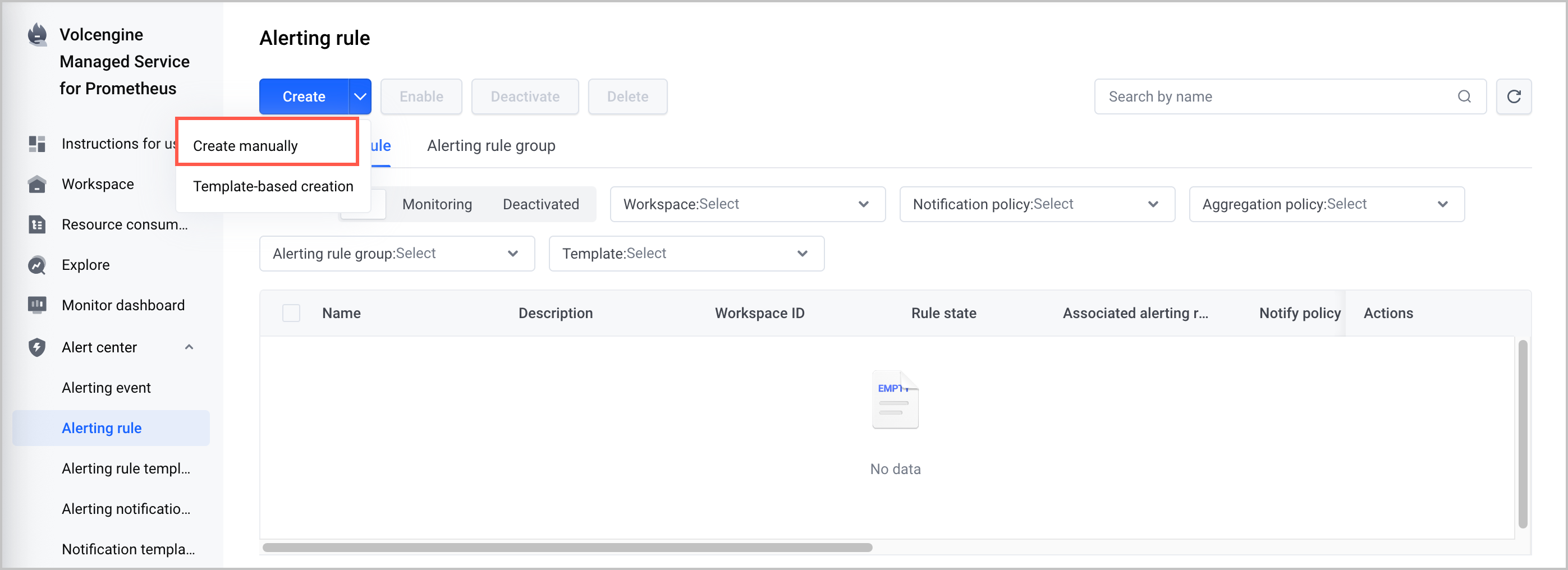
- On the left navigation bar, click Alert center > Alerting rule. Click Create > Create manually.
-
- Specify the basic information.
-

- ParameterDescriptionsNameSpecify the name of the alert rule.DescriptionSpecify the description of the alert rule.
- Configure the alert trigger condition.
-
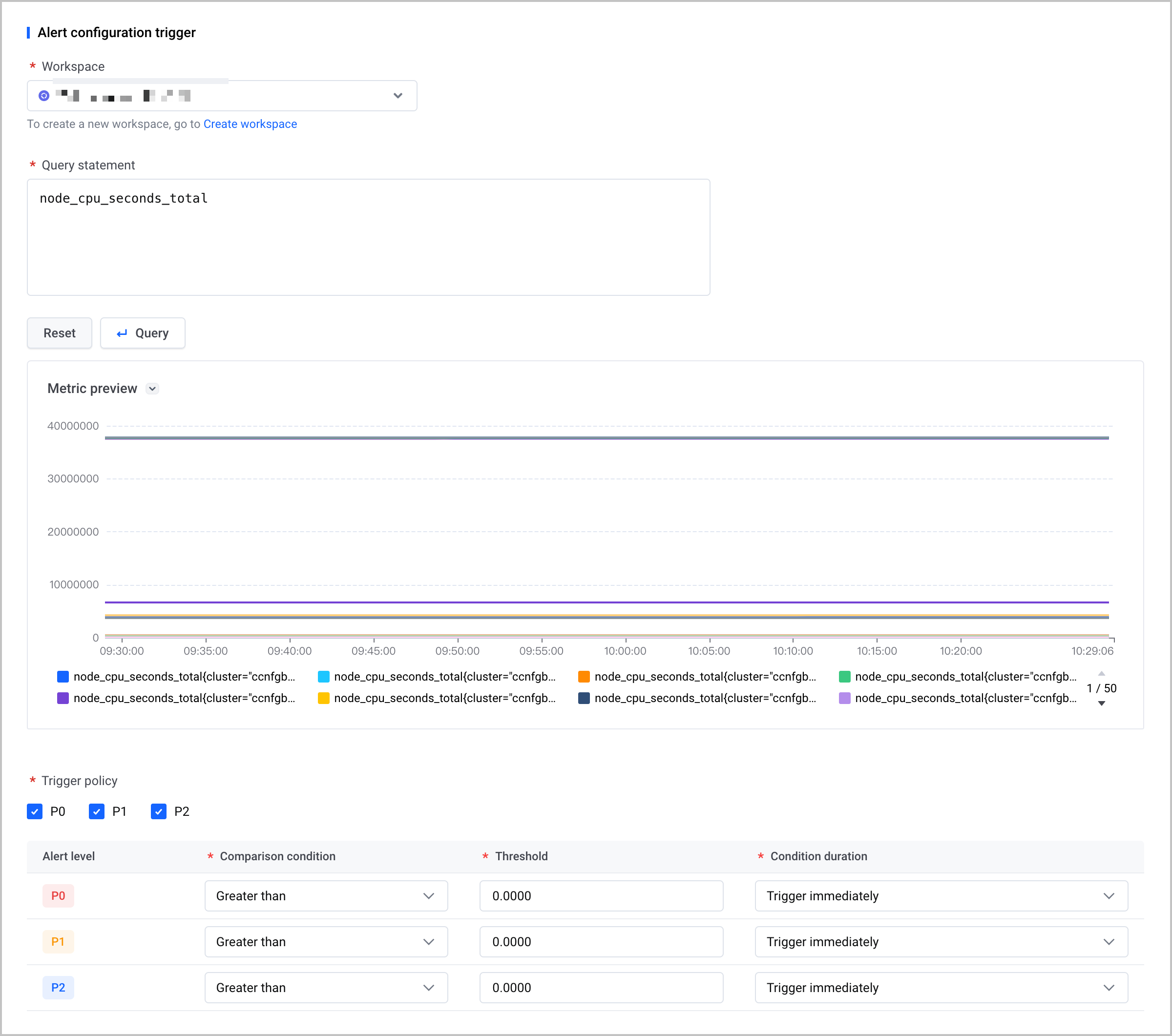
- ParameterDescriptionsworkspaceSelect the workspace that you want to monitor and trigger alerts from the Workspace list.Query statementUse standard PromQL statements to configure monitoring objects or metrics.Trigger policyConfigure an alert trigger policy. Specify the alert level, condition, threshold, and condition duration.
- Select P0, P1, or P2 to set different alert levels. If you do not select an option, alerts at this level are not configured.
- Comparison condition: Specify the comparison condition between the PromQL statement and the threshold. You can configure multiple comparison conditions. Valid values: Greater than, Greater than or equal to, Less than, Less than or equal to, Equal to, and Not equal to.
- Threshold: Set the threshold of the metric.
- Condition duration: Configures the duration for which the metric meets the condition. Valid values:
- Trigger immediately: An alert is triggered immediately when the alert condition is met.
- Custom duration: Select an alert trigger time. Available options include 1 minute, 2 minutes, 5 minutes, 10 minutes, 20 minutes, 30 minutes, 1 hour, 3 hours, 6 hours, and 12 hours. For example, 1 minute means that the alert will be triggered after the condition has been met for 1 minute.
- Configure an alert notification. You can select a suitable notification policy and aggregation policy from the Unified Alert Center or the Original VMP alert policy tab.
-
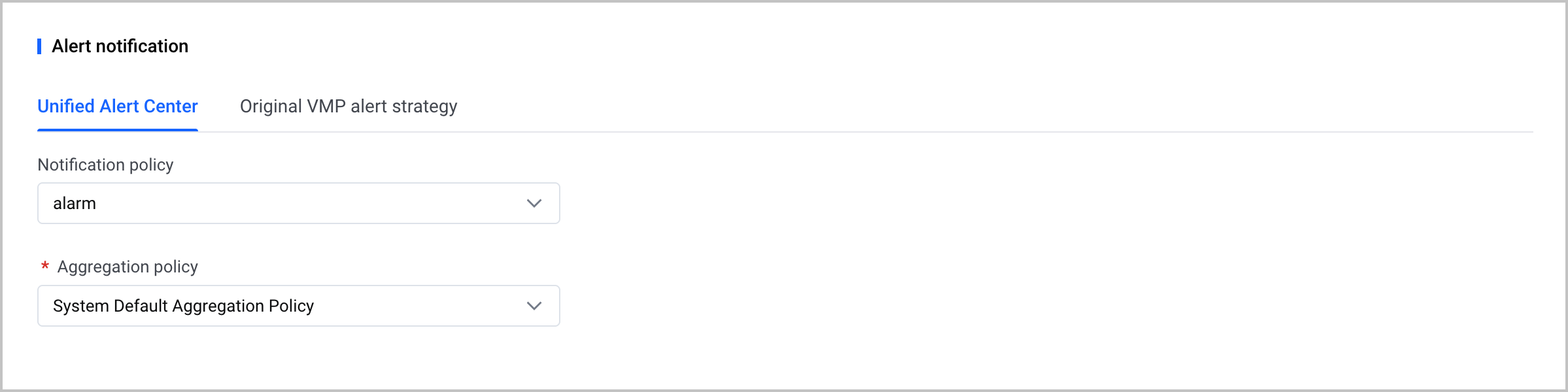
- ParameterDescriptionsNotification policySelect an alert notification policy from the Notify policy list. The system will send alerts to the specified contacts based on the alert levels and contact groups configured in the notification policy. For more details, see Creating alert notification policies.Aggregation policySelect an alert aggregation policy from the Aggregation policy list. For more details, see Creating alert aggregation policies.
- Advanced configuration
-

-
- Click Create to complete the configuration.
Last updated: 2026.07.10 11:37:26
All rights reserved © Beijing Volcano Engine Technology Co., Ltd2024
