Torch Log Service
Torch Log Service
Torch Log Service


Document
Product News
Product Overview
Product Billing
User Guide
TLS Agent
AgentLoop
Resource management
Host group
Data collection
LogCollector collection
Introduction to LogCollector
Installation and upgrade
Collect host logs
Collect container logs
LogCollector plugins
Manage LogCollector
general reference
Data import
Cloud product log collection
TOS log collection
DBW log collection
VPN Log collection
VKE log collection
CLB log collection
CloudTrail log collection
CFW log collection
NTA log collection
ALB log collection
APMPlus log collection
veFaaS log collection
VPC log collection
veImageX log collection
TrafficRoute DNS log collection
DDoS log collection
WAF log collection
DCDN log collection
Multi-cloud security platform log collection
APIG log collection
Machine learning task log collection
CR log collection
Volcano Ark application lab log collection
FileNAS log collection
LLM Application Firewall Service log collection
vePFS log collection
Cloud security center log collection
EFS log collection
Data storage
Query and analysis
Configure log indexes
Query log
Analyze logs
Query and analyze logs using third-party tools
Associate external data source for log query
SQL function
SQL syntax
Visualization
Query and analysis charts
Summaries of query and analysis charts
Create dashboard
Use dashboard
Add dashboard filters and variables
Use other systems to analyze logs
Log application
Log applications for product observability
Log applications for large models observability
Coding Agent log app
ModelProvider log app
No-coding Agent log app
Log applications for basic service monitoring
Data processing
Data transformation
Syntax and functions
Global operation function
expression function
Data processing best practices
general reference
Data write processor
Data consumer processor
Data consumption and shipping
Ship logs to TOS
Ship logs to Kafka
Ship logs to Splunk
Alarm
Alarm policy
Alarm notification content
Alarm notification content template
alarm notification channel
Tracing service
Monitor Log Service
API reference
Project management API
Topic management API
Shard management API
Index management API
Log management API
Host group management API
Collection configuration management API
Data import API
Data processor API
Data transformation API
Data backflow API
SQL analysis API
Alarm management API
Consumer group management API
Kafka protocol consumption API
Tag management API
Trace storage API
Account management API
SDK reference
Go SDK
Java SDK
Python SDK
iOS SDK
C++ SDK
CLI reference
Best practices
Data collection
Query and analysis
permission management
Consumption and delivery
Visualization
Alarm
FAQs
Billing and cost FAQ
Data collection FAQ
Data storage FAQ
Index configuration FAQ
Query and analysis FAQ
Scheduled SQL tasks FAQ
Alarm FAQ
- Documentation
 Torch Log ServiceUser GuideTLS AgentSmart assistant copilot
 Copy page
 Download PDF
TLS Agent
Smart assistant copilot
Copy pageDownload PDFSmart assistant copilot
TLS Copilot is an intelligent AI tool provided by TLS. It helps you throughout the entire workflow, including recommending collection modes during log collection, assisting in generating query statements during log analysis, suggesting visualization solutions when analyzing log results, and creating alarm content when setting up alarms. With this intelligent assistant, it is more convenient to use TLS.
This topic introduces functions of TLS Copilot by showing how to query and analyze logs with smart assistant.
Notice
Description
This feature is now available in North China 2 (Beijing), South China 1 (Guangzhou), and East China 2 (Shanghai).
- Content generated by TLS Copilot is for reference only and should not be used as a basis for decision-making.
- If you are using an IAM user, you must first grant the relevant permissions to the IAM user. For more information, refer to the Set TLS access permissions through IAM section and grant the policy in TLS Copilot.
Smart assistant Copilot usage scenarios
Use cases | Feature description | Reference |
Use cases | Feature description | Reference |
Log collection | After you create LogCollector log collection configurations, you can enter or upload log samples and use TLS Copilot to automatically analyze the samples. After automatic analysis, follow the prompt to fill in the relevant configuration with one click.
| |
Log interpretation | After log query and analysis results are generated, you can enter interpretation requirements. The system will automatically obtain log topic information for the current page, including topic descriptions, index configuration, and query and analysis statements. After that, the system provides different summaries based on the original logs and chart analysis. Therefore, the overall situation of log data can be presented quickly.
| |
Generate query statements | When analyzing queries, LLM technology is employed to convert natural sentences into query and analysis statements, and explain statement meanings using natural language.
| |
Generate alarm content | When creating alarm content templates or alarm policies, AI can generate notification content. You can also highlight text in the interface for AI to analyze existing content and provide optimization suggestions.
|
Use Copilot in query and analysis
Copilot supports Deep Thinking mode. If you enable this feature, the system will display question types and the thought process.
Feature | Description | Example |
Feature | Description | Example |
Generate statement | The natural sentences entered will be automatically converted into query and analysis statements. |
|
Interpret statement | The query and analysis statement entered will be interpreted automatically. |
|
Use Q&A | Answers questions related to TLS usage. |
|
Fix statement errors | Provides suggestions to fix statement errors. |
|
Steps to use Copilot in query and analysis
- Log in to Torch log service console.
- Select the region where TLS is located from the top navigation bar.
- On the left navigation bar, select Common functions > Query and analysis.
- On Query and analysis page, a list is displayed in the left area. Select the specified project and topic.
- In the query and analysis statement input box, click the AI Assistant icon to enter the TLS Copilot dialog box.
- In the TLS Copilot dialog box, enter your requirements.
- Concise mode: You can enter natural language sentences or statements, and the system will automatically identify the type of question and generate a corresponding answer.
- Full mode: Full mode supports deep thinking and multi-round dialogue optimization, suitable for complex analysis needs.
Description
If you use TLS Copilot for the first time, you are required to read and agree to the Disclaimer and terms of service before using it.
Examples of using Copilot for query and analysis
The sample result is for reference only; you need to verify based on your actual needs.
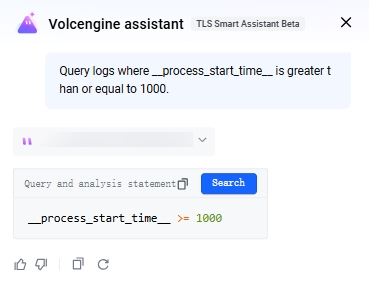
Convert natural sentences into query and analysis statements
Single-round conversation
Query logs where __process_start_time__ is greater than or equal to 1000.
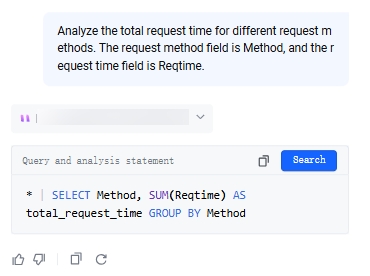
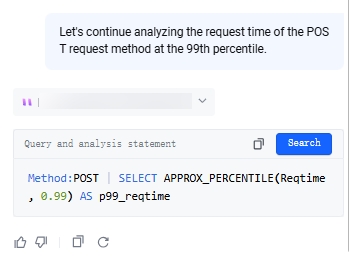
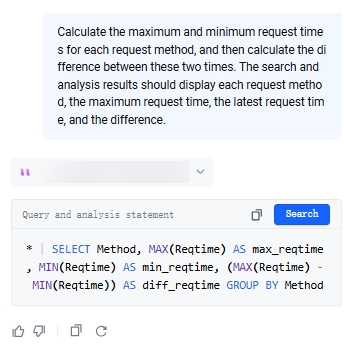
Multi-round dialogue
- Analyze the total request time for different request methods. The request method field is Method, and the request time field is Reqtime.
- Continue to analyze the request time at the P99 percentile for POST request method.
- Try using more advanced instructions: calculate the maximum and minimum request times for each request method, and then find the difference between these two times. Display each request method, the maximum request time, the most recent request time, and their differences in the query and analysis results.
Interpret query and analysis statement
Enter a complex query and analysis statement to summarize its overall meaning and the specific meaning of each clause.
Query TLS features
Description and usage example of the AVG function in the TLS query
Fix the incorrect statement
If the incorrect statement is executed, you can click View suggestions in the error message to get corresponding suggestions in TLS Copilot.
Last updated: 2026.02.24 11:42:28
All rights reserved © Beijing Volcano Engine Technology Co., Ltd2024
