Torch Log Service
Torch Log Service
Torch Log Service


Document
Product News
Product Overview
Product Billing
User Guide
TLS Agent
AgentLoop
Resource management
Host group
Data collection
LogCollector collection
Introduction to LogCollector
Installation and upgrade
Collect host logs
Collect container logs
LogCollector plugins
Manage LogCollector
general reference
Data import
Cloud product log collection
TOS log collection
DBW log collection
VPN Log collection
VKE log collection
CLB log collection
CloudTrail log collection
CFW log collection
NTA log collection
ALB log collection
APMPlus log collection
veFaaS log collection
VPC log collection
veImageX log collection
TrafficRoute DNS log collection
DDoS log collection
WAF log collection
DCDN log collection
Multi-cloud security platform log collection
APIG log collection
Machine learning task log collection
CR log collection
Volcano Ark application lab log collection
FileNAS log collection
LLM Application Firewall Service log collection
vePFS log collection
Cloud security center log collection
EFS log collection
Data storage
Query and analysis
Configure log indexes
Query log
Analyze logs
Query and analyze logs using third-party tools
Associate external data source for log query
SQL function
SQL syntax
Visualization
Query and analysis charts
Summaries of query and analysis charts
Create dashboard
Use dashboard
Add dashboard filters and variables
Use other systems to analyze logs
Log application
Log applications for product observability
Log applications for large models observability
Coding Agent log app
ModelProvider log app
No-coding Agent log app
Log applications for basic service monitoring
Data processing
Data transformation
Syntax and functions
Global operation function
expression function
Data processing best practices
general reference
Data write processor
Data consumer processor
Data consumption and shipping
Ship logs to TOS
Ship logs to Kafka
Ship logs to Splunk
Alarm
Alarm policy
Alarm notification content
Alarm notification content template
alarm notification channel
Tracing service
Monitor Log Service
API reference
Project management API
Topic management API
Shard management API
Index management API
Log management API
Host group management API
Collection configuration management API
Data import API
Data processor API
Data transformation API
Data backflow API
SQL analysis API
Alarm management API
Consumer group management API
Kafka protocol consumption API
Tag management API
Trace storage API
Account management API
SDK reference
Go SDK
Java SDK
Python SDK
iOS SDK
C++ SDK
CLI reference
Best practices
Data collection
Query and analysis
permission management
Consumption and delivery
Visualization
Alarm
FAQs
Billing and cost FAQ
Data collection FAQ
Data storage FAQ
Index configuration FAQ
Query and analysis FAQ
Scheduled SQL tasks FAQ
Alarm FAQ
- Documentation
 Torch Log ServiceUser GuideData processingTimed SQL AnalysisCreate scheduled SQL analysis and store data in managed Prometheus
 Copy page
 Download PDF
Timed SQL Analysis
Create scheduled SQL analysis and store data in managed Prometheus
Copy pageDownload PDFCreate scheduled SQL analysis and store data in managed Prometheus
TLS supports creating scheduled SQL analysis tasks in the console. The tasks can be used to perform scheduled query and analysis on the source log topic and save the processed log data to the target log topic. Also, the processed data can be transformed into time series data format or Gauge-type metrics and store data in the Volcanoengine managed Prometheus (VMP) workspace.
Managed Prometheus is a standardized Prometheus service hosted on the Volcanoengine cloud. You can quickly create standard Prometheus instances on Volcanoengine to provide highly available, maintenance-free monitoring metric storage for Volcanoengine AI products, cloud infrastructure, cloud-native products, and businesses deployed on the cloud.
This topic describes how to create scheduled SQL analysis tasks and store metrics in the managed Prometheus workspace.
Prerequisites
- The log data has been successfully collected in the source log topic. For detailed steps, see Overview.
- An index has been configured in the source log topic. For detailed steps, see Configure indexes.
- The managed Prometheus workspace has been created and must be in the same region as TLS. For detailed steps, see Create general workspace.
- Before using the schedule SQL feature for the first time, you need to authorize cloud resource access. This grants schedule SQL analysis tasks permission to access and write data to the managed Prometheus workspace. After authorization and successfully starting the schedule SQL analysis task, it uses the ServiceRoleForTLS role to write calculation results to the managed Prometheus workspace. Therefore, make sure you have permission to write data to the managed Prometheus workspace.
Description
When you create a schedule SQL analysis task for the first time in the TLS console, the system will guide you through the authorization process. We recommend using a Volcanoengine account for authorization. For details, see Cross-service access authorization. For Managed Prometheus permission details, see Permission Overview.
Steps
- Log in to TLS console.
- Select the region where log service is located from the top navigation bar.
- On the left navigation bar, select Data Processing > Schedule SQL Analysis.
- On the schedule SQL analysis task list page, click Create schedule SQL analysis task.
- Fill in the basic configuration for the task, and then click Next step: configure SQL analysis rules.
- ConfigurationDescriptionConfigurationDescriptionTask nameTask name of the schedule SQL analysis task.DescriptionA brief description of the schedule SQL analysis task.Source projectThe project where the raw logs for schedule SQL analysis are stored.Source topicThe topic where the raw logs for schedule SQL analysis are stored.Target topicAfter executing the schedule SQL analysis task, the processed log data is stored in the managed Prometheus workspace.
- Target type: Select the managed Prometheus workspace.
- Workspace: Select a managed Prometheus workspace to store the data. If no suitable workspace is available, follow the page instructions to create one.
Task statusDetermines whether to start the schedule SQL analysis task immediately.- Enable (default): The schedule SQL analysis task starts immediately after configuration.
- Disenable: After configuration, the schedule SQL analysis task remains paused and requires manual start.
- Enter the SQL analysis rule configuration, and then click Submit.
- ConfigurationDescriptionConfigurationDescriptionStart timeThe schedule SQL analysis task’s start time, i.e., the time when the first instance is scheduled.After starting, TLS creates instances and runs schedule SQL analysis on time according to specified rules.End timeThe end time for scheduling the SQL analysis task.After the task ends, TLS will not create instances or perform scheduled SQL analysis. However, the task remains running until it is paused manually.Scheduling cycleThe schedule cycle for scheduled SQL analysis tasks. It determines the timing for each instance. The schedule period supports specifying time intervals or fixed trigger times.It is recommended to set the schedule period to be greater than or equal to the length of the query time window. Otherwise, analysis might be delayed and the query results may be inaccurate. For example, if the schedule period is every 10 minutes, the maximum length of the SQL time window is 10 minutes.You can select any of the following configurations:
- Second: Runs every 30–600 seconds.
- Minute: Runs at specified minute intervals, ranging from 1 to 1440 minutes.
- Day: Runs at a specific time every day.
- Cron: Uses a Cron expression to specify the schedule time. The minimum interval is one minute, and the maximum is 30 days in a 24-hour format.
- For example, 0 18 * * * schedules a SQL analysis task every day at 18:00.
Time zone selectionYou need to select a time zone when the scheduling cycle is set to Cron. For a list of common time zones, see Select time zone.SQL time windowWhen a scheduled SQL analysis task runs, the time range for log query and analysis uses a left-closed, right-open format.For a managed Prometheus instance, the maximum SQL time window is 6 hours. For syntax details, see SQL time window syntax. Supports quick filling with the following expressions:- Last 15 minutes: @m-15m, @m
- Last 3 hours: @h-3h, @h
DescriptionConfiguration example:- Start time: 2023-8-14 10:00
- Scheduling interval: Execute once every 60 minutes
- SQL time window: [@h-1h,@h)
- Execution delay: 10 seconds
The first instance is created at 2023-8-14 10:00:00 and starts execution at 10:00:10. This instance analyzes log data from the period [09:00:00~10:00:00).The second instance is created at 2023-8-14 11:00:00 and starts execution at 11:00:10. This instance analyzes log data from the period [10:00:00~11:00:00).SQLThe scheduled SQL analysis task executes query statements periodically. These statements must follow the query and analysis syntax of TLS. For detailed syntax instructions, see Query overview and Analysis overview.Metric nameSelect numeric fields from SQL query results to use as metric names for managed Prometheus time series. Metric names indicate the meaning of the monitored sample. For related concepts, see Time series data format for managed Prometheus.- Use only ASCII characters, digits, underscores, and colons, and meet the regular expression [a-zA-Z_:][a-zA-Z0-9_:]*.
- If names do not meet the specification, use AS syntax to modify the field name.
Metric labelSelect non-time type fields from SQL query results to use as metric labels for managed Prometheus time series. Metric labels represent sample feature dimensions, and these dimensions (such as those in group by) enable managed Prometheus to filter and aggregate sample data.- Use only ASCII characters, digits, and underscores, and meet the regular expression [a-zA-Z_][a-zA-Z0-9_]*.
- If names do not meet the specification, use AS syntax to modify the field name.
Custom labelSet custom label keys and values for metric labels.- Use only ASCII characters, digits, and underscores, and meet the regular expression [a-zA-Z_][a-zA-Z0-9_]*.
- The combined total of custom labels and metric labels can not exceed 30.
Time columnSelect a time type field from the SQL execution results as the time column. This column sets the time for metric data.If not selected, the metric data time will use the start time from the SQL time range.- The maximum supported metric time for hosted Prometheus is six hours. Data outside this range will fail to write.
- Supports selecting UNIX time and TimeStamp types, with millisecond precision.
- For example: 1629876543.123, 2021-08-25T12:22:23.123+08:00.
- Supports converting time types using DATE_FORMAT and TO_UNIXTIME functions.
Task timeoutWhen a task exceeds the maximum timeout or retry limit, the scheduled SQL sets its status to failed and finishes. You can receive alerts and retry manually.- Maximum duration: 60–1800 seconds.
- Maximum attempts: 1–20 times.
Execution delayThe delay for each schedule execution. Its supported settings range from 0 to 120 seconds.When the log data volume is large or the collection task is busy, writing data to the log topic may be delayed. In this case, specify an execution delay to ensure data completeness during query and analysis.
- View the data dumped to Managed Prometheus.
- Confirm that the scheduled SQL task has been successfully dispatched.
- In TLS, go to Data processing > Schedule SQL and select the schedule SQL analysis task list. Click the name of the scheduled SQL task you created to view task execution details, and make sure at least one instance is successfully dispatched.
- Log in to the Managed Prometheus console.
- In the top navigation bar, select the region where the workspace is set in the scheduled SQL task.
- Click Explore on the left navigation bar.
- Select the workspace set in the scheduled SQL task, and select the query time.
- Enter the query statement, or click Metric query to search for a metric name in the metric list. Refer to Metric query for related syntax.
Log data dumping example
TLS raw logs
{
"ErrorLog": "",
"__package_offset__": "1610612771",
"__path__": "",
"__process_end_time__": "1754240400",
"__process_id__": "31373534-3234-3034-3030-2d3238373463",
"__process_start_time__": "1754229600",
"__process_time__": "1754240400",
"__schedule_time__": "1754240461720",
"__source__": "",
"__task_id__": "fe948057-0410-430e-8280-d7a4e1e8fc1c",
"__time__": 1754362780000,
"__tls_svc_model_version__": "1750953766",
"__tls_svc_signature_id__": "485795292"
}
Metrics dump configuration example
- SQL: * | SELECT * limit 10000
- Metric names: __schedule_time__, __process_time__
- Metric labels: __task_id__, __time__
- Time column: __time__
Store metrics in Managed Prometheus
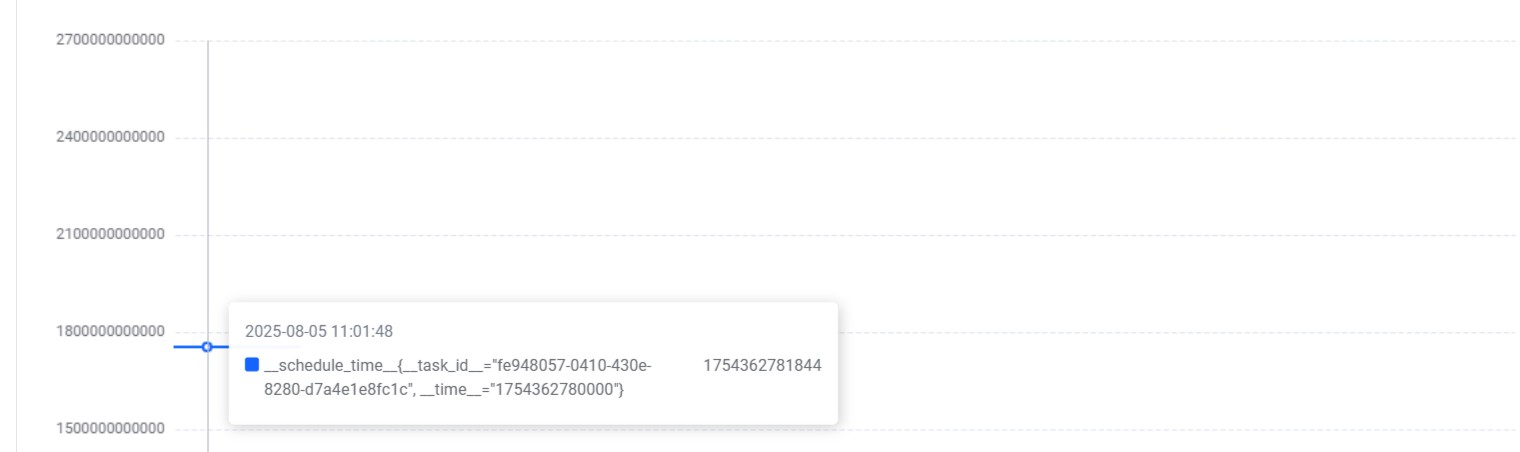
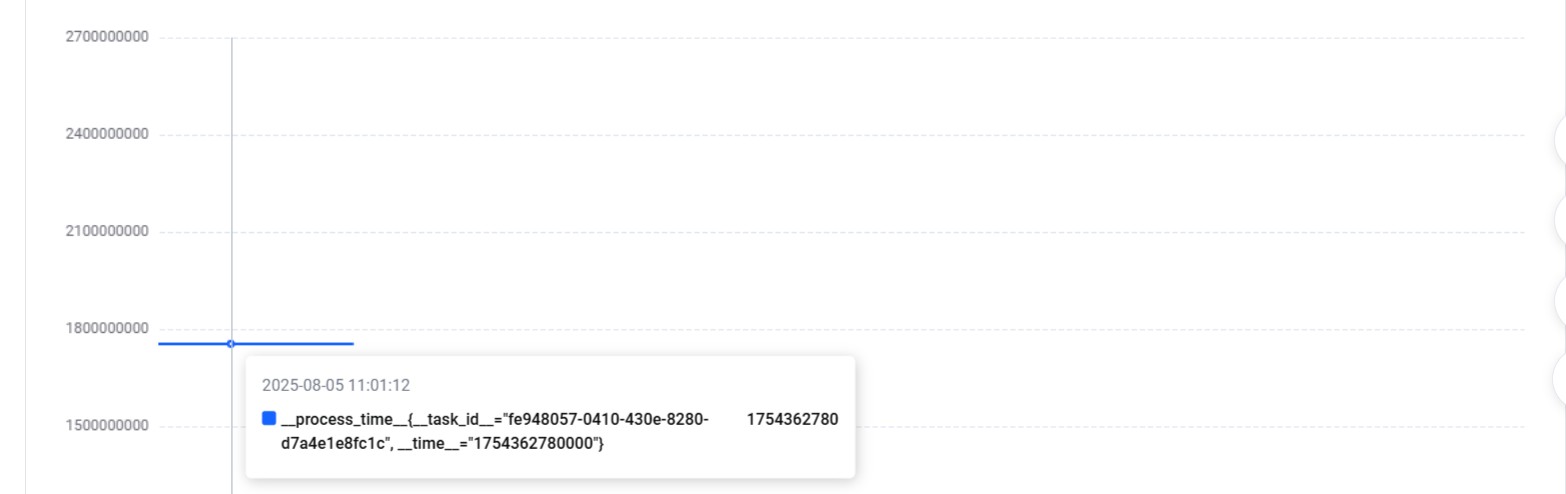
Two metrics are generated as shown below. According to the order of the selected time column __time__, data will be stored in the Managed Prometheus workspace.
__schedule_time__{__task_id__="fe948057-0410-430e-8280-d7a4e1e8fc1c", __time__="1754362780000"}
__process_time__{__task_id__="fe948057-0410-430e-8280-d7a4e1e8fc1c", __time__="1754362780000"}
Metric preview:
Last updated: 2026.07.29 11:24:02
All rights reserved © Beijing Volcano Engine Technology Co., Ltd2024
