Torch Log Service
Torch Log Service


Document

- Documentation
 Torch Log ServiceFAQsData collection FAQHow to troubleshoot host group heartbeat status Exception (host machine)
 Copy page
 Download PDF
Data collection FAQ
How to troubleshoot host group heartbeat status Exception (host machine)
Copy pageDownload PDFHow to troubleshoot host group heartbeat status Exception (host machine)
When collecting host machine text logs using LogCollector, if the heartbeat status of the host machine in the host group shows Exception, issues such as log collection failure may occur. When the host machine heartbeat status is Exception, refer to this document to troubleshoot the issue step by step and restore the host machine heartbeat status.
Background information
LogCollector is a log collection client developed in-house by TLS, used for quickly reporting host machine log data. After installing LogCollector on the host machine, LogCollector periodically sends heartbeat packets to the server. If the host group configuration page in the TLS console shows that the machine has no heartbeat, it indicates that the client failed to connect to the server.
Issue symptoms
On the host group details page in the TLS console, if the status bar corresponding to certain IP addresses in the heartbeat status information section displays Exception, it means that the heartbeat status of LogCollector on this host machine shows Exception, and the LogCollector client on the host machine failed to connect to the server.
When the heartbeat status is Exception, the LogCollector client on the host machine cannot properly report the collected log data to the server, resulting in logs not being collected into the log topic as expected, and the console cannot query and retrieve new log data in real time.
Troubleshooting solution
1. Check LogCollector status
After logging in to the host machine, run the following command to check the running status of LogCollector.
- If the output shows Unit logcollectord.service could not be found, it means LogCollector is not installed on this host machine. To install and run LogCollector, see 2 Install and start LogCollector.
- Ensure LogCollector is installed correctly according to the region and network type where TLS is located.
- If the output shows active (running), it means LogCollector is already installed on the current host machine and is running normally.
- If the LogCollector heartbeat status still shows Exception in the console, please perform the following steps to continue troubleshooting.
-
2. Check authentication parameter configuration
After installing LogCollector, you need to run the initialization script. During initialization, configure authentication parameters to authenticate and connect to TLS. If the parameter configuration is incorrect, it may cause LogCollector heartbeat Exception.
Run the following command to open the configuration file and check the authentication parameters.
*Notice
- LogCollector versions prior to v2.2.0
-
- LogCollector v2.2.0 and later versions
-
The authentication parameter instructions are as follows.
Tip
In output.tls, you cannot configure both the ip and label parameters at the same time; otherwise, heartbeat failures will occur.
The configuration file example is as follows.
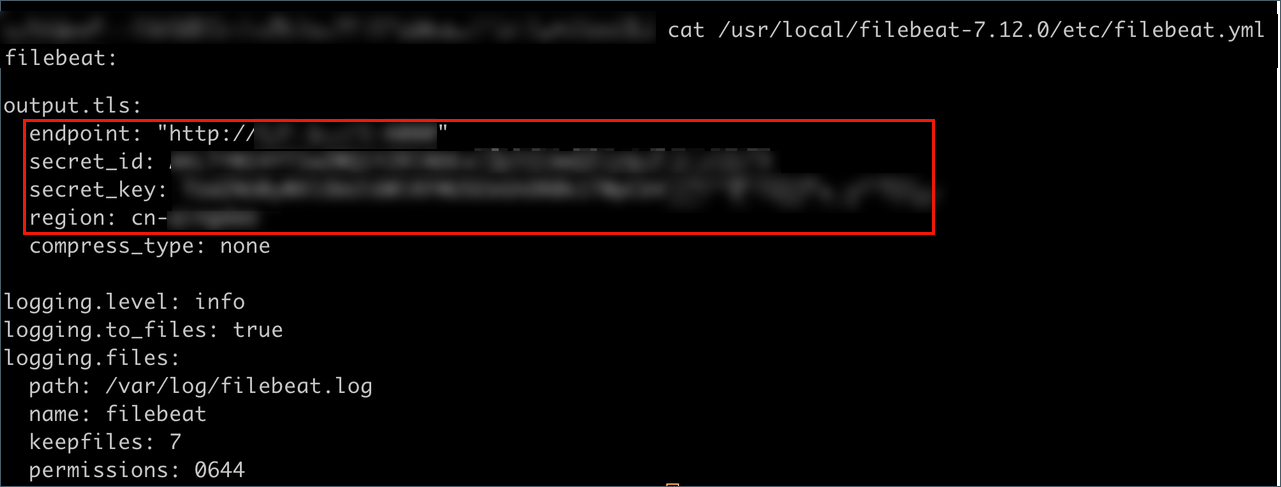
If the authentication parameters are configured incorrectly, modify them and restart LogCollector, then check the host group status after a short while. If the LogCollector heartbeat status on the console still shows Exception, follow these steps to continue troubleshooting.
3 Check whether LogCollector is the latest version
Support for host groups was added in LogCollector version 1.0.1. If the LogCollector version installed on the host is not 1.0.1 or later, LogCollector heartbeat Exception may occur, and the server cannot recognize this LogCollector. Therefore, when LogCollector heartbeat Exception occurs, check whether the LogCollector version meets the requirements.
Run the following command to check the LogCollector version. The output will display the currently installed LogCollector version. It is recommended to use the latest version of LogCollector. For details, see Upgrade LogCollector (host machine).
The following is an example of the output.

After upgrading the LogCollector version, if the host heartbeat status on the console still shows Exception, follow these steps to continue troubleshooting.
4 Check the host group IP address configuration
Tip
For host groups of the IP address type, follow this step to troubleshoot.
By default, LogCollector reads the IP address of the first network interface of the host and records it as the host IP address in the agent_info.json file. When creating an IP address type host group in the console, you need to enter the IP address recorded in agent_info.json as the host IP address in the host group, thereby adding the specified host to the host group.
If the IP address configured in the host group is inconsistent with the IP address in agent_info.json, the console will show that the LogCollector heartbeat status of this host is Exception and logs cannot be collected.
You can use the following command to view agent_info.json and check whether the IP address in the ip field matches the IP address displayed in the console.
- View agent_info.json.
-
- In the output, the ip field indicates the current host IP address obtained by LogCollector, that is, the IP address of the first network interface.
-
- View the IP address configured in the console.
- On the host group details page, you can view the IP addresses of all hosts in the host group. If the IP address configured here is inconsistent with the IP address displayed in agent_info.json, modify the host group configuration and check the machine status again later.
5 Check host identification configuration
Tip
For host groups of the Host identification address type, follow this step to troubleshoot.
In host groups of the Host identification address type, the configured Host identification must match the machine Label configured in LogCollector; otherwise, there will be no heartbeat status from LogCollector in the host group.
Run the following command to view the LogCollector configuration file.
The label value in the system output is the machine Label configured in LogCollector. If this value is inconsistent with the Host identification configured in the host group, modify the host group configuration and check the machine status again later.
Last updated: 2026.06.25 16:39:47
All rights reserved © Beijing Volcano Engine Technology Co., Ltd2024
