You need to enable JavaScript to run this app.
Torch Log Service

Torch Log Service

Copy page
Download PDF
Query log
Single-topic log query
Copy page
Download PDF
Single-topic log query
Once log data is collected and the indexes are correctly configured, you can view the collected log data in real time on the TLS console and query log data for specific time ranges using query conditions.​
This topic describes how to query logs for a single topic.​
Notice​
The log data retention period in TLS is determined by the log retention period of the project. Logs that have expired and been deleted can not be queried.​
Prerequisites​
  • The log project and log topic are created.​
  • Log data is collected via LogCollector or other methods.​
  • You must enable indexing feature before you query logs. For steps to enable the index, see Configuration Index.​
Steps​
  1. Log in to TLS console.​
  1. Select the region where log service is located from the top navigation bar.​
  1. In the left navigation pane, select Common functions > Query and analysis.​
  1. On Query and analysis page and in the list of left pane, select the specified project and topic.​
  1. Specify the time range in the query and analysis page for the log topic.​
  • By default, the time range is 5 minutes. You can also customize the time range for query. If log data does not fall within the specified query time range, it will not be retrieved.​
  1. Enter query condition, and then click Search.​
  • You can use the intelligent assistant to help generate query statements. For details, see Smart assistant copilot.​
  • If you only need to query logs without statistical analysis, you can simply enter the query condition.​
  • If the query condition is empty, all logs within the specified time range will be retrieved.​
View query results​
After querying logs, you can view the results on the Raw logs tab.​
Log data is reported approximately every minute. If there is no real-time data on the Raw logs tab, try to wait one minute and then refresh the page.​
Log histogram​
The log histogram shows the distribution of logs that match the query condition across different time periods. If you do not need to display the histogram, click Hide chart.​
​Image​​
  • When you hover over a blue data block, you can see the time range it represents, the number of matching entries within that period, and whether this query is precise query.​
  • Click a blue data block to drill down and view logs at a finer time granularity. The Raw logs tab will also sync and display matching raw log details within the selected period.​
  • If Query results show Precise, all results meeting the query condition for the specified period are returned.​
Notice​
If the query result is inaccurate, you can see Prompt "The query result is inaccurate", how to solve it? for solutions.​
  • Time consuming: displays the time used for this query.​
  • Timeout: If data volume within the query range is too large, or the query syntax is complex with too many fields, the processing time may go beyond processing capacity for each shard. In this case, the page displays Timeout. We recommend that you narrow the time range and retry the query.​
Raw logs​
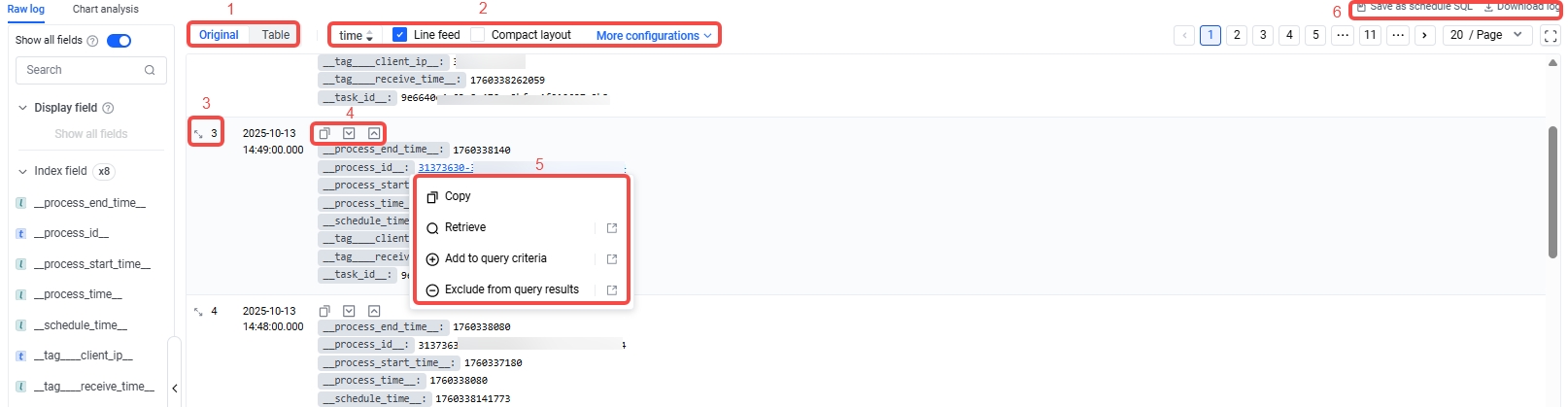
By default, the page displays log data collected in the last 5 minutes in Raw mode.​
​Image​​
​
Serial number​
Description​
1​
Click Original or Table to switch the log format.​
Logs are displayed in Original format by default.​
2​
  • Time: Sort logs in ascending or descending order.​
  • Line feed (only original format): The system enables line feed by default, displaying each log field on a separate line for a clearer view.​
  • Compact layout (only original format): When compact layout is selected, the system hides the Time column and shows the log time in the Log content column.​
  • Filter reserved fields: By selecting hide preset fields, the system hides reserved fields in TLS. For a detailed explanation of reserved fields, see Reserved field.​
  • More settings:​
  • Filter empty fields: By selecting hide empty fields, the system hides fields with empty values.​
  • Use the paginator to turn page: If you select Use the pager to turn page, you can flip pages with the paginator.​
  • By default, up to 100 logs are returned for each query. You can retrieve up to 100,000 logs through pagination.​
  • ​Image​​
  • Table sorting (only Table format): After selecting Table sorting, table supports single-page sorting on the front end.​
  • Tiled display JSON fields: After selecting Tile to display JSON fields, the system will display JSON fields in a tiled format such as KEY1.KEY2. For example child_type.kind:"SERVER".​
  • This only applies to fields where the index data type is JSON​
  • Tree display JSON field: After selecting Tree display JSON field , the system will display JSON fields in a tree structure.​
  • This only applies to fields where the index data type is JSON​
  • Force parse JSON field: After selecting Force parsing JSON field, the system will convert logs (JSON or arrays) to JSON format regardless of index configuration. Besides, highlighting in query results may not work.​
  • Batch expand or collapse field values (only Original format): When a field value is too long, it will be folded by default. You can click More configuration and then Expand to batch expand all currently folded field values. To fold expanded field values, click Fold.​
  • ​Image​​
3​
Click the expand icon in front of the log time, the Raw log dialog box will display. In the dialog box, you can perform the following actions in Raw log section.​
​Image​​
  • Show or hide specified fields​
  • Click the eye icon next to the target field in the raw log section to show or hide the specified field in the raw log.​
  • Copy value​
  • Click the copy icon next to the target field in the raw log section to copy the value of the specified field.​
  • Query​
  • Click the query icon next to the target field in the raw log section and the system will use the value of that field as a query condition.​
  • Add query​
  • Click the plus icon next to the target field in the raw log section, and the system will use the key-value pair as a query condition and connect it to the query statement with the AND operator.​
  • For fields with the JSON data type in the index, one-click query is only supported after selecting Tile to display JSON fields.​
  • Exclude from query results​
  • Click the minus icon before the target field in the Raw log area, and the system adds that key-value pair as a query condition and concatenates it in the query statement using the NOT operator.​
  • For fields with the JSON data type in the index, one-click exclusion from query is only supported after selecting Tile to display JSON fields.​
4​
  • Query in context: Click the Context query icon for the target log and you can view context information for the specified log entry in the log source file, i.e., the log entries before and after its collection time. For more details, see Query the context of specified log.​
Notice​
Context queries are only supported for logs collected by LogCollector 1.0.6 or later version. Log data uploaded via other methods, such as the PutLogs API through SDK, does not support context queries.​
  • Copy: Click the Copy icon for the target log and then you can copy the entry to the clipboard. The copied log text will be in JSON format.​
  • Expand or collapse field values: Click the Expand or Collapse icon for the target log, you can expand or collapse its field values.​
5​
  • Copy: You can copy the entire field value; after the field value is split by a delimiter, you can also copy individual segments.​
  • Query: After selecting a field value, click Query and the system will add that field value to the query statement.​
  • Add to query condition: After selecting a field value, click Add to query criteria, and the system will add the key-value pair as a query condition, joined in the query statement with the AND operator.​
  • Exclude from query results: After selecting a field value, click Exclude from query results, and the system will add the key-value pair as a query condition, joined in the query statement with the NOT operator.​
6​
  • Download log: Click Download log to download the raw log data or query and analysis results to your device for data review or further analysis. For more details, see Download logs.​
7​
  • If it is a secondary JSON field, you must set a field index for the secondary field before displaying the secondary field list in the quick analysis section.​
  • Hide and show fields: In Display fields, click the Hide icon next to the field name to hide the field in the query and analysis results. In Hidden fields, click the Show icon next to the field name to restore the field display.​
  • Set display order: Drag and drop fields to customize the display order. When there are many fields, use the search box to quickly locate specific fields.​
​
Sort logs by high-precision timestamps​
To sort logs by high-precision timestamps, you need to first enable nanosecond accuracy when collecting logs, and then select Nanosecond query accuracy on query and analysis page. For detailed steps to enable nanosecond timestamp precision during collection, see Enable LogCollector High Precision Time.​
​Image​​
​
Last updated: 2025.12.30 15:09:31