Torch Log Service
Torch Log Service


Document

- Documentation
 Torch Log ServiceUser GuideData collectionLogCollector collectionCollect host logsSingle-line complete regex mode
 Copy page
 Download PDF
Collect host logs
Single-line complete regex mode
Copy pageDownload PDFSingle-line complete regex mode
LogCollector collects text logs from servers based on the collection configuration and supports parsing logs in single-line complete regex mode. In single-line complete regex mode, LogCollector extracts log content using the specified regular expressions. This topic describes the steps for creating a single-line complete regex mode collection configuration.
Background information
When LogCollector collects logs in complete regex mode, it uses \n as the line break to mark the end of a log entry and extracts log content (value) using the specified regular expression. You need to specify a custom field name (key) for each value to structure the log data. If you need to process single-line text logs in a structured way, we recommend that you use the single-line complete regex mode.
In single-line complete regex mode, TLS adds the following metadata fields to log data collected by LogCollector and creates indexes for them by default.
Reserved field | Description |
__path__ | Original log file directory and file name. |
__source__ | IP address of the server where the original log file is located. |
Prerequisites
- A log project and log topic are created. For detailed instructions, see Create log project and Create a log topic.
- A host group is created and the server heartbeat status is in normal state. For detailed instructions, see Create host group (IP address) or Create host group (Host identification).
- The server where LogCollector is installed must be able to access port 80 and port 443 on the remote server.
- The latest version of LogCollector is installed on the server where the original logs are stored. For detailed steps, see Install LogCollector (host machine).
Steps
Step 1 Select a log space
- Log in to Torch log service console.
- Select the region where torch log service is located from the top navigation bar.
- On the left navigation bar, select Common functions > Log Collection.
- Then on the Log Collection page, in the LogCollector tab, click Create collection configuration.
tip
For the regions below, manually select the log collection mode in the LogCollector tab.
Region: Hong Kong (China), Asia Pacific Southeast (Johor), Asia Pacific Southeast (Jakarta).
- Select project and topic, and then click Next: Select host group.
- The collected log data will be stored in the selected log topic.
Step 2 Select host group
- In the All host groups section, select the specified host group for log collection.
- If no host group is available in the list, you need to create a host group first. For specific instructions, see Create host group (Host identification), Create host group (IP address)
- After confirming the host group in the Selected host group section, click Next Step: Collection rule.
Step 3 Configure collection rule
Configure basic information
- Enter the Rule name.
- Rule name refers to the name of the LogCollector collection configuration.
- You can also click Import collection rules, and select Source region, Source project, and Source configuration rule to import existing collection configurations into the current one. You only need to specify the collection rule name.
- Select whether to enable Container log collection.
- By default, the container log collection is disabled. If you collect host group logs or collect container logs via Sidecar, keep this setting disabled.
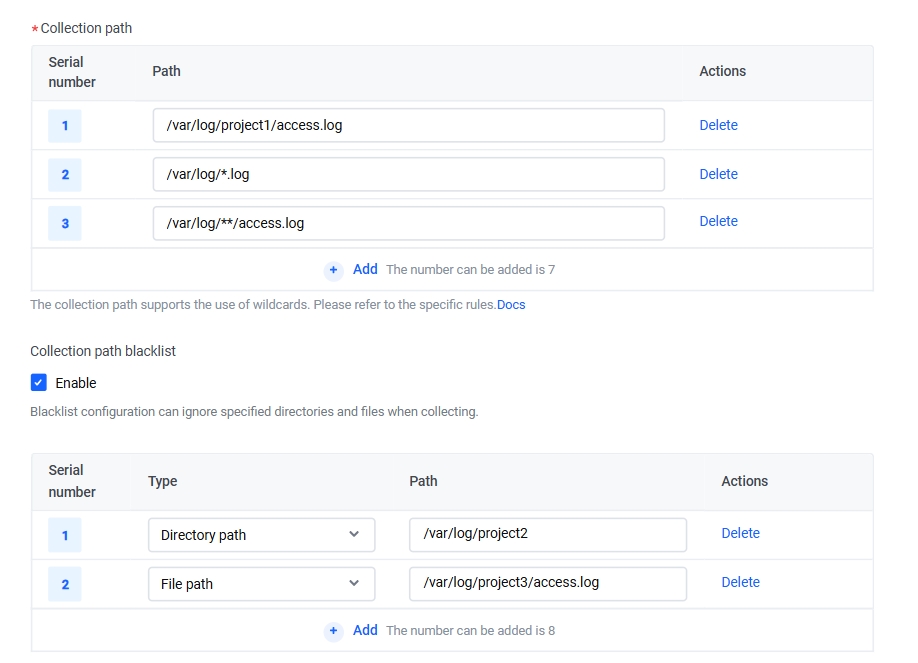
- Enter the Collection path.
- Collection path refers to the directory and filename of the logs. LogCollector matches directories based on the directory part of the collection path and monitors log files in those directories that meet the rules. You can set up to 10 different collection paths.
- You can specify a complete directory and filename for collection path. Besides, collection path supports fuzzy matching via wildcard character.
tip
- By default, a log file can only match one collection configuration and is collected into one log topic. If multiple collection configurations collect the same file, the latest created collection configuration rule applies.
- When the wildcard ** is specified in the log collection path, the path matches multiple directory levels. In this case and only in this case, TLS monitors subdirectories up to 8 levels deep under the specified directory.
- TLS currently supports the following wildcards: asterisk *, double asterisk **, and question mark ?. Only one double asterisk ** can be configured at most.
- Common configuration methods and examples for collection paths are as follows.
-
- Set collection configuration effectiveness policy.
- When log files under the same collection path are matched by multiple collection configurations, the following policies can be set:
- ConfigurationDescriptionCan be overwritten by new configurationIf there is an updated collection configuration, log files will not be collected according to the current configuration and will be collected based on the latest one.Permanent effectEven if updated collection configurations exist, log files will continue to be collected based on the current configuration.Permanent effect applies only to LogCollector version 2.1.0 and later and may result in duplicate collection fees. For more details, refer to Collecting multiple copies of file logs or standard output.
- Set collection path denylist.
After configuring the collection path denylist, TLS skips the specified directories and files when collecting logs through LogCollector. After selecting Enable, set the denylist directories and files as prompted on the page.
tip
- Each collection configuration can set up to 10 denylist collection paths.
- When configuring log paths, if you use wildcards but need to exclude certain directories or files, you need to enter the corresponding full paths or filenames in the denylist to ensure effective filtering. For example, if the collection path is /var/log/project/*.log and you want to exclude all subdirectories under /var/log/project, then the collection path denylist should be set to directory paths, with the configured path /var/log/project/**.
The path types in the collection path denylist support setting as directory path and file path.
Configuration | Description |
Directory path | The specified directories that can be skipped during collection. Directory paths support exact matching and wildcard pattern matching.
|
File path | The specified files can be skipped during collection. You need to configure the file path and file name. File path supports both exact match and wildcard pattern match.
|
Configure log format
- Set the Collection policy.
- The collection policy determines whether LogCollector collects incremental logs or complete logs. By default, it collects increment logs.
- ConfigurationDescriptionFull
- First-time collected log files: collect logs from the start of each file, including historical log data.
- For non-first-time collected log files: continue collection from the position that is determined by the Checkpoint, excluding historical log data.
IncrementOnly newly added content within the file is collected. When new logs are written to log files within the monitor scope, it triggers LogCollector collection.- For first-time collected files: Based on your input incremental threshold, LogCollector locates collection position automatically.
- If the new file size does not exceed your specified incremental threshold, the first collection starts from the beginning of the new file.
- If the new file size exceeds your specified incremental threshold, the first collection starts at the position where the file ends minus the incremental threshold. That is to say, only incremental logs are collected.
- For non-first-time collected log files: Continue collection from the position that is determined by the Checkpoint.
tip
If the Increment collection policy is selected, after triggering LogCollector collection, the collection policy can not switch to Full collection policy to collect historical logs of the log.
If you need to collect complete log data for this file, see Collect multiple log files or standard output simultaneously to set multiple collection rules.
- Set collection mode.
- Collection mode refers to the LogCollector log file parsing mode. In this case, set this to Single-line complete regex mode.
- Manual configuration: Click Single-line complete regex and set up the following parameters.
- Automatic configuration: Click AI recommended collection mode, and then enter or upload a log sample. TLS will use TLS Copilot to analyze the sample automatically. Once complete, you can fill in the relevant configuration with one click as prompted. The recommended result is for reference only; you need to verify based on your actual needs.
tip
- When using TLS Copilot for the first time, you need to read and agree to the Disclaimer and service usage policies.
- TLS Copilot only supports North China 2 (Beijing), South China 1 (Guangzhou), and East China 2 (Shanghai).
- The additional settings required for single-line complete regex mode are as follows.
- ParametersDescriptionLog exampleEnter a real log example as a template for field parsing and extraction.Extract regular expressionTo extract key-value pairs, use ( ) to label regular expressions corresponding to each kv. The complete regular expression identifies ( ) as capture groups, and these groups are parsed as key-value pairs.
- Auto generation: Click AI-generate regular expression, and TLS will analyze the log example you provided and automatically generate the regular expression.
- Manual input: Enter the regular expression corresponding to the real log example manually.
- Set Time field.
- Acquisition point in time: use the system time of the server where LogCollector runs as the log timestamp.
- Custom time: extract the time embedded in the original log as the log timestamp. The related configuration is as follows:
- ConfigurationDescriptionTime key nameThe name of the time field, which you specify in Extract result.Time regularIf you only parse part of the time field, use regular expressions to extract.Time accuracyAfter turning on Enable nanosecond time precision, extracting time with nanosecond precision is supported. For more details, see Enable LogCollector High Precision Time.Time conversion formatBased on the extracted time content, set the time conversion format. For example, if the time is 01/March/2024 20:15:02, the time conversion format can be configured as %d/%b/%Y:%H:%M:%S. For detailed format descriptions, see Time format.tip
- If the time can not be parsed correctly due to time format conversion failure, the collection time will be used by default.
- By default, log time supports millisecond precision. The time conversion format allows millisecond configuration. If time conversion format does not specify millisecond parsing, the millisecond part defaults to 0.
- Turn on Enable nanosecond time accuracy in collection settings to support nanosecond-level log conversion formats.
- If you need to add time zone into log time and include time zone in original log time, add the time zone format (%z) in the time conversion format to extract time zone. Besides, you can add a fixed time zone format (+08:00) into the time conversion format, and then select the appropriate time zone property.
- For example, if the time is 2024-03-03 15:00:00 +08:00, you can set the time conversion format to %Y-%m-%d %H:%M:%S %z, or set the time conversion format to %Y-%m-%d %H:%M:%S +08:00 and select the corresponding time zone attribute.
Time zone attributeSet the time zone.- Host time zone: use the system time zone of the server where LogCollector is located.
- Custom time zone: includes UTC and GMT. If you need to support daylight saving time or standard time, select UTC; otherwise, select GMT.
Time field exampleEnter the time content from the original log and click Validate now. TLS will check if the configured time conversion format is correct.
- Select whether to skip files that have not been updated.
- If enabled, LogCollector skips files whose log file update time falls outside your specified time range when collecting data.
- Set whether to enable upload parsing failure log.
- Enable: After enabling, you must also configure the failure log key name. The key name defaults to LogParseFailed. All logs that fail to parse are uploaded to TLS, using the configured failure log key name field as the key and the original log content as the value.
- Disable: Logs that fail to parse are not uploaded to TLS.
Configure plugin
Choose whether to enable Plugin configuration.
When collecting text logs via LogCollector, if business logs can not be parsed by regular collection modes like JSON due to complex structures or inconsistent format, use LogCollector plugin for post-collection processing. For more details, see Plugin overview.
Advanced settings
- Enable Advanced settings.
- Select advanced configurations based on your needs. If you have no special requirements, we recommend that you keep the default configuration.
- ConfigurationDescriptionFilterLog field filtering rules. It can be enabled or disabled. Disabled by default. When enabled, you can configure filtering rules by using regular expressions. Only logs that fully match the regular expression will be collected and reported. This helps you filter log data that you need.For example, set key to response_code and the filtering rule to 400|500. This means only logs with response_code values of 400 or 500 will be collected.
Upload hostname fieldThis feature determines whether to upload the hostname field. By default, it is disabled.- Enable: add a field in the original log to record the hostname of log source. The field name can be specified via hostname key name. It is defaulted to hostname.
- Disable: No hostname field is added.
Parse collection pathExtract fields from the collection path by using regular expressions and add them as metadata to the log data. By default, this function is turned off.After enabling this feature, set the collection path sample, extract regular expression, and extract result.- Collection path sample: a collection path example from an actual scenario.
- The collection path sample must be an absolute path.
- The path sample must not contain wildcards *, ?, or **.
- Extract regular expression: the regular expression used to extract path fields. It must match the sample collection path; otherwise, extraction fails.
- Extract result: Extract result shows each field value parsed and extracted by TLS from the sample path based on the regular expression. You need to specify a field name (key) for each field.
- You can configure up to 100 field names.
- Field names can not be empty or duplicated.
HashKey routing shardSpecify the HashKey to write data into the log shard that meets the range requirements. By default, this feature is disabled.- If enabled, logs are collected via HashKey routing shard mode. Data will be written into specified shard in order. This applies to scenarios where data writing and consumption require a high degree of order. In this case, HashKey is required. Then TLS will write data into the shard that contains the Key. The valid range of HashKey is [00000000000000000000000000000000-ffffffffffffffffffffffffffffffff).
- If disabled, logs are collected via load balancing mode. Data will be written into specified shard in order. This mode applies to scenarios where writing and consumption is independent from shard, such as unordered processing.
Upload original logThis feature determines whether to upload the original log as a single field to TLS. By default, it is disabled.- Enable: The original log data will be encapsulated in the specified field and uploaded together with the parsed log data to TLS. The field name can be specified through Original log key name. The default value is raw, which corresponds to the log field __raw__.
- Disable: No original log field is added.
Upload constant fieldsAfter enabling, LogCollector will encapsulate key and value of the specified field in each log entry. Constant fields must follow these restrictions:- Supports uploading up to 5 constant fields.
- Field names (keys) must be unique and non-empty. The length must be between 1 and 128 characters, including English letters, digits, and special characters (-_./), and can not start with an underscore.
- Field values can not be empty and can be up to 512 KiB in size.
Upload host group labelYou can select whether to upload the label information of the host group to TLS. By default, it is enabled.- Enable: LogCollector uploads the host group Label information to the specified field. You can specify the field name in Host group label key name. By default, it is host_group_label.
- Disable: The host group Label information is not uploaded.
Extended configurationLogCollector extended configuration. It is written in JSON object format. Currently supported parameters include CloseInactive, CloseRemoved, CloseRenamed, CloseEOF, and CloseTimeout. For detailed parameter descriptions, see the Advanced data structure in CreateRule.For example, using the following configurations will cause: no new entry is written for 10 seconds; log file is removed; log file is renamed; LogCollector reads data to the end of file; the handle is released when log file monitoring exceeds 30 minutes.
- Confirm the collection configuration and click Next step: Check index configuration.
Step 4 Check index configuration
- Check index configuration.
- Follow the prompts on the page to set or update the index as needed. You can also click Import existing index configuration to import indexes from other log topics.
- If this log topic does not have an index configured, refer to Configuration Index for setup.
- If the index for this log topic is already configured, you can decide whether to update the index based on the log fields parsed by the collection rule.
tip
- You must enable the index to query and analyze the collected log data.
- The updated index settings only apply to new data written afterward. For more instructions and limitations on query and analysis, see Query overview and Analysis Overview.
- Click Submit.
Next steps
After you create the collection configuration, LogCollector collects logs and saves them to the specified log topic. You can then query and analyze logs in log topic. For specific instructions, see Query and analysis workflow.
Last updated: 2026.04.20 11:42:37
All rights reserved © Beijing Volcano Engine Technology Co., Ltd2024
