Torch Log Service
Torch Log Service


Document

- Documentation
 Torch Log ServiceFAQsData collection FAQHow to install, upgrade, and configure LogCollector
 Copy page
 Download PDF
Data collection FAQ
How to install, upgrade, and configure LogCollector
Copy pageDownload PDFHow to install, upgrade, and configure LogCollector
This section describes how to install, upgrade, and configure LogCollector:
Does LogCollector support log rotation?
LogCollector supports log collection in scenarios where log files are rotated.
- (Recommended) rename log file rotation: When a log file reaches a certain size or time limit, the current log file is renamed to a new file name, such as by adding a timestamp or serial number, then a new log file is created and new logs continue to be written. For example, if the original log file is bar.log, after rotation, you will get bar.log.1, bar.log.2, and other log files.
- LogCollector automatically identifies log files before and after rotation to ensure log integrity.
- If log file rotation occurs too frequently, resulting in a large number of log files being created in a short period, LogCollector will only collect up to 20 rotated log files at the same time. Rotated log files beyond 20 cannot be collected, which may cause some rotated log files to be deleted before they are collected, resulting in log loss.
- copytruncate log file rotation: When a log file reaches a certain size or time limit, the current log file is copied to a new log file, such as by adding a timestamp or serial number, then the original log file is cleared and new logs continue to be written. For example, if the original log file is bar.log, after rotation, you will get bar.log.1, bar.log.2, and other log files.
- If the configured collection path is bar.log, when there is a collection delay in LogCollector, copytruncate log file rotation will cause delayed logs to be lost.
- If the configured collection path is bar.log*, copytruncate log file rotation will cause already collected logs to be collected again.
LogCollector log collection latency
LogCollector uses polling and event listening mechanisms for log collection, and typically sends logs to TLS within 3 seconds.
The collection performance of LogCollector depends on the allocated system resources and the collection mode. For details, see Recommended parameter values.
How long does it take for changes to LogCollector collection configuration to take effect?
After you modify the LogCollector collection configuration in the TLS console, LogCollector will load the new configuration and take effect within 1 minute.
Why is the LogCollector heartbeat IP displayed in the host group inaccurate?
By default, LogCollector uses the first network interface's IP address as the host or container IP address. You can modify the IP address obtaining policy to retrieve the IP address from a specified network interface or obtain IP address in a specific order. For more details, see Policy description.
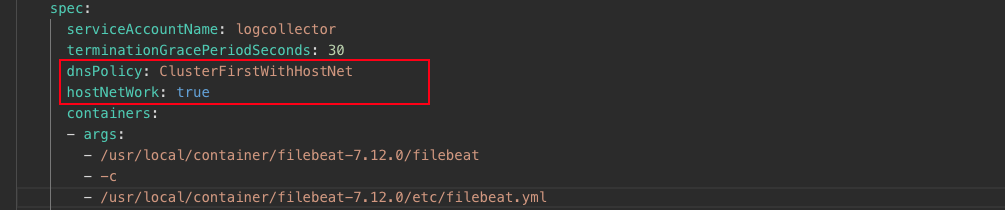
In Kubernetes scenarios, LogCollector uses the Pod IP address as the heartbeat IP address and reports it to TLS by default. To use the node IP address as the LogCollector heartbeat IP address, modify the LogCollector daemonset configuration file and add the two configuration items hostNetwork: true and dnsPolicy: ClusterFirstWithHostNet.
Checking the running status of the container LogCollector
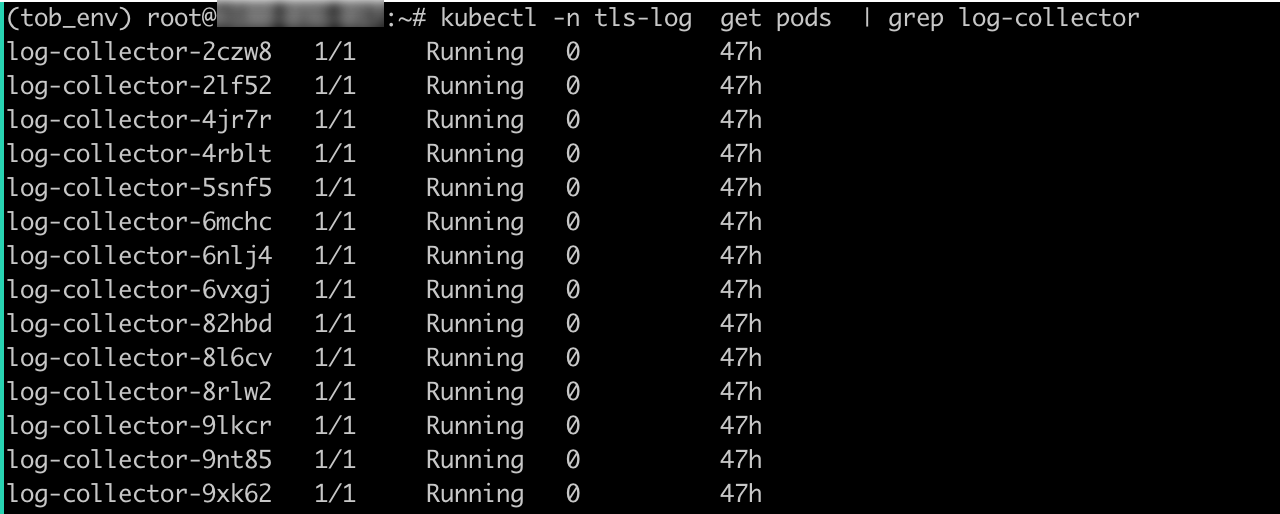
If the container LogCollector heartbeat status is Exception, you usually need to first check the running status of the LogCollector in the corresponding Pod. If the running status is Running, it indicates that LogCollector has been successfully installed and is running properly. Other LogCollector statuses indicate installation or runtime Exception. Refer to this document for troubleshooting.
After logging in to the Kubernetes cluster, run the following command to check the running status of LogCollector.
In the following example, the name of the Daemonset is log-collector, and the namespace is tls-log.
If the echo information shows that the value of the STATUS field is all Running, it means that LogCollector has been successfully installed in the current Kubernetes cluster and is running normally. If there is no status information, or the status is Evicted or another value, refer to the solutions for further troubleshooting.
Common solutions for container LogCollector
No status information
Issue description: The NAME field in the echo information does not contain a Pod named "log-collector-xxxxx".

Cause: LogCollector has not been installed in this Kubernetes cluster.
Solution:
- Refer to Install LogCollector (DaemonSet deployment) or Install LogCollector (Sidecar deployment) to install and run LogCollector.
Tip
Please ensure that LogCollector is installed correctly according to the region and network type where TLS is located.
- Run the following command again to check the running status of LogCollector. If the status is Running, the installation is successful.
-
Status is Evicted
Issue description: In the echo information, the Status field of the specified Pod is Evicted.

Cause: The Pod status is Evicted, indicating that the node has a taint and the LogCollector Daemonset does not have a toleration set, which prevents the LogCollector Pod from being scheduled to this node. For information about taints and tolerations, see Kubernetes official documentation.
Solution:
Set a toleration for the LogCollector Daemonset. Assume that the node has a taint with key key1, value value1, and effect NoSchedule: key1=value1:NoSchedule. This means that only Pods with a toleration matching this taint can be scheduled onto this node.
- Set a toleration for the LogCollector DaemonSet in logcollector_ds.yaml.
- In the logcollector_ds.yaml file, add the following toleration under spec.template.spec to match the node taint key1=value1:NoSchedule, ensuring that the LogCollector Pod can be scheduled onto this node.
-
- Run the following command again to check the running status of LogCollector. If the Status shows Running, the installation is successful.
-
Last updated: 2026.06.25 16:39:47
All rights reserved © Beijing Volcano Engine Technology Co., Ltd2024
