Torch Log Service
Torch Log Service


Document

- Documentation
 Torch Log ServiceBest practicesConsumption and deliveryVisualization of Kafka protocol consumption metrics
 Copy page
 Download PDF
Consumption and delivery
Visualization of Kafka protocol consumption metrics
Copy pageDownload PDFVisualization of Kafka protocol consumption metrics
This article describes how to use the dashboard and alerting capabilities of TLS to achieve real-time monitoring and alerting for Kafka consumer backlog.
Prerequisites
The Kafka protocol consumption log task has been created. For detailed instructions, refer to Consume logs via the Kafka protocol.
Background information
After starting the Kafka consumer group, limitations such as Kafka Client configuration, client consumption thread performance, client data processing thread performance, and the number of topic shards may result in the amount of consumed data being lower than the amount of uploaded data (data uploaded through multiple methods, such as Log Connector and Kafka protocol), leading to data accumulation. Under normal circumstances, because there is a time interval in client polling for data, some accumulation is normal. However, if accumulation continues to increase, it indicates insufficient consumption capacity. If consumption latency exceeds the topic's retention period, data will be lost. To address this, you need to improve the client's ability to consume data by tuning client parameters, scaling out clients, expanding shards, and other means. For details, see Consumer Configs.
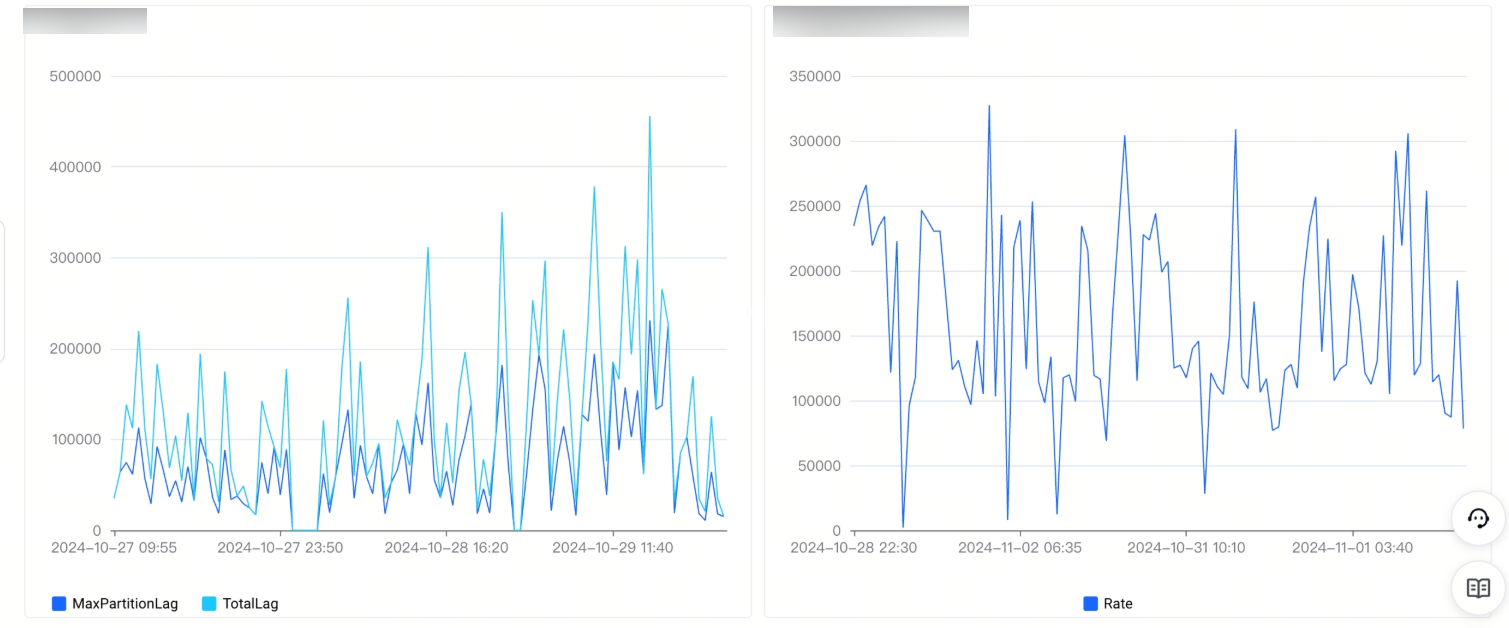
TLS provides a Kafka monitoring dashboard that displays the changing trends in consumption latency and consumption speed, and supports configuring alerts for charts so that you can promptly identify and address related issues.
Scenario 1: View the trend in consumer group latency and consumption speed
- Log in to the Torch log service console.
- Select the region where torch log service is located from the top navigation bar.
- In the left navigation bar, select Data processing > log consumption.
- Under the Kafka tab, locate and expand the project associated with the target Kafka consumer group, then click the specified Kafka consumer group.
- In the Monitoring Dashboard tab, view dashboards related to consumption.
- The monitoring dashboard displays the consumption latency, consumption rate, and related change trends for the Kafka consumer group.
- MaxPartitionLag: The number of unconsumed data records in the shard with the highest lag among all shards consumed by the consumer group.
- TotalLag: The number of data records that have not been consumed by the entire consumer group at this point in time.
-
Scenario 2: Configure alerts for consumption delay in consumer groups
- In the latency chart, select ··· > Add alert.
- On the Create alarm policy page, complete the following configuration, and then click Create.
- TLS has built-in query and analysis statements, with important parameter configurations listed below. For details on other parameters, refer to Create an alarm policy.
- Set the trigger condition to matching data found, $1.MaxPartitionLag > 100000 || $1.TotalLag > 500000. Among these, the values of MaxPartitionLag and TotalLag should be evaluated based on the actual business context.
- Select the appropriate execution cycle, alert sending cycle, and notification group.
- Alarm notifications received.
- When the consumption delay metric reaches the trigger condition, you will receive an alert notification.
Last updated: 2025.10.11 17:07:57
All rights reserved © Beijing Volcano Engine Technology Co., Ltd2024
