You need to enable JavaScript to run this app.
Torch Log Service

Torch Log Service

Copy page
Download PDF
Collect container logs
Collect container text logs (DaemonSet - Console method)
Copy page
Download PDF
Collect container text logs (DaemonSet - Console method)
TLS supports collecting container text logs from Kubernetes clusters via DaemonSet. This topic shows how to create collection configurations in the console.​
Background information​
After installing the LogCollector plugin provided by TLS and creating a collection configuration in the container, LogCollector identifies containers to be collected based on the container’s labels and environment variables. It continuously collects text logs generated in the specified container path and uploads container-related metadata, such as text logs and container names, to the server. LogCollector also supports breakpoint resumes. The checkpoint file retains location information relevant to collection. Therefore, even if LogCollector is stopped and then restarted, it continues collecting from the last saved location.​
In a Kubernetes cluster, resources are isolated among pods. As a result, the LogCollector container can not directly access files from containers in other pods. However, the file system of Kubernetes cluster containers is usually built by mounting the host filesystem. This means you can access the container’s rootfs directly from the host. Therefore, after mounting the file system where root directory is located to LogCollector container, LogCollector can access relevant directories on the host to collect files from the business container file system. For example, if a log file is located at /var/log/app.log in a business container, assuming the path mapped to the host machine is /var/lib/kubelet/pods/<pod-id>/xxx/var/log/app.log, LogCollector mounts the host system root directory to its /logcollector_host directory by default. Thus, the actual file path collected by LogCollector is /logcollector_host/var/lib/kubelet/pods/<pod-id>/xxx/var/log/app.log.​
In addition, when collecting container text logs, LogCollector supports various collection configurations, such as single-line and multi-line. Aside from the reserved fields that are added by default in various configurations, TLS also adds the following reserved fields to logs collected from containers by LogCollector and automatically creates indexes for these fields.​
​
Reserved field​
Description​
__image_name__​
Image name.​
__container_name__​
Container name.​
__container_ip__​
IP address of the container or Pod.​
__pod_name__​
Pod name.​
__pod_uid__​
Unique identifier of the Pod.​
__namespace__​
The Namespace to which the Pod belongs.​
​
Limits​
  • When collecting container standard output:​
  • Docker container engine only supports JSON type log drivers.​
  • If a container matches multiple collection configurations, only the latest configuration takes effect on that container.​
  • When collecting log files inside containers:​
  • Currently, log file collection paths inside containers support only three methods: No mount, emptyDir mount, and hostPath mount.​
  • LogCollector does not support setting the collection path to a symbolic link, as LogCollector cannot access symbolic links to log files inside containers. Therefore, configure the collection path using the actual path of the log files in the container.​
  • After the container stops, LogCollector receives the stop event for that container and immediately stops collecting its logs. If delay exists when LogCollector collects logs from the container, some logs generated before the container stops may not be collected.​
  • LogCollector supports container engines including Docker and Containerd. Restrictions for accessing different types of container engines are as follows:​
  • Docker: LogCollector accesses the Docker container engine on the host via /run/docker.sock. Ensure that this path exists and LogCollector has access permissions.​
  • Containerd: LogCollector accesses the Containerd container engine on the host via /run/containerd/containerd.sock. Ensure that this path exists and LogCollector has access permissions.​
Create LogCollector collection configuration​
Prerequisites​
  • A host group is created and the host running the containers is added to the group.​
  • We recommend that you use host group with host identification. The host identification can be set as the custom label you configured during LogCollector installation. That is to say, the identification must match the value of ${your_labels} in the ConfigMap, for example, nginx-log.​
Notice​
If you are collecting standard container logs from Volcano Engine Container Service VKE, ensure the container service's corresponding cluster network is functioning properly. After LogCollector is installed in the cluster, by default, it automatically creates a host group of the machine identification type in TLS. This host group is located in the same region and belongs to the same project as the cluster, and is named k8s-vke-Container Service Cluster ID.​
Step 1 Select a log space​
  1. Select the region where torch log service is located from the top navigation bar.​
  1. On the left navigation bar, select Common functions > Log Collection.​
  1. Then on the Log Collection page, in the LogCollector tab, click Create collection configuration.​
Notice​
For the regions below, manually select the log collection mode in the LogCollector tab.​
Region: Hong Kong (China), Asia Pacific Southeast (Johor), Asia Pacific Southeast (Jakarta).​
  1. Select project and topic, and then click Next: Select host group.​
  • The collected log data will be stored in the selected log topic.​
Step 2 Select host group​
  1. In the All host groups section, select the specified host group for log collection.​
  1. After confirming the host group in the Selected host group section, click Next Step: Collection rule.​
Step 3 Configure collection rule​
Configure basic information​
  1. Fill in the basic rule configuration.​
  • ​
    Configuration​
    Description​
    Rule name​
    Rule name refers to the name of the LogCollector collection configuration.​
    You can also click Import collection rules, and select Source region, Source project, and Source configuration rule to import existing collection configurations into the current one. You only need to specify the collection rule name.​
    Container log collection​
    Select Enable.​
    Collection type​
    Select K8s container text log.​
    ​
  1. (Optional) Enable General container collection rule.​
  • The general container collection rule specifies the content to collect based on general container information, and also allows exclusion of specific content from collection.​
Tip​
If neither General container collection rule nor K8s collection rule is enabled, the collection scope covers all containers. When both rules are configured, their logical relationship is AND. That is to say, to successfully collect, both rules need to be met.​
  • ​
    Configuration​
    ​
    Description​
    Container name​
    ​
    Name of container to collect If the container name is not specified, all containers in the host group will be collected.​
    Supports regex matching. For example, if you set container name to ^(container-test)$, all containers named container-test are collected.​
    Tip​
    For fuzzy regular expression matching, you must add .*. For example, ^(http.*)$ matches strings that start with "http".​
    Container label​
    Enable allowlist​
    You can specify which containers to collect using container label allowlists. When the allowlist is not enabled, all containers will be collected.​
    When enabling the container label allowlist, you need to fill in key-value pairs. Key is required; value is optional.​
    • Value is empty: Collect all containers that contain the key in their container label.​
    • When value is not empty: Only collect containers whose Label contains the key and whose value matches the Value. Value supports regular expression matching. For example, if you set key to app and value to ^(test1|test2)$, only containers with app:test1 or app:test2 in their Label will be collected.​
    Tip​
    • The logical relationship between multiple Key-Value pairs is OR. That is to say, any container Label that matches any Key-Value pair will be included in the collection.​
    • When enabling the container Label allowlist, keys can not be duplicated.​
    • For fuzzy regular expression matching, you must add .*. For example, ^(http.*)$ matches strings that start with "http".​
    • Allowlist configuration for container labels does not take effect when collecting Volcano Engine Container Instances (VCI).​
    ​
    Enable denylist​
    The container label denylist is used to specify which containers should not be collected. If the denylist is disabled, all containers are collected.​
    If the container label denylist is enabled, the key field is required and the value field is optional.​
    • If value is empty, containers with the specified key in their label will not be collected.​
    • If value is not empty, only containers whose labels match both the key and value are excluded from collection. Value supports regular expressions. For example, if you setto app and value to ^(test1|test2)$, containers with the labels app:test1 and app:test2 are excluded from collection.​
    Tip​
    • The logic between multiple key-value pairs is logical OR. That is to say, any container whose label matches any of the key-value pairs will be excluded from collection.​
    • When the container label denylist is enabled, the key fields must not be duplicated.​
    • For fuzzy regular expression matching, you must add .*. For example, ^(http.*)$ matches strings that start with "http".​
    • When collecting Volcengine Container Instance (VCI), the container Label denylist configuration will not apply.​
    Container environment variables​
    Enable allowlist​
    Specify which containers to collect by using the container environment variable allowlist. If the allowlist is not enabled, all containers will be collected.​
    To enable the container environment variable allowlist, enter key-value pairs. Key is required; value is optional.​
    • If value is empty, all containers containing the key in their environment variables will be collected.​
    • If value is not empty, only containers with the key in their environment variables and matching the value will be collected. Value supports regular expression matching. For example, set key to module and value to ^(tcp|udp)$. Only containers with environment variables module:tcp and module:udp will be collected.​
    Tip​
    • The logical relationship between multiple Key-Value pairs is OR: a container will be included if it matches any Key-Value pair.​
    • When the container environment variable allowlist is enabled, keys can not be duplicated.​
    • For fuzzy regular expression matching, you must add .*. For example, ^(http.*)$ matches strings that start with "http".​
    ​
    Enable denylist​
    The container environment variable denylist specifies which containers are excluded from data collection. If the denylist is disabled, all containers will be collected.​
    If you enable the container environment variable denylist, key is required, while value is optional.​
    • If value is empty, all containers whose environment variables contain the key will be excluded from collection.​
    • If value is not empty, only containers whose environment variables match both the key and value are excluded. Value supports regular expression matching. For example, if you set key to module and value to ^(tcp|udp)$, containers with environment variables module:tcp or module:udp are excluded from collection.​
    Tip​
    • The logical relationship between multiple Key-Value pairs is OR. Any container whose environment variables match any of the pairs will be excluded from collection.​
    • When enabling the container environment variable denylist, keys must not be duplicated.​
    • For fuzzy regular expression matching, you must add .*. For example, ^(http.*)$ matches strings that start with "http".​
    Environment variable log tags​
    ​
    This feature determines whether to set environment label as log tag and add it to raw log data. If enabled, TLS will add related container environment variable fields to the logs. If you set multiple key-value pairs, it means you add multiple fields.​
    For example, set the key to source and the value to data_source. If the container includes the environment variable source=DC, a new field __tag__data_source__: DC will be added to the log.​
    ​
  1. (Optional) Enable K8s collection rule.​
  • The K8s collection rule specifies the content to collect using Kubernetes container information, and also allows exclusion of specific content from collection.​
Tip​
If neither General container collection rule nor K8s collection rule is enabled, the collection scope covers all containers. When both rules are configured, their logical relationship is AND. That is to say, to successfully collect, both rules need to be met.​
  • ​
    Configuration​
    ​
    Description​
    Namespace​
    ​
    Name of the Kubernetes namespace to be collected. If no Namespace is specified, all containers will be collected.​
    Namespace names support regular expression matching. For example, setting the namespace name to ^(tcp|udp)$ means collecting all containers in the tcp and udp namespaces.​
    Tip​
    For fuzzy regular expression matching, you must add .*. For example, ^(http.*)$ matches strings that start with "http".​
    Workload type​
    ​
    Specify the container for collection based on workload type. Only one type can be selected. If no type is specified, containers of all types are collected.​
    Supported workload types:​
    • Deployment: Stateless workload​
    • StatefulSet: Stateful workload​
    • DaemonSet: Daemon process​
    • Job: Task​
    • CronJob: Scheduled SQL task​
    Workload name​
    ​
    By configuring the workload name, you can specify the container to collect. If no workload name is specified, all containers are collected.​
    Workload names support regular expression matching. For example, if you set the workload name to ^(http.*)$, all containers under workloads starting with http will be collected.​
    ​
    Pod Label​
    Enable allowlist​
    The Pod Label allowlist is used to specify the containers to be collected.​
    If you need to set the Pod label allowlist, the key field is required.​
    • If the value is empty, all containers with the key in the Pod label are collected.​
    • If the value is not empty, only containers that match the key and the value in Pod Label are collected. Regular expressions are supported. The value supports regular expressions. For example, if you set the key to module and set the value to ^(tcp|udp)$, it means only containers with Pod labels module:tcp and module:udp are collected.​
    Tip​
    • The logical relationship between multiple key-value pairs is logical OR. If the Pod label matches any key-value pair, it will be collected.​
    • When enabling the Pod label allowlist, duplicate keys are not allowed.​
    • For fuzzy regular expression matching, you must add .*. For example, ^(http.*)$ matches strings that start with "http".​
    ​
    Enable denylist​
    Specify containers to exclude from collection using a Pod Label denylist.​
    If you need to set a Pod Label denylist, the key field is required, while the value field is optional.​
    • If the value field is empty, all containers with the specified key in the Pod Label will be excluded from collection.​
    • If the value field is not empty, only containers with the specified key and a value that matches will be excluded from collection. The value field supports regular expressions. For example, if you set key to module and value to ^(tcp|udp)$, containers with module:tcp and module:udp in the Pod Label will not be collected.​
    Tip​
    • The logical relationship between multiple Key-Value pairs is OR. That is to say, any Pod Label that matches any Key-Value pair will be excluded from collection.​
    • When enabling the Pod Label denylist, keys can not be duplicated.​
    • For fuzzy regular expression matching, you must add .*. For example, ^(http.*)$ matches strings that start with "http".​
    Pod Annotation​
    Enable allowlist​
    Pod annotation allowlist is used to specify the containers to be collected.​
    If you need to set a Pod annotation allowlist, the key field is required and the value field is optional.​
    • If the value field is empty, all containers in Pods with the specified key in their annotations will match.​
    • If the value field is not empty, containers in Pods whose annotation contains the key and the Key's value matches the value will match.​
    • By default, value uses string matching. Containers only match if the value is exactly the same as the value of the Pod annotation. If the value starts with ^ and ends with $, it uses regular expression match. For example, set theas "app" and set the value as ^(test1|test2)$, and then the containers in Pods whose annotation contains app:test1 or app:test2 will match.​
    Multiple allowlists are combined with an OR relationship. If a Pod annotations match any allowlist, the Pod is matched.​
    Tip​
    • The logical relationship among multiple Key-Value pairs is logical OR. Pods will be included for collection as long as their annotations match any Key-Value pair.​
    • When the Pod Annotation allowlist is enabled, the key must not be duplicated.​
    • For fuzzy regular expression matching, you must add .*. For example, ^(http.*)$ matches strings that start with "http".​
    ​
    Enable denylist​
    Pod Annotation denylist specifies containers that are excluded from collection.​
    If you need to set a Pod Annotation denylist, the key is required and the value is optional.​
    • If the value is empty, all containers in Pods with the specified key in their Pod Annotation will be excluded.​
    • If the value is not empty, only containers in Pods with the specified key and a value matching the specified value in their Pod Annotation will be excluded.​
    • By default, value uses string matching. Containers only match if the value is exactly the same as the value of the Pod annotation. If the value starts with ^ and ends with $, it uses regular expression match. For example, if you set key as app and value as ^(test1|test2)$, it matches containers within Pods whose Annotation contains app:test1 or app:test2.​
    Tip​
    • The logic between multiple key-value pairs is logical OR. As long as a Pod Annotation matches any key-value pair, it will be excluded from the collection scope.​
    • When enabling Pod Annotation denylist, duplicate Keys are not allowed.​
    • For fuzzy regular expression matching, you must add .*. For example, ^(http.*)$ matches strings that start with "http".​
    Pod name matching rules​
    ​
    Pod name matching rules specify which containers to collect. Optional. If it is configured, all containers are collected.​
    Supports regular expressions. For example, set it to ^(http.*)$ to collect all containers under Pods that start with "http."​
    Enable all K8s label log tags​
    ​
    This feature determines whether to add all Kubernetes labels as log tags to the raw log data. When enabled, TLS will add all related Kubernetes Pod label fields to logs. For example, if the Pod contains the labels source=DC and destination=CS, the log will include the fields __tag__source__: DC and __tag__destination__: CS.​
    K8s Label log label​
    ​
    This feature determines whether to add Kubernetes Labels as log tags to the raw log data. If enabled, TLS will add Kubernetes Pod Label related fields to the logs. If you set multiple key-value pairs, it means you add multiple fields.​
    For example, set the key to source and the value to data_source. If the Pod has the label source=DC, TLS will add the field __tag__data_source__: DC to the log.​
    K8s Annotation log label​
    ​
    This feature determines whether to set Kubernetes Annotation to log tags and add it into the raw log data. If enabled, TLS will add Kubernetes Pod annotation fields to the logs. If you set multiple key-value pairs, multiple fields are added.​
    If you set the key to "sink" and the value to "data_sink", and the Pod has an annotation sink=ck, a new field __tag__data_sink__: ck will be added to the log.​
    ​
  1. Enter the Collection path.​
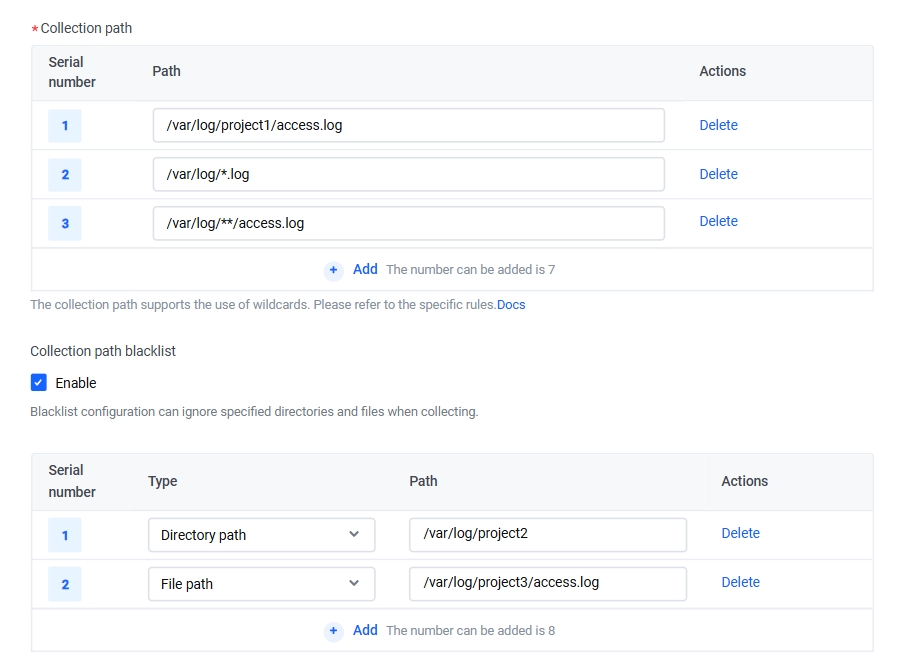
  • Collection path refers to the directory and filename of the logs. LogCollector matches directories based on the directory part of the collection path and monitors log files in those directories that meet the rules. You can set up to 10 different collection paths.​
You can specify a complete directory and filename for collection path. Besides, collection path supports fuzzy matching via wildcard character.​
Notice​
  • By default, a log file can only be collected into one log topic and match only one collection configuration. If multiple collection configurations collect the same file, the latest configuration rule applies.​
  • TLS currently supports the following wildcards: asterisk (*), double asterisk (**), and question mark (?). Only one double asterisk (**) can be configured at most.​
Common configuration methods and examples for collection paths are as follows.​
​
Configuration method​
Log path example​
Description​
Full name​
/var/log/access.log​
If you specify complete directory and file name without wildcards, the specified files in the specified directory are monitored but subdirectories under the directory are not monitored.​
For example, the left example shows that the log file named access.log in the directory /var/log is monitored.​
File name fuzzy match​
/var/log/*.log​
If no file name is specified, all log files are monitored. If partial file name rules are specified, only files that match those rules are monitored.​
For example, the left example shows that the log file with the .log format in the /var/log directory is monitored.​
Path fuzzy match​
/var/log/*/access.log​
When using * for fuzzy path matching, log files in the current directory and its first-level subdirectories are monitored. For example, /var/log/*/access.log means monitoring log files named access.log under the /var/log directory and its first-level subdirectories.​
​
When collecting container text logs with DaemonSet, you can configure reserved field placeholders in the collection path. The placeholder format is {Reserved Field}, which allows dynamic matching of container metadata that is automatically written by LogCollector. For information on supported reserved fields, see Background information. For detailed instructions, refer to Container log path placeholder.​
For example, if the reserved field includes __pod_name__, you can configure the collection path as /var/log/basic_log/POD_{__pod_name__}/tlsapi/access.log, where {__pod_name__} is a placeholder that LogCollector will replace with the actual Pod name when collecting logs.​
​
  1. Set collection configuration effectiveness policy.​
  • When log files under the same collection path are matched by multiple collection configurations, the following policies can be set:​
  • ​
    Configuration​
    Description​
    Can be overwritten by new configuration​
    If there is an updated collection configuration, log files will not be collected according to the current configuration and will be collected based on the latest one.​
    Permanent effect​
    Even if updated collection configurations exist, log files will continue to be collected based on the current configuration.​
    Permanent effect applies only to LogCollector version 2.1.0 and later and may result in duplicate collection fees. For more details, refer to Collecting multiple copies of file logs or standard output.​
    ​
  1. Set collection path denylist.​
  • After configuring the collection path denylist, TLS skips the specified directories and files when collecting logs through LogCollector. After selecting Enable, set the denylist directories and files as prompted on the page.​
Notice​
  • Each collection configuration can set up to 10 denylist collection paths.​
  • When configuring log paths, if you use wildcards but need to exclude certain directories or files, you need to enter the corresponding full paths or filenames in the denylist to ensure effective filtering. For example, if the collection path is /var/log/project/*.log and you want to exclude all subdirectories under /var/log/project, then the collection path denylist should be set to directory paths, with the configured path /var/log/project/**.​
The path types in the collection path denylist support setting as directory path and file path.​
​
Configuration​
Description​
Directory path​
The specified directories that can be skipped during collection. Directory paths support exact matching and wildcard pattern matching.​
  • Exact match: specify the complete directory name, for example, /var/log/mydata/new.​
  • Wildcard match: The directory supports wildcards; supported wildcards include asterisk (*) and question mark (?). For example, if you configure /var/log/mydata/n*, directories under /var/log/mydata/ that start with "n" will not be collected.​
File path​
The specified files can be skipped during collection. You need to configure the file path and file name. File path supports both exact match and wildcard pattern match.​
  • Exact match: specify the complete path and file name, for example /var/log/mydata/access.log.​
  • Wildcard match: The path and file name contain wildcards. Supported wildcards include asterisk (*), question mark (?), and double asterisk (**). Wildcards allow only one double asterisk (**) at most. For example, if you configure /data/nginx/log/*/*/access.log to file path. Logcollector skips log files named access.log in the directory /data/nginx/log and its first- and second-level subdirectories during collection.​
​
​​​
Configure log format​
  1. Set the Collection policy.​
The collection policy determines whether LogCollector collects incremental logs or complete logs. By default, it collects increment logs.​
​
Configuration​
Description​
Full​
  • First-time collected log files: collect logs from the start of each file, including historical log data.​
  • For non-first-time collected log files: continue collection from the position that is determined by the Checkpoint, excluding historical log data.​
Increment​
Only newly added content within the file is collected. When new logs are written to log files within the monitor scope, it triggers LogCollector collection.​
  • For first-time collected files: Based on your input incremental threshold, LogCollector locates collection position automatically.​
  • If the new file size does not exceed your specified incremental threshold, the first collection starts from the beginning of the new file.​
  • If the new file size exceeds your specified incremental threshold, the first collection starts at the position where the file ends minus the incremental threshold. That is to say, only incremental logs are collected.​
  • For non-first-time collected log files: Continue collection from the position that is determined by the Checkpoint.​
​
Notice​
If the Increment collection policy is selected, after triggering LogCollector collection, the collection policy can not switch to Full collection policy to collect historical logs of the log.​
If you need to collect complete log data for this file, see Collect multiple log files or standard output simultaneously to set multiple collection rules.​
  1. Set collection mode.​
  • The collection mode determines how LogCollector parses log files. Select the mode based on your business scenario and configure the corresponding log parsing rules for the chosen mode. For detailed instructions, refer to collection mode section in the documentation for each mode.​
  1. Set Time field.​
  • Acquisition point in time: use the system time of the server where LogCollector runs as the log timestamp.​
  • Custom time: extract the time embedded in the original log as the log timestamp. The related configuration is as follows:​
  • ​
    Configuration​
    Description​
    Time key name​
    Name of the time field.​
    Time regular​
    If you only parse part of the time field, use regular expressions to extract.​
    Time accuracy​
    After turning on Enable nanosecond time precision, extracting time with nanosecond precision is supported. For details, see Enable LogCollector High Precision Time.​
    Time conversion format​
    Based on the extracted time content, set the time conversion format. For example, if the time is 01/March/2024 20:15:02, the time conversion format can be configured as %d/%b/%Y:%H:%M:%S. For a detailed format description, see Time format.​
    Description​
    • If the time can not be parsed correctly due to time format conversion failure, the collection time will be used by default.​
    • By default, log time supports millisecond precision. The time conversion format allows millisecond configuration. If time conversion format does not specify millisecond parsing, the millisecond part defaults to 0.​
    • Turn on Enable nanosecond time accuracy in collection settings to support nanosecond-level log conversion formats.​
    • If you need to add time zone into log time and include time zone in original log time, add the time zone format (%z) in the time conversion format to extract time zone. Besides, you can add a fixed time zone format (+08:00) into the time conversion format, and then select the appropriate time zone property.​
    • For example, if the time is 2024-03-03 15:00:00 +08:00, you can set the time conversion format to %Y-%m-%d %H:%M:%S %z, or set the time conversion format to %Y-%m-%d %H:%M:%S +08:00 and select the corresponding time zone attribute.​
    Time zone attribute​
    Set the time zone.​
    • Host time zone: use the system time zone of the server where LogCollector is located.​
    • Custom time zone: includes UTC and GMT. If you need to support daylight saving time or standard time, select UTC; otherwise, select GMT.​
    Time field example​
    Enter the time content from the original log and click Validate now. TLS will check if the configured time conversion format is correct.​
    ​​​
    ​
  1. Select whether to skip files that have not been updated.​
  • If enabled, LogCollector skips files whose log file update time falls outside your specified time range when collecting data.​
  1. Set whether to enable upload parsing failure log.​
  • Enable: After enabling, you must also configure the failure log key name. The key name defaults to LogParseFailed. All logs that fail to parse are uploaded to TLS, using the configured failure log key name field as the key and the original log content as the value.​
  • Disable: Logs that fail to parse are not uploaded to TLS.​
Configure plugin​
Enable plugin configuration.​
When collecting text logs via LogCollector, if business logs can not be parsed by regular collection modes like JSON due to complex structures or inconsistent format, use LogCollector plugin for post-collection processing. For more details, see Plugin overview.​
​
Advanced settings​
  1. Enable Advanced settings.​
  • Select advanced configurations based on your needs. If you have no special requirements, we recommend that you keep the default configuration.​
​
Configuration​
Description​
Filter​
Log field filtering rules. It can be enabled or disabled. Disabled by default. When enabled, you can configure filtering rules by using regular expressions. Only logs that fully match the regular expression will be collected and reported. This helps you filter log data that you need.​
For example, set key to response_code and the filtering rule to 400|500. This means only logs with response_code values of 400 or 500 will be collected.​​​
Upload hostname field​
This feature determines whether to upload the hostname field. By default, it is disabled.​
  • Enable: add a field in the original log to record the hostname of log source. The field name can be specified via hostname key name. It is defaulted to hostname.​
  • Disable: No hostname field is added.​​​
Parse collection path​
Extract fields from the collection path by using regular expressions and add them as metadata to the log data. By default, this function is turned off.​
After enabling this feature, set the collection path sample, extract regular expression, and extract result.​
  • Collection path sample: a collection path example from an actual scenario.​
  • The collection path sample must be an absolute path.​
  • The path sample must not contain wildcards *, ?, or **.​
  • Extract regular expression: the regular expression used to extract path fields. It must match the sample collection path; otherwise, extraction fails.​
  • Extract result: Extract result shows each field value parsed and extracted by TLS from the sample path based on the regular expression. You need to specify a field name (key) for each field.​
  • You can configure up to 100 field names.​
  • Field names can not be empty or duplicated.​​​
HashKey routing shard​
Specify the HashKey to write data into the log shard that meets the range requirements. By default, this feature is disabled.​
  • If enabled, logs are collected via HashKey routing shard mode. Data will be written into specified shard in order. This applies to scenarios where data writing and consumption require a high degree of order. In this case, HashKey is required. Then TLS will write data into the shard that contains the Key. The valid range of HashKey is [00000000000000000000000000000000-ffffffffffffffffffffffffffffffff).​
  • If disabled, logs are collected via load balancing mode. Data will be written into specified shard in order. This mode applies to scenarios where writing and consumption is independent from shard, such as unordered processing.​​​
Upload original log​
This feature determines whether to upload the original log as a single field to TLS. By default, it is disabled.​
  • Enable: The original log data will be encapsulated in the specified field and uploaded together with the parsed log data to TLS. The field name can be specified through Original log key name. The default value is raw, which corresponds to the log field __raw__.​
  • Disable: No original log field is added.​​​
Upload constant fields​
After enabling, LogCollector will encapsulate key and value of the specified field in each log entry. Constant fields must follow these restrictions:​
  • Supports uploading up to 5 constant fields.​
  • Field names (keys) must be unique and non-empty. The length must be between 1 and 128 characters, including English letters, digits, and special characters (-_./), and can not start with an underscore.​
  • Field values can not be empty and can be up to 512 KiB in size.​​​
Upload host group label​
You can select whether to upload the label information of the host group to TLS. By default, it is enabled.​
  • Enable: LogCollector uploads the host group Label information to the specified field. You can specify the field name in Host group label key name. By default, it is host_group_label.​
  • Disable: The host group Label information is not uploaded.​
​​​
Extended configuration​
LogCollector extended configuration. It is written in JSON object format. Currently supported parameters include CloseInactive, CloseRemoved, CloseRenamed, CloseEOF, and CloseTimeout. For detailed parameter descriptions, see the Advanced data structure in CreateRule.​
For example, using the following configurations will cause: no new entry is written for 10 seconds; log file is removed; log file is renamed; LogCollector reads data to the end of file; the handle is released when log file monitoring exceeds 30 minutes.​
​​​
​
  1. Confirm the collection configuration and click Next step: Check index configuration.​
Step 4 Check index configuration​
  1. Check index configuration.​
  • Follow the prompts on the page to set or update the index as needed. You can also click Import existing index configuration to import indexes from other log topics.​
  • If this log topic does not have an index configured, refer to Configuration Index for setup.​
  • If the index for this log topic is already configured, you can decide whether to update the index based on the log fields parsed by the collection rule.​
Notice​
  • You must enable the index to query and analyze the collected log data.​
  • The updated index settings only apply to new data written afterward. For more instructions and limitations on query and analysis, see Query overview and Analysis Overview.​
  1. Click Submit.​
Next steps​
After you create the collection configuration, LogCollector collects logs and saves them to the specified log topic. You can then query and analyze logs in log topic. For details, see Query and analysis workflow.​
​
Last updated: 2026.04.21 15:31:29