Torch Log Service
Torch Log Service
Torch Log Service


Document
Product News
Product Overview
Product Billing
User Guide
TLS Agent
AgentLoop
Resource management
Host group
Data collection
LogCollector collection
Introduction to LogCollector
Installation and upgrade
Collect host logs
Collect container logs
LogCollector plugins
Manage LogCollector
general reference
Data import
Cloud product log collection
TOS log collection
DBW log collection
VPN Log collection
VKE log collection
CLB log collection
CloudTrail log collection
CFW log collection
NTA log collection
ALB log collection
APMPlus log collection
veFaaS log collection
VPC log collection
veImageX log collection
TrafficRoute DNS log collection
DDoS log collection
WAF log collection
DCDN log collection
Multi-cloud security platform log collection
APIG log collection
Machine learning task log collection
CR log collection
Volcano Ark application lab log collection
FileNAS log collection
LLM Application Firewall Service log collection
vePFS log collection
Cloud security center log collection
EFS log collection
Data storage
Query and analysis
Configure log indexes
Query log
Analyze logs
Query and analyze logs using third-party tools
Associate external data source for log query
SQL function
SQL syntax
Visualization
Query and analysis charts
Summaries of query and analysis charts
Create dashboard
Use dashboard
Add dashboard filters and variables
Use other systems to analyze logs
Log application
Log applications for product observability
Log applications for large models observability
Coding Agent log app
ModelProvider log app
No-coding Agent log app
Log applications for basic service monitoring
Data processing
Data transformation
Syntax and functions
Global operation function
expression function
Data processing best practices
general reference
Data write processor
Data consumer processor
Data consumption and shipping
Ship logs to TOS
Ship logs to Kafka
Ship logs to Splunk
Alarm
Alarm policy
Alarm notification content
Alarm notification content template
alarm notification channel
Tracing service
Monitor Log Service
API reference
Project management API
Topic management API
Shard management API
Index management API
Log management API
Host group management API
Collection configuration management API
Data import API
Data processor API
Data transformation API
Data backflow API
SQL analysis API
Alarm management API
Consumer group management API
Kafka protocol consumption API
Tag management API
Trace storage API
Account management API
SDK reference
Go SDK
Java SDK
Python SDK
iOS SDK
C++ SDK
CLI reference
Best practices
Data collection
Query and analysis
permission management
Consumption and delivery
Visualization
Alarm
FAQs
Billing and cost FAQ
Data collection FAQ
Data storage FAQ
Index configuration FAQ
Query and analysis FAQ
Scheduled SQL tasks FAQ
Alarm FAQ
- Documentation
 Torch Log ServiceUser GuideTracing serviceView trace data via Grafana
 Copy page
 Download PDF
Tracing service
View trace data via Grafana
Copy pageDownload PDFView trace data via Grafana
After importing trace data to TLS, you can visualize trace data in Grafana with simple configuration. This topic demonstrates how to view trace data and perform visual analysis via Grafana.
Background information
As an open-source visualization monitoring platform, Grafana offers features like data metrics monitoring and visual analysis. It is commonly used for large-scale metrics data and time series data visualization, especially in scenarios such as network architecture and application performance analysis. Grafana supports various data sources including Jaeger. After importing data successfully, you can configure comprehensive visualization dashboards for real-time monitoring and alerting of diverse data metrics.
TLS supports importing trace data to Grafana. With simple configuration, you can import trace data to Grafana via Jaeger data source. After importing data successfully, can configure visualization dashboards with query and analysis statements for real-time monitoring and alerting of data metrics.
Notice
When viewing trace data via Grafana, you need to transfer the data through Jaeger. In this case, you need to upload both trace data and the ServiceName to TLS. For field descriptions, see Trace data format.
Prerequisites
- Trace data is imported successfully. For steps, see Access methods.
- Grafana is installed successfully. For detailed steps, see Grafana documentation.
- Supported Grafana version: 7.5.3 and later version. This topic uses Grafana 9.5.3 as an example to show how to view data via Grafana.
Steps
1 Add Jaeger data source
Add a Jaeger data source in Grafana. Then fill in the TLS endpoint and other relevant settings. How to do:
- Log in to Grafana as an administrator.
- On the left menu, select Administration > Data Sources.
- On the Data Sources tab, click Add data source.
- On the Add data source page, select Jaeger and click Select.
- Fill in the data source configuration.
- Required parameters:
- ConfigurationDescriptionConfigurationDescriptionURLThe access address for trace storage. Format: https://service-address:port number. For example, https://tls-cn-beijing.volces.com:16686. Note that:
- Service address: the service address for TLS in the current region. Select the correct service entry point based on region and network type. For details, see Service address.
- Port: Fixed at 16686.
TipIf you use a private network service address, ensure that the environment hosting the Grafana project supports accessing TLS via VolcanoEngine private network.Basic authBasic authentication. Enable Basic auth and fill in User and Password in Basic auth Detail.UserUser name Configure the trace instance ID here. For viewing method, see View trace instance information.PasswordUser password. Secret key should be set as the VolcanoEngine account. Format: ${access-key-id}#${access-key-secret}, where:- ${access-key-id} should be replaced with the AccessKey ID of the VolcanoEngine account key.
- ${access-key-secret} should be replaced with the AccessKey Secret of the VolcanoEngine account key.
TipWe recommend using an IAM user's secret key. The IAM user's must have permissions for Action SearchLogs and DescribeTraceInstances. For more details, see Authorizable operation.
-
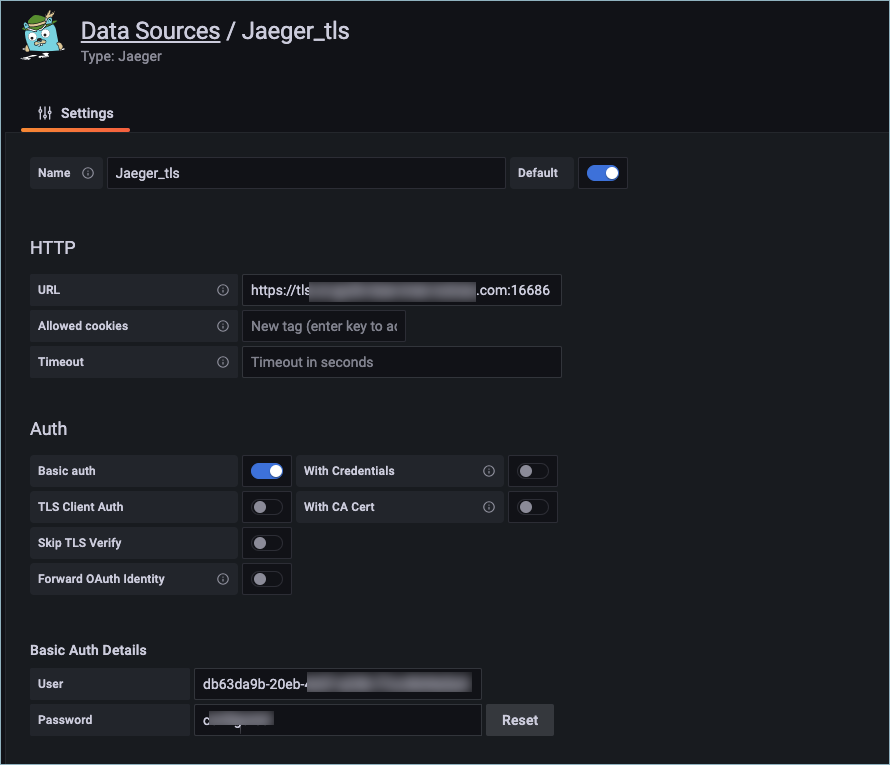
- Click Save & Test.
2 View trace data
After configuring the Grafana monitoring dashboard for data visualization, you can view the relevant trace data for a specific trace ID at any time and analyze performance bottlenecks across business workflows. This topic shows how to view trace data by using official Demo HotROD of Jaeger as an example.
In the demo, HotROD is an application made up of multiple microservices. It offers a frontend interface to simulate user business interactions. In Grafana, you can view latency data for each part of the frontend interface call process to analyze its performance bottlenecks.
- Click Explore on the left navigation bar.
- Select the data source added in Step 1 at the top left of the page.
- Enter trace in the xcol(time) text box.
- Click Run query in the upper-right corner of the page.
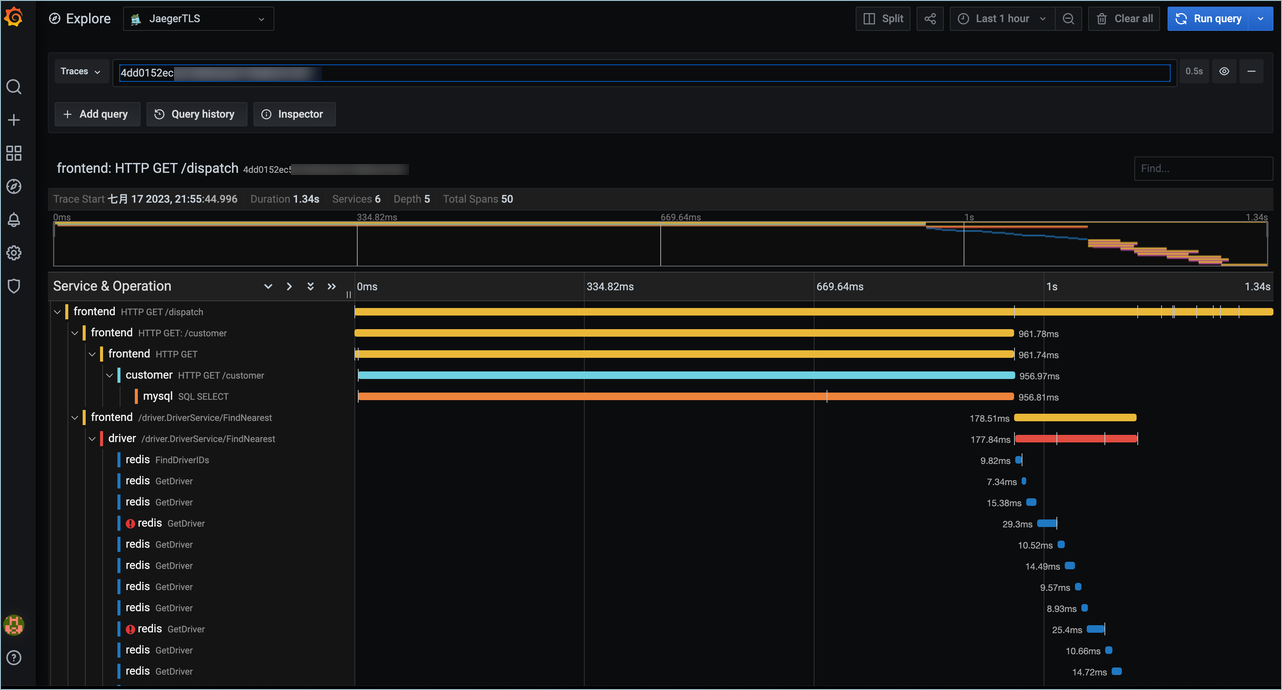
- In trace view section, you can review latency data of call process for specified interface to identify performance bottlenecks.
- The following diagram shows that the mysql module has relatively high interface call latency. To improve performance, consider optimizing the module to increase interface response speed.
-
Last updated: 2026.04.14 15:49:38
All rights reserved © Beijing Volcano Engine Technology Co., Ltd2024
