Torch Log Service
Torch Log Service


Document

- Documentation
 Torch Log ServiceUser GuideVisualizationQuery and analysis chartsConfigure data aggregation chart
 Copy page
 Download PDF
Query and analysis charts
Configure data aggregation chart
Copy pageDownload PDFConfigure data aggregation chart
This topic describes how to configure data aggregation charts in an existing dashboard.
Prerequisites
Steps for configuring a data aggregation chart
- Log in to TLS console.
- Select the region where log service is located from the top navigation bar.
- In the left navigation bar, select Common functions > Dashboard.
- Select the dashboard to add the chart, click Add chart, and then click Create chart.
- Select the query time range.
- On the Query and analysis tab, add data sources as needed, select the target log topic, and enter the query and analysis statement.
- On the Data conversion tab, click Add conversion, and then click Data aggregation.
Notice
You can also enable data conversion below the chart analysis section on the query and analysis page to use data classification and aggregation features.
- Select the connection method. For connection details, refer to Data aggregation connection methods, and then click Start analyzing.
- After chart settings are complete, click Save dashboard. Or you can click Apply to dashboard and preview the results before you click Save.
Data aggregation connection method
TLS supports merging multiple query and analysis results into a single result using methods such as splicing, Add, Cartesian product, inner join, left join, and right join. These aggregated results can then be displayed in statistical charts.

Connection method | Description |
Splicing | After joining two data sources, each column from both sources is merged into one table. If columns have the same name, the merged column will be named DataSourceName.OriginalColumnName. For example:
|
Add | After adding data source B to data source A, the values from A and B are merged according to column names, and a new __tls_dashboard_datasource__ column is added to display the source of each row. |
Cartesian product | The Cartesian product of data sources A and B. If each data row in data source A and B is paired, a result set with A's row count multiplied by B's row count will be created. |
Inner join | When you perform an inner join on data sources A and B, you can match data using specified columns (such as ID) and retain only the intersecting rows. |
Left join | When performing a left join between data sources A and B, you can match data using specified columns (such as ID). If A has no matching rows in B, the B portion of that row will display as null in the result set. |
Right join | When performing a right join between data sources A and B, you can match data using specified columns (such as ID). If B has no matching rows in A, the A section of that row will display as null in the result set. |
Full join | When performing a full join between data sources A and B, you can match data using specified columns (such as ID), and retain all rows in the result set. |
Splicing/Add example
Combine query and analysis results A and B, and display the result in a single chart.
Configuration | Example value |
Query and analysis configuration | |
Query and analysis result (A) | |
Query and analysis result (B) | |
Aggregated results |
|
Example of Cartesian product
After aggregating query and analysis results A and B using Cartesian join, display them in a single chart.
Configuration | Example value |
Query and analysis configuration | |
Query and analysis result (A) | |
Query and analysis result (B) | |
Aggregated results | |
Inner join example
After aggregating query and analysis results A and B using inner join, display them in a single chart. The join field is account_id.
Configuration | Example value |
Query and analysis configuration | |
Query and analysis result (A) | |
Query and analysis result (B) | |
Aggregated results | |
Left join example
Aggregate query and analysis results A and B using a left join, and display them in a chart. The join field is userId.
Configuration | Example value |
Query and analysis configuration | |
Query and analysis result (A) | |
Query and analysis result (B) | |
Aggregated results | |
Right join example
Aggregate query and analysis results A and B using a right join, and display them in a chart. The join field is userId.
Configuration | Example value |
Query and analysis configuration | |
Query and analysis result (A) | |
Query and analysis result (B) | |
Aggregated results | |
Full join example
Aggregate query and analysis results A and B using a full join, and display them in a chart. The join field is userId.
Configuration | Example value |
Query and analysis configuration | |
Query and analysis result (A) | |
Query and analysis result (B) | |
Aggregated results | |
$__timeGroup macro
TLS allows you to add the $__timeGroup macro configuration to query and analysis statements in dashboard. The format of the $__timeGroup macro is $__timeGroup(time column, time interval). The time interval can be a fixed interval (such as 5m) or the variable ${{__interval}}.
Fixed time interval method
The $__timeGroup macro supports the following time intervals. The format is $__timeGroup(time column, fixed time interval), which allows you to group and aggregate time series data based on the specified interval.
Identifier | Description |
y | year |
M | month |
w | week |
d | day |
h | hour |
m | minute |
s | second |
ms | millisecond |
- Query and analysis statement
-
- Query and analysis results
-
${{__interval}} variable method
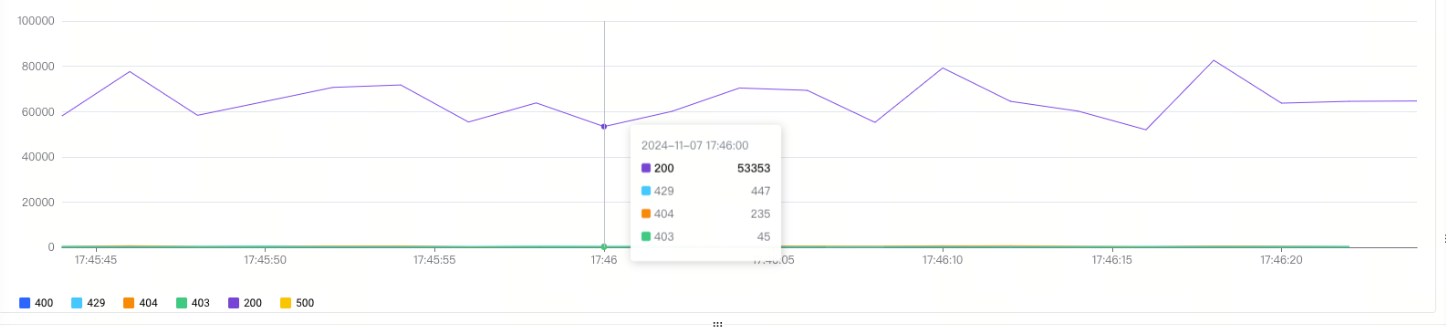
The format is $__timeGroup(time column, ${{__interval}}). This means data aggregation automatically selects the appropriate time interval for grouping and aggregating time series data based on the current chart's time range. Therefore, aggregation granularity can be reasonable when performing query and analysis over different time ranges. ${{__interval}} is a preset variable. For details, see Introduction to dashboard filters and variables. The example is as follows:
- Query and analysis statement
-
- Query and analysis results
-
Last updated: 2026.01.12 18:33:54
All rights reserved © Beijing Volcano Engine Technology Co., Ltd2024
