Torch Log Service
Torch Log Service


Document

- Documentation
 Torch Log ServiceUser GuideQuery and analysisQuickly set up query and analysis statements using tap mode
 Copy page
 Download PDF
Query and analysis
Quickly set up query and analysis statements using tap mode
Copy pageDownload PDFQuickly set up query and analysis statements using tap mode
TLS includes visualized query and analysis interaction components to help you quickly build query and analysis statements. You only need to select concrete fields, operators, and other details, and the system will automatically generate the corresponding query statement.
Prerequisites
- The log project and log topic are created. For detailed instructions, see Create project and Create topic.
- Log data is collected via LogCollector or other methods. For more details, see Collection methods.
- Indexes are configured; statistics feature is enabled for fields involved in analysis. For more details, see Configuration Index.
Steps
- Log in to TLS console.
- Select the region where log service is located from the top navigation bar.
- In the left navigation pane, select Common functions > Query and analysis.
- On Query and analysis page and in the list of left pane, select the specified project and topic.
- On the query and analysis page of the specified log topic, set the time range for the log data.
- Click the tap mode icon.
-
- Set query condition and click OK.
- Click Full text, select the condition judgement and enter the field value. The system will generate a full-text query condition based on your settings.
- Click a field, select the condition judgement, and enter the field value. The system will generate a key-value query condition based on your settings.
- After you set full-text or key-value query condition and select Phrase query, the system will generate the corresponding phrase query condition. For details about phrase queries, see Query logs via phrase query.
-
- (Optional) Click Add analysis statement to add a SELECT statement.
- After confirming the correctness of your query and analysis condition, click Search.
-
- After setting the query and analysis condition, click the filter icon to view the corresponding statements for these conditions.
Syntax description
Logical operator
Operators
Notice
When using the include or exclude operators, specify either the full keyword or partial characters with wildcards (* or ?).
- If you specify full keywords, it means you choose exact search.
- If you specify partial characters and wildcards (* or ?), it means you choose fuzzy search, such as includes cn*.
- If you choose fuzzy search, wildcards are required to added. For details, see Query accuracy.
Related operations
- After setting query conditions, you can click the icon below to quickly enable or disable specific query conditions.
-
- After setting query conditions, you can click the icon below to quickly set the inclusion or exclusion relationship for query conditions.
-
Example value
Example 1
- Scenario: Query logs containing error and warning.
- Interaction component configuration
-
- Query statements
-
- Query result
-
Example 2
- Scenario: Query logs where the URL field contains PutLogs.
- Interaction component configuration
-
- Query statements
-
- Query result
-
Example 3
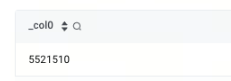
- Scenario: Count the number of requests with a status of 200.
- Interaction component configuration
-
- Query statements
-
- Query and analysis results
Example 4
- Scenario: Query request IDs that start with d581.
- Interaction component configuration
-
- Query statements
-
- Query and analysis results
-
Last updated: 2026.01.05 18:38:41
All rights reserved © Beijing Volcano Engine Technology Co., Ltd2024
