Torch Log Service
Torch Log Service


Document

- Documentation
 Torch Log ServiceUser GuideData processingTimed SQL AnalysisManage scheduled SQL analysis tasks
 Copy page
 Download PDF
Timed SQL Analysis
Manage scheduled SQL analysis tasks
Copy pageDownload PDFManage scheduled SQL analysis tasks
After creating a scheduled SQL task, you can view its basic configuration and other details in the console, as well as start or pause the task. This topic describes the procedures for managing scheduled SQL tasks.
View task details
After creating a scheduled SQL task, follow these steps to view the task list and the detailed status of specific tasks.
- Log in to TLS console.
- Select the region where log service is located from the top navigation bar.
- On the left navigation bar, select Data processing > Schedule SQL.
- On the schedule SQL page, you can view task overview information.
- You can check overview information of all tasks in the current region in the task list, such as task status and source topic. For detailed descriptions of task status, see Task status.
- Click the specified task name to view its detailed information.
- You can view the basic information and execution details for the specified task on the task details page. For more information, see Basic information and Task execution.
Basic information
This section displays basic information for the current task, including name, ID, scheduling scope, and SQL scheduling information.
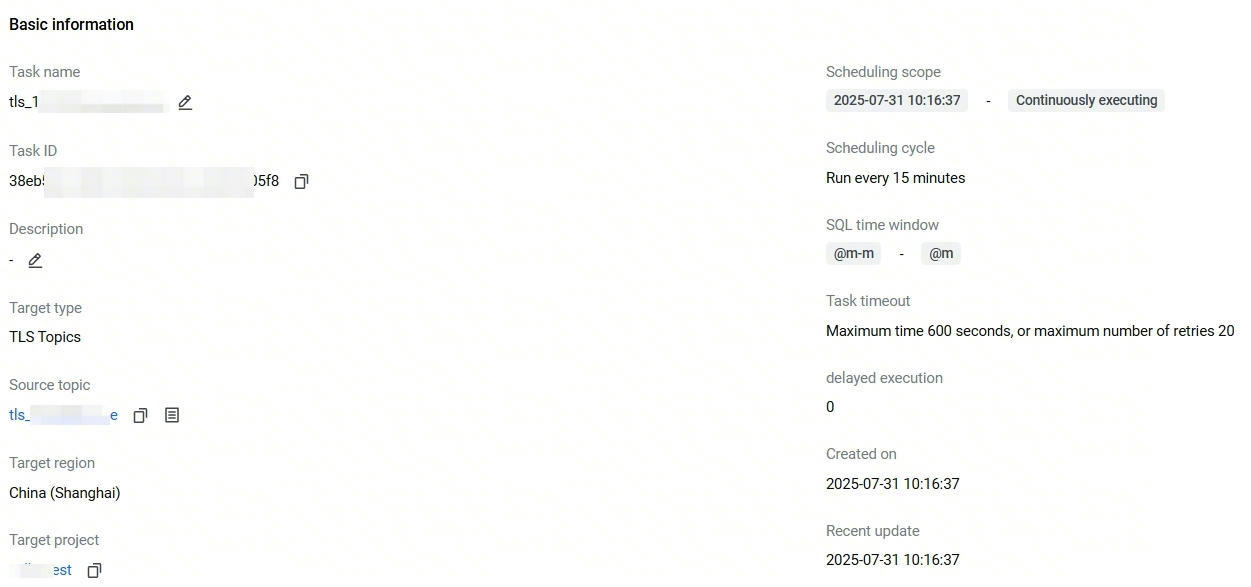
Configuration instructions are as follows:
Task execution
By default, this section displays the list of instances from the last 5 minutes, including basic scheduling details such as the number of successful, failed, or ongoing instances and the scheduling results.
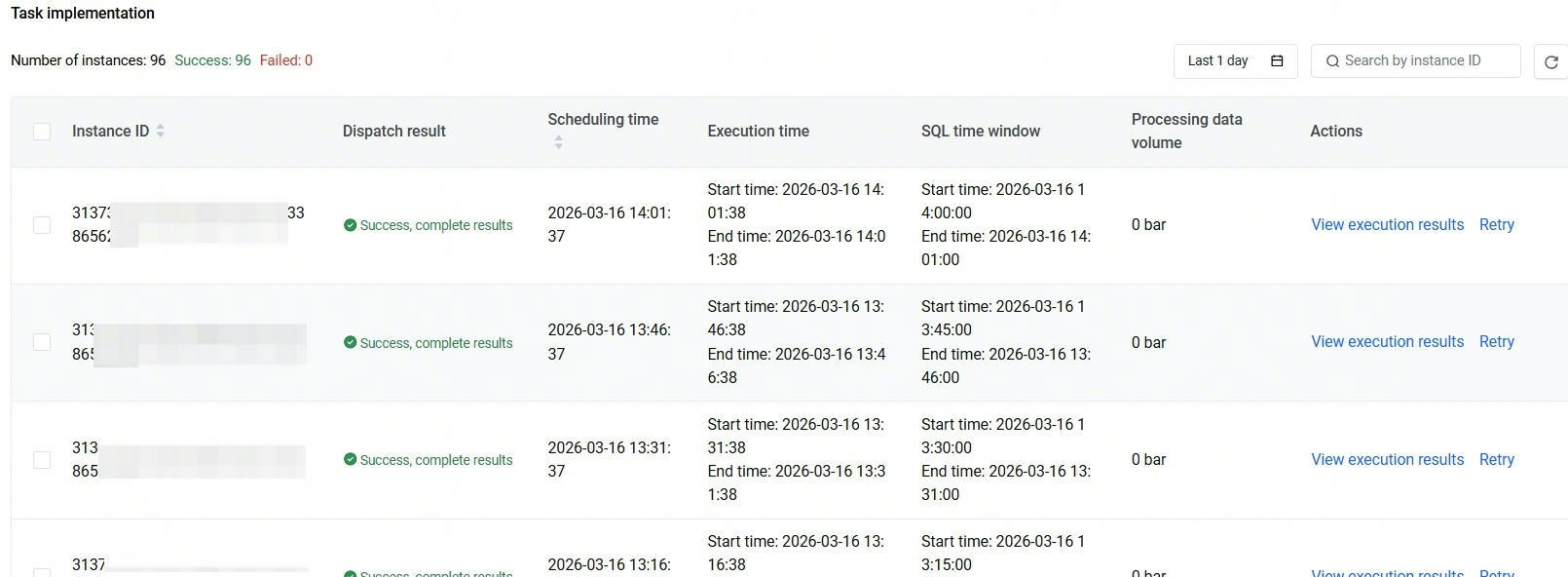
Configuration instructions are as follows:
Task status
The task status and instance status are described as follows:
Instance scheduling results
View execution results
- Log in to TLS console.
- Select the region where log service is located from the top navigation bar.
- On the left navigation bar, select Data processing > Schedule SQL.
- From the schedule SQL analysis task list, click the specified task name.
- In the Task implementation section, locate the specified instance ID and click View execution results in the Actions column.
- On the query and analysis page for the specified instance, view the execution results.
-
Pause or start the task
- Log in to TLS console.
- Select the region where log service is located from the top navigation bar.
- On the left navigation bar, select Data processing > Schedule SQL.
- In the schedule SQL analysis task list, find the specified task, and then click Pause or Start in the corresponding actions column.
- In the prompt dialog box, click OK.
Edit task configuration
After creating a task, you can modify its configuration at any time to meet your business needs. How to do:
- Log in to TLS console.
- Select the region where log service is located from the top navigation bar.
- On the left navigation bar, select Data processing > Schedule SQL.
- In the schedule SQL analysis task list, locate the specified task and select ... in its actions column. And then click Edit.
- For details about task configuration, see Create schedule SQL analysis and store data in topic.
Delete tasks
Notice
- After deleting the scheduled SQL task, it can not be recovered. Proceed with caution.
- Deleting the task does not affect the log data already saved in the target log topic.
- Log in to TLS console.
- Select the region where log service is located from the top navigation bar.
- On the left navigation bar, select Data processing > Schedule SQL.
- Locate the specified task and click Delete in the corresponding operations column.
- In the prompt dialog box, click OK.
Last updated: 2026.03.16 14:35:54
All rights reserved © Beijing Volcano Engine Technology Co., Ltd2024
