Torch Log Service
Torch Log Service
Torch Log Service


Document
Product News
Product Overview
Product Billing
User Guide
TLS Agent
AgentLoop
Resource management
Host group
Data collection
LogCollector collection
Introduction to LogCollector
Installation and upgrade
Collect host logs
Collect container logs
LogCollector plugins
Manage LogCollector
general reference
Data import
Cloud product log collection
TOS log collection
DBW log collection
VPN Log collection
VKE log collection
CLB log collection
CloudTrail log collection
CFW log collection
NTA log collection
ALB log collection
APMPlus log collection
veFaaS log collection
VPC log collection
veImageX log collection
TrafficRoute DNS log collection
DDoS log collection
WAF log collection
DCDN log collection
Multi-cloud security platform log collection
APIG log collection
Machine learning task log collection
CR log collection
Volcano Ark application lab log collection
FileNAS log collection
LLM Application Firewall Service log collection
vePFS log collection
Cloud security center log collection
EFS log collection
Data storage
Query and analysis
Configure log indexes
Query log
Analyze logs
Query and analyze logs using third-party tools
Associate external data source for log query
SQL function
SQL syntax
Visualization
Query and analysis charts
Summaries of query and analysis charts
Create dashboard
Use dashboard
Add dashboard filters and variables
Use other systems to analyze logs
Log application
Log applications for product observability
Log applications for large models observability
Coding Agent log app
ModelProvider log app
No-coding Agent log app
Log applications for basic service monitoring
Data processing
Data transformation
Syntax and functions
Global operation function
expression function
Data processing best practices
general reference
Data write processor
Data consumer processor
Data consumption and shipping
Ship logs to TOS
Ship logs to Kafka
Ship logs to Splunk
Alarm
Alarm policy
Alarm notification content
Alarm notification content template
alarm notification channel
Tracing service
Monitor Log Service
API reference
Project management API
Topic management API
Shard management API
Index management API
Log management API
Host group management API
Collection configuration management API
Data import API
Data processor API
Data transformation API
Data backflow API
SQL analysis API
Alarm management API
Consumer group management API
Kafka protocol consumption API
Tag management API
Trace storage API
Account management API
SDK reference
Go SDK
Java SDK
Python SDK
iOS SDK
C++ SDK
CLI reference
Best practices
Data collection
Query and analysis
permission management
Consumption and delivery
Visualization
Alarm
FAQs
Billing and cost FAQ
Data collection FAQ
Data storage FAQ
Index configuration FAQ
Query and analysis FAQ
Scheduled SQL tasks FAQ
Alarm FAQ
- Documentation
 Torch Log ServiceUser GuideVisualizationSummaries of query and analysis chartsWord cloud
 Copy page
 Download PDF
Summaries of query and analysis charts
Word cloud
Copy pageDownload PDFWord cloud
The log service provides Highchart mode to display the log query analysis results. This article introduces the configuration of various chart parameters of Highchart.
diagram description
Highchart displays the words that appear frequently in the data in different sizes and colors to form a cloud-like graph, thus achieving the purpose of visual expression. In Highchart, the more frequently a word appears, the larger the font size of the word, effectively highlighting key information in the data.
explain
common configuration
Configure Highchart globally, which takes effect for the entire chart range. The general configurations supported by Highchart are as follows.
configuration | | description |
configuration | | description |
panel configuration | title | Sets the Highchart title. |
| Show chart title bar | When checked Show chart title bar , the title will appear in the upper left corner of Highchart. |
search analysis field | Entry | Select the field that represents the entry. |
| entry size | Select the field that represents the numerical information for each word. |
data configuration | number of terms | Sets the number of entries. |
word cloud style | font style | Sets the font for the entry. |
| Font size | Sets the font size of the entry. |
Color Configuration | Color scheme | Sets the color of the entry text.
|
link | | Support for adding additional links to enrich chart information. After setting, the link icon will be displayed in the upper left corner of the chart, and you can click the link icon to view the link content. |
drill-down event
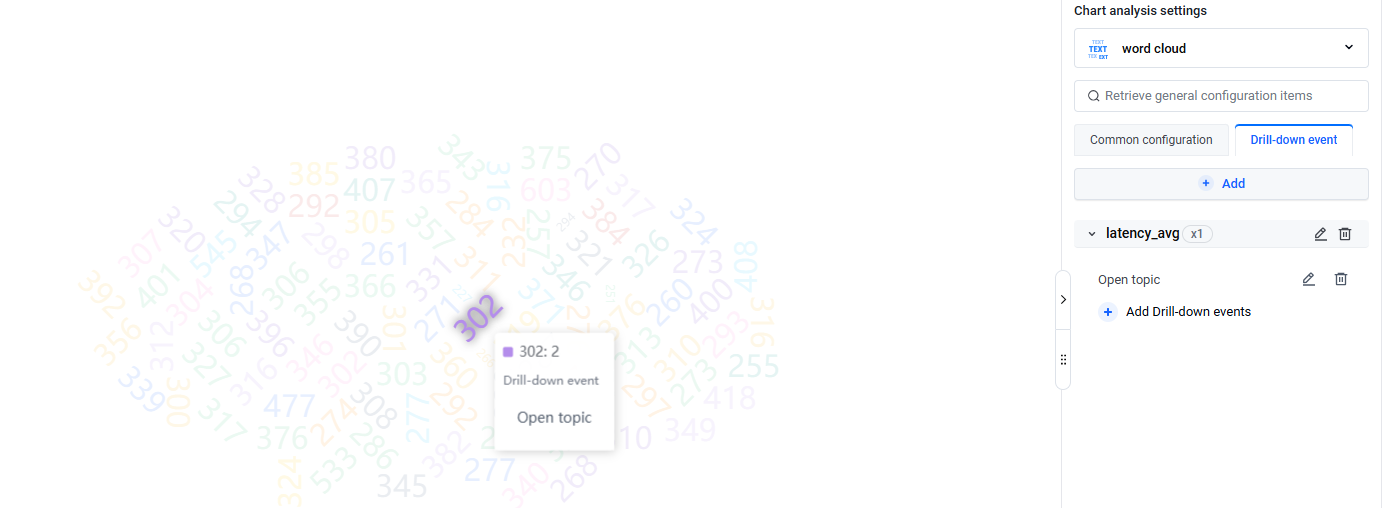
In drill-down events, you can set the interaction effects of analysis charts in the dashboard. After setting, clicking on a specified field in the dashboard will trigger the corresponding interaction effect. Currently supported drill-down events include open topic, open dashboard, and open HTTP link. For detailed descriptions of each interactive event, see Configure drill-down events for dashboard chart.
For example, if you set the interaction event for the latency_avgfield to open log topic , you click the latency_avgfield value in the chart, and then click Open topic , the page will automatically jump to the log topic you set.
example
Display the request ID with the longer request time through the word cloud.
- search analysis statement
- * | select * ,latency_avg, billing_type
- chart settings
- Entry : Specify as latency_avg.
- Entry size : Specify as billing_type.
- statistical chart
-
Last updated: 2026.07.30 17:29:25
All rights reserved © Beijing Volcano Engine Technology Co., Ltd2024
