Torch Log Service
Torch Log Service
Torch Log Service


Document
Product News
Product Overview
Product Billing
User Guide
TLS Agent
AgentLoop
Resource management
Host group
Data collection
LogCollector collection
Introduction to LogCollector
Installation and upgrade
Collect host logs
Collect container logs
LogCollector plugins
Manage LogCollector
general reference
Data import
Cloud product log collection
TOS log collection
DBW log collection
VPN Log collection
VKE log collection
CLB log collection
CloudTrail log collection
CFW log collection
NTA log collection
ALB log collection
APMPlus log collection
veFaaS log collection
VPC log collection
veImageX log collection
TrafficRoute DNS log collection
DDoS log collection
WAF log collection
DCDN log collection
Multi-cloud security platform log collection
APIG log collection
Machine learning task log collection
CR log collection
Volcano Ark application lab log collection
FileNAS log collection
LLM Application Firewall Service log collection
vePFS log collection
Cloud security center log collection
EFS log collection
Data storage
Query and analysis
Configure log indexes
Query log
Analyze logs
Query and analyze logs using third-party tools
Associate external data source for log query
SQL function
SQL syntax
Visualization
Query and analysis charts
Summaries of query and analysis charts
Create dashboard
Use dashboard
Add dashboard filters and variables
Use other systems to analyze logs
Log application
Log applications for product observability
Log applications for large models observability
Coding Agent log app
ModelProvider log app
No-coding Agent log app
Log applications for basic service monitoring
Data processing
Data transformation
Syntax and functions
Global operation function
expression function
Data processing best practices
general reference
Data write processor
Data consumer processor
Data consumption and shipping
Ship logs to TOS
Ship logs to Kafka
Ship logs to Splunk
Alarm
Alarm policy
Alarm notification content
Alarm notification content template
alarm notification channel
Tracing service
Monitor Log Service
API reference
Project management API
Topic management API
Shard management API
Index management API
Log management API
Host group management API
Collection configuration management API
Data import API
Data processor API
Data transformation API
Data backflow API
SQL analysis API
Alarm management API
Consumer group management API
Kafka protocol consumption API
Tag management API
Trace storage API
Account management API
SDK reference
Go SDK
Java SDK
Python SDK
iOS SDK
C++ SDK
CLI reference
Best practices
Data collection
Query and analysis
permission management
Consumption and delivery
Visualization
Alarm
FAQs
Billing and cost FAQ
Data collection FAQ
Data storage FAQ
Index configuration FAQ
Query and analysis FAQ
Scheduled SQL tasks FAQ
Alarm FAQ
- Documentation
 Torch Log ServiceUser GuideAlarmAlarm policyCreate alarm policy
 Copy page
 Download PDF
Alarm policy
Create alarm policy
Copy pageDownload PDFCreate alarm policy
TLS supports configuring alarm policies based on data in the log topic or metric topic. After you activate an alarm policy, TLS periodically analyzes data and sends alarms that meet trigger conditions to the specified notification recipients. This topic describes the steps to create an alarm policy.
Notice
Metric topic is now in closed beta. If you have business needs, contact your account manager for allowlist access.
Prerequisites
- The log topic to be monitored has been indexed, and the relevant fields have enabled statistical features. For detailed steps, see Configure index.
- The IAM user has been created, and the IAM user has set a mobile number and email in the personal information section, both of which have been verified. For detailed steps, see the IAM documentation.
- A notification group has been created. For detailed steps, see Create notification group.
Notice
- Each log topic can have up to 10 alarm policies by default. Each project can have up to 100 alarm policies by default. If you need to increase your quota, go to the Quota Center to modify. For details, see Apply for resource quota.
- If you modify the alarm policy, the execution interval and alarm sending interval will restart timing.
- After creating an alarm policy, the policy is enabled by default. TLS will continue to run monitoring tasks and send alarm notifications based on the alarm policy.
Steps
- Log in to TLS console.
- In the top navigation bar, select the region where the target project is located.
- In the left navigation bar, select Common features > Log alarm > Alarm policy.
- On the Alarm policy page, and click Create alarm policy.
- Fill in the Basic information for the alarm policy.
- ConfigurationDescriptionConfigurationDescriptionAlarm policy nameName of the alarm policy.Log projectThe project to which the log topic or metric topic to be monitored belongs.
- Configure Monitoring task.
- ConfigurationDescriptionConfigurationDescriptionMonitoring intervalThe monitoring interval for a monitoring task supports the following configurations:
- Set the time interval: The execution interval ranges from 1 to 1,440 minutes, that is to say, the task can run at most once every day.
- Set the execution time: Run the task once at the specified time.
- Set a Cron expression: Specify scheduled execution for alarm tasks using Cron expressions. The minimum interval for a Cron expression is one minute, and it uses the 24-hour format. For example, 0 18 * * * means the alarm task will run once daily at 18:00.
Execute taskThe relevant configuration information for monitoring task. The system executes the monitoring task periodically based on this configuration.- Click Edit.
- In the Execute statement dialog box, complete the following configuration.
- Topic type: Select Log topic or Metric topic.
- Monitored object: The topic object to be monitored.
- Query time range: The time range of the data when each query and analysis statement is executed. You can specify any period within the 1 day before the task execution time.
- Query statement: The query and analysis statement. Each task will regularly perform query and analysis using this statement. For details on query and analysis statements, see Query overview and Analysis overview.
Notice- When the query statement is set as a retrieval statement only, subsequent trigger conditions must be set to Have data or There are specific pieces of data.
- You can use the AI assistant to help generate queries and statements. For details, see Smart assistant copilot.
- If you select metric topic, PromQL statements are also supported. For details, see PromQL.
- Click Execution preview to view the query and analysis results for the specified time range.
- You can use the preview function to check and debug query statements, such as verifying compliance with query and analysis syntax and ensuring expected results.
- Click Reset.
If you need to add multiple execution statements, click Add statement and repeat the configuration above. You can add up to three execution statements.Set operationTLS treats a query and analysis result as a set and determines whether to trigger an alarm based on the set results.When configuring multiple execution statements, multi-set monitoring is supported. Supported set operations include Cartesian product, left join, right join, inner join, and full join. For details, see Multi-statement set operation.NoticeUp to three collections can be associated for monitoring.Trigger conditionTLS determines whether the query and analysis result set meets the trigger condition.- Trigger condition:
- Have data: If there is data in the query and analysis results, an alarm is triggered.
- There are specific pieces of data: When there are N entries in the query and analysis results, an alarm is triggered.
- There is a data match: An alarm is triggered when data in the query and analysis results meets the condition expression.
- Use the expression $N.keyname to reference the query and analysis results. For expression syntax details, see Trigger condition expression. For example, $1.count>=100 means an alarm is triggered when the count>=100 condition is met in the query and analysis results of the first execution statement.
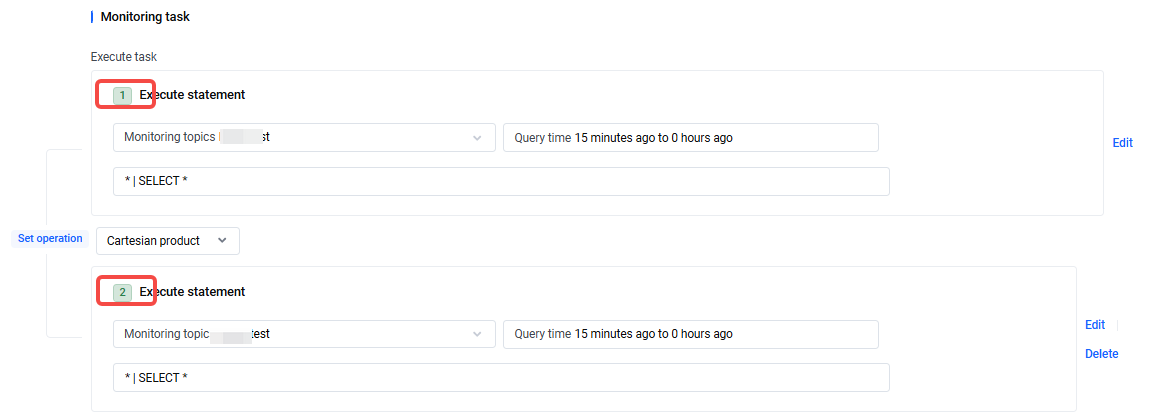
- $N indicates the Nth execution statement in the current monitoring task. For details, see View execution statement number.
NoticeWhen duplicate fields appear in the results of different statements, TLS determines them based on the statement number.- keyname refers to a field name in the query and analysis results.
- There is a specific data match: An alarm is triggered when N records in the query and analysis results meet the alarm expression.
- Alarm level: Set the alarm level as notification, warning, or serious.
NoticeWhen adding multiple trigger conditions, you can adjust their order by dragging. Query and analysis results are matched in sequence according to the trigger conditions. Once the results meet the first trigger condition, subsequent trigger conditions are not matched. When adding multiple trigger conditions, you must configure them in order from highest to lowest priority.NoData alarmAfter enabling this feature, an independent NoData alarm is triggered when the result of a set operation is an empty set.Alarm recoverySend the corresponding recovery notification when alarm recovery is triggered after enabling this feature.
- Configure Alarm notice.
- ConfigurationDescriptionConfigurationDescriptionSend alarm frequency The frequency for sending alarm notifications. When the number of consecutive alarm triggers reaches the specified limit, TLS sends alarm notifications based on the defined interval. If the trigger condition is met for several consecutive monitoring cycles, alarms are sent at intervals based on the specified frequency. The notification frequency can be set uniformly across multiple channels or separately for each channel.
- Unified sending cycle setting: All channels follow the same alarm notification cycle. The interval between alarms can be set from 10 to 1440 minutes. By default, alarms are sent every 30 minutes.
- Separate sending cycle setting: You can set alarm notification cycles individually for phone, SMS, email, and custom Webhook channels. The phone and SMS channels support cycles from 10 to 1440 minutes, while email and custom Webhook channels support cycles from 1 to 1440 minutes.
Tip- Custom Webhook include Lark, WeCom, DingTalk, and other custom webhook addresses.
- The alarm frequency configuration helps filter out unimportant sporadic events. For example, if the trigger condition is met for 5 consecutive monitoring intervals, the alarm will be sent only after a total of 5 alarm occurrences.
- The notification frequency configuration helps prevent excessive alarm notifications. For example, if notifications are sent once every 30 minutes, only one alarm is received within each 30-minute period
- Alarm notifications through phone and SMS channels are subject to TLS notification throttling, such as a limit of 10 alarm SMS messages per phone number per minute. For detailed throttling limits, see Limits.
- Feishu custom bot frequency control is set at 100 times per minute and 5 times per second per bot, per tenant. When the limit is exceeded, error 11232 occurs. For details, see Lark Frequency Control Policy.
Notification groupSpecify alarm notification channels through an alarm notification group. Notification groups are virtual groups of alarm contacts. TLS sends alarm notifications to all members in the notification group based on the group’s channel and template configuration.You can click Create notification group to create a new notification group, or click Associate notification group to add an existing notification group. For details about notification groups, see Create notification group.Additional notification contentIt is the additional content which makes the notification more informative.The content entered here will only be shown in the sent alarm when referenced by the NotifyMsg variable in Content template.- Click AI generate content, enter the notification content you want to display as prompted, and click AI generate. TLS Copilot will automatically analyze your input, and you can fill in the related configuration with one click after analysis is complete. The recommended result is for reference only; you need to verify based on your actual needs.
NoticeAI-generated content is only supported in North China 2 (Beijing), South China 1 (Guangzhou), and East China 2 (Shanghai).- Click Add original log: Insert the original log of the query result triggered by the alarm with one click.
- Click Insert variable: Quickly insert variables. For supported content, see Content variable and Content functions.
Notice- The default Content template has the NotifyMsg variable pre-added.
- If you use a custom content template, ensure that the NotifyMsg variable has been added.
- If the original log is too long or contains special characters, causing the alarm to fail to send, you can add the escapejs filter for unicode encoding. For details, see QueryLog.
- Click Test alarm policy.
- To make it easier to troubleshoot problems in abnormal scenarios and preview alarm notification results in advance, we recommend that you debug using the alarm testing feature when creating an alarm policy. For detailed information about the alarm testing feature, see Alarm policy testing.
Notice
The test function is only used to check whether the alarm policy configuration is correct. It does not actually perform the alarm monitoring task.
- Click Create alarm policy.
- After creating an alarm policy, the policy is enabled by default. TLS will continue to run monitoring tasks and send alarm notifications based on the alarm policy.
Related operations
View execution statement number
When you create an alarm policy, each execution statement has a corresponding number, which can be found in the Monitoring tasks > Execution tasks section. The exact location is shown below.
Last updated: 2026.04.21 18:23:01
All rights reserved © Beijing Volcano Engine Technology Co., Ltd2024
