Torch Object Storage
Torch Object Storage
Torch Object Storage


Document
What's New
Announcements
Billing
Billable items
Billing method
Getting Started
User Guide
Working with buckets
Basic configurations
Managing lifecycle
Back-to-origin rules
Event notification
Intelligent Tiering
Permissions
Domain management
Fault tolerance and disaster recovery
Cross-region replication
Same-region replication
Data redundancy
Image processing
ObjectSet
Working with objects
Managing folders
Monitoring and alerting
Metric monitoring
Access control
Bucket policies
Common configuration scenarios
Authorizing IAM users of the current account
Authorizing other accounts
Managing access via tools and SDKs
Managing public read access
Data security
Access points
Multi-region access points (MRAP)
Single-region access points (SRAP)
Converged access points (CAP)
DevMind
TOS accelerator
SenseFlow
TOS Agent
Data processing
Basic concepts
Image processing
Media processing
Document preview
Task processing
Data subscription
Flow control management
Quality of Service (QoS) policies
Hierarchical namespace (HNS)
User guide
Tool reference
Best practices
TOS Vectors
User guide
API reference
Vector bucket
Vector index
SDK reference
Python-Vectors
Vector bucket
Vector index
Java-Vectors
Vector bucket
Vector index
Node.js-Vectors
Vector bucket
Vector index
Tool Guide
tosutil
Common commands
Upload, download, and copy objects
Share objects
Auxiliary commands
Common examples
TOS Browser
FSX
FSX best practices
TOS PyTorch Connector
tosfsspec
API Reference
Signature Mechanism
The header contains a signature
Bucket
Basic Bucket Operations
Bucket Lifecycle
Access Monitor
Bucket ACL
Bucket CORS
Bucket Policy
Back-to-origin Rules
Bucket Replication
Versioning
Static Website
Event Notification
Custom Domain
Server-side encryption
Transfer Acceleration
Data Processing
Image processing
Media processing
Video transcoding
Audio transcoding
video to GIF
Document preview
File decompression
Log Storage
Retention Policy
Requester pays
TLS version
Object
Basic Object Operations
Object ACL
Fetch Object
Symbolic Link
WORM object
Multipart Upload
SDK Reference
Java
Pre-signing Mechanism
Bucket Interface
Basic Bucket Interface
Manage Bucket Configuration
Object Interface
Upload Object
Download Object
Upload and Download Speed Limit
Copy Object
List Object
Data Processing
Image Processing
Video Processing
Audio Processing
Log Configuration
Hierarchical Namespace
Bucket base interface
Introduction to Typical Scenes
Python
Data processing
Pre-signature mechanism
Bucket interface
Basic bucket interface
Manage bucket configuration
Object interface
Upload object
Download object
Copy object
List objects
Introduction to typical scenes
C
Object Interface
Upload object
C++
Pre-signature Mechanism
Bucket Interface
Basic Bucket Interface
Manage Bucket Configuration
Object Interface
Upload Object
Download Object
Copy Object
List Objects
Data Processing
Go
Object Interface
Upload Object
Download Object
Copy Object
List Objects
Manage Objects
Bucket Interface
Manage Bucket Configuration
Data Processing
Log Configuration
Introduction to Typical Scenes
Pre-signature Mechanism
Node.js
Pre-signature Mechanism
Bucket Interface
Basic Bucket Interface
Manage Bucket Configuration
Object Interface
Upload object
Download object
Copy object
List objects
Data Processing
Image Processing
Introduction to Typical Scenes
Browser.js
Pre-signature Mechanism
Upload Object
Download Object
Copy Object
List Objects
Manage Objects
Data Processing
.NET
Bucket Interface
Object Interface
Upload Object
Download Object
List Objects
Introduction to Typical Scenes
PHP
Bucket Interface
Object Interface
Download Object
Data Processing
Exception Handling
Android
Bucket Interface
Object Interface
Upload Object
Download Object
Exception Handling
iOS
Bucket Interface
Object Interface
Upload Object
Download Object
Harmony
Pre-signature Mechanism
Bucket Interface
Object Interface
Upload Object
Download Object
List Objects v2
Introduction to Typical Scenarios
Rust
Pre-signing mechanism
Bucket interface
Basic bucket operations
Lifecycle rules
Bucket ACLs
Cross-origin resource sharing
Bucket inventory
Back-to-origin rules
Bucket replication
Static website hosting
Event notification
Custom domain
Server-side encryption
Object interface
Basic operation
Access control
Error Codes
01-SERVICE_ERROR
02-AUTH
03-ACCESS_CONTROL
04-QOS
05-REQUEST
06-BUCKET
07-LIFECYCLE
08-ACL
09-CORS
10-POLICY
11-MIRROR
12-REPLICATION
13-WEBSITE
14-NOTIFICATION
15-ENCRYPT
16-CUSTOMDOMAIN
17-OBJECT
18-TAG
19-MULTIPART
20-STORAGE_CLASS
21-CALLBACK
22-DATA_PROCESS
23-BATCH
24-STORAGE_LENS
25-INVENTORY
26-DIRECTORY_BUCKET
FAQ
Best Practices
AIGC-Doubao LLMs
Accessing TOS with third-party tools
Granting temporary access
Data migration
Data processing
Checking data integrity
Performance optimization
- Documentation
 Torch Object StorageBest PracticesAccessing TOS through an ECS reverse proxy
 Copy page
 Download PDF
Best Practices
Accessing TOS through an ECS reverse proxy
Copy pageDownload PDFAccessing TOS through an ECS reverse proxy
TOS is usually accessed via domain names, and its service addresses change dynamically. For this reason, fixed IP addresses are not provided. However, certain industries may have security and compliance requirements that necessitate accessing TOS through fixed IP addresses. To meet these needs, you can set up an Nginx reverse proxy server on an Elastic Compute Service (ECS) instance. Then, you can access the objects in your TOS bucket via the public IP address of port 80 on the ECS instance. This gives you access to your TOS resources via a fixed IP address. This topic introduces the benefits and operational steps of accessing TOS through an ECS reverse proxy.
Benefits
This method provides fixed IP addresses for accessing TOS and enhances data security with ECS's robust security features.
- Fixed IP addresses: Suitable for industries such as finance and healthcare that have security and compliance requirements necessitating access to TOS resources through fixed IP addresses.
- Enhanced data security: You can enable Web Application Firewall (WAF) or configure firewall policies for the ECS instance to make accessing TOS more secure.
- Logging: ECS serves as a unified access entry and records all TOS access logs, facilitating tracking and auditing.
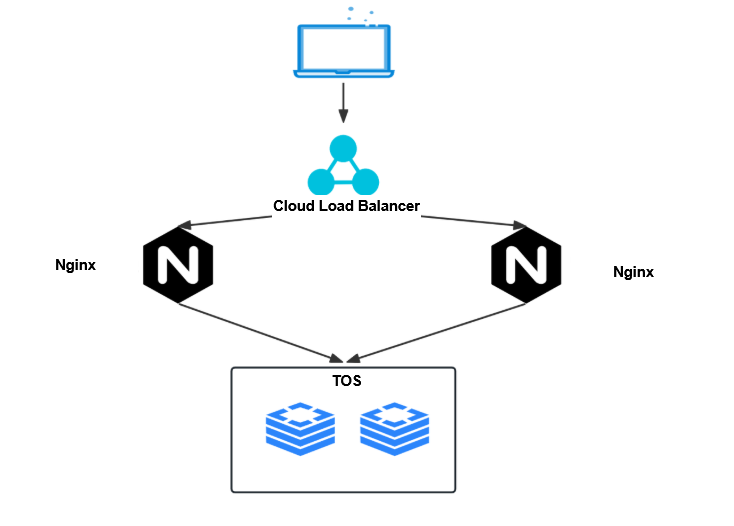
Prerequisites
You have created an ECS instance. For instructions, see Purchasing an instance by following the wizard.
tip
This section uses CentOS Stream Release 9 (64-bit) to show how to access TOS via an ECS reverse proxy.
Step 1: Open TCP port 80
By default, Nginx uses TCP port 80 for communication. To allow users to access this port, open it for the relevant security group of your ECS instance.
- Log in to the ECS console.
- In the left navigation pane, select Instances & Images > Instances.
- On the Instances page, click the instance you want to manage.
- On the instance details page, click the Security Group tab.
- In the Security Group Associated section, click Configure rule.
- On the Inbound rule tab, click Add rule.
- In the Add Inbound rule dialog, configure the following parameters.
- ParameterDescriptionParameterDescriptionPriorityThe priority level of the security group rule.StrategySelect Allow.Protocol typeSelect TCP.Port rangeEnter 80.tipTo access the ECS instance via HTTPS, set the port range to 443.SourceSpecify the CIDR block to determine which IP addresses can access the ECS instance via port 80.
- Once you have finished configuring, click Add.
Step 2: Obtain the public IP address
- Log in to the ECS console.
- In the left navigation pane, select Instances & Images > Instances.
- On the Instances page, click the instance you want to manage.
- Click the Network Interface tab to obtain the public IP address in the EIP Address column.
Step 3: Configure Nginx
- Run this command to install Nginx.
- sudo yum install -y nginx
- Run this command to open the configuration file, nginx.conf.
- sudo vi /etc/nginx/nginx.conf
- Edit the HTTP module in the nginx.conf file. Save and exit once you have finished configuring it.
tip
- If you are accessing the ECS instance via the HTTPS protocol, you must configure the HTTPS module in the nginx.conf file. For instructions, see Installing an SSL certificate on an Nginx server.
- When you configure Nginx, the system disk generates access and error logs. To prevent excessive disk usage by these log files, which could lead to your cloud server performing poorly, we recommend regularly cleaning up disk space.
- The configuration method described in this section only supports proxying access to one bucket.
- error_log /var/log/nginx/error.log;events {worker_connections 1024; # The current setting of 1024 is relatively conservative. Adjust this parameter as needed in production environments.}http {log_format main '$remote_addr - $remote_user [$time_local] "$request" ''$status $body_bytes_sent "$http_referer" ''"$http_user_agent" "$http_x_forwarded_for"';access_log /var/log/nginx/access.log main;server {listen 80;listen [::]:80;location / {proxy_pass http://bucketname.tos-cn-guangzhou.volces.com;proxy_set_header Host $http_host;proxy_http_version 1.1;proxy_set_header Connection "";proxy_buffering off;proxy_request_buffering off;}}}
- Configure the following parameters in the nginx.conf file based on your situation:
- ParameterDescriptionParameterDescriptionworker_connectionsThe maximum number of concurrent connections. Adjust this value based on your needs.proxy_passThe address of the proxy server. For this scenario, set it to the access domain of the TOS bucket. Specifically:
- If the ECS instance and the bucket are in the same region, enter the bucket domain for private network access. For example: http://bucketname.tos-cn-guangzhou.ivolces.com.
- If the ECS instance and the bucket are in different regions, enter the bucket domain for public network access. For example: http://bucketname.tos-cn-guangzhou.volces.com.
tip
- Run this command to check the syntax of the configuration.
- nginx -t
- If correct, the command returns output containing text similar to the following:
- nginx: the configuration file /etc/nginx/nginx.conf syntax is oknginx: configuration file /etc/nginx/nginx.conf test is successful
- Run this command to restart the Nginx server and apply the configuration.
- systemctl restart nginx
Step 4: Configure DNS resolution
This section uses Linux to demonstrate how to configure DNS resolution on the client side.
Run this command to open the hosts file.
sudo vi /etc/hosts
To resolve the TOS domain name to the public IP address of the ECS instance, add the following to the end of the file:
<EIP address> <bucket domain>
Example:
118.125.1**.** bucketname.tos-cn-guangzhou.volces.com
Verifying the reverse proxy
- Install tosutil. For instructions, see Downloading and installing tosutil.
- Run this command to assign execute (x) permission to tosutil.
- chmod +x tosutil
- Run the config command to initialize the tosutil configuration.
tip
When initializing the tosutil configuration, set the -e parameter to https://<endpoint> if you are accessing the ECS instance via HTTPS.
- # -i parameter: Specify the access key of the account/sub-user# -k parameter: Specify the secret key of the account/sub-user# -e parameter: Specify the endpoint# -re paramter: Specify the region./tosutil config -i <access key> -k <secret key> -e http://<endpoint> -re <region>
- Example:
- ./tosutil config -i AKLTN2FmOGM4Z********* -k WXpkbVlXTm1OVGs1T0RabE******** -e http://tos-cn-guangzhou.volces.com -re cn-guangzhou
- Run this command to upload an object to the bucket.
- ./tosutil cp span.log tos://bucketname/span.log
- On the ECS instance, run this command to view the Nginx access logs.
- tail -f /var/log/nginx/access.log
- If the access logs indicate that the upload request was forwarded through Nginx, then the ECS instance has been correctly set up with a reverse proxy for TOS.
-
Last updated: 2025.11.18 14:49:32
All rights reserved © Beijing Volcano Engine Technology Co., Ltd2024
