Torch Object Storage
Torch Object Storage
Torch Object Storage


Document
What's New
Announcements
Billing
Billable items
Billing method
Getting Started
User Guide
Working with buckets
Basic configurations
Managing lifecycle
Back-to-origin rules
Event notification
Intelligent Tiering
Permissions
Domain management
Fault tolerance and disaster recovery
Cross-region replication
Same-region replication
Data redundancy
Image processing
ObjectSet
Working with objects
Managing folders
Monitoring and alerting
Metric monitoring
Access control
Bucket policies
Common configuration scenarios
Authorizing IAM users of the current account
Authorizing other accounts
Managing access via tools and SDKs
Managing public read access
Data security
Access points
Multi-region access points (MRAP)
Single-region access points (SRAP)
Converged access points (CAP)
DevMind
TOS accelerator
SenseFlow
TOS Agent
Data processing
Basic concepts
Image processing
Media processing
Document preview
Task processing
Data subscription
Flow control management
Quality of Service (QoS) policies
Hierarchical namespace (HNS)
User guide
Tool reference
Best practices
TOS Vectors
User guide
API reference
Vector bucket
Vector index
SDK reference
Python-Vectors
Vector bucket
Vector index
Java-Vectors
Vector bucket
Vector index
Node.js-Vectors
Vector bucket
Vector index
Tool Guide
tosutil
Common commands
Upload, download, and copy objects
Share objects
Auxiliary commands
Common examples
TOS Browser
FSX
FSX best practices
TOS PyTorch Connector
tosfsspec
API Reference
Signature Mechanism
The header contains a signature
Bucket
Basic Bucket Operations
Bucket Lifecycle
Access Monitor
Bucket ACL
Bucket CORS
Bucket Policy
Back-to-origin Rules
Bucket Replication
Versioning
Static Website
Event Notification
Custom Domain
Server-side encryption
Transfer Acceleration
Data Processing
Image processing
Media processing
Video transcoding
Audio transcoding
video to GIF
Document preview
File decompression
Log Storage
Retention Policy
Requester pays
TLS version
Object
Basic Object Operations
Object ACL
Fetch Object
Symbolic Link
WORM object
Multipart Upload
SDK Reference
Java
Pre-signing Mechanism
Bucket Interface
Basic Bucket Interface
Manage Bucket Configuration
Object Interface
Upload Object
Download Object
Upload and Download Speed Limit
Copy Object
List Object
Data Processing
Image Processing
Video Processing
Audio Processing
Log Configuration
Hierarchical Namespace
Bucket base interface
Introduction to Typical Scenes
Python
Data processing
Pre-signature mechanism
Bucket interface
Basic bucket interface
Manage bucket configuration
Object interface
Upload object
Download object
Copy object
List objects
Introduction to typical scenes
C
Object Interface
Upload object
C++
Pre-signature Mechanism
Bucket Interface
Basic Bucket Interface
Manage Bucket Configuration
Object Interface
Upload Object
Download Object
Copy Object
List Objects
Data Processing
Go
Object Interface
Upload Object
Download Object
Copy Object
List Objects
Manage Objects
Bucket Interface
Manage Bucket Configuration
Data Processing
Log Configuration
Introduction to Typical Scenes
Pre-signature Mechanism
Node.js
Pre-signature Mechanism
Bucket Interface
Basic Bucket Interface
Manage Bucket Configuration
Object Interface
Upload object
Download object
Copy object
List objects
Data Processing
Image Processing
Introduction to Typical Scenes
Browser.js
Pre-signature Mechanism
Upload Object
Download Object
Copy Object
List Objects
Manage Objects
Data Processing
.NET
Bucket Interface
Object Interface
Upload Object
Download Object
List Objects
Introduction to Typical Scenes
PHP
Bucket Interface
Object Interface
Download Object
Data Processing
Exception Handling
Android
Bucket Interface
Object Interface
Upload Object
Download Object
Exception Handling
iOS
Bucket Interface
Object Interface
Upload Object
Download Object
Harmony
Pre-signature Mechanism
Bucket Interface
Object Interface
Upload Object
Download Object
List Objects v2
Introduction to Typical Scenarios
Rust
Pre-signing mechanism
Bucket interface
Basic bucket operations
Lifecycle rules
Bucket ACLs
Cross-origin resource sharing
Bucket inventory
Back-to-origin rules
Bucket replication
Static website hosting
Event notification
Custom domain
Server-side encryption
Object interface
Basic operation
Access control
Error Codes
01-SERVICE_ERROR
02-AUTH
03-ACCESS_CONTROL
04-QOS
05-REQUEST
06-BUCKET
07-LIFECYCLE
08-ACL
09-CORS
10-POLICY
11-MIRROR
12-REPLICATION
13-WEBSITE
14-NOTIFICATION
15-ENCRYPT
16-CUSTOMDOMAIN
17-OBJECT
18-TAG
19-MULTIPART
20-STORAGE_CLASS
21-CALLBACK
22-DATA_PROCESS
23-BATCH
24-STORAGE_LENS
25-INVENTORY
26-DIRECTORY_BUCKET
FAQ
Best Practices
AIGC-Doubao LLMs
Accessing TOS with third-party tools
Granting temporary access
Data migration
Data processing
Checking data integrity
Performance optimization
- Documentation
 Torch Object StorageBest PracticesAIGC-Doubao LLMsCombining TOS and Doubao LLMs for visual understanding, image generation, and video generation
 Copy page
 Download PDF
AIGC-Doubao LLMs
Combining TOS and Doubao LLMs for visual understanding, image generation, and video generation
Copy pageDownload PDFCombining TOS and Doubao LLMs for visual understanding, image generation, and video generation
Image processing is in high demand in many fields, including Internet companies, the media, and e-commerce. The Doubao models on Volcano Engine Ark (VeArk) demonstrate strong capabilities in visual understanding, image generation, and video generation. TOS provides robust support for these models with its efficient data storage and flexible processing capabilities. This topic describes how to leverage these capabilities to optimize model pre- and post-processing workflows, thereby improving processing efficiency and quality.
Background information
VeArk supports a variety of models, including:
- Visual understanding: Multimodal large language models with powerful image understanding, reasoning, and precise instruction-following capabilities. These models excel at extracting information from images and performing reasoning tasks. They can be applied to a wide range of complex visual question-answering scenarios.
- Text-to-image&Image-to-image: These models support various visual styles. With domain-specific services, they can be used in many areas, including education, entertainment, and offices.
- Video generation: These models can generate videos from text or images. Their strong semantic understanding capabilities enable them to quickly produce high-quality video clips for film production, advertising, and other applications.
Constraints and limitations
Due to model-specific constraints, you may need to do the following when using image-related models:
Operation | Description |
Operation | Description |
Format conversion | Only a limited set of image formats is supported. For example, photos taken on iOS devices are in .heic format and must be converted before they can be used. |
Compression | File size limits are enforced. If your image exceeds the limit, you must compress it before using these models. |
Resizing | These models convert images into tokens prior to performing inference. The number of tokens used is calculated based on the width and height of the image in pixels. Resizing images allows more images to be processed and reduces costs. |
Optimizing data transfer cost | If you need to use a locally stored image, you must convert it to Base64 encoding before submitting it to any of these models. Base64 encoding increases the amount of data transferred over the network. |
Video frame capture | Visual understanding models can only interpret image content. When you upload a video, the model must first extract static frames from it and then process them. |
Processing of model outputs | Images produced by these models typically require post-processing before they can be delivered to downstream applications. This may include adding annotations or watermarks. |
Capabilities
Integrating TOS with VeArk models can significantly improve your experience working with large language models. TOS offers efficient, flexible, and scalable image processing solutions. It supports a variety of image processing capabilities and can be used with visual understanding models, text-to-image models, and video generation models on VeArk. See Model list for a complete list of supported models.
tip
If you would like to use a model that is not on the list, submit a ticket to contact our technical team.
Solutions
We offer the following solutions based on TOS capabilities and business scenarios:
Scenario | Steps |
Scenario | Steps |
Image preprocessing |
tip You can store the preprocessed images in TOS for future reuse.
|
Image postprocessing |
|
Benefits
This section uses a visual understanding model to demonstrate the benefits of combining TOS and Doubao LLMs.
Category | Combining your own image processing tool and Doubao LLMs | Combining TOS and Doubao LLMs |
Category | Combining your own image processing tool and Doubao LLMs | Combining TOS and Doubao LLMs |
Size and format restrictions |
|
|
Compression method | You need to compress the files yourself using open-source components. | You can use TOS's built-in features to process images directly. |
Computing power | This method consumes local computing power. | This method uses cloud-based computing resources with dedicated hardware acceleration. |
Performance | - | This method uses TOS for Base64 encoding, which involves less data transfer. |
Costs |
|
|
Complexity | You can debug locally, which is more convenient. | You only need to configure it once in the console, and no further action is required. warning Configuration is automated, though initial setup may require attention. Before configuring, confirm which image processing style you need. |
Preparation
Preparing TOS
Preparing VeArk
- Create a bucket and obtain its private network access domain. For steps to create a bucket using the console, see Creating buckets.
tip
Since accessing TOS from VeArk is done over a private network, no fees are incurred for outbound traffic over the public network.
-
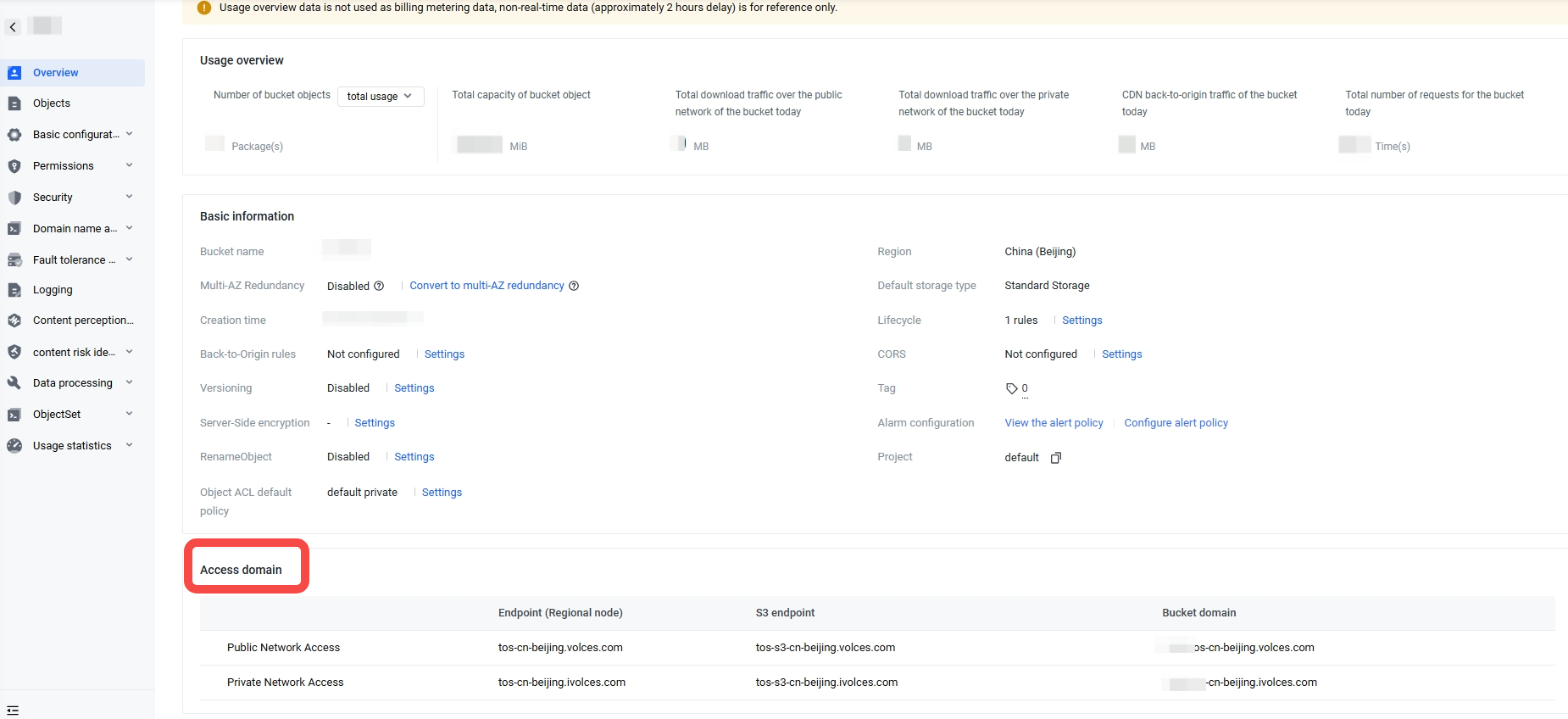
- (Optional) Upload the images or videos you want to process to TOS.
- TOS supports multiple upload methods. For more information, see Getting Started. If your images or videos are stored elsewhere, you can use Data Migration Service to transfer them to TOS.
- The following example uses the Python SDK to demonstrate how to upload local images or videos to TOS. For more information about the Python SDK, see Overview (Python SDK).
- import osimport tos# Get AK and SK from the environment variables.ak = os.getenv('TOS_ACCESS_KEY')sk = os.getenv('TOS_SECRET_KEY')# Fill in the endpoint and region corresponding to the bucket. # For example, fill in "tos-cn-beijing.ivolces.com" (endpoint) and "cn-beijing" (region) for China (Beijing).endpoint = "your endpoint"region = "your region"bucket_name = "bucket-test"# Object name. For example, fill in "example_dir/example_object.jpg" to upload the "example_object.jpg" object under "example_dir".object_key = "object-test"# The path for the local file you want to upload.file_name = "/usr/local/test.jpg"try:# Create a TosClientV2 object. All operations on buckets and objects are performed through this object.client = tos.TosClientV2(ak, sk, endpoint, region)# Upload the local file to the bucket.# file_name is the full path of the local file.client.put_object_from_file(bucket_name, object_key, file_name)except tos.exceptions.TosClientError as e:# The operation failed and a client exception was caught. This is usually due to invalid request parameters or a network exception.print('fail with client error, message:{}, cause: {}'.format(e.message, e.cause))except tos.exceptions.TosServerError as e:# The operation failed and a server exception occurred. See the response for the error details.print('fail with server error, code: {}'.format(e.code))# Use the request ID for troubleshooting purposes. We strongly recommend including the request ID in the logs.print('error with request id: {}'.format(e.request_id))print('error with message: {}'.format(e.message))print('error with http code: {}'.format(e.status_code))print('error with ec: {}'.format(e.ec))print('error with request url: {}'.format(e.request_url))except Exception as e:print('fail with unknown error: {}'.format(e))
- Obtain the base URL, such as https://ark.cn-beijing.volces.com/api/v3.
- Obtain the model, such as p-2024**********-****m.
Depending on the type of resource you need to process and your output requirements, you must either create an image style or obtain the specific parameters of an existing one. The key features of TOS image processing are explained below. For more features, see Image processing overview.
Format conversion
Compression (resizing)
Compression (quality change)
Watermark (text/image watermark)
Video frame capture
Saving processed images
Original image protection
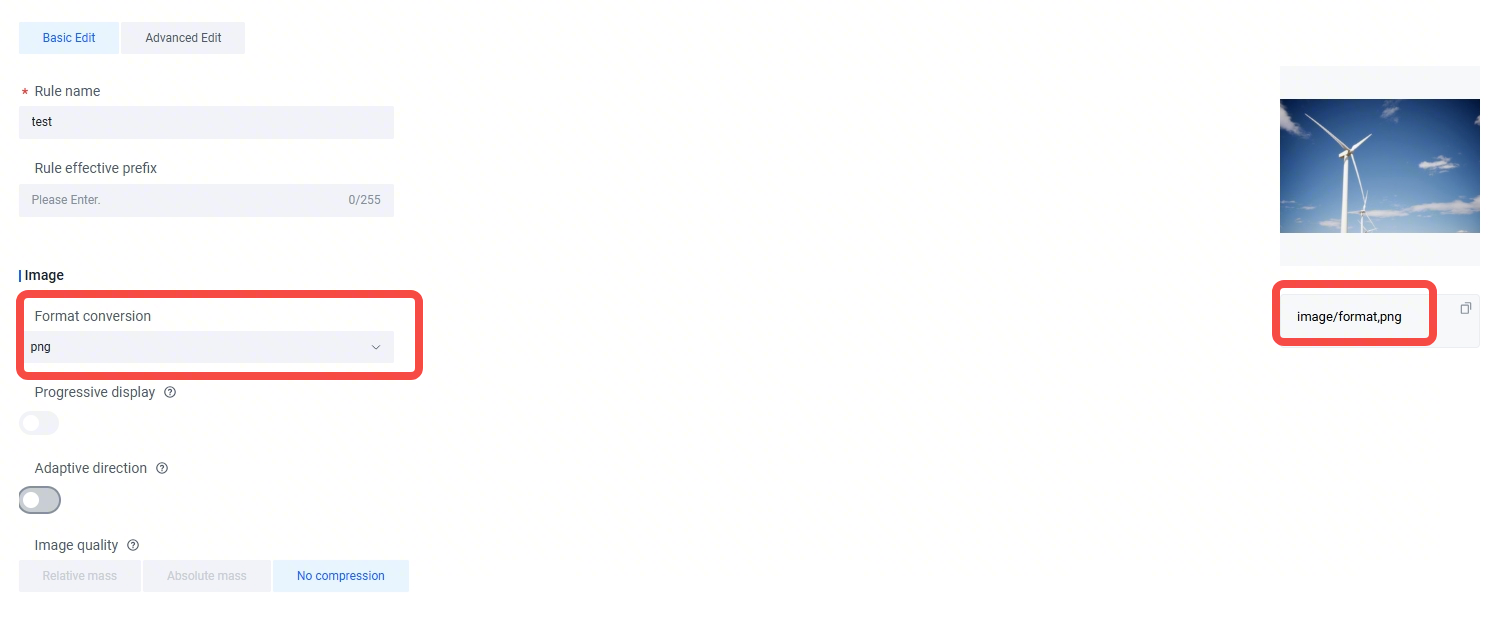
- Description: This feature converts the format of an image.
- Documentation: Format
- Example:
- Parameters: image/format,png
- Image processing URL: https://tos-tools.tos-cn-beijing.volces.com/misc/sample.png?x-tos-process=image/format,png
- Image style configuration:
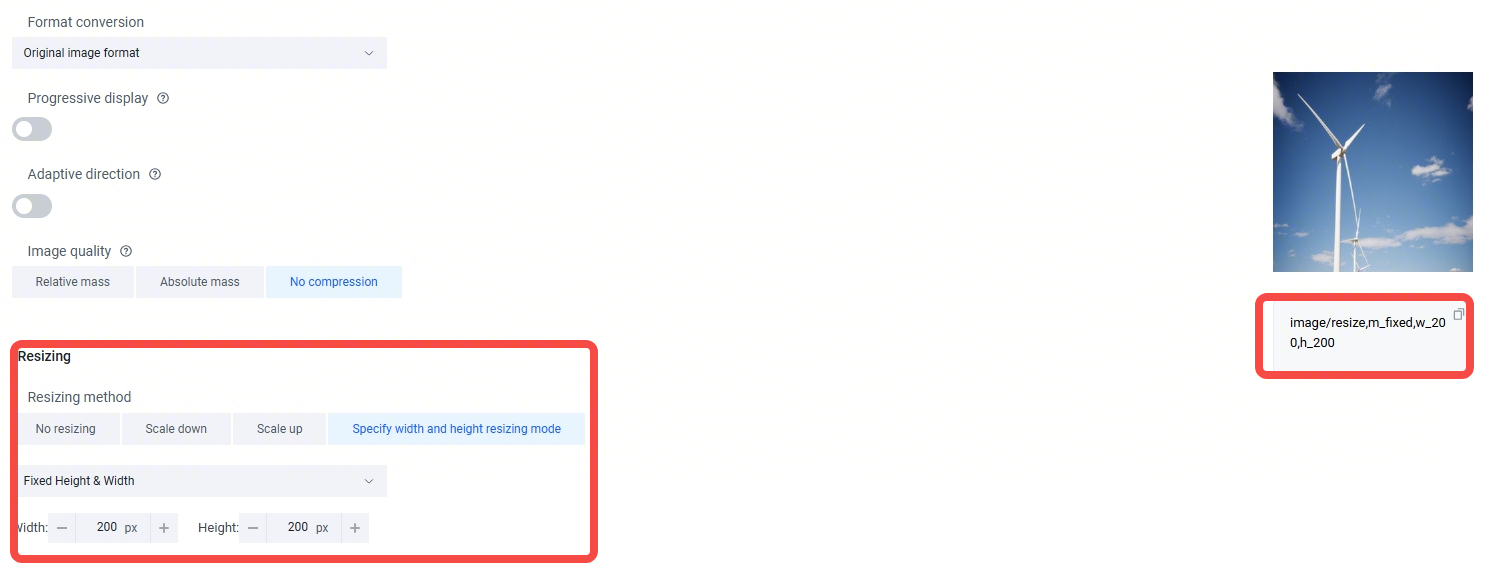
- Description: This feature resizes an image to specific dimensions.
- Documentation: Resize
- Example: Resize an image to 200 px × 200 px.
- Parameters: image/resize,m_fixed,w_200,h_200
- Image processing URL: https://tos-tools.tos-cn-beijing.volces.com/misc/sample.png?x-tos-process=image/resize,w_200,h_200,m_fixed
- Image style configuration:
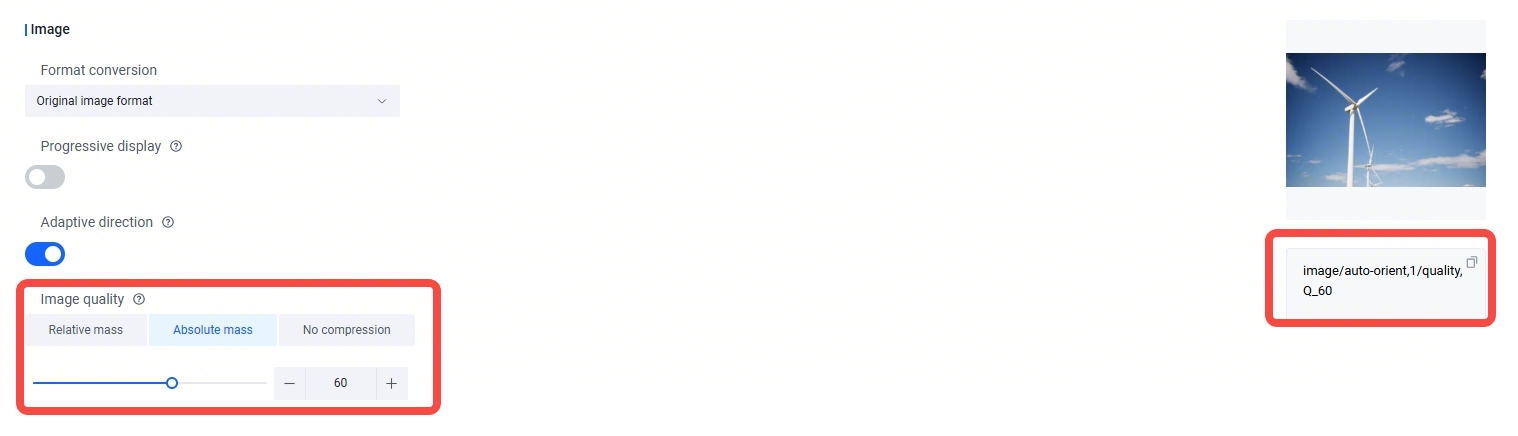
- Description: This feature adjusts the quality of a JPG, JPEG or WebP image.
- Documentation: Quality
- Example: Resize an image to 200 px × 200 px.
- Parameters: image/auto-orient,1/quality,Q_60
- Image style configuration:
- Description: This feature adds a text or image watermark to an image.
- Documentation: Watermark
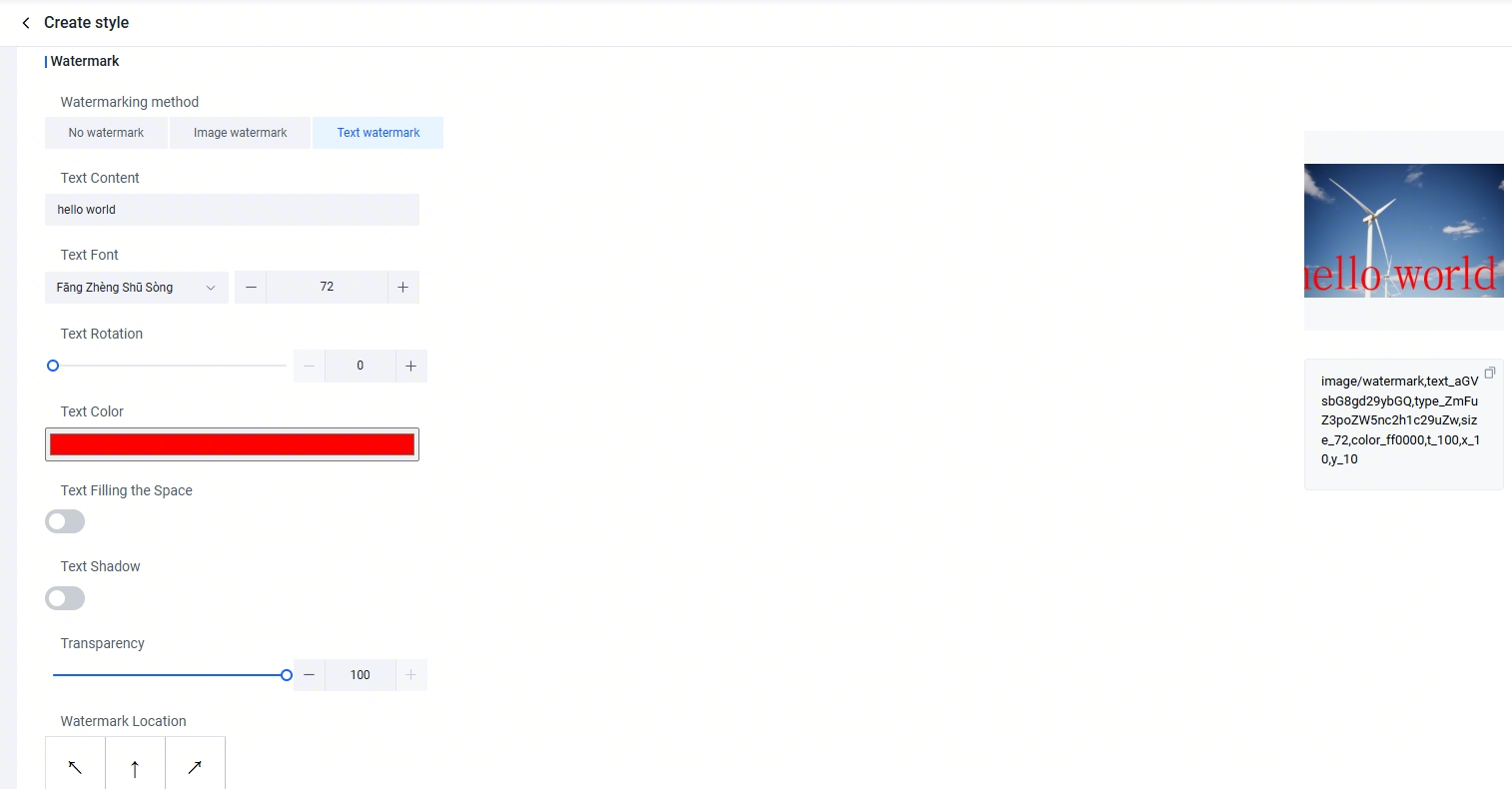
- Example: Add the text watermark "hello world". Set the font size to 72, the color to red, and the font to fangzhengshusong.
- Parameters: image/watermark,text_aGVsbG8gd29ybGQ,type_ZmFuZ3poZW5nc2h1c29uZw,size_72,color_ff0000
- Image style configuration:
- Description: This feature allows you to capture a single frame from a video at a specific time and resize it to your desired dimensions.
- Documentation: Snapshot
- Example: Use the default mode to extract the frame at 26,000 ms. Resize the image to a width of 400 px and a height of 200 px. Set the output format to jpg.
- Original video: https://tos-tools.tos-cn-beijing.volces.com/misc/video.mp4
- Description: This feature allows you to save a processed image to a specified bucket.
- Documentation: Saving processed files
- Example: Save the processed image as "abc.png" in a bucket named "arctic".
- Processed image URL: https://tos-tools.tos-cn-beijing.volces.com/misc/sample.png?x-tos-process=image/resize,w_100
- Image saving URL: https://tos-tools.tos-cn-beijing.volces.com/misc/sample.png?x-tos-process=image/resize,w_100&x-tos-save-object=YWJjLnBuZw==&x-tos-save-bucket=YXJjdGlj
- Description: This feature restricts image access to URLs that contain image style parameters or pre-signed URLs.
- Documentation: Original image protection
- When original image protection is enabled, anonymous users can only access images in the following ways:
- URLs with image style parameters, in the format https://<bucket name>.<Endpoint>/<image name>?x-tos-process=style/<style name>. For more information, see Using image styles.
- Pre-signed URLs in the format https://<bucket name>.<Endpoint>/<image name>?<signature>. For more information, see Presigning overview.
Examples
This section provides example codes for different scenarios based on TOS data processing features and VeArk model types.
TOS + Visual understanding model
Online inference
The scenarios are described as follows:
- Scenario 1: The processed image or video frame files are not saved to TOS. These files are only used once as model input and cannot be reused. If you need to reuse an image or video, you must reprocess it through TOS. This may result in additional data processing and request fees. For more information, see Billing overview.
- Scenario 2: The processed image or video frame files are saved to TOS and can be reused.
Scenario 1
Scenario 2
# coding:utf-8
"""
The following code uses TOS to process images and videos and generate pre-signed URLs;
And uses the VeArk visual understanding model to interpret the image or video frame.
Before running this code, ensure that you have installed the required SDK:
1. `pip install --upgrade 'volcengine-python-sdk[ark]'`
2. `pip install tos`
Note: Keep your access credentials secure and avoid disclosure.
"""
import tos
from volcenginesdkarkruntime import Ark
# TOS access credentials
TOS_ACCESS_KEY = "Your Access Key"
TOS_SECRET_KEY = "Your Secret Key"
# VeArk API key
ARK_API_KEY = "Your API Key"
if __name__ == "__main__":
"""
Main function that executes the core business logic, including TOS operations and VeArk model invocations.
"""
# TOS configurations
endpoint = "Your Endpoint"
region = "Your Region"
bucket_name = "Your Bucket"
image_key = "test.jpeg"
video_key = "test.mp4"
# Define image processing style
image_process_style = "image/resize,h_100/format,jpg"
# Define video processing style
video_process_style = "video/snapshot,t_2000"
# Create a TOS client
tos_client = tos.TosClientV2(TOS_ACCESS_KEY, TOS_SECRET_KEY, endpoint, region)
# Generate a pre-signed URL for the processed image that VeArk will use later
image_url = tos_client.pre_signed_url(tos.HttpMethodType.Http_Method_Get, bucket=bucket_name, key=image_key,
query={"x-tos-process": image_process_style}, expires=3600)
print("----- Generate Image PreSignedURL Success ------")
print(f"PreSignedURL: {image_url.signed_url}")
# Generate a pre-signed URL for the video frame that VeArk will use later
snapshot_url = tos_client.pre_signed_url(tos.HttpMethodType.Http_Method_Get, bucket=bucket_name, key=video_key,
query={"x-tos-process": video_process_style}, expires=3600)
print("----- Generate Video Snapshot PreSignedURL Success ------")
print(f"PreSignedURL: {snapshot_url.signed_url}")
# Create a VeArk client
client = Ark(
api_key=ARK_API_KEY,
base_url="https://ark.cn-beijing.volces.com/api/v3",
)
print("----- Streaming Request -----")
stream = client.chat.completions.create(
model="ep-xxxxx-kxzmn", # Use another model, the one obtained from the Preparation section
messages=[
{
"role": "system",
"content": "You are Doubao, an AI assistant developed by ByteDance",
},
{
"role": "user",
"content": [
{
"type": "text",
"text": "Please explain this image with a few keywords",
},
{"type": "image_url", "image_url": {"url": image_url.signed_url}}, # Pass the pre-signed image URL or video frame URL
],
},
],
stream=True,
)
for chunk in stream:
if not chunk.choices:
continue
print(chunk.choices[0].delta.content, end="")
print()
# coding:utf-8
"""
The following code uses TOS to process images and capture video frames and save the results to a TOS bucket;
And uses VeArk visual understanding model to interpret the image.
Before running this code, ensure that you have installed the required SDK:
1. `pip install --upgrade 'volcengine-python-sdk[ark]'`
2. `pip install tos`
Note: Keep your access credentials secure and avoid disclosure.
"""
import base64
import tos
from volcenginesdkarkruntime import Ark
# TOS access credentials
TOS_ACCESS_KEY = "Your Access Key"
TOS_SECRET_KEY = "Your Secret Key"
# VeArk API key
ARK_API_KEY = "Your API Key"
if __name__ == "__main__":
"""
Main function that executes the core business logic, including TOS operations and VeArk model invocations.
"""
# TOS configurations
endpoint = "Your Endpoint"
region = "Your Region"
bucket_name = "Your Bucket"
image_key = "test.jpeg"
video_key = "test.mp4"
save_bucket = "Your Save Bucket"
save_object = "Your Save Object"
# Define image processing style
image_process_style = "image/resize,h_100/format,jpg"
# Define video processing style
video_process_style = "video/snapshot,t_2000"
# Create a TOS client
tos_client = tos.TosClientV2(TOS_ACCESS_KEY, TOS_SECRET_KEY, endpoint, region)
# Process and save the image
object_stream = tos_client.get_object(
bucket=bucket_name,
key=image_key,
process=image_process_style,
save_bucket=base64.b64encode(save_bucket.encode("utf-8")).decode("utf-8"),
save_object=base64.b64encode(save_object.encode("utf-8")).decode("utf-8"),
)
print(f"----- Process Image And Save To Bucket {save_bucket} Object {save_object} Success ------")
# Generate a pre-signed URL for the processed image that VeArk will use later
image_url = tos_client.pre_signed_url(tos.HttpMethodType.Http_Method_Get, bucket=save_bucket, key=save_object,
expires=3600)
print("----- Generate Image PreSignedURL Success ------")
print(f"PreSignedURL: {image_url.signed_url}")
# Process and save the video frame
object_stream = tos_client.get_object(
bucket=bucket_name,
key=video_key,
process=video_process_style,
save_bucket=base64.b64encode(save_bucket.encode("utf-8")).decode("utf-8"),
save_object=base64.b64encode(save_object.encode("utf-8")).decode("utf-8"),
)
print(f"----- Process Video Snapshot And Save To Bucket {save_bucket} Object {save_object} Success ------")
# Generate a pre-signed URL for the video frame
snapshot_url = tos_client.pre_signed_url(tos.HttpMethodType.Http_Method_Get, bucket=save_bucket, key=save_object,
expires=3600)
print("----- Generate Video Snapshot PreSignedURL Success ------")
print(f"PreSignedURL: {snapshot_url.signed_url}")
# Create a VeArk client
client = Ark(
api_key=ARK_API_KEY,
base_url="https://ark.cn-beijing.volces.com/api/v3",
)
print("----- Streaming Request -----")
stream = client.chat.completions.create(
model="ep-xxxxx-kxzmn", # Use another model, the one obtained from the Preparation section
messages=[
{
"role": "system",
"content": "You are Doubao, an AI assistant developed by ByteDance",
},
{
"role": "user",
"content": [
{
"type": "text",
"text": "Please explain this image with a few keywords",
},
{"type": "image_url", "image_url": {"url": image_url.signed_url}}, # Pass the pre-signed image URL
],
},
],
stream=True,
)
for chunk in stream:
if not chunk.choices:
continue
print(chunk.choices[0].delta.content, end="")
print()
Batch inference
warning
Before using batch inference, make sure you have created a batch inference client. For more information, see Batch inference.
The scenarios are described as follows:
- Scenario 1: The processed image or video frame files are not saved to TOS. These files are only used once as model input and cannot be reused. If you need to reuse an image or video, you must reprocess it through TOS. This may result in additional data processing and request fees. For more information, see Billing overview.
- Scenario 2: The processed image or video frame files are saved to TOS and can be reused.
Scenario 1
Scenario 2
import base64
import json
import tos
import uvloop
from bytedance_ark_batch_inference.client import BatchInferenceClient
def generate_image_urls(tos_client, bucket_name, image_keys, style, save_bucket, save_objects):
image_urls = []
for image_key, save_object in zip(image_keys, save_objects):
tos_client.get_object(
bucket=bucket_name,
key=image_key,
process=style,
save_bucket=base64.b64encode(save_bucket.encode("utf-8")).decode("utf-8"),
save_object=base64.b64encode(save_object.encode("utf-8")).decode("utf-8"),
)
image_url = tos_client.pre_signed_url(
http_method=tos.HttpMethodType.Http_Method_Get,
bucket=save_bucket,
key=save_object,
expires=3600
)
image_urls.append(image_url.signed_url)
return image_urls
def create_requests_json(image_urls):
requests = []
for i, image_url in enumerate(image_urls, start=1):
request = {
"custom_id": f"request-{i}",
"body": {
"messages": [
{
"role": "system",
"content": "You are Doubao, an AI assistant developed by ByteDance",
},
{
"role": "user",
"content": [
{
"type": "text",
"text": "Please explain this image with a few keywords",
},
{
"type": "image_url",
"image_url": {"url": image_url},
},
],
},
],
"max_tokens": 1000,
"top_p": 1
}
}
requests.append(request)
return requests
def create_tos_client(ak, sk, endpoint, region):
return tos.TosClientV2(ak, sk, endpoint, region)
def upload_json_to_tos(tos_client, input_bucket_name, object_key, json_data):
json_bytes = json.dumps(json_data, ensure_ascii=False).encode('utf-8')
tos_client.put_object(bucket=input_bucket_name, key=object_key, content=json_bytes)
async def run_batch_inference(input_bucket_name, output_bucket_name, object_key, output_key):
batch_inference_client = BatchInferenceClient()
response = await batch_inference_client.create_batch_inference_job(input_bucket_name, output_bucket_name, object_key, output_key)
response = await batch_inference_client.ListBatchInferenceJobs(['Running'])
print('done')
async def main():
TOS_ACCESS_KEY = "Your Access Key"
TOS_SECRET_KEY = "Your Secret Key"
# Configuration parameters
endpoint = "Your Endpoint"
region = "Your Region"
bucket_name = "Your Bucket"
image_keys = ["image1.jpeg", "image2.jpeg", "image3.jpeg"] # List of image files
style = "image/resize,h_100/format,jpg"
save_bucket = "Save Bucket" # Name of the bucket for saving the processed images
save_objects = ["temp1.jpeg", "temp2.jpeg", "temp3.jpeg"] # List of the processed image files
input_key = "input.jsonl" # Input file for batch inference, stored in TOS with this key
output_key = "output.jsonl" # Output file for batch inference, stored in TOS with this key
tos_client = create_tos_client(TOS_ACCESS_KEY, TOS_SECRET_KEY, endpoint, region)
# Generate image URLs
image_urls = generate_image_urls(tos_client, bucket_name, image_keys, style, save_bucket, save_objects)
# Build the request data for batch inference in JSON format
requests_data = create_requests_json(image_urls)
# Upload the request data to TOS
upload_json_to_tos(tos_client, bucket_name, input_key, requests_data)
# Run batch inference
await run_batch_inference(bucket_name, bucket_name, input_key, output_key)
if __name__ == '__main__':
uvloop.run(main())
import base64
import json
import tos
import uvloop
from bytedance_ark_batch_inference.client import BatchInferenceClient
def generate_image_urls(tos_client, bucket_name, image_keys, style, save_bucket, save_objects):
image_urls = []
for image_key, save_object in zip(image_keys, save_objects):
image_url = tos_client.pre_signed_url(
http_method=tos.HttpMethodType.Http_Method_Get,
bucket=bucket_name,
key=image_key,
query={"x-tos-process": style},
expires=3600
)
image_urls.append(image_url.signed_url)
return image_urls
def create_requests_json(image_urls):
requests = []
for i, image_url in enumerate(image_urls, start=1):
request = {
"custom_id": f"request-{i}",
"body": {
"messages": [
{
"role": "system",
"content": "You are Doubao, an AI assistant developed by ByteDance",
},
{
"role": "user",
"content": [
{
"type": "text",
"text": "Please explain this image with a few keywords",
},
{
"type": "image_url",
"image_url": {"url": image_url},
},
],
},
],
"max_tokens": 1000,
"top_p": 1
}
}
requests.append(request)
return requests
def create_tos_client(ak, sk, endpoint, region):
return tos.TosClientV2(ak, sk, endpoint, region)
def upload_json_to_tos(tos_client, input_bucket_name, object_key, json_data):
json_bytes = json.dumps(json_data, ensure_ascii=False).encode('utf-8')
tos_client.put_object(bucket=input_bucket_name, key=object_key, content=json_bytes)
async def run_batch_inference(input_bucket_name, output_bucket_name, object_key, output_key):
batch_inference_client = BatchInferenceClient()
response = await batch_inference_client.create_batch_inference_job(input_bucket_name, output_bucket_name, object_key, output_key)
response = await batch_inference_client.ListBatchInferenceJobs(['Running'])
print('done')
async def main():
TOS_ACCESS_KEY = "Your Access Key"
TOS_SECRET_KEY = "Your Secret Key"
# Configuration parameters
endpoint = "Your Endpoint"
region = "Your Region"
bucket_name = "Your Bucket"
image_keys = ["image1.jpeg", "image2.jpeg", "image3.jpeg"] # List of image files
style = "image/resize,h_100/format,jpg"
save_bucket = "Save Bucket" # Name of the bucket for saving the processed images
save_objects = ["temp1.jpeg", "temp2.jpeg", "temp3.jpeg"] # List of the processed image files
input_key = "input.jsonl" # Input file for batch inference, stored in TOS with this key
output_key = "output.jsonl" # Output file for batch inference, stored in TOS with this key
tos_client = create_tos_client(TOS_ACCESS_KEY, TOS_SECRET_KEY, endpoint, region)
# Generate image URLs
image_urls = generate_image_urls(tos_client, bucket_name, image_keys, style, save_bucket, save_objects)
# Build the request data for batch inference in JSON format
requests_data = create_requests_json(image_urls)
# Upload the request data to TOS
upload_json_to_tos(tos_client, bucket_name, input_key, requests_data)
# Run batch inference
await run_batch_inference(bucket_name, bucket_name, input_key, output_key)
if __name__ == '__main__':
uvloop.run(main())
TOS + Image generation model
The following example uses the VeArk text-to-image model, Doubao-Seedream 5.0, to show how to generate and save images to a TOS bucket and apply image processing.
tip
TOS does not save the processed images by default. If you need to reuse an image, you must reprocess it through TOS. This may result in additional data processing and request fees. For more information, see Billing overview.
# coding:utf-8
"""
The following code uses VeArk text-to-image model (Doubao-Seedream 5.0) to generate images from text;
And saves the image to a TOS bucket, processes the image, and generates a pre-signed URL.
Before running this code, ensure that you have installed the required SDK and enabled the relevant model:
1. `pip install --upgrade 'volcengine-python-sdk[ark]'`
2. `pip install tos`
3. `pip install requests`
Note: Keep your access credentials secure and avoid disclosure.
"""
from __future__ import print_function
import requests
import tos
from volcenginesdkarkruntime import Ark
# TOS access credentials
TOS_ACCESS_KEY = "Your Access Key"
TOS_SECRET_KEY = "Your Secret Key"
# VeArk API key
ARK_API_KEY = "Your ARK API Key"
# Image generation model ID, such as doubao-seedream-5-0-260128, doubao-seedream-4-5-251128, or doubao-seedream-4-0-250828
MODEL = "Your ARK Model"
if __name__ == '__main__':
# TOS configurations
endpoint = "Your Endpoint"
region = "Your Region"
bucket_name = "Your Bucket"
image_obj_key = "test.jpeg"
# Define image processing style
image_process_style = "image/resize,h_100/format,jpg"
# 1. Call a VeArk image generation model to create an image from text
client = Ark(
api_key=ARK_API_KEY,
base_url="https://ark.cn-beijing.volces.com/api/v3",
)
images_response = client.images.generate(
model=MODEL,
prompt="Thousands of troops crossing a single-plank bridge, ink wash style, Chinese-style illustration",
size="2K",
response_format="url",
watermark=False,
)
origin_image_url = images_response.data[0].url
print('Origin image url: ', origin_image_url)
# 2. Save the image to TOS
# Create a TOS client and upload the image
tos_client = tos.TosClientV2(TOS_ACCESS_KEY, TOS_SECRET_KEY, endpoint, region)
# Use requests.get to fetch a network stream; use the Python SDK to upload the network stream.
# requests.get returns an iterable object; the Python SDK uses chunked encoding for upload.
content = requests.get(origin_image_url, stream=True)
result = tos_client.put_object(bucket_name, image_obj_key, content=content.raw)
content.close()
print('put object result code:{}'.format(result.status_code))
# 3. Process the generated image using TOS's image processing features.
image_url = tos_client.pre_signed_url(tos.HttpMethodType.Http_Method_Get, bucket=bucket_name, key=image_obj_key,
query={"x-tos-process": image_process_style}, expires=3600)
print("----- Generate Image PreSignedURL Success ------")
print(f"PreSignedURL: {image_url.signed_url}")
TOS + Video generation model
The following example uses the VeArk video generation model, Doubao-Seedance 2.0, to demonstrate how to save a local image file to a TOS bucket, apply image processing, and use the processed image as model input to create a five-second video.
# coding:utf-8
"""
The following code uses the VeArk image generation model (Doubao-Seedance 2.0) to create a video using images;
And uses TOS to process images and generate pre-signed URLs.
Before running this code, ensure that you have installed the required SDK, activated VeArk, and enabled the relevant model:
1. `pip install --upgrade 'volcengine-python-sdk[ark]'`
2. `pip install tos`
Note: Keep your access credentials secure and avoid disclosure.
"""
import time
import tos
from volcenginesdkarkruntime import Ark
# VeArk API key
ARK_API_KEY = "Your ARK API Key"
# Video generation model ID, such as doubao-seedance-2-0-260128, doubao-seedance-2-0-fast-260128,
# doubao-seedance-1-5-pro-251215, or doubao-seedance-1-0-pro-250528
MODEL = "Your ARK Model"
# Your access credentials
ACCESS_KEY = "Your Access Key"
SECRET_KEY = "Your Secret Key"
if __name__ == '__main__':
# TOS configurations
endpoint = "Your Endpoint"
region = "Your Region"
bucket_name = "Your Bucket"
image_obj_key = "test.jpeg"
file_name = "test.jpeg"
# Define image processing style
image_process_style = "image/resize,h_500/format,jpg"
# 1. Initialize the TOS client and upload the image to the TOS bucket
tos_client = tos.TosClientV2(ACCESS_KEY, SECRET_KEY, endpoint, region)
result = tos_client.put_object_from_file(bucket_name, image_obj_key, file_name)
print('put object result code:{}'.format(result.status_code))
# 2. Get the pre-signed URL for the processed image
image_url = tos_client.pre_signed_url(tos.HttpMethodType.Http_Method_Get, bucket=bucket_name, key=image_obj_key,
query={"x-tos-process": image_process_style}, expires=3600)
print('image url after data process handle:{}'.format(image_url.signed_url))
# 3. Generate a video from the processed image using the VeArk video generation model
client = Ark(api_key=ARK_API_KEY)
create_result = client.content_generation.tasks.create(
model=MODEL,
content=[
{
# Text prompt with parameters
"type": "text",
"text": "Thousands of troops crossing a single-plank bridge, the army slowly marching across, the camera slowly pulling out, the water surface under the bridge shimmering --ratio 16:9 --dur 5"
},
{
# Image URL. The processed image will be used as the first frame.
"type": "image_url",
"image_url": {
"url": image_url.signed_url
},
}
]
)
print(create_result)
print("----- get request -----")
# Get the task status until completion; the video URL will be available in content.video_url when succeeded
while True:
get_result = client.content_generation.tasks.get(task_id=create_result.id)
if get_result.status == "succeeded":
print(get_result)
break
if get_result.status == "failed":
print("video generation failed:", get_result)
break
# Wait a while before retrying
print("VeArk is working on the video, please wait...")
time.sleep(5)
Last updated: 2026.09.16 10:50:51
All rights reserved © Beijing Volcano Engine Technology Co., Ltd2024
