Torch Object Storage
Torch Object Storage


Document

- Documentation
 Torch Object StorageUser GuideTOS acceleratorCreating TOS accelerators
 Copy page
 Download PDF
TOS accelerator
Creating TOS accelerators
Copy pageDownload PDFCreating TOS accelerators
This topic explains how to create, edit, and delete TOS accelerators and related notes.
Notes
Category | Considerations |
Acceleration mode | Read/write cache mode:
|
Availability zone | Each account can only have one accelerator per availability zone. |
Others |
|
Steps
Before creating a TOS accelerator, you must first create an accelerated domain name through a single-region access point. This domain name associates the bucket to be accelerated with the access network type and serves as the unified entry point through which workloads can access the accelerator.
- Create an accelerated domain name.
- Log in to the TOS console.
- In the left navigation pane, select Access point > Single-Region Access Point.
- On the Single-Region Access Point page, click Create a Single-Region Access Point.
- On the Create a Single-Region Access Point page, enter a name for your access point. Then, select a bucket and the network type. Finally, click Select.
- Create an accelerator.
- In the left navigation pane, click TOS accelerator.
- On the TOS accelerator page, click Create a TOS accelerator.
- On the Create a TOS accelerator page, configure the following parameters:
- SectionParameterDescriptionBasic informationTOS accelerator nameEnter a name for your TOS accelerator.RegionSelect a region for your accelerator.Currently, you can only create TOS accelerators in China (Beijing), China (Shanghai), China (Guangzhou), and Asia Pacific (Johor).Availability zoneSelect an availability zone for your accelerator.tipCurrently, you can create TOS accelerators in the following availability zones:
- China (Beijing) Availability Zone A/C/D/E
- China (Shanghai) Availability Zone A/E
- China (Guangzhou) Availability Zone C
- Asia Pacific (Johor) Availability Zone B
Instance configurationAcceleration modeSelect an acceleration mode for your accelerator. The default is Read-only cache.- Read-only cache: Suitable for read-intensive workloads. It caches hot data to significantly improve read performance. However, write acceleration is not supported, and write requests pass through to the backend storage.
- Read/write cache: Suitable for mixed read/write or write-intensive workloads. Written data goes directly into the high-speed cache and is asynchronously flushed to the backend, achieving acceleration for both reads and writes.
Acceleration rangeSpecify the data scope to which your accelerator applies. Select the accelerated domain name that you want to associate with your bucket, and then specify whether you want to accelerate all access via this access point or access to objects with specified prefixes. You can add up to 100 entries under Acceleration range.- Accelerated Domain Name: Select one or more accelerated domain names.
- Acceleration strategy: Select an acceleration strategy. The options are:
- Accelerate the entire access point: The accelerator speeds up access to all the resources in the bucket. All requests to the bucket via accelerated domain names are forwarded to the accelerator.
- Accelerated specified prefix: The accelerator speeds up access to objects with the specified prefix in the bucket. After selecting this option, enter the Acceleration path.
- Acceleration path: Enter the cache path. You can add up to ten paths.
- For example, if the acceleration path is set to image/, only requests to the image/ path via accelerated domain names will be accelerated. Requests to any other paths will not be accelerated.
- Synchronous warm-up:
- Select whether to enable synchronous warm-up.
- When this option is enabled, data will be written to both the accelerator cache and TOS simultaneously after a client requests to read in-scope resources.
tipThis parameter only applies when Acceleration mode is set to Read-only cache.- Exclude subpath:
- Select whether to exclude subpaths.
- When this option is enabled, your accelerator can exclude specific subpaths under an accelerated path when caching data.
tipFor each accelerated path, you can exclude up to ten subpaths.An excluded path cannot be empty or the same as its accelerated path.Excluded paths must be unique and cannot contain each other.- Cache elimination:
- Select whether to evict data from the cache space.
- When this option is enabled, the accelerator removes expired data from the cache based on the configured expiration time. This time must be at least one hour.
Capacity configurationAccelerator capacityEnter the desired capacity for your accelerator. The range is from 50 GiB to 200 TiB, in increments of 1 GiB.Estimated performance: Adjusting the value for accelerator capacity will display the corresponding values for Instance bandwidth and Current storage capacity.tip- This parameter only applies when Acceleration mode is set to Read-only cache.
- The bandwidth of an accelerator grows linearly with capacity. As cache capacity increases, accelerator bandwidth improves proportionally. For more information, see Performance metrics.
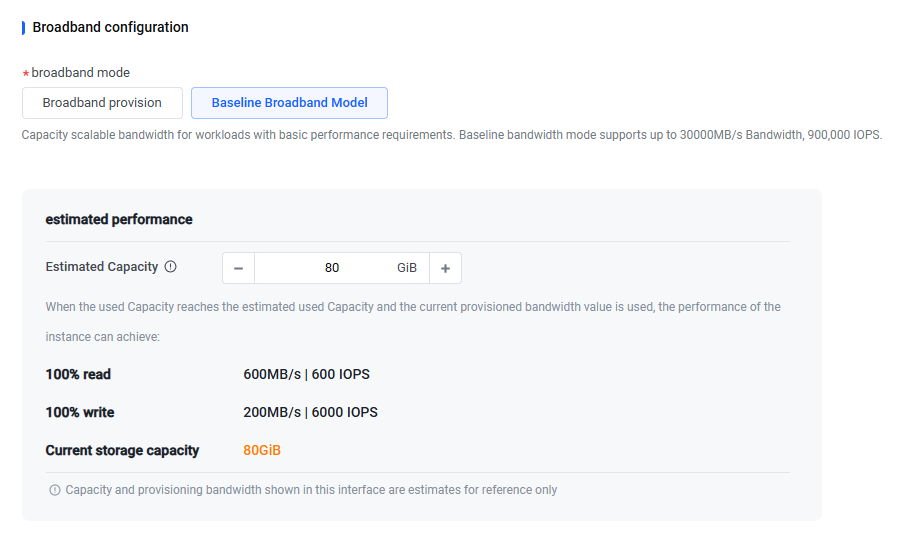
Broadband configurationBroadband modeSelect a bandwidth mode for your accelerator. The default is Broadband provision.- Broadband provision: This mode is ideal for predictable workloads. Configure the provisioned bandwidth according to your needs. Once you have selected this option, you will only be charged for bandwidth that exceeds the baseline bandwidth. This mode supports up to 120,000 MB/s of read bandwidth and 900,000 QPS. To ensure optimal performance when you begin using this service, we recommend configuring a higher initial bandwidth in this mode.
- Baseline Broadband Model: This mode provides scalable bandwidth based on storage capacity for workloads with basic performance requirements. It supports up to 30,000 MB/s of bandwidth and 900,000 IOPS.
- Estimated performance: Adjusting the value for Estimated Capacity will display the corresponding values for 100% read, 100% write, and Current storage capacity.
tipEstimated Capacity is for estimation only and will not be applied to create the accelerator.Current storage capacity is an estimate provided for reference purposes only.-
tipThis parameter only applies when Acceleration mode is set to Read/write cache.Provision of bandwidthSelect whether to enable provisioned bandwidth for your accelerator. If so, enter a limit for the bandwidth. The valid range is 600 to 120,000 MB/s.Estimated performance: Adjusting the value for Provision of bandwidth or Estimated Capacity will display the corresponding values for 100% read, 100% write, Current storage capacity, and Billing provision bandwidth.tipBoth Current storage capacity and Billing provision bandwidth are estimates provided for reference purposes only.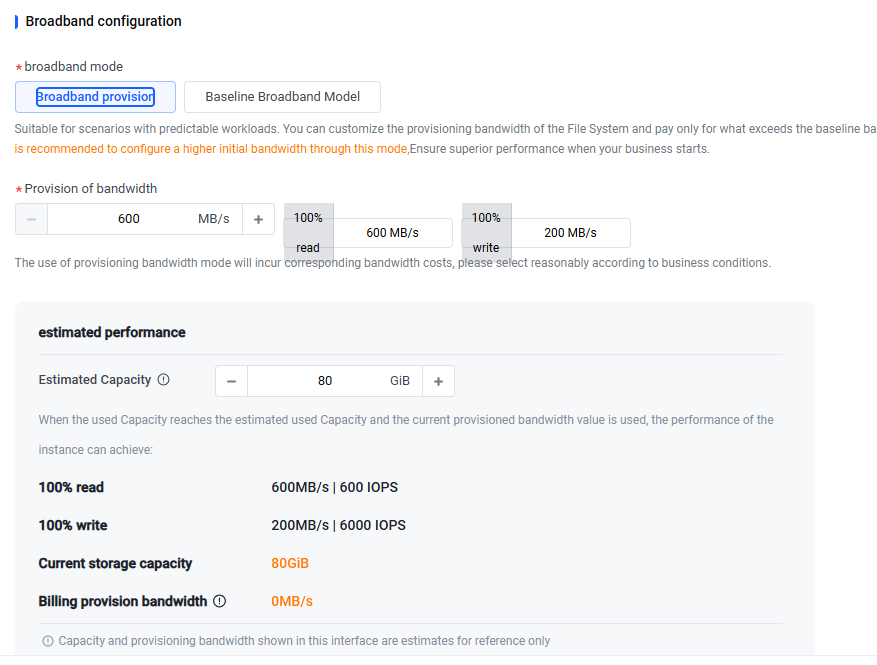 tipThis parameter only applies when Acceleration mode is set to Read/write cache and broadband mode is set to Broadband provision.
- Once you have finished configuring, click Select.
- After creating the accelerator successfully, you can use it for cache acceleration. For more information, see Using TOS accelerators.
Related operations
Editing an accelerator
- Log in to the TOS console.
- In the left navigation pane, click TOS accelerator.
- On the TOS accelerator page, click Edit in the Actions column of the accelerator you want to manage.
- On the Edit TOS accelerator page, modify the following settings as necessary: Acceleration mode, Accelerator capacity, Broadband configuration, Accelerated Domain Name, Acceleration strategy, Acceleration path, Synchronous warm-up, Exclude subpath, and Cache elimination. Then, click Select to save the changes.
warning
Changes take effect immediately after you modify the accelerator capacity or provisioned bandwidth. However, you can only reduce the capacity or bandwidth once per hour.
- In the box that appears, verify the changes and click OK edit.
Deleting an accelerator
Before deleting an accelerator, make sure to clear any warm-up tasks and dissociate all accelerated domain names from it. Otherwise, the accelerator cannot be deleted.
- Log in to the TOS console.
- In the left navigation pane, click TOS accelerator.
- On the TOS accelerator page, click Delete in the Actions column of the accelerator you want to remove.
- In the box that appears, verify that all warm-up tasks have been cleared. Then, click Click Unbind to unbind all accelerated domain names. Next, confirm the deletion by entering the accelerator name and clicking OK.
Last updated: 2026.10.13 10:58:29
All rights reserved © Beijing Volcano Engine Technology Co., Ltd2024
