Torch Object Storage
Torch Object Storage
Torch Object Storage


Document
What's New
Announcements
Billing
Billable items
Billing method
Getting Started
User Guide
Working with buckets
Basic configurations
Managing lifecycle
Back-to-origin rules
Event notification
Intelligent Tiering
Permissions
Domain management
Fault tolerance and disaster recovery
Cross-region replication
Same-region replication
Data redundancy
Image processing
ObjectSet
Working with objects
Managing folders
Monitoring and alerting
Metric monitoring
Access control
Bucket policies
Common configuration scenarios
Authorizing IAM users of the current account
Authorizing other accounts
Managing access via tools and SDKs
Managing public read access
Data security
Access points
Multi-region access points (MRAP)
Single-region access points (SRAP)
Converged access points (CAP)
DevMind
TOS accelerator
SenseFlow
TOS Agent
Data processing
Basic concepts
Image processing
Media processing
Document preview
Task processing
Data subscription
Flow control management
Quality of Service (QoS) policies
Hierarchical namespace (HNS)
User guide
Tool reference
Best practices
TOS Vectors
User guide
API reference
Vector bucket
Vector index
SDK reference
Python-Vectors
Vector bucket
Vector index
Java-Vectors
Vector bucket
Vector index
Node.js-Vectors
Vector bucket
Vector index
Tool Guide
tosutil
Common commands
Upload, download, and copy objects
Share objects
Auxiliary commands
Common examples
TOS Browser
FSX
FSX best practices
TOS PyTorch Connector
tosfsspec
API Reference
Signature Mechanism
The header contains a signature
Bucket
Basic Bucket Operations
Bucket Lifecycle
Access Monitor
Bucket ACL
Bucket CORS
Bucket Policy
Back-to-origin Rules
Bucket Replication
Versioning
Static Website
Event Notification
Custom Domain
Server-side encryption
Transfer Acceleration
Data Processing
Image processing
Media processing
Video transcoding
Audio transcoding
video to GIF
Document preview
File decompression
Log Storage
Retention Policy
Requester pays
TLS version
Object
Basic Object Operations
Object ACL
Fetch Object
Symbolic Link
WORM object
Multipart Upload
SDK Reference
Java
Pre-signing Mechanism
Bucket Interface
Basic Bucket Interface
Manage Bucket Configuration
Object Interface
Upload Object
Download Object
Upload and Download Speed Limit
Copy Object
List Object
Data Processing
Image Processing
Video Processing
Audio Processing
Log Configuration
Hierarchical Namespace
Bucket base interface
Introduction to Typical Scenes
Python
Data processing
Pre-signature mechanism
Bucket interface
Basic bucket interface
Manage bucket configuration
Object interface
Upload object
Download object
Copy object
List objects
Introduction to typical scenes
C
Object Interface
Upload object
C++
Pre-signature Mechanism
Bucket Interface
Basic Bucket Interface
Manage Bucket Configuration
Object Interface
Upload Object
Download Object
Copy Object
List Objects
Data Processing
Go
Object Interface
Upload Object
Download Object
Copy Object
List Objects
Manage Objects
Bucket Interface
Manage Bucket Configuration
Data Processing
Log Configuration
Introduction to Typical Scenes
Pre-signature Mechanism
Node.js
Pre-signature Mechanism
Bucket Interface
Basic Bucket Interface
Manage Bucket Configuration
Object Interface
Upload object
Download object
Copy object
List objects
Data Processing
Image Processing
Introduction to Typical Scenes
Browser.js
Pre-signature Mechanism
Upload Object
Download Object
Copy Object
List Objects
Manage Objects
Data Processing
.NET
Bucket Interface
Object Interface
Upload Object
Download Object
List Objects
Introduction to Typical Scenes
PHP
Bucket Interface
Object Interface
Download Object
Data Processing
Exception Handling
Android
Bucket Interface
Object Interface
Upload Object
Download Object
Exception Handling
iOS
Bucket Interface
Object Interface
Upload Object
Download Object
Harmony
Pre-signature Mechanism
Bucket Interface
Object Interface
Upload Object
Download Object
List Objects v2
Introduction to Typical Scenarios
Rust
Pre-signing mechanism
Bucket interface
Basic bucket operations
Lifecycle rules
Bucket ACLs
Cross-origin resource sharing
Bucket inventory
Back-to-origin rules
Bucket replication
Static website hosting
Event notification
Custom domain
Server-side encryption
Object interface
Basic operation
Access control
Error Codes
01-SERVICE_ERROR
02-AUTH
03-ACCESS_CONTROL
04-QOS
05-REQUEST
06-BUCKET
07-LIFECYCLE
08-ACL
09-CORS
10-POLICY
11-MIRROR
12-REPLICATION
13-WEBSITE
14-NOTIFICATION
15-ENCRYPT
16-CUSTOMDOMAIN
17-OBJECT
18-TAG
19-MULTIPART
20-STORAGE_CLASS
21-CALLBACK
22-DATA_PROCESS
23-BATCH
24-STORAGE_LENS
25-INVENTORY
26-DIRECTORY_BUCKET
FAQ
Best Practices
AIGC-Doubao LLMs
Accessing TOS with third-party tools
Granting temporary access
Data migration
Data processing
Checking data integrity
Performance optimization
- Documentation
 Torch Object StorageBest PracticesData migrationOnline migration with zero service disruption
 Copy page
 Download PDF
Data migration
Online migration with zero service disruption
Copy pageDownload PDFOnline migration with zero service disruption
This topic offers a solution for migrating your data online from third-party services to TOS without disrupting your services.
Business scenario
If your business relies on third-party services and needs to transition to TOS, maintaining service stability and preventing any negative operational impact during the data migration process is essential. This topic will guide you through using Data Migration Service (DMS) and TOS mirroring rules to ensure a seamless migration process.
How it works
Migration flowchart
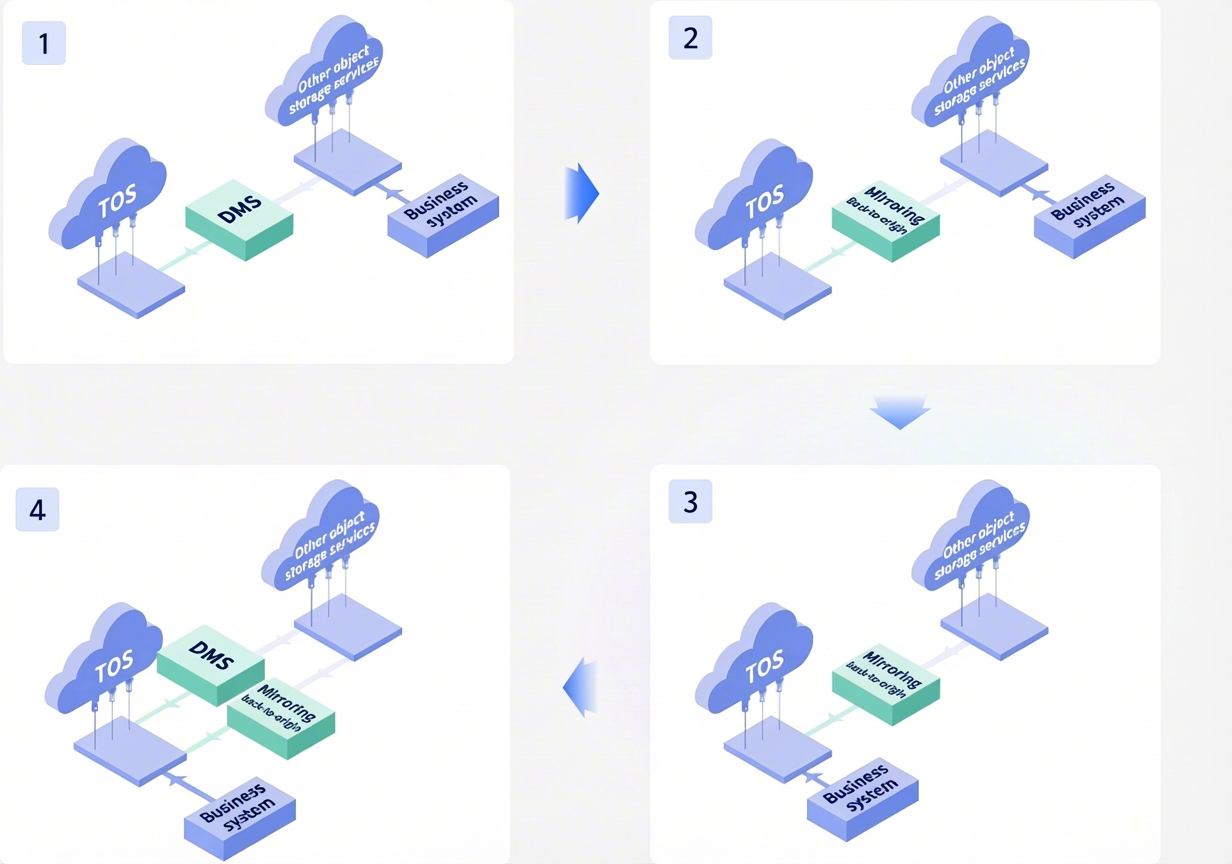
Migration process
- Migrate all existing data to TOS using DMS, Rclone, or other tools. Your original business system will continue to use the original storage service during this process.
- Configure a mirroring rule for your TOS bucket, specifying the origin URL where your source data resides.
- Update your business system to switch to TOS for data storage. After the update, newly generated data will be written directly to TOS. Any previously unmigrated data will be retrieved from the origin server via mirroring rules to ensure business continuity.
- To complete the data and business migration, use DMS, Rclone, or other tools to migrate any incremental data generated during the migration period.
Migration steps
Prerequisites
- Select the migration tool based on your previous object storage service provider and interface type.
- Assess the storage capacity, object count, bandwidth, and QPS capabilities of your previous service provider.
Step 1: Migrate all existing data using DMS
This section demonstrates the migration process using DMS. For instructions on migrating with Rclone, see Accessing TOS with Rclone.
Currently, DMS supports data migration via a public network or a dedicated line. You can migrate data from object storage solutions from multiple cloud service providers, or migrate data using a list of URLs.
- Log in to the DMS console.
- On the Migration tasks page, click Create migration task.
- On the Set the source and destination page, configure the source and destination parameters.
tip
- For more information on the parameters for creating a migration task, see Create migration task.
- For a list of data sources supported by DMS, see Data sources.
- When migrating for the first time, select migrate all for Migration file start time.
- If you are concerned that migrating data will use up your business's bandwidth and disrupt normal operations, you can set Flow control parameters to specify rate-limiting periods and maximum rates for migration tasks. For more information, see Create migration task.
- Once you have finished configuring, click Submit.
Step 2: Configure a mirroring rule
Once the mirroring rule is set, if the requested object does not exist in the bucket, TOS fetches the object from the specified origin server and returns it to the requester. Simultaneously, TOS writes the object to the bucket.
- Log in to the TOS console.
- In the left navigation pane, click Buckets. In the Buckets list, click the bucket you want to manage.
- In the left navigation pane, select Basic configurations > Back-to-Origin rules. On the Back-to-Origin rules page, click Create rule.
- On the Create Back-to-Origin Rule page, configure the following parameters.
- ParameterDescriptionParameterDescriptionBack-to-Origin methodSelect Mirroring.Back-to-Origin conditionCurrently, only HTTP Status Code 404 is supported.Back-to-Origin addressConfigure the address to which TOS will redirect once the mirroring conditions are met. If the source bucket is from a third-party cloud service provider, enter the bucket's domain name.
- Protocol: Select https or http.
- Domain name: It must be in domain format. IP addresses are not supported.
Description- Click Add back to source address to add more addresses. You can add up to 5 back-to-origin addresses.
- If you enter multiple addresses, TOS will randomly select one to send the request. If the request to that address fails, TOS will select a different address.
Whether to carry request parameterEnable this option.Whether to redirect based on the origin serverSelect whether to redirect the request based on the 3XX status code of the origin server. A request can only be redirected once. This option is disabled by default.HTTP Header Delivery RulesSelect the rule for passing response headers when TOS accesses the specified origin server. The options are as follows:- Transparently Transmit All HTTP Headers (Default): When selected, all parameters are passed through, except the following headers: Host, Content-Length, Date, and Authorization.
- Transparently Transmit Specified HTTP Headers: Define the specific headers that are allowed to be passed through. You can add a maximum of 10 headers.
- Transparently Transmit No HTTP Headers: When selected, all parameters are blocked from being passed through.
- Not Transparently Transmit Specified HTTP Headers: Define the specific headers prohibited from being passed through. You can add a maximum of 10 headers.
- Once you have finished configuring, click Submit.
Step 3: Integrate your business system with TOS
After migrating data to TOS, follow these steps to switch your business to TOS:
- Create an Identity and Access Management (IAM) user, grant it the necessary permissions, and obtain its access key ID and secret access key. Refer to the following documentation for instructions:
- Select the appropriate TOS SDK for integration based on your business needs. For a list of SDK languages supported by TOS, see SDK overview.
- Use the TOS SDK to develop and test business interfaces for TOS.
- After testing is complete, upgrade your business system software during off-peak hours to switch to TOS.
Step 4: Migrate incremental data using DMS
The process for migrating incremental data is the same as in Step 1. For more information, see Create migration task.
Recommended configurations when creating the migration task:
- Incremental migration interval: Set the interval to 10 hours if the data volume to migrate is less than 100 TiB. Set it to 24 hours if the data volume is greater than 100 TiB.
- Incremental migrations count: 5.
- Overwrite policy: Do not overwrite.
- Migration file start time: Set this to a time earlier than the start time of the first full data migration task.
Last updated: 2026.09.16 10:50:51
All rights reserved © Beijing Volcano Engine Technology Co., Ltd2024
