Torch Object Storage
Torch Object Storage
Torch Object Storage


Document
What's New
Announcements
Billing
Billable items
Billing method
Getting Started
User Guide
Working with buckets
Basic configurations
Managing lifecycle
Back-to-origin rules
Event notification
Intelligent Tiering
Permissions
Domain management
Fault tolerance and disaster recovery
Cross-region replication
Same-region replication
Data redundancy
Image processing
ObjectSet
Working with objects
Managing folders
Monitoring and alerting
Metric monitoring
Access control
Bucket policies
Common configuration scenarios
Authorizing IAM users of the current account
Authorizing other accounts
Managing access via tools and SDKs
Managing public read access
Data security
Access points
Multi-region access points (MRAP)
Single-region access points (SRAP)
Converged access points (CAP)
DevMind
TOS accelerator
SenseFlow
TOS Agent
Data processing
Basic concepts
Image processing
Media processing
Document preview
Task processing
Data subscription
Flow control management
Quality of Service (QoS) policies
Hierarchical namespace (HNS)
User guide
Tool reference
Best practices
TOS Vectors
User guide
API reference
Vector bucket
Vector index
SDK reference
Python-Vectors
Vector bucket
Vector index
Java-Vectors
Vector bucket
Vector index
Node.js-Vectors
Vector bucket
Vector index
Tool Guide
tosutil
Common commands
Upload, download, and copy objects
Share objects
Auxiliary commands
Common examples
TOS Browser
FSX
FSX best practices
TOS PyTorch Connector
tosfsspec
API Reference
Signature Mechanism
The header contains a signature
Bucket
Basic Bucket Operations
Bucket Lifecycle
Access Monitor
Bucket ACL
Bucket CORS
Bucket Policy
Back-to-origin Rules
Bucket Replication
Versioning
Static Website
Event Notification
Custom Domain
Server-side encryption
Transfer Acceleration
Data Processing
Image processing
Media processing
Video transcoding
Audio transcoding
video to GIF
Document preview
File decompression
Log Storage
Retention Policy
Requester pays
TLS version
Object
Basic Object Operations
Object ACL
Fetch Object
Symbolic Link
WORM object
Multipart Upload
SDK Reference
Java
Pre-signing Mechanism
Bucket Interface
Basic Bucket Interface
Manage Bucket Configuration
Object Interface
Upload Object
Download Object
Upload and Download Speed Limit
Copy Object
List Object
Data Processing
Image Processing
Video Processing
Audio Processing
Log Configuration
Hierarchical Namespace
Bucket base interface
Introduction to Typical Scenes
Python
Data processing
Pre-signature mechanism
Bucket interface
Basic bucket interface
Manage bucket configuration
Object interface
Upload object
Download object
Copy object
List objects
Introduction to typical scenes
C
Object Interface
Upload object
C++
Pre-signature Mechanism
Bucket Interface
Basic Bucket Interface
Manage Bucket Configuration
Object Interface
Upload Object
Download Object
Copy Object
List Objects
Data Processing
Go
Object Interface
Upload Object
Download Object
Copy Object
List Objects
Manage Objects
Bucket Interface
Manage Bucket Configuration
Data Processing
Log Configuration
Introduction to Typical Scenes
Pre-signature Mechanism
Node.js
Pre-signature Mechanism
Bucket Interface
Basic Bucket Interface
Manage Bucket Configuration
Object Interface
Upload object
Download object
Copy object
List objects
Data Processing
Image Processing
Introduction to Typical Scenes
Browser.js
Pre-signature Mechanism
Upload Object
Download Object
Copy Object
List Objects
Manage Objects
Data Processing
.NET
Bucket Interface
Object Interface
Upload Object
Download Object
List Objects
Introduction to Typical Scenes
PHP
Bucket Interface
Object Interface
Download Object
Data Processing
Exception Handling
Android
Bucket Interface
Object Interface
Upload Object
Download Object
Exception Handling
iOS
Bucket Interface
Object Interface
Upload Object
Download Object
Harmony
Pre-signature Mechanism
Bucket Interface
Object Interface
Upload Object
Download Object
List Objects v2
Introduction to Typical Scenarios
Rust
Pre-signing mechanism
Bucket interface
Basic bucket operations
Lifecycle rules
Bucket ACLs
Cross-origin resource sharing
Bucket inventory
Back-to-origin rules
Bucket replication
Static website hosting
Event notification
Custom domain
Server-side encryption
Object interface
Basic operation
Access control
Error Codes
01-SERVICE_ERROR
02-AUTH
03-ACCESS_CONTROL
04-QOS
05-REQUEST
06-BUCKET
07-LIFECYCLE
08-ACL
09-CORS
10-POLICY
11-MIRROR
12-REPLICATION
13-WEBSITE
14-NOTIFICATION
15-ENCRYPT
16-CUSTOMDOMAIN
17-OBJECT
18-TAG
19-MULTIPART
20-STORAGE_CLASS
21-CALLBACK
22-DATA_PROCESS
23-BATCH
24-STORAGE_LENS
25-INVENTORY
26-DIRECTORY_BUCKET
FAQ
Best Practices
AIGC-Doubao LLMs
Accessing TOS with third-party tools
Granting temporary access
Data migration
Data processing
Checking data integrity
Performance optimization
- Documentation
 Torch Object StorageBest PracticesGranting temporary accessAccessing TOS with temporary credentials of Security Token Service
 Copy page
 Download PDF
Granting temporary access
Accessing TOS with temporary credentials of Security Token Service
Copy pageDownload PDFAccessing TOS with temporary credentials of Security Token Service
You can use Security Token Service (STS) to generate temporary access credentials for users. These credentials limit access to TOS resources and expire after a set period. This topic describes how to use the temporary credentials of STS to access TOS.
Use cases
For security purposes, we recommend using temporary credentials instead of permanent ones in the client code when files are uploaded to TOS directly from mobile applications or PC clients. Specifically, the application server obtains the access key ID (AK) and secret access key (SK) via the STS mechanism and delivers the temporary credentials to the client. This solution has the following strengths:
- Temporary credentials become invalid upon expiration, protecting data security.
- You can restrict the permissions of temporary credentials to mitigate the risks associated with leakage, such as cracking or hijacking.
Steps
The steps are as follows.
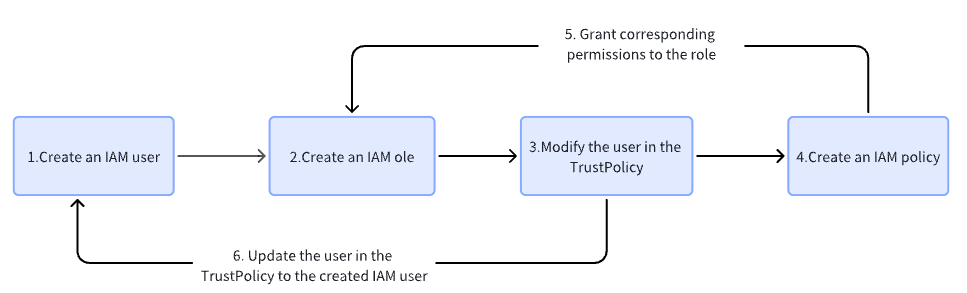
Step 1: Create an IAM user and grant it the STSAssumeRoleAccess permission
This section describes how to create an IAM user, for example, tos_user, and grant it the permission.
- Log in to the IAM console.
- In the left navigation pane, select User management > User.
- On the User page, click Create New User.
- On the Create User page, choose your preferred method for creating a user.
tip
In this topic, the user is created by username. For more information on other methods, see Create user.
- In the Basic information settings wizard, enter your username and other information. Then, check the box for Programmatic access and click Next.
- In the Permission settings wizard, check the box for STSAssumeRoleAccess and click Next.
tip
This is a predefined system policy. You can search for and link it at the top of the pane.
- In the Review wizard, verify your username and click Next.
Step 2: Create an IAM role
This section describes how to create an IAM role, for example, tos_role.
- In the left navigation pane, click Role Management.
- On the Role Management page, click Create New Role.
- In the Create New Role panel, select Account under Select trust identity, and The current account under Select identity. Then, click Next.
- In the Configure role wizard, enter your Role name and other information. Then, click Next.
- In the Authorize wizard, click Skip.
Step 3: Specify the user in the trust policy
This section describes how to specify a user in the trust policy, for example, to change the user to tos_user.
- On the Role Management page, click the role name created in Step 2.
- On the Role detail page, click the Trust relationship tab.
- On the Trust relationship tab, click Edit trust policy.
- Replace the root user with the user created in Step 1 and click Save.
- Below is the sample trust policy.
- {"Statement": [{"Effect": "Allow","Action": ["sts:AssumeRole"],"Principal": {"IAM": ["trn:iam::2100*****4:user/tos_user"]}}]}
tip
The trust policy should be in the following format:
- The default trust policy is trn:iam::2100*****4:root. You need to replace root with the created IAM user, for example, trn:iam::2100*****4:user/tos_user.
- The trn user is in the format of trn:iam::{accountID}:user/{userName}, where {accountID} is the account ID of the role, and {userName} is the username.
Step 4: Create an IAM policy
Create an authorization policy based on your business scenario.
- In the left navigation pane, click Permission policy.
- On the Permission policy page, click Create Policy.
- On the Create Policy page, enter your Policy name. Then, click the JSON editor tab and enter the policy content.
- This section describes how to grant the upload and download permissions for bucket tos-sts. Below is the sample policy.
- {"Statement": [{"Effect": "Allow","Action": ["tos:PutObject","tos:GetObject"],"Resource": ["trn:tos:::tos-sts/*"]}]}
- The parameters are described below.
- ParameterRequiredDescriptionCode blockParameterRequiredDescriptionCode blockEffectYesSpecifies whether to allow or deny an action. The options are:
- Allow
- Deny
"Effect": "Allow"ActionYesSpecifies the actions that the policy allows or denies. For a list of supported actions, see Actions supported by IAM policies.- It is a case-insensitive string in the format of "Action":["tos:Action name"].
- Wildcards (*) are allowed, which indicates that all possible operations can be performed on the resource.
- For example, "Action":["tos:List*"] indicates that all the list actions can be performed on the resource.
"Action": ["tos:List*"]ResourceNoSpecifies the resources on which the specified operations can be performed. If this parameter is not specified, no resources can be manipulated.- It is a case-insensitive string in the format of "Resource": ["trn:tos:::{BucketName}/{ObjectName}"].
- To manipulate a bucket, specify the bucket name only, for example, "Resource": ["trn:tos:::{BucketName}"].
- To manipulate objects in a bucket, specify the objects, for example, "Resource": ["trn:tos:::{BucketName}/{ObjectName}"].
- Wildcards (*) are allowed, which indicates that all resources will be manipulated.
"Resource": ["trn:tos:::bucket/*","trn:tos:::bucket"]
- Once you have finished configuring, click Submit.
Step 5: Grant corresponding permissions to the role
After creating the policy, grant policy permissions to the role created in Step 2.
- On the Permission policy page, click the name of the policy you just created.
- On the Policy detail page, click Authorize.
- On the Authorize page, select the Role tab under Identity. Then, select the role created in Step 2 and click Submit.
Step 6: Obtain the temporary credentials through the AssumeRole API
warning
- The permissions of the temporary credentials are the intersection of the permissions of the role and the IAM policy.
- If no IAM policy is specified, the temporary credentials have the permissions of the prelinked policy of the specified role.
- If the role has no prelinked policy, the temporary credentials will have no permissions, even if the IAM policy is specified.
Although some headers differ, Volcano Engine APIs use signature algorithms that are largely consistent with AWS Signature Version 4. For more information, see Signature Mechanism . You can call the AssumeRole API of STS to get temporary credentials. You can call this API through the following SDKs:
Below are the complete request parameters.
GET /?RoleTrn=trn:iam::2100****4:role/tos_role&RoleSessionName=tos_role_session&DurationSeconds=3600&Action=AssumeRole&Version=2018-01-01 HTTP/1.1
Accept: application/json
Content-Type: application/x-www-form-urlencoded
Host: open.volcengineapi.com
X-Date: Specify when making the request
Authorization: To be signed (use the credentials of the IAM user tos_user here)
tip
When calling AssumeRole to obtain temporary access credentials, you can specify the duration of the credentials using the DurationSeconds parameter. For more information, see AssumeRole.
Alternatively, you can calculate a signature and request temporary access credentials using the code examples provided below, which are illustrated in Python and Go.
Go
Python
package main
import (
"crypto/hmac"
"crypto/sha256"
"encoding/hex"
"fmt"
"io/ioutil"
"net/http"
"net/url"
"time"
)
func sign(key []byte, value string) []byte {
h := hmac.New(sha256.New, key)
h.Write([]byte(value))
return h.Sum(nil)
}
func getSigningKey(key []byte, dateStamp string, regionName, serviceName string) []byte {
kDate := sign(key, dateStamp)
kRegion := sign(kDate, regionName)
kService := sign(kRegion, serviceName)
kSigning := sign(kService, "request")
return kSigning
}
type SignHeaderInput struct {
method string
service string
host string
region string
params url.Values
accessKey string
secretKey string
}
const (
iso8601Layout = "20060102T150405Z"
yyMMdd = "20060102"
emptySHA256 = "e3b0c44298fc1c149afbf4c8996fb92427ae41e4649b934ca495991b7852b855"
)
func getSigningHeader(input SignHeaderInput) map[string]string {
contentType := "application/x-www-form-urlencoded"
accept := "application/json"
t := time.Now().UTC()
xdate := t.Format(iso8601Layout)
datestamp := t.Format(yyMMdd)
// ************* 1: Construct canonical request *************
canonicalUri := "/"
canonicalQueryString := input.params.Encode()
canonicalHeaders := "content-type:" + contentType + "\\n" + "host:" + input.host + "\\n" + "x-date:" + xdate + "\\n"
signedHeaders := "content-type;host;x-date"
canonicalRequest := input.method + "\\n" + canonicalUri + "\\n" + canonicalQueryString + "\\n" + canonicalHeaders + "\\n" + signedHeaders + "\\n" + emptySHA256
// ************* 2: Construct string to sign *************
algorithm := "HMAC-SHA256"
credentialScope := datestamp + "/" + input.region + "/" + input.service + "/" + "request"
cr256 := sha256.Sum256([]byte(canonicalRequest))
stringToSign := algorithm + "\\n" + xdate + "\\n" + credentialScope + "\\n" + hex.EncodeToString(cr256[:])
// ************* 3: Calculate signature *************
signingKey := getSigningKey([]byte(input.secretKey), datestamp, input.region, input.service)
signature := sign(signingKey, stringToSign)
// ************* 4: Add signature to request header *************
authorizationHeader := algorithm + " " + "Credential=" + input.accessKey + "/" + credentialScope + ", " + "SignedHeaders=" + signedHeaders + ", " + "Signature=" + hex.EncodeToString(signature)
headers := map[string]string{"Accept": accept, "Content-Type": contentType, "X-Date": xdate, "Authorization": authorizationHeader}
return headers
}
func main() {
service := "sts"
host := "open.volcengineapi.com"
endpoint := "https://open.volcengineapi.com"
region := "{your region ID}"
accessKey := "{your access key}"
secretKey := "{your secret key}"
queryParams := url.Values{"Action": []string{"AssumeRole"},
"RoleSessionName": []string{"{your session name}"},
"RoleTrn": []string{"trn:iam::{your account ID}:role/{your role name}"},
"Version": []string{"2018-01-01"},
}
header := getSigningHeader(SignHeaderInput{
method: http.MethodGet,
service: service,
host: host,
region: region,
params: queryParams,
accessKey: accessKey,
secretKey: secretKey,
})
req, err := http.NewRequest(http.MethodGet, endpoint+"?"+queryParams.Encode(), nil)
if err != nil {
panic(err)
}
for key, value := range header {
req.Header.Set(key, value)
}
resp, err := http.DefaultClient.Do(req)
if err != nil {
panic(err)
}
defer resp.Body.Close()
body, err := ioutil.ReadAll(resp.Body)
if err != nil {
panic(err)
}
fmt.Println(fmt.Sprintf("status code:%d, body: %s", resp.Status, string(body)))
}
import datetime, hashlib, hmac, json
# Run "pip install requests" to install the Requests library.
import requests, urllib
def sign(key, msg):
return hmac.new(key, msg.encode('utf-8'), hashlib.sha256).digest()
def getSignatureKey(key, dateStamp, regionName, serviceName):
kDate = sign(key.encode('utf-8'), dateStamp)
kRegion = sign(kDate, regionName)
kService = sign(kRegion, serviceName)
kSigning = sign(kService, 'request')
return kSigning
def getSignHeaders(method, service, host, region, request_parameters, access_key, secret_key):
contenttype = 'application/x-www-form-urlencoded'
accept = 'application/json'
t = datetime.datetime.utcnow()
xdate = t.strftime('%Y%m%dT%H%M%SZ')
datestamp = t.strftime('%Y%m%d')
# ************* 1: Construct canonical request *************
canonical_uri = '/'
canonical_querystring = request_parameters
canonical_headers = 'content-type:'+ contenttype + '\n' +'host:' + host + '\n' + 'x-date:' + xdate + '\\n'
signed_headers = 'content-type;host;x-date'
payload_hash = hashlib.sha256(('').encode('utf-8')).hexdigest()
canonical_request = method + '\n' + canonical_uri + '\n' + canonical_querystring + '\n' + canonical_headers + '\\n' + signed_headers + '\\n' + payload_hash
# ************* 2: Construct string to sign *************
algorithm = 'HMAC-SHA256'
credential_scope = datestamp + '/' + region + '/' + service + '/' + 'request'
string_to_sign = algorithm + '\n' + xdate + '\n' + credential_scope + '\n' + hashlib.sha256(canonical_request.encode('utf-8')).hexdigest()
# ************* 3: Calculate signature *************
signing_key = getSignatureKey(secret_key, datestamp, region, service)
signature = hmac.new(signing_key, (string_to_sign).encode('utf-8'), hashlib.sha256).hexdigest()
# ************* 4: Add signature to request header *************
authorization_header = algorithm + ' ' + 'Credential=' + access_key + '/' + credential_scope + ', ' + 'SignedHeaders=' + signed_headers + ', ' + 'Signature=' + signature
headers = {'Accept':accept, 'Content-Type':contenttype, 'X-Date':xdate, 'Authorization':authorization_header}
return headers
# ************* Send a request to obtain temporary AK/SK+Token **********************
method = 'GET'
service = 'sts'
host = 'open.volcengineapi.com'
region = '{your region ID}'
endpoint = 'https://open.volcengineapi.com'
# Enter the AK and SK of the user created in Step 1.
access_key = '{your access key}'
secret_key = '{your secret key}'
# For further details on the request parameters, see https://www.volcengine.com/docs/6257/86374
# Enter the trn of the role created in Step 2, in the format of trn:iam::{accountID}:role/{rolename}, where {accountID} is the account ID to which the role belongs, and {roleName} is the role name. In this topic, for example, you would enter trn:iam::2100xxxx4:role/tos_role.
query_parameters = {
'Action': 'AssumeRole',
'RoleSessionName': '{your session name}',
'RoleTrn': 'trn:iam::{your account ID}:role/{your rolename}',
'Version': '2018-01-01'
}
request_parameters = urllib.parse.urlencode(query_parameters)
headers = getSignHeaders(method,service,host, region, request_parameters, access_key, secret_key)
request_url = endpoint + '?' + request_parameters
print('Request URL = ' + request_url)
r = requests.get(request_url, headers=headers)
print('Response code: %d\\n' % r.status_code)
print(r.text)
The parameters are described below.
Parameter | Example value | Description |
Parameter | Example value | Description |
service | sts | Specifies the requested service, which is sts by default. |
host | open.volcengineapi.com | Specifies the request host, which is open.volcengineapi.com by default. |
endpoint | https://open.volcengineapi.com | Specifies the request endpoint, which is https://open.volcengineapi.com by default. tip To generate temporary access credentials for a private network, set the endpoint to a private network endpoint, such as https://tos-cn-beijing.ivolces.com. |
region | cn-beijing | |
accessKey | AKLTYTMyNTRlMTY5NmM0NDdiMjg3MmRlMzFl****NjU | |
secretKey | TWpoaU9HRmlPV1ZrTURJNExxxxxx4WkRoaF**** | Specifies the SK of the user created in Step 1. For instructions on how to view the AK and SK, see Access Key Management |
action | AssumeRole | Specifies the API name, which is AssumeRole by default. |
RoleSessionName | tos_role_session | Specifies the temporary name of the request, which can be set as needed. |
RoleTrn | trn:iam::2100xxxx4:role/tos_role | Specifies the trn of the role created in Step 2 in the format of trn:iam::{accountID}:role/{roleName}.
For example, the role created in this topic is tos_role, so the trn is trn:iam::2100xxxx4:role/tos_role. |
Version | 2018-01-01 | Specifies the request version, which is 2018-01-01 by default. |
Below is an example of a successful response.
Response code: 200
{
"ResponseMetadata": {
"RequestId": "20220626182126010212063166****",
"Action": "AssumeRole",
"Version": "2018-01-01",
"Service": "sts"
},
"Result": {
"Credentials": {
"CurrentTime": "2022-06-26T18:21:27+08:00",
"ExpiredTime": "2022-06-26T19:21:27+08:00",
"AccessKeyId": "AKTPYmI1ZGQwMDA0NjlhNGFkMzhjNzM0N2Q0OTQ3ZTV****",
"SecretAccessKey": "T1dJM01UUXpOak0wTVdWak5EUmtOR0poWldJNU1HWmxaV1V5TkdReVl6****",
"SessionToken": "STSeyJBY2NvdW50SWQiOjIxMDAwMDUyMjQsIklkZW50aXR5VHlwZSI6NCwiSWRlbnRpdHlJZCI6MTE3MjI5NiwiQ2hhbm5lbCI6IlVzZXIiLCJBY2Nlc3NLZXlJZCI6IkFLVFBZbUkxWkdRd01EQTBOamxoTkdGa016aGpOek0wTjJRME9UUTNaVFZqTXpFIiwiU2lnbmVkU2VjcmV0QWNjZXNzS2V5IjoidVIvMmhvTE9Yd1lwNlR6QkxUOVZQVDQrbVVaQjMzMEJoQ0NPWk9JMVBRWkpZMFZPcGRPendybFNVYytGNlorRVR1ZDJsMlg0UkUyMWJEYnZ1QWl6S3c9PSIsIkV4cGlyZWRUaW1lIjoxNjU2MjQyNDg3LCJQb2xpY3lTdHJpbmciOiIiLCJTaWduYXR1cmUiOiIzOTlmMjZkNjIzZWUxMmU2NWViMDIwY2RlOWZkMDZkZDc4MTBkNjhkYjQyYzBjZTE3ZDA5MjY4NWYwMDQyYThlIiwiU2Vzc2lvbk5hbWUiOiJ0b3Nfcm9sZV9z************"
},
"AssumedRoleUser": {
"Trn": "trn:sts::21000****4:assumed-role/tos_role/tos_role_session",
"AssumedRoleId": "117****:tos_role_session"
}
}
}
Step 7: Use the temporary credentials to access TOS
After obtaining the temporary credentials, you can access TOS with either TOS SDKs or AWS S3 SDKs. This section describes how to do so with the TOS Go SDK.
tip
- For more information on TOS regions and endpoints, see Regions and endpoints.
- For instructions on how to view the AK and SK, see Viewing the Access Key ID and Secret Access Key.
- For sample code to configure STS using TOS SDKs, see the following documents:
- Java
- Go
- C++
package main
import (
"context"
"fmt"
"strings"
"github.com/volcengine/ve-tos-golang-sdk/v2/tos"
)
func main() {
// Enter the temporary AK/SK+Token obtained in the previous step
ak := "AKTPYmI1ZGQwMDA0NjlhNGFkMzhjNzM0N2Q0OTQ3ZTV****"
sk := "T1dJM01UUXpOak0wTVdWak5EUmtOR0poWldJNU1HWmxaV1V5TkdReVl6****"
stToken := "STSeyJBY2NvdW50SWQiOjIxMDAwMDUyMjQsIklkZW50aXR5VHlwZSI6NCwiSWRlbnRpdHlJZCI6MTE3MjI5NiwiQ2hhbm5lbCI6IlVzZXIiLCJBY2Nlc3NLZXlJZCI6IkFLVFBZbUkxWkdRd01EQTBOamxoTkdGa016aGpOek0wTjJRME9UUTNaVFZqTXpFIiwiU2lnbmVkU2VjcmV0QWNjZXNzS2V5IjoidVIvMmhvTE9Yd1lwNlR6QkxUOVZQVDQrbVVaQjMzMEJoQ0NPWk9JMVBRWkpZMFZPcGRPendybFNVYytGNlorRVR1ZDJsMlg0UkUyMWJEYnZ1QWl6S3c9PSIsIkV4cGlyZWRUaW1lIjoxNjU2MjQyNDg3LCJQb2xpY3lTdHJpbmciOiIiLCJTaWduYXR1cmUiOiIzOTlmMjZkNjIzZWUxMmU2NWViMDIwY2RlOWZkMDZkZDc4MTBkNjhkYjQyYzBjZTE3ZDA5MjY4NWYwMDQyYThlIiwiU2Vzc2lvbk5hbWUiOiJ0b3Nfcm9sZV9z************"
// Use TOS endpoint. For more information, see https://www.volcengine.com/docs/6349/107356
endpoint := "https://tos-cn-beijing.volces.com"
region := "cn-beijing"
// Create a TosClient instance
cred := tos.NewStaticCredentials(ak, sk)
cred.WithSecurityToken(stToken)
client, err := tos.NewClientV2(endpoint, tos.WithRegion(region), tos.WithCredentials(cred))
if err != nil {
panic(err)
}
res, err := client.PutObjectV2(context.Background(), &tos.PutObjectV2Input{PutObjectBasicInput: tos.PutObjectBasicInput{Bucket: "tos-sts", Key: "sts.txt"}, Content: strings.NewReader("hello STS")})
if err != nil {
panic(err)
}
fmt.Println(res)
}
Last updated: 2026.10.13 10:34:49
All rights reserved © Beijing Volcano Engine Technology Co., Ltd2024
