Elastic Compute Service
Elastic Compute Service


Document

- Documentation
 Elastic Compute ServiceElastic Compute ServiceBest PracticesAI applicationsOpenClaw (formerly Moltbot)Quickly deploying OpenClaw via application templatesQuickly deploying OpenClaw and integrating Feishu AI assistant
 Copy page
 Download PDF
Quickly deploying OpenClaw via application templates
Quickly deploying OpenClaw and integrating Feishu AI assistant
Copy pageDownload PDFQuickly deploying OpenClaw and integrating Feishu AI assistant
OpenClaw is an open-source, local-first AI agent and automation platform. With OpenClaw, you can deeply integrate multi-channel communication capabilities with large language models to build a customized AI assistant with persistent memory and proactive execution capabilities.
Change history
warning
To upgrade or reset OpenClaw deployed on the ECS instance, you can create an OpenClaw application update task to complete the operation.
Features
Volcano Engine provides an application template for rapid OpenClaw deployment. This template not only helps you quickly deploy OpenClaw and integrate it with a Feishu enterprise application, but also comes with pre-integrated common Skills from AgentKit. In addition, it natively supports multimodal capabilities for image and video generation.
- For developers, especially for individual development scenarios, ModelArk offers a Coding Plan solution that supports the use and free switching of mainstream code models (the latest versions of Doubao-Seed-Code, GLM, Kimi, DeepSeek, and more). This facilitates coding tasks such as personal project development, learning and practice, and tool building.
- For enterprise-level development needs, you can select any large language model from "Foundation models" of ModelArk. Multiple model services, including Doubao-Seed-Code, GLM-4.7, DeepSeek-V3.2, and Kimi-K2-Thinking are now fully compatible with the OpenClaw technical ecosystem.
warning
To use the natively supported multimodal capabilities for image and video generation, go to the Model activation page, and then select either doubao-seedream-4-5 (251128) or doubao-seedance-1-5-pro (251215) for OpenClaw.
Integration description
This topic describes how to quickly deploy OpenClaw on an ECS instance and configure your custom private AI assistant in Feishu in the following two scenarios.
- Scenario 1: Configure the model and integrate a Feishu application after ECS instance purchase: This scenario is applicable to users who have not yet activated ModelArk or have not created a Feishu enterprise application. It provides complete guidance on activating ModelArk, creating a Feishu enterprise application, and integrating OpenClaw with the application in the instance.
- Scenario 2: Configure the model and integrate a Feishu application during ECS instance purchase: This scenario is applicable to users who have activated ModelArk and have created a Feishu enterprise application. You can quickly configure the ModelArk model and Feishu enterprise application information through "Advanced configuration" when purchasing an ECS instance. Subsequently, after the OpenClaw service starts as expected, verify that the Feishu application permissions and long connection configuration meet the requirements to complete the integration.
Configure the model and integrate a Feishu application after ECS instance purchase
After purchasing an ECS instance, you can activate the ModelArk service, create a Feishu enterprise application, and quickly integrate it with OpenClaw within the instance.
warning
This section applies to users who have not enabled the ModelArk service or created a Feishu enterprise application. Otherwise, see Configure the model and integrate a Feishu application during ECS instance purchase and proceed.
Step 1: Create an ECS instance
- Click here to log in to the ECS console.
- Quickly purchase an ECS instance pre-installed with OpenClaw by using an application template, and configure the following parameters.
-
- In the "Configuration details" section on the right, confirm the instance configuration and fee, and check "I have read and agree with Elastic Compute Service Terms of Service".
- Click the "Buy now" button to complete the purchase.
- You can also click the "Go to console" button to view the specifications of the newly created instance on the instance list page. You can also log in to the instance through the console.
Step 2: Activate ModelArk and obtain the configuration
Activate ModelArk and obtain the API Key by following the instructions in this section.
- Log in to the Model activation page, and select the model family to provide inference services for OpenClaw.
- In the directory tree on the left, select "Configure > API keys" to create and obtain an API Key.
tip
The obtained API Key will be used to configure OpenClaw. Keep it secure.
- In the directory tree on the left, select "GenAI studio > Foundation models", and click the specific model you want OpenClaw to use to enter its details page. In this topic, "Doubao-Seed-Code" is used.
- Click the copy button to obtain the "Model ID".
tip
The obtained model ID will be used to configure OpenClaw. Keep it secure.
Step 3: Create a Feishu bot and obtain the configuration
- Create a custom enterprise application.
- Log in to the Feishu Developer Console and click the "Create Custom App" button.
- Configure the application name, description, and icon as needed.
- Click "Create" to complete the operation.
- Add bot capabilities.
- In the directory tree on the left, select "Features > Add Features".
- Select the "By Feature" tab, and click the "Configure" button on the "Bot" capability card.
- Configure permissions.
- In the directory tree on the left, select "Development Configuration > Permissions & Scopes", and click the "Batch import/export scopes" button.
- On the "Import" tab, replace the original example with the following permissions, and click the "Next, Review New Scopes" button.
-
- In the pop-up window, confirm the permissions are correct and click the "Add" button.
tip
- Click the "Configure" button to set the accessible data scope for the permission (keep the default option "Identical to the availability of app" in this topic), then click "Confirm" to complete the operation.
- Obtain configuration information.
- In the directory tree on the left, select "Basic Info > Credentials & Basic Info".
- In the "Credentials" module, obtain and record the App ID and App Secret information.
tip
The obtained App ID and App Secret will be used to configure OpenClaw. Keep them secure.
- Publish the application.
- Click the "Create version" button at the top.
- Configure the application version number, default capabilities, update description, and other information as needed. Learn more.
- Click the "Save" button at the bottom of the page to complete the version creation.
- Click the "Publish" button in the upper-right corner of the page to publish the application.
Step 4: Configure the OpenClaw Feishu AI assistant
- Execute the following command to configure the parameters for the model and Feishu integration.
-
tip
Adjust the following parameter values in the command based on your actual situation:
- --ark-coding-plan: Specify whether to use your subscribed Coding Plan.
- If you have already subscribed to the Coding Plan, pass in true.
- If you have not subscribed to the ModelArk Coding Plan, pass in false. We recommend that you subscribe to the ModelArk Coding Plan, which costs as low as CNY 9.9 per month and enables flexible model calls.
- --ark-model-id: Specify the ModelArk model you want OpenClaw to use.
- If the --ark-coding-plan parameter is set to true, replace doubao-seed-code with the name of the model supported by the Coding Plan. You can obtain the model name by referring to Configure the model name (specified in the configuration file).
- If the --ark-coding-plan parameter is set to false, replace doubao-seed-code with the ID of the ModelArk model you want to use.
- --ark-api-key: Specify the ModelArk API Key.
- --feishu-app-id: Specify the App ID of the Feishu bot.
- --feishu-app-secret: Specify the App Secret of the Feishu bot.
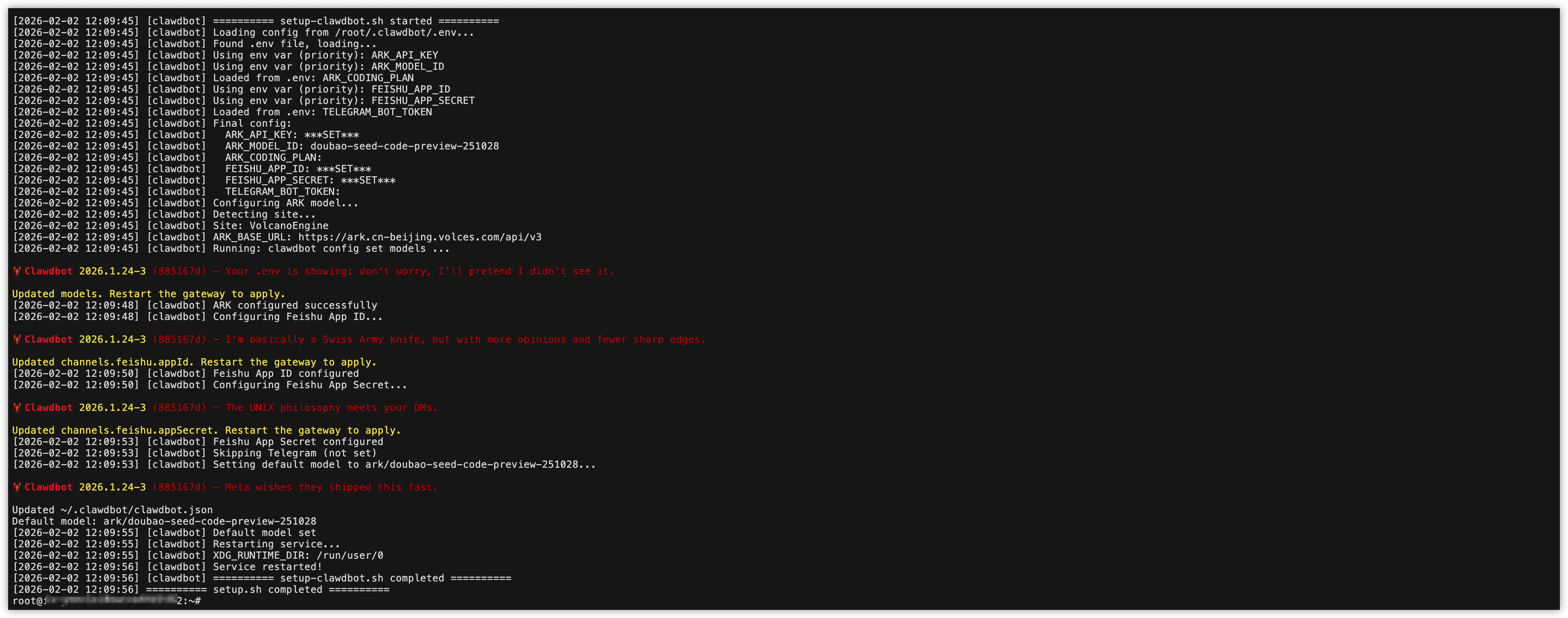
- If the output is as shown below, the configuration has succeeded.
-
- Log in to the Feishu Developer Console.
- Select the "Custom Apps" tab and click the Feishu open application you created.
- In the directory tree on the left, select "Development Configuration > Events & Callbacks".
- Event configuration
- Select the "Event Configuration" tab, and click the edit button next to "Subscription mode".
- Select "Receive events through persistent connection" and click the "Save" button.
- In the "Events added" section, click the "Add Events" button.
- In the "Add Events" dialog box, select the "Tenant Token-Based Subscription" tab. Search for "Message" and check "Message received", "reaction.created", and "reaction.deleted". Then, click "Add".
- (Optional) If you want to use the bot in chat groups, you need to authorize the bot to obtain group messages. Otherwise, skip this step.
warning
As OpenClaw is designed as a personal AI assistant, using it in group chats may pose risks such as credential leakage. Use it with caution.
- In the "Events added" module, click the "Expand" button in the "Required scopes (any one suffices)" column of the "Message received" event.
- Click "Read all messages in associated group chat (sensitive scope)".
- In the pop-up window, click the "Add" button to apply for authorization.
- Callback Configuration
- Select the "Callback Configuration" tab and click the edit button next to "Subscription mode".
- Select "Receive callbacks through persistent connection" and click the "Save" button.
- In the "Add callback" dialog box, select the "Card" tab, check "Card callback communication", and click the "Add" button.
- Create and release a new bot version.
- Click the "Create Version" button at the top.
- Configure the application version number, default capabilities, update description, and other information as needed. Learn more.
- Click the "Save" button at the bottom of the page to complete the version creation.
- Click the "Publish" button in the upper-right corner of the page to publish the application.
- Pair with the Feishu application.
- Send any message to the bot (for example: "Introduce yourself").
- Obtain the pairing code from the reply of the bot.
-
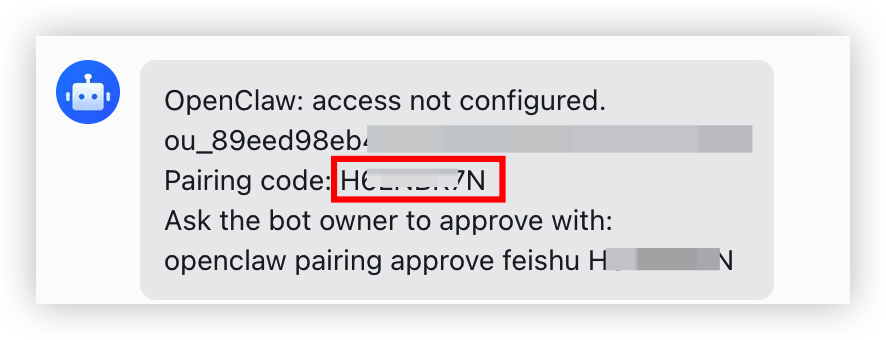
- Execute the openclaw pairing approve feishu <the Pairing code you obtained> --notify command to complete pairing.
- Return to the Feishu bot chat box and complete authorization as prompted.
tip
If you do not want to authorize at this moment, you can also start a chat directly with the Feishu bot. When needed, you can enter /feishu auth in the Feishu bot chat box to initiate batch authorization.
- At this point, you have integrated the Feishu bot as expected. You can now officially use your custom private AI assistant in Lark.
Configure the model and integrate a Feishu application during ECS instance purchase
You can quickly integrate OpenClaw when purchasing an ECS instance for higher efficiency and convenience.
warning
This section applies to users who have enabled the ModelArk service and created a Feishu enterprise application. Otherwise, please refer to the Configure the model and integrate a Feishu application after ECS instance purchase and proceed.
Prerequisites
- A Feishu application with bot capabilities has been created.
Step 1: Create an ECS instance
- Click here to log in to the ECS console.
- Quickly purchase an ECS instance pre-installed with OpenClaw by using an application template, and configure the following parameters.
-
- In the "Configuration details" section on the right, confirm the instance configuration and fee, and check "I have read and agree with Elastic Compute Service Terms of Service".
- Click the "Buy now" button to complete the purchase.
- You can also click the "Go to console" button to view the specifications of the newly created instance on the instance list page. You can also log in to the instance through the console.
Step 2: Configure the OpenClaw Feishu AI assistant
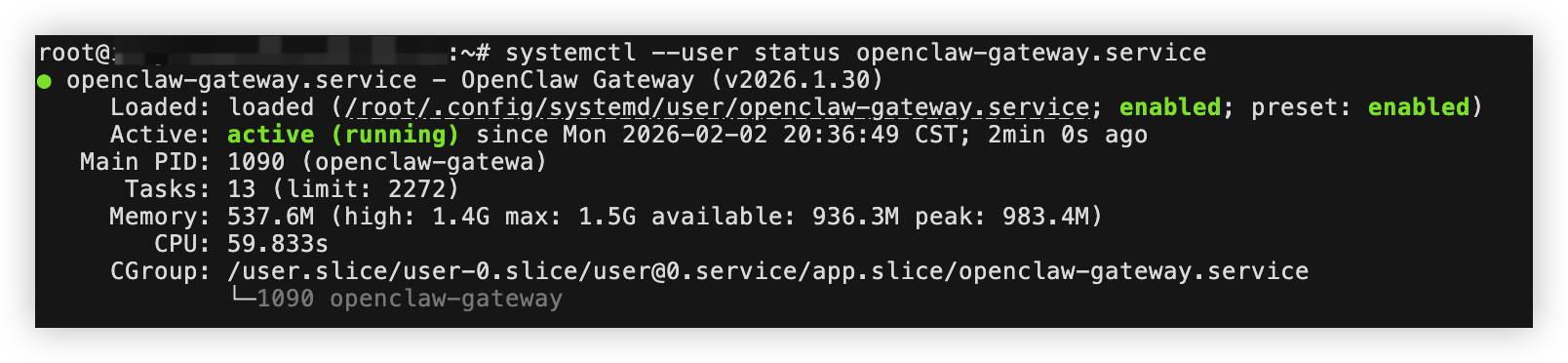
- Execute the following command to check the running status of the OpenClaw service and check whether it started as expected.
-
- Proceed to the next steps if the output shows the service status as active (running), which indicates the OpenClaw service is running as expected.
-
- Log in to the Feishu Developer Console.
- Select the "Custom Apps" tab and click the Feishu open application you created.
- Configure permissions.
- In the directory tree on the left, select "Development Configuration > Permissions & Scopes", and click the "Batch import/export scopes" button.
- On the "Import" tab, replace the original example with the following permissions, and click the "Next, Review New Scopes" button.
-
- After confirming the permissions are correct in the pop-up window, click the "Add" button to complete the operation.
tip
- Go to the details page of the Feishu application you created. In the directory tree on the left, select "Development Configuration > Events & Callbacks".
- Event Configuration
- Select the "Event Configuration" tab, and click the edit button next to "Subscription mode".
- Select "Receive events through persistent connection" and click the "Save" button.
- In the "Events added" section, click the "Add Events" button.
- In the "Add Events" dialog box, select the "Tenant Token-Based Subscription" tab. Search for "Message" and check "Message received", "reaction.created", and "reaction.deleted". Then, click "Add".
- (Optional) If you want to use the bot in chat groups, you need to authorize the bot to obtain group messages. Otherwise, skip this step.
- In the "Events added" module, click the "Expand" button in the "Required scopes (any one suffices)" column of the "Message received" event.
- Click "Read all messages in associated group chat (sensitive scope)".
- In the pop-up window, click the "Add" button to apply for authorization.
- Callback Configuration
- Select the "Callback Configuration" tab and click the edit button next to "Subscription mode".
- Select "Receive callbacks through persistent connection" and click the "Save" button.
- In the "Add callback" dialog box, select the "Card" tab, check "Card callback communication", and click the "Add" button.
- Create and release a new bot version.
- Click the "Create Version" button at the top.
- Configure the application version number, default capabilities, update description, and other information as needed. Learn more.
- Click the "Save" button at the bottom of the page to complete the version creation.
- Click the "Publish" button in the upper-right corner of the page to publish the application.
- Pair with the Feishu application.
- Send any message to the bot (for example: "Introduce yourself").
- Obtain the pairing code from the reply of the bot.
-
- Execute the openclaw pairing approve feishu <the Pairing code you obtained> --notify command to complete pairing.
- Return to the Feishu bot chat box and complete authorization as prompted.
tip
If you do not want to authorize at this moment, you can also start a chat directly with the Feishu bot. When needed, you can enter /feishu auth in the Feishu bot chat box to initiate batch authorization.
- At this point, you have integrated the Feishu bot as expected. You can now officially use your custom private AI assistant in Lark.
Use the AI assistant
After the Feishu application is released successfully, you can chat with your AI assistant and assign it tasks within Lark.
- In Feishu, turn on "Open Platform Assistant" message notifications, and click "Open App".
- This topic uses the following example to demonstrate the workflow of the AI assistant.
- Feishu bot usage examplesYou cannot only chat with ArkClaw through the Feishu bot, but also use ArkClaw to manage Feishu documents, search and summarize Feishu messages, create Feishu schedules, and perform other operations via the bot.Schedule tasks via chat
- Task 1: Generate Spring Festival-themed images
- Prompt used:
- Spring Festival theme. Use the image_generate tool to create four storyboard images in sequence. Create four independent tasks at once. If no style is specified, use "Shanghai fine arts cartoon style" by default. Send me all four images after generation.
- Output:
- Task 2: Create a video from the images generated in "Task 1"
- Prompt used:
- Use these four images as start/end frames to make three voiced video segments. Use the video-generate tool at 480p. Each file must be under 5MB. Compress the resulting mp4 files and send them to me separately.
- Output:
View the features currently supported by the Feishu plugin- Sample prompt:
- Learn about the newly installed Feishu plugin and list its capabilities.
- Sample result:
-
Replay Play00:00 / 00:00 Live 00:00FullscreenCssfullscreenClick and hold to drag
Generate Feishu documentsYou can ask ArkClaw to save task results as Feishu documents for convenient viewing and sharing within Feishu.- Sample prompt:
- Help me research the top 10 most downloaded skills in ClawHub, and summarize their features, highlights, installation methods, and other information into a Feishu document.
- Sample result:
-
Replay Play00:00 / 00:00 Live 00:00FullscreenCssfullscreenClick and hold to drag
Schedule eventsYou can ask ArkClaw to help you create Feishu schedules and tasks at any time.- Sample prompt:
- Schedule a meeting for me tomorrow from 11:00 to 12:00 with the topic Business Progress Summary.
- Performance test example
-
Replay Play00:00 / 00:54 Live 00:00FullscreenCssfullscreenClick and hold to drag
Configure the ModelArk Coding Plan
To switch to a subscribed Coding Plan and its supported models, follow the instructions in this section to adjust the OpenClaw configuration.
- Execute the following command to modify the OpenClaw configuration.
tip
- Replace <your_key> with the API Key you created in ModelArk.
- Replace <model_name> with the model name included in the Coding Plan. You can obtain the model name by referring to Configure the model name (specified in the configuration file).
-
-
Last updated: 2026.06.02 15:52:54
All rights reserved © Beijing Volcano Engine Technology Co., Ltd2024
