Elastic Compute Service
Elastic Compute Service
Elastic Compute Service


Document
Elastic Compute Service
What's New
Announcement
OpenAPI related
Pricing and quotas are related
About products and plugins
Feature discontinuation
Overview
Billing
Billable items
Billing methods
Billing methods change
Getting Started
User Guide
Instances
Instance types
X86 Computing
Elastic Bare Metal Server
Heterogeneous Computing
Select instance billing method
Spot instance
Elastic Scheduled Instance
Offsetting Resources
Reserved Instances
Buying ECS instances
Logging in to an instance
Logging in to a Linux instance
Managing instance status
Modifying instance types
Using instance user data and metadata
Instance metadata
Images
Public images
veLinux images
Custom images
Importing custom images
Creating custom images
Image detection
End of life (EOL) of image
Elastic Block Storage
Basic volume operations
Partitioning and formatting a volume
Extending a volume
EBS Agent
Snapshots
Basic snapshot operations
Auto snapshot policies
DataInsights
Network
Network interface and IP address
IP Address
IPv4 address
Security group
Security
Passwords and key pairs
Deployment and scaling
Monitoring
Monitoring metrics
Event monitoring
Local volume event O&M
Method 1: Solve the local volume failure by replacing the faulty volume
O&M
Cloud assistant
Managing agents
Process choreography
Common operation and maintenance tasks
Batch operations on instances
Batch operations on EBS Volumes
Batch operations on images
Temporary upgrade of bandwidth
Managing application updates
orchestration plan
Patch management
Managing patch plans
Managing patch baselines
IAM
Tags and projects
Best Practices
AI applications
OpenClaw (formerly Moltbot)
Quickly deploying OpenClaw via application templates
Quickly deploying OpenClaw via marketplace images
Manually deploying OpenClaw
Self-service website creation
Building environments
Building a Web environment (Windows)
Building applications
Building FTP site
Deploying databases
Building game servers
Building websites
Building a WordPress blog
Building multiple websites
Manage software sources for Linux instances
AIGC practices
Performance test
Network performance test
Instance configuration
Setting up AD Domain Services on Windows OS
Windows Multi - User Login
Changing screen resolution
Instance data
Uploading or downloading files
Data restoration
ECS instance local time synchronization
Volume
Monitoring
Security
Images
Kernel fine-tuning
O&M
Troubleshooting
Remote log in issue
Linux operating system issue
Windows operating system issue
SSH log in issue
Operating system issue
veLinux operating system issue
Linux operating system issue
Windows operating system issue
Instance status issue
Instance unable to start issue
High instance load issue
GPU instances issue
Network connection issue
Network configuration issue
Storage classes issue
EBS Volume issue
Local Disk issue
Logs and monitoring issue
Third - party software issue
API Reference
Regions and availability zones
Instances
Images
HPC clusters
Key pairs
Tags
Volumes
Reserved storage capacity
Snapshot
Auto snapshot policy
Monitoring
Deployment sets
Launch templates
Cloud assistant
Patch management
SDK reference
CLI Reference
FAQ
Dedicated Host DDH
What's New
Billing
User Guide
Manage Dedicated Host
Manage Dedicated Host Cluster
Manage ECS instances
Monitoring and O&M
API reference
proprietary host
- Documentation
 Elastic Compute ServiceElastic Compute ServiceBest PracticesInstance dataUploading or downloading filesTransferring files from local macOS system to Windows instance (MRD)
 Copy page
 Download PDF
Uploading or downloading files
Transferring files from local macOS system to Windows instance (MRD)
Copy pageDownload PDFTransferring files from local macOS system to Windows instance (MRD)
If your local computer is running the macOS operating system, you can transfer files to a Windows ECS instance by using MRD.
About MRD
Microsoft Remote Desktop (MRD) is a remote desktop client developed by Microsoft for macOS. You can use and control remote Windows applications, resources, and desktops from your macOS computer.
MRD is applicable to Windows Server 2019 and Windows Server 2016.
Prerequisites
- Local computer:
- The macOS operating system is used.
- The MRD client is downloaded and installed. Microsoft has officially discontinued providing download links for the MRD client. You can click Microsoft Remote Desktop Beta to download and use the Beta version.
- ECS instance:
- The Windows operating system is used.
- The instance is in the Running status.
- An EIP is associated with the ECS instance, enabling the ECS instance to connect to the Internet.
- An inbound rule is added to the security group of the instance to allow inbound traffic on port 3389. For more information, see Modifying security group rules.
Software version
- Operating system of the local computer: In the example provided in this topic, macOS Big Sur 11.6 is used.
- Operating system of the ECS instance: In the example provided in this topic, Windows Server 2019 is used.
- MRD version: Version 10.6.8 (1914).
Procedure
Upload a file
- Start the MRD client on the local computer.
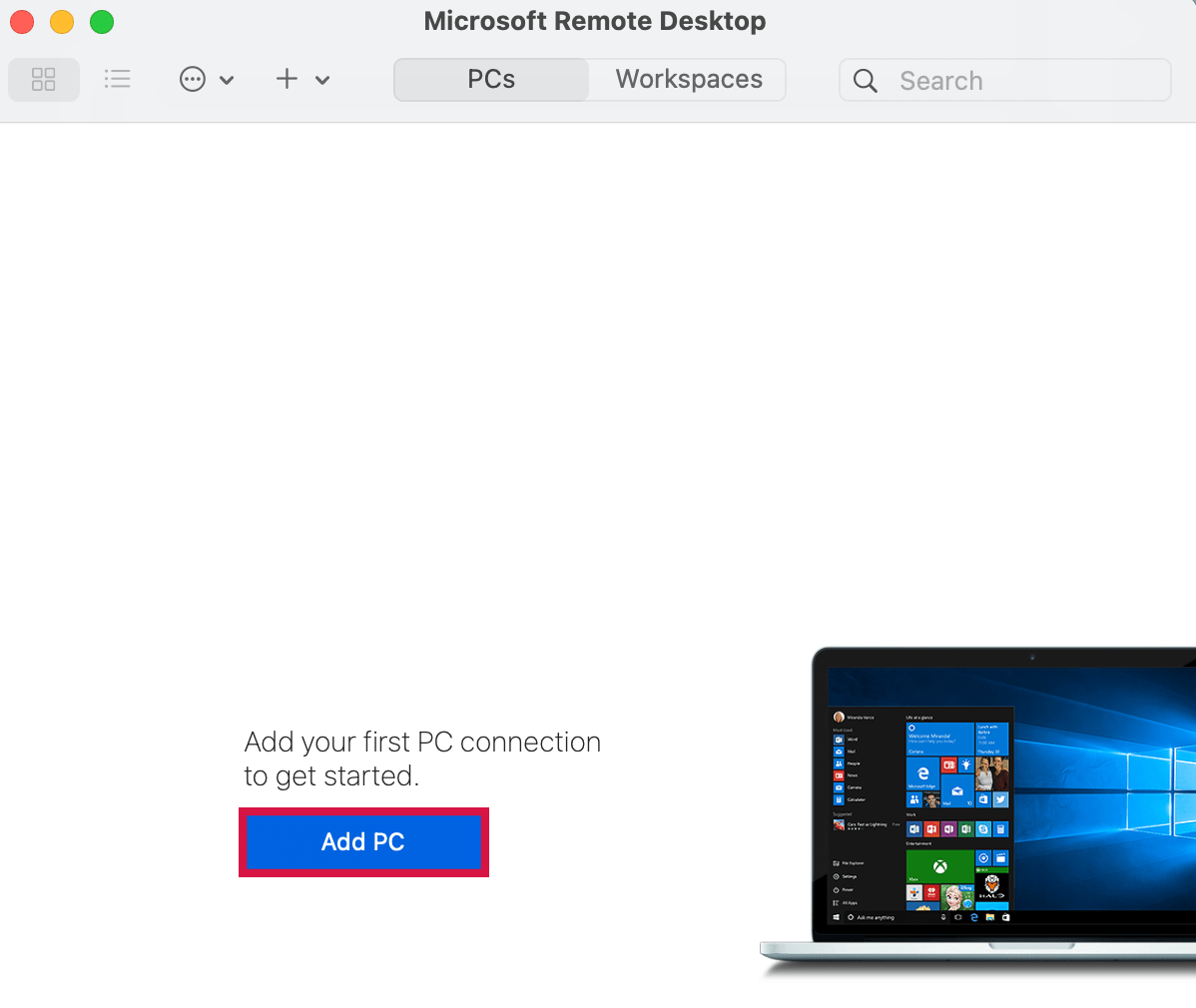
- Click the "Add PC" button.
-
- In the pop-up "Add PC" window, perform the following steps to configure the login information.
-
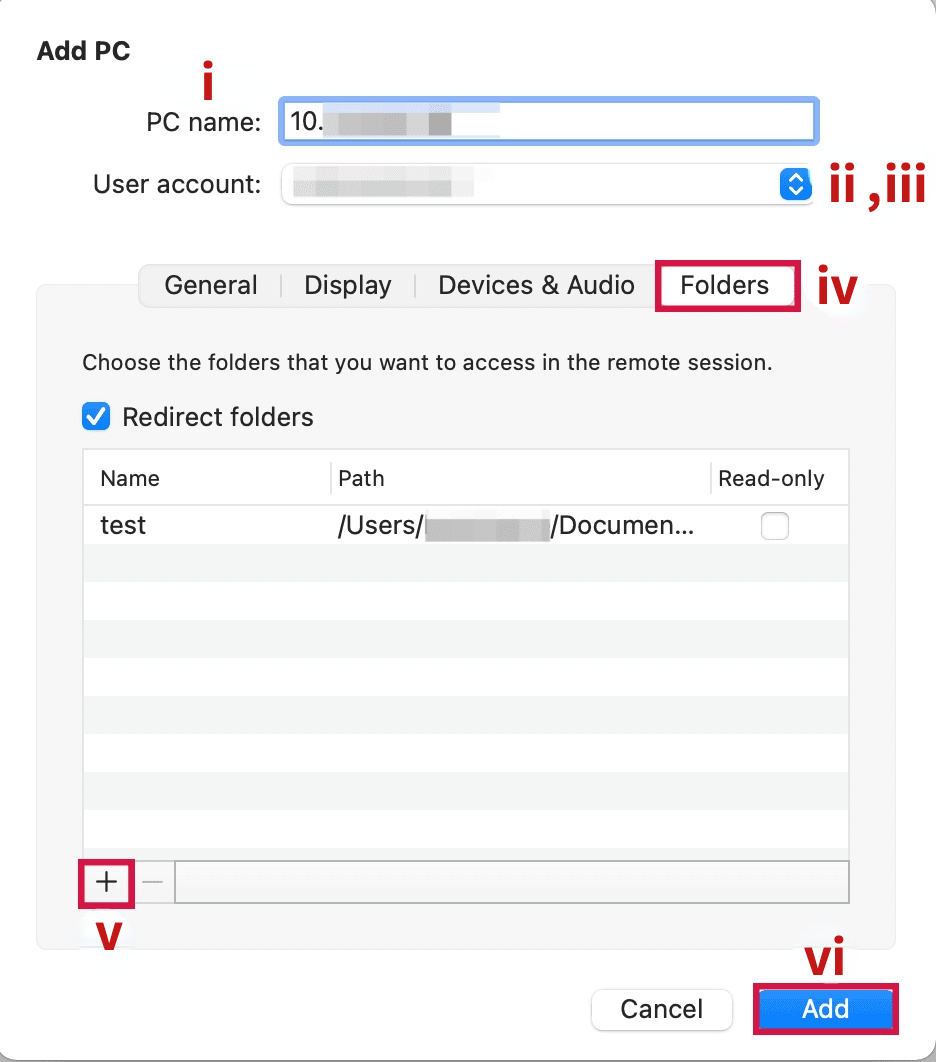
- PC name: Enter the EIP of the ECS instance.
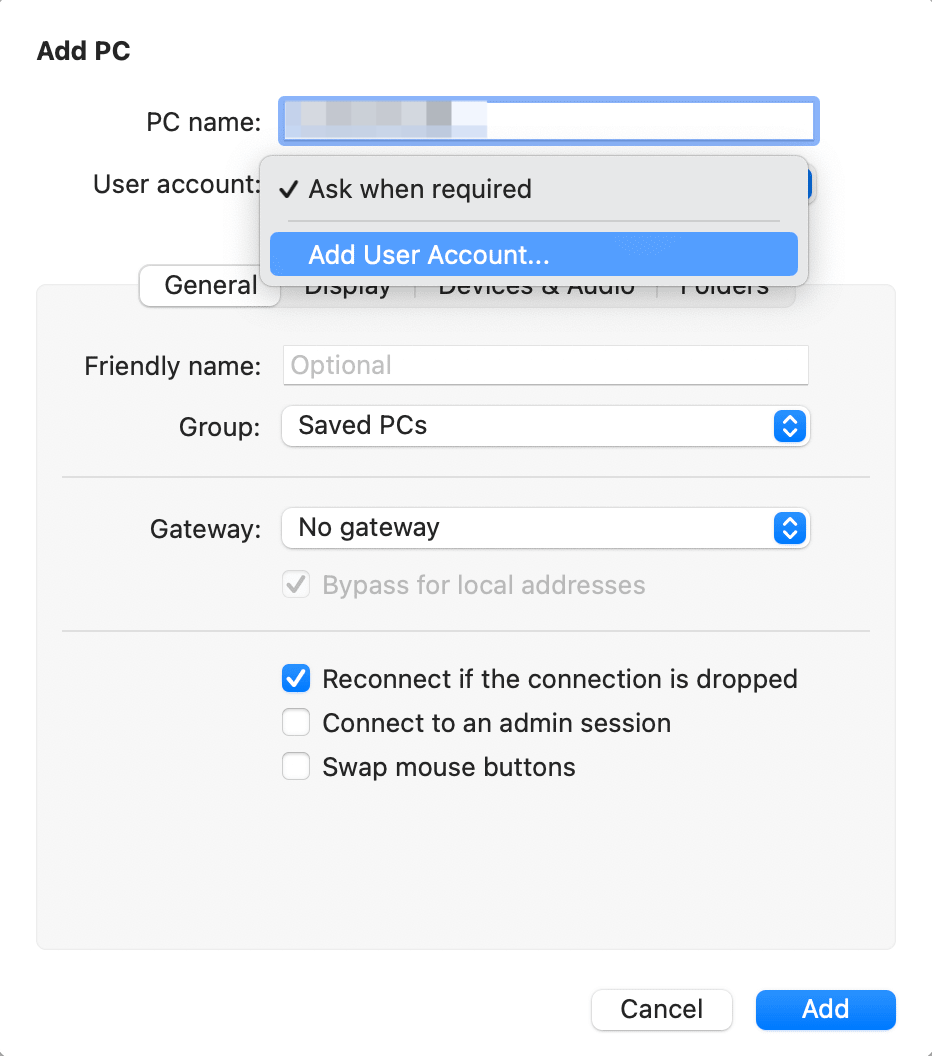
- User account: In the drop-down list, select "Add User Account...".
-
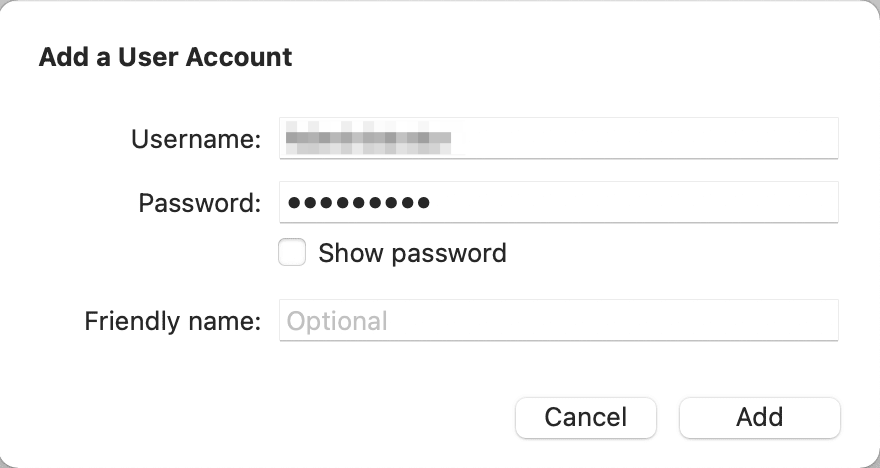
- In the "Add a User Account" dialog box, enter the ECS instance username "Administrator" and password. Then, click "Add". If you forget your password, reset the password by referring to Resetting login password.
-
- Click "Folders" and select the folder that you want to upload on your local computer.
- Click the ➕ icon in the lower left corner, and select the folder that you want to upload in the pop-up window.
- Click "Add" to finish adding the remote server.
- Double-click the added server.
-
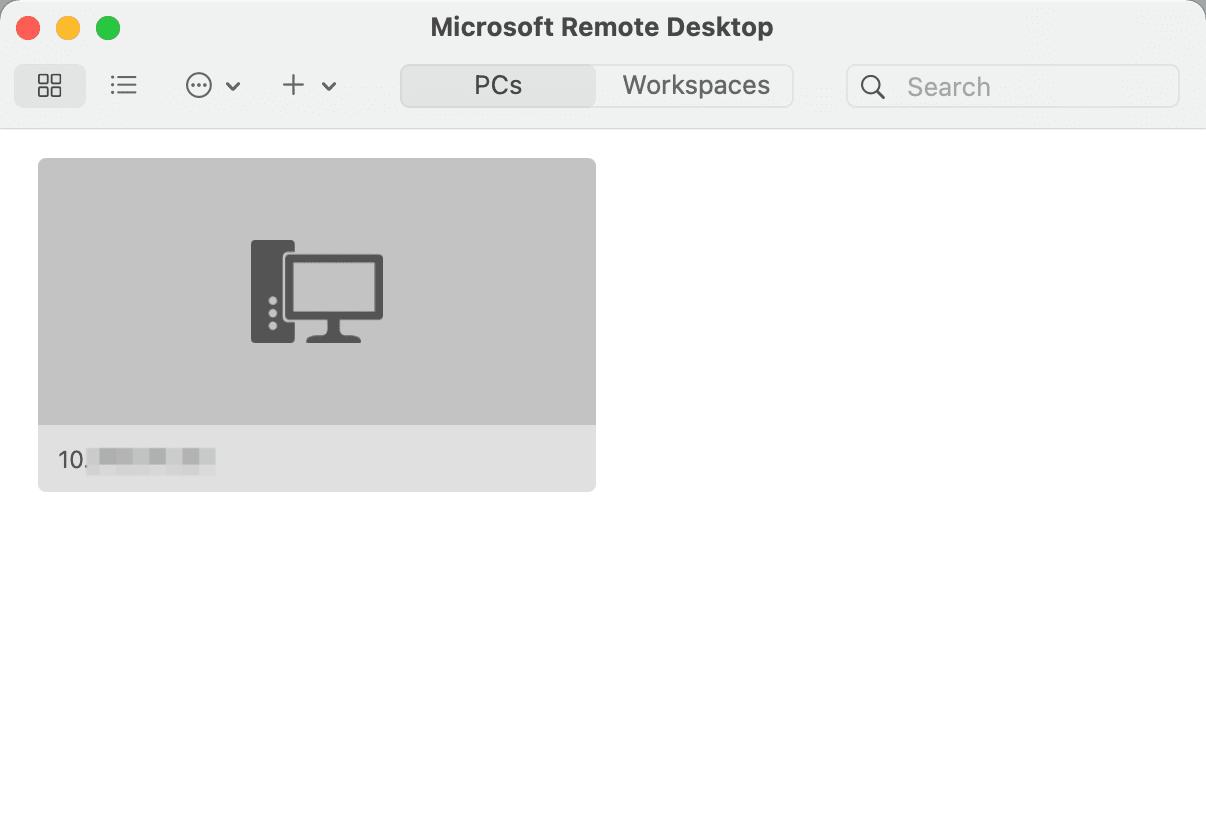
- Confirm the login information and click "Continue" to log in.
- After the local computer is connected to the ECS instance, click "Start > File Explorer" on the Windows ECS instance, select "This PC," and then view the shared folder.
- Double-click to open the shared folder, then copy the files to be uploaded into the Windows ECS instance to finish uploading.
Download a file
To download files from a Windows ECS instance to your local computer, you can copy the required files from the Windows ECS instance to the shared folder by referring to the upload operation.
Last updated: 2025.10.21 11:27:51
All rights reserved © Beijing Volcano Engine Technology Co., Ltd2024
