Elastic Compute Service
Elastic Compute Service


Document

- Documentation
 Elastic Compute ServiceElastic Compute ServiceUser GuideNetworkNetwork interface and IP addressConfiguring secondary network interfaces for ECS instances
 Copy page
 Download PDF
Network interface and IP address
Configuring secondary network interfaces for ECS instances
Copy pageDownload PDFConfiguring secondary network interfaces for ECS instances
Applicable scenarios
After you mount a secondary network interface to an ECS instance, except for the images listed below, other images may not automatically identify the primary private IP address of the secondary network interface or add the corresponding routes. As a result, the secondary network interface cannot work as expected. You need to configure the secondary network interface and routes for the ECS instance.
Operating system type | Version |
CentOS | CentOS 8.x, CentOS Stream |
Fedora | Fedora 37 64 bit |
Windows Server | All versions |
Prerequisites
This procedure is required only if the image used by the ECS instance does not identify the primary private IPv4 address of the secondary network interface. Otherwise, no operations are required.
tip
Commands for viewing IP addresses:
- Linux: Execute the ip address show command in the command line.
- Windows: Execute the ipconfig command in the command line.
Configure secondary network interfaces
Tool-based configuration
The VolcanoEngine platform provides you with an automatic configuration tool for secondary network interfaces. Non-lightweight bare metal instances based on the following image types can use the tool to configure secondary network interfaces with a few clicks.
Operating system type | Version |
CentOS | CentOS 7.1–7.9 64 bit |
Ubuntu |
|
Limits
After you configure a secondary network interface by using the automatic configuration tool, you can manage the secondary network interface only by using the default network management tool of the image.
Operating system type | Version | Default network management tool |
CentOS |
|
|
Ubuntu |
|
|
tip
If you have edited the configuration file of the secondary network interface according to the manual configuration guidelines, you need to delete the manually added configuration before you can use the automatic configuration tool for secondary network interfaces.
For instances running CentOS 7.1 to 7.9, you can configure the secondary network interface by using the automatic configuration tool.
- For CentOS 7 systems where the network service type is set to network-scripts, you can execute the following commands to download and install the automatic configuration tool for secondary network interfaces.
-
- After you install the tool, execute the reboot command to restart the instance. After a restart, the tool automatically completes the secondary network interface configuration.
- Execute the ip address show command to check whether the primary private IP address of the secondary network interface can be identified.
- As shown in the following figure, the primary private IP address of the secondary network interface eth1 is identified as expected.
-

- Log in to the ECS instance to check whether the automatically generated routes for the secondary network interface meet your business requirements. If they do not meet your business requirements, you can modify network interface routes.
- Ubuntu 16
- For Ubuntu 16 systems where the network service type is set to interface, you can execute the following commands to download and install the automatic configuration tool for secondary network interfaces.
-
- After you install the tool, execute the reboot command to restart the instance. After a restart, the tool automatically completes the secondary network interface configuration.
- Execute the ip address show command to check whether the primary private IP address of the secondary network interface can be identified.
- As shown in the following figure, the primary private IP address of the secondary network interface eth1 is identified as expected.
-

- Ubuntu18/20/22
- For Ubuntu 18/20/22 systems where the network service type is set to interface, you can execute the following commands to download and install the automatic configuration tool for secondary network interfaces.
-
- After you install the tool, execute the reboot command to restart the instance. After a restart, the tool automatically completes the secondary network interface configuration.
- Execute the ip address show command to check whether the primary private IP address of the secondary network interface can be identified.
- As shown in the following figure, the primary private IP address of the secondary network interface eth1 is identified as expected.
-

Manual configuration
If the images of your instance do not support the automatic configuration tool, you need to manually configure the secondary network interface.
Debian 9, Debian 10, Debian 11, and veLinux 1.0 system configuration
- Remotely connect to and log in to the ECS instance. For more information, see Logging in to Linux instances.
- Execute the following command to open the configuration file for the eth1 network interface.
- vi /etc/network/interfaces
- Press i to enter the edit mode, and add configuration information to the configuration file for the eth1 network interface.
- After the configuration is complete, press Esc on the keyboard, input :wq, then press the Enter key to save the changes and exit.
eth1 is the newly configured network interface.
-
- Run the following command to view the network interface configuration file and confirm the changes.
- cat /etc/network/interfaces
- Execute the following command to restart the network service.
- systemctl restart networking
- You can execute the ip address show command to check whether the primary private IP address of the eth1 network interface is identified.
- As shown in the following figure, the primary private IP address of the eth1 secondary network interface is identified as expected.
-
- Remotely connect to and log in to the ECS instance. For more information, see Logging in to Linux instances.
- Execute the following command to open the configuration file for the eth1 network interface.
- vi /etc/sysconfig/network/ifcfg-eth1
- Press i to enter the edit mode, and add configuration information to the configuration file for the eth1 network interface.
- After the configuration is complete, press Esc on the keyboard, input :wq, then press the Enter key to save the changes and exit.
-
- Execute the following command to view the network interface configuration file and confirm the modification.
- cat /etc/sysconfig/network/ifcfg-eth1
- Execute the following command to restart the network service.
- systemctl restart network
- Execute the ip address show command to check whether the primary private IP address of the secondary network interface can be identified.
- As shown in the following figure, the primary private IP address of the eth1 secondary network interface is identified as expected.
-

Ubuntu 24.04 system configuration
- Remotely connect to and log in to the ECS instance. For more information, see Logging in to Linux instances.
- Execute the following command to create and open the configuration file for the eth1 secondary network interface.
- vim /etc/netplan/eth1-netcfg.yaml
tip
In the preceding command, the eth1 secondary network interface is used as an example. Replace eth1 with the name of the actual secondary network interface.
- Press i to enter the edit mode, and add configuration information to the configuration file for the eth1 network interface.
-
tip
- This configuration file is in .yaml format, and YAML syntax should be followed when editing.
- In .yaml format, use spaces for indentation, and do not use the Tab key.
- To avoid formatting issues, we recommend that you copy the default configuration file /etc/netplan/99-netcfg.yaml for modifications.
- After you complete the configuration, press the Esc key, enter :wq, and then press Enter to save the changes and exit the file.
- Execute netplan apply command to make the configuration effective.
tip
- The instance is mounted with multiple secondary network interfaces. Refer to steps 2 to 5 to update the netplan configuration for each secondary network interface.
- The value of the metric parameter for each secondary network interface must be unique, and must not be 100 (this is the value for the primary network interface).
- Execute the systemctl restart systemd-networkd.service command to restart the network.
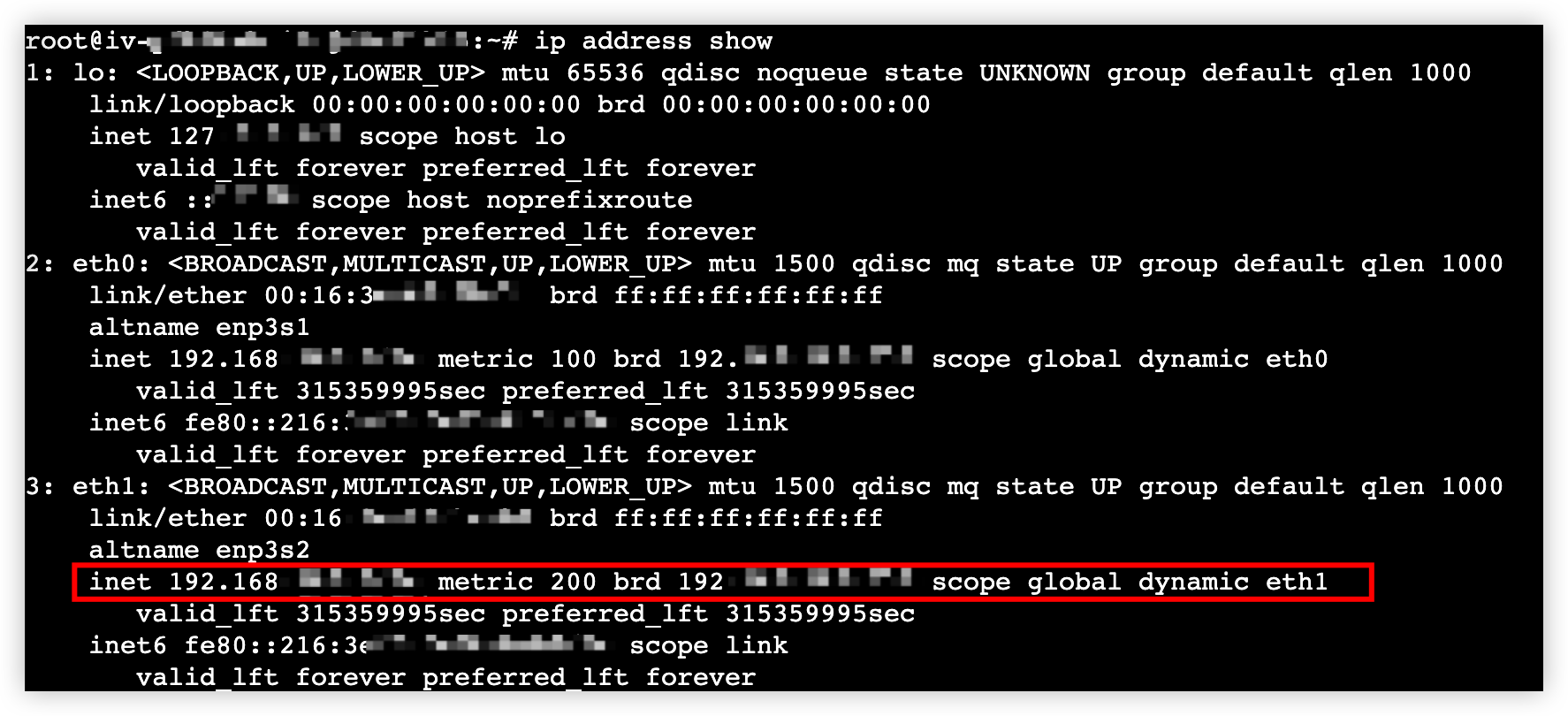
- Execute the ip address show command to check whether the primary private IP address of the secondary network interface can be identified.
- As shown in the following figure, the primary private IP address of the eth1 secondary network interface is identified as expected.
-
Subsequent operation
After you configure a secondary network interface, the operating system automatically generates routes for the secondary network interface. You can log in to the ECS instance to check whether the automatically generated routes for the secondary network interface meet your business requirements. If they do not meet your business requirements, you can modify network interface routes.
tip
Commands for viewing routes:
- Linux: Execute the ip route command in the command line.
- Windows: Execute the route printcommand in the command line.
Modify network interface routes
After you log in to the ECS instance, if you find that the current network interface routes do not meet your business requirements, you can refer to the following instructions to modify the network interface routes.
Modify routes in the command line
You can quickly modify routing information of an ECS instance in the command line.
tip
Routes modified in a Linux instance by using this method become invalid after the instance restarts. To address this, you can create a script that automatically adds the required routes when the instance starts.
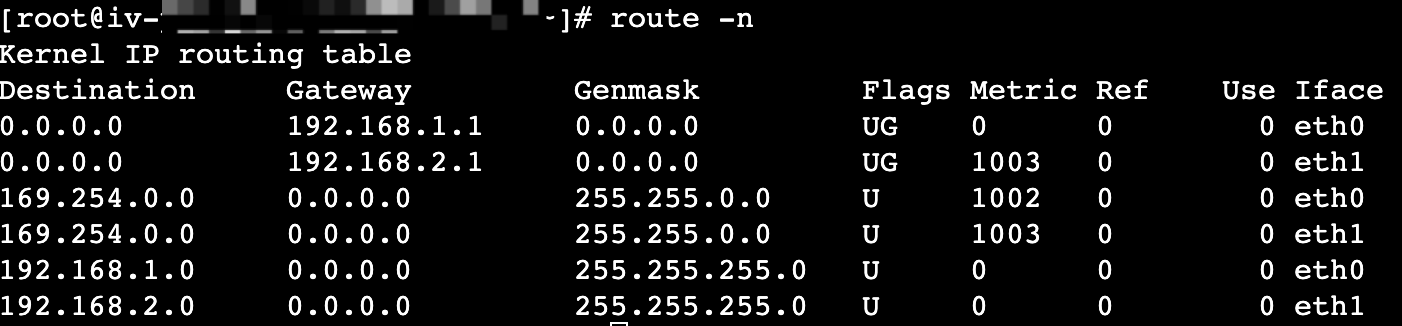
For the existing ECS instance vm-1, the primary private IP address of the primary network interface eth0 is 192.168.1.11, and the primary private IP address of the newly associated secondary network interface eth1 is 192.168.2.2.
- Remotely connect to and log in to the ECS instance. For more information, see Logging in to Linux instances.
- Execute the following command to check whether the current routes meet your business requirements.
-
- Sample output:
-
- If the current routes meet your business requirements, no further operations are required.
- If the current routes do not meet your business requirements, add or remove route forwarding policies based on your business requirements by referring to Step 3.
- You can execute the following command to view route-related commands.
-
- This topic describes commonly used commands for adding and removing static routes. Example:
-
-
- For example, when the secondary network interface eth1 is associated with an EIP, the EIP of the secondary network interface must be used by default to access the Internet.
- Execute the following commands to add or remove route forwarding policies for eth1 and eth0.
-
For the existing ECS instance vm-2, the primary private IP address of the primary network interface is 172.16.100.223, and the primary private IP address of the newly associated secondary network interface is 172.16.100.93.
- Remotely connect to and log in to the ECS instance. For more information, see Logging in to Windows instances.
- Open the Command Prompt window (cmd.exe) on the Windows instance.
- Execute the following command to view the routing information of the current network interface.
-
- The following figure shows the private network routes. As shown in the following figure, when the instance accesses the 172.16.100.0/24 CIDR block or other destination CIDR blocks, equivalent routes exist to forward the traffic to the primary and secondary network interfaces. You can customize routes based on your business requirements and specify a route forwarding policy for traffic to a specific CIDR block.
- The following figure shows the public network routes. As shown in the following figure, when network interfaces are enabled, two public network routes are generated by default. When you associate an EIP with a network interface based on your business requirements, you need to manually specify the route forwarding policy for Internet access. If multiple routing policies exist for the same public network destination address, Internet access may fail because traffic could be routed through a network interface not associated with an EIP.
- Specify route forwarding policies.
- Execute the following command to check whether the current routes meet your business requirements. If the current routes do not meet your business requirements, refer to the following steps to add or remove route forwarding policies.
-
- Add a route forwarding policy:
- In the ECS console, click the name of the instance, select the "Network Interface" tab, and click the name of the network interface. Then, you can view the Mac address of the network interface in the MAC Address field.
- Execute the following command to view the interface number of the network interface to be configured by using the MAC address.
-
- Execute the following command to add a route.
-
- The add parameter is required and specifies the destination address.
- The mask parameter is required and specifies the mask for the destination address.
- The content following the mask is required and specifies the gateway address for the network interface.
- The metric parameter is optional and specifies the number of route hops required to reach the destination address. The higher the value of the metric parameter, the lower the priority of the corresponding route.
- The IF parameter is optional and specifies the network interface. If you do not configure the IF parameter, the best network interface is selected by default.
- The -p parameter is optional and specifies that the current route is permanent. If you configure the parameter, the modification is effective after the ECS instance restarts. If you do not configure the parameter, the modification automatically becomes invalid after the ECS instance restarts.
- Execute the following command to remove the route forwarding policy.
-
Modify routes by using a script
You can add a route configuration script for a Linux ECS instance to automatically configure routing information when the instance starts.
- CentOS 7.1
- Execute the following command to create the /etc/sysconfig/network-scripts/route-<Interface> file.
-
- Press the i key to enter the edit mode, and add the following content to configure routes.
-
- Press the Esc key to exit the edit mode, enter :wq, and then press Enter to save the changes and exit the file.
- Similarly, configure the routes for eth0.
- Execute the following command to restart the ECS instance.
-
- Execute the following command to view the routes.
-
- Procedure for modifying the routes by using a script when CentOS Stream 9, RHEL 9, CentOS Stream 8, CentOS 8, RHEL 8, Rocky Linux, or AlmaLinux is used:
- Create a routing configuration script file.
- Execute the following command to create a script file named route_config.sh.
-
- Press the i key to enter the edit mode, and then copy and paste the following content into the file.
-
tip
This script is used to create a routing table for the secondary network interface and a corresponding routing policy associated with that table. Where:
- Secondary network interface name: eth1.
- Gateway address: 192.168.***.**1.
- Primary IPv4 address of the secondary network interface: 192.168.***.4.
- Press the Esc key to exit the edit mode, enter :wq, and then press Enter to save the changes and close the file.
- Execute the following command to add executable permission to the script file.
-
- Execute the following command to configure the default route.
-
- Configure automatic routing updates when the instance starts.
- Execute the following command to open the /etc/rc.local file.
-
- Press the i key to enter the edit mode and add the following content.
-
- Press the Esc key to exit the edit mode, enter :wq, and then press Enter to save the changes and close the file.
- Execute the following command to add executable permission to the script file.
-
- Execute the following command to restart the ECS instance.
-
- Execute the following command to view the configured routes and IP rules.
-
tip
Replace table 100 with the actual route table name configured in your script.
- Procedure when Ubuntu 16.04 LTS is used:
- Execute the following command to open the /etc/network/interfaces.d/50-cloud-init.cfg file and add a route for eth0.
-
- Press the i key to enter the edit mode and add the following content.
-
- Press the Esc key to exit the edit mode, enter :wq, and then press Enter to save the changes and exit the file.
- Execute the following command to open the /etc/network/interfaces.d/eth1-multic-hotlog file and add a route for eth1.
-
- Press the i key to enter the edit mode and add the following content.
-
- Press the Esc key to exit the edit mode, enter :wq, and then press Enter to save the changes and close the file.
- Execute the following command to restart the ECS instance and apply the configuration.
-
- Execute the following command to view the routes.
-
- Procedure when Ubuntu 18.04 LTS is used:
- Execute the following command to open the /etc/netplan/50-cloud-init.yaml file and a route for eth0.
- vim /etc/netplan/50-cloud-init.yaml
- Press the i key to enter the edit mode and add the following content.
-
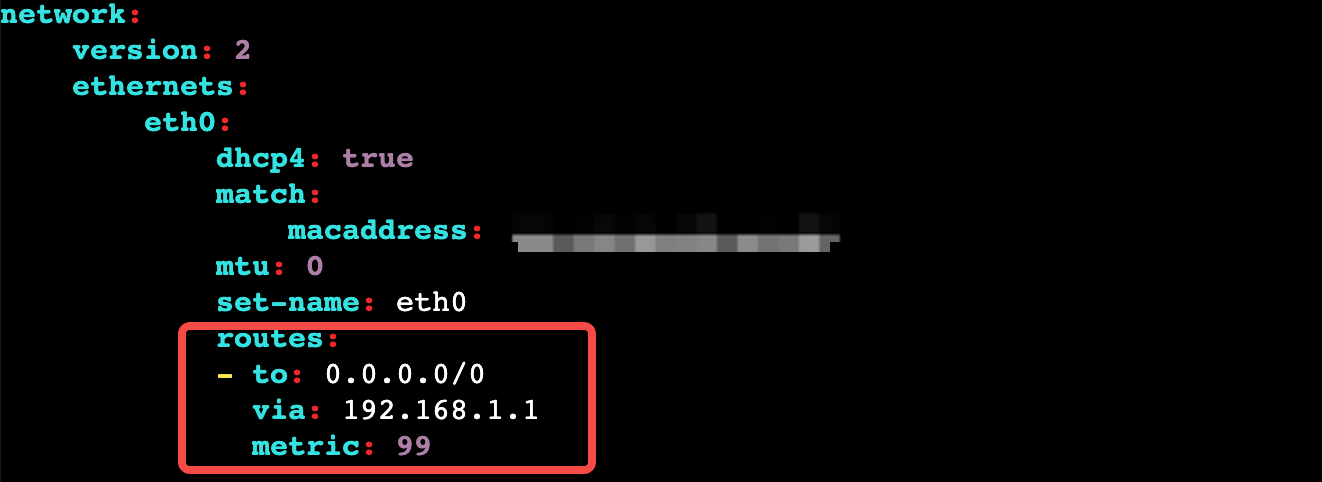
- Press the Esc key to exit the edit mode, enter :wq, and then press Enter to save the changes and close the file.
- Execute the following command to open the /etc/netplan/eth1-multic-hotlog.yaml file and add a route for eth1.
-
- Press the i key to enter the edit mode and add the following content.
-
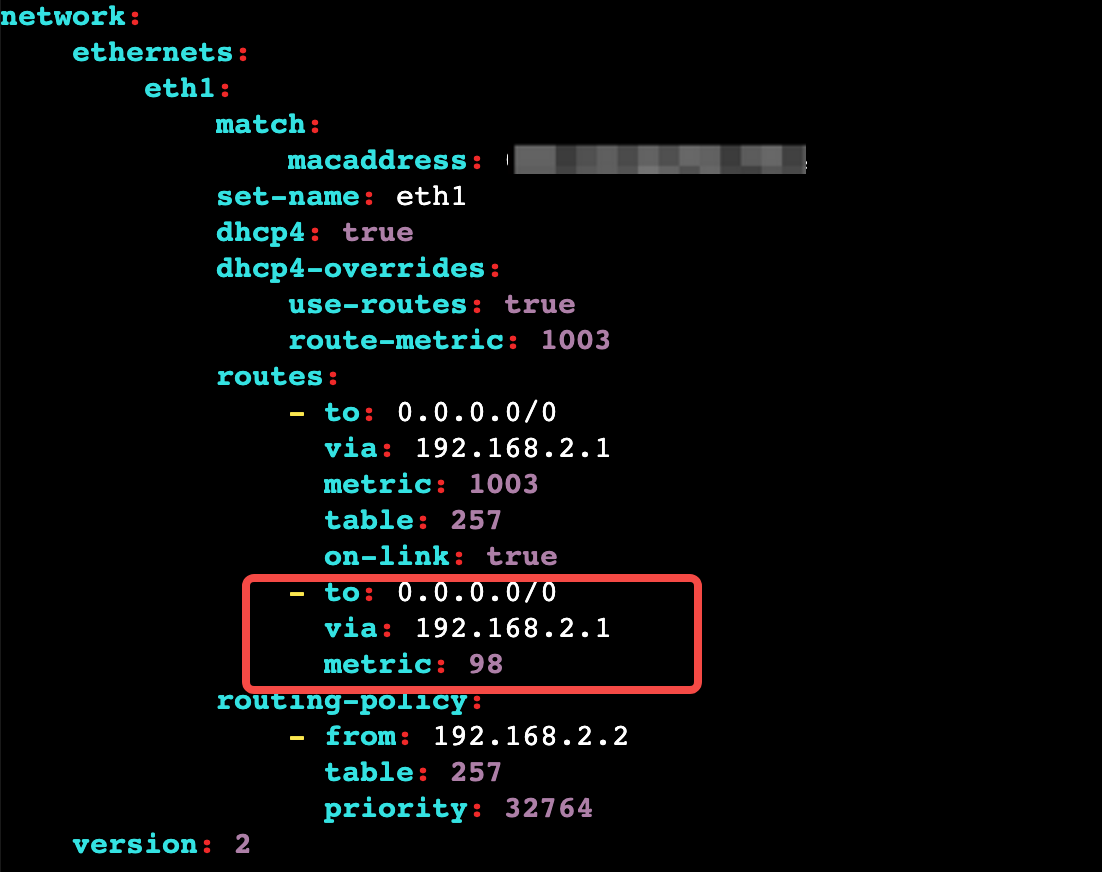
- Press the Esc key to exit the edit mode, enter :wq, and then press Enter to save the changes and close the file.
- Execute the following command to restart the network service and apply the configuration.
-
- Execute the following command to view the routes.
-
Procedure when veLinux 1.0 or Debian 9 is used:
- Execute the following command to open the network interface configuration file and add routes for eth0 and eth1.
-
- Press the i key to enter the edit mode and add the following content.
-
- Press the Esc key to exit the edit mode, enter :wq, and then press Enter to save the changes and exit the file.
- Execute the following command to restart the network and apply the configuration.
-
- Execute the following command to view the routes.
-
Last updated: 2026.06.18 17:49:50
All rights reserved © Beijing Volcano Engine Technology Co., Ltd2024
