Elastic Compute Service
Elastic Compute Service


Document

- Documentation
 Elastic Compute ServiceElastic Compute ServiceBest PracticesAI applicationsOpenClaw (formerly Moltbot)Quickly deploying OpenClaw via marketplace imagesQuickly deploying OpenClaw on Linux and integrating it as an AI assistant into IM tools
 Copy page
 Download PDF
Quickly deploying OpenClaw via marketplace images
Quickly deploying OpenClaw on Linux and integrating it as an AI assistant into IM tools
Copy pageDownload PDFQuickly deploying OpenClaw on Linux and integrating it as an AI assistant into IM tools
OpenClaw is an open-source, self-hosted AI agent tool designed with a local-first philosophy. It focuses on proactive execution and cross-platform interaction, with the core goal of enabling AI to complete real-world tasks through natural language instructions. This topic describes how to quickly deploy and use OpenClaw via a marketplace image pre-configured with OpenClaw. You can integrate OpenClaw with your existing IM tools to build your personal AI assistant in subsequent operations.
tip
This feature is currently only supported for instances using the Subscription billing method. If your existing instance uses the Pay-as-you-go billing method, you may either change the billing method or create an OpenClaw (Linux) system reinstallation task for deployment.
Image information
- Image architecture: x86_64
- Operating system: Ubuntu 24.04
- Latest version: 2026.2.9
Limits
The current image supports the following instance families. Choose based on your needs.
Instance configuration
To reduce service interruptions and impact on your experience caused by insufficient resources, we recommend that you select an instance with at least 2 vCPUs and 2 GiB of memory.
tip
If your instance configuration is lower than 2 vCPU and 2 GiB memory, you can change the instance type for a higher configuration.
Procedure
Step 1: Deploy OpenClaw
If you do not have an ECS instance or want to deploy OpenClaw on a new instance, you can refer to this section to purchase a new instance from a marketplace image and deploy OpenClaw.
- Log in to the ECS console.
- In the left-side navigation pane, select "Instances & Images > Instances".
- In the top menu bar, select the region and project.
tip
After you select a project, ECS instances that you create can be associated only with the selected project. If you select "All Resources", ECS instances that you create can be associated with any project under the current account.
- Select "Create instance > Custom purchase" to start purchasing an ECS instance. For more information about instance configuration, refer to Purchasing an instance by following the wizard.
warning
- Select "Subscription" as the billing method.
- When you configure the parameter "Image", select "Marketplace Image" and choose "OpenClaw2.9-Ubuntu".
To quickly deploy OpenClaw on an existing ECS instance (regardless of its operating system type), refer to this section to prepare the instance and deploy OpenClaw.
- Make sure that your instance meets the following requirements:
- The instance type family must meet the image usage requirements. Otherwise, you can change the instance type or purchase a new ECS instance for deployment.
- The instance billing method must be "Subscription". Otherwise, you can change the billing method or create an OpenClaw (Linux) system reinstallation task for deployment.
- Use a marketplace image to change the instance operating system.
warning
- Changing the instance operating system is a high-risk operation. It will erase all data on the system volume and the data cannot be recovered. Back up important data before performing the operation.
- When you configure the parameter "Image", select "Marketplace Image" and choose "OpenClaw2.9-Ubuntu".
Step 2: Activate ModelArk and obtain the configuration
If you have activated the ModelArk service and obtained an API Key, skip this step. Otherwise, refer to this section for guidance on activating the service and obtaining an API Key.
- Log in to the Model activation page, and select the model family to provide inference services for OpenClaw.
- In the directory tree on the left, select "Configure > API keys" to create and obtain an API Key.
tip
The obtained API Key will be used to configure OpenClaw. Keep it secure.
- In the directory tree on the left, select "GenAI studio > Foundation models", and click the specific model you want OpenClaw to use to enter its details page. In this topic, "Doubao-Seed-Code" is used.
- Click the copy button to obtain the "Model ID".
tip
The obtained model ID will be used to configure OpenClaw. Keep it secure.
Step 3: Configure the model service
- Execute the following commands to configure the ModelArk model.
-
tip
- Adjust the following parameter values in the command based on your actual situation:
- --ark-coding-plan: Specify whether to use your subscribed Coding Plan.
- If you have already subscribed to the Coding Plan, pass in true.
- If you have not subscribed to the ModelArk Coding Plan, pass in false. We recommend that you subscribe to the ModelArk Coding Plan, which costs as low as CNY 9.9 per month and enables flexible model calls.
- --ark-model-id: Specify the ModelArk model you want OpenClaw to use.
- If the --ark-coding-plan parameter is set to true, replace doubao-seed-code with the name of the model supported by the Coding Plan. You can obtain the model name by referring to Configure the model name (specified in the configuration file).
- If the --ark-coding-plan parameter is set to false, replace doubao-seed-code with the ID of the ModelArk model you want to use.
- --ark-api-key: Specify the ModelArk API Key. Go to "ModelArk console > API keys" to create and obtain the API Key.
- If the following output is displayed, configuration succeeds.
-
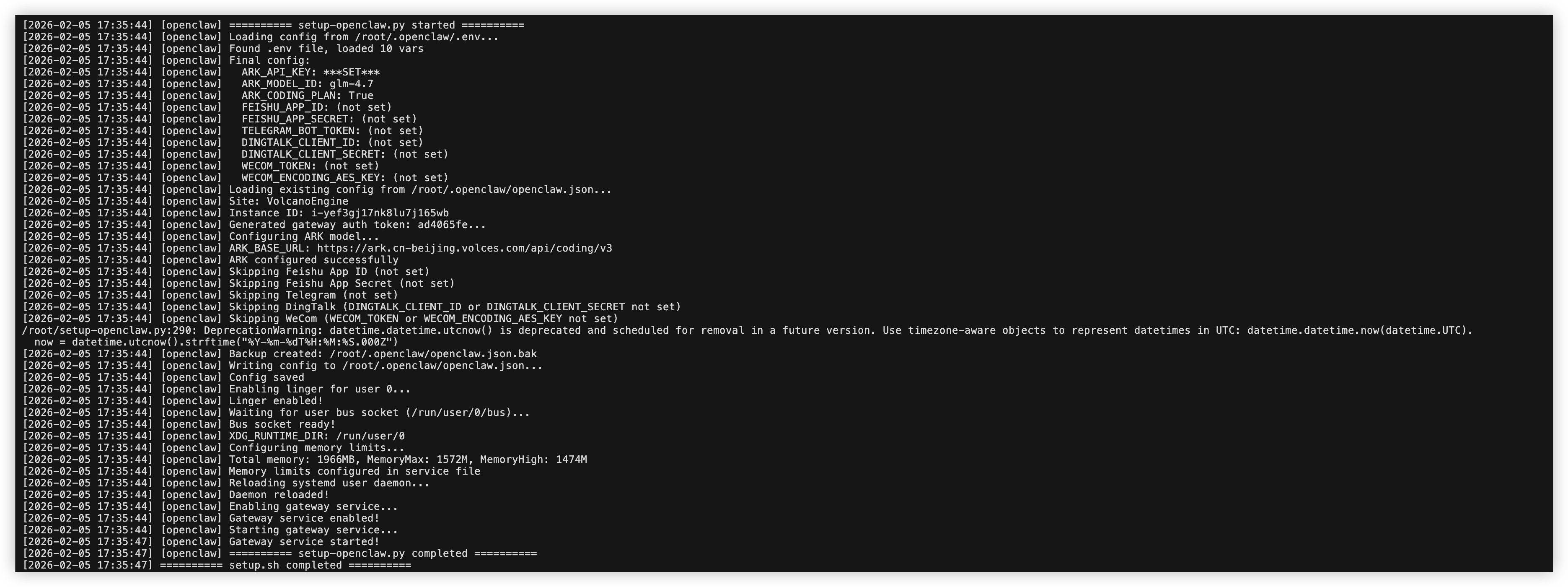
- After the configuration is completed, you can chat with OpenClaw via its WebUI. Learn more.
- To integrate OpenClaw with IM software such as Feishu, DingTalk, or WeCom, follow the post-deployment configuration guide.
Change the ModelArk model used by OpenClaw
To switch to a subscribed Coding Plan and its supported models or to another model in ModelArk "Foundation models", follow the instructions in this section to adjust the OpenClaw configuration.
- Execute the following command to modify the OpenClaw configuration.
- tip
- Replace <your_key> with the API Key you created in ModelArk.
- Replace <model_name> with the model name included in the Coding Plan. You can obtain the model name by referring to Configure the model name (specified in the configuration file).
tip- Replace <your_key> with the API Key you created in ModelArk.
- Replace all <model_id> with the ID of the model you want to use. Go to "ModelArk console > Foundation models" to obtain the Model ID from the details page of the corresponding model.
Enable the AI Assistant Security feature
The AI Assistant Security feature monitors and defends against three core risks in real time without affecting the normal operation of OpenClaw: prompt injection, Personally Identifiable Information (PII) leakage, and risky operations.
- Execute the following command to start the configuration process.
-
- If the output is as shown below, the configuration process has been started as expected. Copy the generated URL and complete subsequent authorization operations in the browser within the validity period.
warning
Do not forcefully interrupt or exit the current configuration process before completing Step 2.
- Use any local PC browser with Internet access to visit the URL you obtained in Step 1.
- Carefully read the relevant service agreement and privacy policy. Check the agreement box and click "Agree and Activate".
- Follow the instructions to log in to the Volcano Engine account associated with the ECS instance where OpenClaw is deployed.
- After a successful login, the browser page will display the prompt "Authorized successfully".
- After the authorization is complete, return to your ECS interface.
- The command-line tool automatically detects your login status, obtains the API Key for secure communication and asset information (AppId), and then installs and configures the plugin automatically.
- After the configuration is complete, enter Y and press Enter to restart the OpenClaw service for the configuration to take effect.
- When the following output is displayed, you have completed the configuration of the AI Assistant Security plugin as expected.
Last updated: 2026.10.14 17:47:26
All rights reserved © Beijing Volcano Engine Technology Co., Ltd2024
