Elastic Compute Service
Elastic Compute Service


Document

- Documentation
 Elastic Compute ServiceElastic Compute ServiceUser GuideImagesCustom imagesImporting custom imagesCreating custom imagesCreating Windows images
 Copy page
 Download PDF
Creating custom images
Creating Windows images
Copy pageDownload PDFCreating Windows images
Scenarios
If you have an image with the required applications pre-installed, you can use virt-install to create a QCOW2 image and import the QCOW2 image to the platform as a private image by referring to this topic.
This method allows you to create custom system images based on your business requirements and is applicable to scenarios in which complex initialization operations are required to create system images. After you import an image to the platform, you can use the image to deploy a system without performing complex initialization operations or deploy multiple ECS instances with the same configurations.
Prerequisites
The following 32-bit and 64-bit base image operating systems and relevant versions are supported for the method described in this topic.
- Windows Server 2012
- Windows Server 2016
- Windows Server 2019
Step 1: Prepare the host machine environment
- Configure the host machine.
- Prepare a physical server running Linux to serve as the host machine for image creation.
There is no strict requirement for the distribution of the operating system running on the host machine. In this topic, CentOS 8.3 is used as an example.
- Log in to the host machine.
- Execute the following command to check whether the virtualization capability is enabled for the host machine.
-
- Execute the following command to check whether the kernel version of the host machine is higher than 3.10.
-
- Execute the following commands in sequence to install the virtualization software.
-
- Load virtualization-related services.
- Execute the following command to enable the libvirtd service.
-
- Execute the following command to check whether the virbr0 network interface is created.
-
- Execute the following command to load kvm.
-
Step 2: Create a virtual machine on the host machine
- Upload the base image.
- Upload the base image file you need to the /home folder of the host machine. We recommend that you use the official image.
- If both QCOW2 and ISO image formats are available, we recommend that you select the image in QCOW2.
- Create a virtual machine.
- Assume that the names of the uploaded base image files are windows-2019-x64.qcow2 and windows-2019-x64.iso.
- When the base image is in QCOW2 format, execute the following command to create a virtual machine.
- Replace the parameter next to --os-variant with the operating system type of the virtual machine. You can execute the osinfo-query command to view the available types.
- Replace the parameter next to --disk= with the storage location of the virtual machine operating system, that is, the path to the base image.
- Replace the port number next to --graphics vnc,port= with the VNC port you use.
Some operators consider port 5900 risky and block the port by default. We recommend that you do not use the port.
-
- When the base image is in ISO format, execute the following command.
- Execute the following command to create a QCOW2 image with a size of 20 GB.
-
- Execute the following command to create a virtual machine based on the base image.
- Replace the parameter next to --os-variant with the operating system type of the virtual machine. You can execute the osinfo-query command to view available types.
- Replace the parameter next to --disk= with the storage location of the virtual machine operating system, that is, the path to the new image.
- Replace the parameter next to --cdrom= with the path to the base image.
- Replace the port number next to --graphics vnc,port= with the VNC port you use.
Some operators consider port 5900 risky and block the port by default. We recommend that you do not use the port.
-
- Execute the following command to check whether the virtual machine is created and view the VNC address.
Replace port 6000 in the command with the actual port number.
-
- Enter "vnc address:vnc port number" on VNC Viewer to remotely log in to the virtual machine.
- Check the OS virtio driver. Make sure that the image supports full virtualization and that the virtio-net driver (network) and the virtio-blk driver (disk) are installed.
- Open the CMD command prompt and execute the driverquery command to locate the network interface driver (netkvm) and disk driver (viostor) in the list. The driver time may vary depending on the driver version.
- Network interface driver
-

- Disk driver
-

Step 3: Install Cloudbase-init on the virtual machine
- Download the Cloudbase-init installer.
- Open the installation package to start the installation and click the "Next" button.
- Select "I accept the terms in the License Agreement", and click the "Next" button.
- You can select the Cloudbase-init installation path based on your business requirements (optional), and click the "Next" button.
- Set Username to Administrator, set Serial port for logging to COM1, and select Run Cloudbase-init service as LocalSystem. Click the "Next" button.
-
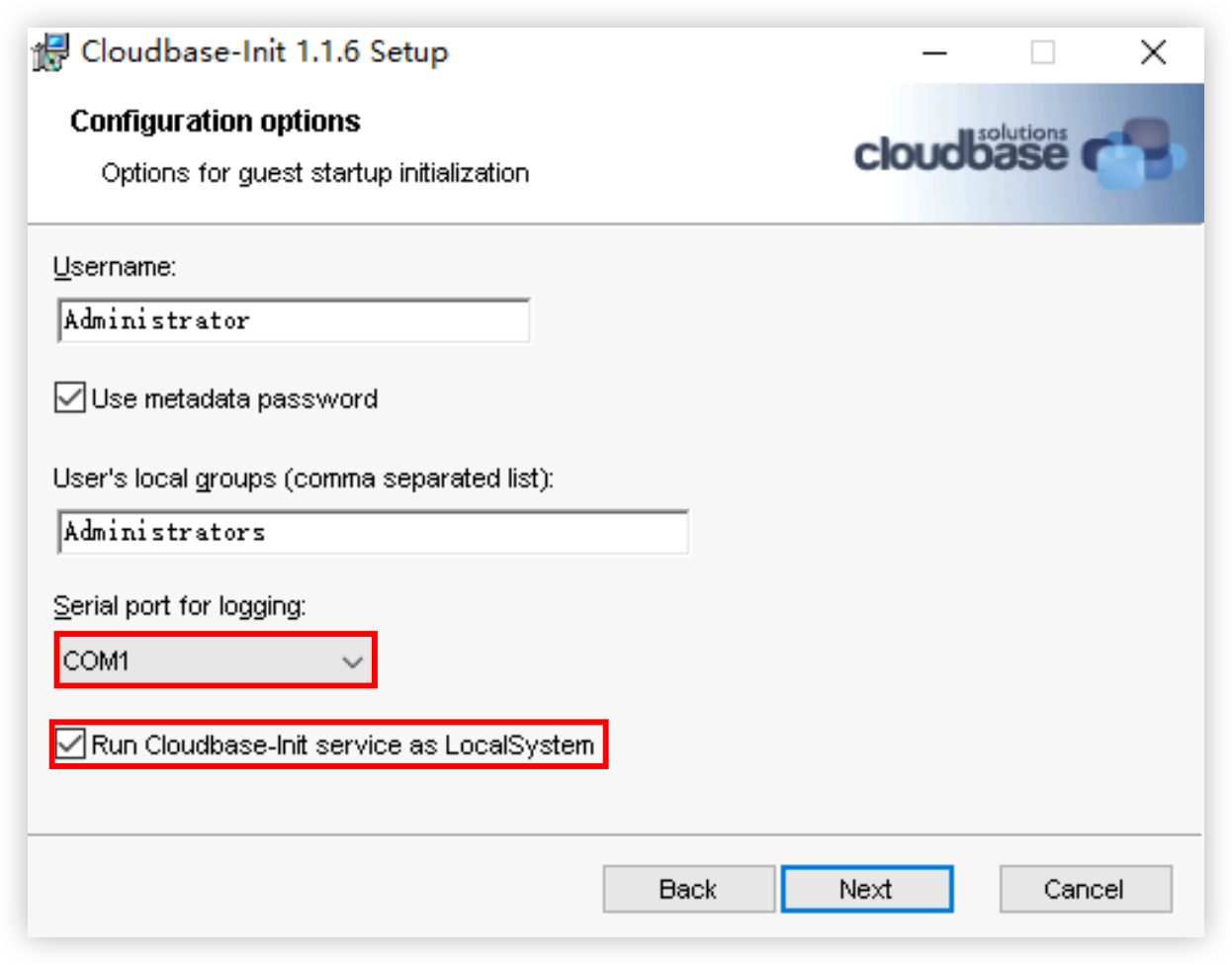
- Click the "Install" button to install Cloudbase-init.
- After Cloudbase-init is installed, click the "Finish" button to close the installation page.
warning
When you close the Cloudbase-init installation page, do not select any check boxes and do not run Sysprep.
- Modify the Cloudbase-init configuration file. Make the following changes. The default path for Cloudbase-init is C:\Program Files\Cloudbase Solutions\Cloudbase-Init\conf\cloudbase-init.conf.
- If Cloudbase-init is not in the default path, find Cloudbase-init in the installation path you specified in step 4.
-
- To log in to an ECS instance by using the password preset by using Cloudbase-init, add the following content to the configuration file. After you complete the configurations, enable instance login based on the preset password in the image. For information about how to enable the feature, see "Custom configurations > Login methods > Login credentials" in Purchasing instances by following wizard.
-
- Modify the DHCP settings of the network interface
- Click "Start > Control Panel > Network and Internet".
- Click the network connection as shown in the following figure.
- Click the "Properties" button, and then double-click the "Internet Protocol Version 4 (TCP/IPv4)" button to open the property configuration window.
- Select "Obtain an IP address automatically" and "Obtain DNS server address automatically". Then click the "OK" button.
- (Optional) If you want to use the network interface Offload feature, install the MLNX driver on the virtual machine. For more information, see MLNX_OFED for Windows - WinOF / WinOF-2.
- (Optional) If you want to access metadata in security hardening mode, you also need to modify the Cloudbase-init configuration by using the following script. For information about how to view metadata and the available metadata items, refer to Viewing instance metadata.
- Execute the following command in PowerShell to create and open a configuration script. In this topic, a script file named config.ps1 is created on the desktop.
-
- Click the "Yes" button to confirm the creation of a new file.
- Copy the following content to the script file.
-
- Press Control + S to save the changes, and then close the file.
- Right-click the script file, and select "Run with PowerShell".
- If an execution policy change prompt appears, enter A and press Enter to confirm.
Step 4: Install the Virtio driver on the virtual machine
- Click "Start > Control Panel".
- On the Control Panel page, click the "Programs" button.
- Click the "Programs and Features" button to go to the Programs and Features page.
- In the search box in the upper right corner, search for Virtio to check whether the Virtio driver is installed on the virtual machine.
- If the Virtio driver is installed on the virtual machine, skip this step.
- If the Virtio driver is not installed on the virtual machine, install the Virtio driver by following the instructions in this step.
-
- In PowerShell, execute the following command to download the Virtio driver installer.
-
tip- Execute the following command in PowerShell to start the driver installation process.
-
tipIf you download the driver installer by using your browser, you can also double-click the downloaded .msi file to start the driver installation process.- Click the "Next" button to continue the installation process.
-

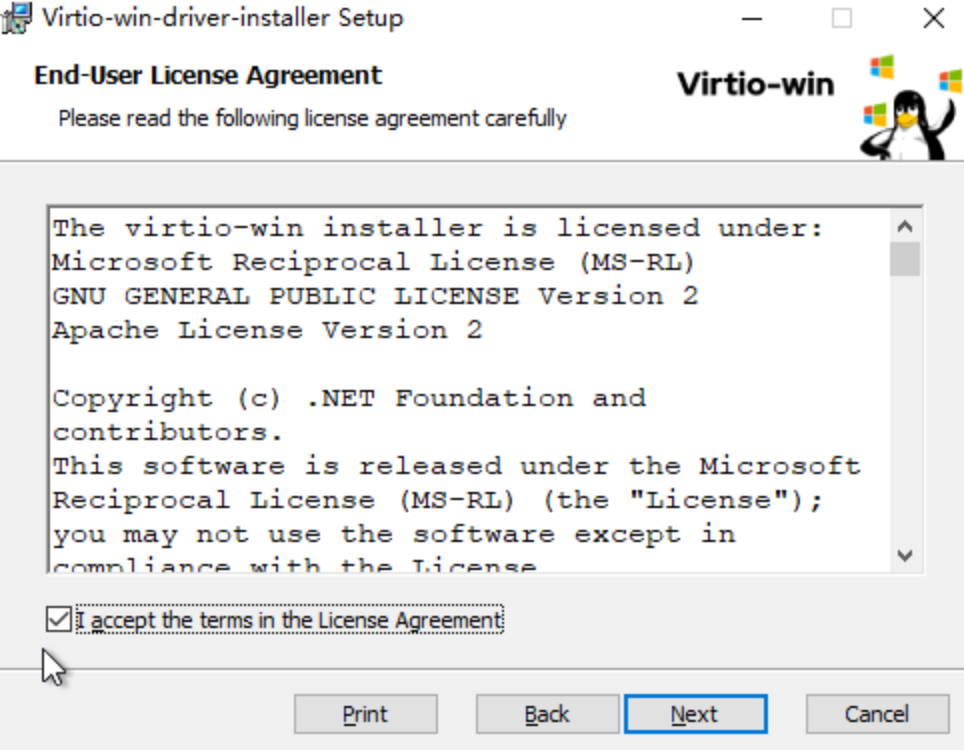
- Select "I accept the terms in the License Agreement" and click the "Next" button.
-
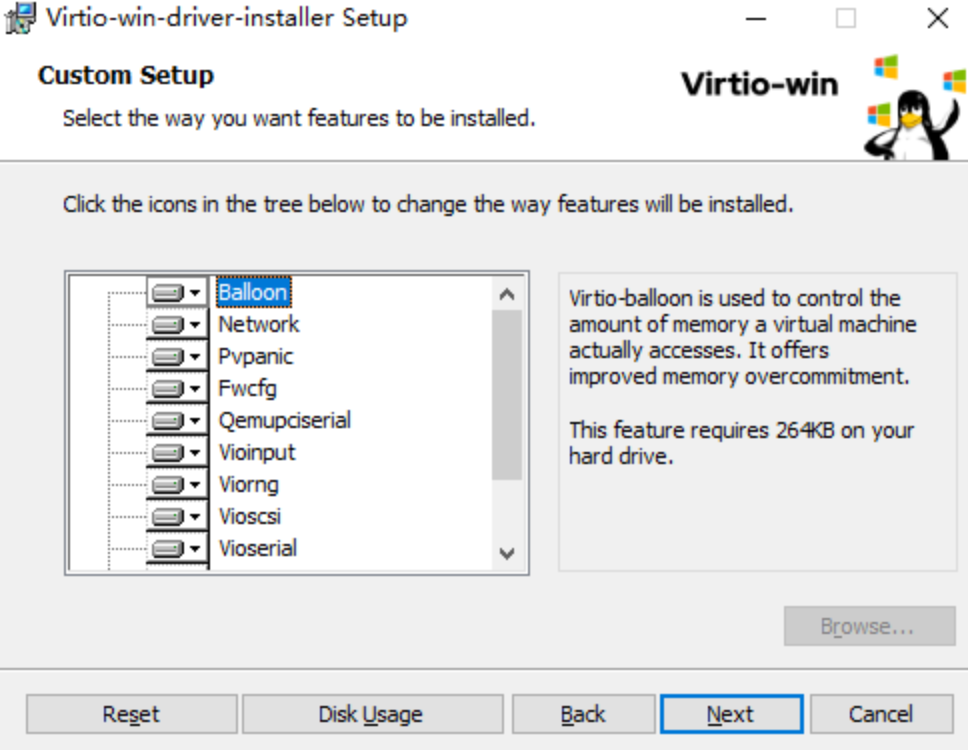
- After you confirm the features to be installed, click the "Next" button.
-
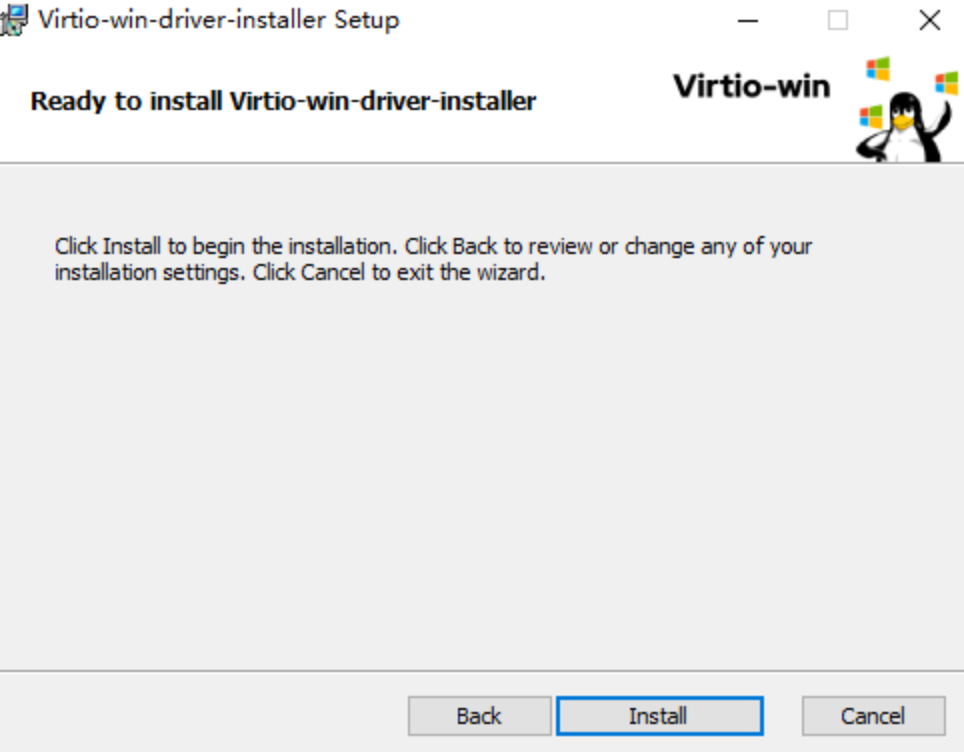
- Click the "Install" button and confirm the installation options to start installing the Virtio driver.
-
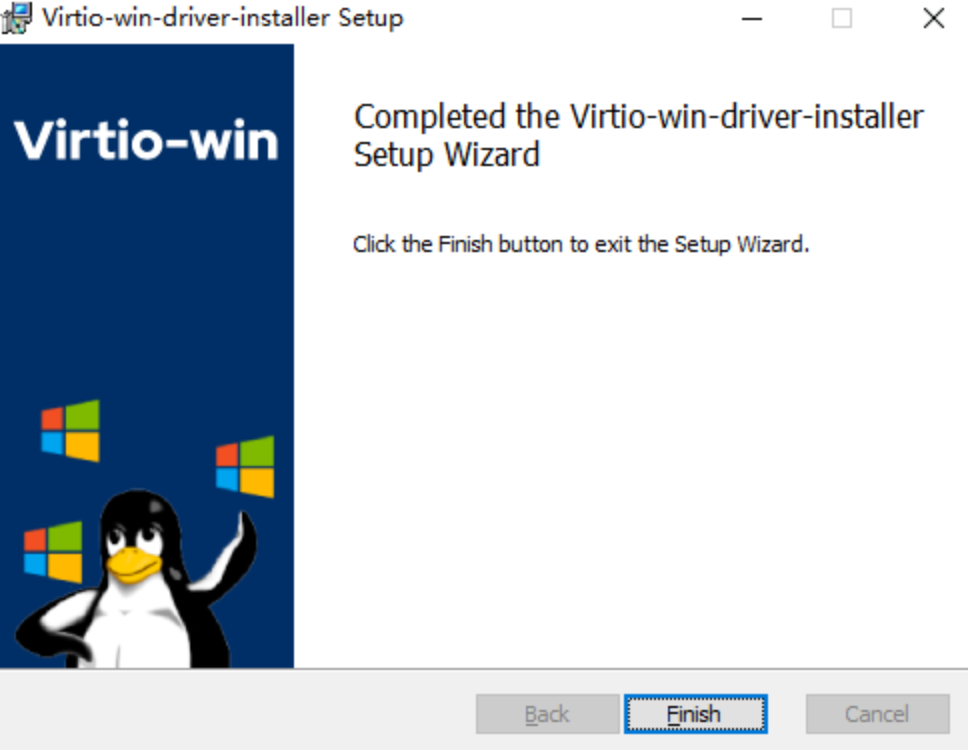
- Click the "Finish" button to complete the Virtio driver installation.
-
- In PowerShell, execute the following command to download the Virtio driver installer.
-
tip- If PowerShell reports the "The request was aborted: Could not create SSL/TLS secure channel" error, execute the following commands before you download the Virtio driver installer again.
- [Net.ServicePointManager]::SecurityProtocol = [Net.SecurityProtocolType]::Ssl3 -bor [Net.SecurityProtocolType]::Tls -bor [Net.SecurityProtocolType]::Tls11 -bor [Net.SecurityProtocolType]::Tls12
- You can also click here to download the driver installer in the browser.
- Execute the following command in PowerShell to start the driver installation process.
-
tipIf you download the driver installer by using your browser, you can also double-click the downloaded .msi file to start the driver installation process.- Click the "Next" button to continue the installation process.
-
- Select "I accept the terms in the License Agreement" and click the "Next" button.
-
- After you confirm the features to be installed, click the "Next" button.
-
- Click the "Install" button and confirm the installation options to start installing the Virtio driver.
-
- Click the "Finish" button to complete the Virtio driver installation.
-
Step 5: Install a plugin
- You can also install the CloudMonitor plugin for custom images. This allows you to monitor an instance from within the instance and obtain deeper, more accurate information about the running status of the instance. For information about how to install the CloudMonitor plugin, see Installing plugins.
- If you want to use the offline password reset feature, install the password plugin.
- If you want to access metadata in security hardening mode, refer to the following steps to install the password plugin. For information about how to view metadata and the available metadata items, refer to Viewing instance metadata.
- Create the C:\Program Files\Reset Authentication directory.
- Click "Start > Windows PowerShell" to open PowerShell.
- Execute the following commands in PowerShell to download the ps1 auto-start script and the password plugin, and save them to the specific directories.
- ps1 auto-start script
-
- Reset-authentication plug-in
-
- In PowerShell, execute the following commands in sequence to perform initialization operations.
- Execute the following command to obtain the instance UUID.
-
- Execute the following command to delete part of the Cloudbase-init registry configuration so that the reset-authentication plug-in can work as expected.
tipIf you have not run Cloudbase-init, you do not need to execute this command.-
- Execute the following command to start the reset-authentication plug-in.
-
tip
For instances not on the VolcanoEngine platform, after you import the custom image and create an instance by using the custom image, install the password plugin on the instance.
Step 6: Obtain the activation script
- In PowerShell, execute the following command to download the Windows activation script and save the script to the local directory for Cloudbase-init scripts.
-
- Make sure that the script files are executable.
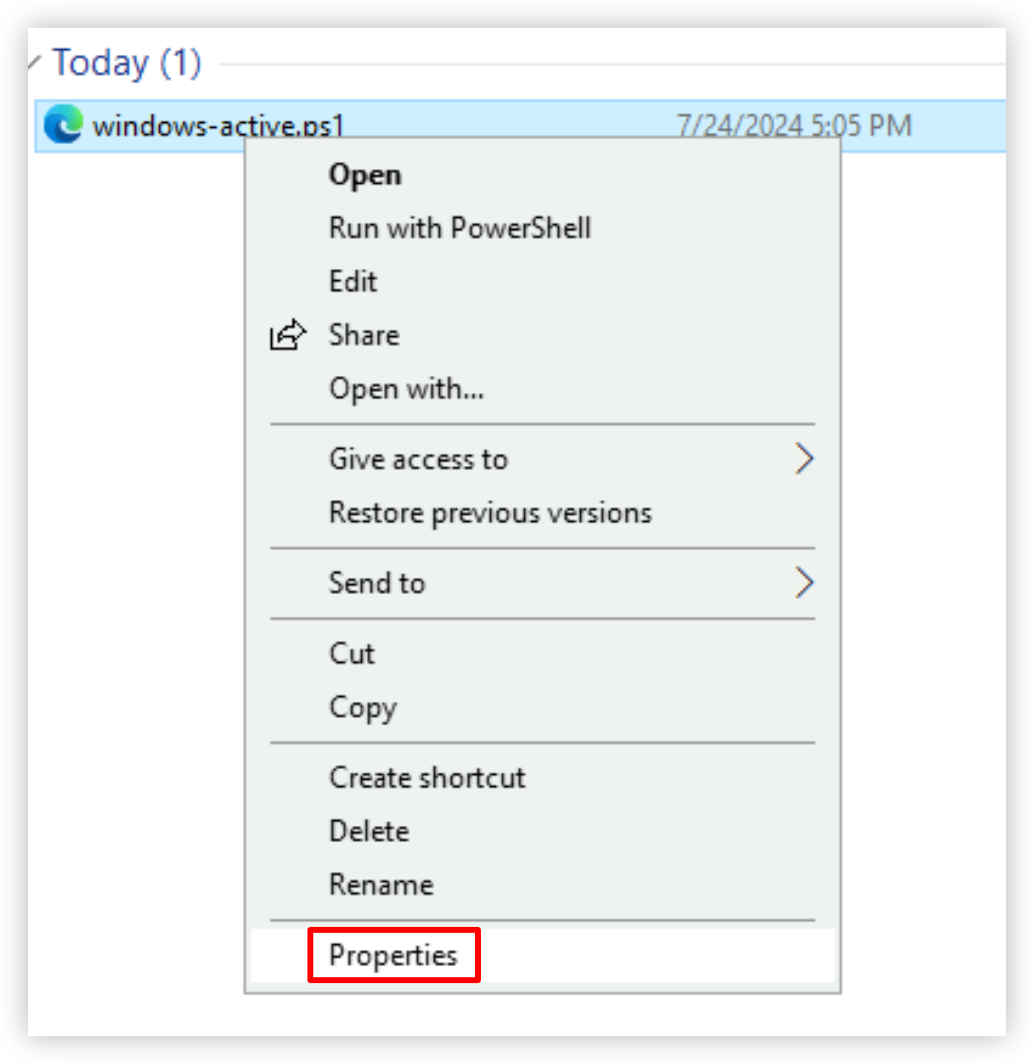
- Right-click the script file, and select "Properties".
-
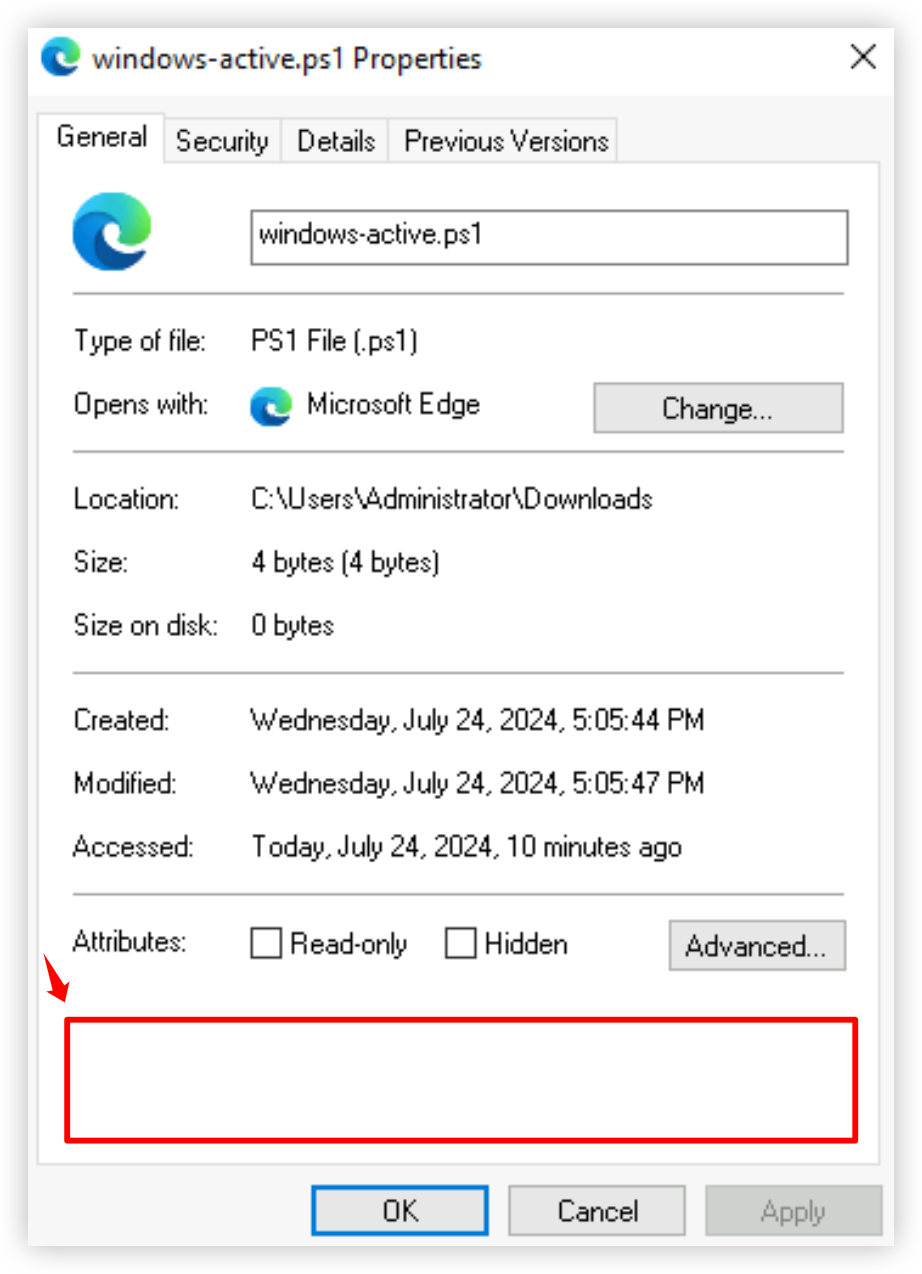
- On the "General" tab, check whether the "Security" area exists.
- If the "Security" area does not exist, skip this step.
-
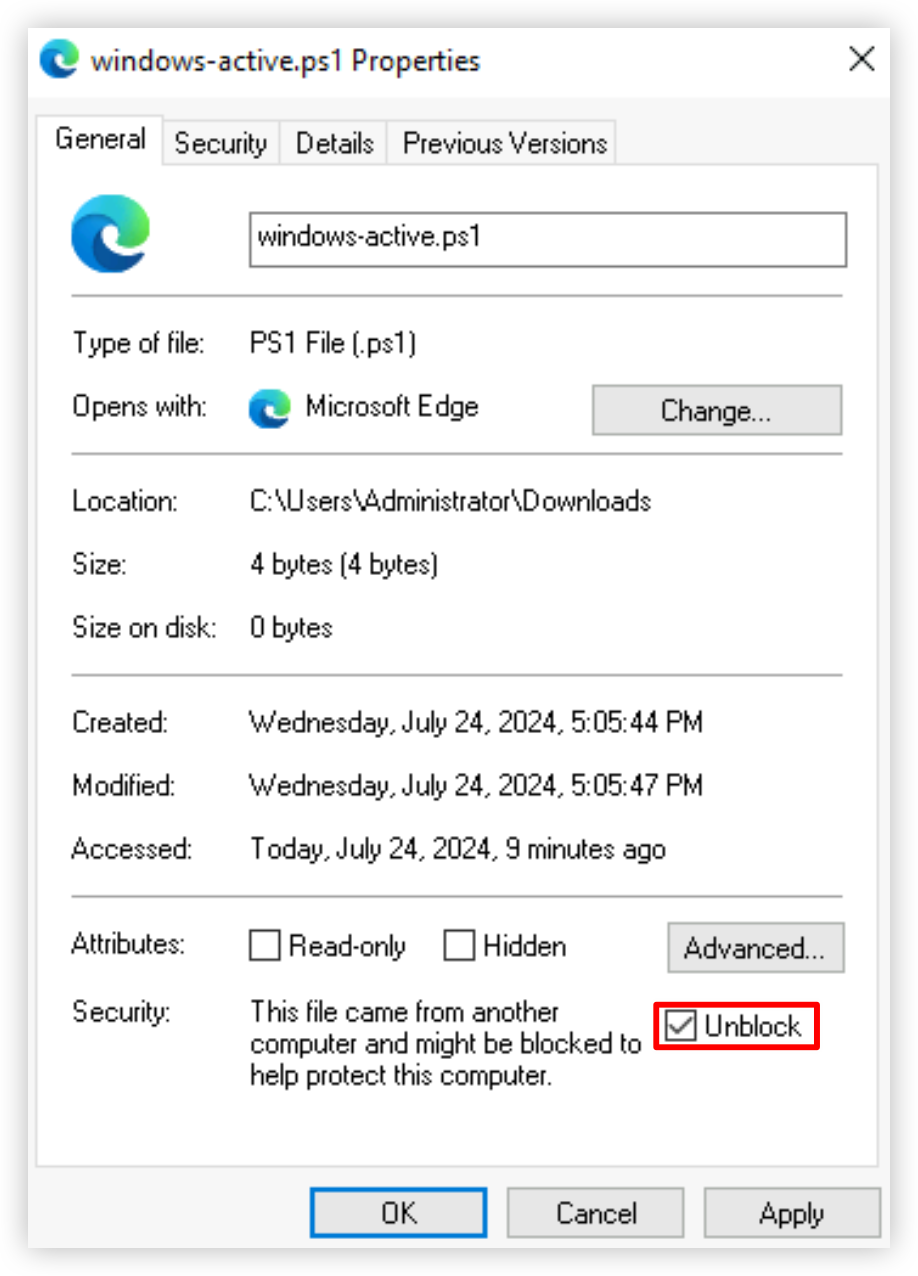
- If the "Security" area exists, select "Unblock" in the "Security" area, click "Apply", and then click "OK".
-
Step 7: Install software (optional)
You can install software on the system volume based on your business requirements. For example, you can install JDK and the Linux graphical desktop.
Step 8: Execute the Sysprep command
You need to use Sysprep to delete specific information from the image so that the image can be used on different devices. For more information, see Sysprep (system preparation) overview.
- If you use the public image provided by the platform to create a custom image, execute the following command in the CMD command prompt. For information about the public image versions, see Image release notes.
-
warning
- After you execute the command, the virtual machine enters the generalization process:
- Delete information specific to the virtual machine, including but not limited to the Security Identifier (SID), hostname, and password. Applications and related data are retained.
- Uninstall (but do not delete) drivers specific to the virtual machine.
- Specify that the content in the unattended answer file can be added to the existing installation.
- After generalization is complete, the virtual machine automatically shuts down.
- If you use the public image not provided by the platform to create a custom image, execute the following command in the CMD command prompt.
-
warning
- After you execute the command, the virtual machine enters the generalization process:
- Delete information specific to the virtual machine, including but not limited to the Security Identifier (SID), hostname, and password. Applications and related data are retained.
- Uninstall (but do not delete) drivers specific to the virtual machine.
- Specify that the virtual machine starts in Out-of-Box Experience (OOBE) mode.
- Specify that the content in the unattended answer file can be added to the existing installation.
- After generalization is complete, the virtual machine automatically shuts down.
- Cloudbase-init runs after the OOBE process is complete, the password you create during the OOBE process is overwritten by the login password specified in the configuration file. After you create an ECS instance by using the image, use the login password you create during instance creation, rather than the password created during the OOBE process.
Step 9: Export the image
- Execute the following command to shut down the virtual machine and obtain the image file.
-
- Execute the following command to view the image file.
-
Step 10: Convert image format
Currently, only QCOW2, RAW, VHD, VMDK image formats are supported. Otherwise, you need to convert the image format first. Learn more.
Subsequent operations
You can upload the created image file to the platform as a custom image. After the image file is uploaded, you can use this image to create an instance. For more information, see Importing custom images.
Last updated: 2026.02.25 11:44:40
All rights reserved © Beijing Volcano Engine Technology Co., Ltd2024
