Elastic Compute Service
Elastic Compute Service


Document

- Documentation
 Elastic Compute ServiceElastic Compute ServiceBest PracticesAI applicationsOpenClaw (formerly Moltbot)Quickly deploying OpenClaw via application templatesQuickly deploying OpenClaw and integrating DingTalk AI assistant
 Copy page
 Download PDF
Quickly deploying OpenClaw via application templates
Quickly deploying OpenClaw and integrating DingTalk AI assistant
Copy pageDownload PDFQuickly deploying OpenClaw and integrating DingTalk AI assistant
OpenClaw is an open-source, local-first AI agent and automation platform. With OpenClaw, you can deeply integrate multi-channel communication capabilities with large language models to build a customized AI assistant with persistent memory and proactive execution capabilities.
Change history
warning
- You cannot integrate the DingTalk application with OpenClaw deployed on an ECS instance purchased before 24:00 on February 2, 2026. Reinstall the instance operating system by creating an OpenClaw application update task, and then perform the integration by referring to "Configure the model and integrate the DingTalk application after ECS instance purchase".
- To upgrade or reset OpenClaw deployed on the ECS instance, you can create an OpenClaw application update task to complete the operation.
Features
Volcano Engine provides an out-of-the-box application template for rapid OpenClaw deployment. This template not only helps you quickly deploy OpenClaw and integrate it with a DingTalk application, but also comes with pre-integrated common Skills from AgentKit. In addition, it natively supports multimodal capabilities for image and video generation.
- For developers, especially for individual development scenarios, ModelArk offers a Coding Plan solution that supports the use and free switching of mainstream code models (the latest versions of Doubao-Seed-Code, GLM, Kimi, DeepSeek, and more). This facilitates coding tasks such as personal project development, learning and practice, and tool building.
- For enterprise-level development needs, you can select any large language model from "Foundation models" of ModelArk. Multiple model services, including Doubao-Seed-Code, GLM-4.7, DeepSeek-V3.2, and Kimi-K2-Thinking are now fully compatible with the OpenClaw technical ecosystem.
warning
To use the natively supported multimodal capabilities for image and video generation, go to the Model activation page, and then select either doubao-seedream-4-5 (251128) or doubao-seedance-1-5-pro (251215) for OpenClaw.
Prerequisites
Procedure
Step 1: Create a DingTalk application
- Create a DingTalk application.
- Log in to the DingTalk Open Platform and click the "Create" button.
tip
To create a DingTalk application, your DingTalk account must have developer permissions. You can contact your organization administrator to obtain developer permissions for the DingTalk Open Platform.
- In the directory tree on the left, select "Enterprise internal applications > DingTalk applications", and click the "Create application" button in the upper right corner of the page.
- Configure the name, icon, and other information of the application, and click the "Save" button.
- Grant the application permission to send card messages.
- Log in to the DingTalk application console, and click the name of the application you created earlier to enter its details page.
- In the directory tree on the left, select "Development configuration > Permission management".
- Enter Card in the search box, select "Interactive card instance write permission" and "AI card streaming update permission", and then click the "Batch apply" button to complete the operation.
- Enter qyapi_robot_sendmsg in the search box, and click the "Activate now" button in the operation column to the right of "Intra-enterprise bot message sending permission" to complete the operation.
- Configure the DingTalk bot.
- In the directory tree on the left, select "Application capability > Add application capability", and click the "Add" button on the "Bot" card.
- On the bot configuration page, turn on the bot configuration switch.
- Set "Message receiving mode" to "Stream mode".
- Click the "Publish" button to save the configuration.
- In the pop-up window, click the "Publish" button to complete the editing.
tip
Keep "Bot configuration" enabled after publication.
- Obtain the application information.
- In the directory tree on the left, select "Basic Info > Credentials & Basic Info".
- Copy the Client ID and Client Secret.
tip
The obtained Client ID and Client Secret will be used to configure OpenClaw. Keep them secure.
- Publish the application version.
- In the directory tree on the left, select "Application publication > Version management and release", and click the "Create new version" button.
- Configure the version number, visibility scope, and other information of the application as needed, and click the "Save" button.
- In the pop-up window, click the "Confirm publication" button to publish the application version.
Step 2: Create an ECS instance
- Click here to log in to the ECS console.
- Quickly purchase an ECS instance pre-installed with OpenClaw by using an application template, and configure the following parameters.
-
- In the "Configuration details" section on the right, confirm the instance configuration and fee, and check "I have read and agree with Elastic Compute Service Terms of Service".
- Click the "Buy now" button to complete the purchase.
- You can also click the "Go to console" button to view the specifications of the newly created instance on the instance list page. You can also log in to the instance through the console.
Step 3: Check service startup status
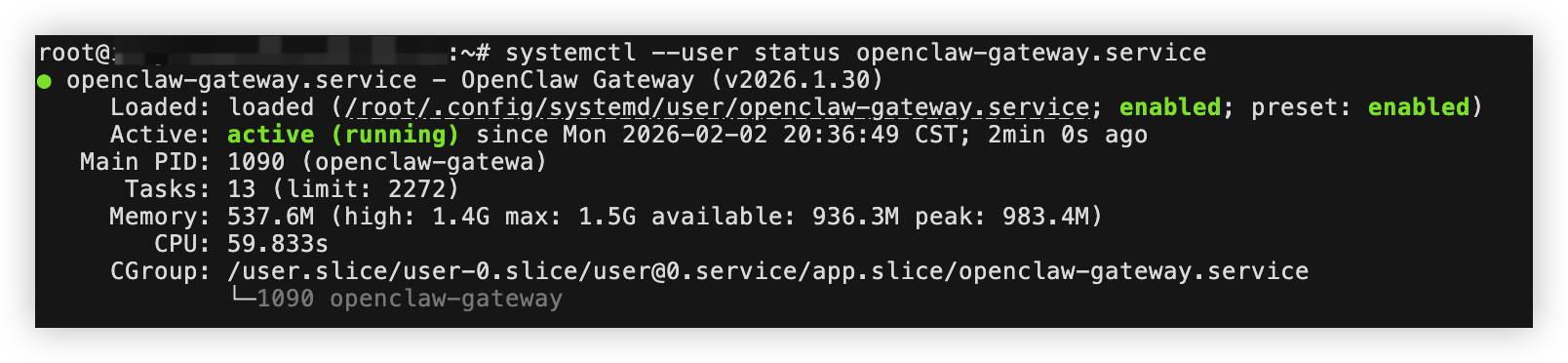
- Execute the following command to check the running status of the OpenClaw service and check whether it started as expected.
-
- If the service status in the output is active (running), the OpenClaw service has started as expected. You can refer to the subsequent steps to use the AI assistant in DingTalk.
-
Use the AI assistant
After the configuration is complete, you can have a private chat with the AI assistant on DingTalk to assign tasks, or add it to a group chat and mention it with @ to assign tasks. This section uses the scenario of adding it to a group chat to interact with it as an example.
- Enter the "Group settings" page in the DingTalk group.
- In the "Management" module, click the bot card.
- On the bot management page, click "Add bot".
- Search for and select the DingTalk application you created.
- Click the "Add" button, confirm the information on the "Add bot" tab, and click the "Complete" button to complete the operation.
- Mention the bot with @ in a DingTalk group chat to interact with it directly.
- The following two example tasks are used to describe how the AI assistant works.
- Task 1: Generate Spring Festival-themed images
- Prompt used:
- Spring Festival theme. Use the image_generate tool to create four storyboard images in sequence. Create four independent tasks at once. If no style is specified, use "Shanghai fine arts cartoon style" by default. Send me all four images after generation.
- Task 2: Create a video from the images generated in "Task 1"
- Prompt used:
- Use these 4 images (with the first and last frames retained) to generate 3 video clips with voiceover. Use the video-generate tool with 480P resolution configuration. The size of a single file should not exceed 5 MB. Compress the generated MP4 files and send them to me.
Last updated: 2026.09.08 14:33:21
All rights reserved © Beijing Volcano Engine Technology Co., Ltd2024
