Elastic Compute Service
Elastic Compute Service


Document

- Documentation
 Elastic Compute ServiceElastic Compute ServiceFAQSecurity FAQ
 Copy page
 Download PDF
FAQ
Security FAQ
Copy pageDownload PDFSecurity FAQ
Category | Question |
Key pair | |
Ubuntu firewall | |
Windows firewall | |
DDoS attack |
Key pair FAQ
Can I use key pairs to log in to Linux instances and Windows instances?
Currently, Linux instances support two login methods: password and SSH key, while Windows instances currently support only password login.
Why cannot I associate a key pair with an instance?
You can associate a key pair with an instance that is installed with the reset-authentication plug-in. Install the plug-in first.
After you associate a key pair with an instance, you need to restart the instance for the key pair to take effect.
How do I use a local key pair to log in to a Linux instance?
- View the public key of the local key pair. For more information, see Viewing public key information.
- Create a key pair by importing an existing public key.
- Associate the key pair with the instance and restart the instance for the key pair to take effect.
Why cannot I log in to a Linux instance by using a local key pair?
The reset authentication plug-in may not be installed on the instance. Install the plug-in and try again.
How can I log in to an instance if I lose the private key of my key pair?
If the private key is lost, you can only log in to the instance after you associate a new key pair with the instance. The specific operations are as follows:
- Disassociate the original key pair from the instance.
- Use the new key pair to log in to the Linux instance.
Ubuntu firewall
How do I configure the firewall for an Ubuntu ECS instance?
This section uses an ECS instance running the Ubuntu 20.04.5 LTS operating system as an example to describe how to enable or disable the firewall on Ubuntu-based instances, and how to add port rules to the firewall.
- Execute the following command to check whether Uncomplicated Firewall is installed.
- If Uncomplicated Firewall is not installed, execute the following commands in sequence to install it.
- Execute the following command to enable the SSH remote login service.
- Execute the following command to enable Uncomplicated Firewall.
tip
If the rule allowing SSH remote login services is not configured in advance, enabling Uncomplicated Firewall will disconnect the ECS Terminal remote login, and subsequent remote logins via the ECS Terminal will fail. Proceed with caution.
- Execute the following command to disable Uncomplicated Firewall.
- Add rules
- Add rules to allow specific ports to be accessed. Examples:
- Allow SSH (default port 22):
- Allow specific ports to be accessed. For example, allow HTTP (port 80):
- Add a rule to deny access to specific ports.
For example, deny access to port 80.
tip
For the same port, newly configured firewall rules will overwrite existing ones. For example, if you first configure a rule to block port 80 and then configure a rule to allow port 80, only the "allow port 80" rule will remain in effect.
- Delete a rule
- Execute the following command to query the rule IDs.
-
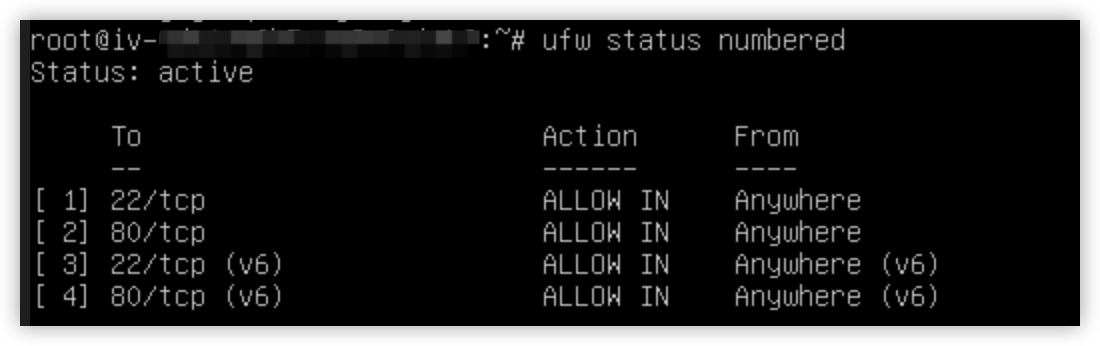
- Execute the following command to delete a rule.
- Execute the following command to view the rules configured for Uncomplicated Firewall.
- Execute the following command to view Uncomplicated Firewall logs.
Windows firewall
How do I configure the firewall for a Windows ECS instance?
This section uses an ECS instance running the Windows Server 2019 operating system as an example to describe how to enable or disable the firewall on Windows-based instances, and how to add port rules to the firewall.
tip
- If you disable the firewall, your device may be vulnerable to attacks. Proceed with caution. If you disable the firewall, we recommend that you exercise caution when you open ports in security groups.
- If you enable the firewall, the firewall must allow the local remote desktop port to permit remote connections. The default port for the remote server is TCP 3389. For specific operations, see the following "Configure port rules for the firewall" tab.
- If the port specified in the inbound rules of the firewall does not match the port specified on the remote server, remote access to the server will fail. You can refer to the following "Configure port rules for the firewall" tab to add a new port to the inbound rules of the firewall.
- On the desktop of the Windows instance, click "Start > Control Panel".
- In the "Control Panel" window, click "System and Security."
- On the "System and Security" page, click "Windows Defender Firewall".
- On the "Windows Defender Firewall" page, click "Turn Windows Defender Firewall on or off".
- View and specify the firewall status: enable or disable.
- On the desktop of the Windows instance, click "Start > Control Panel".
- In the "Control Panel" window, click "System and Security."
- On the "System and Security" page, click "Windows Defender Firewall".
- On the "Windows Defender Firewall" page, click "Advanced settings".
- On the "Windows Defender Firewall with Advanced Security" page, click "Inbound Rules > New Rule".
- In the pop-up "New Inbound Rule Wizard" window, select "Port", and click "Next".
- In the pop-up window, select "TCP" and specify a value for "Specific local port". In the example provided in this topic, port 3389 is opened. Click "Next."
- In the pop-up window, select "Allow the connection". Click "Next".
- In the pop-up window, retain the default settings. Click "Next".
- In the pop-up window, enter the rule name. Click "Finish".
- After you add the rule, the rule will appear as the first entry in the "Inbound Rules" list on the "Windows Defender Firewall with Advanced Security" page.
DDoS attack
How does an ECS instance defend against DDoS attacks?
A DDoS attack uses a large number of botnets distributed across various regions to send malicious packets to the target ECS instance simultaneously. This either clogs the bandwidth resources of the target ECS instance or exhausts its CPU resources, ultimately causing the attacked instance to crash and fail to provide services as expected.
To mitigate the impact against DDoS attacks, we recommend the following measures:
- Enable DDoS Protection_Basic: By default, Cloud DDoS Protection_Basic protects all EIPs owned by users on the cloud.
- Enable DDoS Native Protection (Enterprise Edition): For large-scale DDoS attacks, DDoS Native Protection (Enterprise Edition) can effectively mitigate the impact on businesses and ensure normal service operation.
- Enhance security framework: You can also enable security enhancement HIDS, configure security groups, and choose a more complex password to improve the security of your ECS instances. For more information, refer to Enhancing ECS instance security.
- Optimize network architecture: You can use services such as Classic Load Balancer (CLB) and NAT gateways to improve system availability and security. This also reduces the risk of exposure to the public network.
Last updated: 2026.06.18 17:48:25
All rights reserved © Beijing Volcano Engine Technology Co., Ltd2024
