Elastic Compute Service
Elastic Compute Service


Document

- Documentation
 Elastic Compute ServiceElastic Compute ServiceBest PracticesSelf-service website creationBuilding applicationsDeploying Oracle
 Copy page
 Download PDF
Building applications
Deploying Oracle
Copy pageDownload PDFDeploying Oracle
Oracle is a database commonly used for online transaction processing (OLTP), data warehousing (DW), and hybrid (OLTP & DW) database workloads. This topic describes how to deploy Oracle.
Prerequisites
- Oracle officially recommends using Linux operating systems version 7.4 or later.
- You have purchased an ECS instance and associated an EIP with it.
- The ECS instance status is Running.
Software versions
- Linux operating system: In the example provided by this topic, CentOS 7.6 is used.
- Oracle database: 19.3.0.0.
Procedure
Step 1: Download software
- Download an installation package of Oracle database 19.3.
- From a local computer, access the Oracle official website to download the LINUX.X64_193000_db_home.zip package.
You need to register for and log in to an Oracle account to download the package.
- Upload the local Oracle installation package to the /home directory on the Linux server. For detailed operations, refer to Overview of local data upload.
Step 2: Install Oracle
Prepare the installation environment
- Execute the following command to update CentOS system components to the latest version.
-
- Execute the following command to install required components.
-
- Disable SELinux.
- Execute the sestatus -v command to view the SELinux status.
tip
- By default, SELinux is disabled in a CentOS public image provided by VolcanoEngine.
- If SELinux is enabled, execute the setenforce 0 command to disable it.
- Disable firewall.
- Execute the systemctl status firewalld command to view the firewall status.
tip
- By default, the firewall is disabled in a CentOS public image provided by VolcanoEngine.
- If the firewall is enabled, execute the systemctl stop firewalld command to disable it.
- Execute the following commands to create the required operating system groups and users for the Oracle database, and set the password for the Oracle user.
-
- Edit the file /etc/hosts to configure the domain name resolution file.
- Execute the hostname command to view the hostname.
- A hostname refers to an internal computer name in the operating system. It identifies a computer on a network and differs from an instance ID.
- Execute the following command to open the /etc/hosts file.
-
- Press i key to enter edit mode and add the private IP address and hostname to the end.
-
Description
You can obtain the private IP address of the instance on the Instances page.
- Press Esc, enter :wq, and then press Enter to save the modifications and close the file.
- Edit the /etc/sysctl.conf file to modify kernel parameters.
- Execute the following command to open the /etc/sysctl.conf file.
-
- Press i key to enter edit mode and add the following content at the end.
-
- Press Esc, enter :wq, and then press Enter to save the modifications and close the file.
- Execute the sysctl -p command to make kernel modifications take effect.
- Edit the /etc/security/limits.conf file to modify user limits.
- Execute the following command to open the /etc/security/limits.conf file.
-
- Press i key to enter edit mode and add the following content at the end.
-
- Press Esc, enter :wq, and then press Enter to save the modifications and close the file.
- Edit the .bash_profile file to set environment variables.
- Execute the su - oracle command to switch to the oracle user.
- Execute the following command to open the .bash_profile file.
-
- Press i key to enter edit mode and add the following content at the end.
tip
Replace the value of the ORACLE_HOSTNAME parameter with the hostname.
-
- Press Esc, enter :wq, and then press Enter to save the modifications and close the file.
- Execute the source .bash_profile command to make file modifications take effect.
- Execute the following command to switch to the root user.
-
- Execute the following commands to create an Oracle installation directory.
-
Extract the installation package
- Execute the following commands to extract the zip file of the Oracle database software.
-
- Execute the following command to change the ownership of /u01.
-
Install software
You can choose silent command-line installation or graphical interface installation. If you select the graphical interface installation, make sure that your instance has the graphical interface installed.
Silent command-line installation
- Execute the su - oracle command to switch to the oracle user.
- Execute the following commands to back up the response file.
-
- Edit the db_install.rsp file to configure the response file.
- Execute the following command to open the db_install.rsp file.
-
- Press i key to enter edit mode. Only modify the parameter values displayed below; keep all other parameters at their default values.
-
- Press Esc, enter :wq, and then press Enter to save the modifications and close the db_install.rsp file.
- Execute the following commands to install Oracle.
-
- If the following output is returned, the installation succeeds.
-
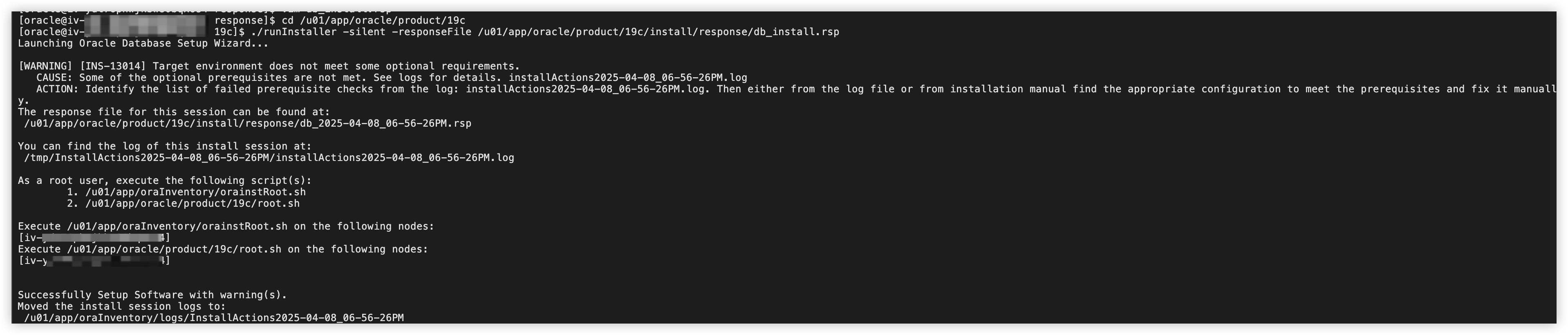
- Execute the following commands to run the scripts.
-
- If the following output is returned, scripts have run successfully.
-

Graphical interface installation
- Log in to the Linux instance via VNC.
- In the graphical interface, enter the Oracle user password, and then click "Applications > System Tools > Terminal" to open the terminal.
- Execute the following commands to install Oracle.
-
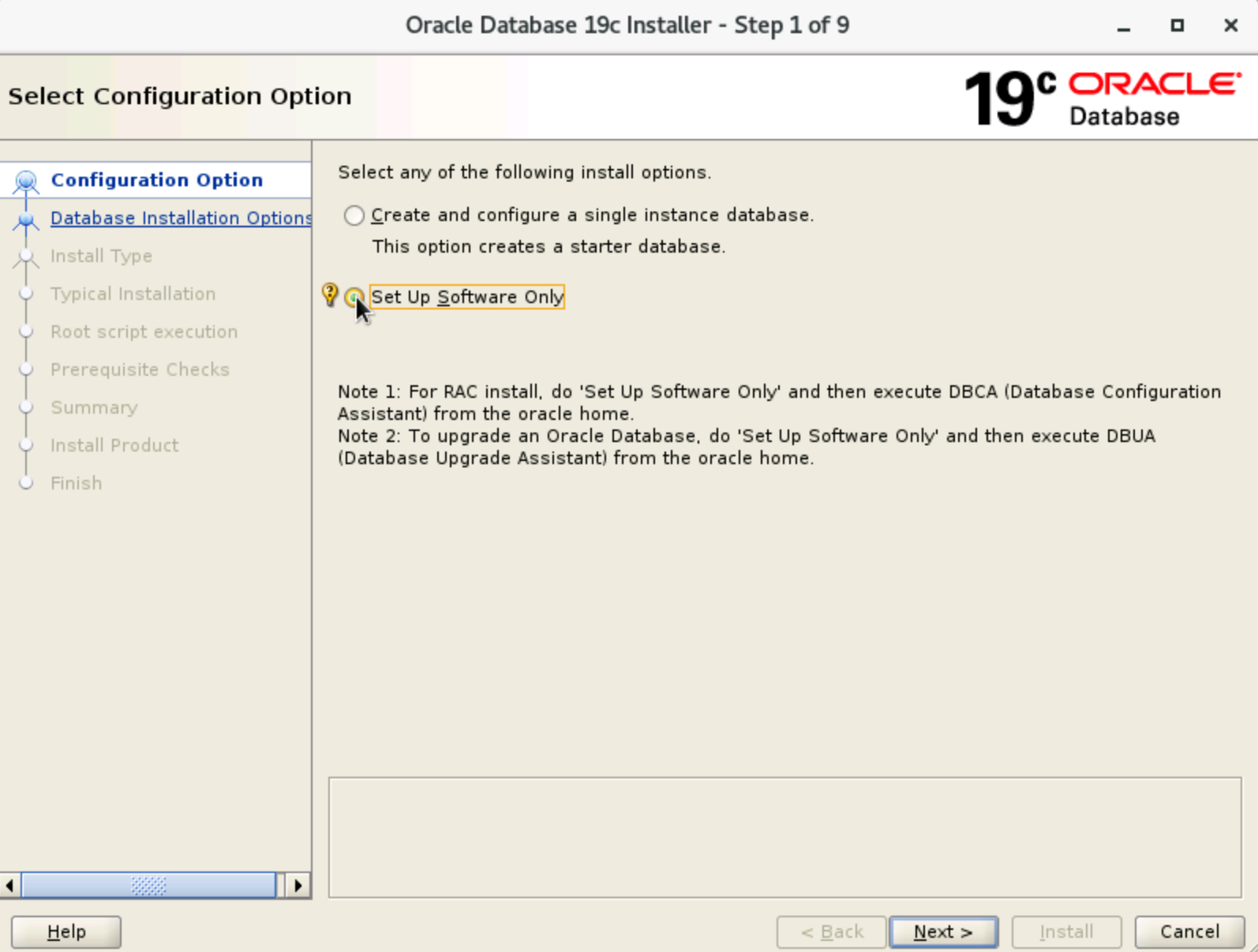
- In the "Select Configuration Option" window that pops up, select "Set Up Software Only", and click "Next".
-
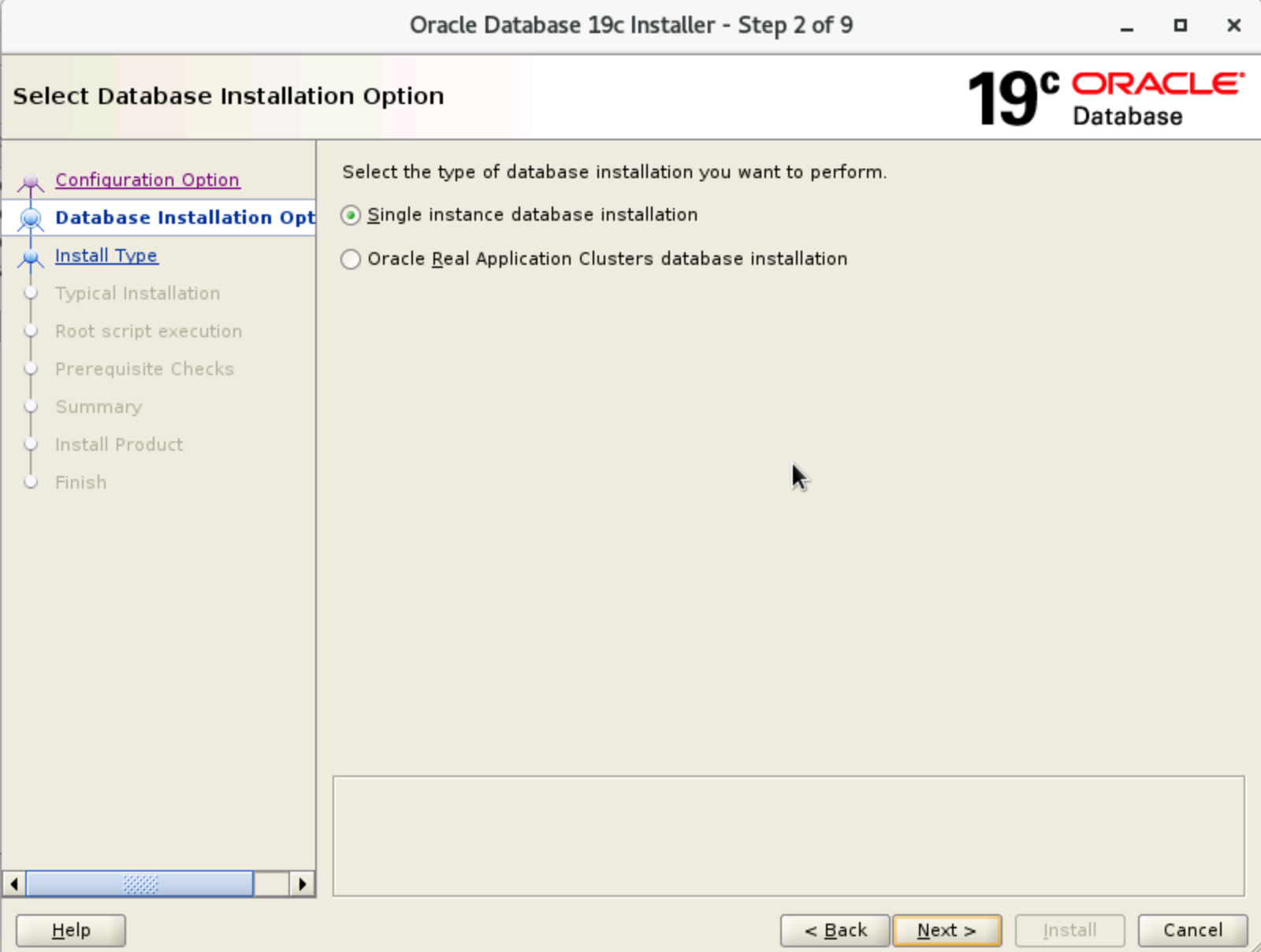
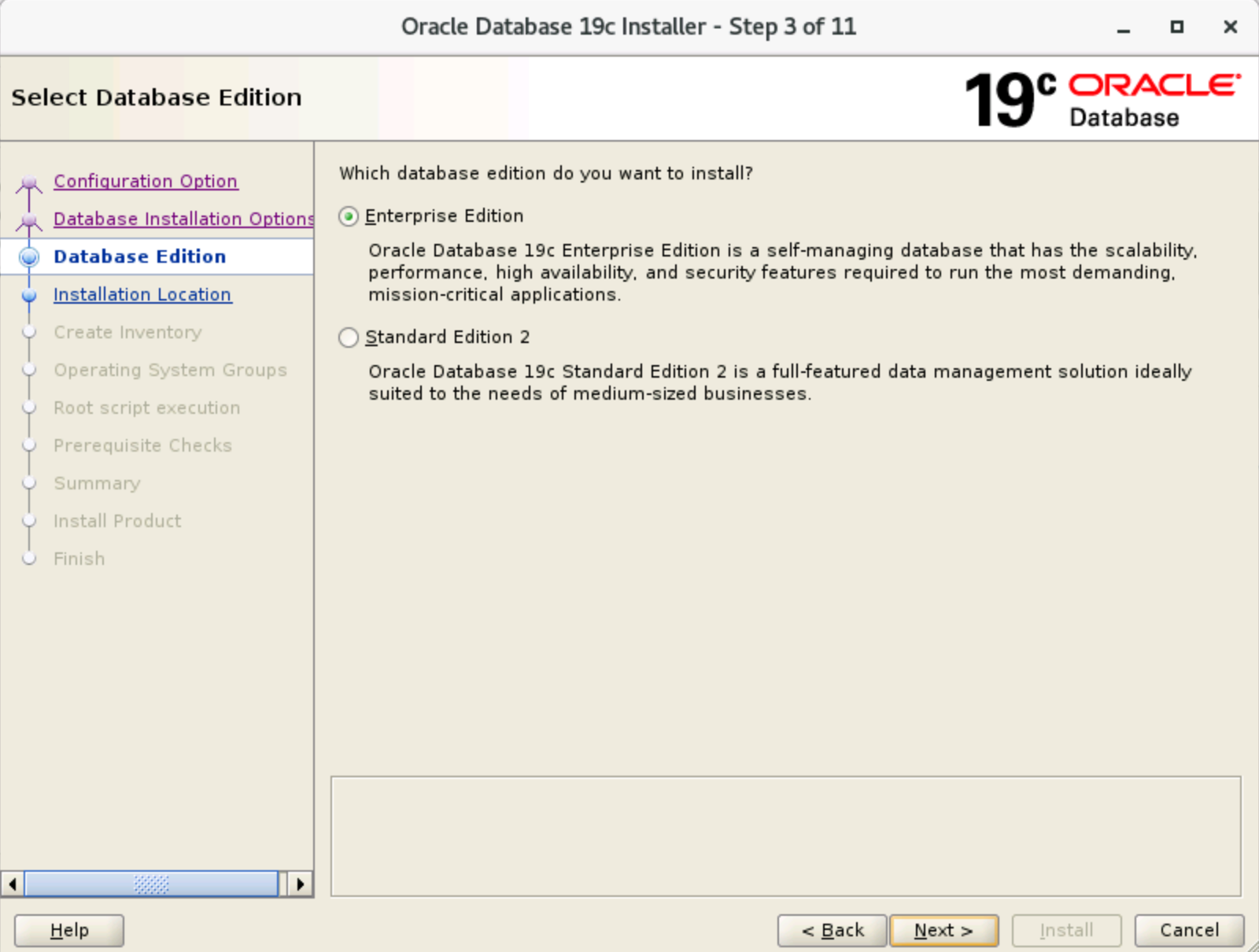
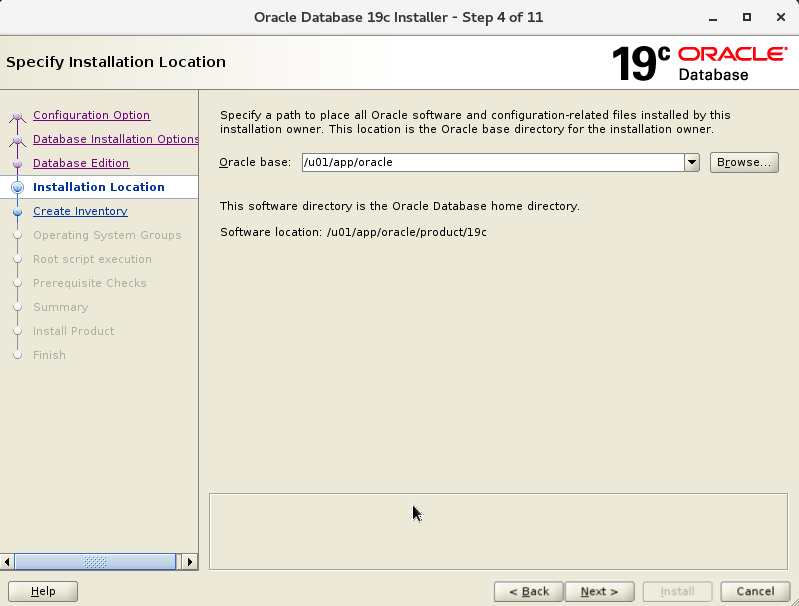
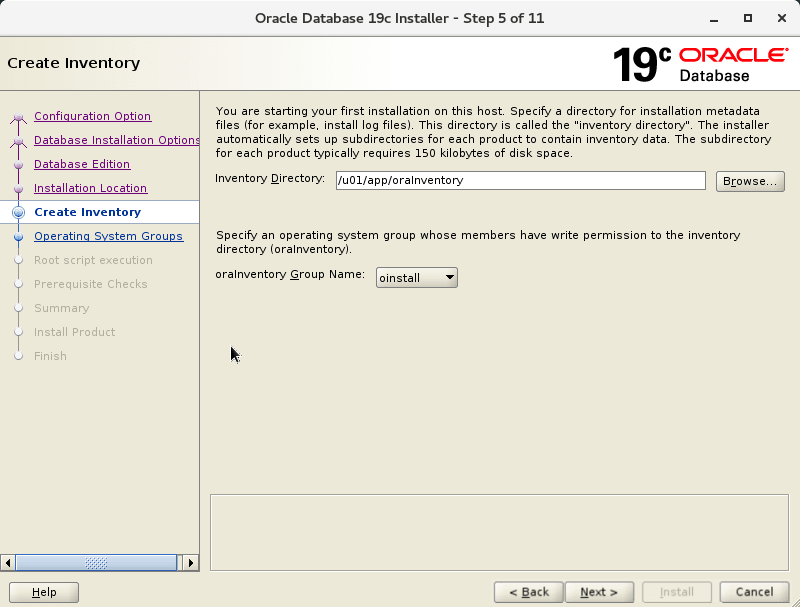
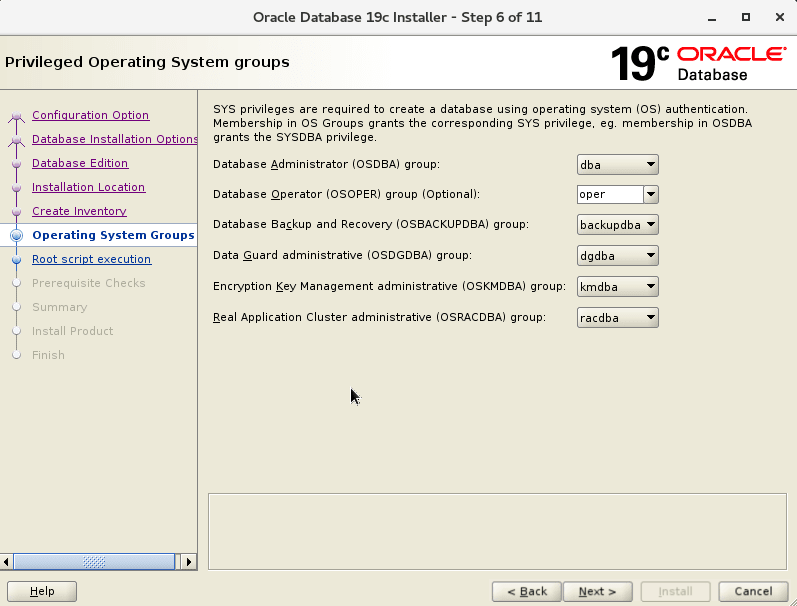
- In the windows from Step 2 to Step 6, keep the default configurations and click "Next" in sequence.
-
-
-
-
-
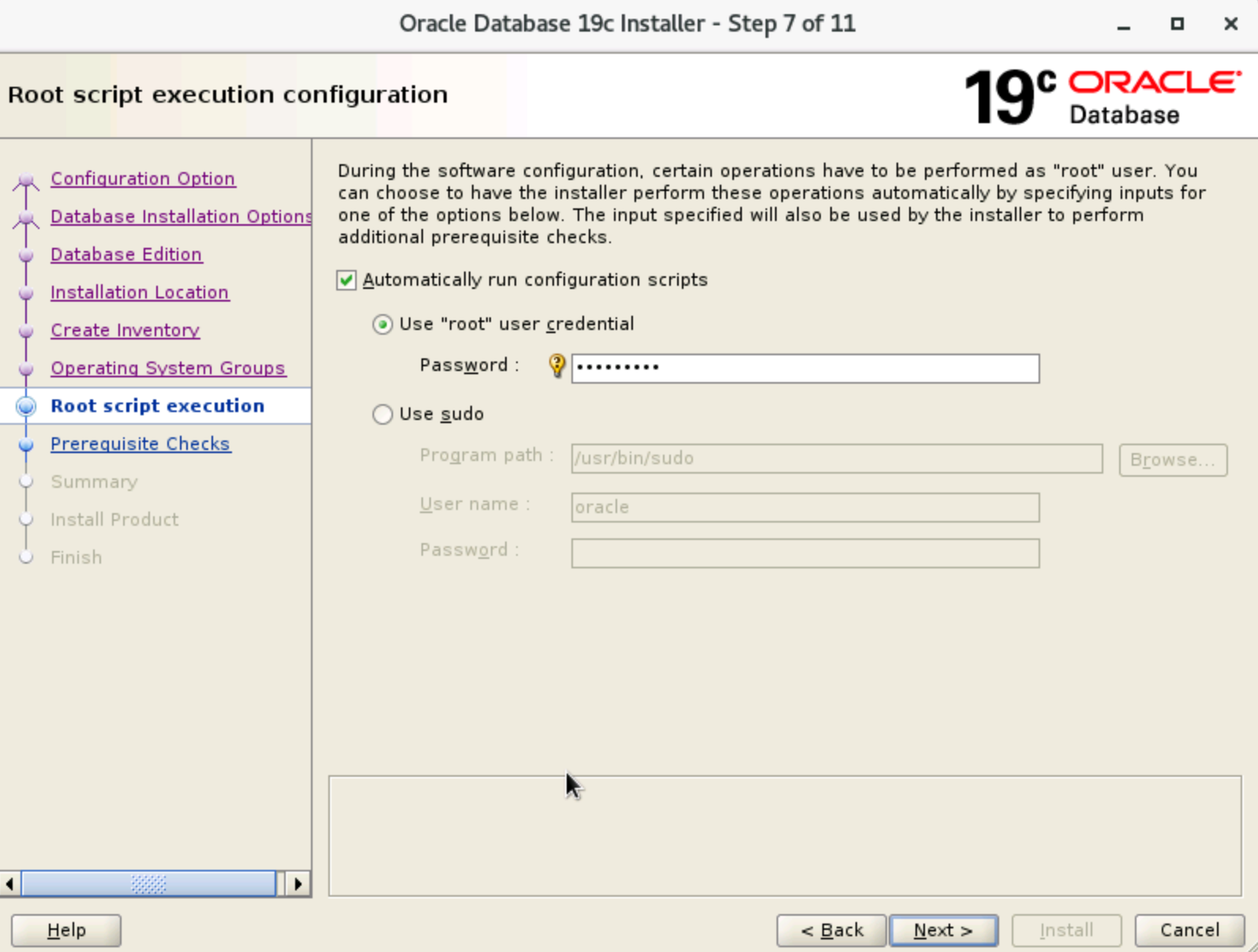
- In the "Root script execution configuration" window, select "Automatically run configuration scripts", enter the root user password, and click "Next".
-
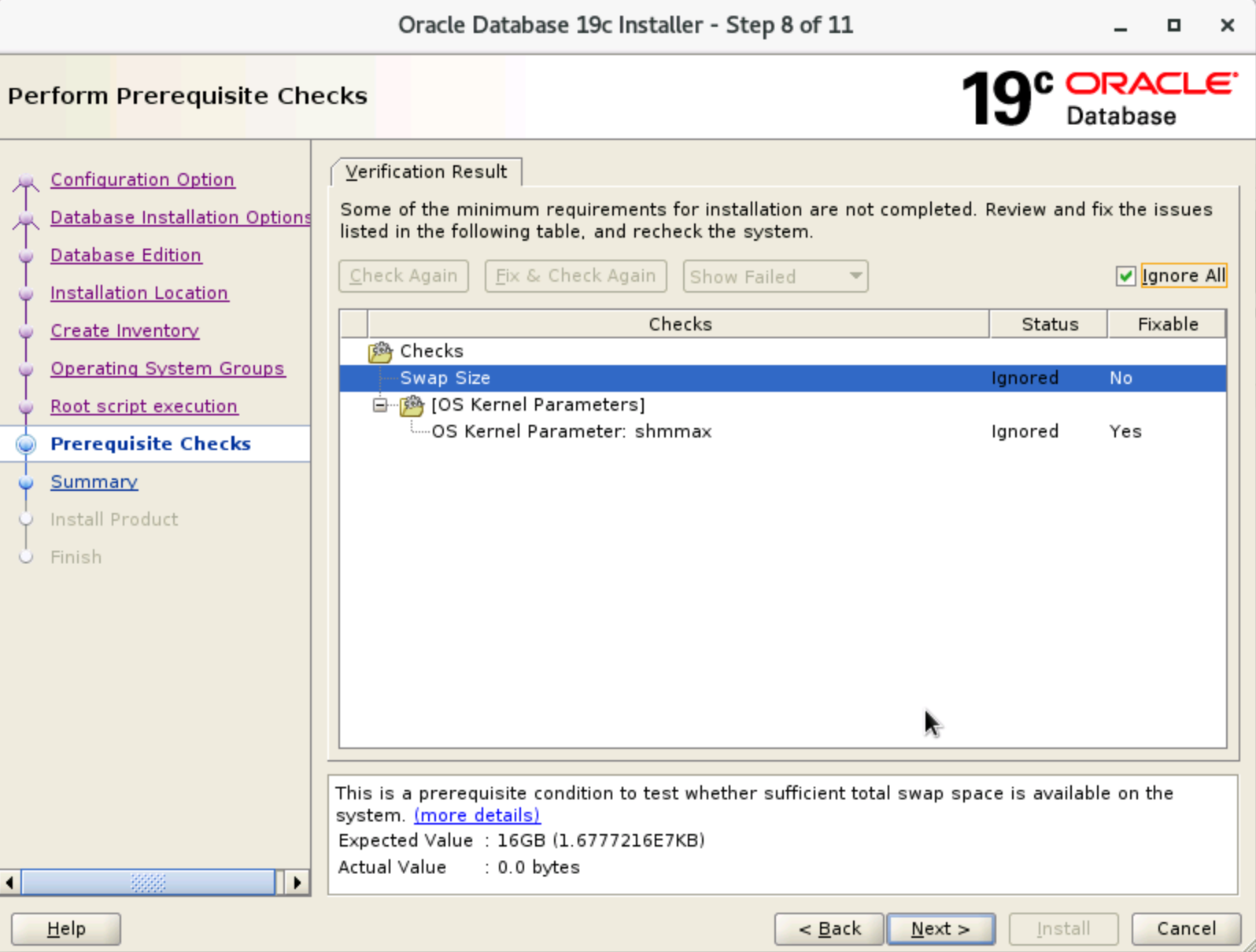
- In the "Perform Prerequisite Checks" window, select "Ignore All" and then click "Next".
-
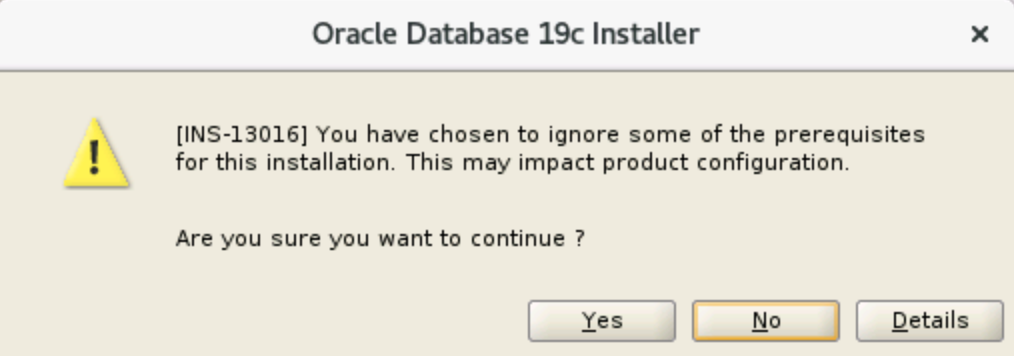
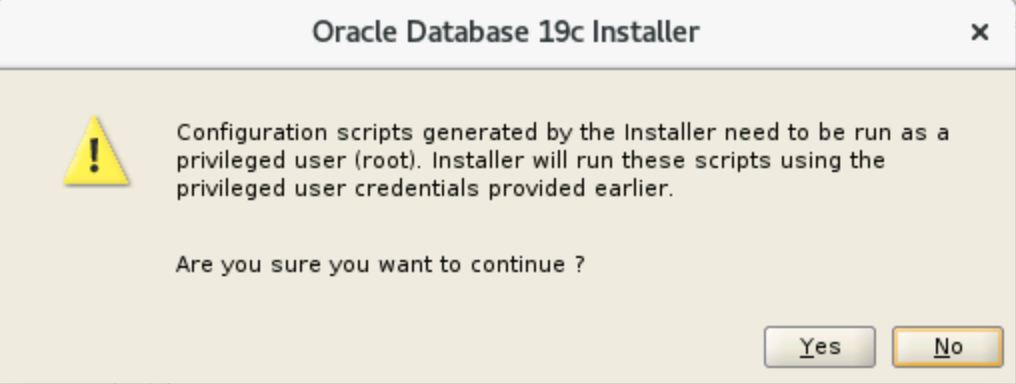
- In the prompt window that pops up, select "Yes".
-
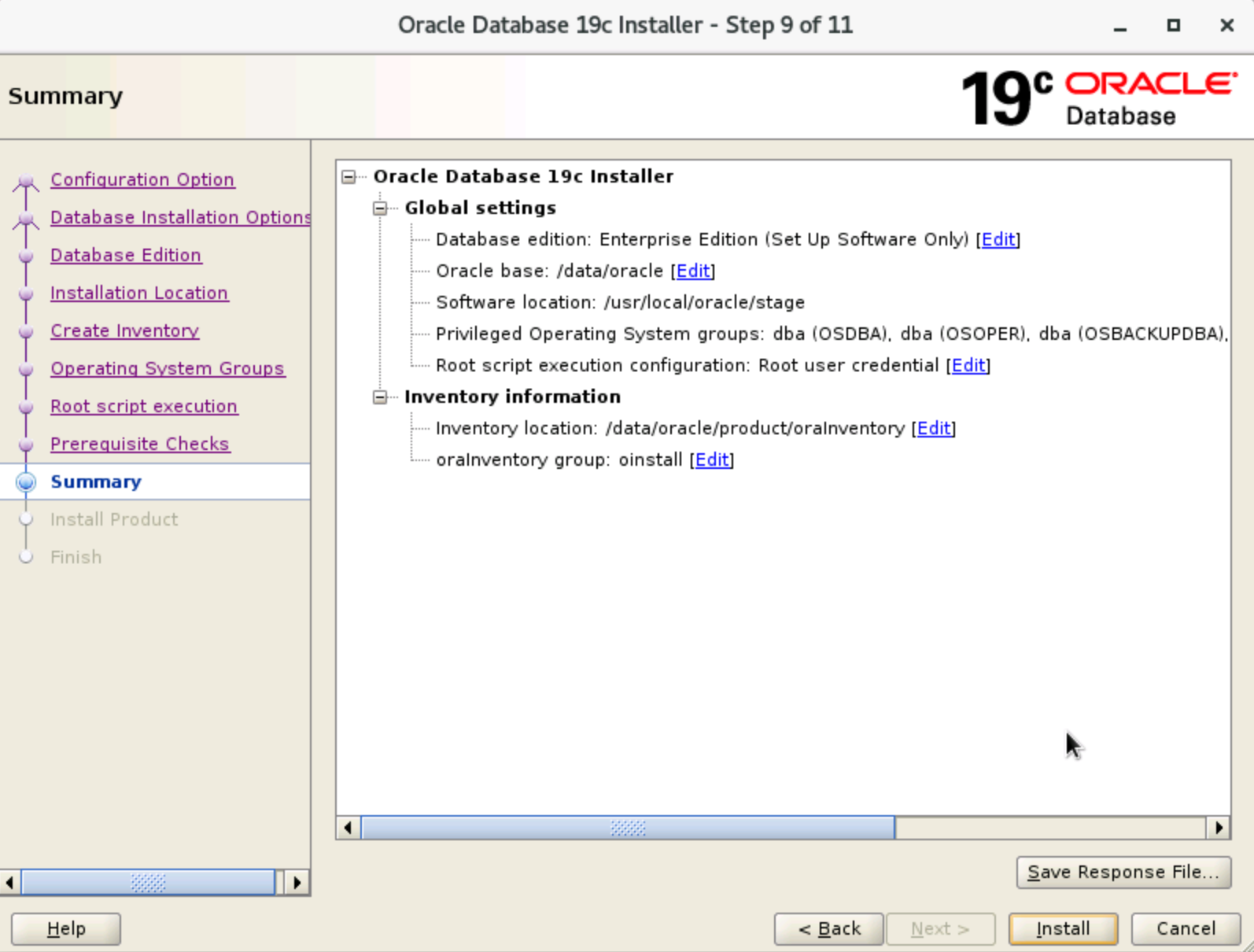
- In the "Summary" window, click "Install".
-
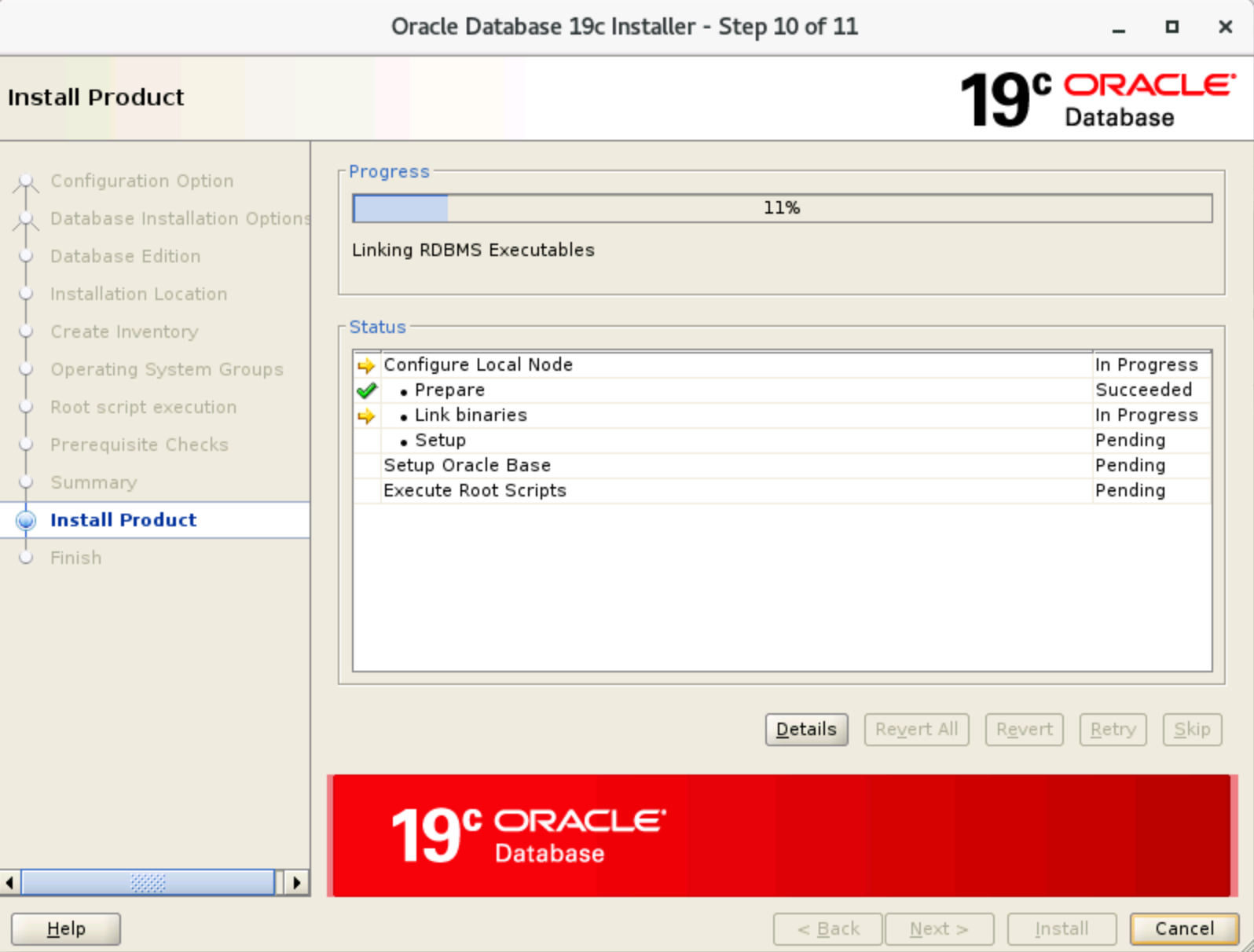
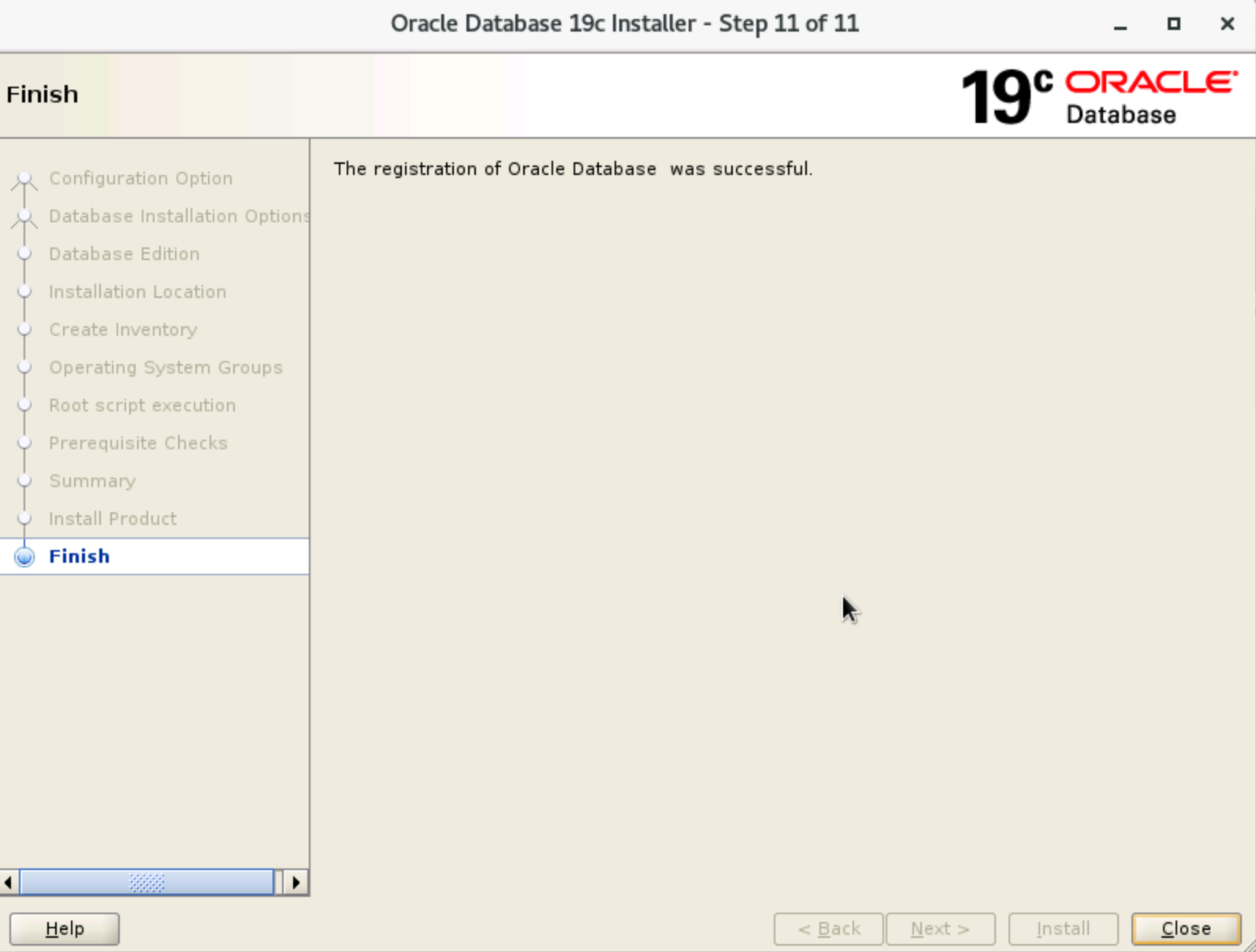
- Wait for the Oracle installation to complete. When the pop-up window appears, click "Yes" to complete the installation.
-
-
-
Step 3: Create a database
You can choose silent command-line creation or graphical interface creation. If you choose graphical interface creation, make sure that your instance has the graphical interface installed.
Silent command-line creation
Create a Listener
- Execute the su - oracle command to switch to the oracle user.
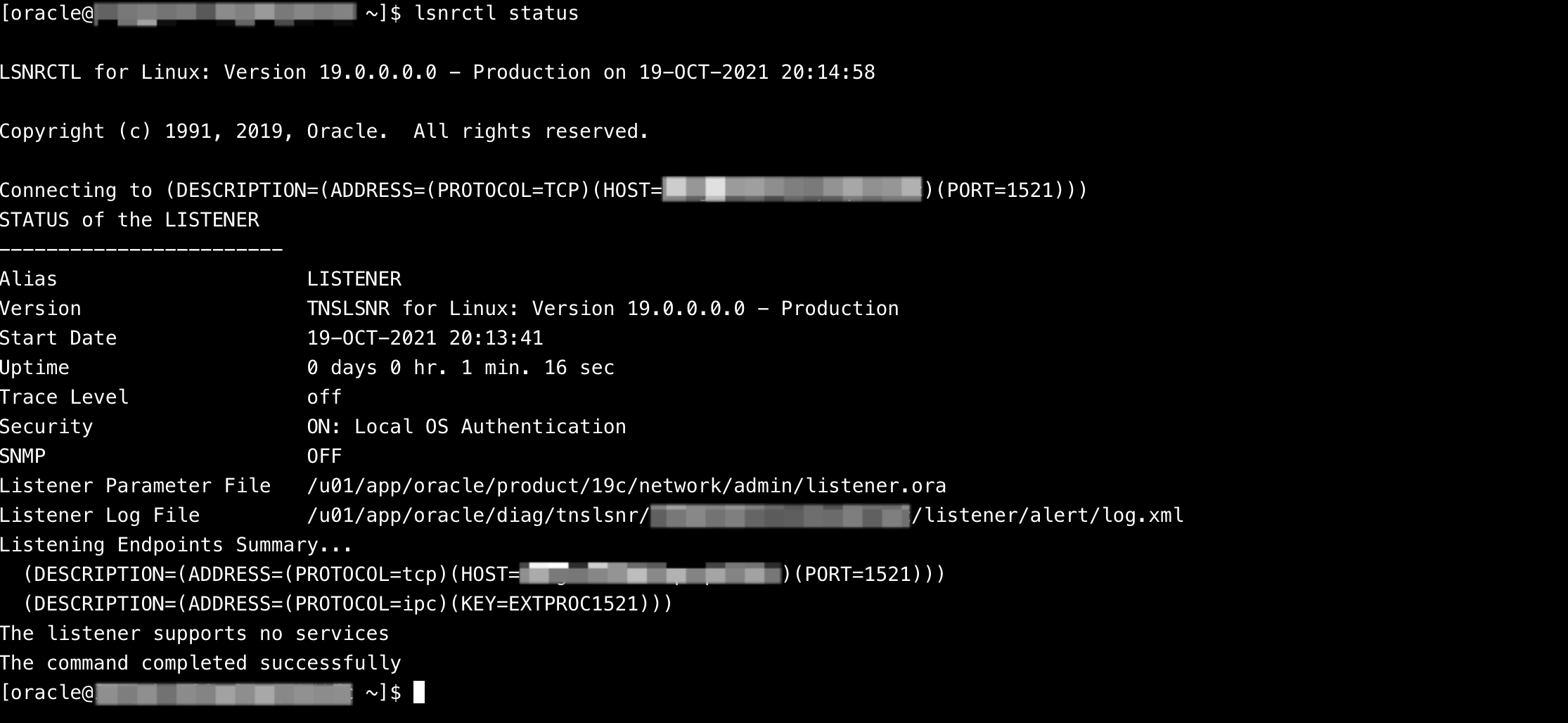
- Execute the following commands to create a Listener.
-
- If the following output is returned, the creation succeeds.
-
Create the database
- Execute the following commands to back up the response file.
-
- Edit the dbca.rsp file to configure the response file.
- Execute the following command to open the dbca.rsp file.
-
- Press i key to enter edit mode. Only modify the parameter values displayed below; keep all other parameters at their default values.
-
- Press Esc, enter :wq, and then press Enter to save the modifications and close the file.
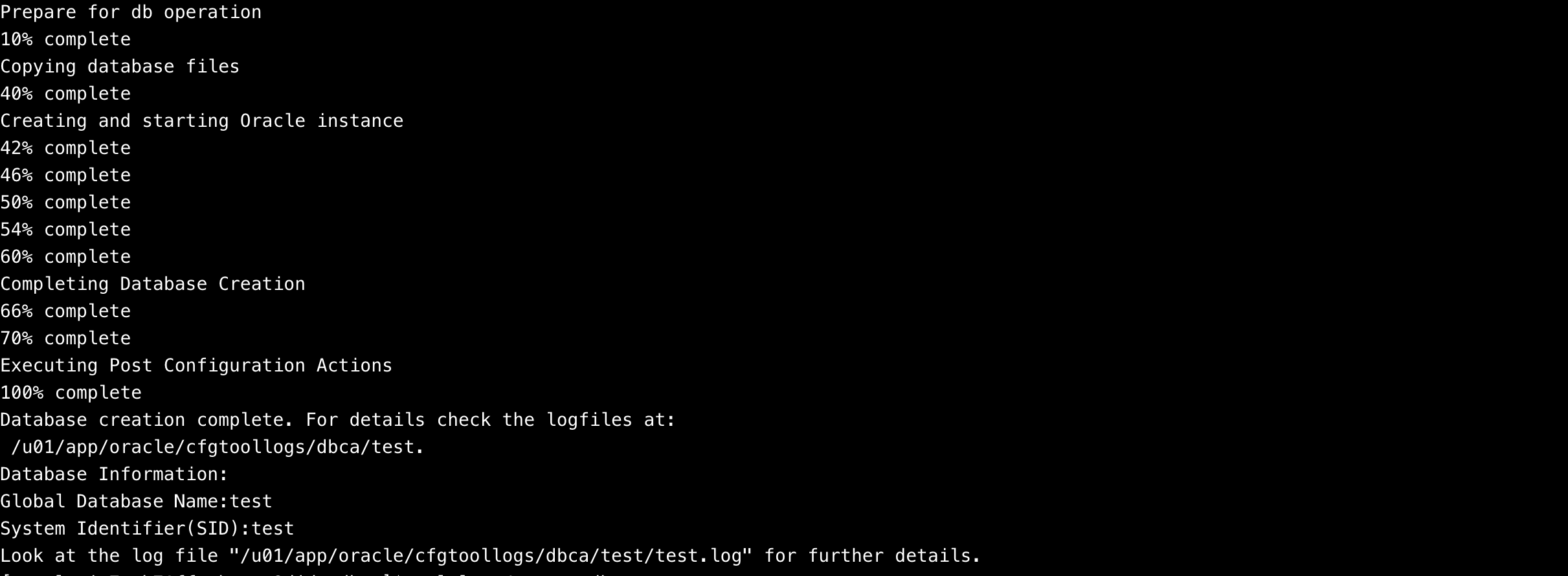
- Execute the following command to install the database.
-
- If the following output is returned, the creation succeeds.
-
Graphical interface creation
Configure the Listener
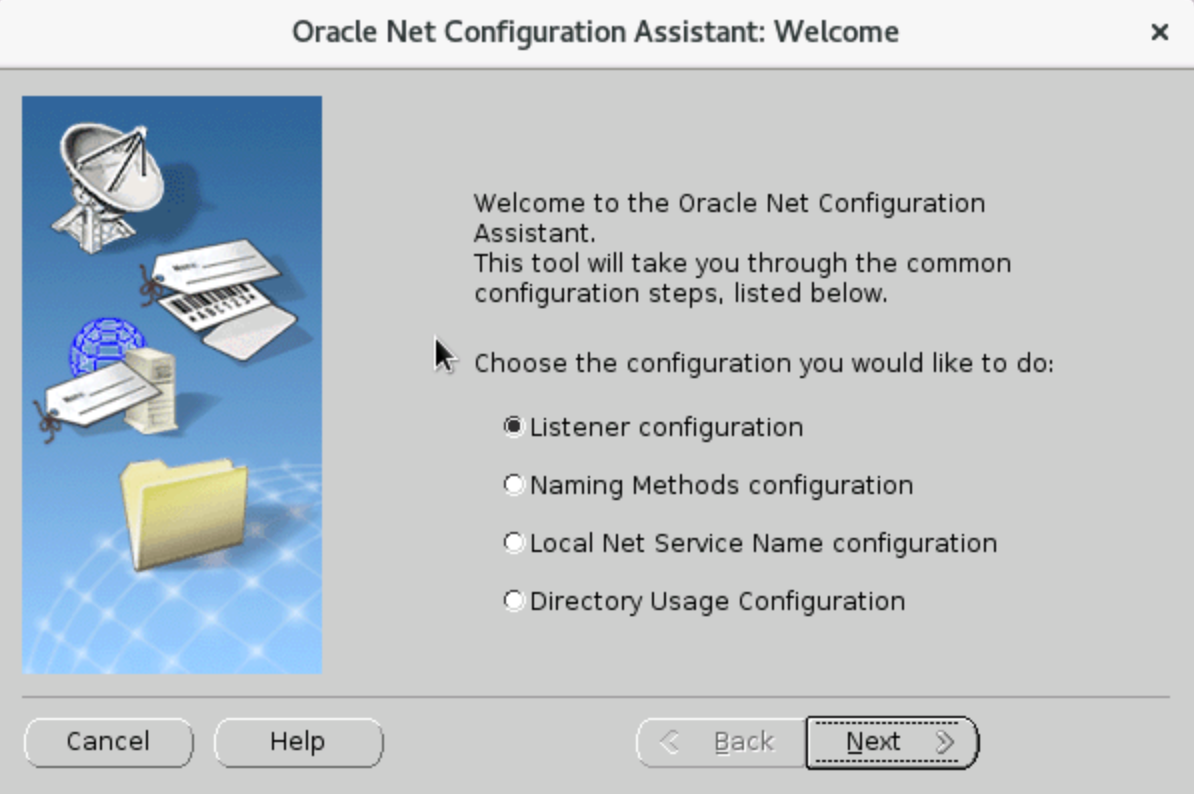
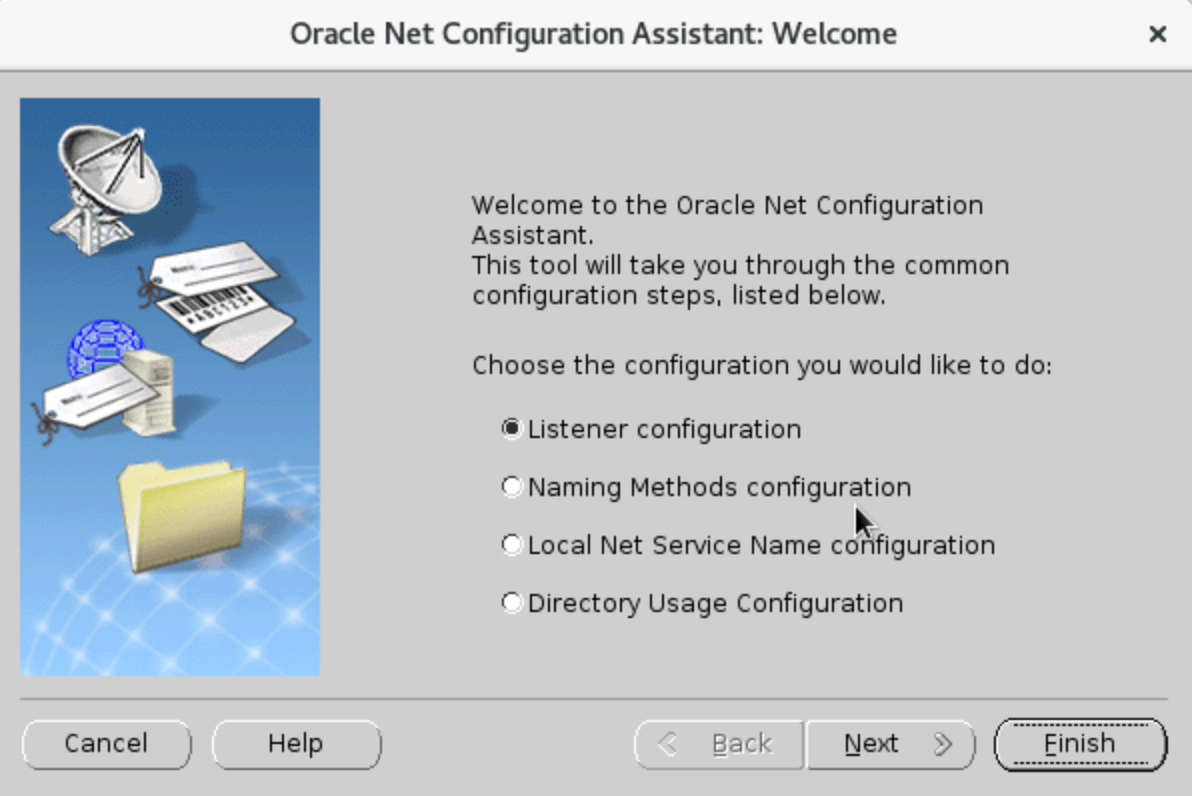
- In the terminal, execute the netca command to open the "Oracle Net Configuration Assistant: Welcome" window. Then, select "Listener configuration" and click "Next" twice.
tip
In this step, you need to log in to the ECS via VNC and execute the command as the oracle user.
-
-
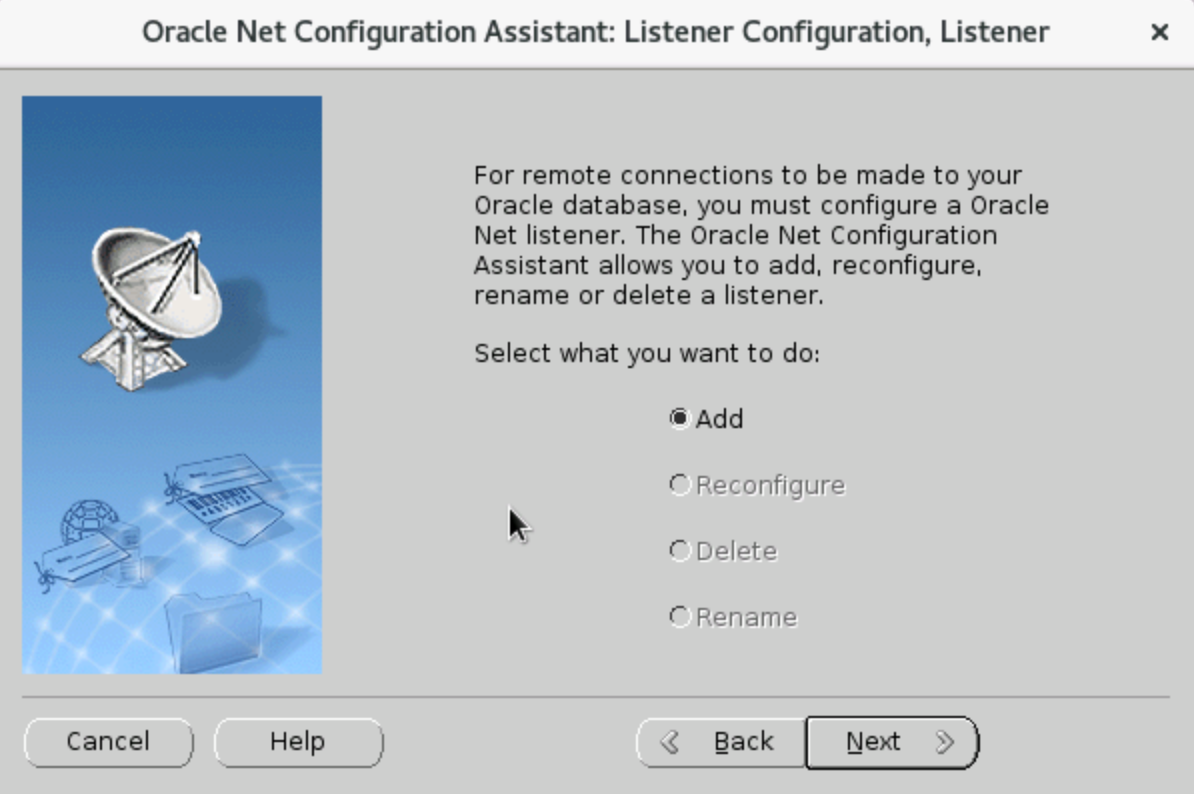
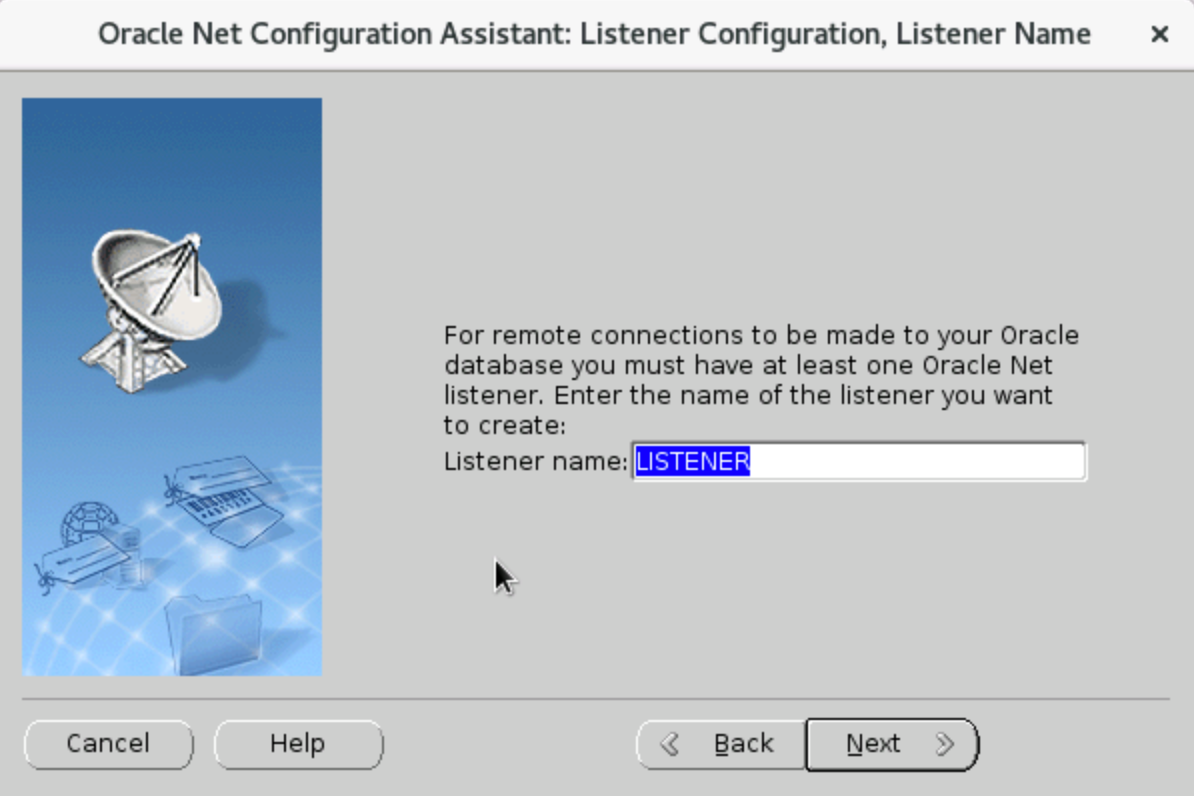
- In the "Oracle Net Configuration Assistant: Listener Configuration, Listener" window, set the Listener name. In the example provided in this topic, the default name is used. Click "Next".
-
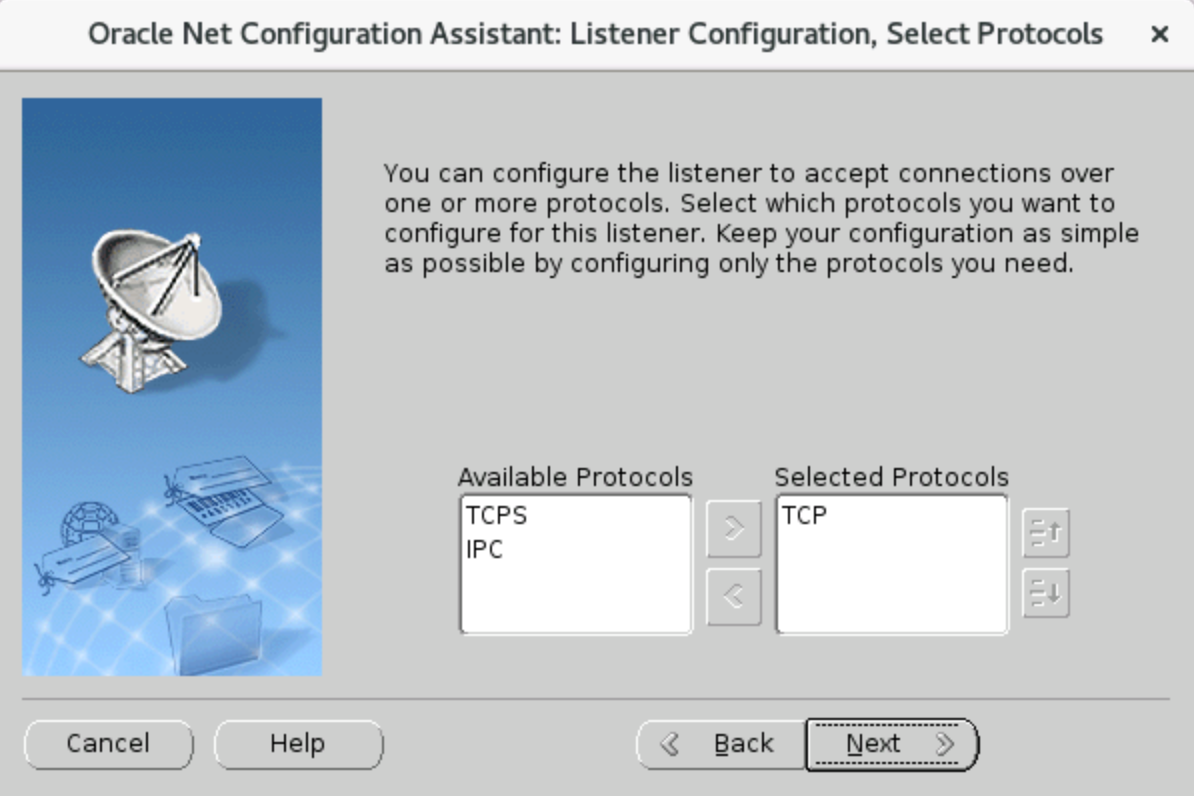
- In the "Oracle Net Configuration Assistant: Listener Configuration, Select Protocols" window, select the protocol you need to add. In the example provided in this topic, TCP is selected. Click "Next".
-
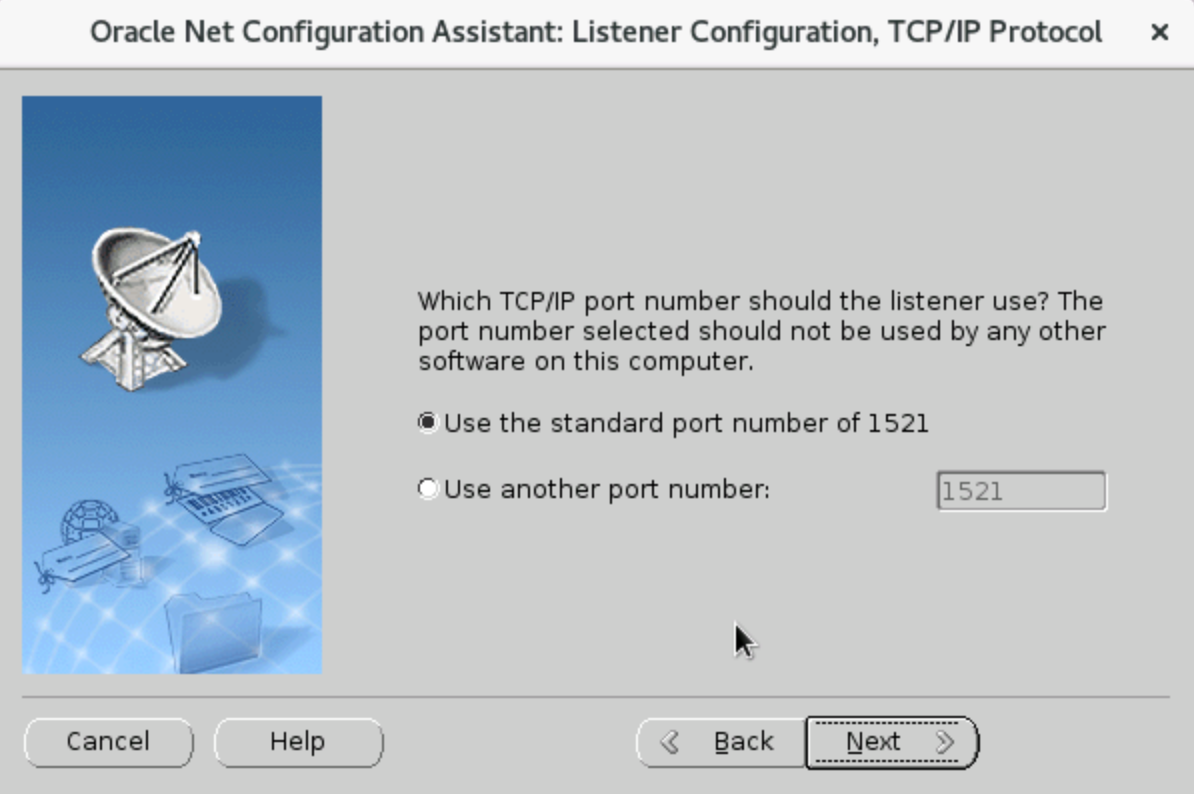
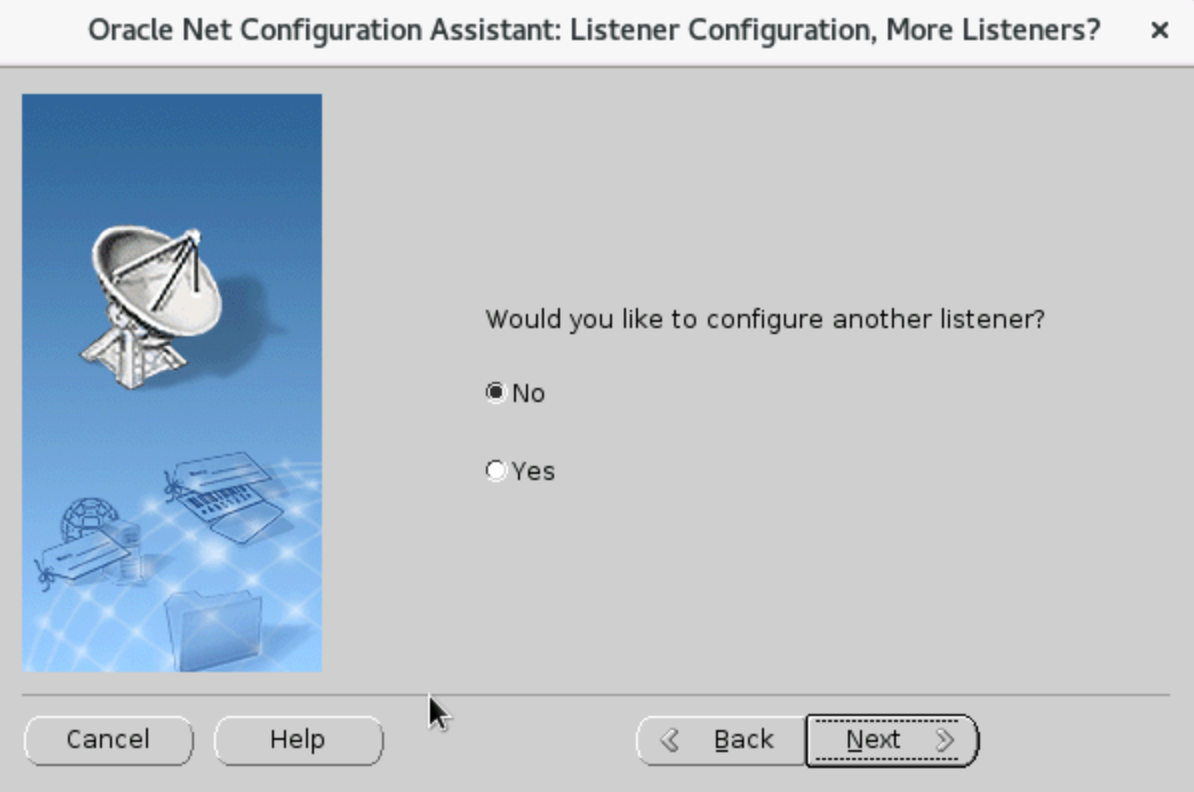
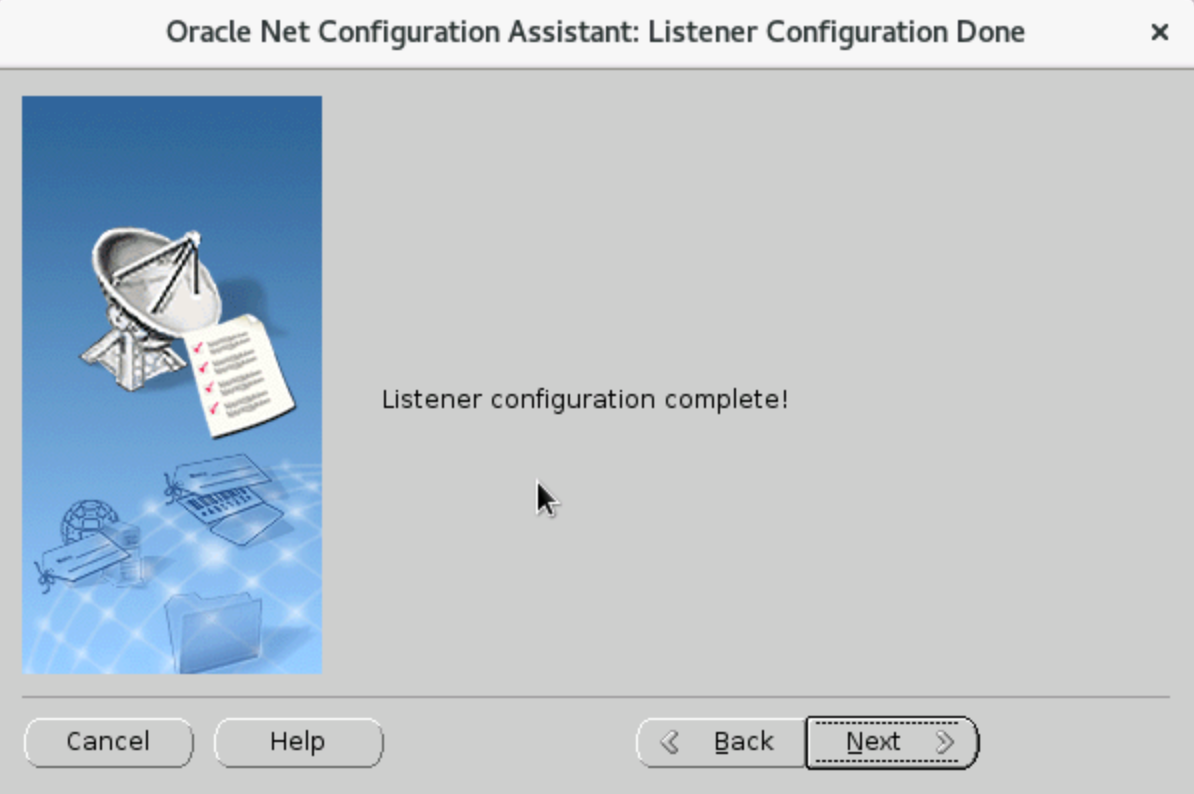
- Keep the default configurations, and click "Next" three times in a row.
-
-
-
- In the "Oracle Net Configuration Assistant: Welcome" window, click "Finish" to complete the Listener configuration.
-
Create the database
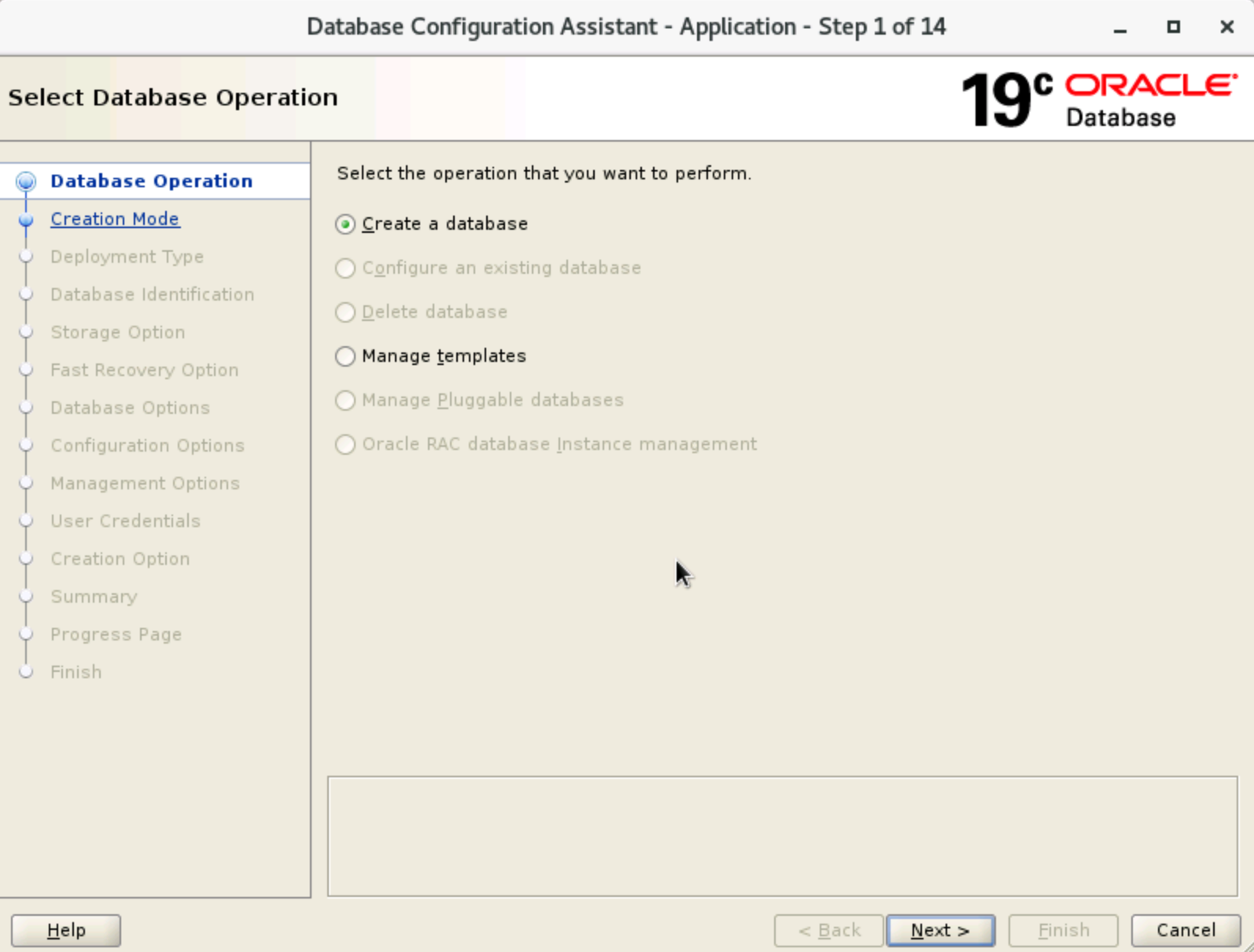
- In the terminal, execute the dbca command to open the "Database Operation" window, select "create a database", and then click "Next".
tip
In this step, you need to log in to the ECS via VNC and execute the command as the oracle user.
-
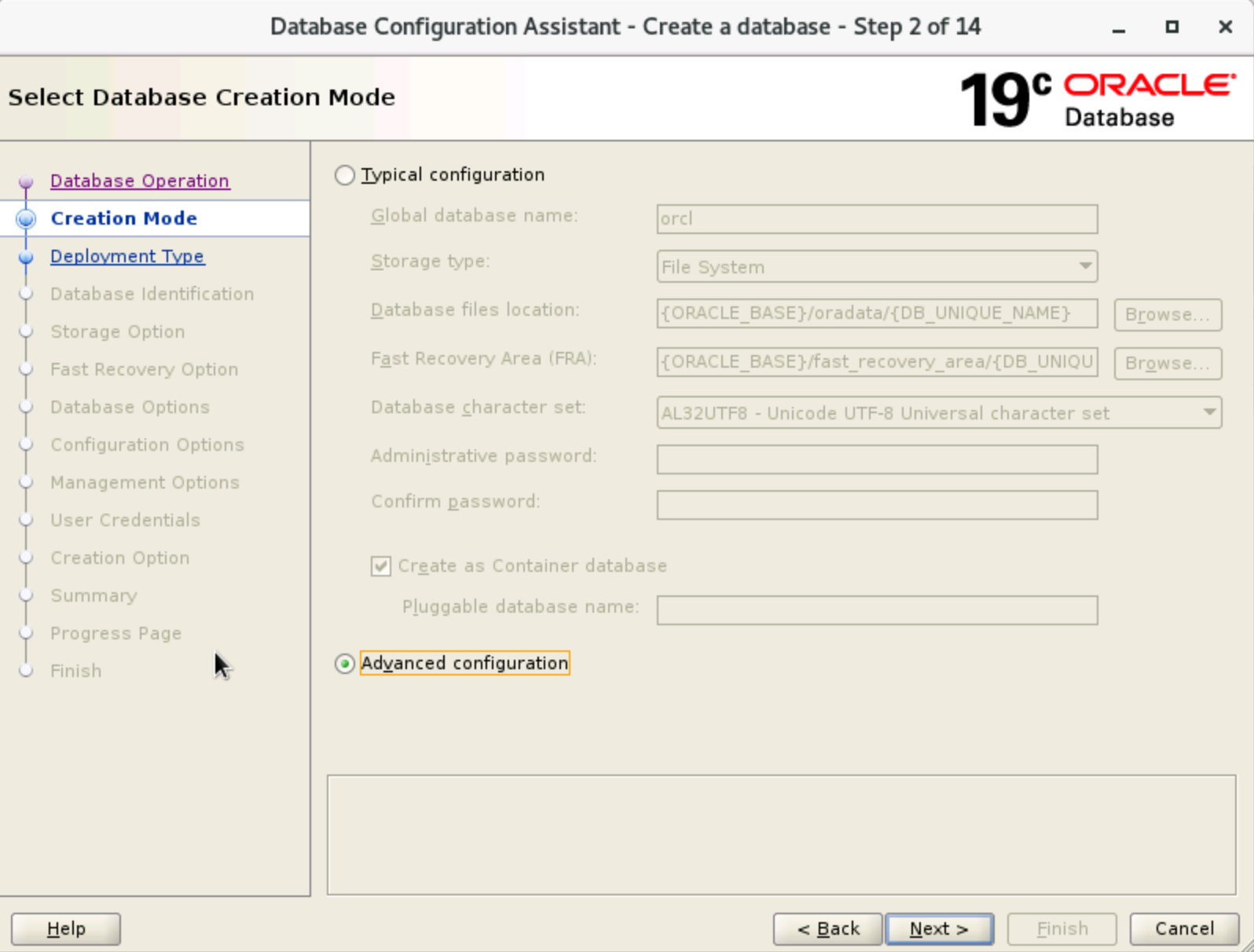
- In the "Select Database creation Mode" window, select "Advanced configuration", and then click "Next".
-
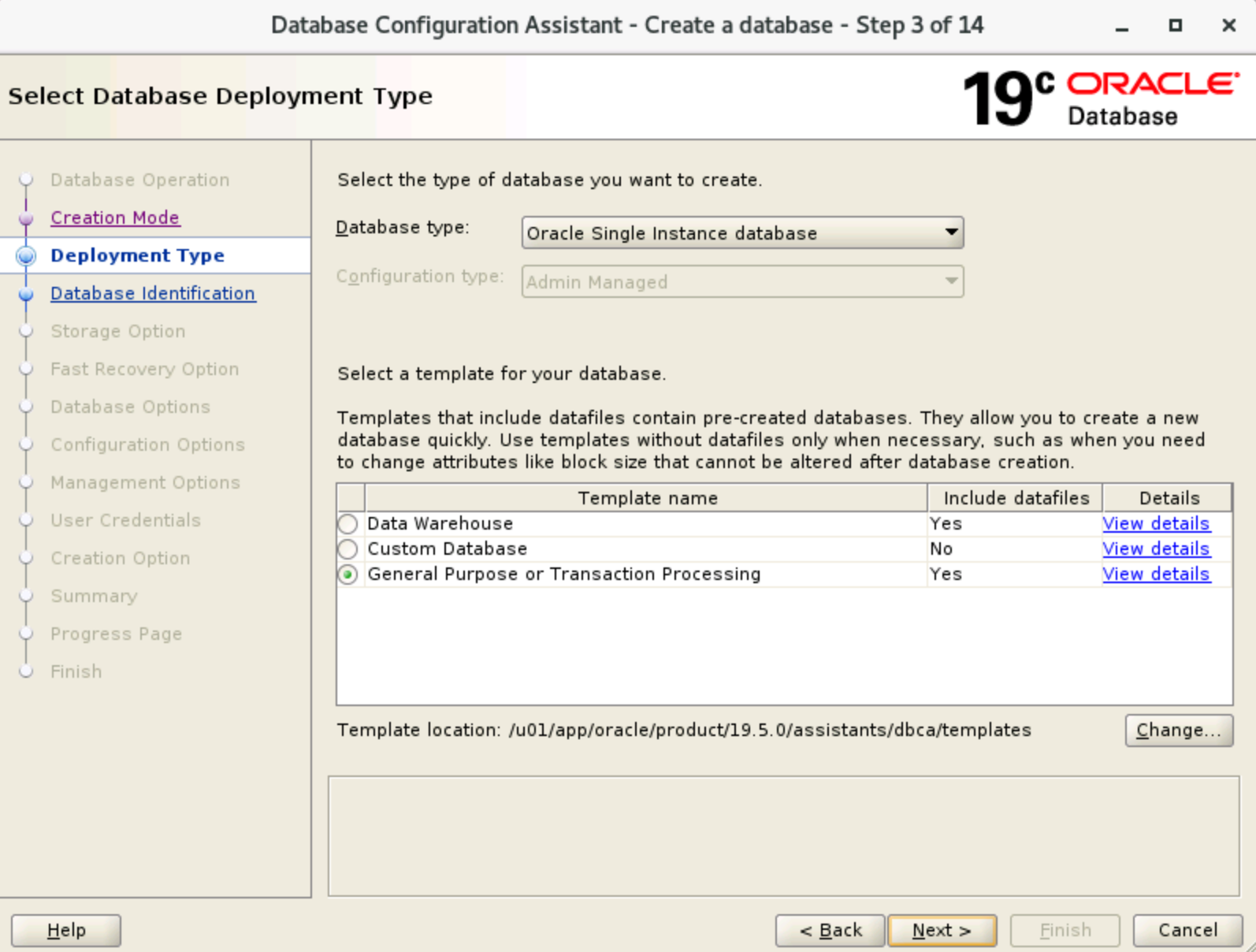
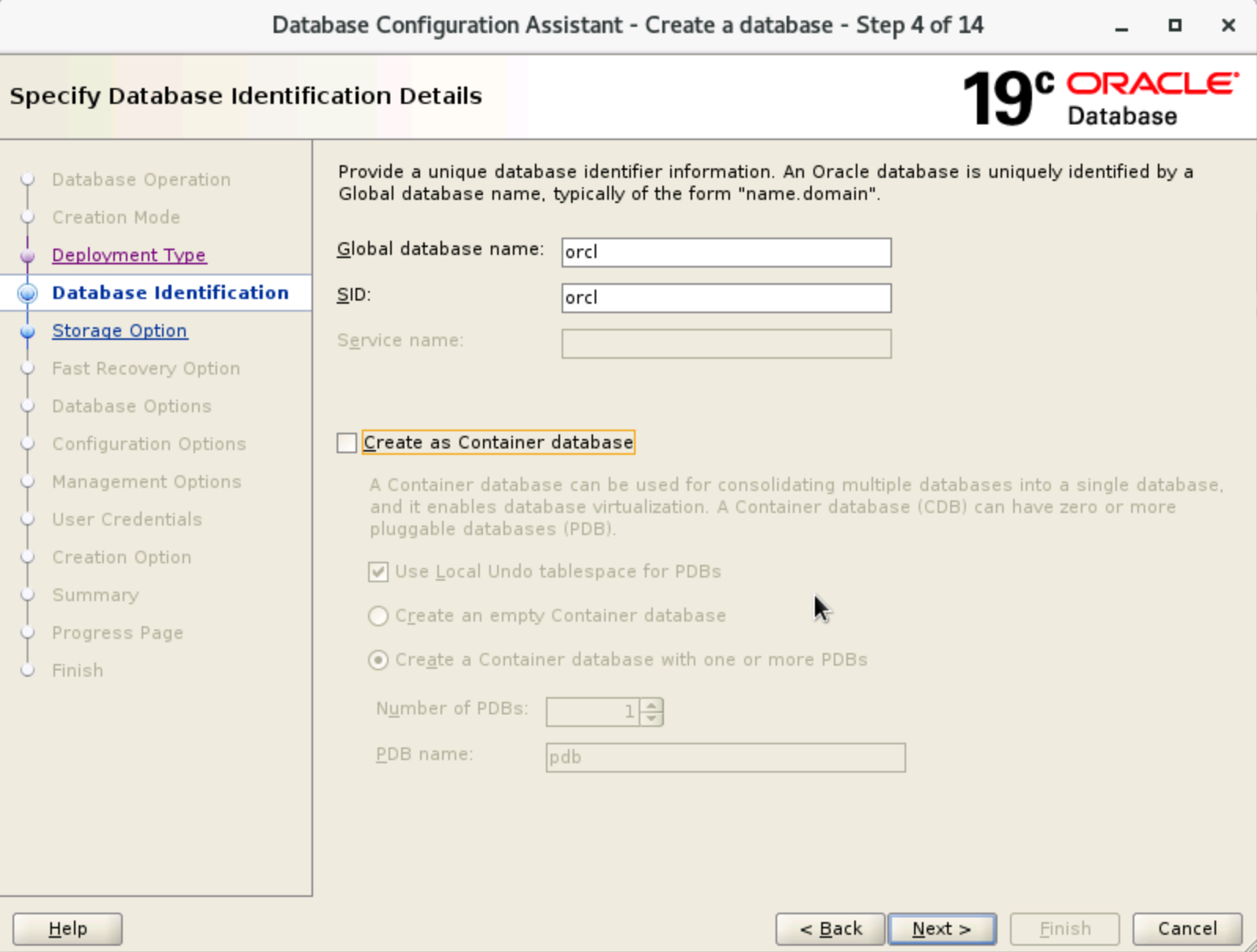
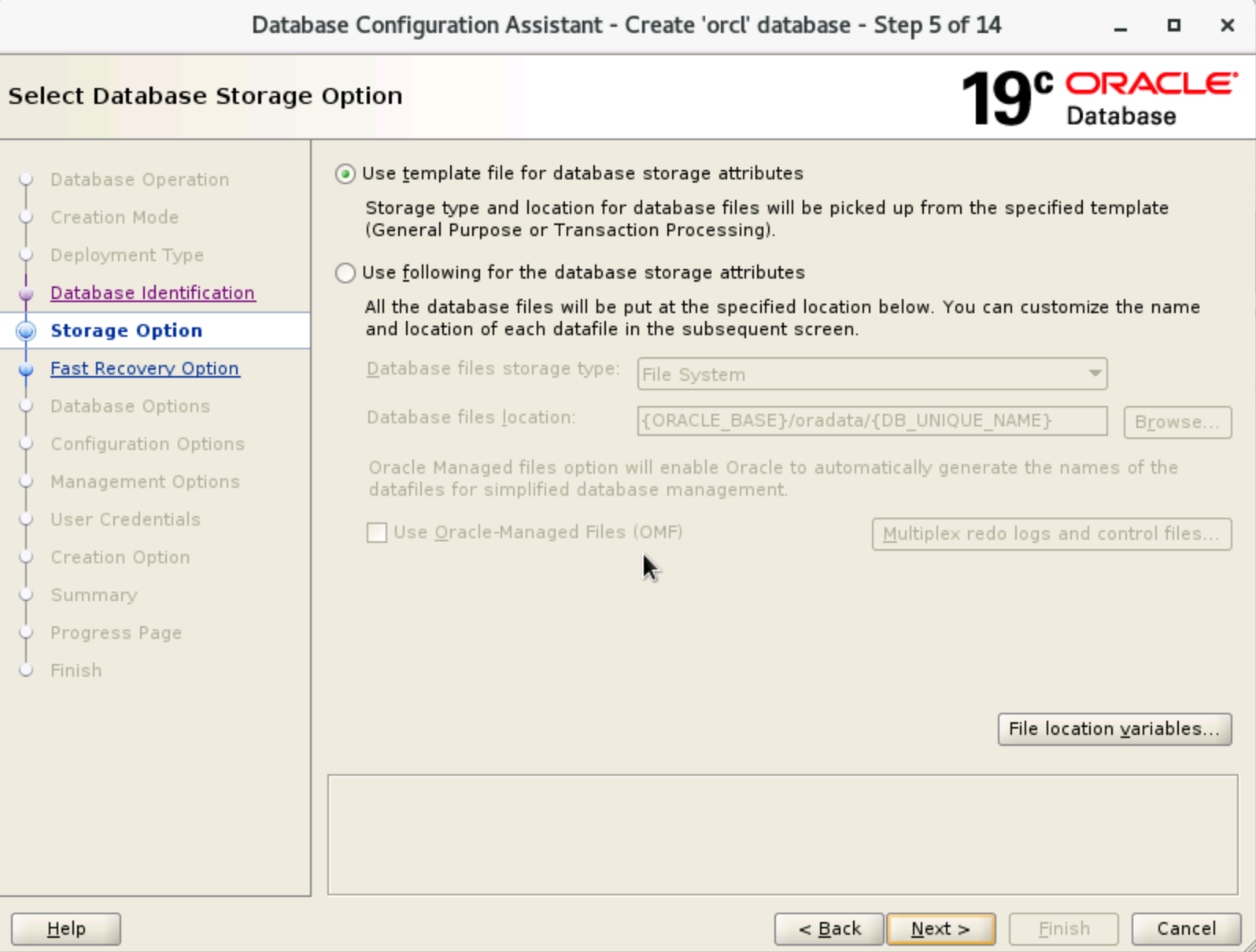
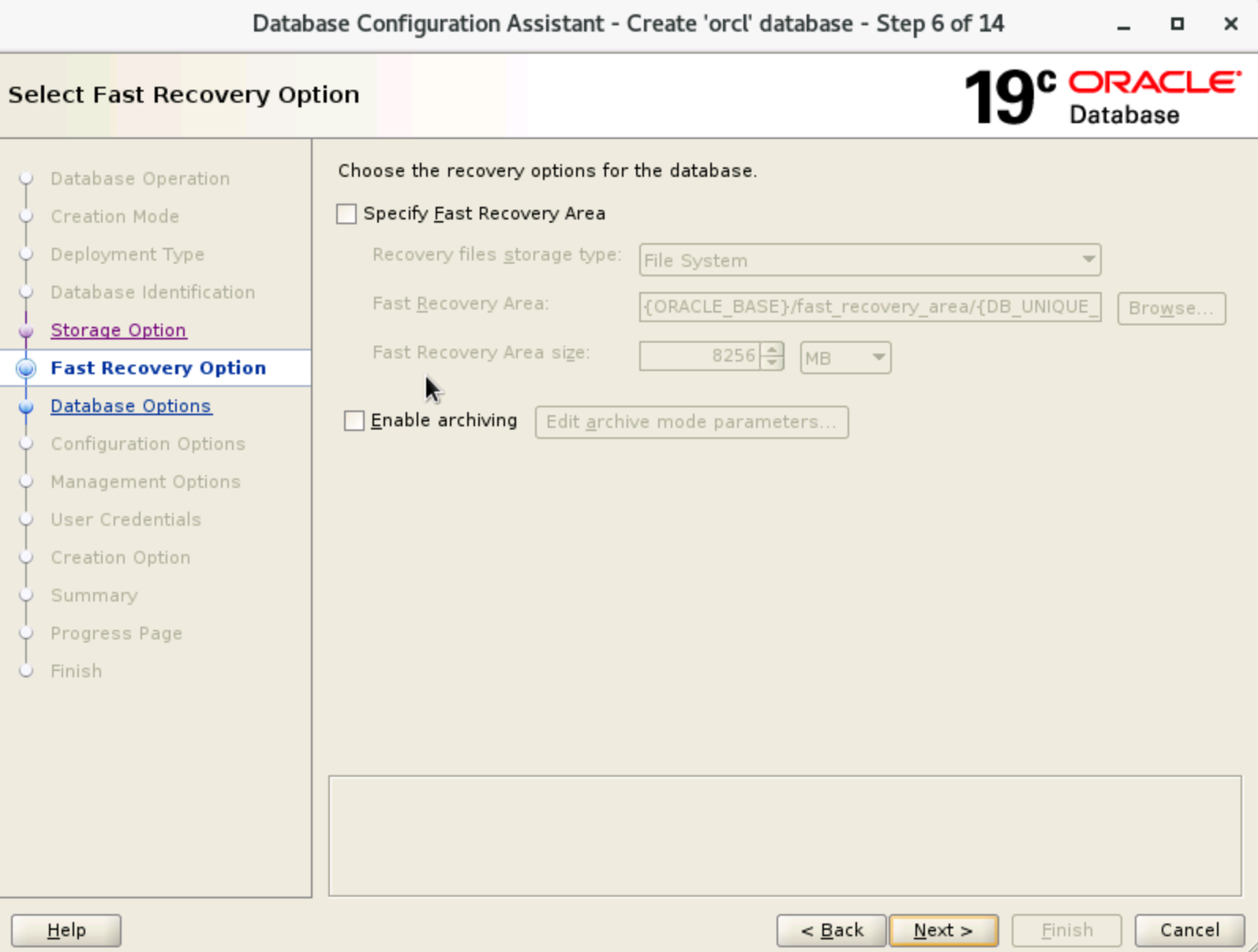
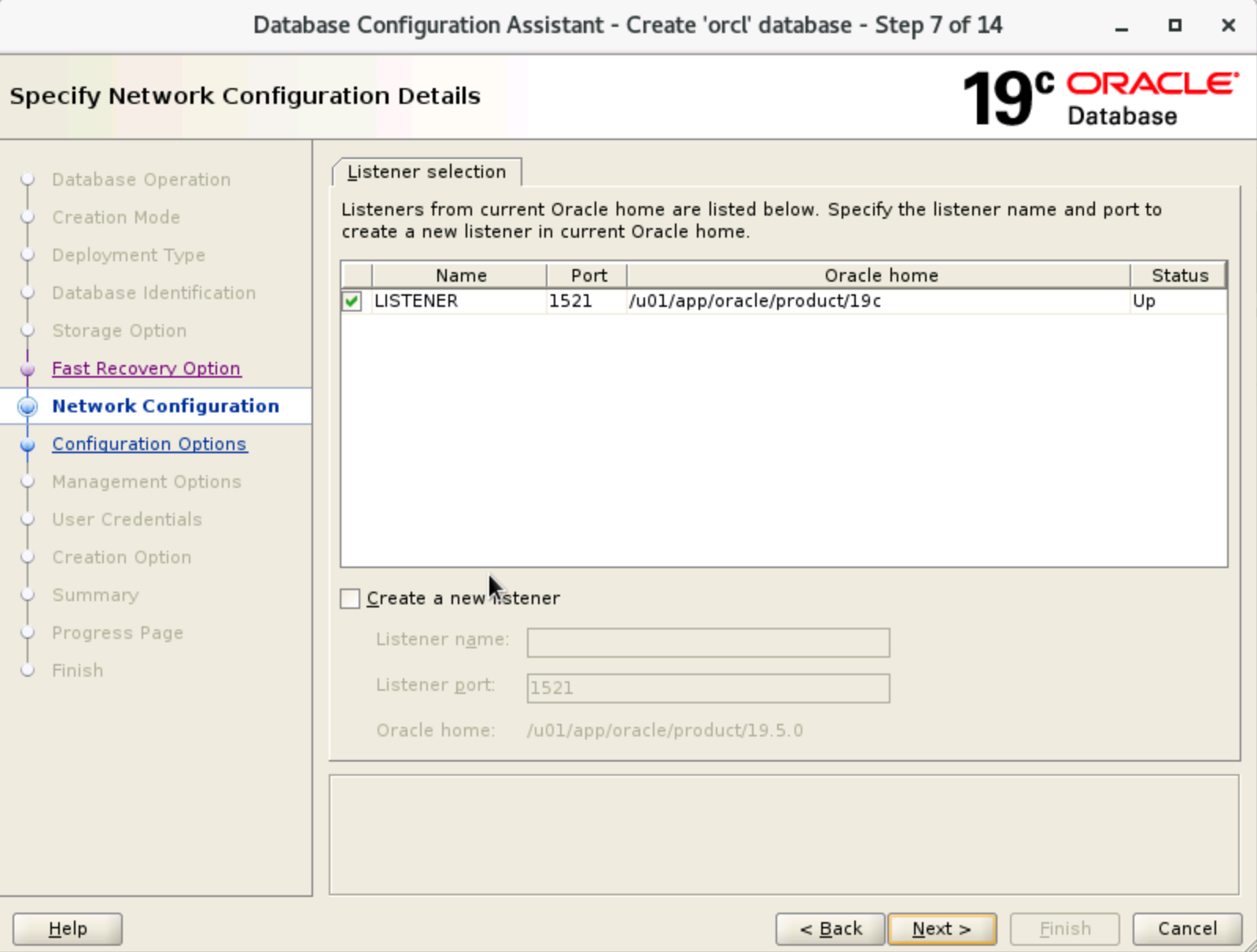
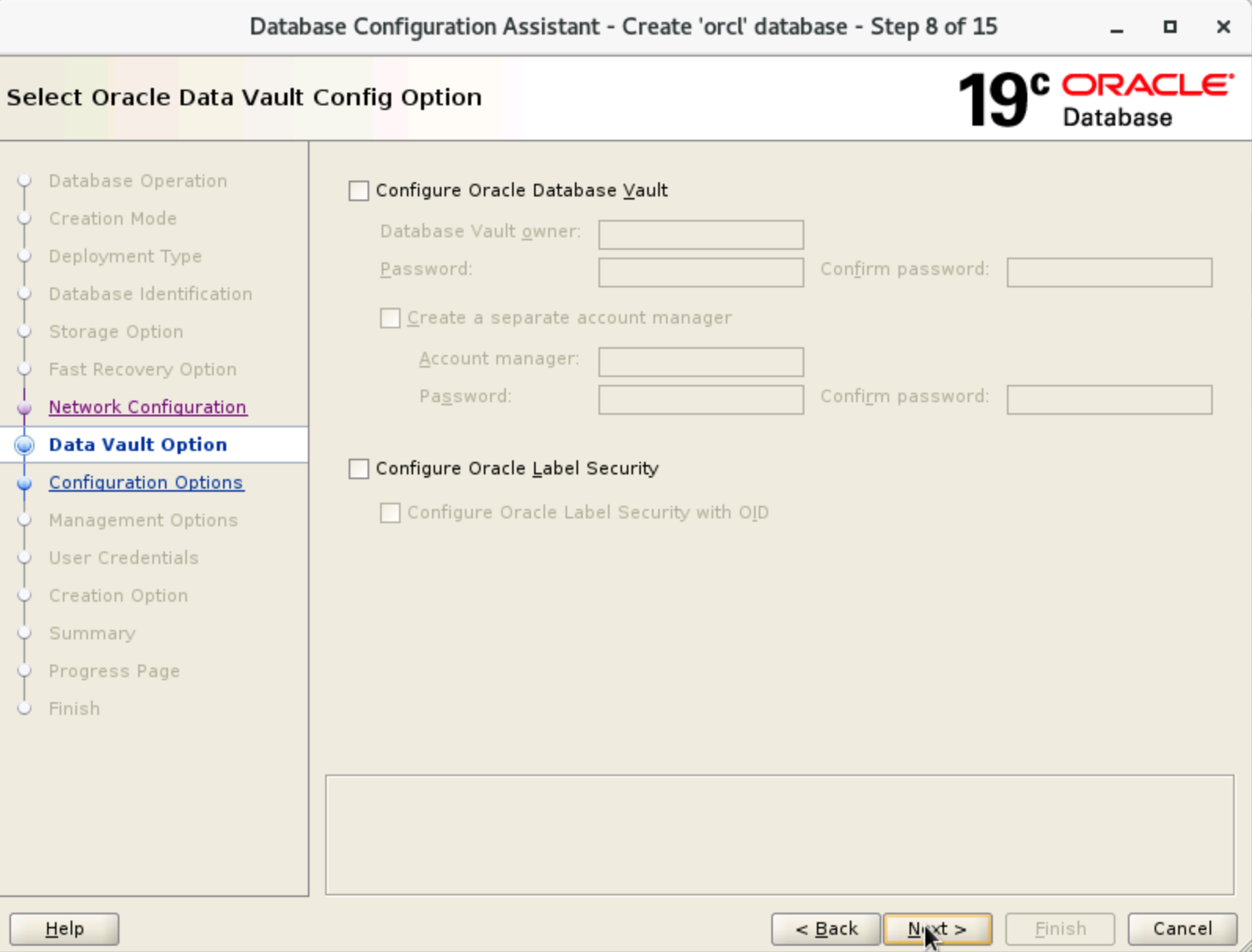
- In the windows from Step 3 to Step 8, keep the default configurations and click "Next" in sequence.
-
-
-
-
-
-
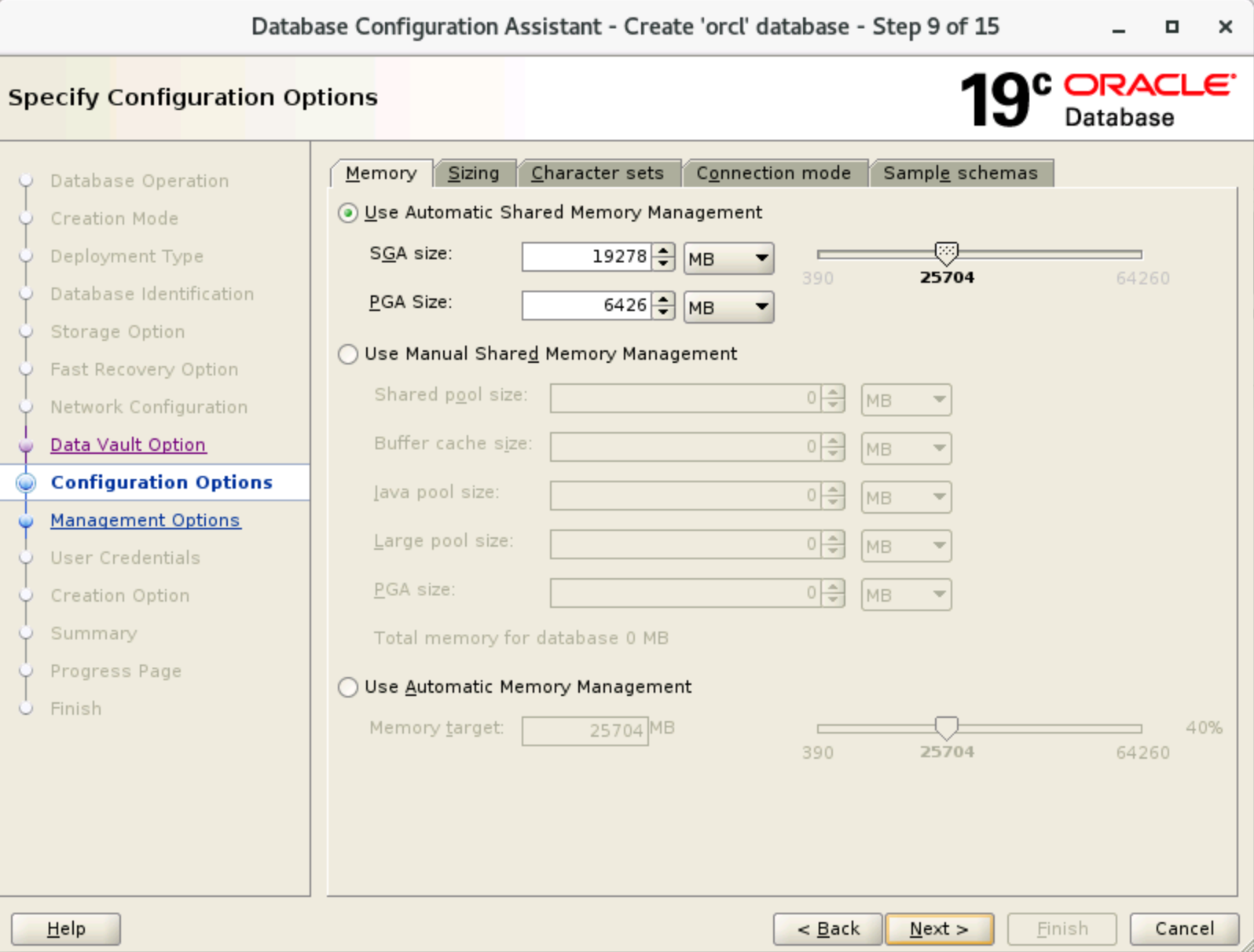
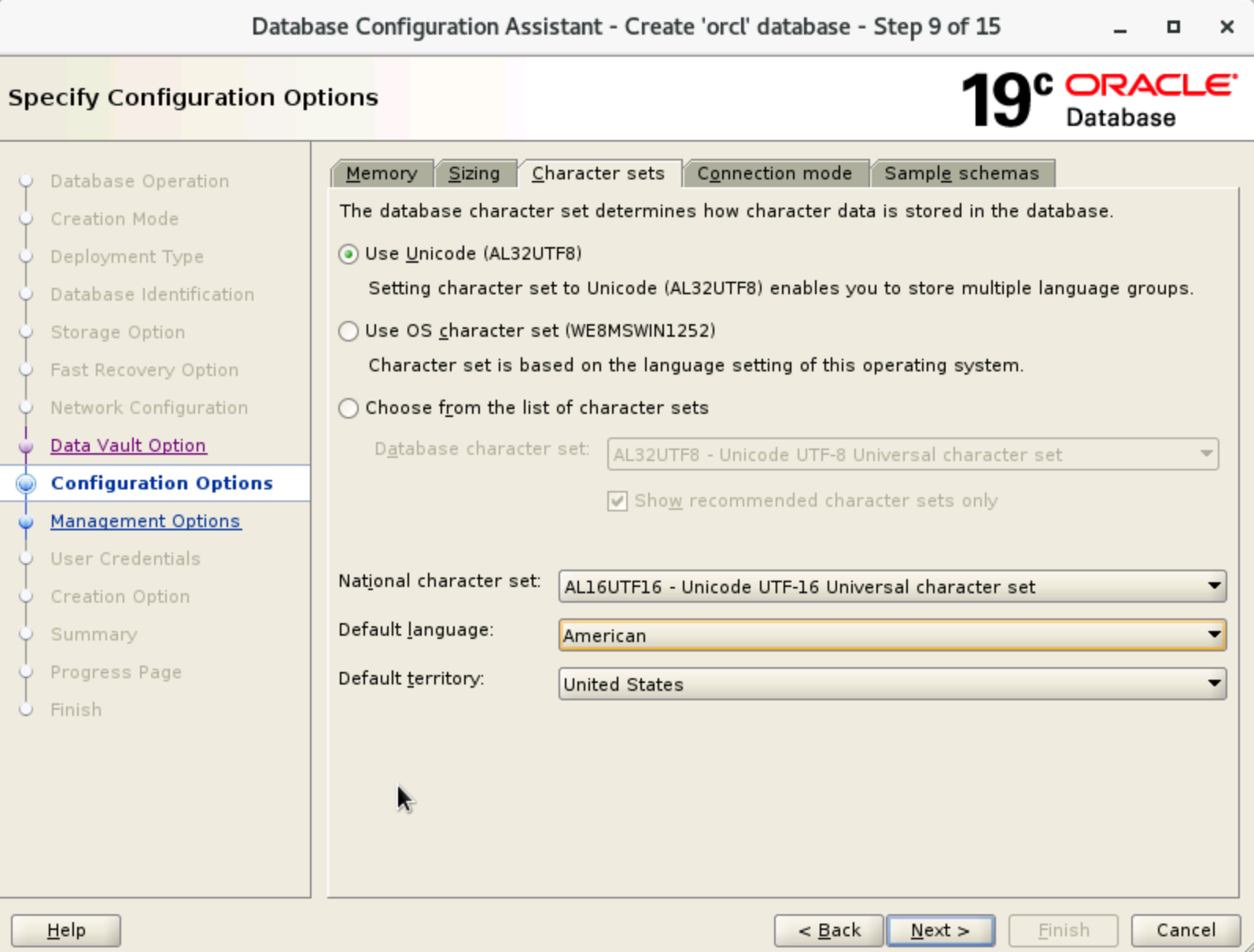
- In the "Specify Configuration Options" window, configure memory and character set in sequence as needed. This topic uses the default configuration as an example. After configurations are completed, click "Next".
-
-
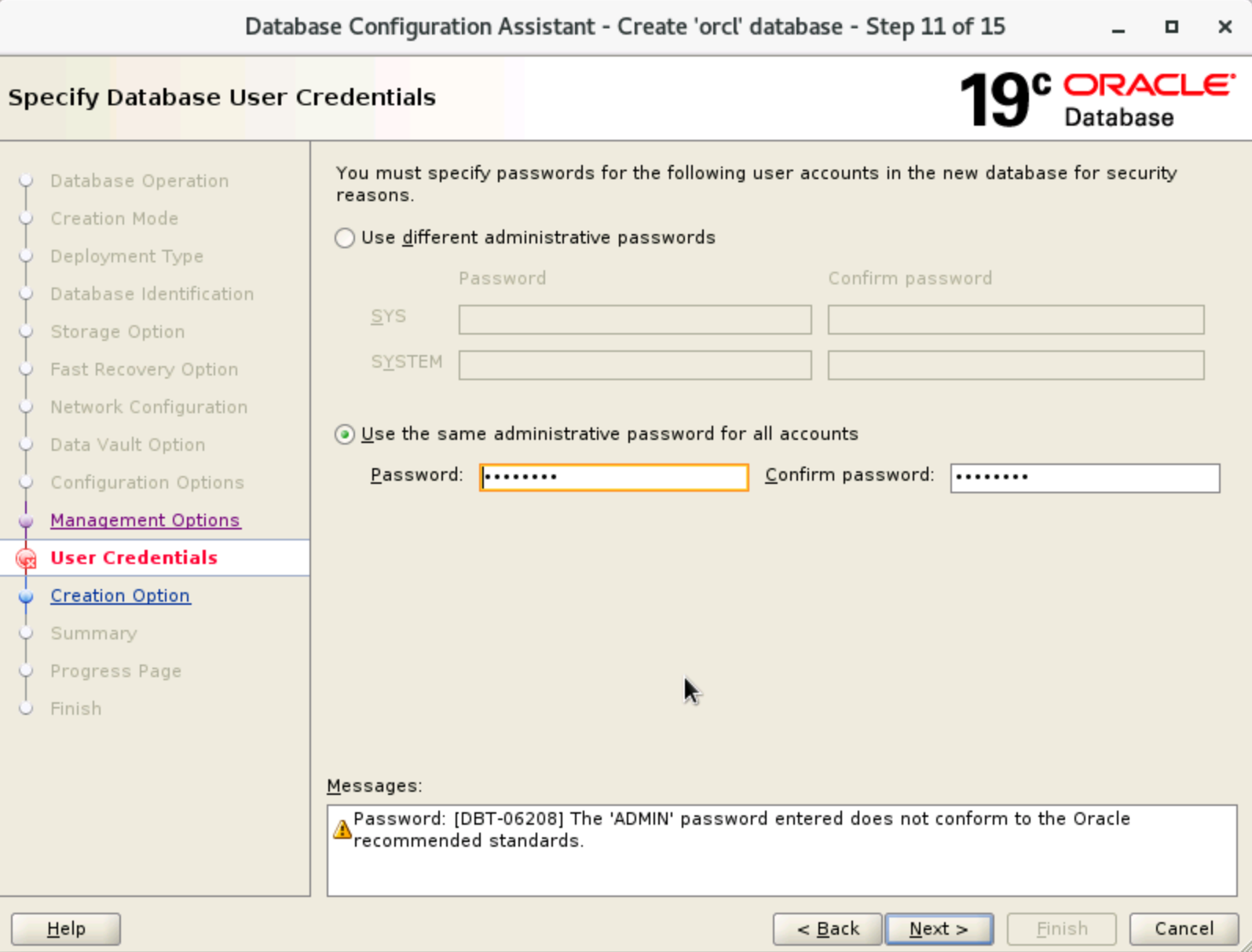
- In the "Specify database user credentials" window, select "Use the same administrative password for all accounts", set the password, and then click "Next".
-
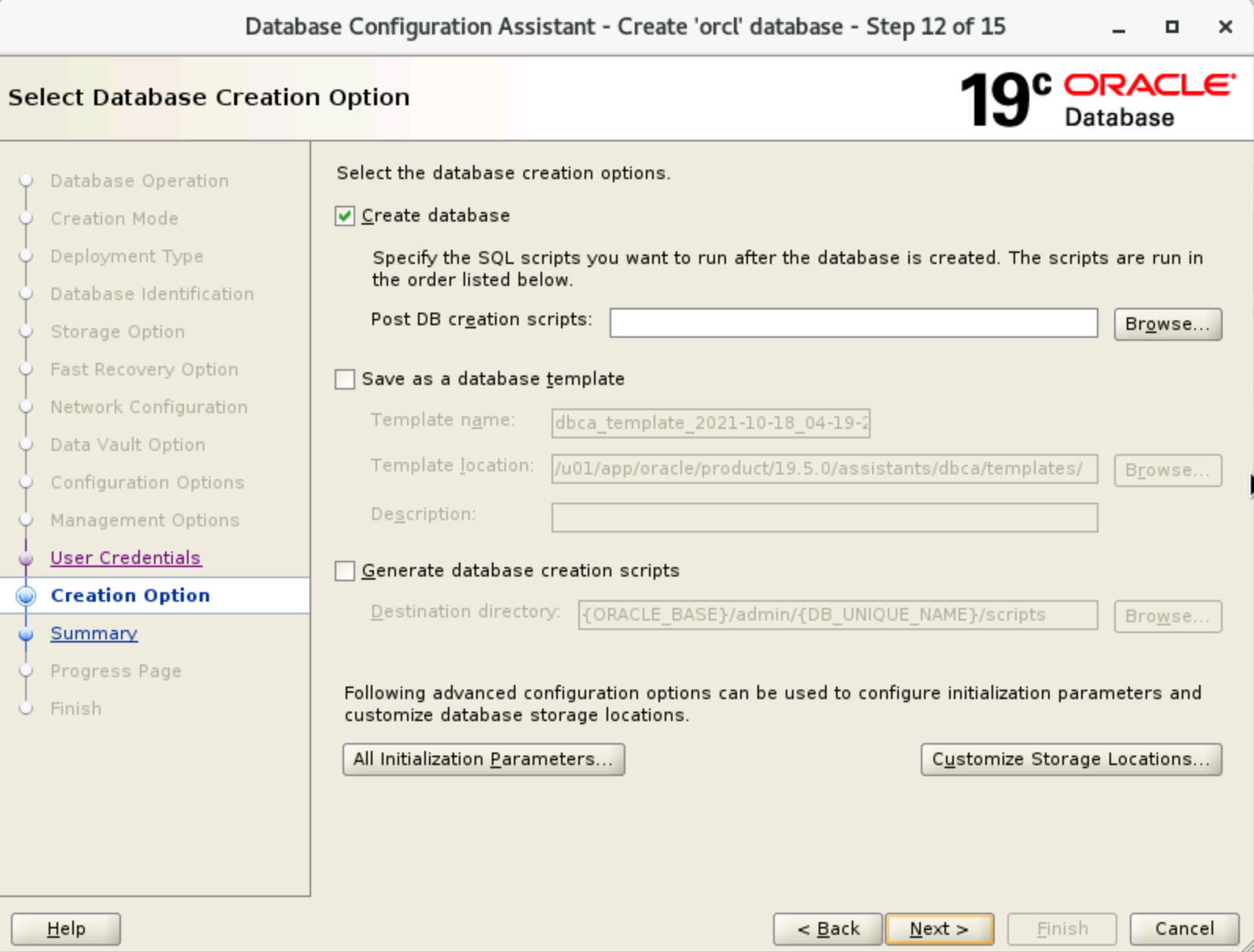
- In the "Select Database Creation option" window, keep the default configuration, and then click "Next".
-
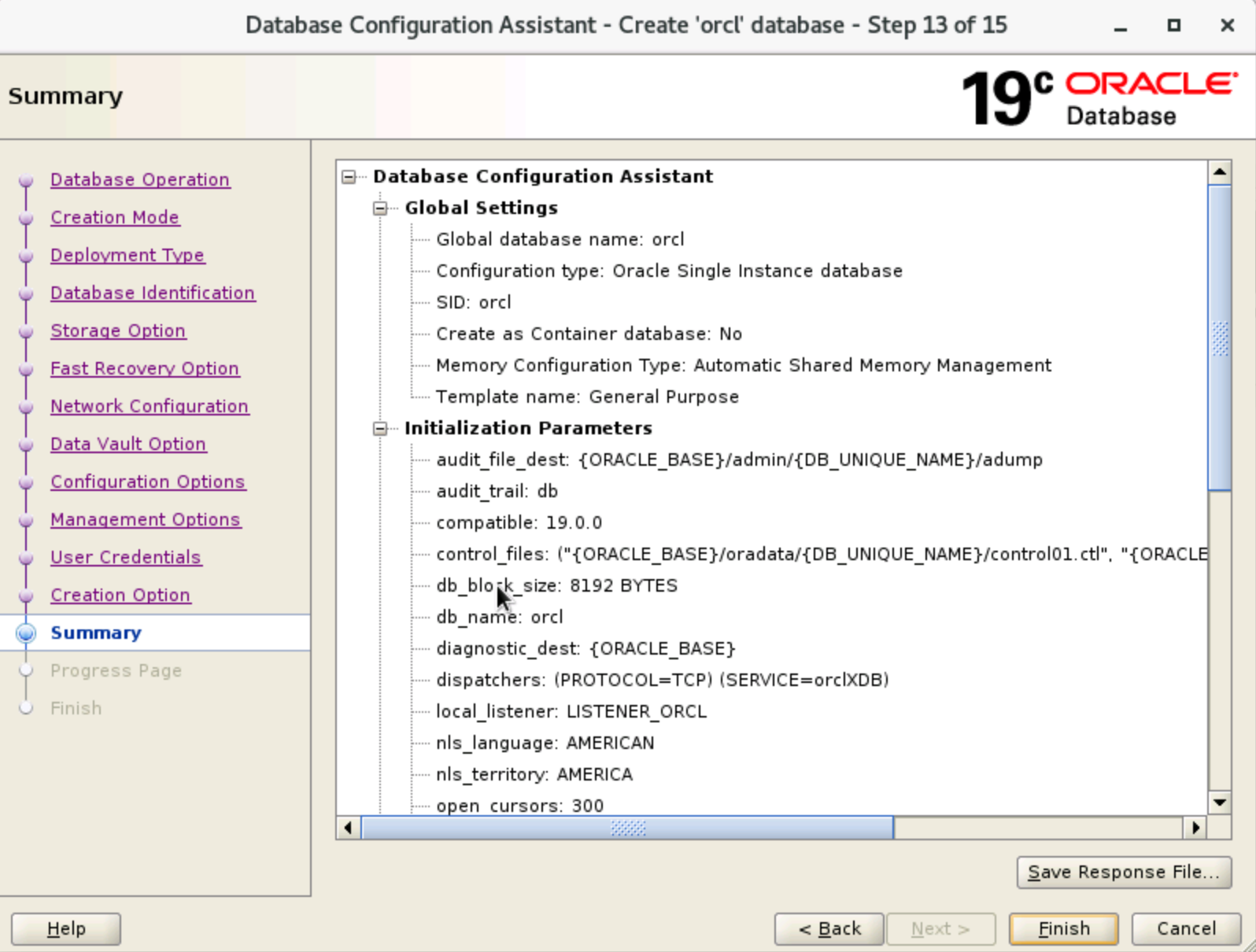
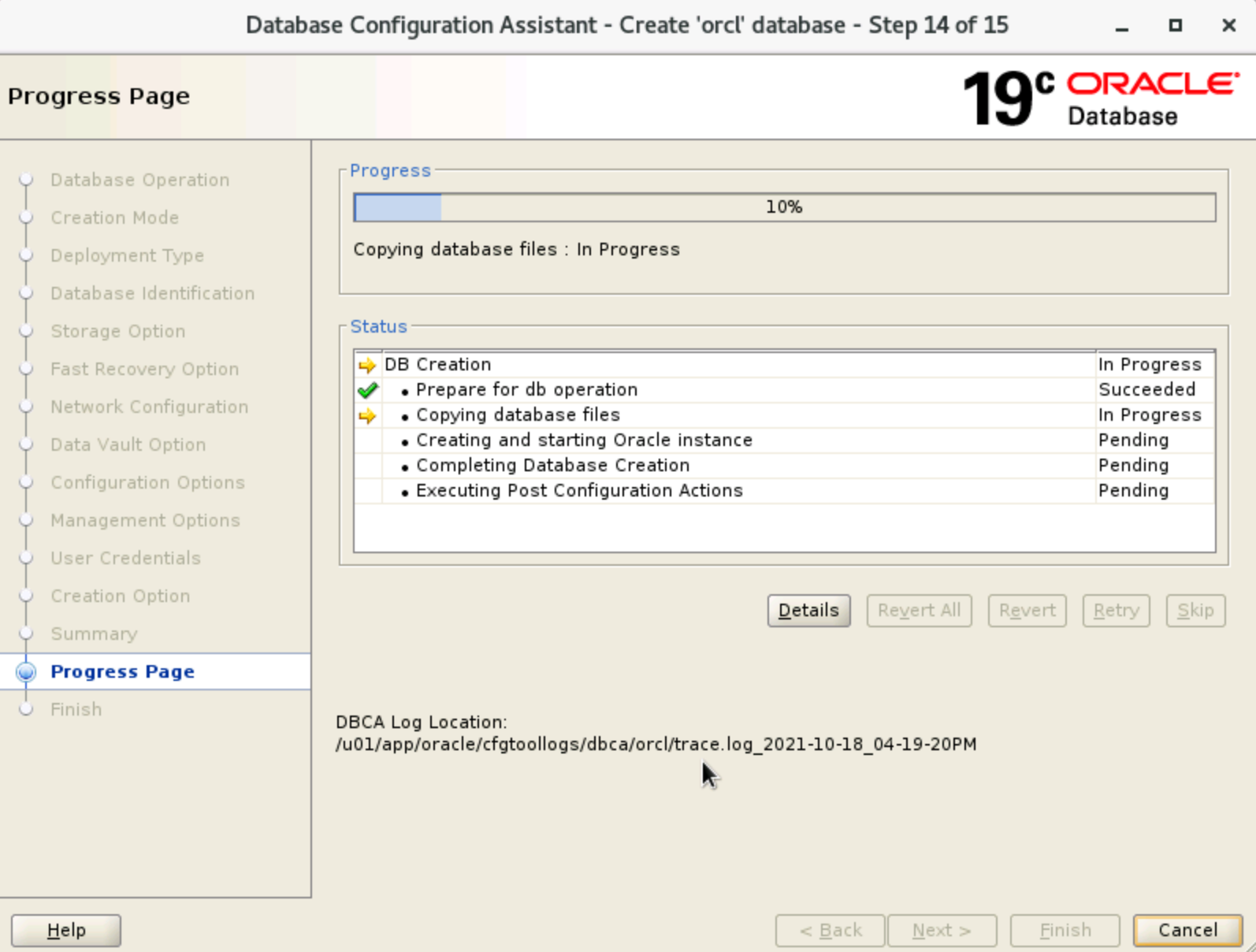
- In the "Summary" window, click "Finish" to start creating the database.
-
-
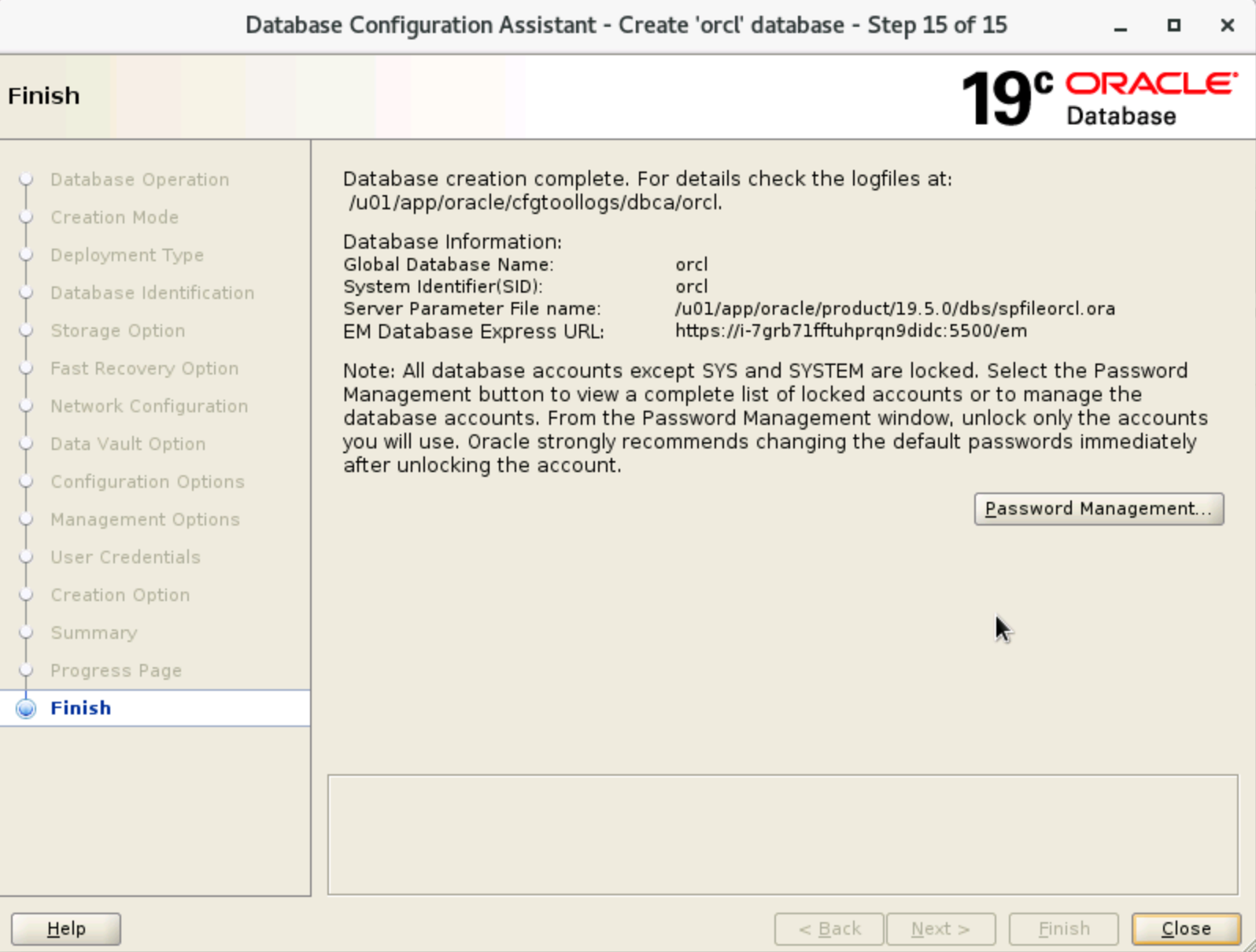
- In the "Finish" window, click "Close" to complete the creation process.
-
Step 4: Verify the database
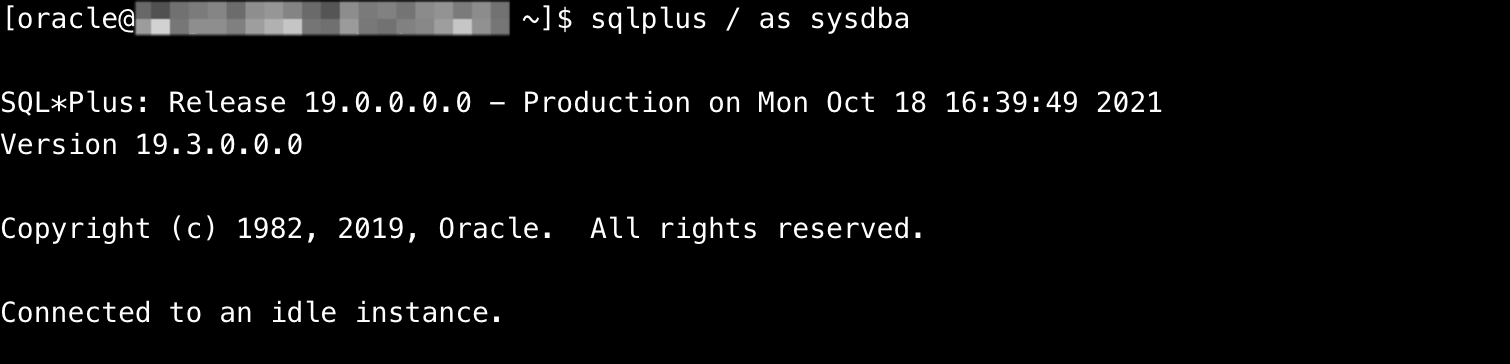
Execute the sqlplus / as sysdba command as the oracle user to connect to the database.
You can execute the su - oracle command to switch to the oracle user.
If the following output is returned, the database is created.
Last updated: 2026.06.18 17:48:26
All rights reserved © Beijing Volcano Engine Technology Co., Ltd2024
